
Raspberry Pi Pico - LED Module
The little green LED soldered on the Pico board is handy for a first test, but it is tiny and hidden under your wires once a project is built. When you want a status light that people can actually see from across the room, a 10mm LED module is an easy upgrade: it plugs into three Pico pins, and it needs no resistor and no thinking about LED legs.
In this guide, we will learn to set up and use the LED module with the Raspberry Pi Pico. We will cover the following details:
- What is on the LED module board, and why the Pico can drive it straight from a GPIO pin.
- How to connect the LED module to the Raspberry Pi Pico.
- How to write MicroPython code that switches the LED module on and off, and shows its state in the Thonny Shell.
- How to use the Pico's PWM hardware to fade the LED module up and down.
Hardware Preparation
| 1 | × | Raspberry Pi Pico W | |
| 1 | × | Raspberry Pi Pico Alternatively, | |
| 1 | × | Micro USB Cable | |
| 1 | × | LED Module | |
| 1 | × | Breadboard | |
| 1 | × | Jumper Wires | |
| 1 | × | Recommended: Screw Terminal Expansion Board for Raspberry Pi Pico |
Or you can buy the following kits:
| 1 | × | DIYables Sensor Kit (18 sensors/displays) |
Additionally, some of these links are for products from our own brand, DIYables .
Buy Note: Use the LED Module for easier wiring. It includes an integrated resistor.
Overview of LED Module
This module is a 10mm diffused LED that already has its helpers on board. A 330Ω resistor limits the LED current, and a small transistor does the switching. The LED gets its power from the VCC pin. The Pico's IN signal only tells the transistor "on" or "off", through a 1KΩ resistor, so the GPIO pin gives almost no current. This matters on the Pico: its GPIO pins work at 3.3 volts and are made for small currents, but the LED still shines at full brightness because the transistor does the heavy work.
The board is 20mm x 20mm and comes in a pack of five colors: red, yellow, blue, green and white. Every color uses the same wiring and the same code.
| LED Module | |
|---|---|
| LED | 10mm, round, diffused |
| Colors | red, yellow, blue, green, white |
| Operating Voltage | 3.3V to 5V DC |
| Logic | active HIGH (IN = 1 means ON) |
| On-board Parts | 330Ω LED resistor, 1KΩ input resistor, transistor |
| Header | 3-pin, 2.54mm pitch, right-angle, presoldered |
| Board Size | 20mm x 20mm |
Pinout
The pins are printed on the board in this order: GND, VCC, IN.
- GND pin: connect to GND (0 volts)
- VCC pin: connect to VCC (3.3 volts or 5 volts). This pin powers the LED.
- IN pin: connect to a Raspberry Pi Pico GPIO pin. Set it to 1 to light the LED, set it to 0 to turn it off. Send a PWM signal to change the brightness.
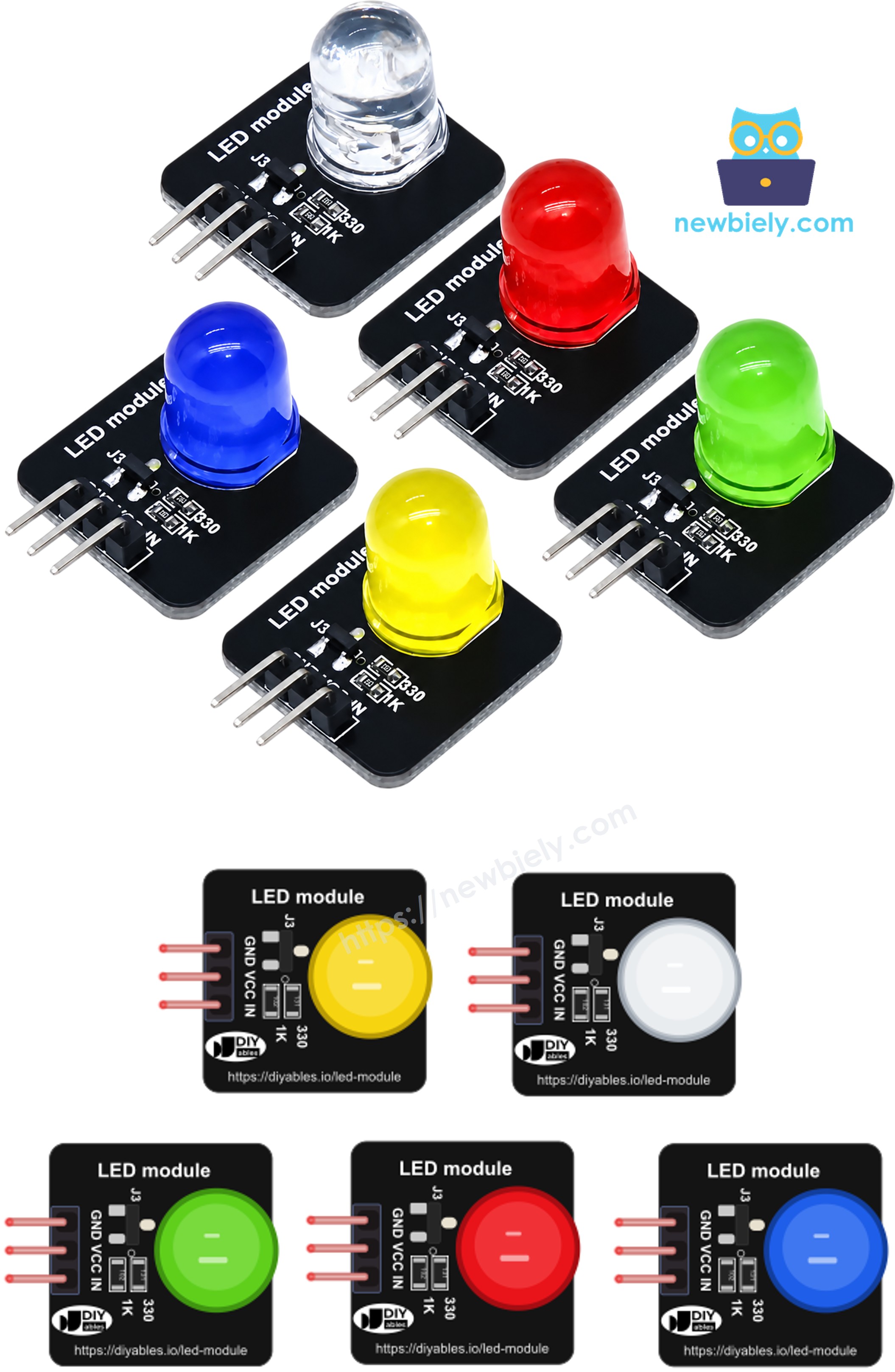
Compared with a bare LED, there is nothing to get wrong here. A bare LED has an anode and a cathode that must go the right way round, and it needs a series resistor (like the 220 ohm one in our blink LED tutorial). The module has labeled pins and the resistor is already on it.
Wiring Diagram
Only three wires are needed. Take power from the Pico's 3V3(OUT) pin, so the whole circuit stays at the same 3.3 volt level as the Pico's GPIO pins. For the IN pin we use GP13, the same pin as our other Pico LED tutorials. Like almost every Pico GPIO pin, GP13 can output PWM, so the same wiring works for both the blink code and the fade code.
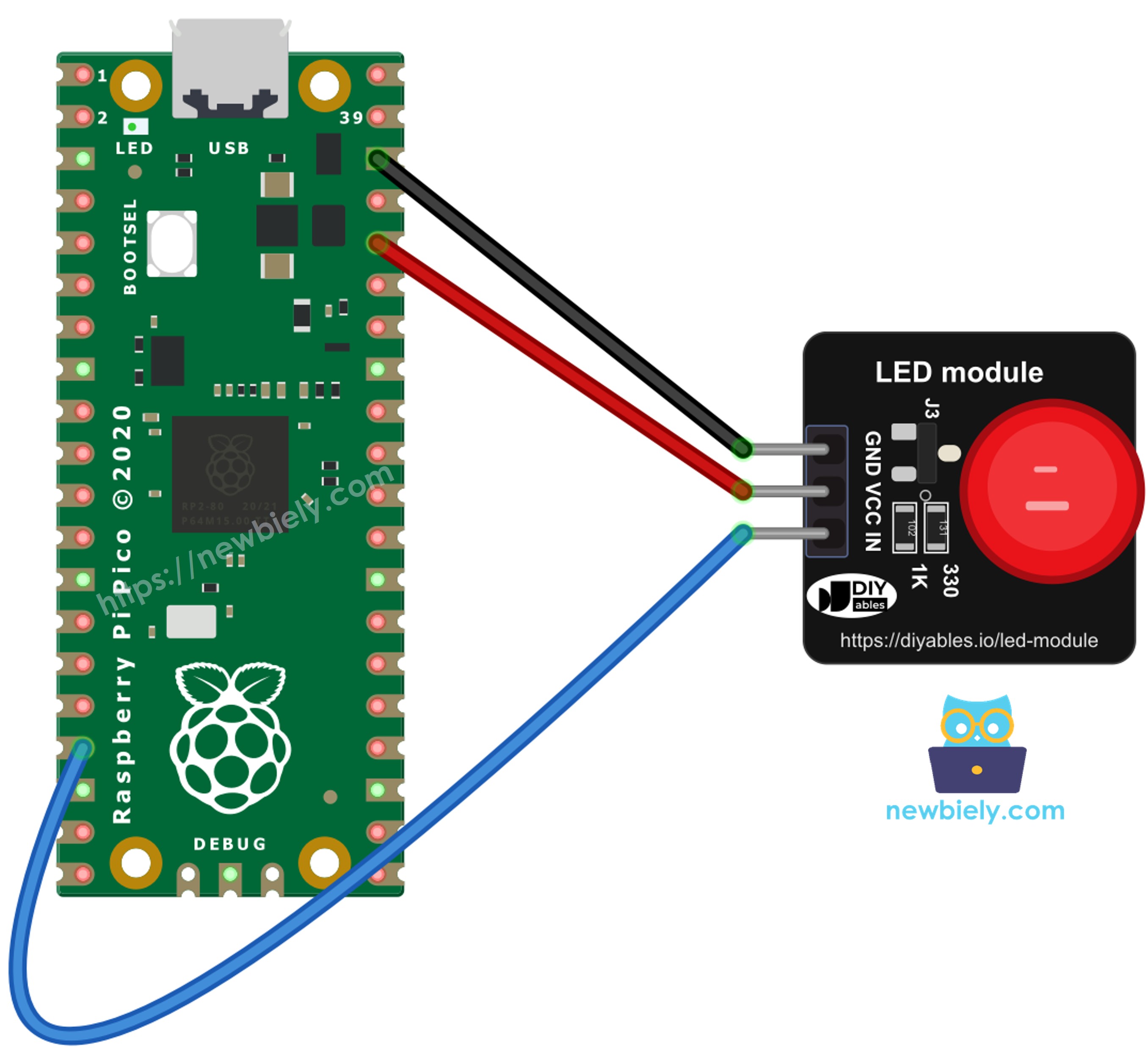
This image is created using Fritzing. Click to enlarge image
| LED Module | Raspberry Pi Pico |
|---|---|
| GND | GND |
| VCC | 3V3(OUT) |
| IN | GP13 |
Raspberry Pi Pico Code - Blink the LED Module
This script sets GP13 as a digital output and toggles it every second. Each change is also printed, so you can compare the Thonny Shell with the light on your desk.
Detailed Instructions
Please follow these instructions step by step:
- Ensure that Thonny IDE is installed on your computer.
- Ensure that MicroPython firmware is installed on your Raspberry Pi Pico.
- If this is your first time using a Raspberry Pico, refer to the Raspberry Pi Pico - Getting Started tutorial for detailed instructions.
- Wire the LED module to the Raspberry Pi Pico as shown in the diagram above.
- Connect the Raspberry Pi Pico to your computer using a USB cable.
- Launch the Thonny IDE on your computer.
- On Thonny IDE, select MicroPython (Raspberry Pi Pico) Interpreter by navigating to Tools Options.
- In the Interpreter tab, select MicroPython (Raspberry Pi Pico) from the drop-down menu.
- Ensure the correct port is selected. Thonny IDE should automatically detect the port, but you may need to select it manually (e.g., COM3 on Windows or /dev/ttyACM0 on Linux).
- Copy the above code and paste it to the Thonny IDE's editor.
- Save the script to your Raspberry Pi Pico by:
- Click the Save button, or use Ctrl+S keys.
- In the save dialog, you will see two sections: This computer and Raspberry Pi Pico. Select Raspberry Pi Pico
- Save the file as main.py
- Click the green Run button (or press F5) to run the script. The script will execute.
- Watch the LED module: it lights for one second, then goes dark for one second, again and again.
- Look at the Shell at the bottom of Thonny. A new line appears each time the LED changes:
If nothing lights up but the Shell still prints, check the VCC wire first. The IN pin only switches the LED, so without power on VCC the LED stays dark.
If you name your script main.py and save it to the root directory of the Raspberry Pi Pico, it will automatically run each time the Pico is powered on or reset. Here this is very useful: unplug the Pico from the computer, power it from a USB phone charger, and the LED module keeps blinking as a "the board is alive" light, with no computer needed.
Raspberry Pi Pico Code - Fade the LED Module
Because the module turns on when IN is HIGH, a PWM signal on IN changes how long the LED is on in each tiny cycle, and our eyes see that as brightness. The Pico sets PWM with duty_u16(), which takes a 16-bit number from 0 to 65535. To make the code easier to read, the script below works in percent (0 to 100) and converts it in a small helper function.
Detailed Instructions
The wiring stays the same, so only the code changes:
- Stop the running script with the red Stop button in Thonny.
- Copy the fade code above and paste it into the editor, replacing the blink code.
- Save it to the Raspberry Pi Pico as main.py (this overwrites the blink script).
- Click the green Run button (or press F5).
- The LED module slowly gets brighter, then slowly dims, in a loop of about two seconds. The Shell shows each brightness step:
Want a slower "breathing" effect? Change sleep(0.05) to sleep(0.1). Want smoother steps? Change the step size 5 in both range() lines to 1 or 2.
Code Explanation
The comments inside both scripts explain each line. In short: the blink script writes 1 or 0 to GP13 with value(), and the fade script hands GP13 to the PWM class at 1kHz and changes the duty value step by step. If you want to see how the same PWM idea works with a plain LED and a resistor, read the Raspberry Pi Pico - Fade LED tutorial.
※ NOTE THAT:
Both scripts use sleep(), so the Pico does nothing else while it waits. That is fine for a simple light. If your project must also read buttons or sensors at the same time, see Raspberry Pi Pico - Blink LED Without Sleep.