
ESP32 MicroPython Button Module
This tutorial instructs you how to use the button module with the ESP32 and MicroPython, step by step in Thonny. In detail, we will learn:
- Why the button module is easier to use than a bare push button, and why its VCC pin must go to 3.3V on the ESP32.
- How to wire the VCC, OUT and GND pins of the button module to the ESP32.
- How to write MicroPython code that prints the level of the OUT pin, so you can see 1 and 0 in the Shell.
- How to catch each press and each release, using a short pause to filter out contact bounce.
- How to let the DIYables-MicroPython-Button library do the debouncing for you, without pausing the loop.
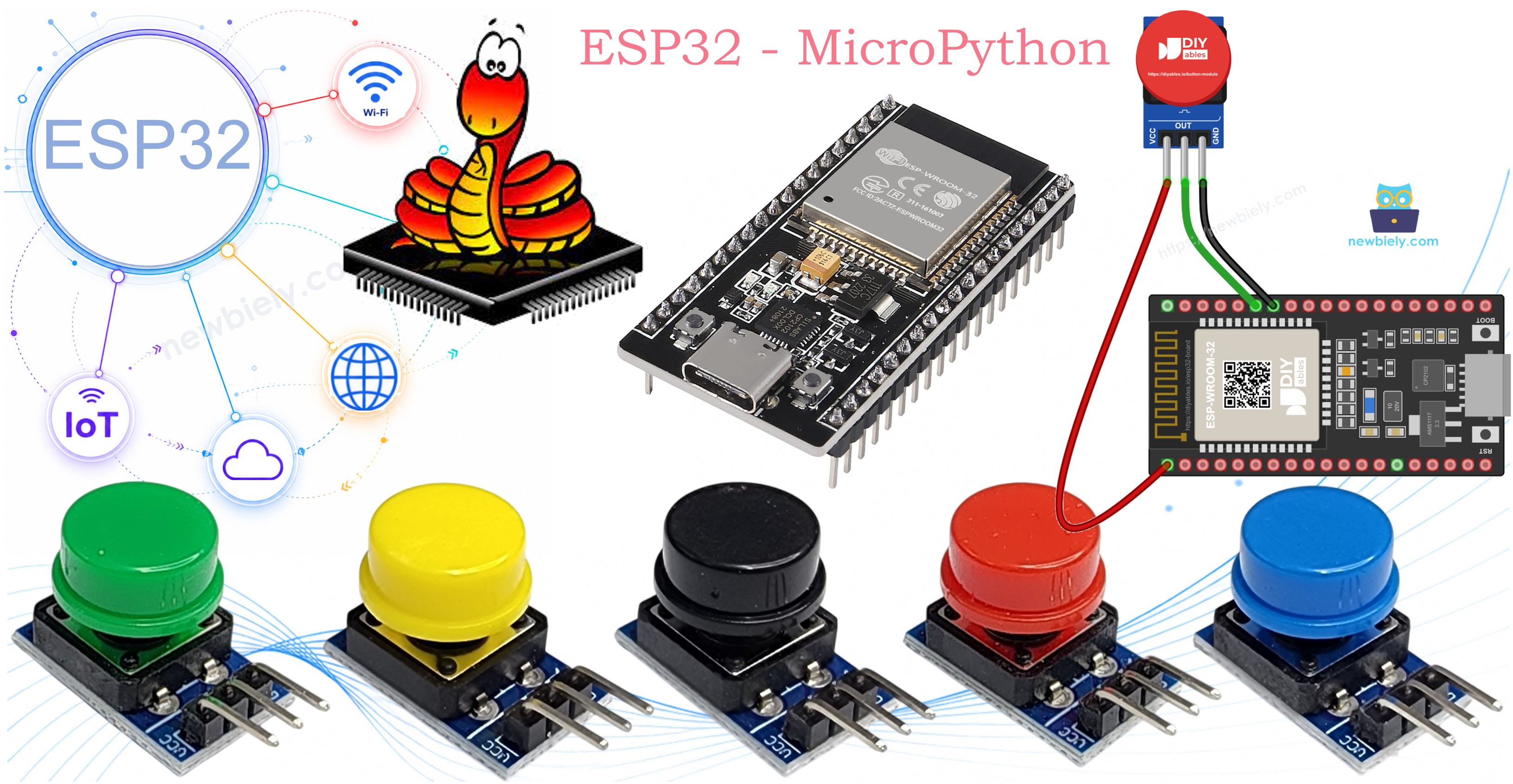
Hardware Preparation
Or you can buy the following kits:
| 1 | × | DIYables ESP32 Starter Kit (ESP32 included) | |
| 1 | × | DIYables ESP32 S3 Starter Kit (ESP32 S3 included) | |
| 1 | × | DIYables Sensor Kit (18 sensors/displays) |
Additionally, some of these links are for products from our own brand, DIYables .
Overview of Button Module
Think of the button module as a push button that brings its own resistor. The tactile switch, its colored cap and a pull-down resistor all sit on one small board, so the ESP32 always reads a clean 0 when nobody touches it and a 1 while a finger holds it down. One thing every switch still does: the metal contacts bounce for a few milliseconds when they close or open. To the ESP32, one press can look like two or three quick presses, which is why this tutorial shows two ways to clean that up. The modules come in a pack of five cap colors: red, yellow, green, blue and white.
| Button Module | |
|---|---|
| Switch type | momentary tactile push button with colored cap |
| Operating voltage | 3.3V to 5V DC |
| Onboard parts | pull-down resistor on the OUT line |
| Output when released | LOW (0) |
| Output when pressed | HIGH (1), equal to the VCC voltage |
| Header | 3 pins, 2.54mm, labeled VCC, OUT, GND |
Pinout
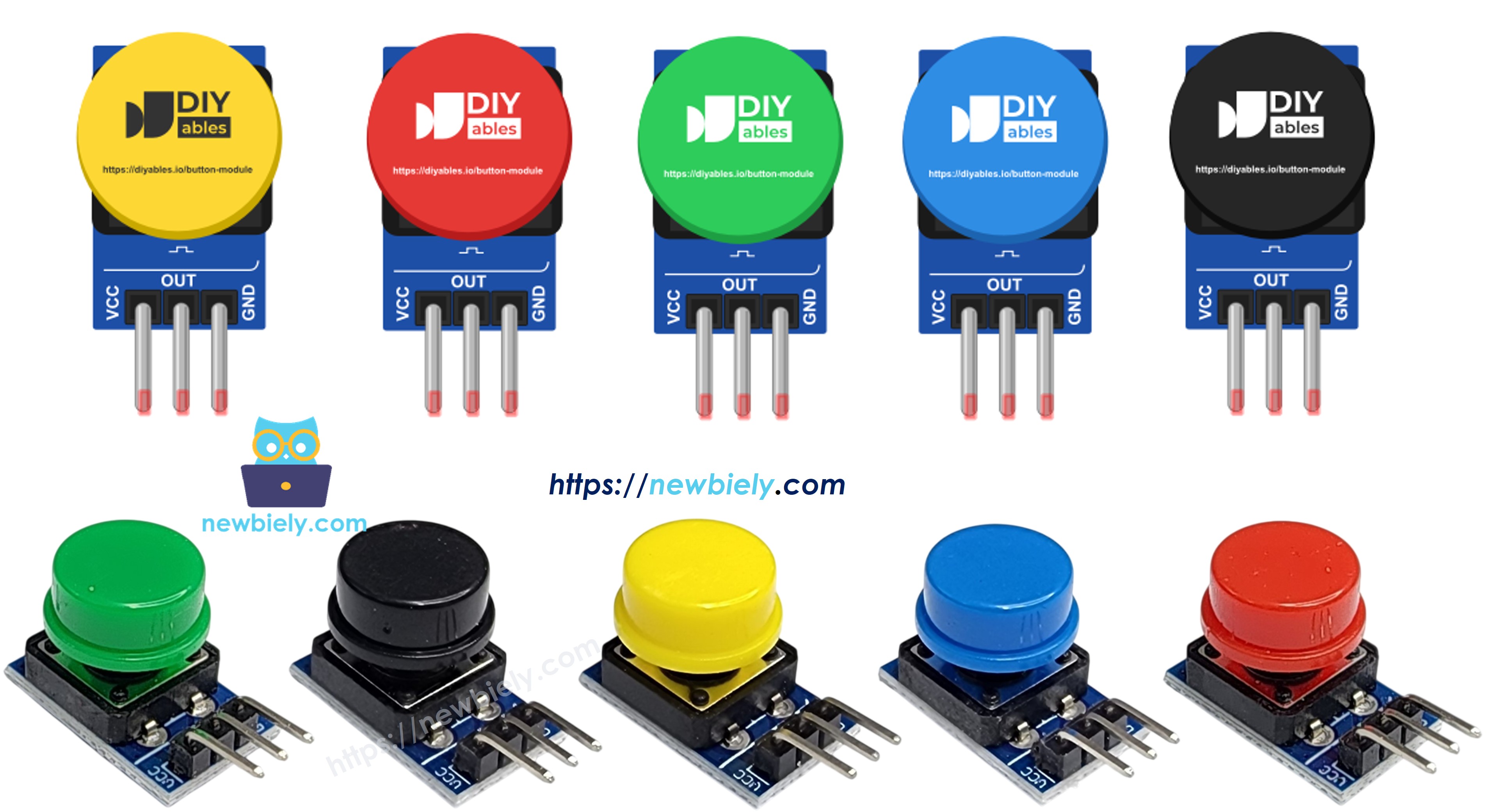
The header has three pins, labeled in this order:
- VCC pin: connect to the 3.3 volts pin of the ESP32. Do not use the VIN or 5V pin (see the warning below).
- OUT pin: connect to a GPIO pin of the ESP32. It reads 0 when the button is up and 1 when the button is down.
- GND pin: connect to GND (0 volts) of the ESP32.
※ NOTE THAT:
When you press the button, the OUT pin passes the VCC voltage straight to the ESP32 pin. The ESP32 GPIO pins are made for 3.3 volts only. If VCC is on VIN or 5V, every press pushes 5 volts into GPIO21, and that can damage the ESP32. Always power the module from 3.3V.
How is this different from a bare 4-leg push button? With the bare button, you must find out which legs are joined inside and add a pull-up or pull-down resistor (or turn on Pin.PULL_UP, which flips the logic so pressed reads 0). The module has labeled pins and its own pull-down, so pressed simply reads 1. For the same reason, do not turn on Pin.PULL_UP for this module: it would pull against the resistor on the board.
Wiring Diagram
Three jumper wires are enough. The OUT pin goes to GPIO21, the same pin the other ESP32 MicroPython button tutorials on this site use.
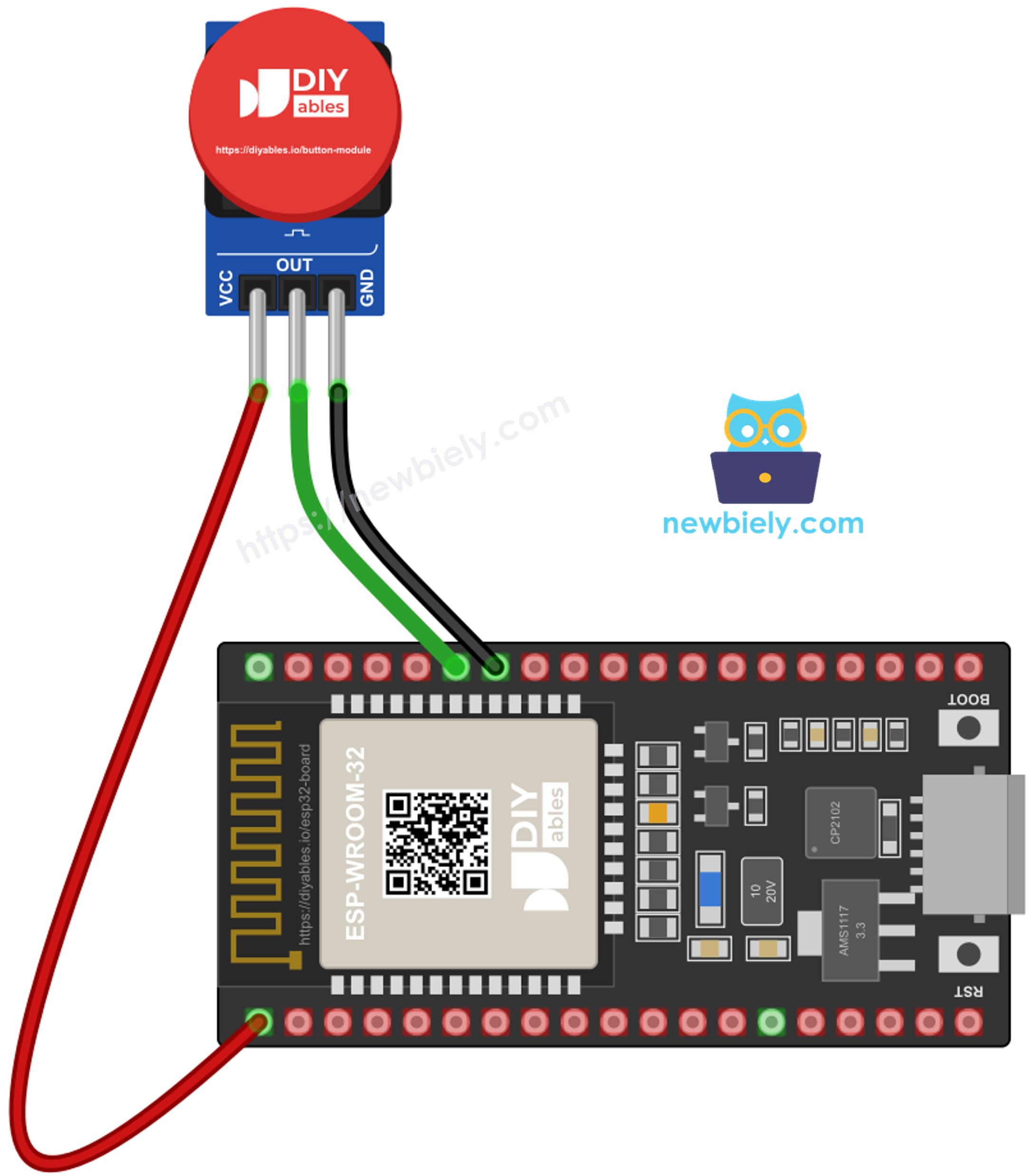
This image is created using Fritzing. Click to enlarge image
| Button Module Pin | ESP32 Pin |
|---|---|
| VCC | 3.3V (never VIN or 5V) |
| OUT | GPIO21 |
| GND | GND |
ESP32 MicroPython Code - Press and Release Events with a Delay
A level that stays at 1 is useful for "hold to run" jobs, but most projects want to know the moment something happens: a doorbell rings once per press, a game counts each tap. This script keeps the last level in last_level. When a new reading is different, it does not trust it right away. It sleeps 50 ms with time.sleep_ms(50), reads GPIO21 again, and only reports the change if it is still there. That second look hides the contact bounce. The cost is that sleep_ms() blocks: for those 50 ms, the loop cannot do anything else.
Detailed Instructions
Keep the same wiring.
- Click the red Stop button in Thonny to end the first script.
- Replace the code in the editor with the code above.
- Save it again to the MicroPython device as main.py.
- Press F5 to run it.
- Tap the button three times, quickly and then slowly.
- Each tap gives exactly two lines in the Shell:
Do you still see a double "pressed" now and then? Your button bounces longer than usual. Raise SETTLE_TIME_MS to 80 or 100.
ESP32 MicroPython Code - Button Module with the DIYables Library
The pause in the last script is fine for a small test. In a real project, the ESP32 often has other work in the same loop, such as reading a sensor or updating a display, and a blocked loop makes that work late. The DIYables-MicroPython-Button library solves this. It records the time of each change and only accepts a new level after it has stayed the same for the debounce time, so button.loop() returns at once and never sleeps.
The code creates the button with Button(21, Pin.PULL_DOWN). The Pin.PULL_DOWN mode tells the library that 1 means pressed, which matches the resistor on the module. After button.set_debounce_time(50), every pass of the while loop calls button.loop() first. Then:
- button.is_pressed() is True once, right after a press.
- button.is_released() is True once, right after a release.
- button.get_state() gives the steady, debounced level (1 or 0).
Detailed Instructions
- In Thonny, open Tools Manage packages.
- Type DIYables-MicroPython-Button in the search box and search.
- Click DIYables-MicroPython-Button by DIYables in the results, then click the Install button.
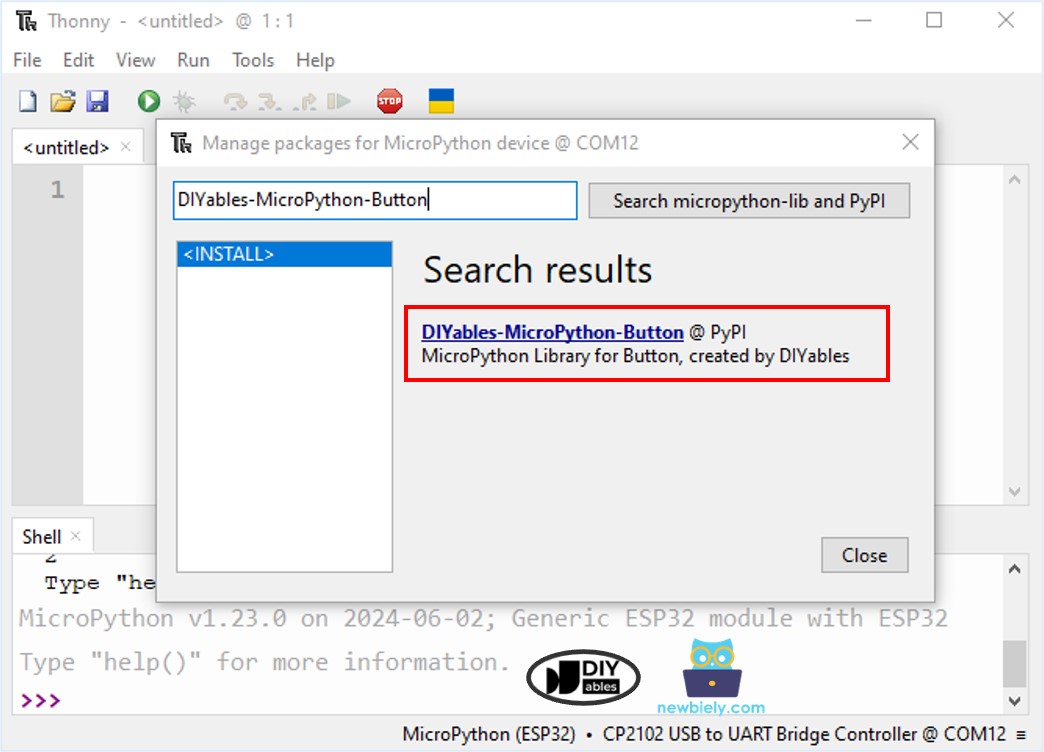
- Close the package window, then put the library code above into Thonny's editor.
- Save it to the MicroPython device as main.py.
- Press F5 to run it.
- Press the button once and hold it a moment, then press it once more.
- The Shell shows each event and the new steady level:
Want to see more ways to use this library, like several buttons at once? Read the ESP32 MicroPython Button Debounce tutorial. To make the module switch a light, see the ESP32 MicroPython Button LED tutorial. Just remember to use Pin.PULL_DOWN (or Pin.IN with no pull) for the module, since those pages use bare buttons with a pull-up.
Project Ideas
A button module on the ESP32 makes a good input for:
- A WiFi doorbell that sends a message to your phone each time the button is pressed.
- A mode button that steps through display pages or LED colors, one step per press.
- A start/stop button for a timer or a data logger.
- A small game pad: give each player a button module in a different color and see who presses first.