
ESP32 MicroPython LED Module
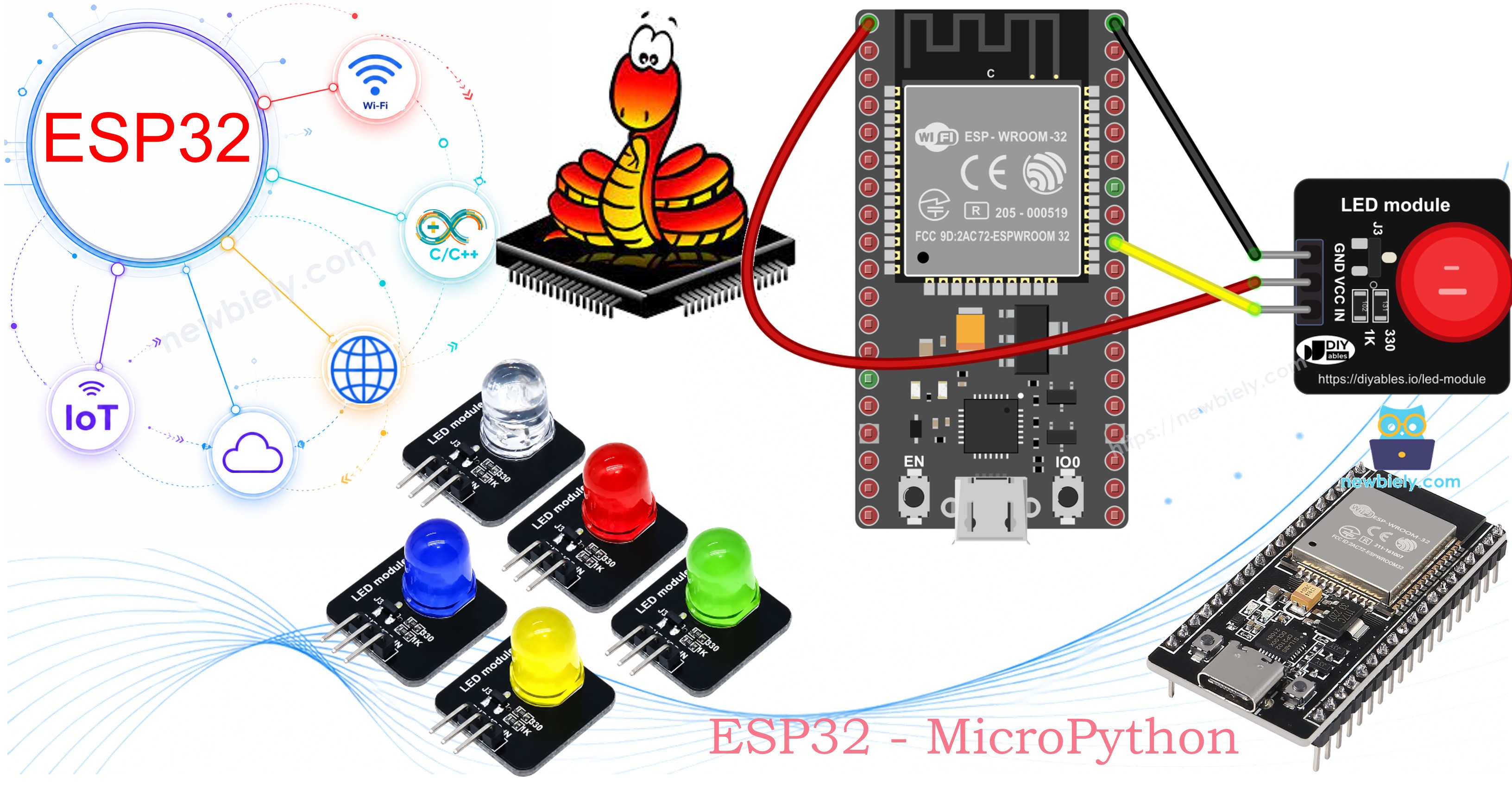
This tutorial instructs you how to use the 10mm LED module with the ESP32 and MicroPython. In detail, we will learn:
- What is inside the LED module, and why it needs no extra resistor.
- How to connect the GND, VCC and IN pins of the LED module to an ESP32.
- How to switch the LED on and off from the Thonny Shell, with no script at all.
- How to write MicroPython code for the ESP32 to blink the LED module once per second.
- How to write MicroPython code for the ESP32 to fade the LED module in and out with PWM.
Hardware Preparation
Or you can buy the following kits:
| 1 | × | DIYables ESP32 Starter Kit (ESP32 included) | |
| 1 | × | DIYables ESP32 S3 Starter Kit (ESP32 S3 included) | |
| 1 | × | DIYables Sensor Kit (18 sensors/displays) |
Additionally, some of these links are for products from our own brand, DIYables .
Buy Note: Use the LED Module for easier wiring. It includes an integrated resistor.
Overview of LED Module
A plain LED is a tiny part with two legs, and it is easy to get wrong: plug it in backwards and it stays dark, forget the resistor and it can burn out. The LED module takes these worries away. It is a 10mm LED that already sits on a small 20mm x 20mm board together with its resistor and a small transistor switch. You give it power, you give it a signal, and it lights up. The modules come in a pack of five colors: red, yellow, blue, green and white.
| LED Module | |
|---|---|
| LED | 10mm, round, diffused |
| Board size | 20mm x 20mm |
| Operating voltage | 3.3V to 5V DC |
| Onboard parts | 330Ω LED resistor, 1KΩ input resistor, transistor switch |
| Control logic | active HIGH (HIGH = ON, LOW = OFF) |
| Brightness control | yes, with PWM on the IN pin |
| Header | 3 pins, 2.54mm, right-angle, already soldered |
Pinout
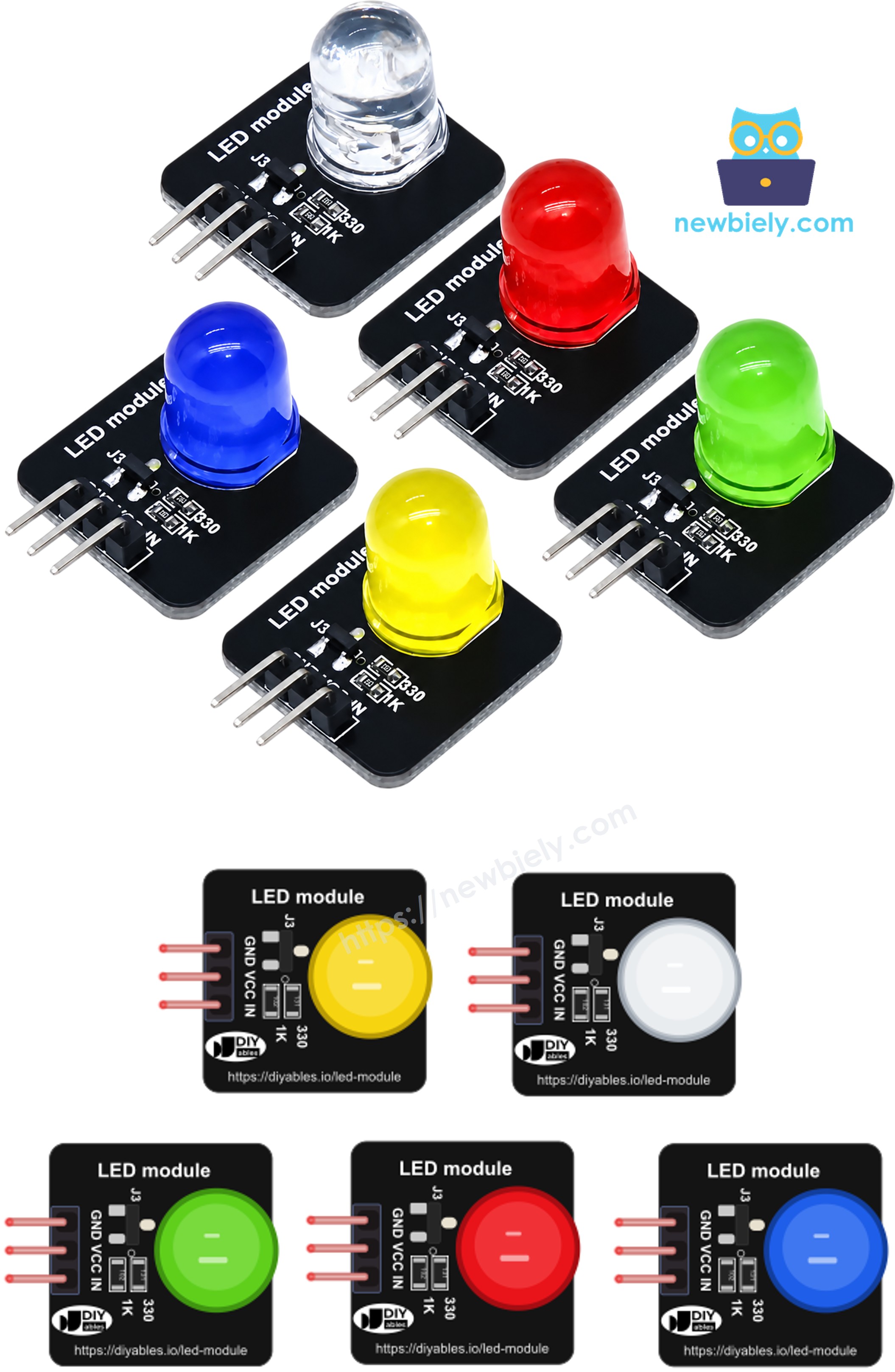
The three pins are printed on the board in this order:
- GND pin: connect to GND (0 volts) of the ESP32.
- VCC pin: connect to VCC (3.3 volts or 5 volts). The LED takes its current from this pin.
- IN pin: connect to a GPIO pin of the ESP32. This pin only tells the transistor to open or close, so it draws almost no current from the ESP32.
Why this matters for the ESP32: its GPIO pins give only 3.3 volts and a small current. With a bare LED, the brightness depends on what the pin can give. With the module, the GPIO pin only flips the switch, and the light comes from VCC. Write 1 to the pin and the LED turns on. Write 0 and it turns off. Send a PWM signal and the LED gets dimmer or brighter.
Moving from a bare LED? There are two things you can forget about: the series resistor (it is already on the board) and the long-leg / short-leg polarity (the pins are labeled instead).
Wiring Diagram
Only three wires are needed. GPIO18 is used here because it supports PWM, so the same wiring works for both scripts in this tutorial.
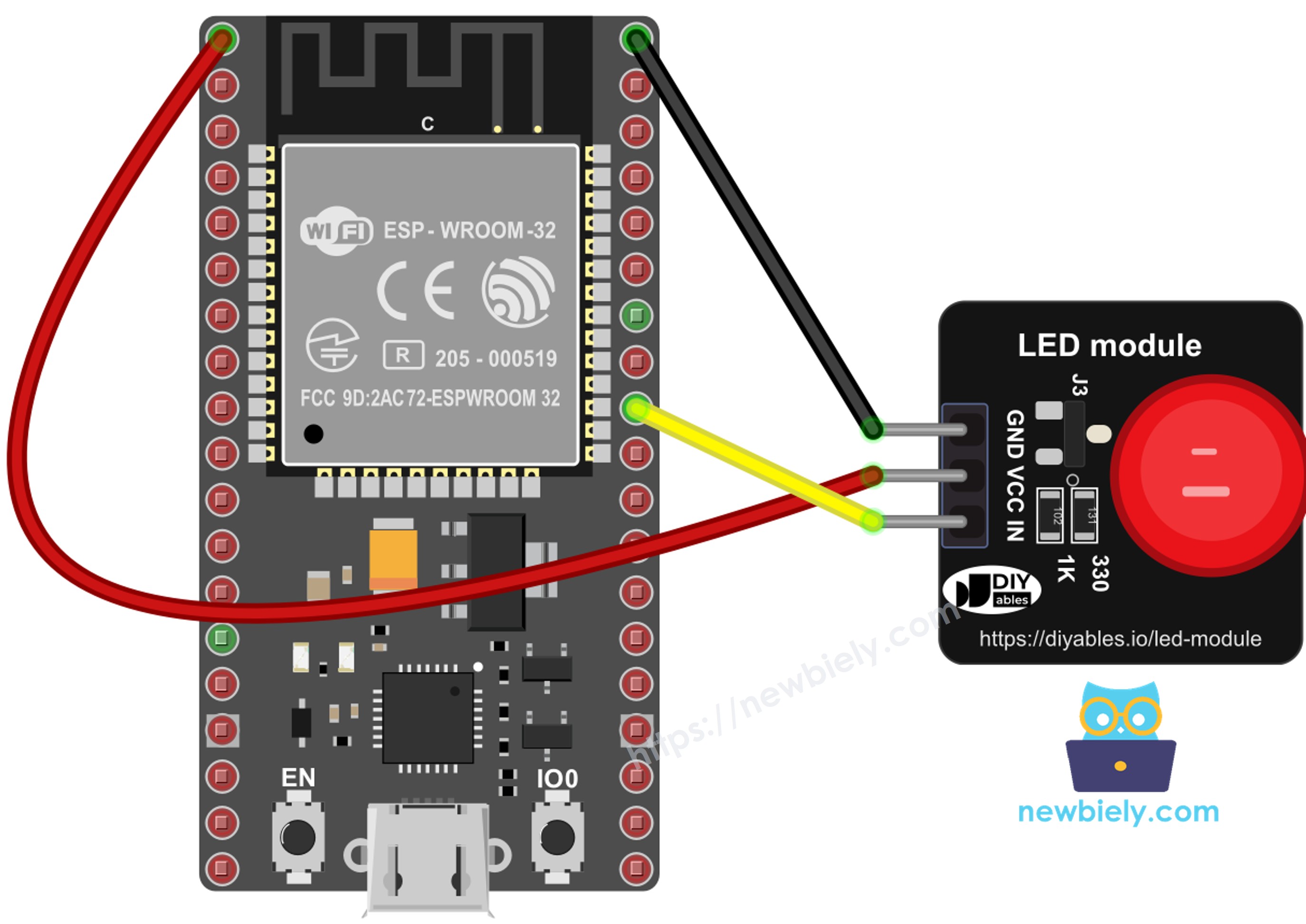
This image is created using Fritzing. Click to enlarge image
| LED Module Pin | ESP32 Pin |
|---|---|
| GND | GND |
| VCC | 3.3V (or VIN/5V when powered by USB, for a slightly brighter light) |
| IN | GPIO18 |
Try It From The Thonny Shell First
MicroPython has one big plus over the Arduino IDE: you can talk to the ESP32 line by line, with no upload step. After you wire the module and open Thonny (the setup is in the Quick Steps below), click inside the Shell and type these lines one at a time:
The LED module turns on after the third line and off after the fourth. If this works, your wiring is correct, and you can move on to the full scripts.
ESP32 MicroPython Code - LED Module Blink
The first script uses machine.Pin to set GPIO18 as an output. Inside an endless loop, it sets the pin to 1 (LED on), waits one second, sets it to 0 (LED off), and waits one more second. It also prints the state, so you can follow it in the Shell.
Detailed Instructions
Here's instructions on how to set up and run your MicroPython code on the ESP32 using Thonny IDE:
- Make sure Thonny IDE is installed on your computer.
- Confirm that MicroPython firmware is loaded on your ESP32 board.
- If you are new to MicroPython on the ESP32, start with the ESP32 MicroPython Getting Started guide.
- Wire the LED module to the ESP32 as shown in the wiring diagram above.
- Connect the ESP32 board to your computer with a USB cable.
- Open Thonny IDE on your computer.
- In Thonny, go to Tools Options, open the Interpreter tab, and choose MicroPython (ESP32) from the dropdown.
- Check the port. Thonny usually finds it by itself, but you may need to pick it by hand (for example COM5 on Windows or /dev/ttyUSB0 on Linux).
- Copy the blink code above and paste it into Thonny's editor.
- Save the code to your ESP32 by:
- Clicking the Save button or pressing Ctrl+S.
- Choosing MicroPython device in the save dialog.
- Typing main.py as the file name.
- Click the green Run button (or press F5) to execute the script.
- Watch the LED module: one second on, one second off.
- Look at the Shell at the bottom of Thonny:
If you name your script main.py and save it to the MicroPython device, it will run automatically every time the ESP32 is powered on.
To make the blink faster or slower, change the number inside sleep(1). For example, sleep(0.2) gives a quick, alarm-style flash.
ESP32 MicroPython Code - LED Module Fade
The second script swaps machine.Pin for machine.PWM. The ESP32 now turns GPIO18 on and off 1000 times every second. The share of time the pin stays HIGH sets how bright the LED looks. The helper function set_brightness() takes a percent from 0 to 100 and turns it into a duty_u16() value from 0 to 65535. The loop raises the brightness in 5% steps up to 100%, then lowers it back to 0%, which gives a soft "breathing" light.
Detailed Instructions
The wiring stays the same, so there is nothing to change on the breadboard.
- Click the red Stop button in Thonny to stop the blink script.
- Copy the fade code above and paste it into Thonny's editor, in place of the old code.
- Save it to the MicroPython device as main.py again.
- Click the green Run button (or press F5).
- Watch the LED module glow up slowly, then fade out slowly, again and again.
- The Shell prints one line at the top and one line at the bottom of each fade:
To make the fade slower, raise sleep(0.05) to sleep(0.1). To make it smoother, change the step in range() from 5 to 1.
If you want to fade the LED in the background while your code does other jobs, see the ESP32 MicroPython Fade LED tutorial. It uses the DIYables LED library, and it works with this module too, since the IN pin acts just like the leg of a bare LED.
Project Ideas
With one or more LED modules on the ESP32, you can build:
- A WiFi status light: on when the ESP32 joins your network, blinking while it tries to connect.
- A "heartbeat" light that fades in and out to show your program is still running.
- A fault lamp: a red module that flashes when a sensor reading goes out of range.
- A traffic-light model with a red, a yellow and a green module, like in the ESP32 MicroPython Traffic Light tutorial.