
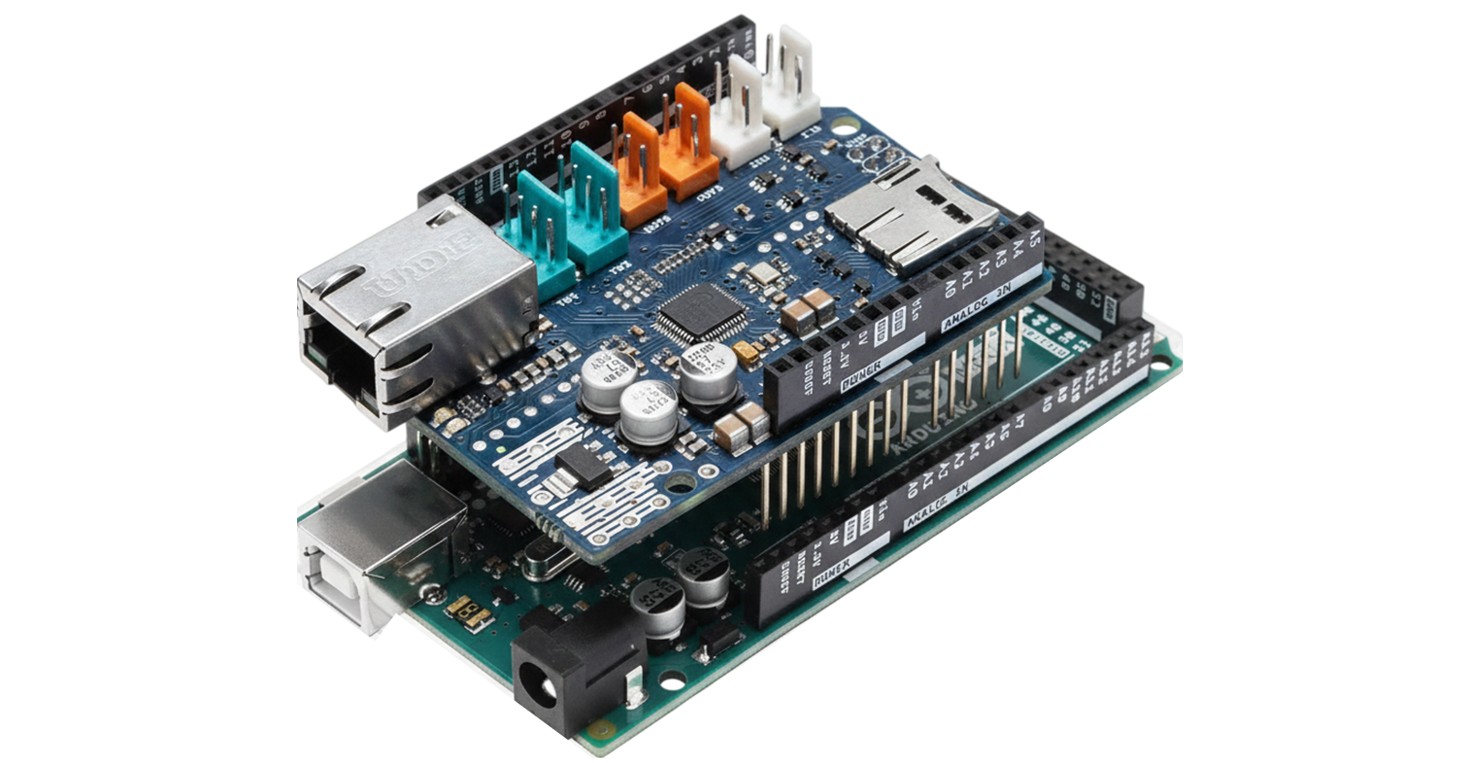
Arduino Mega - Ethernet Shield
Ready to connect your Arduino to the Internet? You're in the perfect place! Using an Arduino Ethernet Shield is one of the easiest and most reliable ways to get your Arduino projects online, and I promise it's much simpler than you might think. Whether you're dreaming of building IoT projects, remote sensors, or web-controlled devices, this tutorial will be your friendly guide to success.
The Arduino Ethernet Shield opens up a world of possibilities for your projects. Think of it as giving your Arduino a direct highway to the Internet - no complex WiFi setup, no signal strength worries, just a solid, stable connection that works every time. You can see other options to connect Arduino to Internet via Ethernet in our Arduino - Ethernet tutorial, but the shield method we're covering today is perfect for beginners who want reliable results without the headaches.
In this comprehensive tutorial, we're going to learn everything you need to know about Arduino Ethernet connectivity. Don't worry if networking sounds intimidating - we'll start with basic networking knowledge for beginners and work our way up. We'll cover how to use the Arduino Ethernet Shield with both dynamic IP addresses (the easy way using DHCP) and static IP addresses (for when you need more control). I'll provide you with skeleton Arduino code that you can use as a foundation for your own amazing projects.
By the end of this tutorial, you'll have the confidence to connect your Arduino to the Internet and start building projects that can communicate with the world. Whether you want to monitor sensors remotely, control devices from anywhere, or create your own IoT dashboard, you'll have all the tools you need to make it happen!
Hardware Preparation
Or you can buy the following kits:
| 1 | × | DIYables Sensor Kit (18 sensors/displays) |
Additionally, some of these links are for products from our own brand, DIYables .
Basic Networking Knowledge for Beginners
Let's start with the networking basics - don't worry, I'll explain everything in simple terms! This part provides essential knowledge for beginners who might be new to networking concepts. Think of this as building your foundation before we dive into the fun Arduino coding part.
When any device connects to the Internet (whether via Ethernet or WiFi), it's like moving into a new neighborhood - there are certain "address requirements" it must meet. The device MUST connect to a router or an access point, which acts like the neighborhood's post office and gateway to the outside world. Every single piece of data between your device and the Internet flows through this central hub.
Here's what every Internet-connected device (including your Arduino) absolutely must have to work properly:
- A MAC address - Think of this as your device's unique fingerprint or serial number
- An IP address - This is like your device's street address in the network neighborhood
- Network subnet mask - This tells your device which addresses are in the local neighborhood
- Gateway IP address - This is the address of your router (the neighborhood's post office)
- DNS server IP address - This helps translate website names into IP addresses (only needed when connecting to domain names)
Your Arduino Ethernet Shield won't work if there are conflicts - imagine if two houses had the same street address! Specifically, problems occur when:
- One or more devices in the same network use the same MAC address (called a MAC address conflict)
- One or more devices in the same network use the same IP address (called an IP address conflict)
Now, here's something important about Arduino Ethernet Shields that's different from your phone or computer: most devices have built-in MAC addresses, but Arduino Ethernet Shields don't! Instead, you'll find the MAC address printed on a sticker on your shield. We'll need to find this sticker and use that MAC address in our Arduino code - it's easier than it sounds, and I'll show you exactly how.
There are two main methods to assign network settings to your Arduino (or any device). Think of it like choosing between having your mail automatically forwarded versus manually updating your address everywhere:
Method 1: Static IP Address (Manual Setup)
- You manually manage and set the IP address, subnet mask, gateway IP, and DNS server IP
- You need to configure all these settings in your Arduino code
- It won't work if you accidentally use an IP address that another device is already using (IP conflict)
- It also won't work if you set wrong subnet mask, gateway, or DNS server addresses
- This method gives you complete control but requires more networking knowledge
Method 2: Dynamic IP Address via DHCP (Automatic Setup)
- Your Arduino automatically gets all the network settings from your router
- The router acts like a helpful assistant, managing all the technical details for you
- This is actually the same method your smartphone uses when connecting to your home WiFi
- Much easier and recommended for beginners who are just getting started with networking
When you connect your smartphone to your home WiFi network, it's using Method 2 - everything happens automatically behind the scenes. For Arduino beginners, I strongly recommend starting with Method 2 (DHCP) because it's much more forgiving and eliminates most common networking mistakes.
This tutorial won't overwhelm you with complex networking theory - that's beyond what you need to know to get your Arduino online successfully. Instead, we'll focus on the practical steps to get you connected and building amazing projects as quickly as possible!
How to use Arduino Ethernet Shield
Great news - using the Arduino Ethernet Shield is surprisingly straightforward! The Arduino communicates with the Ethernet Shield through something called the SPI interface, but you don't need to worry about those technical details. Let me walk you through the simple setup process that'll have you connected in no time.
Here's your step-by-step setup process - it's much easier than you might expect:
Physical Setup:
- Stack the Shield: Simply stack your Ethernet Shield directly on top of your Arduino Mega. The pins will align perfectly - just press down gently until it sits flush
- USB Connection: Connect your PC to your Arduino Mega via the USB cable (just like you normally do for programming)
- Network Connection: Connect your Ethernet Shield to your router or access point using the Ethernet cable - you'll hear a satisfying click when it's properly connected
Software Setup:
- Open Arduino IDE: Fire up your familiar Arduino IDE
- Write Your Code: Copy one of our skeleton code examples (coming up next!)
- Upload to Arduino: Upload your code to the Arduino Mega just like any other sketch
And that's it - completely simple! The beauty of using an Ethernet Shield is that most of the complex networking happens automatically behind the scenes. Once you have the physical connections made and upload your code, your Arduino will be talking to the Internet like a pro.
Pro Tip: Make sure your Ethernet cable is properly seated in both the shield and your router - a loose connection is the most common cause of connectivity issues, but it's easy to fix!
Skeleton Arduino code for Arduino Ethernet Shield when using the dynamic IP address
Now for the exciting part - let's bring your Arduino Ethernet Shield to life with code! Don't worry if you're new to networking programming; this dynamic IP approach is the beginner-friendly method that handles most of the complex stuff automatically. Think of it as the "easy mode" for getting your Arduino online - your router will take care of assigning all the network settings for you.
Prerequisite
Before we dive into the code, there's just one thing you need to find: the MAC address of your Ethernet Shield. Look for a small sticker on your shield - it should have a series of numbers and letters that looks something like "DE:AD:BE:EF:FE:ED". Don't worry if it looks confusing; you just need to copy it exactly as shown!
How to program step by step
Let me walk you through each part of the code - we'll build it step by step so you understand exactly what's happening.
Step 1: Include Required Libraries
First, we need to tell Arduino which libraries to use for networking functionality:
Step 2: Set Your MAC Address
Replace the MAC address below with the one from your shield's sticker:
Step 3: Declare Other Objects
Add any other objects you need for your specific application (like web servers, clients, etc.)
Step 4: Initialize the Ethernet Shield
This is where the magic happens - your Arduino asks your router for network settings:
Step 5: Display Network Information (Optional but Helpful)
This code will show you what network settings your Arduino received - great for troubleshooting:
Important Note about Connection Issues:
Your Arduino might not get an IP address in these situations:
- Your router doesn't support DHCP (most home routers do, but some older ones might not)
- The Ethernet cable isn't plugged in properly or is damaged
- The Ethernet Shield isn't seated correctly on your Arduino
To detect these problems early and get helpful error messages, we can enhance the basic Ethernet.begin(mac); line with some diagnostic code:
※ NOTE THAT:
If you don't change the MAC address from the example, it may still work for testing purposes. However, it may NOT work if it conflicts with the MAC address of another device in the same network. If you've lost the MAC address sticker, you can use the example MAC address above for initial testing, but try to locate the original sticker for permanent projects.
The complete skeleton code when using the dynamic IP address
Upload the above code to your Arduino. If everything works correctly, your Serial Monitor should display something like this:
If your Serial Monitor doesn't show output like this, don't panic! First, double-check your Ethernet cable connections on both ends. If it still doesn't work, try the static IP address method in the next section - sometimes that approach works better with certain network configurations.
Skeleton Arduino code for Arduino Ethernet Shield when using the static IP address
If the dynamic IP method didn't work for you, or if you need more control over your network settings, the static IP approach might be exactly what you need! This method requires a bit more networking knowledge, but don't worry - I'll guide you through finding all the information you need step by step.
Prerequisite
Before we start coding, you'll need to gather some network information. It sounds more complicated than it is - think of it like getting your new address details before moving to a new house:
- MAC address: Get this from the sticker on your shield (same as before)
- An unused IP address: We need to find an IP address that no other device is using (I'll show you how!)
- Subnet mask: This defines your network's "neighborhood boundaries" (see how to get subnet mask)
- Gateway IP address: This is your router's address (see how to get gateway's IP address)
- DNS server IP address: This helps translate web addresses (see how to get DNS server's IP address)
Don't worry if this seems overwhelming - I'll show you exactly how to find all this information in the "Additional Knowledge" section below!
How to program step by step
Let's build this code together, step by step. The static IP method gives you complete control over your Arduino's network settings.
Step 1: Include Required Libraries
Just like before, we need the same networking libraries:
Step 2: Set Your MAC Address
Use the MAC address from your shield's sticker:
Step 3: Define Your Network Settings
Here's where you'll input all the network information you gathered. Make sure to change these values to match your specific network:
Step 4: Declare Other Objects
Add any additional objects needed for your specific application.
Step 5: Initialize Ethernet with Static Settings
This tells your Arduino to use your specific network settings instead of asking the router:
Step 6: Check Network Link Status (Optional)
This helps you verify that your physical connection is working:
※ NOTE THAT:
If you don't change the MAC address from our example, it might still work for testing purposes. However, it may NOT work if it conflicts with the MAC address of another device in the same network. If you've lost the MAC address sticker, you can use the example MAC address above for initial testing, but try to find the original for permanent projects.
The complete skeleton code when using the static IP address
Upload the above code to your Arduino. If everything is configured correctly, your Serial Monitor should show something like this:
If your Serial Monitor doesn't show "Link status: On", here are some troubleshooting steps:
- Check your Ethernet cable - make sure it's firmly connected on both ends
- Verify your IP address - ensure the IP address you chose belongs to your network and follows the same pattern as other devices
- Check for IP conflicts - make sure no other device is already using your chosen IP address
- Verify network settings - double-check that your subnet mask, gateway IP address, and DNS server IP address are set correctly
Don't get discouraged if it takes a few tries - networking can be tricky, but once you get it working, you'll have learned valuable troubleshooting skills!
Additional Knowledge of Networking for Beginners
When using the static IP method, you need to gather some network information from your current setup. Don't worry - this is easier than it sounds! If your Arduino and PC are connected to the same network (which they usually are), here's exactly how to find everything you need.
Finding Your Network Information:
Step 1: Open Command Prompt
- Press Windows key + R, type "cmd", and press Enter
- You'll see a black window with white text - this is your Command Prompt
Step 2: Get Network Information
Type this command and press Enter:
You'll see output that looks something like this:
What This Information Tells You:
- Subnet Mask: Look for "Subnet Mask" in the output (in this example: 255.255.255.0)
- Gateway IP Address: Look for "Default Gateway" (in this example: 192.168.0.1)
- Your PC's IP Address: Look for "IPv4 Address" (in this example: 192.168.0.14)
Finding an Unused IP Address:
Now comes the detective work - we need to find an IP address that's not being used by any other device. Here's the systematic approach:
- Start with your PC's IP address as a reference point (192.168.0.14 in our example)
- Try nearby addresses by increasing or decreasing the last number
- Test each address using the ping command to see if it's already in use
For example, let's test if 192.168.0.5 is available:
If you see something like this, the IP address is unused and safe for your Arduino:
If you get replies back, that means another device is using that IP address - try a different number!
DNS Server IP Address:
For the DNS server, you can usually just use Google's public DNS server: 8.8.8.8. This is reliable and works well for most projects.
※ NOTE THAT:
Even if an IP address appears unreachable via ping, there's a small chance it might still be used by another device (some devices don't respond to ping for security reasons). However, this situation is rare in typical home networks, so don't worry too much about it.
Pro Tip: Keep track of which IP addresses you assign to different Arduino projects! Consider keeping a simple list so you don't accidentally create conflicts between your own devices later.
Now you have all the tools you need to successfully connect your Arduino Ethernet Shield to the Internet! You can use these shields for amazing projects like web servers, IoT sensors, remote monitoring systems, and so much more. The possibilities are truly endless once you have that network connection established.
Application Ideas
Now that you've mastered Arduino Ethernet connectivity, your creativity is the only limit! Here are some exciting project ideas to get your imagination flowing and inspire your next build:
Home Automation Hub: Create a web-based control panel for your home! You could monitor temperature and humidity sensors throughout your house, control lights and appliances remotely, or even set up automated schedules based on time or sensor readings. Imagine checking your home's status from anywhere in the world!
Remote Environmental Monitor: Build a weather station that posts data to the internet! Monitor outdoor temperature, humidity, air pressure, and rainfall, then create your own personal weather website or send data to services like ThingSpeak. Perfect for gardeners, weather enthusiasts, or anyone curious about their local microclimate.
Smart Security System: Design an internet-connected security monitor that can send you alerts via email or web notifications when motion is detected, doors are opened, or other security events occur. You could even add a camera module and create a simple web-based surveillance system.
IoT Data Logger: Create a system that continuously logs sensor data (like soil moisture for plants, power consumption, or machine vibrations) and makes it accessible via a web interface. Perfect for long-term monitoring projects where you need to track trends over time.
Remote Device Controller: Build a web interface that lets you control motors, servos, or other devices from anywhere with internet access. This could be anything from adjusting a solar panel's angle to feeding pets remotely!
Smart Garden Manager: Combine multiple sensors and actuators to create an intelligent garden system that monitors soil moisture, light levels, and temperature, then automatically waters plants or adjusts grow lights as needed - all controllable and monitorable via a web interface.
What will you build first? The beautiful thing about having your Arduino connected to the internet is that your projects can now interact with the wider world, making them more useful and engaging than ever before!
Challenge Yourself
Ready to take your Arduino Ethernet skills to the next level? Here are some fun challenges to help you grow as a maker and programmer. Don't worry if you get stuck - that's exactly how we learn and improve! Start with the easier challenges and work your way up at your own pace.
Easy Challenges (Perfect for Beginners):
- LED Web Control: Modify the skeleton code to include a simple web server that can turn an LED on and off via a webpage. This teaches you the basics of HTTP requests and responses.
- Sensor Web Display: Add a temperature sensor (like DS18B20) and create a simple webpage that displays the current temperature when you visit your Arduino's IP address.
Medium Challenges (Building Your Skills):
- Multi-Device Dashboard: Create a webpage that displays data from multiple sensors (temperature, humidity, light level) and allows you to control multiple outputs (LEDs, buzzers, motors) all from one interface.
- Data Logging System: Set up your Arduino to periodically send sensor data to a free IoT platform like ThingSpeak or create your own simple logging system that stores data and displays graphs over time.
- Email Notification System: Program your Arduino to send email alerts when certain conditions are met (like temperature too high, motion detected, or water level too low).
Advanced Challenges (For the Ambitious):
- Home Automation Network: Create multiple Arduino Ethernet devices that can communicate with each other and be controlled from a central web interface. Maybe one Arduino controls lights, another monitors security, and a third manages environmental systems.
- Weather Station with Forecasting: Build a comprehensive weather monitoring system that not only measures local conditions but also fetches online weather data and displays both on a custom dashboard.
- Remote Robot Control: Combine your Ethernet shield with motors and sensors to create a robot that can be controlled via web interface, complete with live sensor feedback and maybe even a camera stream!
Pro Tip: Start with the easy challenges and celebrate each success along the way! Each project builds on the previous ones, and before you know it, you'll be creating amazing IoT systems that seemed impossible when you started. Remember, every expert was once a beginner - you've got this!
The most important thing is to have fun and keep experimenting. The combination of Arduino and internet connectivity opens up endless possibilities for creative projects that can make a real difference in your daily life!
WARNING
Please be aware that this tutorial is a work in progress. We will notify our followers on Facebook Page when it is finished. Be sure to like our page to stay informed of its completion.