
Arduino UNO Q - 74HC595 4-Digit 7-Segment Display
Want to display numbers on a compact 4-digit LED display using your Arduino UNO Q? This beginner-friendly tutorial shows you how to use a 74HC595 4-digit 7-segment display with Arduino UNO Q — step by step.
In this tutorial, you will learn:
- What a 74HC595 4-digit 7-segment display is and how it works
- How to wire the 74HC595 display to Arduino UNO Q
- How to program the MCU (C/C++ Arduino code) to show integers, floats, and count values
- How to program both the Linux side (Python) and MCU side (C/C++) to control the display remotely via Bridge
- How to send Telegram messages to Arduino UNO Q to update the 7-segment display
- How to use OpenClaw on Arduino UNO Q to control the 7-segment display
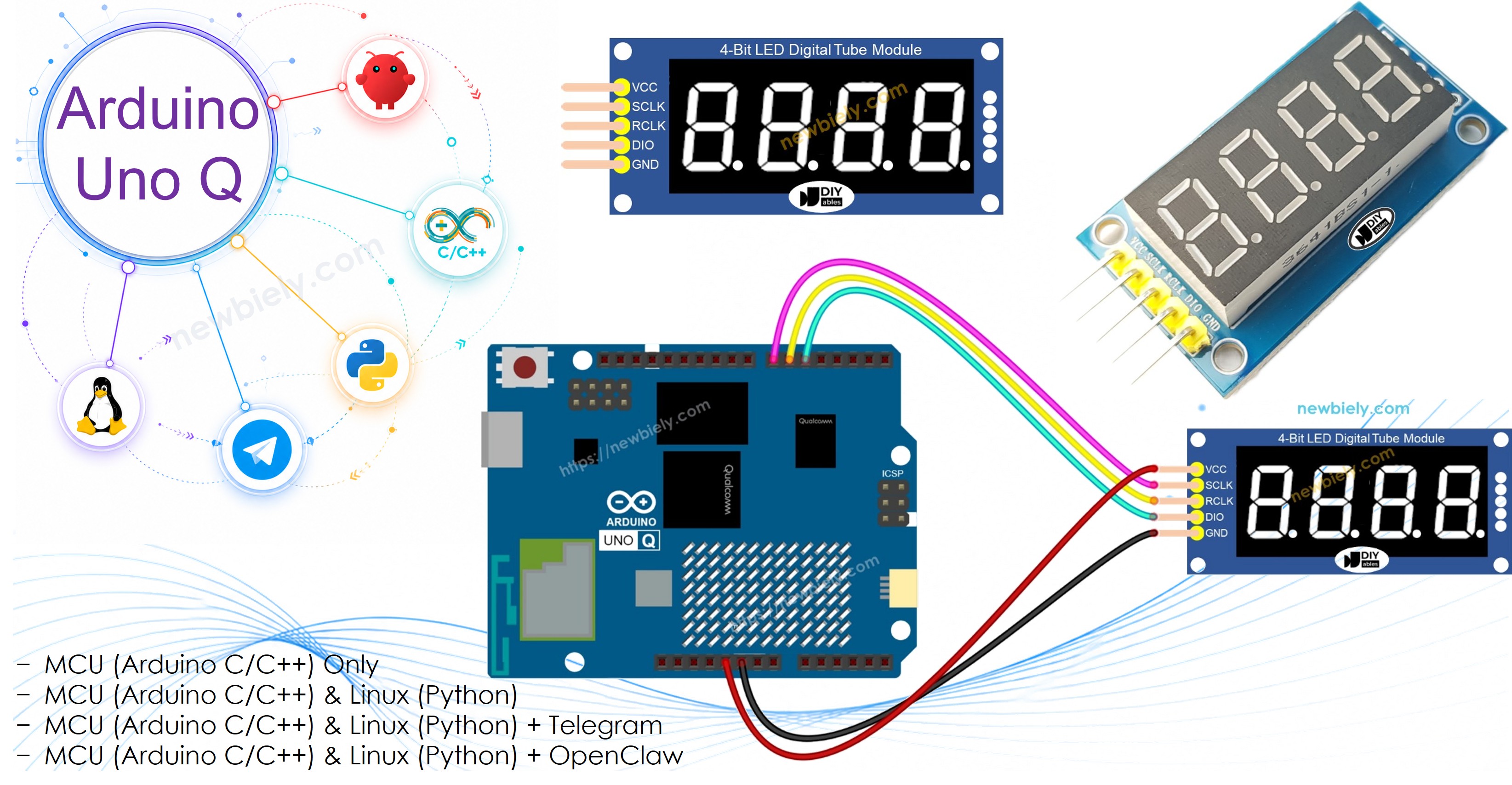
Hardware Preparation
Or you can buy the following kits:
| 1 | × | DIYables Sensor Kit (18 sensors/displays) |
Additionally, some of these links are for products from our own brand, DIYables .
Overview of the 74HC595 4-Digit 7-Segment Display
The 74HC595-based 4-digit 7-segment display combines four LED digit modules with a shift register, so you only need 3 MCU pins to control all four digits.
Key specs and features:
- Digits: 4 digits, each with 7 LED segments + decimal point
- Shift register: 74HC595 — data shifted in serially using 3 wires
- Interface: SPI-like (SCLK, RCLK, DIO) — simple and efficient
- Power: 3.3V or 5V compatible
- Library: DIYables_4Digit7Segment_74HC595 — supports integers, floats, text, temperature, and time display
- Multiplexing: The library handles digit multiplexing — call display.loop() frequently to keep the display refreshed
Pinout
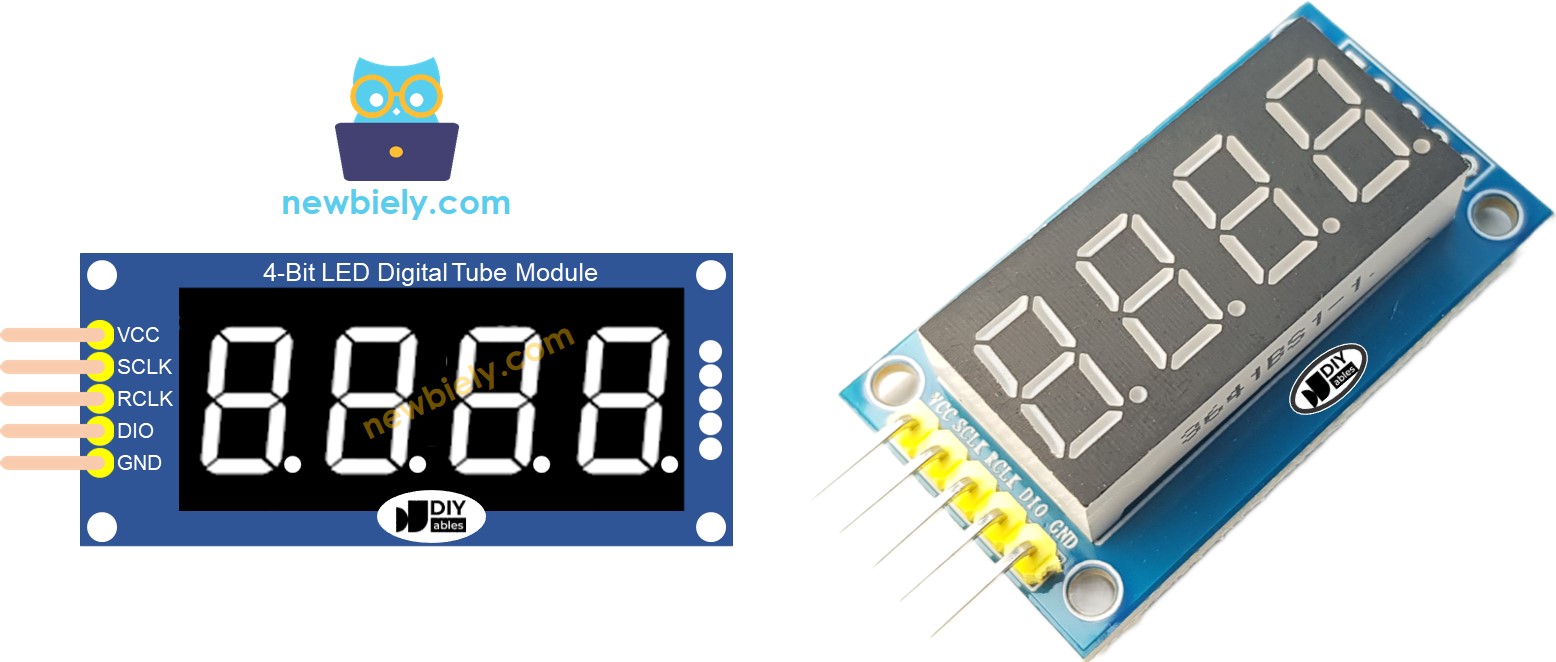
| Pin | Function | Description |
|---|---|---|
| SCLK (SH_CP) | Serial Clock | Clock signal for shifting data |
| RCLK (ST_CP) | Register Clock | Latch to push data to outputs |
| DIO (DS) | Data Input | Serial data fed into the shift register |
| VCC | Power | 3.3V or 5V supply |
| GND | Ground | Common ground |
Wiring Diagram
Connect the 74HC595 4-digit 7-segment display to the Arduino UNO Q MCU as shown:
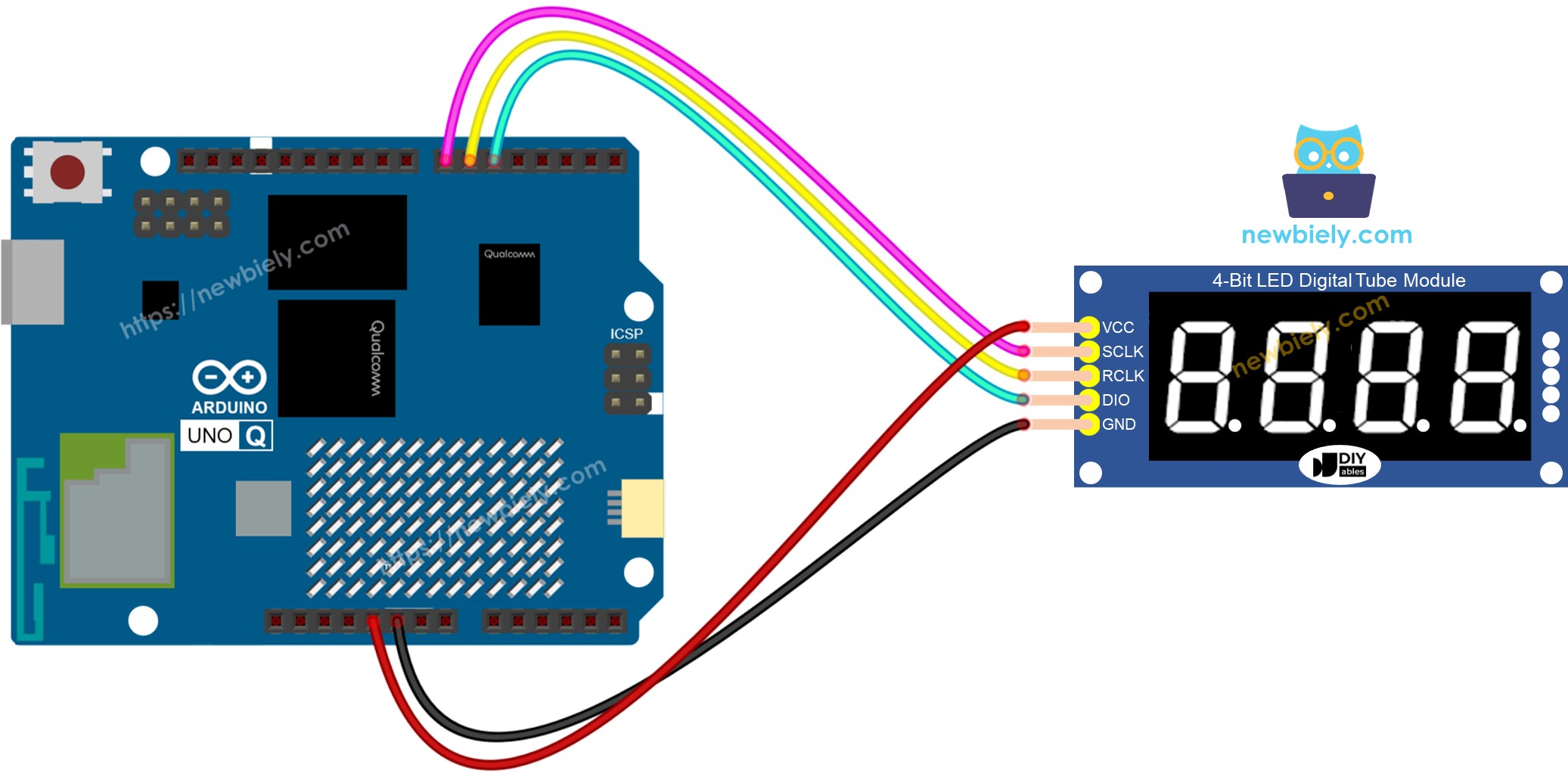
This image is created using Fritzing. Click to enlarge image
| 74HC595 Display Pin | Arduino UNO Q MCU Pin | Description |
|---|---|---|
| SCLK | D7 | Serial clock |
| RCLK | D6 | Register clock / latch |
| DIO | D5 | Data input |
| VCC | 5V | Power supply |
| GND | GND | Ground |
Arduino UNO Q Code
The Arduino UNO Q has two processors working together:
- The STM32 MCU drives the 74HC595 7-segment display directly via digital pins — it handles all multiplexing
- The Qualcomm MPU runs Debian Linux and handles Wi-Fi, Python, and cloud connectivity
- In this section, only the MCU is programmed — the Linux side stays idle. A later section shows how both processors work together via Bridge.
The sketch below counts from 0 to 9999 on the 7-segment display, incrementing every second.
Important: Always call display.loop() inside the Arduino loop() function. The library uses this to multiplex through all 4 digits. Never use delay() directly — use display.delay() instead.
Detailed Instructions
First time with Arduino UNO Q? Follow the Getting Started with Arduino UNO Q tutorial to get your development environment ready before proceeding.
- Connect: Wire the 74HC595 display to the Arduino UNO Q as shown, then plug in the USB-C cable.
- Open Arduino App Lab: Launch Arduino App Lab and wait until it detects your Arduino UNO Q — this can take several minutes on first launch.
- Create a new App: Click the Create New App button.

- Give the App a name, for example: DIYables_7Seg74HC595
- Click Create to confirm.
- You will see a set of folders and files generated inside your new App.

- Find the sketch/sketch.ino file — this is where you will paste the MCU sketch.
- Install the library: Click the Add sketch library button (the open book icon with a + sign) in the left sidebar.

- Search for Arduino_RouterBridge created by Arduino and click the Install button.
- Search for DIYables_4Digit7Segment_74HC595 created by DIYables.io and click the Install button.
- Upload: Click the Run button in Arduino App Lab to compile and upload to the STM32.

Your 7-segment display will start counting from 0 to 9999, incrementing once per second!
- Pro Tip: If your display shows garbled characters, try passing false as the 4th constructor argument: DIYables_4Digit7Segment_74HC595 display(SCLK_PIN, RCLK_PIN, DIO_PIN, false) — this switches from common anode (default) to common cathode mode.
Bridge: Linux + MCU
This section shows how to program both processors of the Arduino UNO Q so the Linux side can control the 7-segment display remotely:
- The 74HC595 7-segment display is connected to the MCU (STM32) — the MCU drives all digit multiplexing
- The MPU cannot control the display directly — it must request the MCU to update values via Bridge.call()
- The MPU has Wi-Fi — running full Debian Linux, it can connect to the Internet and push display updates remotely
- Arduino_RouterBridge enables RPC communication between the two processors
- ⚠️ /dev/ttyHS1 (Linux) and Serial1 (MCU) are RESERVED by the router — never open them in user code
In short: MCU drives the 7-segment display → MPU sends values → MPU can update the display from anywhere over the Internet.
MCU Code (Bridge)
Note: In the Bridge sketch, display.loop() is called inside the Arduino loop() to keep the display refreshed — this is required for the multiplexed 7-segment display and does not interfere with Bridge communication.
Python Code (Bridge)
Detailed Instructions
- Connect: Wire the 74HC595 display to the Arduino UNO Q and plug in the USB-C cable.
- Open Arduino App Lab: Launch Arduino App Lab and wait for the board to be detected.
- Create a new App: Click Create New App, name it DIYables_7Seg74HC595Bridge, then click Create.
- Paste the MCU sketch: Copy the MCU Bridge code above and paste it into sketch/sketch.ino.
- Paste the Python code: Copy the Python Bridge code above and paste it into the Python file in the App.
- Upload: Click the Run button in Arduino App Lab.
App Lab Console Output
Telegram
Control the 74HC595 7-segment display from anywhere using Telegram. Send a number from your phone and the display updates instantly.
MCU sketch: Keep the same MCU sketch from the previous Bridge section.
Python Code (Telegram)
Detailed Instructions
- Replace YOUR_TELEGRAM_BOT_TOKEN with your actual bot token from BotFather.
- Replace YOUR_CHAT_ID with your Telegram chat ID.
- Paste this Python code into your App's Python file (keep the same MCU sketch).
- Click the Run button. Open Telegram and send commands to your bot.
App Lab Console Output


ArduinoBot
OpenClaw
You can adapt the OpenClaw to this tutorial by refering the instruction on Arduino Uno Q - OpenClaw Tutorial
Project Ideas
You can build many useful projects using a 74HC595 7-segment display with Arduino UNO Q:
- Remote Counter: Send a count value to the display via Telegram — useful for production counters or event tallies
- Live Temperature Display: Fetch temperature from a sensor on the MCU and show it on the 7-segment via Bridge
- Countdown Timer: Python sends a start value via Bridge, and the MCU counts down to zero on the display
- Internet Clock: Python fetches the current time via NTP and sends it to the MCU to display in HH.MM format
- Score Display: Use Telegram to update a live score on the 7-segment display for games or contests
Challenge Yourself
Ready to go further with the 74HC595 7-segment display on Arduino UNO Q? Try these challenges:
- Easy: Modify the MCU sketch to display 88.88 on startup, using the float display method with a decimal point.
- Medium: Use the Bridge to implement a /count <start> <end> Telegram command that makes the display count from <start> to <end> at 1-second intervals.
- Advanced: Build a Telegram-controlled stopwatch: /start begins counting up in seconds on the display, /stop freezes it, and /reset clears it back to zero.