Arduino UNO Q - MQ3 Alcohol Sensor

The MQ3 alcohol sensor detects ethanol vapor in the air. It provides both a digital output (alcohol/no alcohol) and an analog output (alcohol concentration level). With Bridge and Telegram, your Arduino UNO Q can send instant alcohol detection alerts to your phone and even act as a breathalyzer.

In this tutorial, you will learn:

Arduino UNO Q MQ3 Alcohol Sensor

Hardware Preparation

1×Arduino UNO Q
1×USB Cable for Arduino Uno Q
1×MQ3 Alcohol Sensor
1×Jumper Wires
1×Recommended: Screw Terminal Block Shield for Arduino Uno
1×Recommended: Sensors/Servo Expansion Shield for Arduino Uno
1×Recommended: Breadboard Shield for Arduino Uno
1×Recommended: Enclosure for Arduino Uno
1×Recommended: Prototyping Base Plate & Breadboard Kit for Arduino UNO

Or you can buy the following kits:

1×DIYables Sensor Kit (18 sensors/displays)
Disclosure: Some of the links provided in this section are Amazon affiliate links. We may receive a commission for any purchases made through these links at no additional cost to you.
Additionally, some of these links are for products from our own brand, DIYables .

Overview of the MQ3 Alcohol Sensor

The MQ3 alcohol sensor is a MOS (Metal Oxide Semiconductor) sensor that detects ethanol (alcohol) vapor. Its internal Tin Dioxide (SnO2) sensing element changes resistance when alcohol vapor is present — higher alcohol concentration lowers resistance, which raises the output voltage.
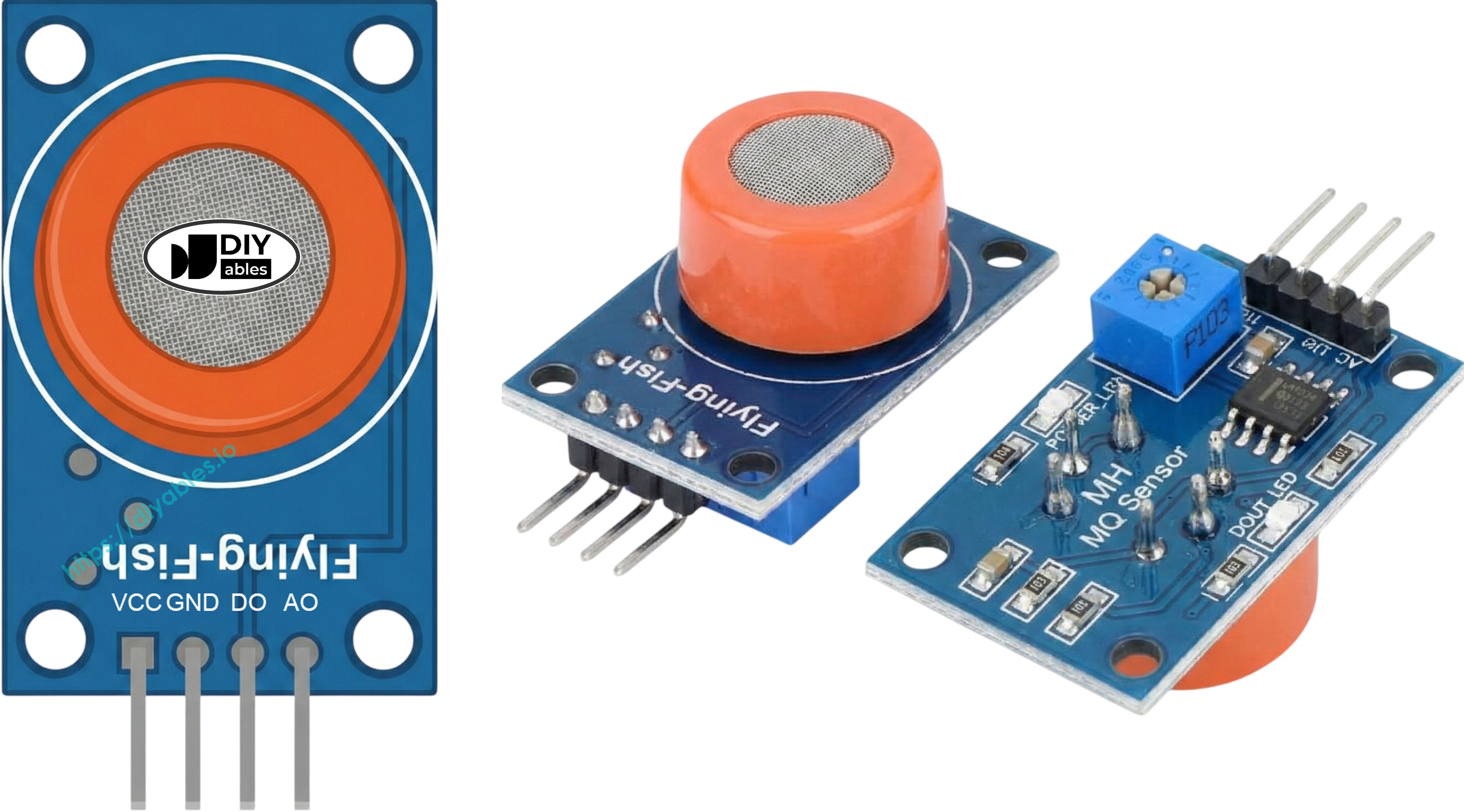
MQ3 Alcohol Sensor Pinout

Pinout

  • VCC pin: 5V power supply (heating element requires 5V)
  • GND pin: Ground
  • DO pin: Digital output — HIGH = no alcohol, LOW = alcohol detected. Sensitivity adjusted by the onboard potentiometer.
  • AO pin: Analog output — higher value = more alcohol concentration

LED Indicators

  • PWR-LED: Power indicator
  • DO-LED: Lights up when alcohol is detected (DO pin LOW)

Technical Specifications

  • Operating Voltage: 5V DC
  • Heater Resistance: 33 Ω ± 5%
  • Heating Consumption: < 800 mW
  • Detection Range: 25 – 500 ppm (parts per million)

Warm-Up Requirement

  • First use or after long storage (>1 month): Warm up for 24–48 hours
  • Normal use: 5–10 minutes; initial readings may be elevated and will stabilize

The code includes a 20-second warm-up delay in setup() as a minimum working delay.

※ NOTE THAT:

The MQ3 AO pin can output up to ~5V when powered from 5V. The Arduino UNO Q MCU ADC reference is 3.3V — AO values above 3.3V will saturate at 4095. Use the DO pin as the primary detection method. AO readings serve as relative intensity indicators only.

Calibrating Breathalyzer Thresholds

The breathalyzer thresholds depend on your specific sensor and environment. To calibrate:

  1. Clean air baseline: Run the sensor in clean air and record the AO value (typically 300–600 in 12-bit range after warm-up)
  2. Test with alcohol vapor: Use isopropyl alcohol or hand sanitizer (vapors only — do not get liquid on the sensor) and note the AO value
  3. Set thresholds: Define SOBER_THRESHOLD just above your clean-air baseline; set DRUNK_THRESHOLD based on alcohol-presence readings

The example code uses SOBER_THRESHOLD = 480 and DRUNK_THRESHOLD = 1600 — replace these with your calibrated values.

Wiring Diagram
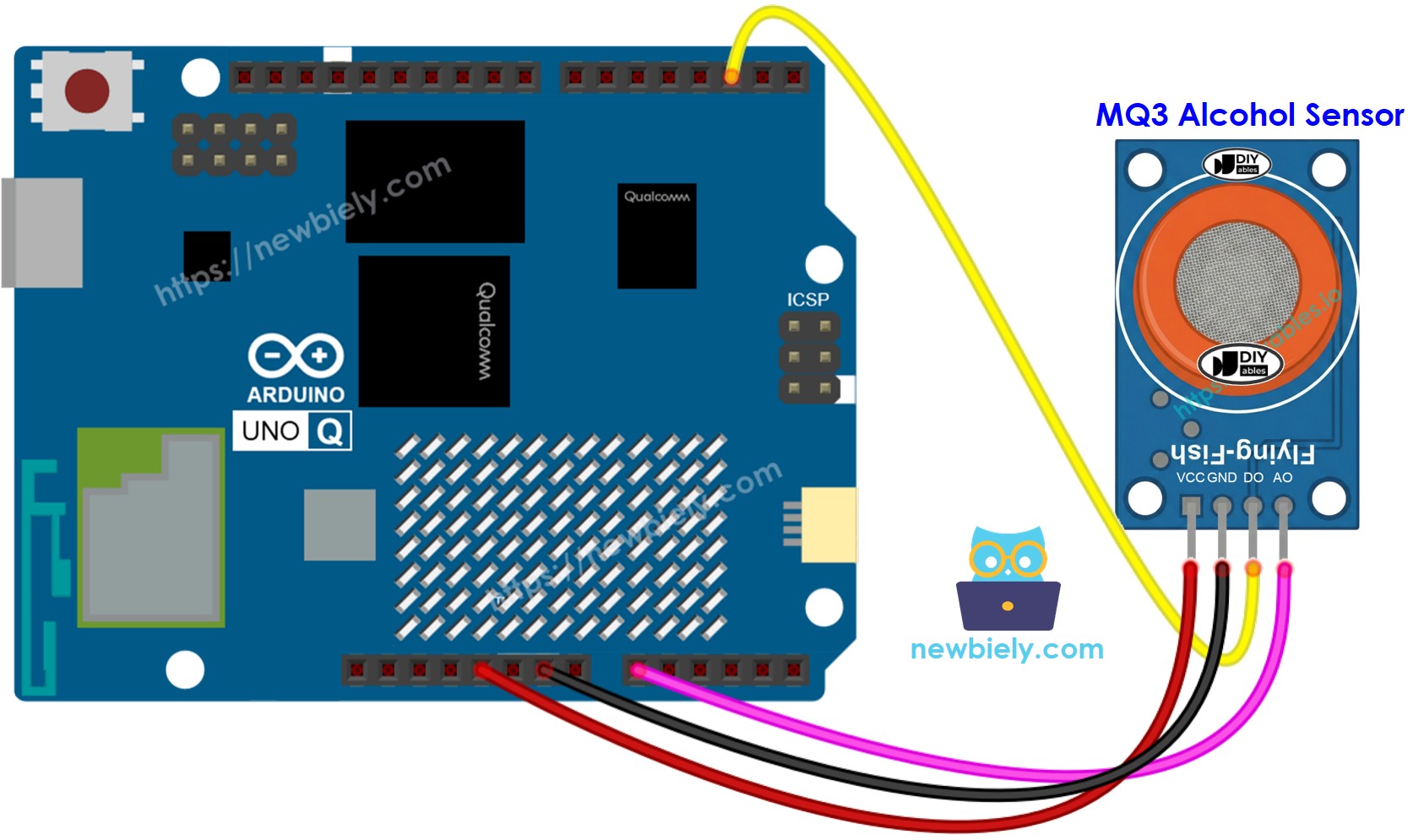
The wiring diagram between Arduino UNO Q MQ3 Alcohol Sensor

This image is created using Fritzing. Click to enlarge image

MQ3 Alcohol Sensor Pin Arduino UNO Q MCU
VCC 5V
GND GND
DO D2
AO A0

How To Program For MQ3 Alcohol Sensor

  • Configure the DO pin as a digital input:
pinMode(DO_PIN, INPUT);
  • Read both outputs:
int do_state = digitalRead(DO_PIN); // HIGH = no alcohol, LOW = detected int ao_value = analogRead(AO_PIN); // 0-4095, higher = more alcohol
  • Check for alcohol from digital output:
if (do_state == LOW) { Serial.print("Alcohol DETECTED! Intensity (AO): "); Serial.println(ao_value); }

Arduino UNO Q Code

The Arduino UNO Q has two processors working together:

  • The STM32 MCU warms up the sensor for 20 seconds, then reads both DO and AO every 500 ms
  • The Qualcomm MPU runs Debian Linux with Wi-Fi — in this section, only the MCU is programmed. A later section shows how both processors work together via Bridge.
/* * This Arduino UNO Q code was developed by newbiely.com * * This Arduino UNO Q code is made available for public use without any restriction * * For comprehensive instructions and wiring diagrams, please visit: * https://newbiely.com/tutorials/arduino-uno-q/arduino-uno-q-mq3-alcohol-sensor */ // COPYRIGHT newbiely.com // AUTHOR: newbiely // This code is made available for public use without restriction. // For complete instructions, tutorials, and further information, visit: // https://newbiely.com/tutorials/arduino-uno-q/arduino-uno-q-mq3-alcohol-sensor // MQ3 Alcohol Sensor: // DO pin: HIGH = no alcohol, LOW = alcohol detected // AO pin: analog — higher value = more alcohol (12-bit ADC: 0-4095) // VCC = 5V (heating element requires 5V) // The MCU ADC reference is 3.3V. AO readings above 3.3V saturate at 4095. // Use the DO pin as the primary alcohol detection method. #define DO_PIN 2 // The Arduino UNO Q MCU pin connected to DO of the MQ3 sensor #define AO_PIN A0 // The Arduino UNO Q MCU pin connected to AO of the MQ3 sensor void setup() { Serial.begin(9600); pinMode(DO_PIN, INPUT); Serial.println("Warming up the MQ3 alcohol sensor..."); delay(20000); // allow sensor to warm up Serial.println("Arduino UNO Q MQ3 Alcohol Sensor ready"); } void loop() { int do_state = digitalRead(DO_PIN); // HIGH = no alcohol, LOW = detected int ao_value = analogRead(AO_PIN); // 0-4095, higher = more alcohol if (do_state == LOW) { Serial.print("Alcohol DETECTED! Intensity (AO): "); Serial.println(ao_value); } else { Serial.print("No alcohol. AO value: "); Serial.println(ao_value); } delay(500); }

Detailed Instructions

First time with Arduino UNO Q? Follow the Getting Started with Arduino UNO Q tutorial before proceeding.

  • Connect: Wire the MQ3 alcohol sensor to the Arduino UNO Q MCU as shown in the wiring diagram.
  • Open Arduino App Lab: Launch Arduino App Lab and wait until it detects your Arduino UNO Q.
  • Create a new App: Click the Create New App button.

Create New App in Arduino App Lab on Arduino UNO Q
  • Give the App a name, for example: AlcoholSensor
  • Click Create to confirm.
Arduino App Lab App folders and files on Arduino UNO Q
  • Paste the sketch: Copy the MCU code above and paste it into sketch/sketch.ino.
  • Upload: Click the Run button in Arduino App Lab.

Click Run button in Arduino App Lab on Arduino UNO Q
  • Wait for the 20-second warm-up message in the Serial Monitor.
  • Carefully hold isopropyl alcohol vapors near the sensor (do not spill liquid on it) and observe the Serial Monitor output.
  • Adjust the potentiometer if the DO LED does not respond as expected.

App Lab Console Output

DIYables_Apps
Stop
sketch.ino
1#include "Arduino_RouterBridge.h"
Serial Monitor
Python
Message (Enter to send a message to "Newbiely" on usb(2820070321))
New Line
9600 baud
[2026-04-29 09:00:01] Warming up the MQ3 alcohol sensor... [2026-04-29 09:00:21] Arduino UNO Q MQ3 Alcohol Sensor ready [2026-04-29 09:00:22] No alcohol. AO value: 385 [2026-04-29 09:00:23] No alcohol. AO value: 382 [2026-04-29 09:00:24] Alcohol DETECTED! Intensity (AO): 1564 [2026-04-29 09:00:25] Alcohol DETECTED! Intensity (AO): 2418 [2026-04-29 09:00:26] No alcohol. AO value: 390

Arduino UNO Q Code — Breathalyzer

Use the analog output (AO) to measure alcohol intensity and classify the result into levels: Sober, Within limits, or High.

※ NOTE THAT:

Calibrate the thresholds for your specific sensor. Replace SOBER_THRESHOLD and DRUNK_THRESHOLD with values measured from your own sensor in clean air and during alcohol exposure.

/* * This Arduino UNO Q code was developed by newbiely.com * * This Arduino UNO Q code is made available for public use without any restriction * * For comprehensive instructions and wiring diagrams, please visit: * https://newbiely.com/tutorials/arduino-uno-q/arduino-uno-q-mq3-alcohol-sensor */ // COPYRIGHT newbiely.com // AUTHOR: newbiely // This code is made available for public use without restriction. // For complete instructions, tutorials, and further information, visit: // https://newbiely.com/tutorials/arduino-uno-q/arduino-uno-q-mq3-alcohol-sensor // Breathalyzer mode using AO pin // Thresholds are approximate for 12-bit ADC (0-4095) — calibrate for your sensor! // Run the sensor in clean air to find the baseline AO value, then blow near the sensor // after drinking to find an appropriate DRINKING_THRESHOLD. #define AO_PIN A0 // The Arduino UNO Q MCU pin connected to AO of the MQ3 sensor // REPLACE THESE with your calibrated values! #define SOBER_THRESHOLD 480 // Below this = sober (≈ 120 × 4 for 12-bit) #define DRUNK_THRESHOLD 1600 // Above this = over limit (≈ 400 × 4 for 12-bit) void setup() { Serial.begin(9600); Serial.println("MQ3 Alcohol Sensor - Breathalyzer Mode"); Serial.println("Warming up sensor..."); delay(20000); Serial.println("Sensor ready! Blow near the sensor to measure."); } void loop() { int ao_value = analogRead(AO_PIN); Serial.print("AO value: "); Serial.print(ao_value); Serial.print(" | Status: "); if (ao_value < SOBER_THRESHOLD) { Serial.println("Sober"); } else if (ao_value < DRUNK_THRESHOLD) { Serial.println("Alcohol detected — within limits"); } else { Serial.println("HIGH alcohol level detected!"); } delay(1000); }

App Lab Console Output

DIYables_Apps
Stop
sketch.ino
1#include "Arduino_RouterBridge.h"
Serial Monitor
Python
Message (Enter to send a message to "Newbiely" on usb(2820070321))
New Line
9600 baud
[2026-04-29 09:05:21] MQ3 Alcohol Sensor - Breathalyzer Mode [2026-04-29 09:05:21] Warming up sensor... [2026-04-29 09:05:41] Sensor ready! Blow near the sensor to measure. [2026-04-29 09:05:42] AO value: 382 | Status: Sober [2026-04-29 09:05:43] AO value: 385 | Status: Sober [2026-04-29 09:05:44] AO value: 1321 | Status: Alcohol detected — within limits [2026-04-29 09:05:45] AO value: 2865 | Status: HIGH alcohol level detected! [2026-04-29 09:05:46] AO value: 480 | Status: Sober

Bridge: Linux + MCU

This section shows how to program both processors of the Arduino UNO Q so the Linux side can read alcohol state, intensity value, and breathalyzer level via Bridge:

  • The alcohol sensor is connected to the MCU — the MCU warms up for 20 seconds, then reads DO and AO every 500 ms
  • The MPU cannot read sensor pins directly — it calls Bridge functions to get state, value, level, or events
  • The MPU has Wi-Fi — running full Debian Linux, it can send instant Telegram alerts when alcohol is detected
  • Arduino_RouterBridge enables RPC communication between the two processors
  • ⚠️ /dev/ttyHS1 (Linux) and Serial1 (MCU) are RESERVED by the router — never open them in user code

MCU Code (Bridge)

/* * This Arduino UNO Q code was developed by newbiely.com * * This Arduino UNO Q code is made available for public use without any restriction * * For comprehensive instructions and wiring diagrams, please visit: * https://newbiely.com/tutorials/arduino-uno-q/arduino-uno-q-mq3-alcohol-sensor */ // COPYRIGHT newbiely.com // AUTHOR: newbiely // This code is made available for public use without restriction. // For complete instructions, tutorials, and further information, visit: // https://newbiely.com/tutorials/arduino-uno-q/arduino-uno-q-mq3-alcohol-sensor #include "Arduino_RouterBridge.h" #define DO_PIN 2 // The Arduino UNO Q MCU pin connected to DO of the MQ3 sensor #define AO_PIN A0 // The Arduino UNO Q MCU pin connected to AO of the MQ3 sensor // Breathalyzer thresholds (12-bit ADC) — calibrate for your sensor! #define SOBER_THRESHOLD 480 #define DRUNK_THRESHOLD 1600 bool cached_alcohol = false; int cached_ao = 0; bool alcohol_event = false; bool prev_alcohol = false; unsigned long last_read_ms = 0; const unsigned long READ_INTERVAL = 500; String get_state(String arg) { return cached_alcohol ? "alcohol" : "no_alcohol"; } String get_value(String arg) { return String(cached_ao); } String get_level(String arg) { if (cached_ao < SOBER_THRESHOLD) return "sober"; if (cached_ao < DRUNK_THRESHOLD) return "within_limits"; return "high"; } String get_event(String arg) { if (alcohol_event) { alcohol_event = false; return "alcohol_detected"; } return "none"; } void setup() { Bridge.begin(); Monitor.begin(); pinMode(DO_PIN, INPUT); Monitor.println("Warming up the MQ3 alcohol sensor..."); delay(20000); Bridge.provide("get_state", get_state); Bridge.provide("get_value", get_value); Bridge.provide("get_level", get_level); Bridge.provide("get_event", get_event); Monitor.println("Arduino UNO Q MQ3 Alcohol Sensor Bridge ready"); } void loop() { unsigned long now = millis(); if (now - last_read_ms >= READ_INTERVAL) { last_read_ms = now; int do_state = digitalRead(DO_PIN); // LOW = alcohol detected cached_ao = analogRead(AO_PIN); cached_alcohol = (do_state == LOW); if (cached_alcohol && !prev_alcohol) { alcohol_event = true; Monitor.print("ALCOHOL DETECTED! AO value: "); Monitor.println(cached_ao); } else if (!cached_alcohol && prev_alcohol) { Monitor.println("Alcohol cleared."); } prev_alcohol = cached_alcohol; } }

Python Code (Bridge)

/* * This Arduino UNO Q code was developed by newbiely.com * * This Arduino UNO Q code is made available for public use without any restriction * * For comprehensive instructions and wiring diagrams, please visit: * https://newbiely.com/tutorials/arduino-uno-q/arduino-uno-q-mq3-alcohol-sensor */ # COPYRIGHT newbiely.com # AUTHOR: newbiely # This code is made available for public use without restriction. # For complete instructions, tutorials, and further information, visit: # https://newbiely.com/tutorials/arduino-uno-q/arduino-uno-q-mq3-alcohol-sensor from arduino.app_utils import * import time def loop(): state = Bridge.call("get_state") value = Bridge.call("get_value") level = Bridge.call("get_level") print(f"Alcohol state: {state} AO value: {value} Level: {level}") time.sleep(0.5) App.run(user_loop=loop)

Detailed Instructions

  • Connect: Wire the MQ3 alcohol sensor to the Arduino UNO Q as shown in the wiring diagram.
  • Open Arduino App Lab and create a new App named AlcoholSensorBridge.
  • Paste the MCU sketch into sketch/sketch.ino.
  • Paste the Python code into the Python file.
  • Install the library: Click the Add sketch library button (the open book icon with a + sign) in the left sidebar.

Add sketch library in Arduino App Lab on Arduino UNO Q
  • Search for Arduino_RouterBridge created by Arduino and click the Install button.
My Apps / DIYables Apps
Run
Bricks
No bricks added...
Sketch Libraries
No sketch libra...
Files
python
sketch
.gitignore
README.md
app.yaml
sketch.ino
Add sketch library
Arduino_RouterBridge Arduino

This library provides a simple RPC bridge for Arduino UNO Q boards, allowing communication between the board and other devices using MsgPack serialization.

0.4.1
Install
More Info
  • Upload: Click the Run button. Wait for the warm-up period to finish.
Click Run button in Arduino App Lab on Arduino UNO Q
  • Expose the sensor to alcohol vapors and observe the event appear in both consoles.

App Lab Console Output

DIYables_Apps
Stop
sketch.ino
1#include "Arduino_RouterBridge.h"
Serial Monitor
Python
Message (Enter to send a message to "Newbiely" on usb(2820070321))
New Line
9600 baud
[2026-04-29 09:00:01] Warming up the MQ3 alcohol sensor... [2026-04-29 09:00:21] Arduino UNO Q MQ3 Alcohol Sensor Bridge ready [2026-04-29 09:00:26] ALCOHOL DETECTED! AO value: 1564 [2026-04-29 09:00:30] Alcohol cleared.
DIYables_Apps
Stop
sketch.ino
1#include "Arduino_RouterBridge.h"
Serial Monitor
Python
[2026-04-29 09:00:22] Alcohol state: no_alcohol AO value: 385 Level: sober [2026-04-29 09:00:23] Alcohol state: no_alcohol AO value: 382 Level: sober [2026-04-29 09:00:26] Alcohol state: alcohol AO value: 1564 Level: within_limits [2026-04-29 09:00:28] Alcohol state: alcohol AO value: 2418 Level: high [2026-04-29 09:00:30] Alcohol state: no_alcohol AO value: 390 Level: sober

Telegram

Receive instant Telegram alcohol detection alerts from the Arduino UNO Q, and query the sensor's state, intensity, or breathalyzer level remotely.

MCU sketch: Keep the same MCU sketch from the previous Bridge section.

Python Code (Telegram)

/* * This Arduino UNO Q code was developed by newbiely.com * * This Arduino UNO Q code is made available for public use without any restriction * * For comprehensive instructions and wiring diagrams, please visit: * https://newbiely.com/tutorials/arduino-uno-q/arduino-uno-q-mq3-alcohol-sensor */ # COPYRIGHT newbiely.com # AUTHOR: newbiely # This code is made available for public use without restriction. # For complete instructions, tutorials, and further information, visit: # https://newbiely.com/tutorials/arduino-uno-q/arduino-uno-q-mq3-alcohol-sensor from arduino.app_utils import * import requests import time TELEGRAM_BOT_TOKEN = "YOUR_TELEGRAM_BOT_TOKEN" CHAT_ID = "YOUR_CHAT_ID" last_update_id = 0 def get_updates(): global last_update_id url = f"https://api.telegram.org/bot{TELEGRAM_BOT_TOKEN}/getUpdates" params = {"offset": last_update_id + 1, "timeout": 5} try: response = requests.get(url, params=params, timeout=10) data = response.json() if data["ok"]: return data["result"] except Exception as e: print(f"Error getting updates: {e}") return [] def send_message(chat_id, text): url = f"https://api.telegram.org/bot{TELEGRAM_BOT_TOKEN}/sendMessage" payload = {"chat_id": chat_id, "text": text} try: requests.post(url, data=payload, timeout=10) except Exception as e: print(f"Error sending message: {e}") def loop(): # Auto-alert on alcohol detection event = Bridge.call("get_event") if event == "alcohol_detected": value = Bridge.call("get_value") level = Bridge.call("get_level") print(f"ALCOHOL DETECTED! AO value: {value} Level: {level}") send_message(CHAT_ID, f"🍺 ALCOHOL DETECTED! AO intensity: {value}, Level: {level}") # Handle Telegram commands updates = get_updates() for update in updates: last_update_id = update["update_id"] if "message" not in update: continue message = update["message"] chat_id = message["chat"]["id"] text = message.get("text", "").strip() print(f"Received: {text}") if text == "/start": send_message(chat_id, "Arduino UNO Q Alcohol Sensor Bot\n" "/state - Alcohol state (alcohol / no_alcohol)\n" "/value - AO intensity value (0-4095)\n" "/level - Breathalyzer level (sober / within_limits / high)\n" "Automatic alert when alcohol is detected!") elif text == "/state": result = Bridge.call("get_state") send_message(chat_id, f"Alcohol state: {result}") elif text == "/value": result = Bridge.call("get_value") send_message(chat_id, f"AO intensity value: {result}") elif text == "/level": result = Bridge.call("get_level") send_message(chat_id, f"Breathalyzer level: {result}") else: send_message(chat_id, "Unknown command. Send /start for help.") time.sleep(0.3) App.run(user_loop=loop)

Detailed Instructions

  • Replace YOUR_TELEGRAM_BOT_TOKEN with your actual bot token from BotFather.
  • Replace YOUR_CHAT_ID with your Telegram chat ID.
  • Paste this Python code into your App's Python file (keep the same MCU sketch).
  • Click the Run button — wait for warm-up, then expose the sensor to alcohol vapors to trigger the Telegram alert.

App Lab Console Output

DIYables_Apps
Stop
sketch.ino
1#include "Arduino_RouterBridge.h"
Serial Monitor
Python
[2026-04-29 09:10:21] Waiting for Telegram messages... [2026-04-29 09:10:26] ALCOHOL DETECTED! AO value: 1564 Level: within_limits [2026-04-29 09:10:32] Received: /state [2026-04-29 09:10:35] Received: /value [2026-04-29 09:10:38] Received: /level
Telegram
Telegram 12:45
Welcome to Telegram!
ArduinoBot 10:19
Chatting with Arduino...
telegram-botfather
BotFather Yesterday
Your bot has been created.

ArduinoBot

bot
Today
🍺 ALCOHOL DETECTED! AO intensity: 1564, Level: within_limits
10:15 AM
/state
10:16 AM ✓✓
Alcohol state: no_alcohol
10:17 AM
/value
10:18 AM ✓✓
AO intensity value: 390
10:19 AM
/level
10:20 AM ✓✓
Breathalyzer level: sober
10:21 AM

OpenClaw

...OPENCLAW

OpenClaw support for Arduino UNO Q MQ3 Alcohol Sensor is coming soon.

...OPENCLAW

Project Ideas

You can build many useful projects with the MQ3 alcohol sensor and Arduino UNO Q:

  • Smart Breathalyzer with Telegram Report: Blow near the sensor and automatically receive a Telegram message with your breathalyzer level (sober / within limits / high) and the raw AO intensity value — useful for a demonstration or educational project
  • Car Ignition Interlock: Combine the alcohol sensor with a relay module — if the sensor detects alcohol above the DRUNK_THRESHOLD, the relay prevents the ignition circuit from completing, and a Telegram alert is sent to a guardian's phone
  • Party Safety Monitor: Install the sensor in a room — when alcohol is detected above a set level for more than 5 consecutive readings, the MPU sends a Telegram notification to monitor the environment
  • Alcohol Exposure Logger: Log the AO value and breathalyzer level every minute to a CSV file on the Linux side — send a daily Telegram summary with peak readings and timestamps
  • Multi-Sensor Safety System: Combine the alcohol sensor with the gas sensor tutorial — if both detect hazardous levels simultaneously, send a combined Telegram alert with both readings

Challenge Yourself

Ready to go further with the MQ3 alcohol sensor on Arduino UNO Q? Try these challenges:

  • Easy: Add a /history Telegram command that returns the last 5 alcohol detection events with their AO values and breathalyzer levels, stored in a Python list.
  • Medium: Implement a cool-down period: after an alcohol_detected alert is sent, wait at least 60 seconds before sending another alert — even if the sensor keeps detecting alcohol — to prevent Telegram spam.
  • Advanced: Build an automatic breathalyzer logger — on each detection event, Python saves a timestamped entry (date, time, AO value, level) to a JSON file on Linux, and a /report Telegram command returns the last 10 entries formatted as a readable log.

※ OUR MESSAGES

  • As freelancers, We are AVAILABLE for HIRE. See how to outsource your project to us
  • Please feel free to share the link of this tutorial. However, Please do not use our content on any other websites. We invested a lot of effort and time to create the content, please respect our work!