
Arduino UNO Q - Limit Switch
A limit switch detects when a moving object has reached a specific position. It is also called a travel switch. In this tutorial, you will learn how to wire a limit switch to Arduino UNO Q, read its TOUCHED/UNTOUCHED state, detect contact events, and check the state remotely via Telegram.
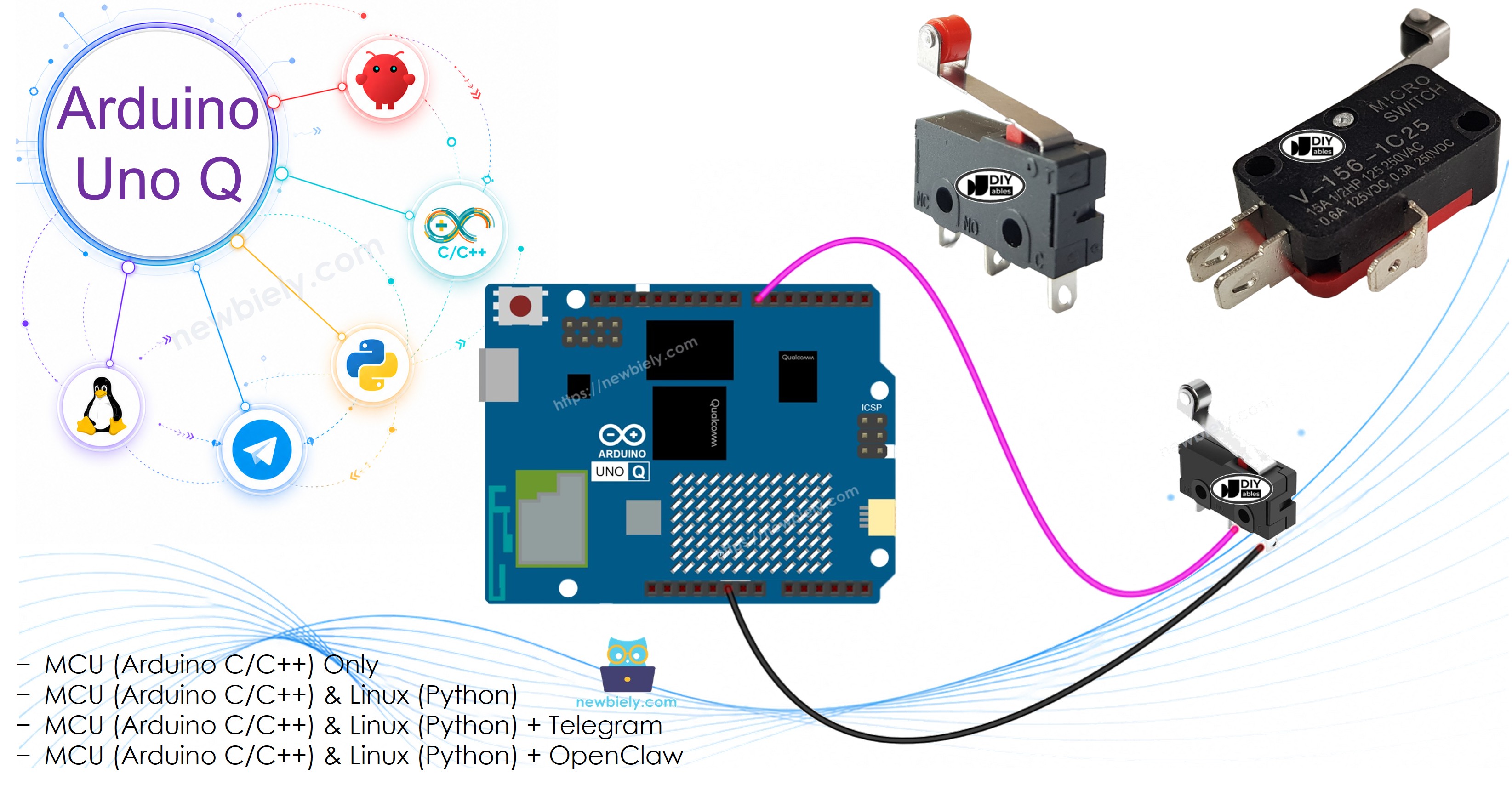
Hardware Preparation
Or you can buy the following kits:
| 1 | × | DIYables Sensor Kit (18 sensors/displays) |
Additionally, some of these links are for products from our own brand, DIYables .
Overview of Limit Switch
A limit switch is named after its primary function: detecting when a moving object reaches the end (limit) of its travel range.
Pinout
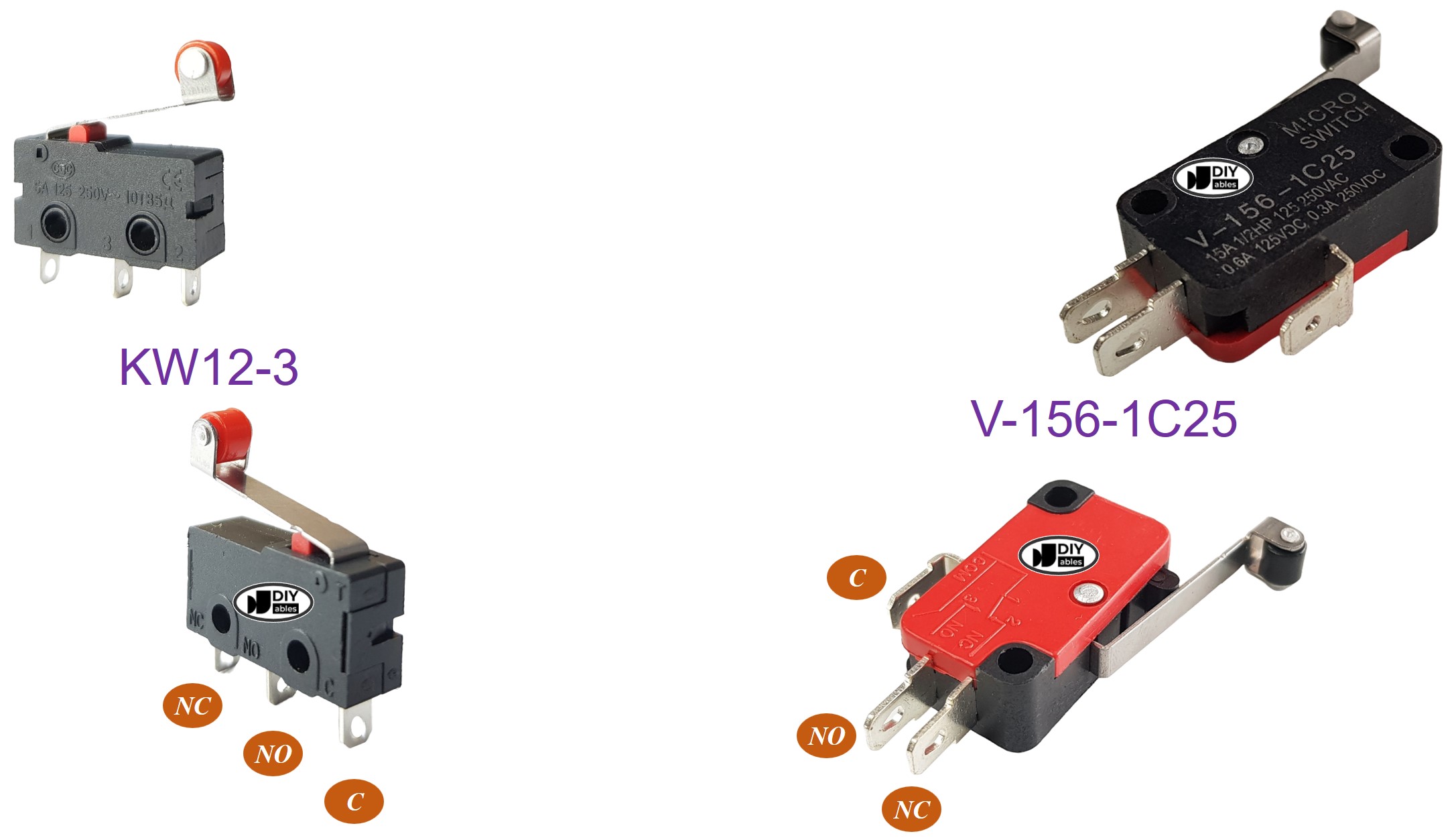
Common limit switch models (e.g., KW12-3, V-156-1C25) have three pins:
- C (Common): Used in all wiring configurations
- NO (Normally Open): Active when touched; opens circuit when not touched
- NC (Normally Closed): Active when untouched; opens circuit when touched
How It Works
There are several wiring options. This tutorial uses the most straightforward approach — the C pin to GND and the NO pin to the Arduino UNO Q input pin with INPUT_PULLUP:
| C pin | NO pin | NC pin | Pin State | |
|---|---|---|---|---|
| 1 | GND | Arduino UNO Q Input (INPUT_PULLUP) | NOT connected | HIGH = UNTOUCHED, LOW = TOUCHED |
※ NOTE THAT:
Like a button, a limit switch requires debouncing. The ezButton library handles this automatically.
Wiring Diagram
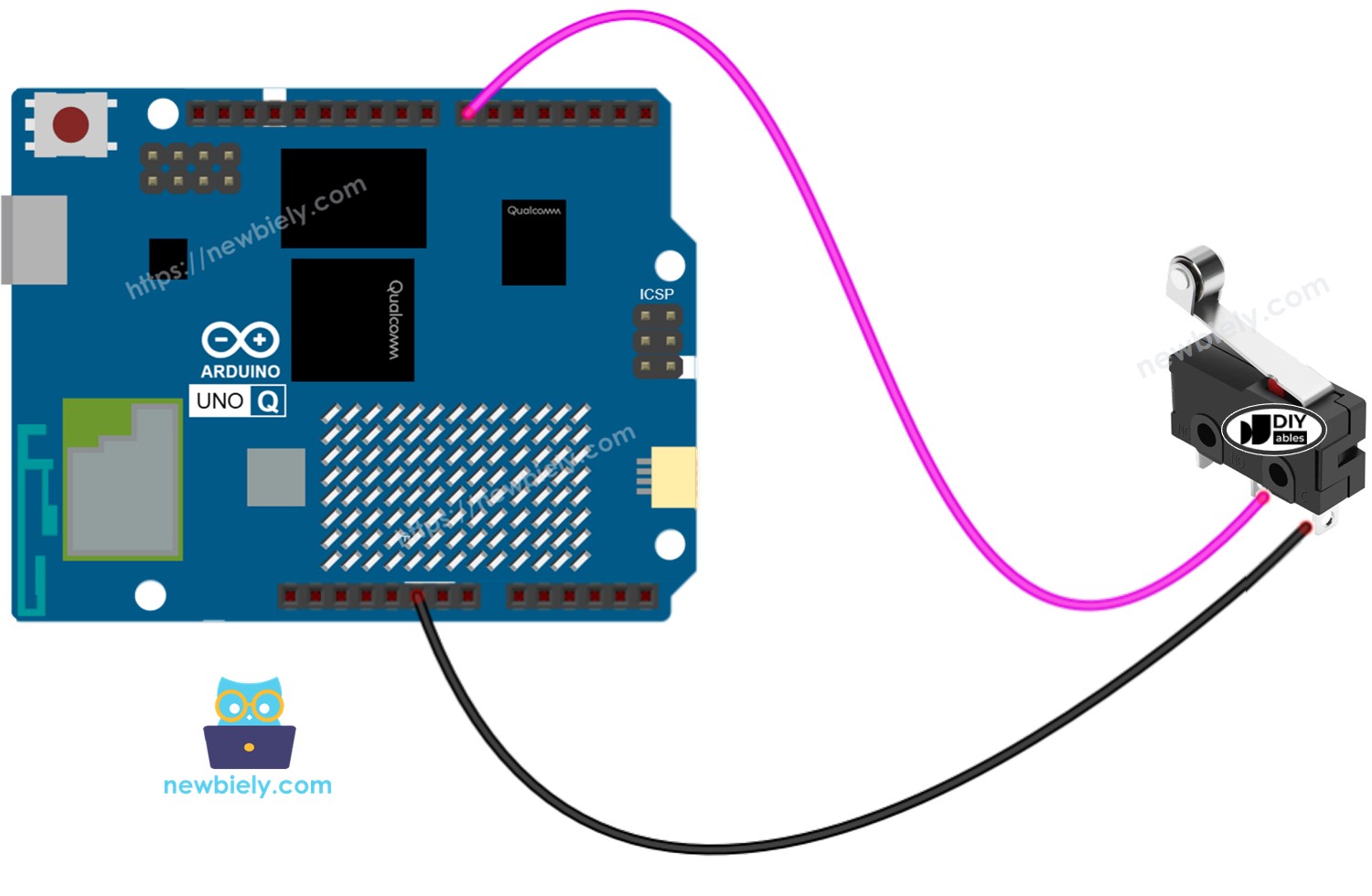
This image is created using Fritzing. Click to enlarge image
We recommend soldering wires to the switch pins and covering them with heat shrink tubing for a reliable, vibration-resistant connection.
MCU Code — Limit Switch
The Arduino UNO Q has two processors: the STM32 MCU (handles real-time hardware control) and the Qualcomm MPU (runs Debian Linux). In this section, only the STM32 MCU is programmed — the Linux side stays idle. A later section will show how both processors work together.
The ezButton library handles both debounce and state reading. Use isPressed() to detect UNTOUCHED→TOUCHED transitions and isReleased() for TOUCHED→UNTOUCHED:
※ NOTE THAT:
Two common use-cases:
- Level-based: Check getState() == LOW to know if the switch is currently being pressed/touched.
- Edge-based: Use isPressed() for UNTOUCHED→TOUCHED and isReleased() for TOUCHED→UNTOUCHED transitions.
Detailed Instructions
- First time with Arduino UNO Q? Follow the Getting Started with Arduino UNO Q tutorial to get your development environment ready before proceeding.
- Wire the limit switch: Connect the C pin to GND and the NO pin to pin 7 according to the wiring diagram.
- Connect: Plug the Arduino UNO Q into your computer with a USB-C cable.
- Open Arduino App Lab: Launch Arduino App Lab and wait until it detects your Arduino UNO Q.
- Create a new App: Click the Create New App button.

- Give the App a name, for example: DIYables_LimitSwitch
- Click Create to confirm.
- You will see a set of folders and files generated inside your new App.

- Find the sketch/sketch.ino file — this is where you will paste the MCU sketch.
- Install the library: Click the Add sketch library button (the open book icon with a + sign) in the left sidebar.

- Search for ezButton created by ArduinoGetStarted.com and click the Install button.
- Search for Arduino_RouterBridge created by Arduino and click the Install button.
- Upload: Click the Run button in Arduino App Lab to compile and upload to the STM32.

- Trigger the limit switch by pressing the actuator arm. Transitions are logged via the Bridge Monitor in the next section.
- Pro Tip: Add your own action code in each state block — for example, stop a motor when TOUCHED and re-enable it when UNTOUCHED.
Linux + MCU Bridge Programming
The Arduino UNO Q has two processors that work together: the MPU (Qualcomm, runs Debian Linux) and the MCU (STM32, runs Zephyr OS with your Arduino sketch). They communicate using RPC via the Arduino_RouterBridge library — never via raw serial ports.
- The limit switch is connected to the MCU (STM32) — wired to a digital input pin on the STM32. The MCU reads and debounces the switch using the ezButton library.
- The MPU cannot read the switch directly — it must request the state from the MCU via Bridge.call(). The MCU responds immediately.
- The MPU has Wi-Fi — because the MPU runs full Debian Linux with Wi-Fi, it can report the switch state via Telegram on demand.
- Communication: Bridge.call() on the Linux side invokes Bridge.provide() functions on the MCU side
- ⚠️ Reserved: /dev/ttyHS1 (Linux) and Serial1 (MCU) are used by the Arduino Router — never open them directly
In short: MPU requests limit switch state → MCU reads pin → MCU reports TOUCHED or UNTOUCHED → MPU logs or forwards it.
MCU sketch — limit switch with Bridge and Monitor output:
Python script (Arduino App Lab) — poll limit switch state from Linux:
- Note: Make sure Bridge.begin() is called in the MCU sketch and the sketch is uploaded before running the Python script on the Linux side.
- ⚠️ Warning: Never directly open /dev/ttyHS1 (on Linux) or use Serial1 (on MCU) in your code — these are reserved by the Arduino Router and accessing them will break the Bridge.
Detailed Instructions
- Upload the MCU sketch: Open Arduino App Lab, create a new App, paste the Bridge MCU sketch above into sketch/sketch.ino, install the ezButton and Arduino_RouterBridge libraries, and click Run.
- Add the Python script: Paste the Python code above into the Python tab of the same App.
- Run the App: Click Run — the Python side polls the limit switch state every 2 seconds.
- Trigger the limit switch by pressing its actuator.
- Check the console: Open the Console tab → MCU Monitor subtab to see transitions logged in real time.
App Lab Console Output
Telegram Integration
Check the current limit switch state remotely from anywhere via Telegram.
If you do not have a Telegram bot yet, see How to Create a Telegram Bot to get your bot token before continuing.
MCU sketch: Keep the same MCU sketch from the previous Bridge section — no changes needed. Make sure it is already uploaded and running on the STM32 before proceeding.
Python script (Arduino App Lab) — Telegram bot for limit switch state:
- Note: Replace YOUR_BOT_TOKEN with the token obtained from @BotFather on Telegram.
- Send /state to check whether the limit switch is currently TOUCHED or UNTOUCHED.
Detailed Instructions
- Upload the MCU sketch: Use the Bridge MCU sketch from the previous section (upload it first if not already done).
- Paste the Telegram script: Copy the Python code above into the Python tab of your App in Arduino App Lab.
- Set your token: Replace YOUR_BOT_TOKEN in the script with your actual bot token.
- Run the App: Click Run — the bot starts listening for Telegram messages.
- Test it: Trigger the limit switch, then send /state — confirm it reads "TOUCHED".
App Lab Console Output


ArduinoBot
OpenClaw Integration
You can adapt the OpenClaw to this tutorial by refering the instruction on Arduino Uno Q - OpenClaw Tutorial
Application/Project Ideas
- Motor end-stop protection: Stop a motor automatically when the limit switch detects the end of travel
- Telegram travel alert: Report via Telegram whenever the actuator reaches its limit position
- Door open/close detector: Mount a limit switch on a door hinge — check state remotely via Telegram
- 3D printer-style homing: Use limit switches to home linear axes on a DIY motion platform
- Conveyor belt end detection: Detect when an item reaches the end of a conveyor and trigger the next action
Challenge Yourself
- Easy: Add an LED that turns on when the limit switch is TOUCHED and turns off when UNTOUCHED
- Medium: Count how many times the limit switch has been triggered and expose the count via get_trigger_count()
- Advanced: Build a Telegram bot that automatically notifies you the moment the limit switch is triggered — use a continuous monitoring loop in Python