
Arduino UNO Q - Flame Sensor
A flame sensor detects infrared radiation from fire and outputs both a digital signal (flame/no flame) and an analog signal (flame intensity). On Arduino UNO Q, the 12-bit ADC gives finer intensity readings. With Bridge and Telegram, you get instant fire alerts on your phone.
In this tutorial, you will learn:
- What a flame sensor is and how it works
- How to wire the flame sensor to the Arduino UNO Q MCU
- How to read both the digital (DO) and analog (AO) outputs
- How to use Bridge to expose flame state and events to the Linux side (Python)
- How to receive urgent Telegram fire alerts from the Arduino UNO Q flame sensor
- How to use OpenClaw on Arduino UNO Q with the flame sensor
※ NOTE THAT:
The flame sensor detects infrared radiation. Use it for early fire detection and as part of a safety system — always pair it with proper fire alarms and safety equipment. Never rely on this sensor alone for life-safety applications.
Hardware Preparation
Or you can buy the following kits:
| 1 | × | DIYables Sensor Kit (18 sensors/displays) |
Additionally, some of these links are for products from our own brand, DIYables .
Overview of the Flame Sensor
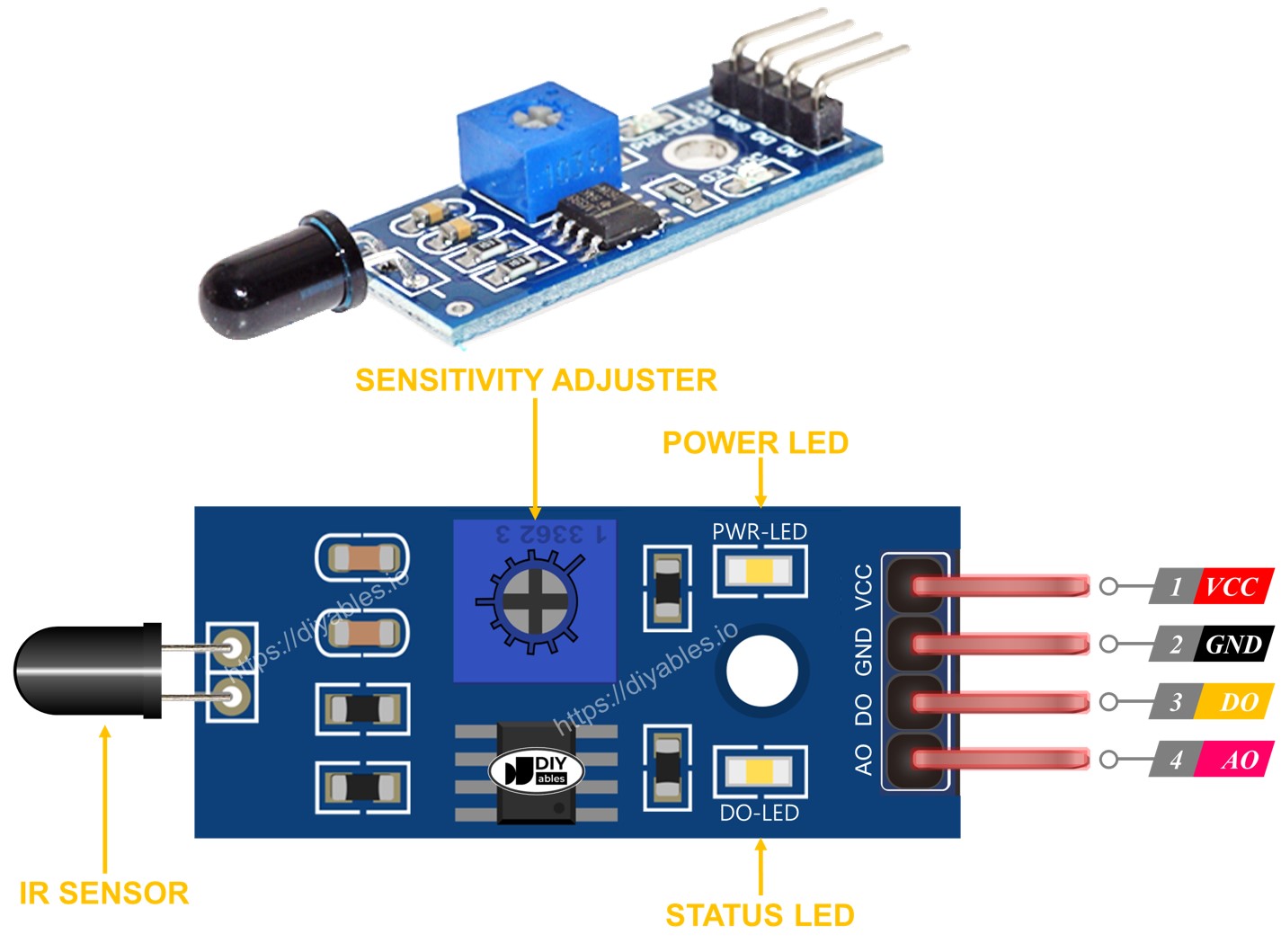
The flame sensor contains an infrared photodiode that is sensitive to the specific infrared wavelengths produced by flames. It includes an onboard potentiometer to adjust the digital detection threshold.
Pinout
- VCC pin: 3.3V to 5V power supply
- GND pin: Ground
- DO pin: Digital output — HIGH = no flame, LOW = flame detected. Sensitivity is set by the onboard potentiometer.
- AO pin: Analog output — higher value = more infrared/flame, lower value = less flame
LED Indicators
- PWR-LED: Power indicator
- DO-LED: Lights up when flame is detected (DO pin LOW)
How It Works
- DO pin: The potentiometer sets a threshold. When the infrared level exceeds the threshold, DO goes LOW (flame detected). Adjust the potentiometer until the DO-LED reliably triggers near a flame.
- AO pin: Outputs a continuous analog voltage proportional to the infrared intensity. On Arduino UNO Q, this is read as a 12-bit value (0–4095) — higher values mean more infrared/flame.
※ NOTE THAT:
Flame sensors respond to any strong infrared source, not just fire. Strong sunlight or infrared LEDs can also trigger the sensor. Shield the sensor from direct sunlight to avoid false alarms.
Wiring Diagram
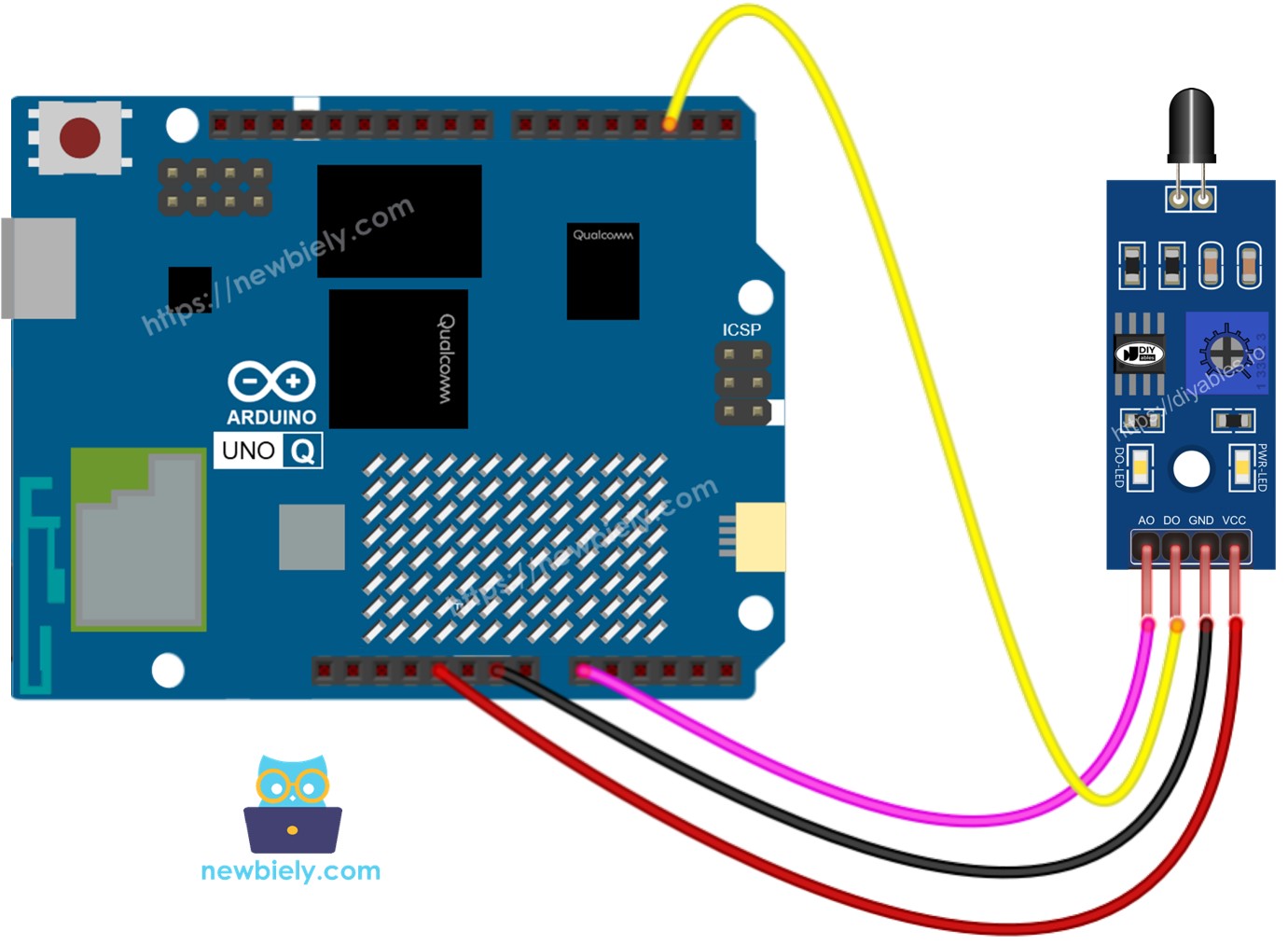
This image is created using Fritzing. Click to enlarge image
| Flame Sensor Pin | Arduino UNO Q MCU |
|---|---|
| VCC | 5V |
| GND | GND |
| DO | D2 |
| AO | A0 |
How To Program For Flame Sensor
- Configure the DO pin as a digital input:
- Read both outputs:
- Check for flame from digital output:
Arduino UNO Q Code
The Arduino UNO Q has two processors working together:
- The STM32 MCU reads both DO and AO outputs from the flame sensor every 500 ms
- The Qualcomm MPU runs Debian Linux with Wi-Fi — in this section, only the MCU is programmed. A later section shows how both processors work together via Bridge.
Detailed Instructions
First time with Arduino UNO Q? Follow the Getting Started with Arduino UNO Q tutorial before proceeding.
- Connect: Wire the flame sensor to the Arduino UNO Q MCU as shown in the wiring diagram.
- Open Arduino App Lab: Launch Arduino App Lab and wait until it detects your Arduino UNO Q.
- Create a new App: Click the Create New App button.

- Give the App a name, for example: FlameSensor
- Click Create to confirm.

- Paste the sketch: Copy the MCU code above and paste it into sketch/sketch.ino.
- Upload: Click the Run button in Arduino App Lab.

- Point the flame sensor towards a candle flame — observe the Serial Monitor output.
- Adjust the potentiometer on the module if the DO pin does not respond correctly.
App Lab Console Output
Bridge: Linux + MCU
This section shows how to program both processors of the Arduino UNO Q so the Linux side can read flame state and receive fire events via Bridge:
- The flame sensor is connected to the MCU — the MCU reads DO and AO every 500 ms and caches the values
- The MPU cannot read the sensor pins directly — it calls Bridge functions to get state, intensity value, or events
- The MPU has Wi-Fi — running full Debian Linux, it can send urgent Telegram fire alerts the moment a flame is detected
- Arduino_RouterBridge enables RPC communication between the two processors
- ⚠️ /dev/ttyHS1 (Linux) and Serial1 (MCU) are RESERVED by the router — never open them in user code
MCU Code (Bridge)
Python Code (Bridge)
Detailed Instructions
- Connect: Wire the flame sensor to the Arduino UNO Q as shown in the wiring diagram.
- Open Arduino App Lab and create a new App named FlameSensorBridge.
- Paste the MCU sketch into sketch/sketch.ino.
- Paste the Python code into the Python file.
- Install the library: Click the Add sketch library button (the open book icon with a + sign) in the left sidebar.

- Search for Arduino_RouterBridge created by Arduino and click the Install button.
- Upload: Click the Run button.
- Point the sensor at a candle — observe the flame event appear in both consoles.
App Lab Console Output
Telegram
Receive instant Telegram fire alerts from the Arduino UNO Q flame sensor, and query flame state remotely.
MCU sketch: Keep the same MCU sketch from the previous Bridge section.
Python Code (Telegram)
Detailed Instructions
- Replace YOUR_TELEGRAM_BOT_TOKEN with your actual bot token from BotFather.
- Replace YOUR_CHAT_ID with your Telegram chat ID.
- Paste this Python code into your App's Python file (keep the same MCU sketch).
- Click the Run button — point the sensor at a flame to receive the Telegram alert.
App Lab Console Output


ArduinoBot
OpenClaw
You can adapt the OpenClaw to this tutorial by refering the instruction on Arduino Uno Q - OpenClaw Tutorial
Project Ideas
You can build many useful projects with the flame sensor and Arduino UNO Q:
- Fire Alert System: Mount the flame sensor in a kitchen or tutorial — when a flame is detected, the MPU sends an urgent Telegram alert with the AO intensity value so you can take immediate action from anywhere
- Automatic Fire Suppression: Connect the flame sensor with a relay-controlled solenoid valve — when flame is detected, the MCU opens the valve to release water or suppression agent, and Python sends a Telegram notification
- Candle Monitoring: Place the sensor near a candle in an unattended room — receive a Telegram alert if the candle is still burning after a set time, or if a new flame appears unexpectedly
- Fire Intensity Logger: Log AO values and timestamps to a CSV on Linux whenever flame is detected — send a daily Telegram report summarizing flame events with start time, end time, and peak intensity
- Multi-Sensor Fire Safety System: Combine the flame sensor with the gas sensor tutorial — if both detect danger simultaneously, send a "FIRE + GAS LEAK" Telegram alert and trigger an audible alarm via relay
Challenge Yourself
Ready to go further with the flame sensor on Arduino UNO Q? Try these challenges:
- Easy: Add a /history Telegram command that returns the last 5 flame events with timestamps and peak AO intensity values stored in a Python list.
- Medium: Implement a false-alarm filter: the flame must be detected for at least 3 consecutive readings (1.5 seconds) before the MPU sends a Telegram alert — this prevents single-pulse false positives from bright lights.
- Advanced: Build a multi-zone fire monitoring system using two flame sensors on different digital pins — expose separate Bridge functions for each zone, and Telegram alerts that specify which zone detected the flame with individual intensity readings.