
Arduino UNO Q - Keypad 3x4
Want to add a 12-key membrane keypad to your Arduino UNO Q project? In this tutorial, you will learn how to read key presses and build a password verification system — and even get Telegram alerts when keys are pressed.
In this tutorial, you will learn:
- What a 3x4 keypad is and how it works
- How to wire the 3x4 keypad to Arduino UNO Q
- How to program the MCU (C/C++ Arduino code) to detect key presses
- How to verify a password entered on the keypad
- How to program both the Linux side (Python) and MCU side (C/C++) to read the keypad via Bridge
- How to send Telegram notifications when a key is pressed on Arduino UNO Q
- How to use OpenClaw on Arduino UNO Q with the 3x4 keypad
Hardware Preparation
Or you can buy the following kits:
| 1 | × | DIYables Sensor Kit (18 sensors/displays) |
Additionally, some of these links are for products from our own brand, DIYables .
Overview of the 3x4 Keypad
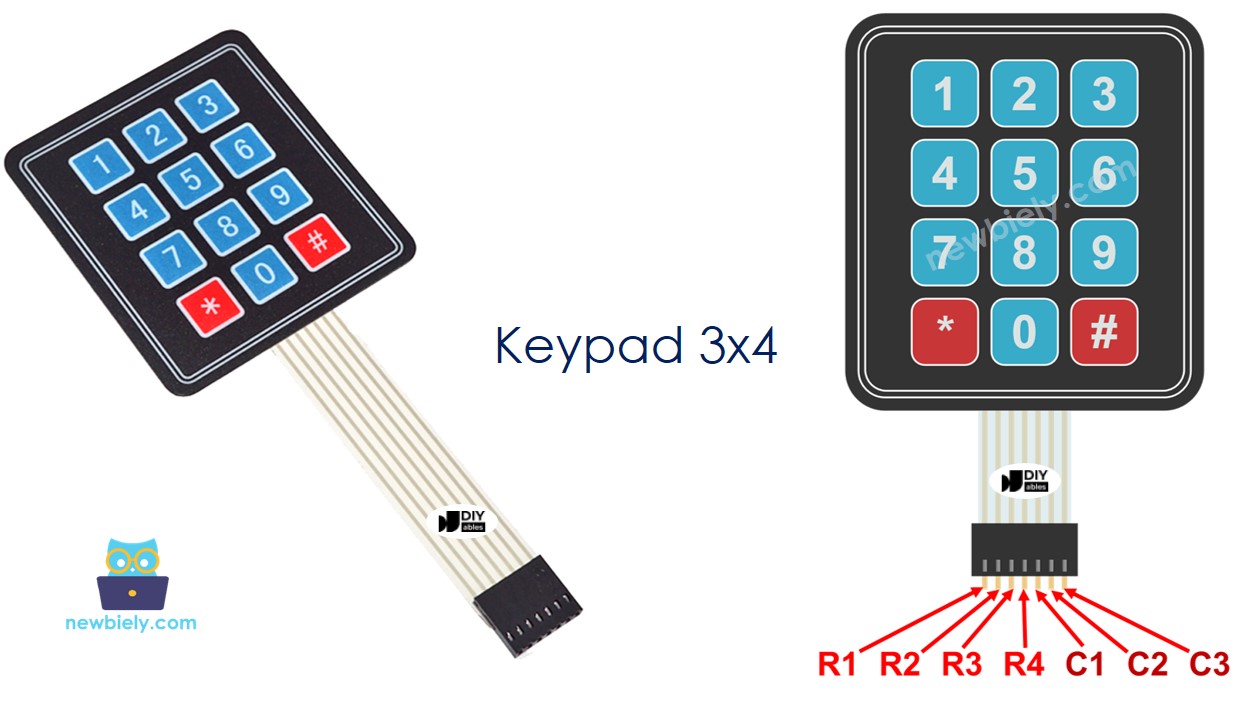
A 3x4 keypad has 12 membrane buttons arranged in 4 rows and 3 columns — a standard phone-style layout with keys 1–9, *, 0, and #.
Pinout
A 3x4 keypad has 7 pins, divided into rows and columns:
- 4 pins for rows: R1, R2, R3, R4
- 3 pins for columns: C1, C2, C3
Wiring Diagram
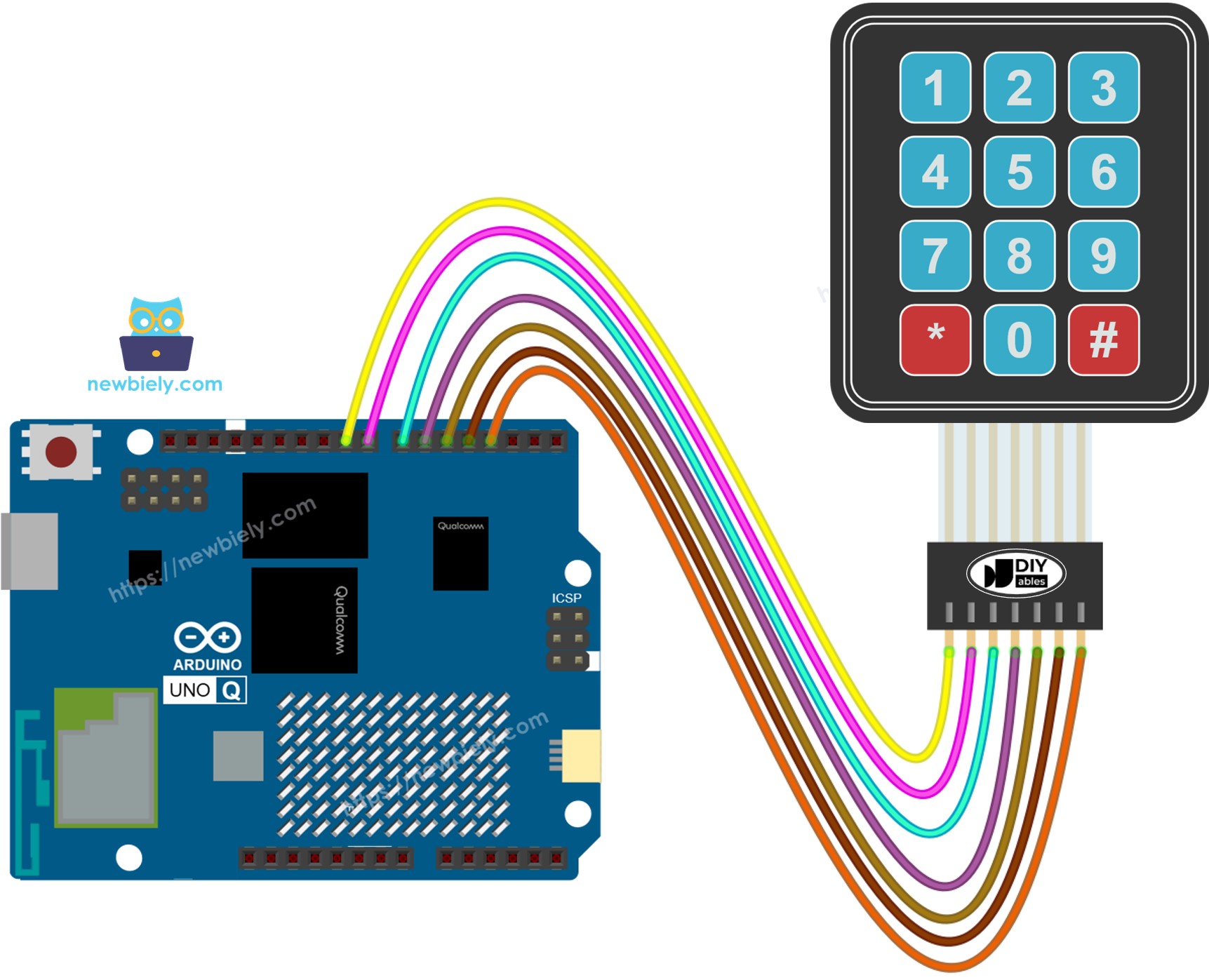
This image is created using Fritzing. Click to enlarge image
| Keypad Pin | Arduino UNO Q MCU |
|---|---|
| R1 (Row 1) | D9 |
| R2 (Row 2) | D8 |
| R3 (Row 3) | D7 |
| R4 (Row 4) | D6 |
| C1 (Col 1) | D5 |
| C2 (Col 2) | D4 |
| C3 (Col 3) | D3 |
Arduino UNO Q Code
The Arduino UNO Q has two processors working together:
- The STM32 MCU reads the keypad matrix directly using the DIYables_Keypad library
- The Qualcomm MPU runs Debian Linux and handles Wi-Fi, Python, and cloud connectivity
- In this section, only the MCU is programmed — the Linux side stays idle. A later section shows how both processors work together via Bridge.
Detailed Instructions
First time with Arduino UNO Q? Follow the Getting Started with Arduino UNO Q tutorial to get your development environment ready before proceeding.
- Connect: Wire the 3x4 keypad to the Arduino UNO Q MCU as shown in the wiring diagram above.
- Open Arduino App Lab: Launch Arduino App Lab and wait until it detects your Arduino UNO Q.
- Create a new App: Click the Create New App button.

- Give the App a name, for example: Keypad3x4
- Click Create to confirm.

- Paste the sketch: Copy the MCU code above and paste it into sketch/sketch.ino. Keep other files as default.
- Install the library: Click the Add sketch library button (the open book icon with a + sign) in the left sidebar.

- Search for DIYables_Keypad created by DIYables.io and click the Install button.
- Upload: Click the Run button in Arduino App Lab.

- Open the Serial Monitor and press keys on the keypad. You will see each key printed.
Keypad and Password
A common use of a 3x4 keypad is entering a password. Two special keys are used:
- * — clears the current input and starts over
- # — confirms the entry and checks the password
All other keys build up the password string one character at a time.
The logic:
- Press any digit key → append it to the input buffer
- Press * → clear the input buffer
- Press # → compare input to the stored password, then clear the buffer
※ NOTE THAT:
Change the password variable to your desired password before uploading.
Bridge: Linux + MCU
This section shows how to program both processors of the Arduino UNO Q so the Linux side can read keypad presses remotely:
- The 3x4 keypad is connected to the MCU (STM32) — the MCU polls it via keypad.getKey() in loop()
- The MPU cannot read keypad pins directly — it must request the last pressed key from the MCU via Bridge.call()
- The MPU has Wi-Fi — running full Debian Linux, it can react to key presses and send alerts over the Internet
- Arduino_RouterBridge enables RPC communication between the two processors
- ⚠️ /dev/ttyHS1 (Linux) and Serial1 (MCU) are RESERVED by the router — never open them in user code
In short: MCU polls the keypad → MPU reads the last key via Bridge → MPU can react to key presses from anywhere over the Internet.
Note: In the Bridge sketch, keypad.getKey() is called inside the Arduino loop() to continuously detect key presses — this is required and does not interfere with Bridge communication.
MCU Code (Bridge)
Python Code (Bridge)
Detailed Instructions
- Connect: Wire the 3x4 keypad to the Arduino UNO Q as shown in the wiring diagram.
- Open Arduino App Lab: Launch Arduino App Lab and wait for the board to be detected.
- Create a new App: Click Create New App, name it Keypad3x4Bridge, then click Create.
- Paste the MCU sketch: Copy the MCU Bridge code above and paste it into sketch/sketch.ino.
- Paste the Python code: Copy the Python Bridge code above and paste it into the Python file in the App.
- Upload: Click the Run button in Arduino App Lab.
- Press keys on the keypad and watch the Python console.
App Lab Console Output
Telegram
Get Telegram notifications when a key is pressed on the 3x4 keypad — useful for remote access systems, event triggers, or PIN-code alerts.
MCU sketch: Keep the same MCU sketch from the previous Bridge section.
Python Code (Telegram)
Detailed Instructions
- Replace YOUR_TELEGRAM_BOT_TOKEN with your actual bot token from BotFather.
- Replace YOUR_CHAT_ID with your Telegram chat ID.
- Paste this Python code into your App's Python file (keep the same MCU sketch).
- Click the Run button. Press keys on the keypad — your Telegram chat will receive alerts automatically.
App Lab Console Output


ArduinoBot
OpenClaw
You can adapt the OpenClaw to this tutorial by refering the instruction on Arduino Uno Q - OpenClaw Tutorial
Project Ideas
You can build many creative projects using the 3x4 keypad with Arduino UNO Q:
- Remote PIN Code Lock: User enters a PIN on the keypad; the MCU validates it and controls a relay or solenoid lock, while the MPU sends a Telegram alert on success or failure
- Smart Number Entry: Use the keypad to enter multi-digit numbers (e.g., a temperature setpoint or timer duration) and send them to the Linux MPU for processing via Bridge
- Telegram-Triggered Keypad Validator: Python receives a /check Telegram command, calls get_key via Bridge, and replies with the key that was most recently pressed on the physical keypad
- Menu-Driven Control System: Use keys 1–9 to select actions and # to confirm — Python interprets the selection and triggers IoT actions like toggling relays or sending HTTP requests
- Remote Access Code Logger: All key presses are forwarded to Telegram automatically; a security script on the MPU detects repeated wrong attempts and sends an alert
Challenge Yourself
Ready to go further with the 3x4 keypad on Arduino UNO Q? Try these challenges:
- Easy: Modify the MCU sketch to light an LED connected to D2 whenever # is pressed.
- Medium: Implement a full password system in Python: accumulate key presses received via Bridge into a string, check it against a stored password when # arrives, and send a Telegram message indicating success or failure.
- Advanced: Build a Telegram-integrated access control system — a physical 4-digit PIN is entered on the keypad; if correct, the MCU activates a relay (door lock); the MPU logs every attempt and sends a Telegram notification with the result and a timestamp.