
Arduino UNO Q - Water Sensor
A water sensor can detect water leaks, rainfall, and tank overflow. On Arduino UNO Q, the sensor's analog signal is read by the 12-bit MCU ADC (0–4095 range). With Bridge and Telegram, you receive instant alerts on your phone the moment water is detected.
In this tutorial, you will learn:
- What a water sensor is and how it works
- How to wire the water sensor to the Arduino UNO Q MCU
- How to read the analog sensor value with the 12-bit ADC
- How to use Bridge to expose sensor readings and water detection events to the Linux side (Python)
- How to receive Telegram alerts when water is detected on Arduino UNO Q
- How to use OpenClaw on Arduino UNO Q with the water sensor
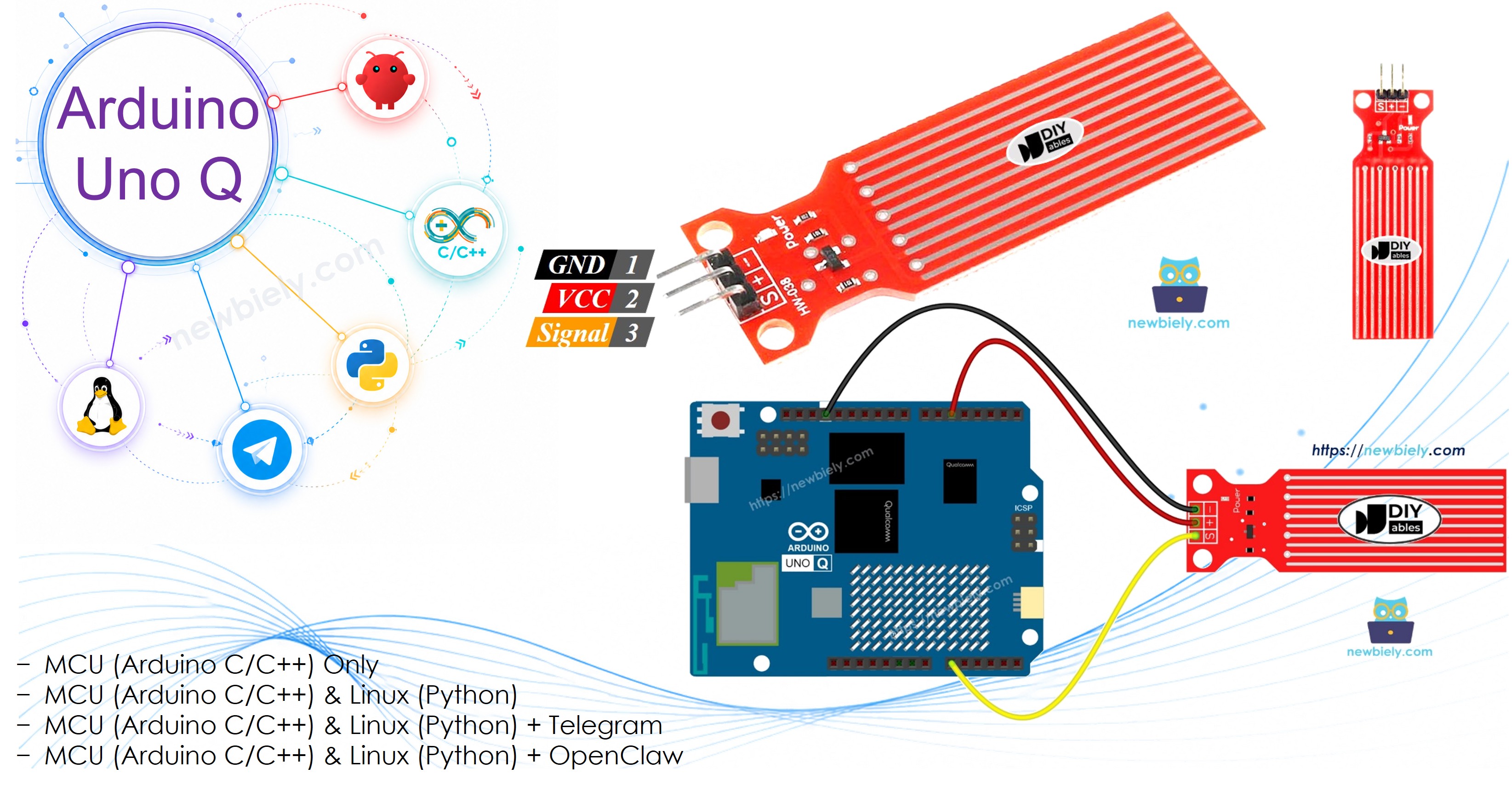
Hardware Preparation
Or you can buy the following kits:
| 1 | × | DIYables Sensor Kit (18 sensors/displays) |
Additionally, some of these links are for products from our own brand, DIYables .
Overview of the Water Sensor
Pinout
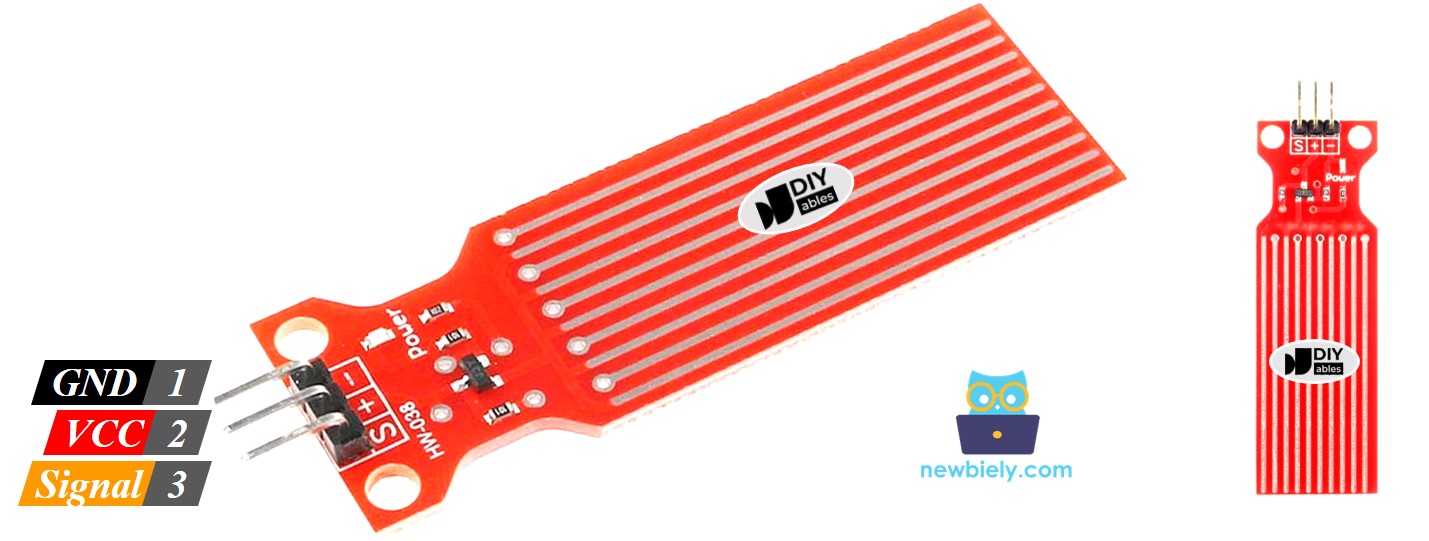
The water sensor has three pins:
- S (Signal): Analog output — connect to an analog input pin on the MCU
- + (VCC): Power supply — connect to 3.3V or 5V. In this tutorial, connected to a digital pin for power control
- - (GND): Ground
※ NOTE THAT:
It is recommended to connect VCC to a digital output pin rather than the always-on 5V. Power the sensor only when reading to reduce corrosion of the copper pads in humid environments.
How It Works
The sensor has 10 copper traces — alternating power and signal lines. When dry, they are isolated. When submerged in water, the water bridges the gaps and changes the resistance.
- More water → lower resistance → higher output voltage → higher ADC reading
- Less water → higher resistance → lower output voltage → lower ADC reading
The Arduino UNO Q MCU uses a 12-bit ADC with a 3.3V reference, so readings range from 0 to 4095 (not 0–1023 as on the classic Arduino Uno). Calibrate the threshold to your specific sensor and water type.
※ NOTE THAT:
Only the exposed copper traces should touch water. Never submerge the full sensor board or components. Install with the sensor pads facing down into the liquid.
Wiring Diagram
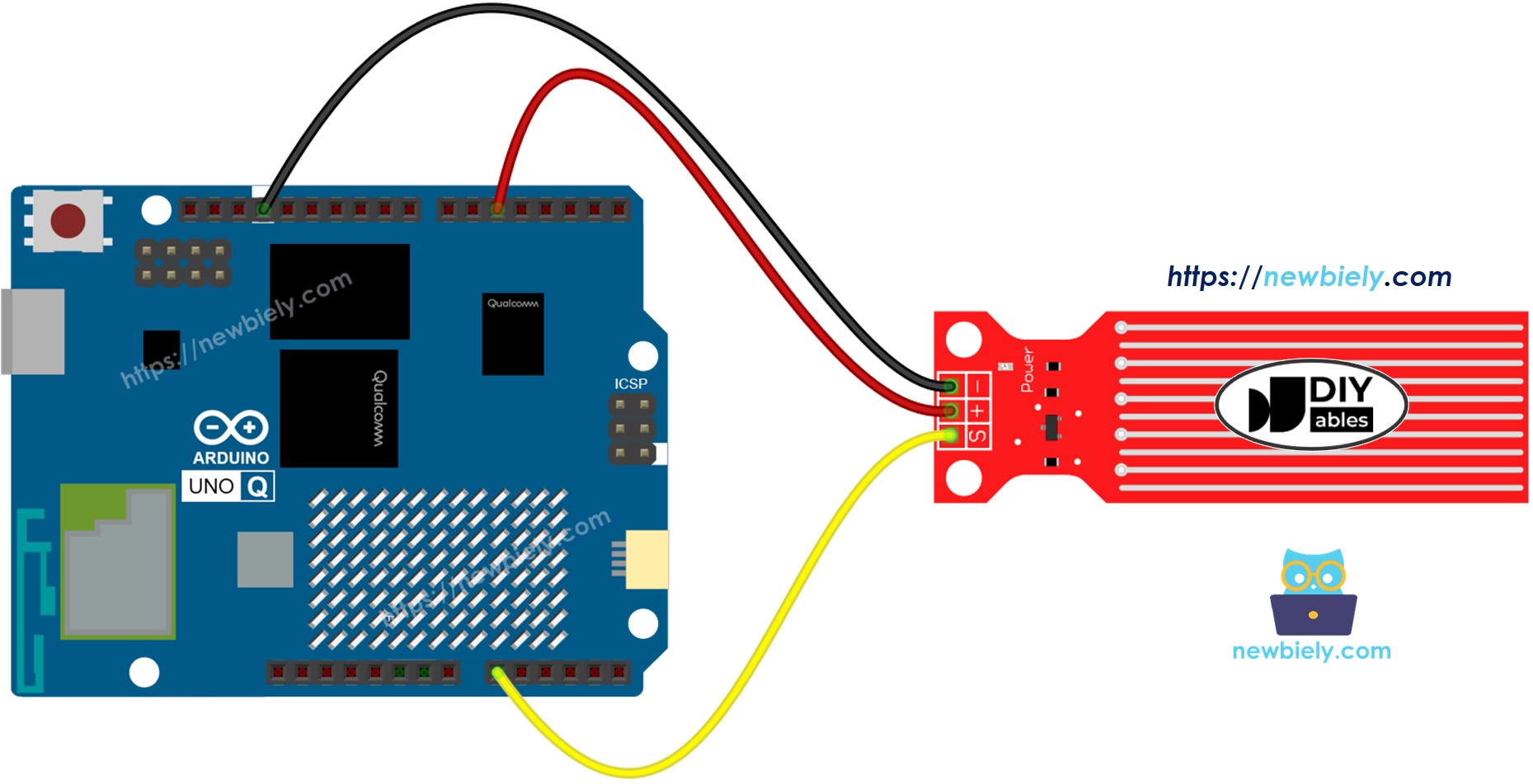
This image is created using Fritzing. Click to enlarge image
| Water Sensor Pin | Arduino UNO Q MCU |
|---|---|
| * (GND) | GND |
| + (VCC) | D5 (controlled power) |
| S (Signal) | A0 |
How To Program For Water Sensor
- Set up pins:
- Read sensor value:
- Detect water:
Arduino UNO Q Code
The Arduino UNO Q has two processors working together:
- The STM32 MCU reads the water sensor via the 12-bit ADC every second and prints the result
- The Qualcomm MPU runs Debian Linux and handles Wi-Fi, Python, and cloud connectivity
- In this section, only the MCU is programmed — the Linux side stays idle. A later section shows how both processors work together via Bridge.
※ NOTE THAT:
The Arduino UNO Q MCU uses a 12-bit ADC (0–4095) with a 3.3V reference. This is different from the classic Arduino Uno which uses a 10-bit ADC (0–1023) with a 5V reference. Adjust the THRESHOLD value accordingly when calibrating.
Detailed Instructions
First time with Arduino UNO Q? Follow the Getting Started with Arduino UNO Q tutorial before proceeding.
- Connect: Wire the water sensor to the Arduino UNO Q MCU as shown in the wiring diagram.
- Open Arduino App Lab: Launch Arduino App Lab and wait until it detects your Arduino UNO Q.
- Create a new App: Click the Create New App button.

- Give the App a name, for example: WaterSensor
- Click Create to confirm.

- Paste the sketch: Copy the MCU code above and paste it into sketch/sketch.ino. Keep other files as default.
- No library required — uses only the built-in analogRead() and digitalWrite().
- Upload: Click the Run button in Arduino App Lab.

- Gradually lower the sensor pads into a glass of water and observe the ADC values rising in the Serial Monitor.
Calibration
After uploading, observe the sensor values:
- Completely dry: value ≈ 0
- Partially submerged: value ≈ 300–1000
- Mostly submerged: value ≈ 1500–3000
Set THRESHOLD above the dry noise level (e.g., 500) to reliably detect the presence of water.
App Lab Console Output
Bridge: Linux + MCU
This section shows how to program both processors of the Arduino UNO Q so the Linux side can read sensor values and receive water detection events via Bridge:
- The water sensor is connected to the MCU — the MCU reads the ADC every second and caches the value
- The MPU cannot read the ADC directly — it calls Bridge functions to get the sensor value, status, or events
- The MPU has Wi-Fi — running full Debian Linux, it can send Telegram alerts when water is first detected
- Arduino_RouterBridge enables RPC communication between the two processors
- ⚠️ /dev/ttyHS1 (Linux) and Serial1 (MCU) are RESERVED by the router — never open them in user code
In short: MCU reads ADC each second → detects state change → sets event flag → MPU polls and sends Telegram alert.
MCU Code (Bridge)
Python Code (Bridge)
Detailed Instructions
- Connect: Wire the water sensor to the Arduino UNO Q as shown in the wiring diagram.
- Open Arduino App Lab: Launch Arduino App Lab and wait for the board to be detected.
- Create a new App: Click Create New App, name it WaterSensorBridge, then click Create.
- Paste the MCU sketch: Copy the MCU Bridge code above and paste it into sketch/sketch.ino.
- Paste the Python code: Copy the Python Bridge code above and paste it into the Python file in the App.
- Install the library: Click the Add sketch library button (the open book icon with a + sign) in the left sidebar.

- Search for Arduino_RouterBridge created by Arduino and click the Install button.
- Upload: Click the Run button in Arduino App Lab.
- Dip the sensor pads into water and observe the status change in both consoles.
App Lab Console Output
Telegram
Receive instant Telegram alerts when water is detected by the sensor on Arduino UNO Q.
MCU sketch: Keep the same MCU sketch from the previous Bridge section.
Python Code (Telegram)
Detailed Instructions
- Replace YOUR_TELEGRAM_BOT_TOKEN with your actual bot token from BotFather.
- Replace YOUR_CHAT_ID with your Telegram chat ID.
- Paste this Python code into your App's Python file (keep the same MCU sketch).
- Click the Run button. Dip the sensor in water — receive the Telegram alert instantly.
App Lab Console Output


ArduinoBot
OpenClaw
You can adapt the OpenClaw to this tutorial by refering the instruction on Arduino Uno Q - OpenClaw Tutorial
Project Ideas
You can build many useful projects with the water sensor and Arduino UNO Q:
- Leak Alert System: Place the water sensor under a sink, washing machine, or water heater — receive an instant Telegram alert when a leak is detected, with the raw ADC value included for severity assessment
- Rain Gauge: Mount the sensor outdoors under an open shelter to detect rainfall onset — Python logs rain events with timestamps to a file and sends a daily rain summary to Telegram
- Fish Tank Overflow Guard: Position the sensor at the tank rim — when the water level reaches the sensor, the MPU alerts you via Telegram and optionally triggers a relay via Bridge to cut the water pump
- Plant Watering Monitor: Check soil moisture with the water sensor — when dryness is detected (low ADC reading), send a Telegram reminder to water the plants
- Basement Flood Monitor: Install multiple sensors at floor level throughout a basement — each sensor is connected to a separate analog pin, and Python reports which zones are flooded via Telegram
Challenge Yourself
Ready to go further with the water sensor on Arduino UNO Q? Try these challenges:
- Easy: Add water level categories in Python: if int(value) < 200 → "dry", < 800 → "damp", < 2000 → "wet", else "flooded" — send the category with every Telegram status reply.
- Medium: Implement a cooldown timer: after a water detected event triggers a Telegram alert, wait 60 seconds before sending another alert for the same event — prevent spam during a sustained leak.
- Advanced: Log all sensor readings with timestamps to a CSV file on Linux every 10 seconds, and implement a /report Telegram command that sends a summary of the last hour: min value, max value, number of water-detected events, and duration of water contact.