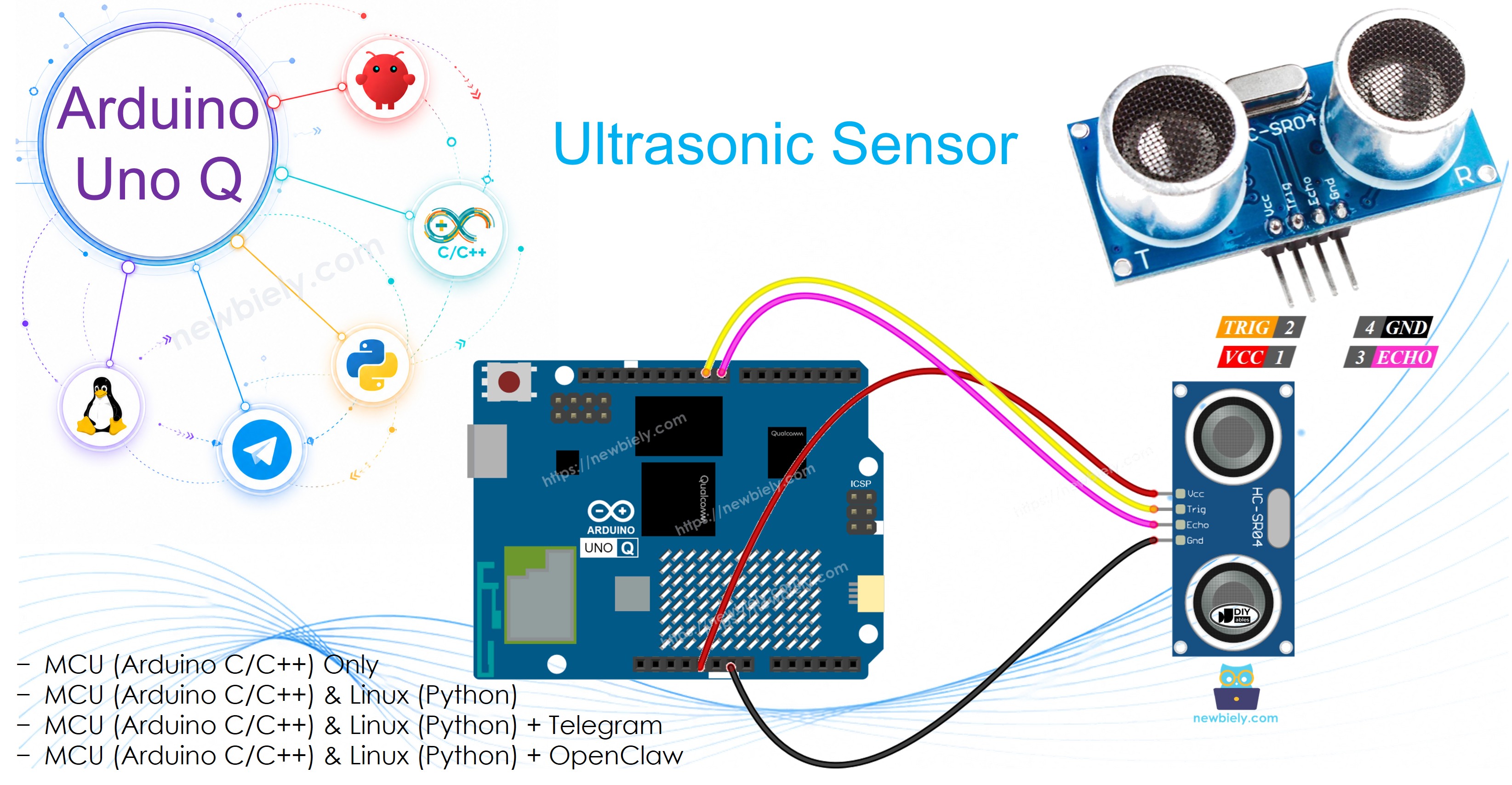
Arduino UNO Q - Ultrasonic Sensor

This tutorial shows you how to use an Arduino UNO Q with an HC-SR04 ultrasonic sensor to measure distance to an object. You will learn:

Arduino UNO Q Ultrasonic Sensor

Hardware Preparation

1×Arduino UNO Q
1×USB Cable for Arduino Uno Q
1×Ultrasonic Sensor
1×Jumper Wires
1×Recommended: Screw Terminal Block Shield for Arduino Uno
1×Recommended: Sensors/Servo Expansion Shield for Arduino Uno
1×Recommended: Breadboard Shield for Arduino Uno
1×Recommended: Enclosure for Arduino Uno
1×Recommended: Prototyping Base Plate & Breadboard Kit for Arduino UNO

Or you can buy the following kits:

1×DIYables Sensor Kit (18 sensors/displays)
Disclosure: Some of the links provided in this section are Amazon affiliate links. We may receive a commission for any purchases made through these links at no additional cost to you.
Additionally, some of these links are for products from our own brand, DIYables .

Overview of Ultrasonic Sensor

The HC-SR04 ultrasonic sensor measures the distance to objects using sound waves. It sends out a sound wave that humans cannot hear, then listens for the echo when the sound bounces back. By measuring the round-trip time, the sensor calculates distance.

Pinout

The HC-SR04 has four pins:

  • VCC pin: Connect to VCC (5V).
  • GND pin: Connect to GND (0V).
  • TRIG pin: Connect to an MCU output pin to trigger a measurement pulse.
  • ECHO pin: Connect to an MCU input pin to receive the echo pulse duration.
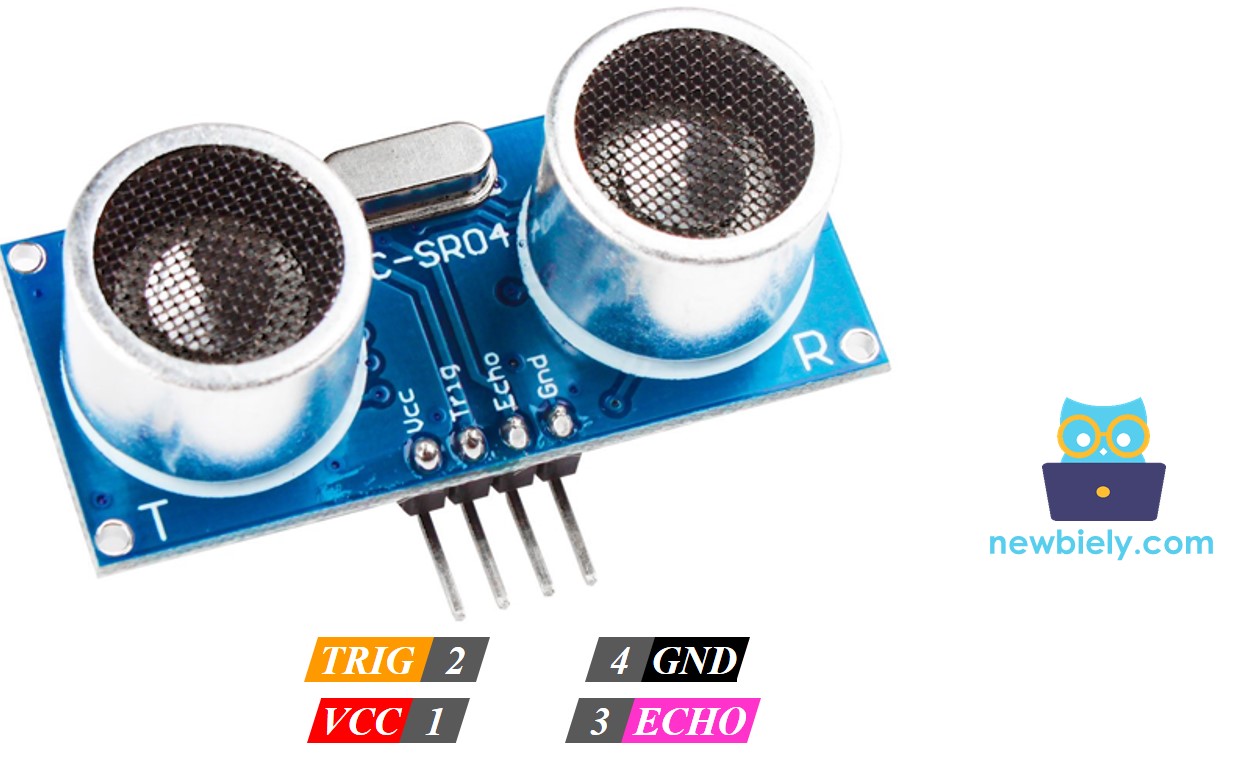
Ultrasonic Sensor Pinout
image source: diyables.io

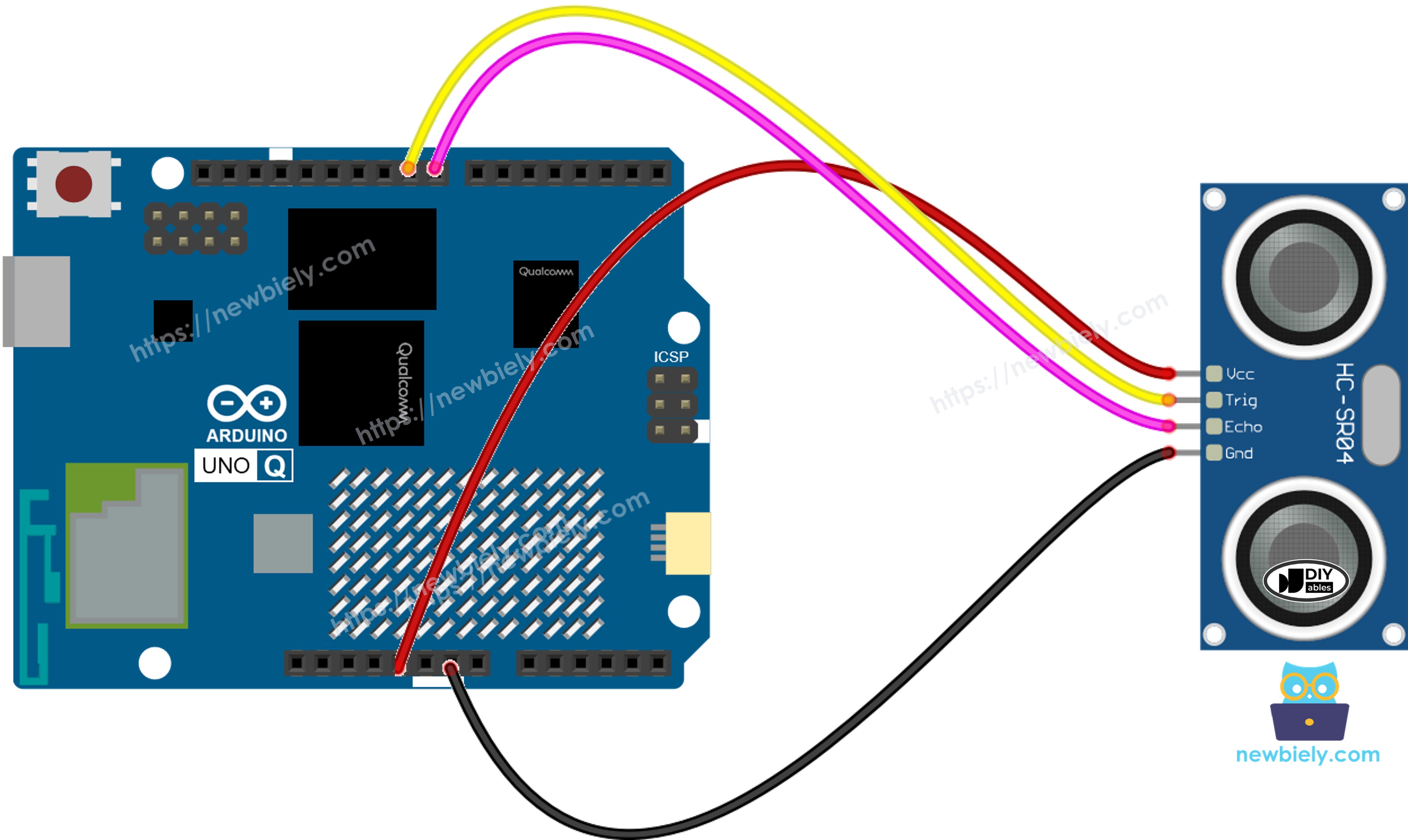
Wiring Diagram

The wiring diagram between Arduino UNO Q Ultrasonic Sensor

This image is created using Fritzing. Click to enlarge image

MCU Code

The Arduino UNO Q has two processors: the STM32 MCU (handles real-time hardware control) and the Qualcomm MPU (runs Debian Linux). In this section, only the STM32 MCU is programmed — the Linux side stays idle. A later section will show how both processors work together.

/* * This Arduino UNO Q code was developed by newbiely.com * * This Arduino UNO Q code is made available for public use without any restriction * * For comprehensive instructions and wiring diagrams, please visit: * https://newbiely.com/tutorials/arduino-uno-q/arduino-uno-q-ultrasonic-sensor */ #define TRIG_PIN 9 // The Arduino UNO Q pin connected to the ultrasonic sensor's TRIG pin #define ECHO_PIN 8 // The Arduino UNO Q pin connected to the ultrasonic sensor's ECHO pin float duration_us, distance_cm; void setup() { pinMode(TRIG_PIN, OUTPUT); pinMode(ECHO_PIN, INPUT); } void loop() { // generate 10-microsecond pulse to TRIG pin digitalWrite(TRIG_PIN, HIGH); delayMicroseconds(10); digitalWrite(TRIG_PIN, LOW); // measure duration of pulse from ECHO pin duration_us = pulseIn(ECHO_PIN, HIGH); // calculate the distance distance_cm = 0.017 * duration_us; delay(500); }

Detailed Instructions

  • First time with Arduino UNO Q? Follow the Getting Started with Arduino UNO Q tutorial to get your development environment ready before proceeding.
  • Wire the components: Connect VCC → 5V, GNDGND, TRIG → pin 9, ECHO → pin 8.
  • Connect: Plug the Arduino UNO Q into your computer with a USB-C cable.
  • Open Arduino App Lab: Launch Arduino App Lab and wait until it detects your Arduino UNO Q.
  • Create a new App: Click the Create New App button.

Create New App in Arduino App Lab on Arduino UNO Q
  • Give the App a name, for example: DIYables_Ultrasonic
  • Click Create to confirm.
  • You will see a set of folders and files generated inside your new App.

Arduino App Lab App folders and files on Arduino UNO Q
  • Find the sketch/sketch.ino file — this is where you will paste the MCU sketch.
  • Paste the sketch: Copy the MCU code above and paste it into the sketch file. Keep other files as default.
    • Install the library: Click the Add sketch library button (the open book icon with a + sign) in the left sidebar.

    Add sketch library in Arduino App Lab on Arduino UNO Q
    • Search for Arduino_RouterBridge created by Arduino and click the Install button.
    My Apps / DIYables Apps
    Run
    Bricks
    No bricks added...
    Sketch Libraries
    No sketch libra...
    Files
    python
    sketch
    .gitignore
    README.md
    app.yaml
    sketch.ino
    Add sketch library
    Arduino_RouterBridge Arduino

    This library provides a simple RPC bridge for Arduino UNO Q boards, allowing communication between the board and other devices using MsgPack serialization.

    0.4.1
    Install
    More Info
    • Upload: Click the Run button in Arduino App Lab to compile and upload to the STM32.

    Click Run button in Arduino App Lab on Arduino UNO Q
    • Test: Wave your hand in front of the sensor. Use the Bridge section below to see the distance readings via Monitor.

    How to Filter Noise from Ultrasonic Measurements

    Distance readings from the HC-SR04 include noise. In some applications, noisy data can cause incorrect behavior. Use this method to filter it:

    • Take 20 measurements and store them in an array.
    • Sort the array from smallest to largest.
    • Remove the 5 smallest and 5 largest values (treated as noise).
    • Average the remaining 10 middle values.
    /* * This Arduino UNO Q code was developed by newbiely.com * * This Arduino UNO Q code is made available for public use without any restriction * * For comprehensive instructions and wiring diagrams, please visit: * https://newbiely.com/tutorials/arduino-uno-q/arduino-uno-q-ultrasonic-sensor */ #define TRIG_PIN 9 // The Arduino UNO Q pin connected to the ultrasonic sensor's TRIG pin #define ECHO_PIN 8 // The Arduino UNO Q pin connected to the ultrasonic sensor's ECHO pin float filterArray[20]; // array to store data samples from sensor float distance; // store the distance from sensor float ultrasonicMeasure() { // generate 10-microsecond pulse to TRIG pin digitalWrite(TRIG_PIN, HIGH); delayMicroseconds(10); digitalWrite(TRIG_PIN, LOW); // measure duration of pulse from ECHO pin float duration_us = pulseIn(ECHO_PIN, HIGH); // calculate the distance return 0.017 * duration_us; } void setup() { pinMode(TRIG_PIN, OUTPUT); pinMode(ECHO_PIN, INPUT); } void loop() { // 1. TAKING MULTIPLE MEASUREMENTS AND STORE IN AN ARRAY for (int sample = 0; sample < 20; sample++) { filterArray[sample] = ultrasonicMeasure(); delay(30); // to avoid ultrasonic interfering } // 2. SORTING THE ARRAY IN ASCENDING ORDER for (int i = 0; i < 19; i++) { for (int j = i + 1; j < 20; j++) { if (filterArray[i] > filterArray[j]) { float swap = filterArray[i]; filterArray[i] = filterArray[j]; filterArray[j] = swap; } } } // 3. FILTERING NOISE // + the five smallest samples are considered as noise -> ignore // + the five biggest samples are considered as noise -> ignore // => get average of the 10 middle samples (from 5th to 14th) double sum = 0; for (int sample = 5; sample < 15; sample++) { sum += filterArray[sample]; } distance = sum / 10; delay(500); }

    Linux + MCU Bridge Programming

    The Arduino UNO Q has two processors that work together: the MPU (Qualcomm, runs Debian Linux) and the MCU (STM32, runs Zephyr OS with your Arduino sketch). They communicate using RPC via the Arduino_RouterBridge library — never via raw serial ports.

    • The ultrasonic sensor is connected to the MCU (STM32) — TRIG on pin 9, ECHO on pin 8.
    • The MPU cannot read the sensor directly — it calls Bridge.call("read_distance") on the MCU, which triggers a measurement and prints the result to Monitor.
    • The MPU has Wi-Fi — because the MPU runs full Debian Linux with Wi-Fi, it can receive Telegram commands and send readings remotely.
    • Communication: Bridge.call() on the Linux side invokes Bridge.provide_safe() on the MCU side (since digitalWrite() is used to trigger the TRIG pulse)
    • ⚠️ Reserved: /dev/ttyHS1 (Linux) and Serial1 (MCU) are used by the Arduino Router — never open them directly

    In short: MPU requests reading → MCU measures distance → MCU prints result to Monitor.

    MCU sketch — ultrasonic sensor with Bridge and Monitor output:

    /* * This Arduino UNO Q code was developed by newbiely.com * * This Arduino UNO Q code is made available for public use without any restriction * * For comprehensive instructions and wiring diagrams, please visit: * https://newbiely.com/tutorials/arduino-uno-q/arduino-uno-q-ultrasonic-sensor */ #include "Arduino_RouterBridge.h" #define TRIG_PIN 9 #define ECHO_PIN 8 float measure_distance() { digitalWrite(TRIG_PIN, HIGH); delayMicroseconds(10); digitalWrite(TRIG_PIN, LOW); float duration_us = pulseIn(ECHO_PIN, HIGH); return 0.017 * duration_us; } void read_distance() { float distance_cm = measure_distance(); Monitor.print("Distance: "); Monitor.print(distance_cm); Monitor.println(" cm"); } void setup() { Bridge.begin(); Monitor.begin(); pinMode(TRIG_PIN, OUTPUT); pinMode(ECHO_PIN, INPUT); Bridge.provide_safe("read_distance", read_distance); Monitor.println("Ultrasonic Sensor Bridge ready"); } void loop() {}

    Python script (Arduino App Lab) — request distance reading from Linux every second:

    /* * This Arduino UNO Q code was developed by newbiely.com * * This Arduino UNO Q code is made available for public use without any restriction * * For comprehensive instructions and wiring diagrams, please visit: * https://newbiely.com/tutorials/arduino-uno-q/arduino-uno-q-ultrasonic-sensor */ from arduino.app_utils import * import time def loop(): Bridge.call("read_distance") time.sleep(1) App.run(user_loop=loop)
    • Note: Make sure Bridge.begin() is called in the MCU sketch and the sketch is uploaded before running the Python script on the Linux side.
    • ⚠️ Warning: Never directly open /dev/ttyHS1 (on Linux) or use Serial1 (on MCU) in your code — these are reserved by the Arduino Router and accessing them will break the Bridge.

    Detailed Instructions

    • Upload the MCU sketch: Open Arduino App Lab, create a new App, paste the Bridge MCU sketch into sketch/sketch.ino, install the Arduino_RouterBridge library, and click Run.
    • Add the Python script: Paste the Python code above into the Python tab of the same App.
    • Run the App: Click Run — Python requests a distance reading every second.
    • Check the console: Open the Console tab → MCU Monitor subtab to see the distance values.

    App Lab Console Output

    DIYables_Apps
    Stop
    sketch.ino
    1#include "Arduino_RouterBridge.h"
    Serial Monitor
    Python
    Message (Enter to send a message to "Newbiely" on usb(2820070321))
    New Line
    9600 baud
    Ultrasonic Sensor Bridge ready Distance: 29.4 cm Distance: 27.6 cm Distance: 14.3 cm Distance: 13.1 cm

    Telegram Integration

    Read the ultrasonic sensor remotely from anywhere via Telegram.

    If you do not have a Telegram bot yet, see How to Create a Telegram Bot to get your bot token before continuing.

    MCU sketch: Keep the same MCU sketch from the previous Bridge section — no changes needed. Make sure it is already uploaded and running on the STM32 before proceeding.

    Python script (Arduino App Lab) — Telegram bot for ultrasonic distance reading:

    /* * This Arduino UNO Q code was developed by newbiely.com * * This Arduino UNO Q code is made available for public use without any restriction * * For comprehensive instructions and wiring diagrams, please visit: * https://newbiely.com/tutorials/arduino-uno-q/arduino-uno-q-ultrasonic-sensor */ from arduino.app_utils import * import requests import time BOT_TOKEN = "YOUR_BOT_TOKEN" API_URL = f"https://api.telegram.org/bot{BOT_TOKEN}" last_update_id = 0 def send_message(chat_id, text): requests.post(f"{API_URL}/sendMessage", json={"chat_id": chat_id, "text": text}) def get_updates(): global last_update_id resp = requests.get(f"{API_URL}/getUpdates", params={"offset": last_update_id + 1, "timeout": 5}) return resp.json().get("result", []) def loop(): global last_update_id updates = get_updates() for update in updates: last_update_id = update["update_id"] msg = update.get("message", {}) chat_id = msg.get("chat", {}).get("id") text = msg.get("text", "").strip() if text == "/read": distance = Bridge.call("read_distance") send_message(chat_id, distance) else: send_message(chat_id, "Commands:\n/read — measure distance") time.sleep(0.5) App.run(user_loop=loop)
    • Note: Replace YOUR_BOT_TOKEN with the token obtained from @BotFather on Telegram.
    • Send /read — the MCU measures the distance and the bot replies with the value in cm.

    Detailed Instructions

    • Upload the MCU sketch: Use the Bridge MCU sketch from the previous section (upload it first if not already done).
    • Paste the Telegram script: Copy the Python code above into the Python tab of your App in Arduino App Lab.
    • Set your token: Replace YOUR_BOT_TOKEN in the script with your actual bot token.
    • Run the App: Click Run — the bot starts listening for Telegram messages.
    • Test it: Send /read — the bot replies with the measured distance in cm.

    App Lab Console Output

    DIYables_Apps
    Stop
    sketch.ino
    1#include "Arduino_RouterBridge.h"
    Serial Monitor
    Python
    [2026-04-29 12:00:01] Telegram: /read [2026-04-29 12:00:01] Distance: 29.4 cm [2026-04-29 12:02:05] Telegram: /read [2026-04-29 12:02:05] Distance: 13.1 cm
    Telegram
    Telegram 12:45
    Welcome to Telegram!
    ArduinoBot 10:19
    Chatting with Arduino...
    telegram-botfather
    BotFather Yesterday
    Your bot has been created.

    ArduinoBot

    bot
    Today
    /read
    10:15 AM ✓✓
    Distance: 29.4 cm
    10:16 AM

    OpenClaw Integration

    OpenClaw integration for Arduino UNO Q ultrasonic sensor is coming soon.

    • Coming Soon: OpenClaw support for reading an ultrasonic sensor on Arduino UNO Q will be covered in a future update.

    Ultrasonic Sensor Applications

    • Collision avoidance
    • Level detection (water tank, grain silo)
    • Proximity sensing
    • Object counting on a conveyor belt
    • Parking distance assistant

    Challenge Yourself

    • Easy: Add a threshold — print "Object nearby!" when distance drops below 10 cm
    • Medium: Send the actual distance value (in cm) directly back to the Telegram user
    • Advanced: Implement the noise filter from the section above inside the Bridge MCU sketch and compare filtered vs raw readings via Monitor

    ※ OUR MESSAGES

    • As freelancers, We are AVAILABLE for HIRE. See how to outsource your project to us
    • Please feel free to share the link of this tutorial. However, Please do not use our content on any other websites. We invested a lot of effort and time to create the content, please respect our work!