
Arduino UNO Q - Door Sensor
A door sensor uses a reed switch and a magnet to detect whether a door or window is open or closed. On Arduino UNO Q, the MCU reads the reed switch state, and the Linux side can send Telegram alerts the moment a door opens or closes.
In this tutorial, you will learn:
- What a door sensor is and how it works
- How to wire the door sensor to the Arduino UNO Q MCU
- How to program the MCU (C/C++ Arduino code) to detect door open/close state
- How to program both the Linux side (Python) and MCU side (C/C++) to detect door events via Bridge
- How to receive Telegram notifications when the door opens or closes on Arduino UNO Q
- How to use OpenClaw on Arduino UNO Q with the door sensor
Hardware Preparation
Or you can buy the following kits:
| 1 | × | DIYables Sensor Kit (18 sensors/displays) |
Additionally, some of these links are for products from our own brand, DIYables .
Overview of the Door Sensor
Pinout
The door sensor consists of two parts:
- Reed switch — two metal connectors (no polarity)
- Magnet — attached to the moving part (door or window)
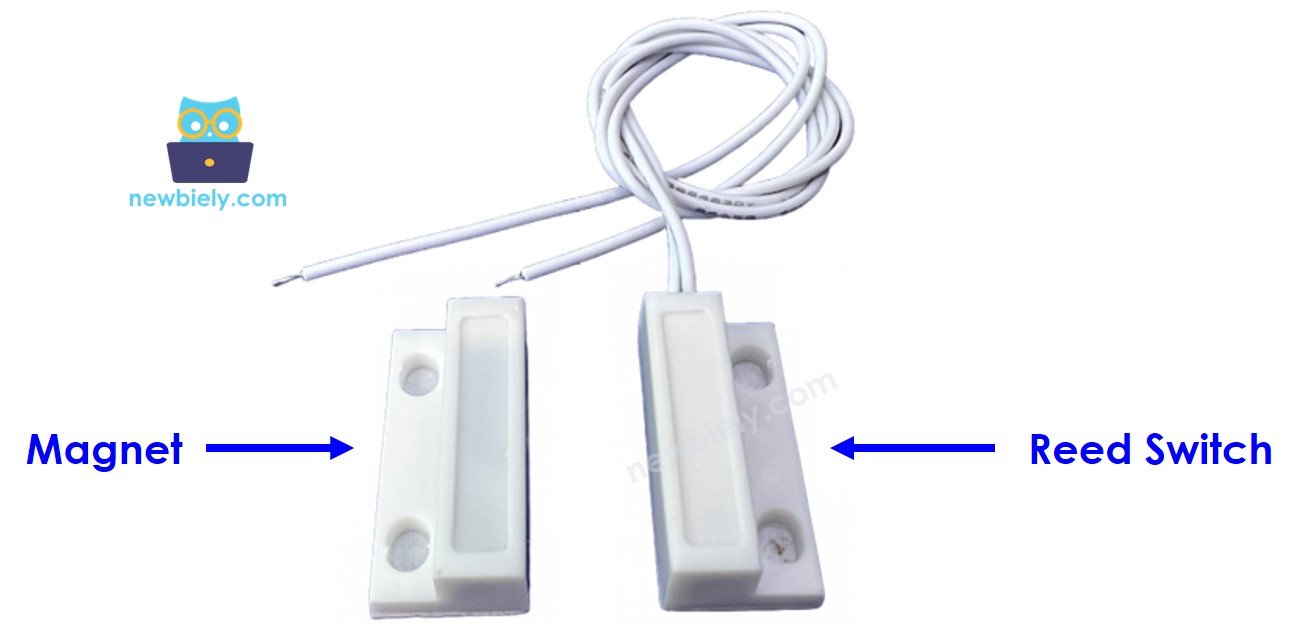
The two pins of the reed switch are interchangeable — there is no polarity to observe.
How It Works
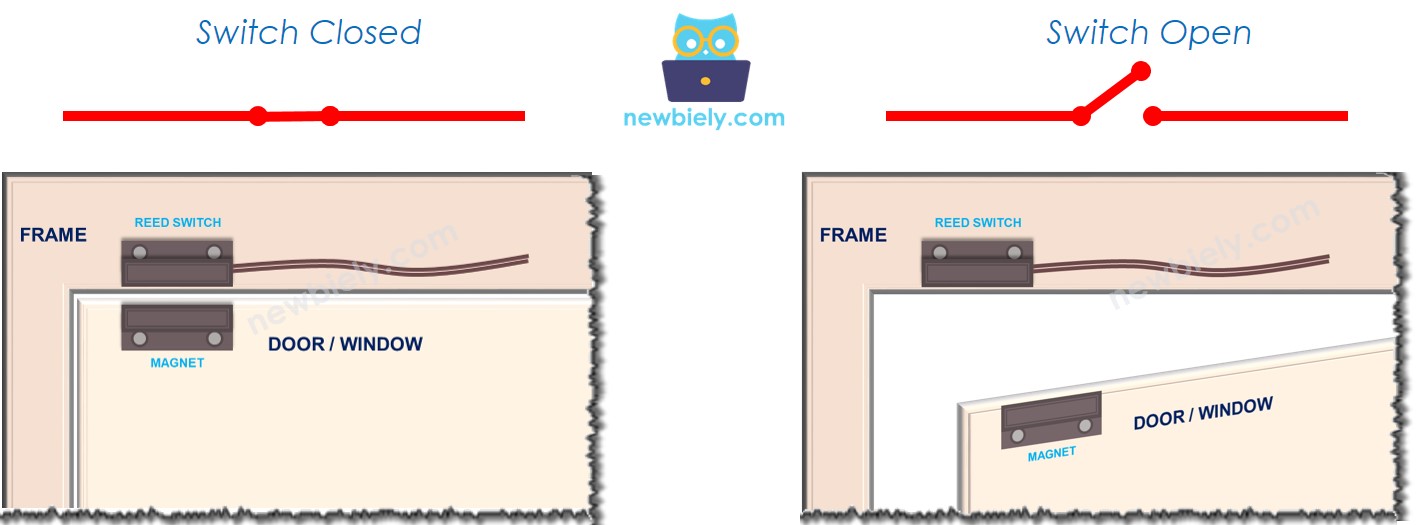
The magnet is fixed to the door or window (the moving part). The reed switch is fixed to the door frame (the stationary part).
- When the door is closed, the magnet is near the reed switch — the circuit closes
- When the door is open, the magnet moves away — the circuit opens
※ NOTE THAT:
The reed switch does NOT output HIGH or LOW directly. Connect one pin of the reed switch to GND and the other to an Arduino UNO Q input pin configured with INPUT_PULLUP. This avoids floating values:
- Door closed (magnet near) → pin reads LOW
- Door open (magnet away) → pin reads HIGH
Wiring Diagram
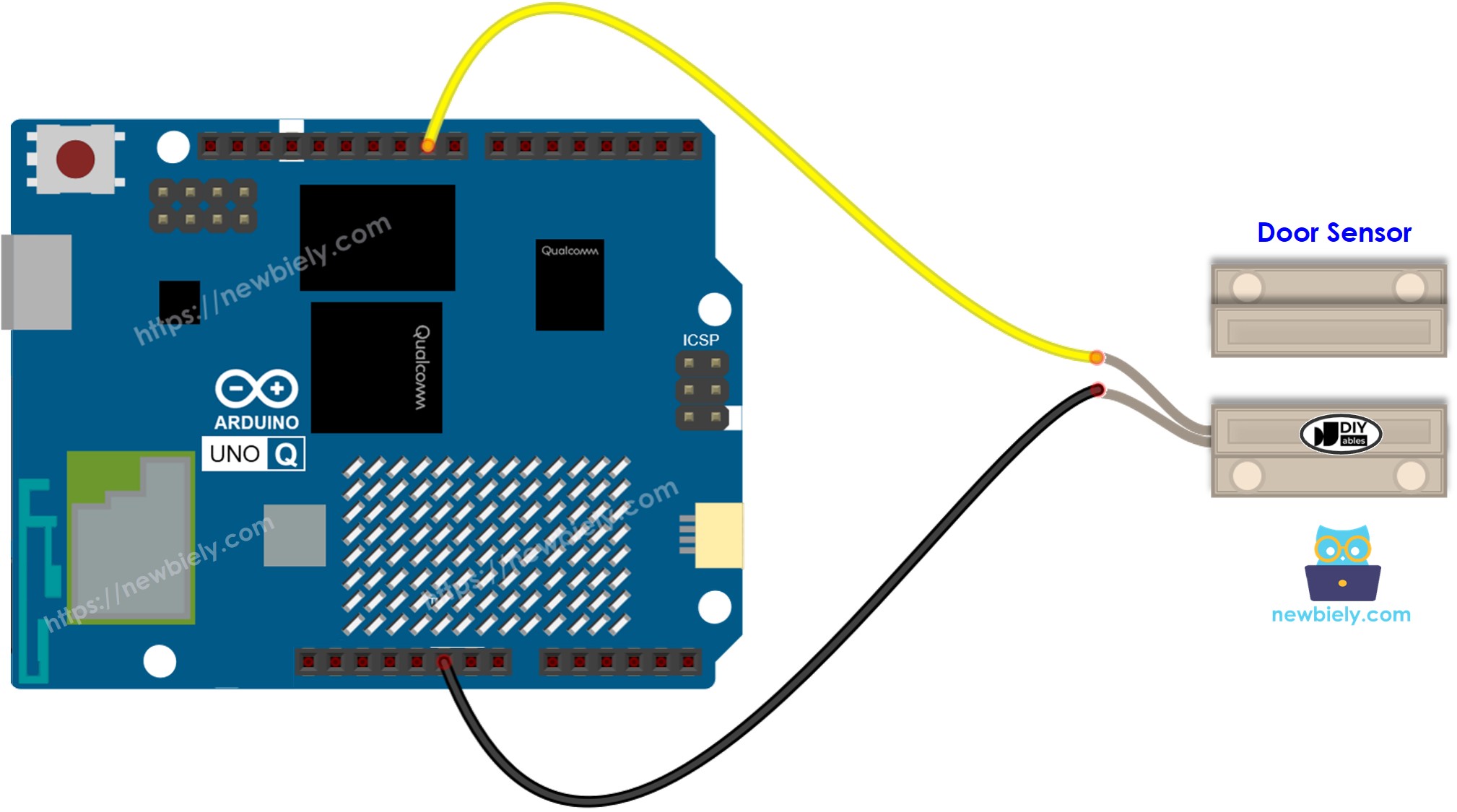
This image is created using Fritzing. Click to enlarge image
| Door Sensor Pin | Arduino UNO Q MCU |
|---|---|
| Pin 1 | GND |
| Pin 2 | D9 (with INPUT_PULLUP) |
How To Program For Door Sensor
- Set up the Arduino UNO Q MCU pin as a digital input with pull-up resistor:
- Read the door state:
- Check and respond:
Arduino UNO Q Code
The Arduino UNO Q has two processors working together:
- The STM32 MCU reads the reed switch via a digital pin — all sensing runs on the MCU
- The Qualcomm MPU runs Debian Linux and handles Wi-Fi, Python, and cloud connectivity
- In this section, only the MCU is programmed — the Linux side stays idle. A later section shows how both processors work together via Bridge.
The MCU reads the door sensor every 500ms and prints the state to the Serial Monitor.
Detailed Instructions
First time with Arduino UNO Q? Follow the Getting Started with Arduino UNO Q tutorial before proceeding.
- Install: Fix the magnet to the door and the reed switch to the door frame. Mount them so they are close when the door is closed.
- Connect: Wire the door sensor to the Arduino UNO Q MCU as shown in the wiring diagram.
- Open Arduino App Lab: Launch Arduino App Lab and wait until it detects your Arduino UNO Q.
- Create a new App: Click the Create New App button.

- Give the App a name, for example: DoorSensor
- Click Create to confirm.

- Paste the sketch: Copy the MCU code above and paste it into sketch/sketch.ino. Keep other files as default.
- No library required — the door sensor uses only the built-in digitalRead() function.
- Upload: Click the Run button in Arduino App Lab.

- Open and close the door while watching the Serial Monitor.
App Lab Console Output
Bridge: Linux + MCU
This section shows how to program both processors of the Arduino UNO Q so the Linux side can detect door events via Bridge:
- The door sensor is connected to the MCU digital pin — the MCU monitors state changes in loop() and sets event flags when the door opens or closes
- The MPU cannot read the digital pin directly — it calls Bridge functions to query the current state or consume the door event
- The MPU has Wi-Fi — running full Debian Linux, it can react to door events and send Telegram notifications instantly
- Arduino_RouterBridge enables RPC communication between the two processors
- ⚠️ /dev/ttyHS1 (Linux) and Serial1 (MCU) are RESERVED by the router — never open them in user code
In short: MCU detects door open/close events in loop() → MPU polls via Bridge → MPU triggers Telegram alerts over Wi-Fi.
MCU Code (Bridge)
Python Code (Bridge)
Detailed Instructions
- Connect: Wire the door sensor to the Arduino UNO Q as shown in the wiring diagram.
- Open Arduino App Lab: Launch Arduino App Lab and wait for the board to be detected.
- Create a new App: Click Create New App, name it DoorSensorBridge, then click Create.
- Paste the MCU sketch: Copy the MCU Bridge code above and paste it into sketch/sketch.ino.
- Paste the Python code: Copy the Python Bridge code above and paste it into the Python file in the App.
- Install the library: Click the Add sketch library button (the open book icon with a + sign) in the left sidebar.

- Search for Arduino_RouterBridge created by Arduino and click the Install button.
- Upload: Click the Run button in Arduino App Lab.
- Open and close the door. Watch state changes appear in the Python console.
App Lab Console Output
Telegram
Get instant Telegram notifications when the door opens or closes.
MCU sketch: Keep the same MCU sketch from the previous Bridge section.
Python Code (Telegram)
Detailed Instructions
- Replace YOUR_TELEGRAM_BOT_TOKEN with your actual bot token from BotFather.
- Replace YOUR_CHAT_ID with your Telegram chat ID.
- Paste this Python code into your App's Python file (keep the same MCU sketch).
- Click the Run button. Open and close the door — check Telegram for instant alerts.
App Lab Console Output


ArduinoBot
OpenClaw
You can adapt the OpenClaw to this tutorial by refering the instruction on Arduino Uno Q - OpenClaw Tutorial
Project Ideas
You can build many useful projects with the door sensor and Arduino UNO Q:
- Home Security Alert: Mount the door sensor on your front door — the MPU sends an immediate Telegram alert whenever the door opens, with a timestamp logged to a Linux file for audit
- Package Delivery Notifier: Fix the sensor to a package drop box — when the lid is opened, you receive a Telegram message notifying you a delivery arrived
- Child Safety Monitor: Mount the sensor on a cabinet, gate, or restricted area — get Telegram alerts whenever the door opens, with optional auto-lock via a relay triggered through Bridge
- Energy Saver: Detect when a window is opened and automatically turn off the HVAC system via a relay controlled through Bridge — saving energy and preventing unwanted temperature loss
- Smart Access Log: Log every door open and close event with a timestamp using Python on the Linux side — generate daily or weekly access reports sent to Telegram
Challenge Yourself
Ready to go further with the door sensor on Arduino UNO Q? Try these challenges:
- Easy: Add a door-open timer: the Python side records the timestamp when the door opens and sends a Telegram alert if the door remains open for more than 30 seconds.
- Medium: Implement a daily entry count: the Python side counts the number of door-open events each day and sends a Telegram summary at midnight with the total count.
- Advanced: Build a multi-zone security system: connect three door sensors to three different digital pins, expose each via a unique Bridge function, and have the Python side monitor all three simultaneously — sending a Telegram alert that identifies which zone was triggered.