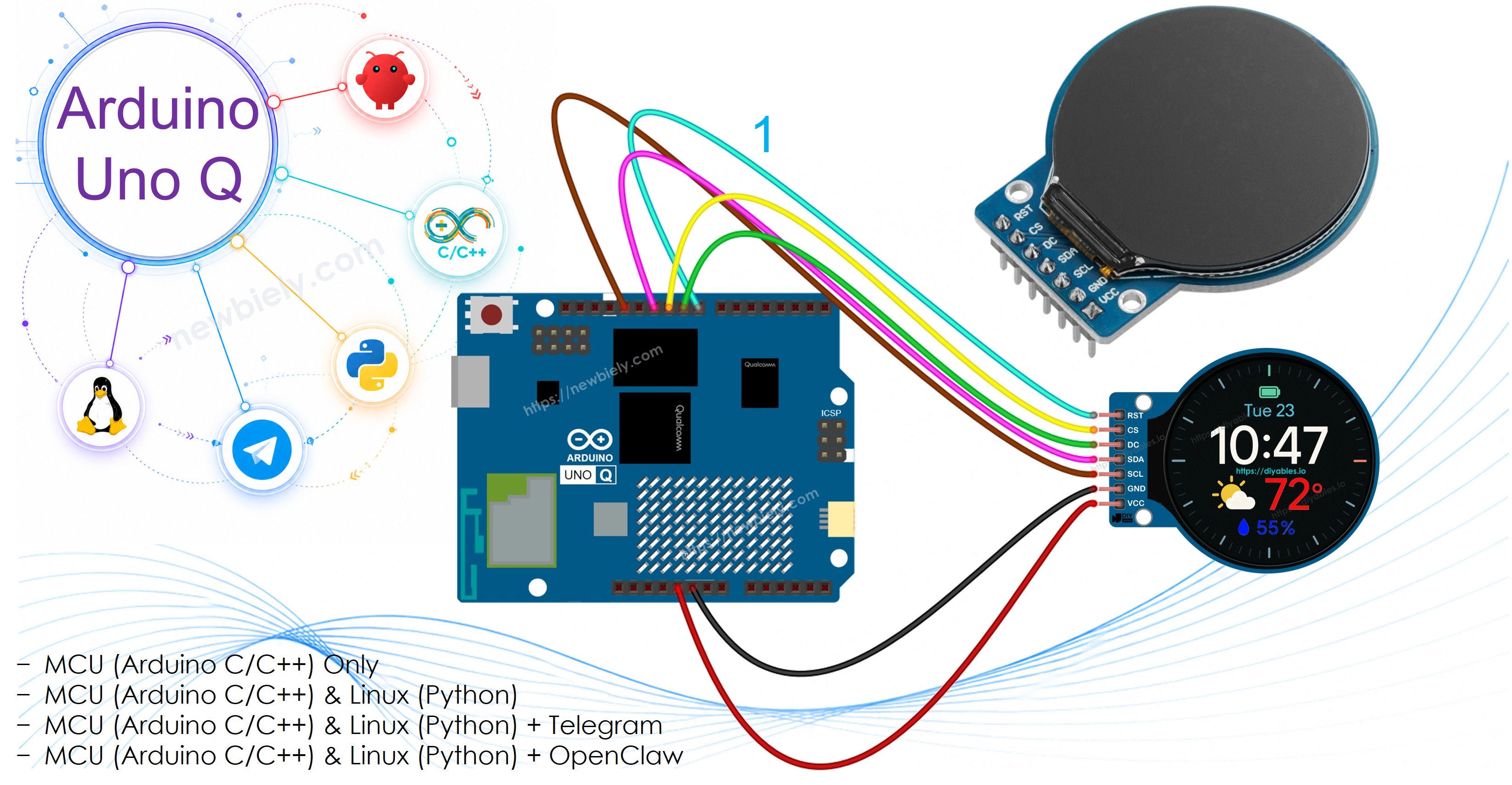
Arduino UNO Q - Round Circular TFT LCD Display

Want to add a stylish round screen to your Arduino UNO Q project? This beginner-friendly tutorial shows you how to use a 1.28 inch round circular TFT LCD display with Arduino UNO Q — step by step.

In this tutorial, you will learn:

Arduino UNO Q Round Circular TFT LCD Display

Hardware Preparation

1×Arduino UNO Q
1×USB Cable for Arduino Uno Q
1×1.28 Inch Round Circular TFT LCD Display Module
1×Jumper Wires
1×Recommended: Screw Terminal Block Shield for Arduino Uno
1×Recommended: Sensors/Servo Expansion Shield for Arduino Uno
1×Recommended: Breadboard Shield for Arduino Uno
1×Recommended: Enclosure for Arduino Uno
1×Recommended: Prototyping Base Plate & Breadboard Kit for Arduino UNO

Or you can buy the following kits:

1×DIYables Sensor Kit (18 sensors/displays)
Disclosure: Some of the links provided in this section are Amazon affiliate links. We may receive a commission for any purchases made through these links at no additional cost to you.
Additionally, some of these links are for products from our own brand, DIYables .

Overview of the Round Circular TFT LCD Display

The 1.28 inch round circular TFT LCD display is a compact, eye-catching screen based on the GC9A01 driver.

Key specs and features:

  • Screen shape: Circular — 240x240 pixels, round viewing area
  • Size: 1.28 inches diagonal
  • Driver IC: GC9A01 — use the DIYables_TFT_Round library
  • Interface: SPI (4-wire) — only 5 signal wires needed
  • Color: Full RGB color (65K colors)
  • Power: 3.3V or 5V compatible
  • Best for: Wearables, meters, dashboards, analog clock displays, and compact UI panels

The round display uses the SPI interface, connecting to the MCU's hardware SPI pins on the Arduino UNO Q.
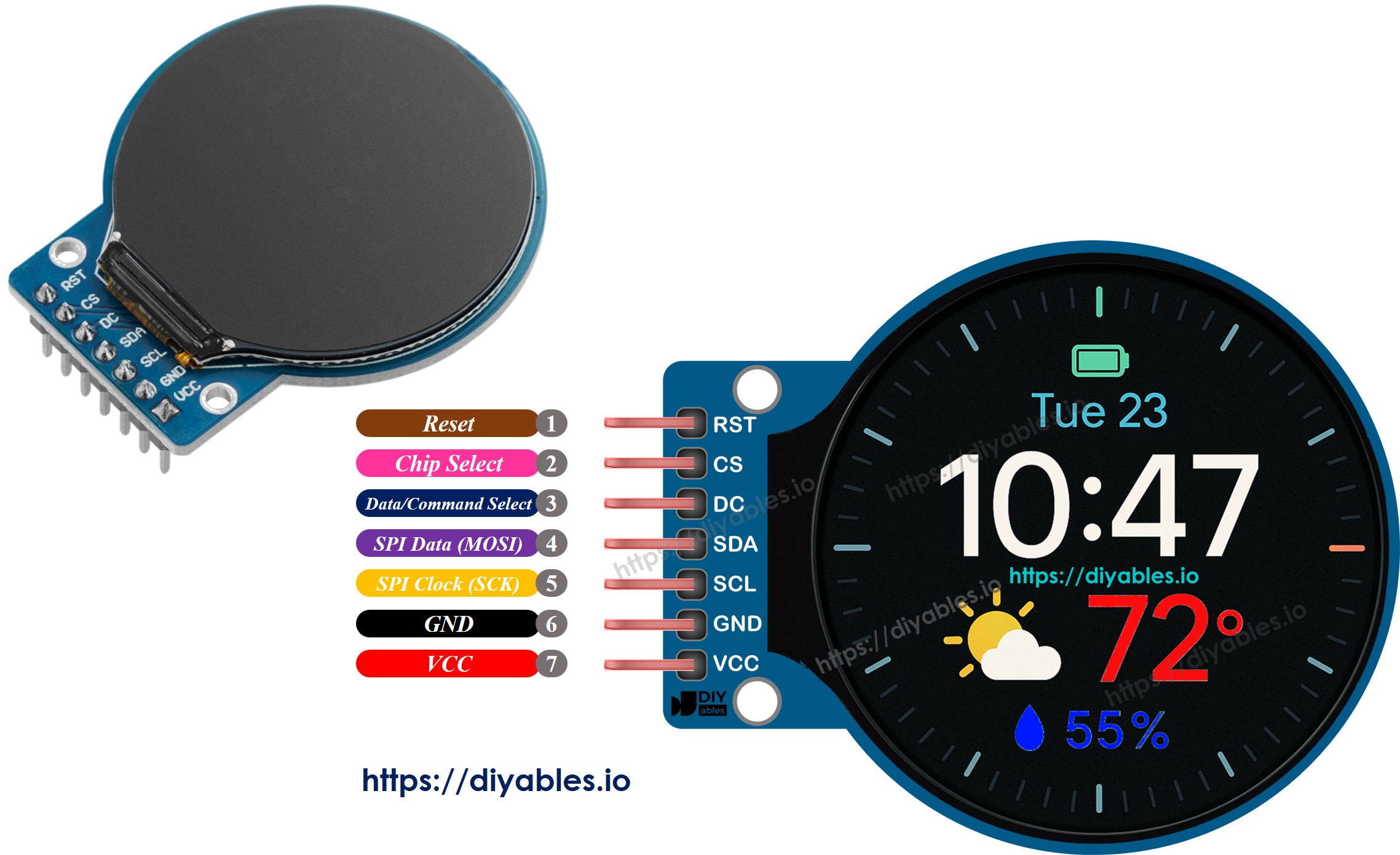
1.28 Inch Round Circular TFT LCD Pinout

Pin descriptions:

  • VCC: Power supply — connect to 3.3V
  • GND: Ground
  • SCL: SPI Clock — connect to D13
  • SDA: SPI MOSI (data) — connect to D11
  • DC: Data/Command select — connect to D9
  • CS: Chip Select — connect to D10
  • RST: Reset — connect to D8

Wiring Diagram

Connect the 1.28 inch round TFT LCD to the Arduino UNO Q's MCU pins as shown:
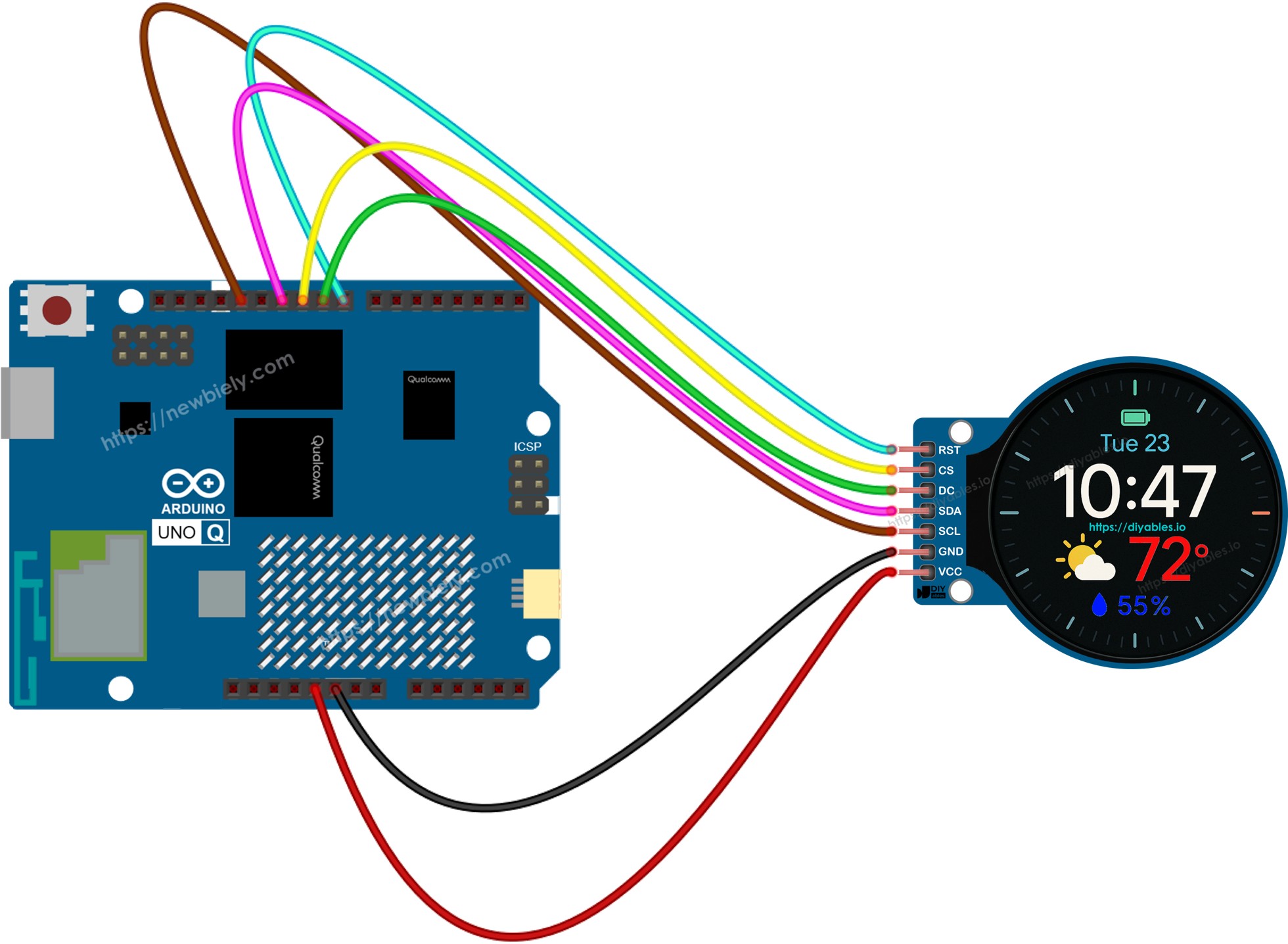
The wiring diagram between Arduino UNO Q Round Circular TFT LCD Display

This image is created using Fritzing. Click to enlarge image

Round TFT Pin Arduino UNO Q MCU Pin Description
VCC 3.3V Power supply
GND GND Ground
SCL D13 SPI Clock
SDA D11 SPI MOSI
DC D9 Data/Command
CS D10 Chip Select
RST D8 Reset

Note: Use 3.3V for VCC — the GC9A01 display runs at 3.3V logic. The MCU's SPI pins output 3.3V on the Arduino UNO Q.

Arduino UNO Q Code

The Arduino UNO Q has two processors working together:

  • The STM32 MCU drives the round TFT display via SPI — it renders all text and graphics
  • The Qualcomm MPU runs Debian Linux and handles Wi-Fi, Python, and cloud connectivity
  • In this section, only the MCU is programmed — the Linux side stays idle. A later section shows how both processors work together via Bridge.

The sketch below displays welcome text on the round circular TFT screen.

/* * This Arduino UNO Q code was developed by newbiely.com * * This Arduino UNO Q code is made available for public use without any restriction * * For comprehensive instructions and wiring diagrams, please visit: * https://newbiely.com/tutorials/arduino-uno-q/arduino-uno-q-round-circular-tft-lcd-display */ #include <DIYables_TFT_Round.h> #define WHITE DIYables_TFT::colorRGB(255, 255, 255) #define BLACK DIYables_TFT::colorRGB(0, 0, 0) #define BLUE DIYables_TFT::colorRGB(0, 0, 255) #define RED DIYables_TFT::colorRGB(255, 0, 0) #define PIN_RST 8 // MCU pin connected to RST on round TFT display #define PIN_DC 9 // MCU pin connected to DC on round TFT display #define PIN_CS 10 // MCU pin connected to CS on round TFT display DIYables_TFT_GC9A01_Round TFT_display(PIN_RST, PIN_DC, PIN_CS); void setup() { TFT_display.begin(); TFT_display.setRotation(0); TFT_display.fillScreen(BLACK); TFT_display.setTextColor(WHITE); TFT_display.setTextSize(2); TFT_display.setCursor(50, 80); TFT_display.println("Arduino UNO Q"); TFT_display.setTextColor(BLUE); TFT_display.setTextSize(2); TFT_display.setCursor(40, 115); TFT_display.println("Round TFT LCD"); TFT_display.setTextColor(RED); TFT_display.setTextSize(1); TFT_display.setCursor(70, 150); TFT_display.println("DIYables.io"); } void loop() { }

Detailed Instructions

First time with Arduino UNO Q? Follow the Getting Started with Arduino UNO Q tutorial to get your development environment ready before proceeding.

  • Connect: Wire the round TFT LCD to the Arduino UNO Q as shown in the wiring diagram, then plug in the USB-C cable.
  • Open Arduino App Lab: Launch Arduino App Lab and wait until it detects your Arduino UNO Q — this can take several minutes on first launch.
  • Create a new App: Click the Create New App button.

Create New App in Arduino App Lab on Arduino UNO Q
  • Give the App a name, for example: DIYables_RoundTftLcd
  • Click Create to confirm.
  • You will see a set of folders and files generated inside your new App.

Arduino App Lab App folders and files on Arduino UNO Q
  • Find the sketch/sketch.ino file — this is where you will paste the MCU sketch.
  • Paste the sketch: Copy the MCU code above and paste it into that sketch file. Keep other files as default.
    • Install the library: Click the Add sketch library button (the open book icon with a + sign) in the left sidebar.

    Add sketch library in Arduino App Lab on Arduino UNO Q
    • Search for Arduino_RouterBridge created by Arduino and click the Install button.
    My Apps / DIYables Apps
    Run
    Bricks
    No bricks added...
    Sketch Libraries
    No sketch libra...
    Files
    python
    sketch
    .gitignore
    README.md
    app.yaml
    sketch.ino
    Add sketch library
    Arduino_RouterBridge Arduino

    This library provides a simple RPC bridge for Arduino UNO Q boards, allowing communication between the board and other devices using MsgPack serialization.

    0.4.1
    Install
    More Info
    • Search for DIYables TFT Round created by DIYables.io and click the Install button.
    My Apps / DIYables Apps
    Run
    Bricks
    No bricks added...
    Sketch Libraries
    No sketch libra...
    Files
    python
    sketch
    .gitignore
    README.md
    app.yaml
    sketch.ino
    Add sketch library
    DIYables TFT Round DIYables.io

    This library is designed for the DIYables 1.28-inch Round Circular TFT LCD Display Module and is compatible with a wide range of hardware platforms, including Uno R3, Uno R4 WiFi/Minima, Mega, Giga, Due, ESP32, ESP8266, and more.

    1.0.1
    Install
    More Info
    • Upload: Click the Run button in Arduino App Lab to compile and upload to the STM32.

    Click Run button in Arduino App Lab on Arduino UNO Q

    Your round circular TFT display will light up and show "Arduino UNO Q", "Round TFT LCD", and "DIYables.io" in different colors!

    • Pro Tip: The round screen is 240x240 pixels. Keep setCursor() positions within the circular visible area — text near the corners may be clipped by the round frame.

    Bridge: Linux + MCU

    This section shows how to program both processors of the Arduino UNO Q so the Linux side can control the round TFT display remotely:

    • The round TFT display is connected to the MCU (STM32) via SPI — the MCU renders all output
    • The MPU cannot drive the round TFT directly — it must request the MCU to display content via Bridge.call()
    • The MPU has Wi-Fi — running full Debian Linux, it can connect to the Internet and trigger display updates remotely
    • Arduino_RouterBridge enables RPC communication between the two processors
    • ⚠️ /dev/ttyHS1 (Linux) and Serial1 (MCU) are RESERVED by the router — never open them in user code

    In short: MCU controls the round TFT display → MPU sends display commands → MPU can update the screen from anywhere over the Internet.

    MCU Code (Bridge)

    /* * This Arduino UNO Q code was developed by newbiely.com * * This Arduino UNO Q code is made available for public use without any restriction * * For comprehensive instructions and wiring diagrams, please visit: * https://newbiely.com/tutorials/arduino-uno-q/arduino-uno-q-round-circular-tft-lcd-display */ #include "Arduino_RouterBridge.h" #include <DIYables_TFT_Round.h> #define WHITE DIYables_TFT::colorRGB(255, 255, 255) #define BLACK DIYables_TFT::colorRGB(0, 0, 0) #define BLUE DIYables_TFT::colorRGB(0, 0, 255) #define PIN_RST 8 #define PIN_DC 9 #define PIN_CS 10 DIYables_TFT_GC9A01_Round TFT_display(PIN_RST, PIN_DC, PIN_CS); String current_text = ""; void display_text(String text) { current_text = text; TFT_display.fillScreen(BLACK); TFT_display.setTextColor(BLUE); TFT_display.setTextSize(2); TFT_display.setCursor(40, 100); TFT_display.println(text); Monitor.println("Round TFT: " + text); } void clear_tft() { current_text = ""; TFT_display.fillScreen(BLACK); Monitor.println("Round TFT cleared"); } String get_status() { if (current_text == "") return "Round TFT is clear"; return "Round TFT shows: " + current_text; } void setup() { Bridge.begin(); Monitor.begin(9600); TFT_display.begin(); TFT_display.setRotation(0); TFT_display.fillScreen(BLACK); Bridge.provide_safe("display_text", display_text); Bridge.provide_safe("clear_tft", clear_tft); Bridge.provide("get_status", get_status); } void loop() { }

    Python Code (Bridge)

    /* * This Arduino UNO Q code was developed by newbiely.com * * This Arduino UNO Q code is made available for public use without any restriction * * For comprehensive instructions and wiring diagrams, please visit: * https://newbiely.com/tutorials/arduino-uno-q/arduino-uno-q-round-circular-tft-lcd-display */ from arduino.app_utils import * import time def loop(): result = Bridge.call("display_text", "Hello UNO Q") print(result) time.sleep(3) result = Bridge.call("display_text", "Round TFT") print(result) time.sleep(3) result = Bridge.call("clear_tft") print(result) time.sleep(2) result = Bridge.call("display_text", "DIYables.io") print(result) time.sleep(3) result = Bridge.call("get_status") print(result) time.sleep(2) App.run(user_loop=loop)

    Detailed Instructions

    • Connect: Wire the round TFT LCD to the Arduino UNO Q and plug in the USB-C cable.
    • Open Arduino App Lab: Launch Arduino App Lab and wait for the board to be detected.
    • Create a new App: Click Create New App, name it DIYables_RoundTftLcdBridge, then click Create.
    • Paste the MCU sketch: Copy the MCU Bridge code above and paste it into sketch/sketch.ino.
    • Paste the Python code: Copy the Python Bridge code above and paste it into the Python file in the App.
    • Upload: Click the Run button in Arduino App Lab.
    Click Run button in Arduino App Lab on Arduino UNO Q

    App Lab Console Output

    DIYables_Apps
    Stop
    sketch.ino
    1#include "Arduino_RouterBridge.h"
    Serial Monitor
    Python
    Message (Enter to send a message to "Newbiely" on usb(2820070321))
    New Line
    9600 baud
    [2026-04-29 09:00:01] Round TFT: Hello UNO Q [2026-04-29 09:00:04] Round TFT: Round TFT [2026-04-29 09:00:07] Round TFT cleared [2026-04-29 09:00:09] Round TFT: DIYables.io
    DIYables_Apps
    Stop
    sketch.ino
    1#include "Arduino_RouterBridge.h"
    Serial Monitor
    Python
    [2026-04-29 09:00:01] OK [2026-04-29 09:00:04] OK [2026-04-29 09:00:07] OK [2026-04-29 09:00:09] OK [2026-04-29 09:00:11] Round TFT shows: DIYables.io

    Telegram

    Control the round TFT display from anywhere using Telegram. Send a message from your phone and the round display updates in real time.

    MCU sketch: Keep the same MCU sketch from the previous Bridge section.

    Python Code (Telegram)

    /* * This Arduino UNO Q code was developed by newbiely.com * * This Arduino UNO Q code is made available for public use without any restriction * * For comprehensive instructions and wiring diagrams, please visit: * https://newbiely.com/tutorials/arduino-uno-q/arduino-uno-q-round-circular-tft-lcd-display */ from arduino.app_utils import * import requests import time TELEGRAM_TOKEN = "YOUR_TELEGRAM_BOT_TOKEN" CHAT_ID = "YOUR_CHAT_ID" last_update_id = 0 def get_updates(): global last_update_id url = f"https://api.telegram.org/bot{TELEGRAM_TOKEN}/getUpdates" params = {"offset": last_update_id + 1, "timeout": 5} try: response = requests.get(url, params=params, timeout=10) data = response.json() if data["ok"]: return data["result"] except Exception: pass return [] def send_message(text): url = f"https://api.telegram.org/bot{TELEGRAM_TOKEN}/sendMessage" requests.post(url, data={"chat_id": CHAT_ID, "text": text}) def loop(): global last_update_id updates = get_updates() for update in updates: last_update_id = update["update_id"] message = update.get("message", {}) text = message.get("text", "") if text.startswith("/display "): display_text = text[9:].strip() result = Bridge.call("display_text", display_text) send_message(result) elif text == "/clear": result = Bridge.call("clear_tft") send_message(result) elif text == "/status": result = Bridge.call("get_status") send_message(result) elif text == "/start": send_message("Commands:\n/display <text> - Show text on round TFT\n/clear - Clear the display\n/status - Get current display status") App.run(user_loop=loop)

    Detailed Instructions

    • Replace YOUR_TELEGRAM_BOT_TOKEN with your actual bot token from BotFather.
    • Replace YOUR_CHAT_ID with your Telegram chat ID.
    • Paste this Python code into your App's Python file (keep the same MCU sketch).
    • Click the Run button. Open Telegram and send commands to your bot.

    App Lab Console Output

    DIYables_Apps
    Stop
    sketch.ino
    1#include "Arduino_RouterBridge.h"
    Serial Monitor
    Python
    [2026-04-29 09:15:00] Waiting for Telegram messages... [2026-04-29 09:15:10] Received: /display Hello World [2026-04-29 09:15:22] Received: /status [2026-04-29 09:15:38] Received: /clear
    Telegram
    Telegram 12:45
    Welcome to Telegram!
    ArduinoBot 10:19
    Chatting with Arduino...
    telegram-botfather
    BotFather Yesterday
    Your bot has been created.

    ArduinoBot

    bot
    Today
    /display Hello World
    10:15 AM ✓✓
    OK
    10:16 AM
    /status
    10:17 AM ✓✓
    Round TFT shows: Hello World
    10:18 AM
    /clear
    10:19 AM ✓✓
    OK
    10:20 AM
    /status
    10:21 AM ✓✓
    Round TFT is clear
    10:22 AM

    OpenClaw

    ...OPENCLAW

    OpenClaw support for Arduino UNO Q Round Circular TFT LCD Display is coming soon.

    ...OPENCLAW

    Project Ideas

    You can build many creative and useful projects using a round TFT display with Arduino UNO Q:

    • Analog Clock Face: Show a real-time analog clock using NTP time fetched via Wi-Fi on the circular display
    • Wearable Sensor Monitor: Display real-time heart rate, temperature, or step count on the compact round screen
    • Smart Speedometer: Build a round gauge-style display that shows current speed or RPM fetched from a sensor
    • Remote Notification Badge: Show incoming Telegram alerts or custom icons on the round screen mounted on a desk or wall
    • Weather Mini Display: Show current temperature and weather icon fetched from an online API on the circular TFT

    Challenge Yourself

    Ready to go further with the round circular TFT display on Arduino UNO Q? Try these challenges:

    • Easy: Modify the MCU sketch to draw a filled circle and a filled rectangle on the round display using the DIYables_TFT_Round drawing functions.
    • Medium: Use the Bridge to send two values from Python — a label and a number — and have the MCU display them as a large centered number with a label below it on the round screen.
    • Advanced: Build a Telegram-controlled analog clock face: the Python side fetches NTP time and sends hour/minute values via Bridge to the MCU, which draws clock hands on the round TFT display.

    ※ OUR MESSAGES

    • As freelancers, We are AVAILABLE for HIRE. See how to outsource your project to us
    • Please feel free to share the link of this tutorial. However, Please do not use our content on any other websites. We invested a lot of effort and time to create the content, please respect our work!