
Arduino UNO Q - Ultrasonic Sensor - LED
In this tutorial, you will learn how to use an ultrasonic sensor to control an LED based on object distance:
- When an object is close to the sensor, the LED turns on.
- When the object moves away, the LED turns off.
Hardware Preparation
Or you can buy the following kits:
| 1 | × | DIYables Sensor Kit (18 sensors/displays) |
Additionally, some of these links are for products from our own brand, DIYables .
Buy Note: Use the LED Module for easier wiring. It includes an integrated resistor.
Overview of LED and Ultrasonic Sensor
Learn about LED and ultrasonic sensors in the tutorials below:
Wiring Diagram
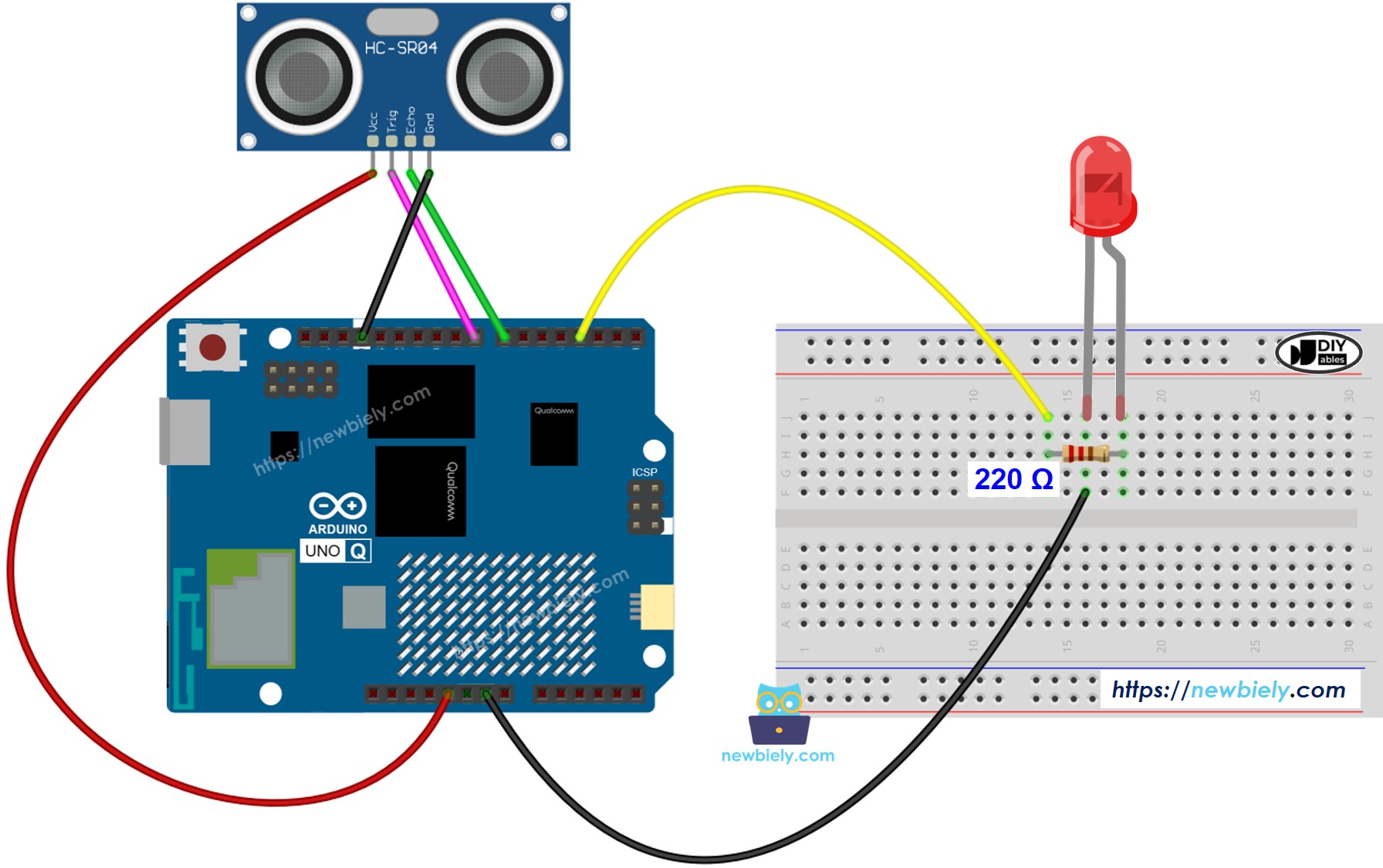
This image is created using Fritzing. Click to enlarge image
MCU Code
The Arduino UNO Q has two processors: the STM32 MCU (handles real-time hardware control) and the Qualcomm MPU (runs Debian Linux). In this section, only the STM32 MCU is programmed — the Linux side stays idle. A later section will show how both processors work together.
Detailed Instructions
- First time with Arduino UNO Q? Follow the Getting Started with Arduino UNO Q tutorial to get your development environment ready before proceeding.
- Wire the components: Connect TRIG → pin 8, ECHO → pin 7, LED (with 220 Ω resistor) → pin 3.
- Connect: Plug the Arduino UNO Q into your computer with a USB-C cable.
- Open Arduino App Lab: Launch Arduino App Lab and wait until it detects your Arduino UNO Q.
- Create a new App: Click the Create New App button.

- Give the App a name, for example: DIYables_UltrasonicLED
- Click Create to confirm.
- You will see a set of folders and files generated inside your new App.

- Find the sketch/sketch.ino file — this is where you will paste the MCU sketch.
- Install the library: Click the Add sketch library button (the open book icon with a + sign) in the left sidebar.

- Search for Arduino_RouterBridge created by Arduino and click the Install button.
- Upload: Click the Run button in Arduino App Lab to compile and upload to the STM32.

- Test: Slide your hand toward the sensor — the LED turns on when you get within 50 cm.
※ NOTE THAT:
This code is for learning. The ultrasonic sensor is sensitive to noise. For production use, apply the noise filter from the Ultrasonic Sensor tutorial.
Linux + MCU Bridge Programming
The Arduino UNO Q has two processors that work together: the MPU (Qualcomm, runs Debian Linux) and the MCU (STM32, runs Zephyr OS with your Arduino sketch). They communicate using RPC via the Arduino_RouterBridge library — never via raw serial ports.
- The ultrasonic sensor and LED are connected to the MCU (STM32) — TRIG on pin 8, ECHO on pin 7, LED on pin 3.
- The MPU cannot control these directly — it calls Bridge.call("check_distance") on the MCU, which measures distance and sets the LED accordingly.
- The MPU has Wi-Fi — because the MPU runs full Debian Linux with Wi-Fi, it can run Telegram and loop the check automatically.
- Communication: Bridge.call() on the Linux side invokes Bridge.provide_safe() on the MCU side (since digitalWrite() is a hardware API)
- ⚠️ Reserved: /dev/ttyHS1 (Linux) and Serial1 (MCU) are used by the Arduino Router — never open them directly
In short: Python calls check → MCU measures distance → MCU sets LED and prints to Monitor.
MCU sketch — ultrasonic sensor LED control with Bridge and Monitor output:
Python script (Arduino App Lab) — run distance check loop from Linux:
- Note: Make sure Bridge.begin() is called in the MCU sketch and the sketch is uploaded before running the Python script on the Linux side.
- ⚠️ Warning: Never directly open /dev/ttyHS1 (on Linux) or use Serial1 (on MCU) in your code — these are reserved by the Arduino Router and accessing them will break the Bridge.
Detailed Instructions
- Upload the MCU sketch: Open Arduino App Lab, create a new App, paste the Bridge MCU sketch into sketch/sketch.ino, install the Arduino_RouterBridge library, and click Run.
- Add the Python script: Paste the Python code above into the Python tab of the same App.
- Run the App: Click Run — Python calls check_distance every 500 ms; the MCU measures distance and controls the LED.
- Check the console: Open the Console tab → MCU Monitor subtab to see distance and LED state.
App Lab Console Output
Telegram Integration
Monitor the ultrasonic sensor and LED state remotely via Telegram.
If you do not have a Telegram bot yet, see How to Create a Telegram Bot to get your bot token before continuing.
MCU sketch: Keep the same MCU sketch from the previous Bridge section — no changes needed. Make sure it is already uploaded and running on the STM32 before proceeding.
Python script (Arduino App Lab) — Telegram bot for ultrasonic LED monitoring:
- Note: Replace YOUR_BOT_TOKEN with the token obtained from @BotFather on Telegram.
- The bot continuously checks the distance and controls the LED while listening for Telegram commands.
- Send /read to request confirmation that the status was logged to MCU Monitor.
Detailed Instructions
- Upload the MCU sketch: Use the Bridge MCU sketch from the previous section (upload it first if not already done).
- Paste the Telegram script: Copy the Python code above into the Python tab of your App in Arduino App Lab.
- Set your token: Replace YOUR_BOT_TOKEN in the script with your actual bot token.
- Run the App: Click Run — the bot starts controlling the LED and listening for Telegram messages.
- Test it: Send /read — the bot replies with the current distance and LED state.
App Lab Console Output


ArduinoBot
OpenClaw Integration
You can adapt the OpenClaw to this tutorial by refering the instruction on Arduino Uno Q - OpenClaw Tutorial
Application/Project Ideas
- Proximity warning light: Flash an LED as an object gets closer (combine with distance thresholds)
- Automatic night light: Turn on an LED when someone approaches a sensor at night
- Obstacle indicator: Use the LED to indicate when a robot is too close to a wall
- Child safety alert: Attach to a drawer or cabinet — LED lights when someone reaches in
- Display brightness trigger: Activate a backlight when a user is detected nearby
Challenge Yourself
- Easy: Change the DISTANCE_THRESHOLD from 50 cm to 20 cm and observe the difference
- Medium: Add multiple thresholds — blink slowly at 50 cm, blink fast at 30 cm, stay on at 15 cm
- Advanced: Send the actual distance value (in cm) directly back to the Telegram user as a message