
Arduino UNO Q - Actuator with Feedback

In this guide, you will learn how to control a linear actuator with position feedback using a potentiometer on Arduino UNO Q and the Motor Shield Rev3. You will learn:

For basic extend/retract control without feedback, see Arduino UNO Q - Actuator.
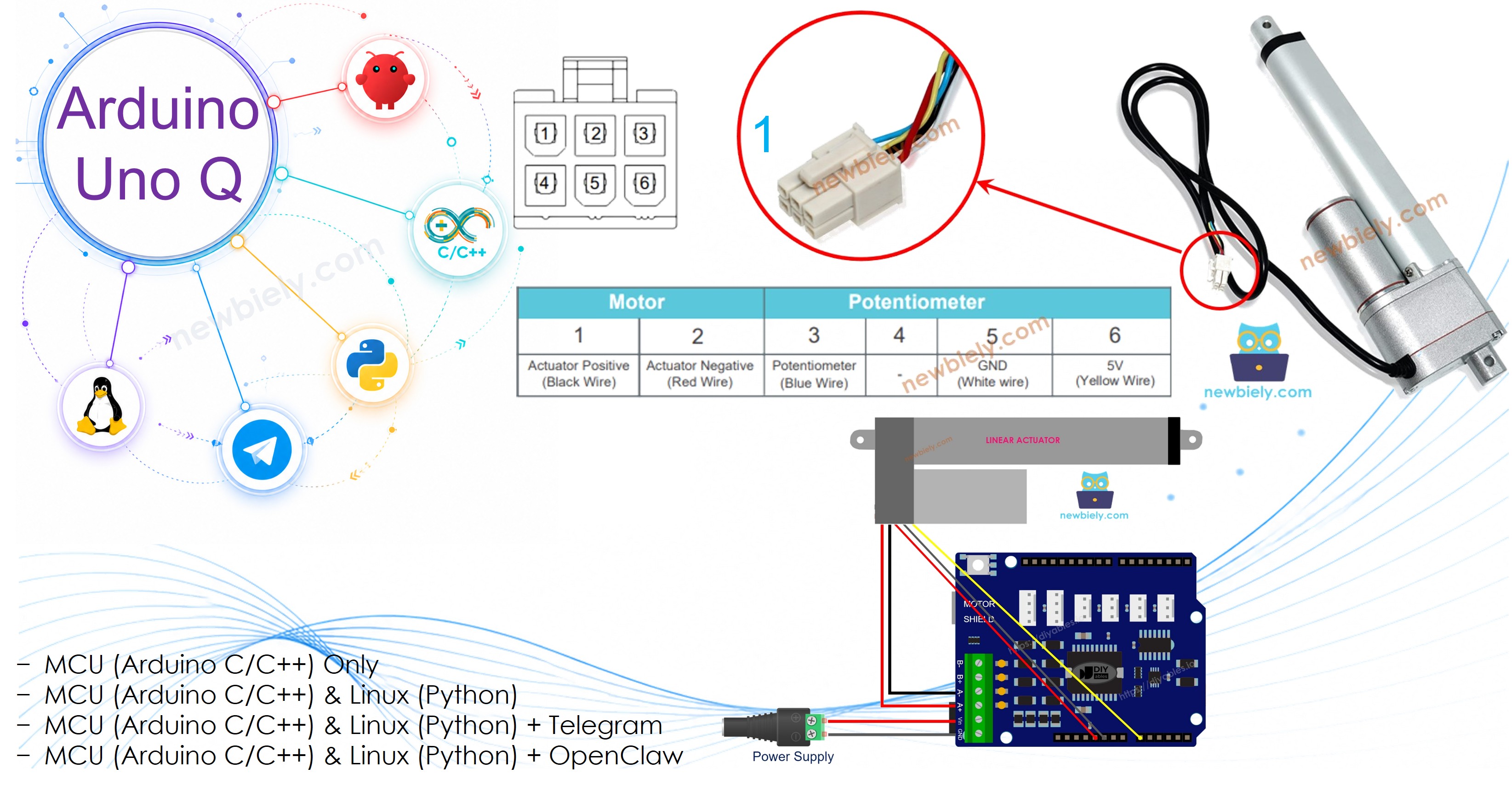
Arduino UNO Q Actuator with Feedback

Hardware Preparation

1×Arduino UNO Q
1×USB Cable for Arduino Uno Q
1×12V Linear Actuator with Feedback
1×Motor Shield for Arduino
1×12V Power Adapter
1×DC Power Jack
1×Jumper Wires
1×Recommended: Screw Terminal Block Shield for Arduino Uno
1×Recommended: Sensors/Servo Expansion Shield for Arduino Uno
1×Recommended: Breadboard Shield for Arduino Uno
1×Recommended: Enclosure for Arduino Uno
1×Recommended: Prototyping Base Plate & Breadboard Kit for Arduino UNO

Or you can buy the following kits:

1×DIYables Sensor Kit (18 sensors/displays)
Disclosure: Some of the links provided in this section are Amazon affiliate links. We may receive a commission for any purchases made through these links at no additional cost to you.
Additionally, some of these links are for products from our own brand, DIYables .

Overview of Linear Actuator with Feedback

A linear actuator with feedback has an integrated potentiometer whose resistance changes as the rod extends and retracts. By reading this potentiometer, you can calculate the current position of the rod and drive it to an exact target position.

Linear Actuator with Feedback Pinout

A linear actuator with feedback has 5 wires (or 4 on some models):

  • Motor wires (2): power and polarity control via Motor Shield Rev3 Channel A
  • Potentiometer wires (3): VCC, GND, and signal (wiper)
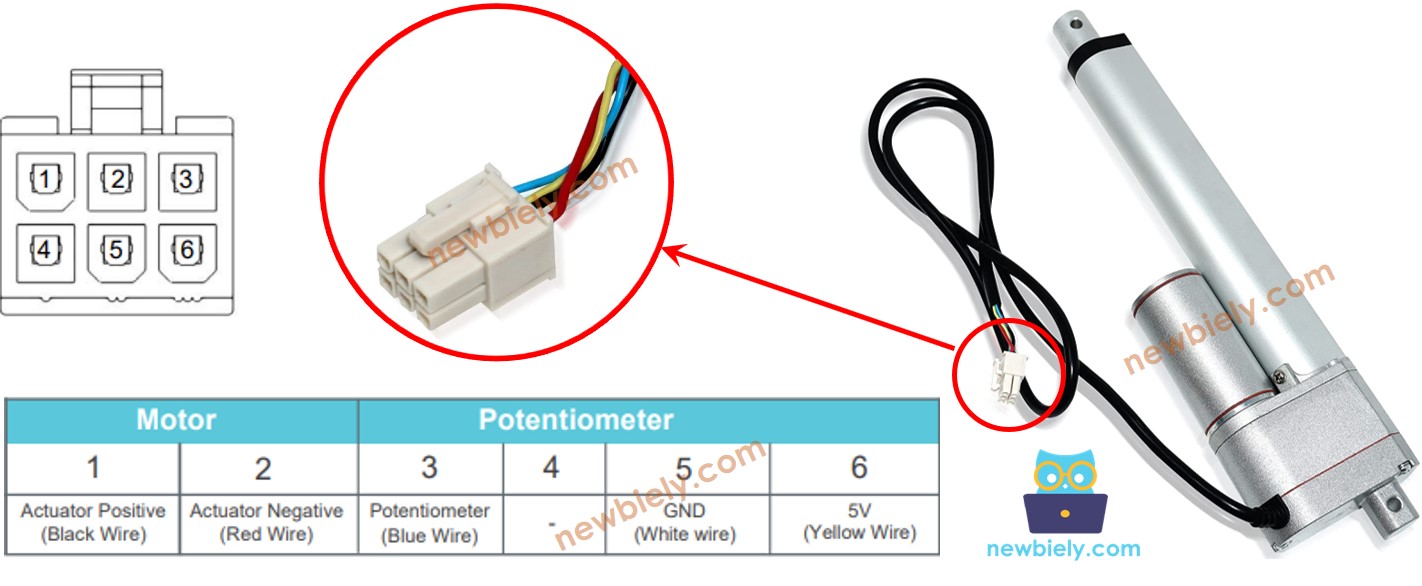
Linear Actuator with Feedback Pinout

※ NOTE THAT:

The Motor Shield Rev3 Channel A uses A0 for current sensing. Connect the actuator's feedback potentiometer signal wire to A2 to avoid conflict.

How It Works

  1. Power the motor via the Motor Shield Rev3 (motor.run(MOTOR_FORWARD, 255) to extend, motor.run(MOTOR_BACKWARD, 255) to retract, motor.brake() to stop).
  2. Read the potentiometer signal with analogRead(A2) — returns a 12-bit value (0–4095) on Arduino UNO Q.
  3. Use map() to convert the raw ADC value to millimetres.
  4. Compare the current position with the target; keep moving or stop accordingly.

※ NOTE THAT:

Before controlling position you must calibrate the actuator: extend to the full limit, read POTENTIOMETER_MAX; retract to the full limit, read POTENTIOMETER_MIN. These values replace the placeholders in the code.

If you are not familiar with the Motor Shield Rev3 (pinout, how it works, and how to program it), see the Arduino UNO Q - DC Motor Shield tutorial first.

Wiring Diagram
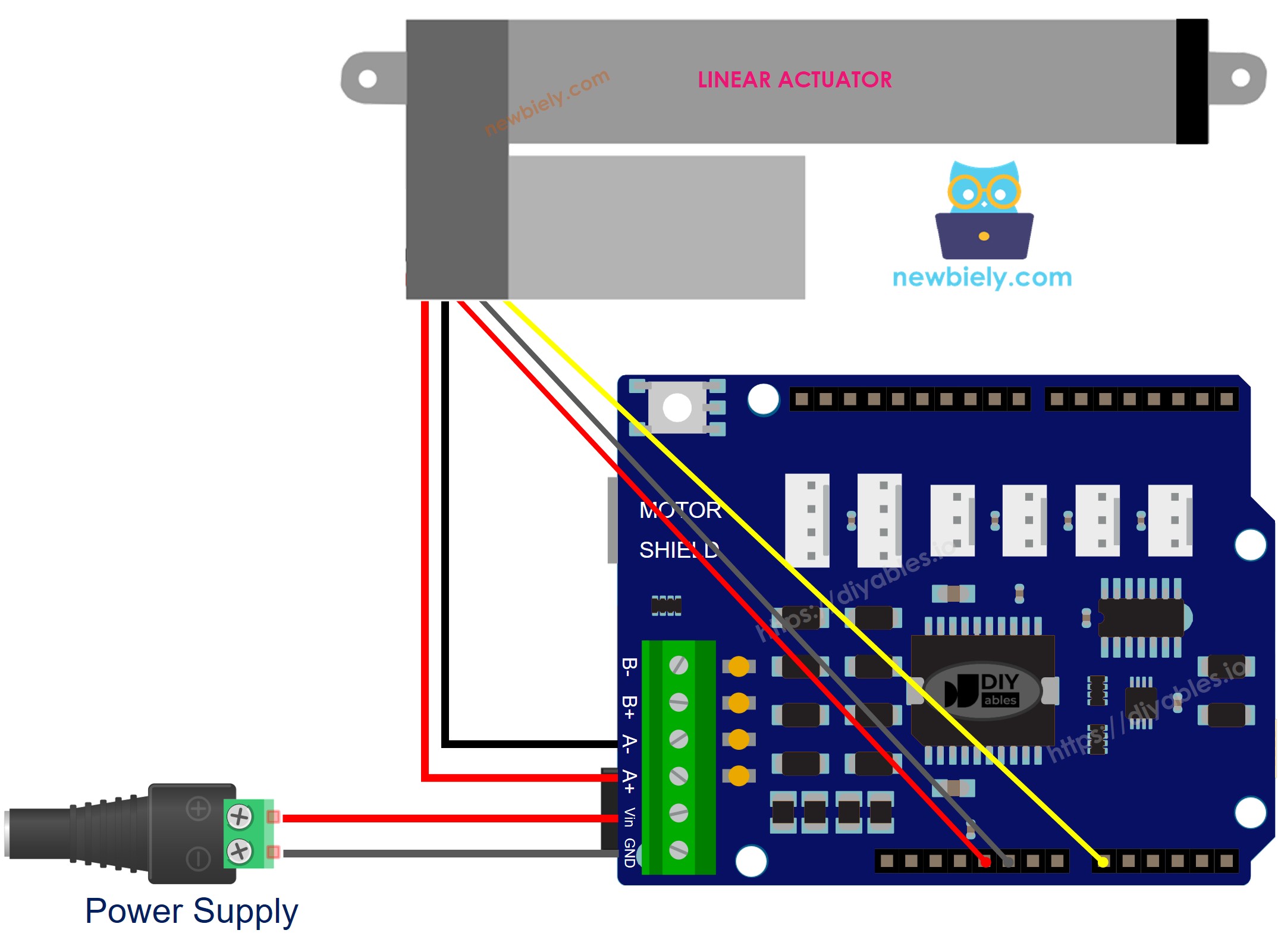
The wiring diagram between Arduino UNO Q Actuator with Feedback Motor Shield

This image is created using Fritzing. Click to enlarge image

MCU Code

The Arduino UNO Q has two processors: the STM32 MCU (handles real-time hardware control) and the Qualcomm MPU (runs Debian Linux). In this section, only the STM32 MCU is programmed. A later section will show how both processors work together.

This tutorial is broken into three steps:

Step 1 – Calibration

Run this code to find the raw ADC values when the actuator is fully extended and fully retracted. Note the values — you will use them in Steps 2 and 3.

/* * This Arduino UNO Q code was developed by newbiely.com * * This Arduino UNO Q code is made available for public use without any restriction * * For comprehensive instructions and wiring diagrams, please visit: * https://newbiely.com/tutorials/arduino-uno-q/arduino-uno-q-actuator-with-feedback */ // Step 1: Calibration — find POTENTIOMETER_MIN and POTENTIOMETER_MAX values // NOTE: Motor Shield Channel A uses A0 for current sensing. // Connect the actuator's feedback potentiometer signal wire to A2. #include <DIYables_DC_Motor.h> #define POTENTIOMETER_PIN A2 // The Arduino UNO Q pin connected to the actuator's feedback potentiometer DIYables_DC_Motor motor(MOTOR_CH_A); void setup() { motor.begin(); } void loop() { // extend the actuator fully motor.run(MOTOR_FORWARD, 255); delay(20000); // wait for actuator to reach its limit int POTENTIOMETER_MAX = analogRead(POTENTIOMETER_PIN); // read max position value (0-4095 on UNO Q) // TODO: note this value // retract the actuator fully motor.run(MOTOR_BACKWARD, 255); delay(20000); // wait for actuator to reach its limit int POTENTIOMETER_MIN = analogRead(POTENTIOMETER_PIN); // read min position value // TODO: note this value // stop motor.brake(); while (true); // stop after one calibration cycle }

Detailed Instructions

  • Stack the shield: Firmly press the Motor Shield Rev3 onto the Arduino UNO Q headers. Connect the actuator motor wires to the Channel A screw terminals. Connect the 12V power supply to the shield's power screw terminals. Connect the potentiometer signal wire to A2, potentiometer VCC to 3.3V, potentiometer GND to GND.
  • Connect: Plug the Arduino UNO Q into your computer with a USB-C cable.
  • Open Arduino App Lab: Launch Arduino App Lab and wait until it detects your Arduino UNO Q.
  • Create a new App: Click the Create New App button.

Create New App in Arduino App Lab on Arduino UNO Q
  • Give the App a name, for example: DIYables_ActuatorFeedback
  • Click Create to confirm.
  • Find the sketch/sketch.ino file and paste the calibration code above.
  • Install the library: Click the Add sketch library button (the open book icon with a + sign) in the left sidebar.

Add sketch library in Arduino App Lab on Arduino UNO Q
  • Search for DIYables_DC_Motor created by DIYables.io and click the Install button.
My Apps / DIYables Apps
Run
Bricks
No bricks added...
Sketch Libraries
No sketch libra...
Files
python
sketch
.gitignore
README.md
app.yaml
sketch.ino
Add sketch library
DIYables_DC_Motor DIYables.io

Easy-to-use library for controlling DC motors via the Arduino Motor Shield Rev3 (L298P). Supports both Channel A and Channel B with direction control, PWM speed, brake, and current sensing. Custom pin assignments also supported.

1.0.0
Install
More Info
  • Upload: Click Run to upload.
  • Note the values: After 40 seconds (extend 20s + retract 20s), note the POTENTIOMETER_MAX and POTENTIOMETER_MIN values.

Step 2 – Calculate Position

Use the calibrated values to calculate the current position in millimetres:

  • Replace STROKE_LENGTH with your actuator's stroke length in mm.
  • Replace POTENTIOMETER_MAX and POTENTIOMETER_MIN with the values noted in Step 1.
/* * This Arduino UNO Q code was developed by newbiely.com * * This Arduino UNO Q code is made available for public use without any restriction * * For comprehensive instructions and wiring diagrams, please visit: * https://newbiely.com/tutorials/arduino-uno-q/arduino-uno-q-actuator-with-feedback */ // Step 2: Calculate position from potentiometer feedback // NOTE: Motor Shield Channel A uses A0 for current sensing. // Connect the actuator's feedback potentiometer signal wire to A2. #include <DIYables_DC_Motor.h> #define POTENTIOMETER_PIN A2 // The Arduino UNO Q pin connected to the actuator's feedback potentiometer #define STROKE_LENGTH 102 // PLEASE UPDATE THIS VALUE (in mm) #define POTENTIOMETER_MAX 4050 // PLEASE UPDATE THIS VALUE (from calibration) #define POTENTIOMETER_MIN 50 // PLEASE UPDATE THIS VALUE (from calibration) DIYables_DC_Motor motor(MOTOR_CH_A); void setup() { motor.begin(); // extend the actuator continuously while displaying position motor.run(MOTOR_FORWARD, 255); } void loop() { int potentiometer_value = analogRead(POTENTIOMETER_PIN); int stroke_pos = map(potentiometer_value, POTENTIOMETER_MIN, POTENTIOMETER_MAX, 0, STROKE_LENGTH); // stroke_pos is the current position in mm — use this to verify feedback accuracy (void)stroke_pos; }

Detailed Instructions

  • Update the placeholders at the top of the code with your actual values.
  • Upload and observe: Watch the actuator extend while checking the calculated position.

Step 3 – Control Position

With calibrated values, drive the actuator to a specific target position:

  • Set targetPosition_mm to the desired position (0 = fully retracted, STROKE_LENGTH = fully extended).
/* * This Arduino UNO Q code was developed by newbiely.com * * This Arduino UNO Q code is made available for public use without any restriction * * For comprehensive instructions and wiring diagrams, please visit: * https://newbiely.com/tutorials/arduino-uno-q/arduino-uno-q-actuator-with-feedback */ // Step 3: Control actuator position using feedback // NOTE: Motor Shield Channel A uses A0 for current sensing. // Connect the actuator's feedback potentiometer signal wire to A2. #include <DIYables_DC_Motor.h> #define POTENTIOMETER_PIN A2 // The Arduino UNO Q pin connected to the actuator's feedback potentiometer #define STROKE_LENGTH 102 // PLEASE UPDATE THIS VALUE (in mm) #define POTENTIOMETER_MAX 4050 // PLEASE UPDATE THIS VALUE (from calibration) #define POTENTIOMETER_MIN 50 // PLEASE UPDATE THIS VALUE (from calibration) #define TOLERANCE 5 // position tolerance in mm int targetPosition_mm = 50; // target position in mm DIYables_DC_Motor motor(MOTOR_CH_A); void setup() { motor.begin(); motor.brake(); } void loop() { int potentiometer_value = analogRead(POTENTIOMETER_PIN); int stroke_pos = map(potentiometer_value, POTENTIOMETER_MIN, POTENTIOMETER_MAX, 0, STROKE_LENGTH); if (stroke_pos < (targetPosition_mm - TOLERANCE)) motor.run(MOTOR_FORWARD, 255); else if (stroke_pos > (targetPosition_mm + TOLERANCE)) motor.run(MOTOR_BACKWARD, 255); else motor.brake(); }

Detailed Instructions

  • Update the placeholders (STROKE_LENGTH, POTENTIOMETER_MAX, POTENTIOMETER_MIN) and set targetPosition_mm.
  • Upload and test: The actuator will move to the target and hold position.

Linux + MCU Bridge Programming

The Arduino UNO Q has two processors that work together: the MPU (Qualcomm, runs Debian Linux) and the MCU (STM32, runs Zephyr OS with your Arduino sketch). They communicate using RPC via the Arduino_RouterBridge library.

  • The Motor Shield Rev3 and actuator are controlled by the MCU (STM32) — the DIYables_DC_Motor library drives Channel A; potentiometer feedback on A2.
  • The MPU cannot control the actuator directly — it calls Bridge.call("read_position") to invoke the MCU function that reads position and drives the actuator.
  • The MPU has Wi-Fi — so it can accept Telegram commands to monitor or change the target position remotely.
  • Communication: Bridge.call() on the Linux side invokes Bridge.provide_safe() on the MCU side (since motor.run() and motor.brake() use hardware APIs).
  • ⚠️ Reserved: /dev/ttyHS1 (Linux) and Serial1 (MCU) are used by the Arduino Router — never open them directly.

MCU sketch — position feedback with Bridge:

/* * This Arduino UNO Q code was developed by newbiely.com * * This Arduino UNO Q code is made available for public use without any restriction * * For comprehensive instructions and wiring diagrams, please visit: * https://newbiely.com/tutorials/arduino-uno-q/arduino-uno-q-actuator-with-feedback */ #include "Arduino_RouterBridge.h" #include <DIYables_DC_Motor.h> #define POTENTIOMETER_PIN A2 // NOTE: A0 is used by Motor Shield current sensing; use A2 #define STROKE_LENGTH 102 #define POTENTIOMETER_MAX 4050 // PLEASE UPDATE THIS VALUE (from calibration) #define POTENTIOMETER_MIN 50 // PLEASE UPDATE THIS VALUE (from calibration) #define TOLERANCE 5 int targetPosition_mm = 50; DIYables_DC_Motor motor(MOTOR_CH_A); void read_position() { int potentiometer_value = analogRead(POTENTIOMETER_PIN); int stroke_pos = map(potentiometer_value, POTENTIOMETER_MIN, POTENTIOMETER_MAX, 0, STROKE_LENGTH); if (stroke_pos < (targetPosition_mm - TOLERANCE)) motor.run(MOTOR_FORWARD, 255); else if (stroke_pos > (targetPosition_mm + TOLERANCE)) motor.run(MOTOR_BACKWARD, 255); else motor.brake(); Monitor.print("Position: "); Monitor.print(stroke_pos); Monitor.print(" mm | Target: "); Monitor.print(targetPosition_mm); Monitor.println(" mm"); } void setup() { Bridge.begin(); Monitor.begin(); motor.begin(); motor.brake(); Bridge.provide_safe("read_position", read_position); Monitor.println("Actuator Feedback Bridge ready"); } void loop() {}

Python script (Arduino App Lab) — continuously read and control position:

/* * This Arduino UNO Q code was developed by newbiely.com * * This Arduino UNO Q code is made available for public use without any restriction * * For comprehensive instructions and wiring diagrams, please visit: * https://newbiely.com/tutorials/arduino-uno-q/arduino-uno-q-actuator-with-feedback */ from arduino.app_utils import * import time def loop(): Bridge.call("read_position") time.sleep(0.2) App.run(user_loop=loop)
  • Note: Make sure Bridge.begin() is called in the MCU sketch and the sketch is uploaded before running the Python script.
  • ⚠️ Warning: Never directly open /dev/ttyHS1 (on Linux) or use Serial1 (on MCU) — these are reserved by the Arduino Router.

Detailed Instructions

  • Update the placeholders in the Bridge MCU sketch (STROKE_LENGTH, POTENTIOMETER_MAX, POTENTIOMETER_MIN) and set targetPosition_mm.
  • Update the placeholders in the Bridge MCU sketch (STROKE_LENGTH, POTENTIOMETER_MAX, POTENTIOMETER_MIN) and set targetPosition_mm.
  • Upload the MCU sketch: Open Arduino App Lab, paste the Bridge MCU sketch into sketch/sketch.ino, install both DIYables_DC_Motor and Arduino_RouterBridge libraries, and click Run.
  • Add the Python script: Paste the Python code above into the Python tab.
  • Run the App: Python calls read_position every 200 ms; the MCU moves toward the target and reports position.
  • Check the console: Open the Console → MCU Monitor subtab.

App Lab Console Output

DIYables_Apps
Stop
sketch.ino
1#include "Arduino_RouterBridge.h"
Serial Monitor
Python
Message (Enter to send a message to "Newbiely" on usb(2820070321))
New Line
9600 baud
Actuator Feedback Bridge ready Position: 30 mm | Target: 50 mm Position: 38 mm | Target: 50 mm Position: 47 mm | Target: 50 mm Position: 50 mm | Target: 50 mm

Telegram Integration

Monitor and report actuator position via Telegram with the /position command.

If you do not have a Telegram bot yet, see How to Create a Telegram Bot to get your bot token before continuing.

MCU sketch: Keep the same MCU sketch from the previous Bridge section — no changes needed. Make sure it is already uploaded and running on the STM32 before proceeding.

Python script (Arduino App Lab) — Telegram bot for actuator position:

/* * This Arduino UNO Q code was developed by newbiely.com * * This Arduino UNO Q code is made available for public use without any restriction * * For comprehensive instructions and wiring diagrams, please visit: * https://newbiely.com/tutorials/arduino-uno-q/arduino-uno-q-actuator-with-feedback */ from arduino.app_utils import * import requests import time BOT_TOKEN = "YOUR_BOT_TOKEN" API_URL = f"https://api.telegram.org/bot{BOT_TOKEN}" last_update_id = 0 def send_message(chat_id, text): requests.post(f"{API_URL}/sendMessage", json={"chat_id": chat_id, "text": text}) def get_updates(): global last_update_id resp = requests.get(f"{API_URL}/getUpdates", params={"offset": last_update_id + 1, "timeout": 5}) return resp.json().get("result", []) def loop(): global last_update_id updates = get_updates() for update in updates: last_update_id = update["update_id"] msg = update.get("message", {}) chat_id = msg.get("chat", {}).get("id") text = msg.get("text", "").strip() if text == "/position": position = Bridge.call("read_position") send_message(chat_id, position) else: send_message(chat_id, "Commands:\n/position — read and control actuator position") time.sleep(0.5) App.run(user_loop=loop)
  • Note: Replace YOUR_BOT_TOKEN with the token obtained from @BotFather.
  • Send /position to trigger a position reading on the MCU.

Detailed Instructions

  • Upload the MCU sketch: Use the Bridge MCU sketch (upload it first if not already done).
  • Paste the Telegram script: Copy the Python code above into the Python tab of your App.
  • Set your token: Replace YOUR_BOT_TOKEN with your actual bot token.
  • Run the App and send /position via Telegram.

App Lab Console Output

DIYables_Apps
Stop
sketch.ino
1#include "Arduino_RouterBridge.h"
Serial Monitor
Python
[2026-04-29 12:00:01] Telegram: /position [2026-04-29 12:00:01] Position: 30 mm | Target: 50 mm
Telegram
Telegram 12:45
Welcome to Telegram!
ArduinoBot 10:19
Chatting with Arduino...
telegram-botfather
BotFather Yesterday
Your bot has been created.

ArduinoBot

bot
Today
/position
10:15 AM ✓✓
Position: 30 mm | Target: 50 mm
10:16 AM

OpenClaw Integration

OpenClaw integration for Arduino UNO Q actuator position control is coming soon.

  • Coming Soon: OpenClaw support for this project on Arduino UNO Q will be covered in a future update.

Application/Project Ideas

  • Precision gate: Open a gate to an exact position (e.g., 50 % travel) based on a schedule
  • Adjustable solar panel: Tilt panel to a calculated angle using actuator position feedback
  • Height-adjustable jig: Move a workpiece to a calibrated height in a manufacturing setup
  • Automated valve: Position a valve at a specific open percentage based on flow demand
  • Rehabilitation device: Drive an exercise actuator to target angles with position tracking

Challenge Yourself

  • Easy: Change targetPosition_mm to move the actuator to 25 mm and verify accuracy
  • Medium: Add a /set50 Telegram command that moves the actuator to 50 mm
  • Advanced: Accept a /goto <mm> command with a dynamic target and validate the range before moving

※ OUR MESSAGES

  • As freelancers, We are AVAILABLE for HIRE. See how to outsource your project to us
  • Please feel free to share the link of this tutorial. However, Please do not use our content on any other websites. We invested a lot of effort and time to create the content, please respect our work!
