Managing multiple buttons simultaneously on Arduino UNO Q is easy with the right approach. In this tutorial, you will learn how to handle five buttons at once using the ezButton library — with full debounce and press/release detection — and then extend the project to track press counts remotely via Telegram.
In this tutorial, you will learn:
How to wire multiple buttons to Arduino UNO Q
How to read and debounce multiple buttons simultaneously using the ezButton library
How to use an array of buttons for cleaner, scalable code
How to track press counts via Bridge and query them remotely via Telegram
Disclosure: Some of the links provided in this section are Amazon affiliate links. We may receive a commission for any purchases made through these links at no additional cost to you. Additionally, some of these links are for products from our own brand, DIYables .
Overview of Button
Learn about buttons (pinout, wiring, debounce) in these tutorials:
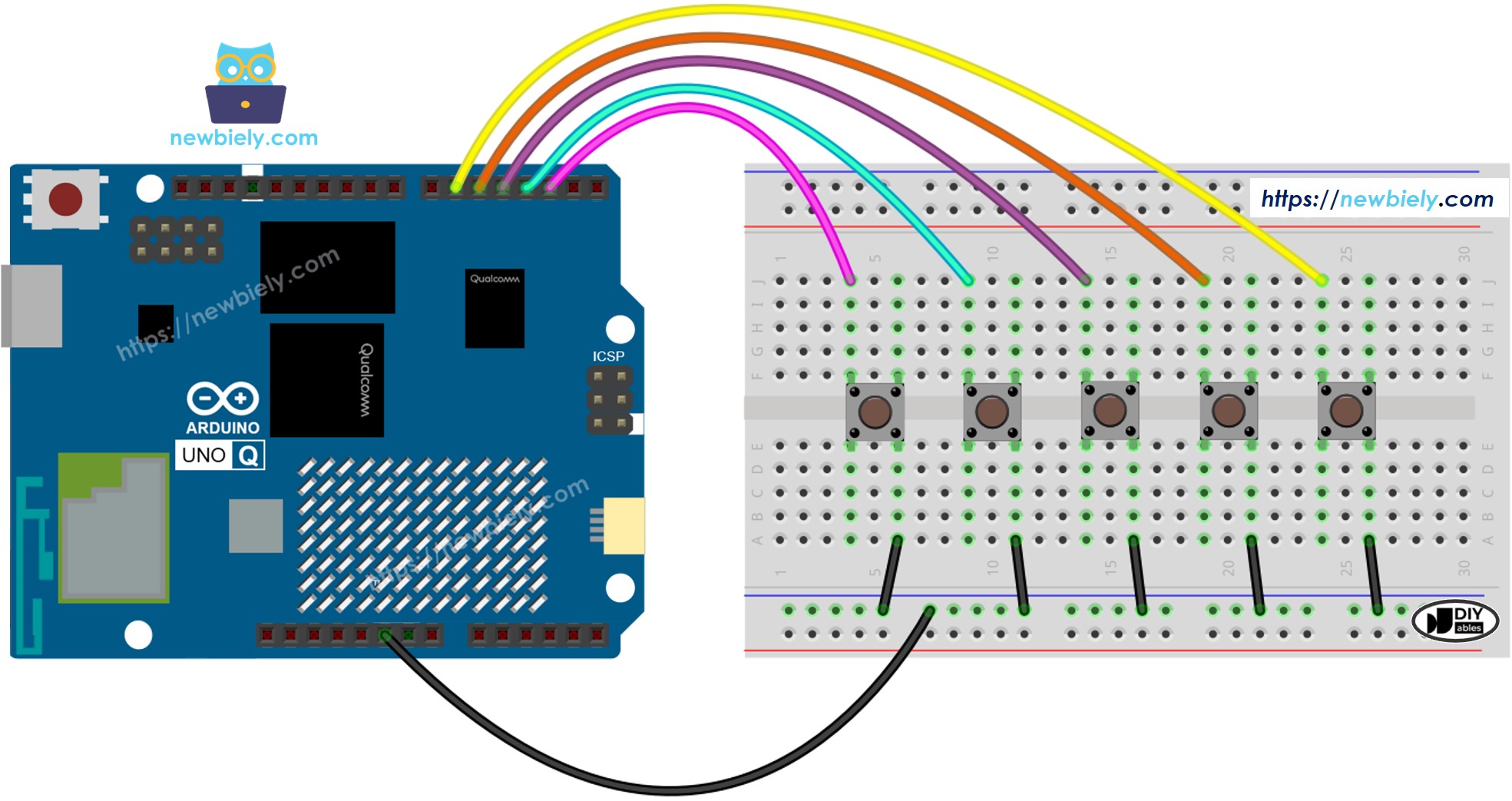
This image is created using Fritzing. Click to enlarge image
MCU Code — Multiple Buttons with Debounce
The Arduino UNO Q has two processors: the STM32 MCU (handles real-time hardware control) and the Qualcomm MPU (runs Debian Linux). In this section, only the STM32 MCU is programmed — the Linux side stays idle. A later section will show how both processors work together.
The ezButton library handles debounce and press/release detection for each button automatically — no manual timestamp tracking required:
/* * This Arduino UNO Q code was developed by newbiely.com * * This Arduino UNO Q code is made available for public use without any restriction * * For comprehensive instructions and wiring diagrams, please visit: * https://newbiely.com/tutorials/arduino-uno-q/arduino-uno-q-multiple-button */#include <ezButton.h>#define BUTTON_NUM 5#define BUTTON_PIN_1 2 // The Arduino UNO Q pin connected to button 1#define BUTTON_PIN_2 3 // The Arduino UNO Q pin connected to button 2#define BUTTON_PIN_3 4 // The Arduino UNO Q pin connected to button 3#define BUTTON_PIN_4 5 // The Arduino UNO Q pin connected to button 4#define BUTTON_PIN_5 6 // The Arduino UNO Q pin connected to button 5ezButtonbutton1(BUTTON_PIN_1);ezButtonbutton2(BUTTON_PIN_2);ezButtonbutton3(BUTTON_PIN_3);ezButton button4(BUTTON_PIN_4);ezButton button5(BUTTON_PIN_5);voidsetup() {button1.setDebounceTime(100);button2.setDebounceTime(100);button3.setDebounceTime(100); button4.setDebounceTime(100); button5.setDebounceTime(100);}voidloop() {button1.loop(); // MUST call the loop() function firstbutton2.loop();button3.loop(); button4.loop(); button5.loop();if (button1.isPressed()) { /* TO DO: button 1 pressed action */ }if (button1.isReleased()) { /* TO DO: button 1 released action */ }if (button2.isPressed()) { /* TO DO: button 2 pressed action */ }if (button2.isReleased()) { /* TO DO: button 2 released action */ }if (button3.isPressed()) { /* TO DO: button 3 pressed action */ }if (button3.isReleased()) { /* TO DO: button 3 released action */ }if (button4.isPressed()) { /* TO DO: button 4 pressed action */ }if (button4.isReleased()) { /* TO DO: button 4 released action */ }if (button5.isPressed()) { /* TO DO: button 5 pressed action */ }if (button5.isReleased()) { /* TO DO: button 5 released action */ }}
Detailed Instructions
First time with Arduino UNO Q? Follow the Getting Started with Arduino UNO Q tutorial to get your development environment ready before proceeding.
Wire the buttons: Connect five buttons to pins 2–6 according to the wiring diagram. Each button has one pin on GND and the other on the signal pin.
Connect: Plug the Arduino UNO Q into your computer with a USB-C cable.
Open Arduino App Lab: Launch Arduino App Lab and wait until it detects your Arduino UNO Q.
Create a new App: Click the Create New App button.

Give the App a name, for example: DIYables_MultiButton
Click Create to confirm.
You will see a set of folders and files generated inside your new App.

Find the sketch/sketch.ino file — this is where you will paste the MCU sketch.
Paste the sketch: Copy the MCU code above and paste it into the sketch file. Keep other files as default.
Install the library: Click the Add sketch library button (the open book icon with a + sign) in the left sidebar.

Search for ezButton created by ArduinoGetStarted.com and click the Install button.
My Apps/DIYables Apps
Run
Bricks
No bricks added...
Sketch Libraries
No sketch libra...
Files
python
sketch
.gitignore
README.md
app.yaml
sketch.ino
Add sketch library
ezButton
ezButtonArduinoGetStarted.com
Button library supports debounce, pressed/released events and the press counting. It is easy to use with multiple buttons. The library can be used for push-button, momentary switches, toggle switch, magnetic contact switch (door sensor)... It is designed for not only beginners but also experienced users.
1.0.6
Install
More Info
Search for Arduino_RouterBridge created by Arduino and click the Install button.
My Apps/DIYables Apps
Run
Bricks
No bricks added...
Sketch Libraries
No sketch libra...
Files
python
sketch
.gitignore
README.md
app.yaml
sketch.ino
Add sketch library
Arduino_RouterBridge
Arduino_RouterBridgeArduino
This library provides a simple RPC bridge for Arduino UNO Q boards, allowing communication between the board and other devices using MsgPack serialization.
0.4.1
Install
More Info
Upload: Click the Run button in Arduino App Lab to compile and upload to the STM32.

Press the buttons one at a time — press and release each button and see the result in the Bridge section below.
Pro Tip: Add action code inside each isPressed() / isReleased() block to control LEDs, servos, or other components.
Cleaner Code with a Button Array
Using an array of ezButton objects makes the code scalable — adding more buttons only requires changing BUTTON_NUM:
/* * This Arduino UNO Q code was developed by newbiely.com * * This Arduino UNO Q code is made available for public use without any restriction * * For comprehensive instructions and wiring diagrams, please visit: * https://newbiely.com/tutorials/arduino-uno-q/arduino-uno-q-multiple-button */#include <ezButton.h>#define BUTTON_NUM 5#define BUTTON_PIN_1 2 // The Arduino UNO Q pin connected to button 1#define BUTTON_PIN_2 3 // The Arduino UNO Q pin connected to button 2#define BUTTON_PIN_3 4 // The Arduino UNO Q pin connected to button 3#define BUTTON_PIN_4 5 // The Arduino UNO Q pin connected to button 4#define BUTTON_PIN_5 6 // The Arduino UNO Q pin connected to button 5ezButtonbuttonArray[] = {ezButton(BUTTON_PIN_1),ezButton(BUTTON_PIN_2),ezButton(BUTTON_PIN_3),ezButton(BUTTON_PIN_4),ezButton(BUTTON_PIN_5)};voidsetup() {for (byte i = 0; i < BUTTON_NUM; i++)buttonArray[i].setDebounceTime(100);}voidloop() {for (byte i = 0; i < BUTTON_NUM; i++)buttonArray[i].loop(); // MUST call the loop() function firstfor (byte i = 0; i < BUTTON_NUM; i++) {if (buttonArray[i].isPressed()) {// TO DO: button (i+1) pressed action here }if (buttonArray[i].isReleased()) {// TO DO: button (i+1) released action here } }}
How it works: The loop processes all buttons generically using the array index. Each button's press/release events trigger independent actions.
Pro Tip: Add a counter array (int press_count[BUTTON_NUM] = {0}) and increment press_count[i] on each isPressed() to track how many times each button was pressed.
Linux + MCU Bridge Programming
The Arduino UNO Q has two processors that work together: the MPU (Qualcomm, runs Debian Linux) and the MCU (STM32, runs Zephyr OS with your Arduino sketch). They communicate using RPC via the Arduino_RouterBridge library — never via raw serial ports.
All buttons are connected to the MCU (STM32) — wired to digital input pins on the STM32. The MCU handles debounce and press counting using ezButton.
The MPU cannot read buttons directly — it must request data from the MCU via Bridge.call(). The MCU responds with press counts or resets them.
The MPU has Wi-Fi — because the MPU runs full Debian Linux with Wi-Fi, it can forward press counts via Telegram and accept reset commands remotely.
Communication:Bridge.call() on the Linux side invokes Bridge.provide() functions on the MCU side
⚠️ Reserved:/dev/ttyHS1 (Linux) and Serial1 (MCU) are used by the Arduino Router — never open them directly
In short: MCU counts button presses → MPU requests counts → MPU forwards them via Telegram.
MCU sketch — multiple buttons with press counting and Bridge:
/* * This Arduino UNO Q code was developed by newbiely.com * * This Arduino UNO Q code is made available for public use without any restriction * * For comprehensive instructions and wiring diagrams, please visit: * https://newbiely.com/tutorials/arduino-uno-q/arduino-uno-q-multiple-button */#include"Arduino_RouterBridge.h"#include <ezButton.h>#define BUTTON_NUM 5#define BUTTON_PIN_1 2#define BUTTON_PIN_2 3#define BUTTON_PIN_3 4#define BUTTON_PIN_4 5#define BUTTON_PIN_5 6ezButtonbuttonArray[] = {ezButton(BUTTON_PIN_1),ezButton(BUTTON_PIN_2),ezButton(BUTTON_PIN_3),ezButton(BUTTON_PIN_4),ezButton(BUTTON_PIN_5)};int press_count[BUTTON_NUM] = {0};void get_press_counts() {String msg = "Press counts: ";for (int i = 0; i < BUTTON_NUM; i++) { msg += "B" + String(i + 1) + "=" + String(press_count[i]);if (i < BUTTON_NUM - 1) msg += ", "; } Monitor.println(msg);}void reset_counts() {for (int i = 0; i < BUTTON_NUM; i++) press_count[i] = 0; Monitor.println("All press counts reset");}voidsetup() {for (byte i = 0; i < BUTTON_NUM; i++) buttonArray[i].setDebounceTime(100);Bridge.begin(); Monitor.begin();Bridge.provide("get_press_counts", get_press_counts);Bridge.provide("reset_counts", reset_counts); Monitor.println("Multiple Button Bridge ready");}voidloop() {for (byte i = 0; i < BUTTON_NUM; i++) buttonArray[i].loop();for (byte i = 0; i < BUTTON_NUM; i++) {if (buttonArray[i].isPressed()) { press_count[i]++; Monitor.println("Button " + String(i + 1) + " PRESSED (count: " + String(press_count[i]) + ")"); }if (buttonArray[i].isReleased()) Monitor.println("Button " + String(i + 1) + " RELEASED"); }}
/* * This Arduino UNO Q code was developed by newbiely.com * * This Arduino UNO Q code is made available for public use without any restriction * * For comprehensive instructions and wiring diagrams, please visit: * https://newbiely.com/tutorials/arduino-uno-q/arduino-uno-q-multiple-button */from arduino.app_utils import *import timedef loop():whileTrue: counts = Bridge.call("get_press_counts")print(f"Button press counts: {counts}") time.sleep(5)App.run(user_loop=loop)
Note: Make sure Bridge.begin() is called in the MCU sketch and the sketch is uploaded before running the Python script on the Linux side.
⚠️ Warning: Never directly open /dev/ttyHS1 (on Linux) or use Serial1 (on MCU) in your code — these are reserved by the Arduino Router and accessing them will break the Bridge.
Detailed Instructions
Upload the MCU sketch: Open Arduino App Lab, create a new App, paste the Bridge MCU sketch above into sketch/sketch.ino, install the ezButton and Arduino_RouterBridge libraries, and click Run.
Add the Python script: Paste the Python code above into the Python tab of the same App.
Run the App: Click Run — the Python side polls press counts every 5 seconds.
Press the buttons several times.
Check the console: Open the Console tab → MCU Monitor subtab to see press/release events.
App Lab Console Output
DIYables_Apps
Stop
sketch.ino
1#include"Arduino_RouterBridge.h"
Serial Monitor
Python
Message (Enter to send a message to "Newbiely" on usb(2820070321))
New Line
9600 baud
Multiple Button Bridge ready
Button 1 PRESSED (count: 1)
Button 1 RELEASED
Button 3 PRESSED (count: 1)
Button 3 RELEASED
Button 5 PRESSED (count: 1)
Button 5 RELEASED
Telegram Integration
Query button press counts or reset them remotely over Telegram.
If you do not have a Telegram bot yet, see How to Create a Telegram Bot to get your bot token before continuing.
MCU sketch: Keep the same MCU sketch from the previous Bridge section — no changes needed. Make sure it is already uploaded and running on the STM32 before proceeding.
/* * This Arduino UNO Q code was developed by newbiely.com * * This Arduino UNO Q code is made available for public use without any restriction * * For comprehensive instructions and wiring diagrams, please visit: * https://newbiely.com/tutorials/arduino-uno-q/arduino-uno-q-multiple-button */from arduino.app_utils import *import requestsimport timeBOT_TOKEN = "YOUR_BOT_TOKEN"API_URL = f"https://api.telegram.org/bot{BOT_TOKEN}"last_update_id = 0def send_message(chat_id, text): requests.post(f"{API_URL}/sendMessage", json={"chat_id": chat_id, "text": text})def get_updates():global last_update_id resp = requests.get(f"{API_URL}/getUpdates", params={"offset": last_update_id + 1, "timeout": 5})return resp.json().get("result", [])def loop():global last_update_id updates = get_updates()for update in updates: last_update_id = update["update_id"] msg = update.get("message", {}) chat_id = msg.get("chat", {}).get("id") text = msg.get("text", "").strip()if text == "/counts": counts = Bridge.call("get_press_counts") send_message(chat_id, f"Button press counts:\n{counts}")elif text == "/reset": Bridge.call("reset_counts") send_message(chat_id, "All press counts reset to 0")else: send_message(chat_id, "Commands:\n/counts — get all button press counts\n/reset — reset all counts to 0") time.sleep(1)App.run(user_loop=loop)
Note: Replace YOUR_BOT_TOKEN with the token obtained from @BotFather on Telegram.
Send /counts to get all five button press counts.
Send /reset to reset all counts to zero.
Detailed Instructions
Upload the MCU sketch: Use the Bridge MCU sketch from the previous section (upload it first if not already done).
Paste the Telegram script: Copy the Python code above into the Python tab of your App in Arduino App Lab.
Set your token: Replace YOUR_BOT_TOKEN in the script with your actual bot token.
Run the App: Click Run — the bot starts listening for Telegram messages.
Test it: Press each button a few times, then send /counts on Telegram. Then send /reset to clear all counts.
Please feel free to share the link of this tutorial. However, Please do not use our content on any other websites. We invested a lot of effort and time to create the content, please respect our work!