
Arduino UNO Q - Fade LED
Controlling LED brightness — fading in and out smoothly — is a fundamental technique in Arduino programming. In this tutorial, you will learn how to use PWM (Pulse Width Modulation) to gradually increase and decrease the brightness of an LED on the Arduino UNO Q.
In this tutorial, you will learn:
- How to fade an LED using delay() (simple, for beginners)
- How to fade an LED without blocking using millis() (recommended)
- How to control LED brightness from the Linux side (Python) via Bridge
- How to remotely set LED brightness or trigger fading via Telegram
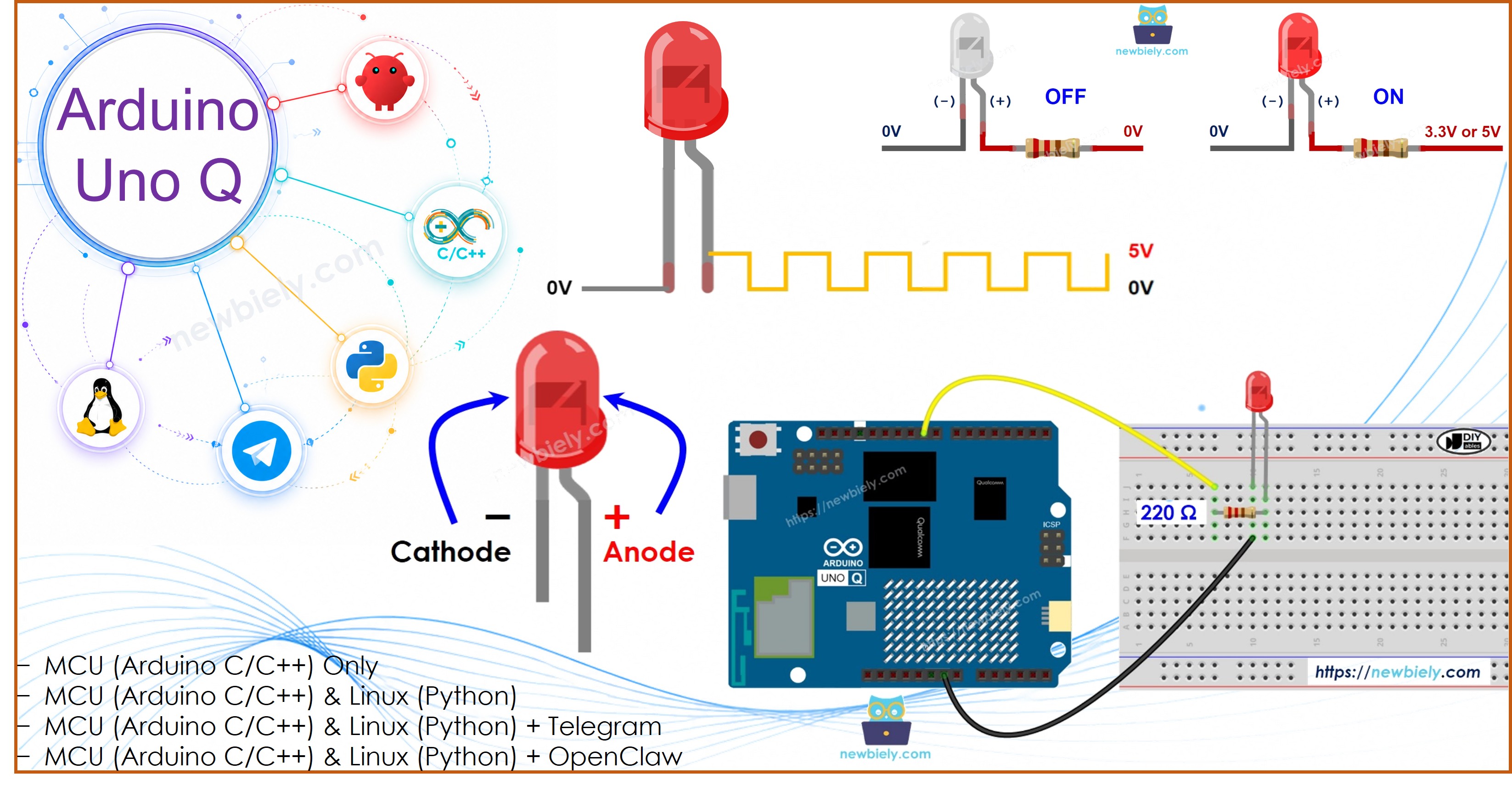
Hardware Preparation
Or you can buy the following kits:
| 1 | × | DIYables Sensor Kit (18 sensors/displays) |
Additionally, some of these links are for products from our own brand, DIYables .
Buy Note: Use the LED Module for easier wiring. It includes an integrated resistor.
Overview of LED
Pinout
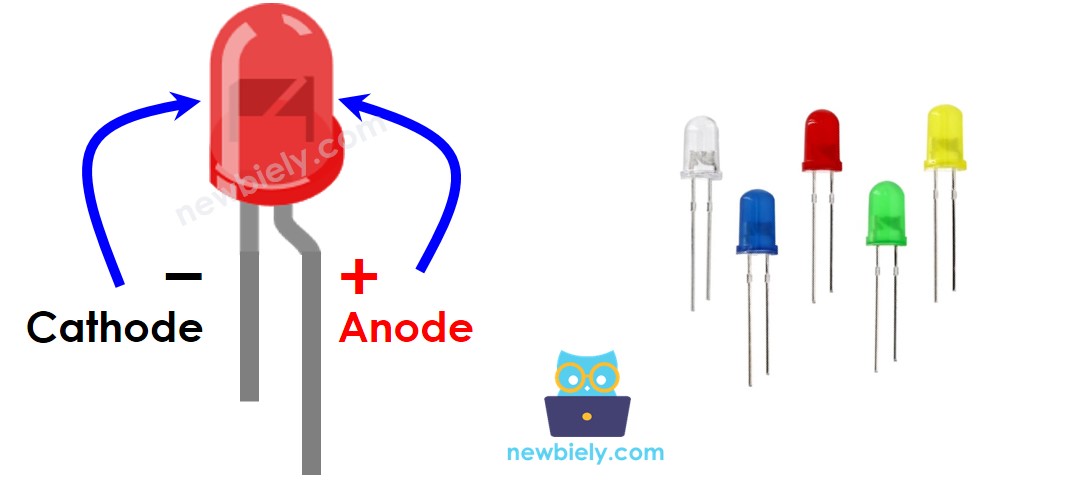
LED has two pins:
- Cathode(−) pin: connect to GND (0V)
- Anode(+) pin: used to control LED brightness
How It Works
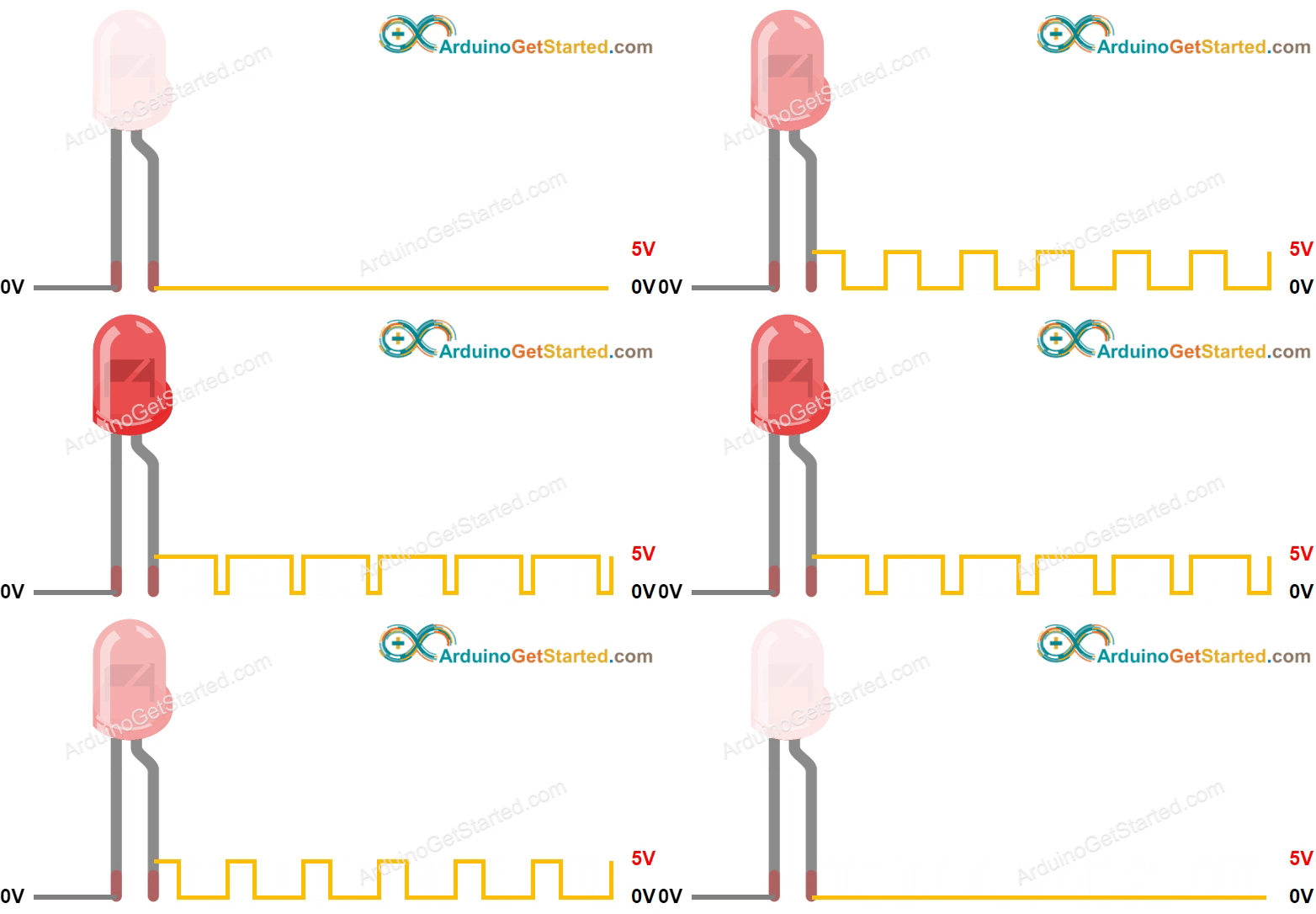
After connecting the cathode to GND:
- Connect anode to GND (0V) → LED is OFF
- Connect anode to VCC → LED is fully ON
- Send a PWM signal to the anode → brightness varies between 0 (off) and 255 (full)
※ NOTE THAT:
Most LEDs require a current-limiting resistor (e.g., 220Ω) between the anode and the signal pin. Without it, you risk burning the LED.
Fading LEDs with Arduino UNO Q
The Arduino UNO Q STM32 MCU supports PWM on specific pins (such as pin 9). Connect the LED anode through a 220Ω resistor to a PWM-capable pin, and connect the cathode to GND. Use analogWrite(pin, value) to set the brightness (0–255).
Wiring Diagram
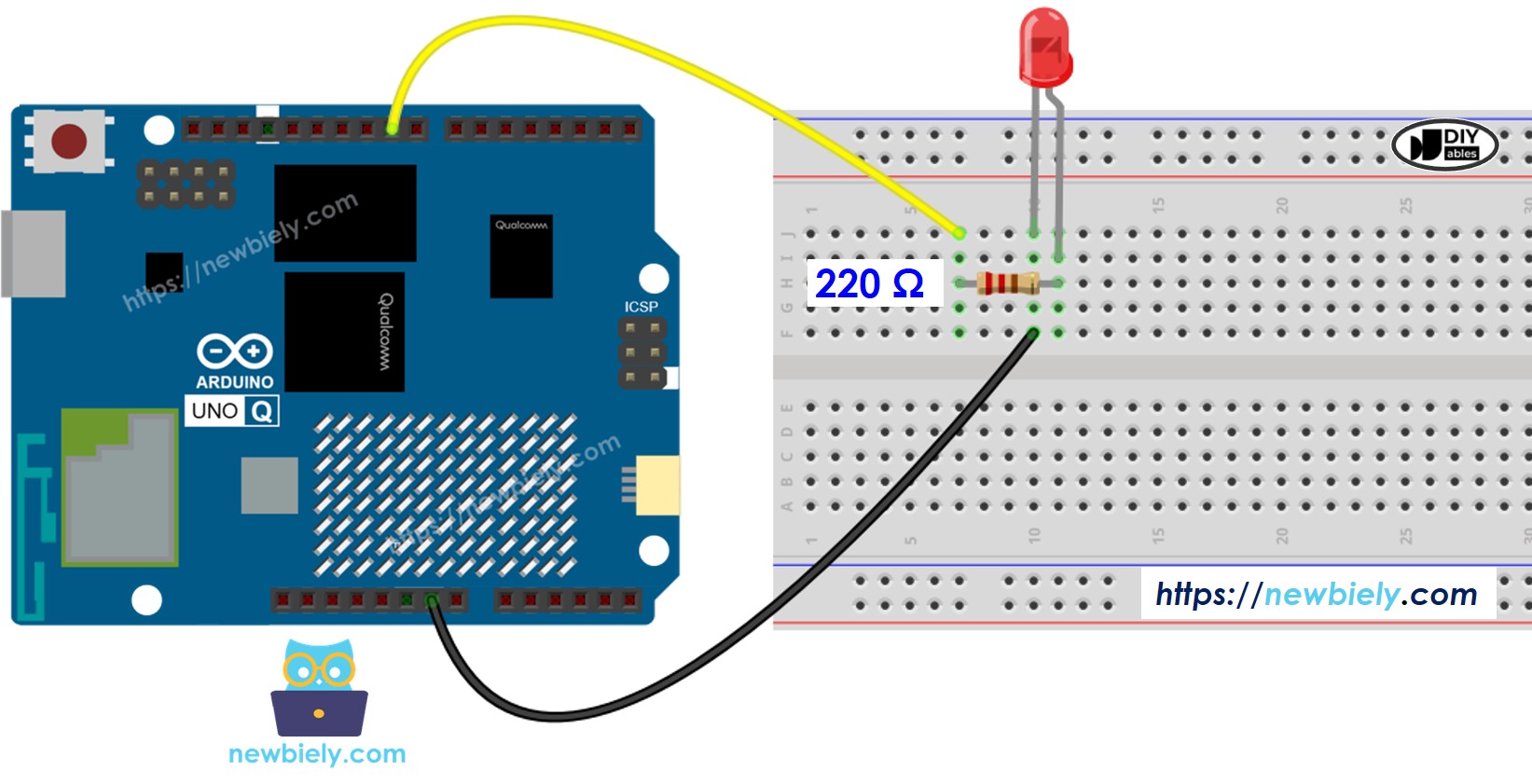
This image is created using Fritzing. Click to enlarge image
How To Program
- Set the pin mode to output:
- Adjust LED brightness using PWM:
MCU Code — Fade LED (with delay)
The Arduino UNO Q has two processors: the STM32 MCU (handles real-time hardware control) and the Qualcomm MPU (runs Debian Linux). In this section, only the STM32 MCU is programmed — the Linux side stays idle. A later section will show how both processors work together.
This example gradually increases and decreases the LED brightness using delay():
Detailed Instructions
- First time with Arduino UNO Q? Follow the Getting Started with Arduino UNO Q tutorial to get your development environment ready before proceeding.
- Wire the LED: Connect an LED with a 220Ω resistor to pin 9 according to the wiring diagram.
- Connect: Plug the Arduino UNO Q into your computer with a USB-C cable.
- Open Arduino App Lab: Launch Arduino App Lab and wait until it detects your Arduino UNO Q.
- Create a new App: Click the Create New App button.

- Give the App a name, for example: DIYables_FadeLED
- Click Create to confirm.
- You will see a set of folders and files generated inside your new App.

- Find the sketch/sketch.ino file — this is where you will paste the MCU sketch.
- Install the library: Click the Add sketch library button (the open book icon with a + sign) in the left sidebar.

- Search for Arduino_RouterBridge created by Arduino and click the Install button.
- Upload: Click the Run button in Arduino App Lab to compile and upload to the STM32.

- Check the LED: The LED should smoothly fade in and out.
- Pro Tip: Decrease the delay(30) value (e.g., delay(10)) to make the fade faster, or increase it to make it slower.
Code Explanation
The explanation is in the comments in the code above.
※ NOTE THAT:
The delay() function blocks all other code while it waits. For more responsive behavior (e.g., reading sensors or responding to commands), use millis() instead — as shown in the next section.
MCU Code — Fade LED (without delay)
This version uses millis() for non-blocking fading — the loop keeps running freely, and the LED smoothly fades in over a 3-second period:
Detailed Instructions
- Replace the code in sketch/sketch.ino with this non-blocking version.
- Click Run to upload.
- The LED will fade in continuously over 3-second cycles.
- Pro Tip: Change FADE_PERIOD 3000 to 1000 for a faster fade or 5000 for a slower one. You can also swap 0, 255 and 255, 0 in map() to fade out instead of in.
Linux + MCU Bridge Programming
The Arduino UNO Q has two processors that work together: the MPU (Qualcomm, runs Debian Linux) and the MCU (STM32, runs Zephyr OS with your Arduino sketch). They communicate using RPC via the Arduino_RouterBridge library — never via raw serial ports.
- The LED is connected to the MCU (STM32) — wired to a PWM-capable digital pin on the STM32. The MCU controls brightness using analogWrite().
- The MPU cannot control the LED directly — it must send commands to the MCU via Bridge.call(). The MCU executes the registered Bridge.provide_safe() functions.
- The MPU has Wi-Fi — because the MPU runs full Debian Linux with Wi-Fi, it can receive Telegram commands and remotely set LED brightness or trigger fading.
- Communication: Bridge.call() on the Linux side invokes Bridge.provide_safe() functions on the MCU side
- ⚠️ Reserved: /dev/ttyHS1 (Linux) and Serial1 (MCU) are used by the Arduino Router — never open them directly
In short: MPU sends brightness/fade commands → MCU receives them → MCU updates the LED in real time.
MCU sketch — LED fade with Bridge control:
Python script (Arduino App Lab) — control LED brightness and fading from Linux:
- Note: Make sure Bridge.begin() is called in the MCU sketch and the sketch is uploaded before running the Python script on the Linux side.
- ⚠️ Warning: Never directly open /dev/ttyHS1 (on Linux) or use Serial1 (on MCU) in your code — these are reserved by the Arduino Router and accessing them will break the Bridge.
Detailed Instructions
- Upload the MCU sketch: Open Arduino App Lab, create a new App, paste the Bridge MCU sketch above into sketch/sketch.ino, keep the default libraries (no additional library needed), and click Run.
- Add the Python script: Paste the Python code above into the Python tab of the same App.
- Run the App: Click Run — the Python side cycles through fade and brightness patterns automatically.
- Check the console: Open the Console tab → Python Console subtab to see what the Python side is doing.
- Pro Tip: Call Bridge.call("set_brightness", 0) from Python to turn the LED off immediately.
App Lab Console Output
Telegram Integration
You can control the LED brightness and fading remotely over Telegram — set specific brightness levels or trigger smooth fading from anywhere.
If you do not have a Telegram bot yet, see How to Create a Telegram Bot to get your bot token before continuing.
This section covers:
- Running a Python script on the Linux side of Arduino UNO Q to listen for Telegram messages
- Forwarding brightness or fade commands to the MCU via Bridge.call()
- Sending a confirmation reply back to Telegram
MCU sketch: Keep the same MCU sketch from the previous Bridge section — no changes needed. Make sure it is already uploaded and running on the STM32 before proceeding.
Python script (Arduino App Lab) — Telegram bot for LED brightness control:
- Note: Replace YOUR_BOT_TOKEN with the token obtained from @BotFather on Telegram.
- Send /brightness 128 to set the LED to half brightness.
- Send /fade 3000 to start smooth fading with a 3-second cycle.
- Send /stop to stop fading and turn the LED off.
Detailed Instructions
- Upload the MCU sketch: Use the Bridge MCU sketch from the previous section (upload it first if not already done).
- Paste the Telegram script: Copy the Python code above into the Python tab of your App in Arduino App Lab.
- Set your token: Replace YOUR_BOT_TOKEN in the script with your actual bot token.
- Run the App: Click Run — the bot starts listening for Telegram messages immediately.
- Test it: Send /brightness 200 to set the LED to near-full brightness, or /fade 2000 for a fast fade effect.
- Pro Tip: Send /brightness 0 as an alternative to /stop — it turns the LED off without stopping the fade state.
App Lab Console Output


ArduinoBot
OpenClaw Integration
You can adapt the OpenClaw to this tutorial by refering the instruction on Arduino Uno Q - OpenClaw Tutorial
Application/Project Ideas
Here are some projects you can build with LED fading and Arduino UNO Q:
- Ambient mood light: Use Telegram to set brightness levels for a desk lamp or nightlight from bed
- Sunrise alarm: Program a slow fade-in at a scheduled time using the MPU's Linux clock
- Battery indicator: Map battery voltage to LED brightness — dimmer means lower charge
- Heartbeat effect: Create a pulse effect by fading in and out quickly — great for wearables or status LEDs
- Night-light controller: Set full brightness in the evening, half at night, and off at dawn via scheduled Telegram commands
Challenge Yourself
Try these challenges with LED fading on Arduino UNO Q:
- Easy: Change FADE_PERIOD in Fade2.cpp to make the LED fade in over 1 second instead of 3
- Medium: Extend the Bridge sketch to expose a get_brightness() function that returns the current brightness value to Python
- Advanced: Build a Telegram bot that accepts a named brightness level (/dim, /half, /full) and maps them to 64, 128, and 255 respectively, then applies them via Bridge.call()