Arduino UNO Q - OLED 128x64

This tutorial shows you how to use an SSD1306 OLED 128x64 display with Arduino UNO Q — from basic text to shapes, images, and remote Telegram control.

Arduino UNO Q - OLED 128x64

Hardware Preparation

1×Arduino UNO Q
1×USB Cable for Arduino Uno Q
1×SSD1306 I2C OLED Display 128x64
1×Jumper Wires
1×Recommended: Screw Terminal Block Shield for Arduino Uno
1×Recommended: Sensors/Servo Expansion Shield for Arduino Uno
1×Recommended: Breadboard Shield for Arduino Uno
1×Recommended: Enclosure for Arduino Uno
1×Recommended: Prototyping Base Plate & Breadboard Kit for Arduino UNO

Or you can buy the following kits:

1×DIYables Sensor Kit (18 sensors/displays)
Disclosure: Some of the links provided in this section are Amazon affiliate links. We may receive a commission for any purchases made through these links at no additional cost to you.
Additionally, some of these links are for products from our own brand, DIYables .

Buy Note: If you want a bigger OLED display, use the 2.42 inch OLED Display 128x64 .

Overview of OLED 128x64 Display

The SSD1306 OLED 128x64 is a compact monochrome display driven by the SSD1306 controller over I2C. It has 128×64 pixels and can show crisp text, icons, charts, and custom graphics.

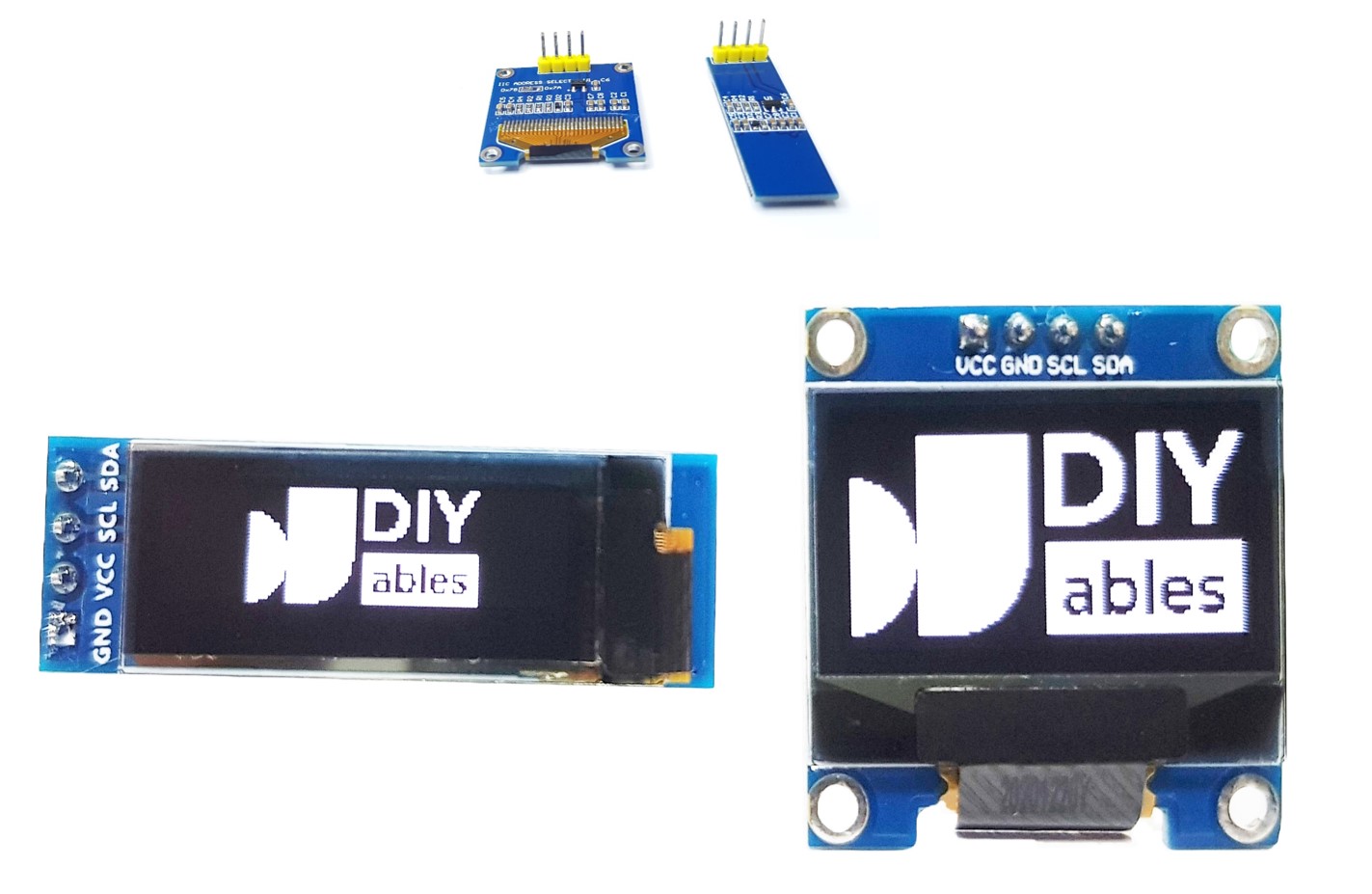
OLED Pinout

  • GND — connect to GND
  • VCC — connect to 3.3V or 5V
  • SCL — I2C clock signal
  • SDA — I2C data signal
OLED pinout

※ NOTE THAT:

The pin order may differ between manufacturers. Always refer to the labels printed on the OLED module itself. This tutorial uses an SSD1306-based OLED tested with DIYables modules.

Wiring Diagram
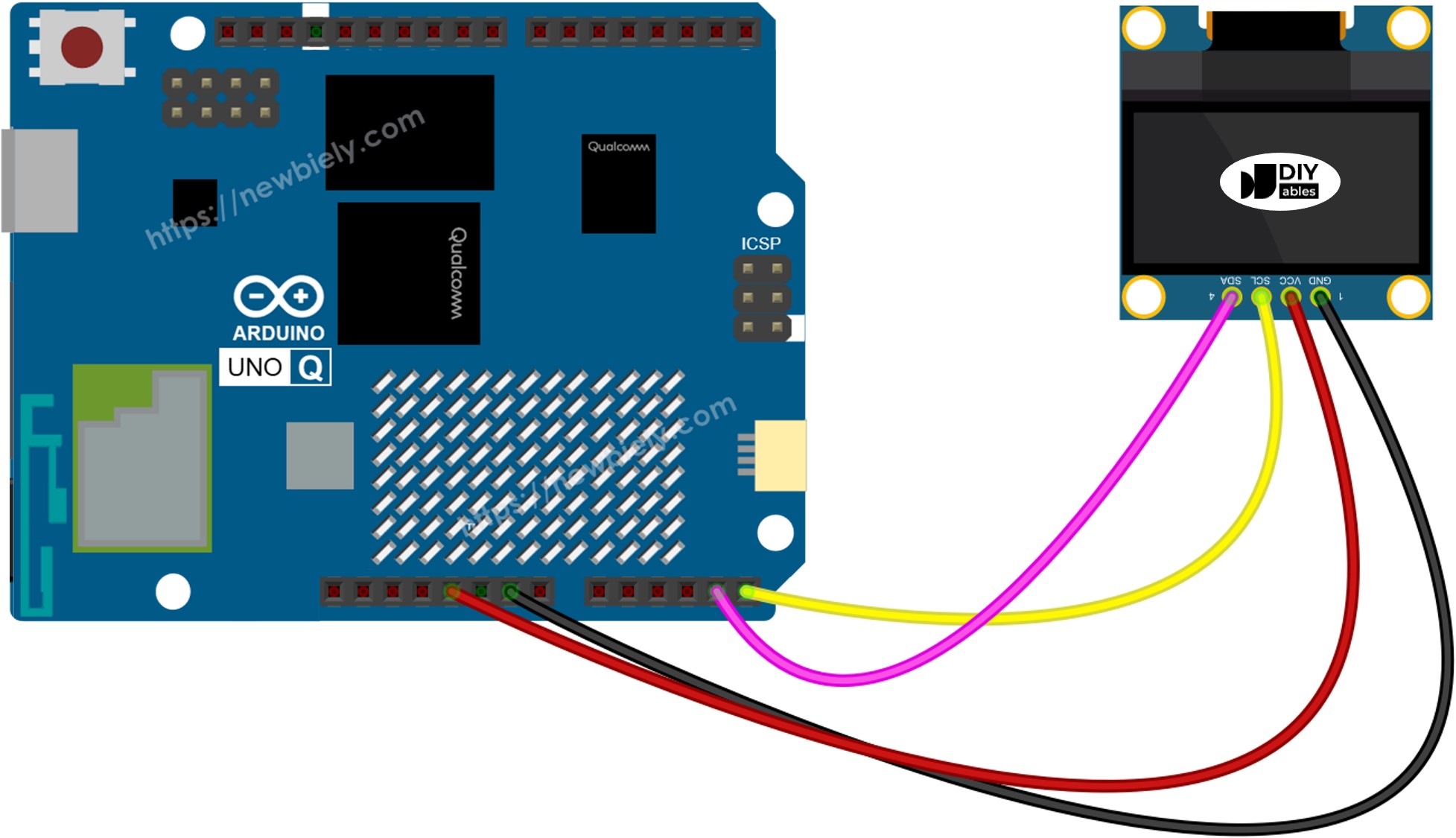
The wiring diagram between Arduino UNO Q OLED 128x64

This image is created using Fritzing. Click to enlarge image

OLED PinArduino UNO Q Pin
GNDGND
VCC3.3V
SCLSCL
SDASDA

How To Program the OLED

The Adafruit SSD1306 library provides all the functions needed to drive the OLED.

  • Include the libraries:
#include <Wire.h> #include <Adafruit_GFX.h> #include <Adafruit_SSD1306.h>
  • Create the OLED object (128x64):
#define SCREEN_WIDTH 128 #define SCREEN_HEIGHT 64 Adafruit_SSD1306 oled(SCREEN_WIDTH, SCREEN_HEIGHT, &Wire, -1);
  • Initialize in setup():
if (!oled.begin(SSD1306_SWITCHCAPVCC, 0x3C)) { while (true); // halt if OLED not found } oled.clearDisplay();
  • Display text:
oled.setTextSize(1); // Font size (1–8) oled.setTextColor(WHITE); // Text color oled.setCursor(0, 0); // Cursor position (x, y) oled.println("Hello!"); oled.display(); // Push buffer to screen — required!

※ NOTE THAT:

Always call oled.display() after drawing commands to push the buffer to the screen. Drawing commands alone do not update what is visible.

Arduino UNO Q Code — Hello World on SSD1306 OLED

The Arduino UNO Q has two processors: the STM32 MCU (handles real-time hardware control) and the Qualcomm MPU (runs Debian Linux). In this section, only the STM32 MCU is programmed — the Linux side stays idle. A later section will show how both processors work together.

The sketch below displays text in two different sizes on the OLED.

/* * This Arduino UNO Q code was developed by newbiely.com * * This Arduino UNO Q code is made available for public use without any restriction * * For comprehensive instructions and wiring diagrams, please visit: * https://newbiely.com/tutorials/arduino-uno-q/arduino-uno-q-oled-128x64 */ // COPYRIGHT newbiely.com // AUTHOR: newbiely // This code is made available for public use without restriction. // For complete instructions, tutorials, and further information, visit: // https://newbiely.com/tutorials/arduino-uno-q/arduino-uno-q-oled-128x64 #include <Wire.h> #include <Adafruit_GFX.h> #include <Adafruit_SSD1306.h> #define SCREEN_WIDTH 128 #define SCREEN_HEIGHT 64 Adafruit_SSD1306 oled(SCREEN_WIDTH, SCREEN_HEIGHT, &Wire, -1); void setup() { Monitor.begin(9600); if (!oled.begin(SSD1306_SWITCHCAPVCC, 0x3C)) { Monitor.println(F("SSD1306 allocation failed")); for (;;); } delay(2000); oled.clearDisplay(); // Line 1 — size 1 oled.setTextSize(1); oled.setTextColor(WHITE); oled.setCursor(0, 0); oled.println(F("Hello, World!")); // Line 2 — size 2 oled.setTextSize(2); oled.setCursor(0, 20); oled.println(F("DIYables")); // Line 3 — size 1 oled.setTextSize(1); oled.setCursor(0, 50); oled.println(F("OLED 128x64 SSD1306")); oled.display(); } void loop() {}

Detailed Instructions

  • First time with Arduino UNO Q? Follow the Getting Started with Arduino UNO Q tutorial to get your development environment ready before proceeding.
  • Wire the OLED: Connect GND→GND, VCC→3.3V, SCL→SCL, SDA→SDA.
  • Connect: Plug the Arduino UNO Q into your computer with a USB-C cable.
  • Open Arduino App Lab: Launch Arduino App Lab and wait until it detects your Arduino UNO Q.
  • Create a new App: Click the Create New App button.

Create New App in Arduino App Lab on Arduino UNO Q
  • Give the App a name, for example: DIYables_OLED_128x64
  • Click Create to confirm.
  • You will see a set of folders and files generated inside your new App.

Arduino App Lab App folders and files on Arduino UNO Q
  • Find the sketch/sketch.ino file — this is where you will paste the MCU sketch.
  • Paste the sketch: Copy the MCU code above and paste it into the sketch file.
    • Install the library: Click the Add sketch library button (the open book icon with a + sign) in the left sidebar.

    Add sketch library in Arduino App Lab on Arduino UNO Q
    • Search for Adafruit SSD1306 created by Adafruit and click the Install button.
    My Apps / DIYables Apps
    Run
    Bricks
    No bricks added...
    Sketch Libraries
    No sketch libra...
    Files
    python
    sketch
    .gitignore
    README.md
    app.yaml
    sketch.ino
    Add sketch library
    Adafruit SSD1306 Adafruit

    SSD1306 oled driver library for monochrome 128x64 and 128x32 displays

    2.5.9
    Install
    More Info
    • Upload: Click the Run button in Arduino App Lab to compile and upload to the STM32.

    Click Run button in Arduino App Lab on Arduino UNO Q

    Look at the OLED — it shows "Hello, World!", "DIYables", and "OLED 128x64 SSD1306"!

    Arduino UNO Q Code — Display Text on SSD1306 OLED

    This example demonstrates different text sizes and how to display integers, floats, and hexadecimal numbers on the OLED.

    /* * This Arduino UNO Q code was developed by newbiely.com * * This Arduino UNO Q code is made available for public use without any restriction * * For comprehensive instructions and wiring diagrams, please visit: * https://newbiely.com/tutorials/arduino-uno-q/arduino-uno-q-oled-128x64 */ // COPYRIGHT newbiely.com // AUTHOR: newbiely // This code is made available for public use without restriction. // For complete instructions, tutorials, and further information, visit: // https://newbiely.com/tutorials/arduino-uno-q/arduino-uno-q-oled-128x64 #include <Wire.h> #include <Adafruit_GFX.h> #include <Adafruit_SSD1306.h> #define SCREEN_WIDTH 128 #define SCREEN_HEIGHT 64 Adafruit_SSD1306 oled(SCREEN_WIDTH, SCREEN_HEIGHT, &Wire, -1); void setup() { Monitor.begin(9600); if (!oled.begin(SSD1306_SWITCHCAPVCC, 0x3C)) { Monitor.println(F("SSD1306 allocation failed")); for (;;); } delay(2000); // ── Text size demo ── oled.clearDisplay(); oled.setTextColor(WHITE); oled.setTextSize(1); oled.setCursor(0, 0); oled.println(F("Size 1: Arduino")); oled.setTextSize(2); oled.setCursor(0, 16); oled.println(F("Size 2")); oled.setTextSize(3); oled.setCursor(0, 40); oled.println(F("S3")); oled.display(); delay(3000); // ── Integer ── oled.clearDisplay(); oled.setTextSize(2); oled.setCursor(0, 0); oled.print(F("Int: ")); oled.println(12345); oled.display(); delay(3000); // ── Float ── oled.clearDisplay(); oled.setTextSize(2); oled.setCursor(0, 0); oled.print(F("Float:")); oled.setCursor(0, 24); oled.println(3.14); oled.display(); delay(3000); // ── Hexadecimal ── oled.clearDisplay(); oled.setTextSize(2); oled.setCursor(0, 0); oled.print(F("Hex: ")); oled.println(255, HEX); oled.display(); delay(3000); } void loop() {}

    Detailed Instructions

    • Copy the code above and paste it into sketch/sketch.ino.
    • Click the Run button in Arduino App Lab.
    Click Run button in Arduino App Lab on Arduino UNO Q

    The OLED cycles through text size demos, then shows an integer, a float, and a hex number.

    Useful Display Functions Reference

    Quick reference for commonly-used SSD1306 OLED functions:

    • oled.clearDisplay() — erase the frame buffer (all pixels off)
    • oled.display() — push the buffer to the screen — required after every drawing call
    • oled.drawPixel(x, y, color) — set or clear a single pixel
    • oled.setTextSize(n) — scale the font by factor *n* (1 = 6×8 px, 2 = 12×16 px, …)
    • oled.setCursor(x, y) — move the text cursor to pixel coordinates *(x, y)*
    • oled.setTextColor(WHITE) — text foreground only (transparent background)
    • oled.setTextColor(BLACK, WHITE) — text with explicit background
    • oled.println("message") — print a string and advance to the next line
    • oled.println(number) — print an integer in decimal
    • oled.println(number, HEX) — print an integer in hexadecimal
    • oled.startscrollright(start, stop) — hardware-scroll right between pages
    • oled.startscrollleft(start, stop) — hardware-scroll left
    • oled.startscrolldiagright(start, stop) — diagonal scroll right
    • oled.startscrolldiagleft(start, stop) — diagonal scroll left
    • oled.stopscroll() — stop any active hardware scroll
    • oled.setContrast(value) — adjust brightness (0–255)
    • oled.dim(true/false) — quick dim toggle
    • oled.invertDisplay(true/false) — hardware-level color inversion

    Arduino UNO Q Code — Draw Shapes on SSD1306 OLED

    The Adafruit SSD1306 library inherits from Adafruit_GFX, giving you pixels, lines, rectangles, circles, triangles, and rounded rectangles. The sketch below cycles through all of them.

    /* * This Arduino UNO Q code was developed by newbiely.com * * This Arduino UNO Q code is made available for public use without any restriction * * For comprehensive instructions and wiring diagrams, please visit: * https://newbiely.com/tutorials/arduino-uno-q/arduino-uno-q-oled-128x64 */ // COPYRIGHT newbiely.com // AUTHOR: newbiely // This code is made available for public use without restriction. // For complete instructions, tutorials, and further information, visit: // https://newbiely.com/tutorials/arduino-uno-q/arduino-uno-q-oled-128x64 #include <Wire.h> #include <Adafruit_GFX.h> #include <Adafruit_SSD1306.h> #define SCREEN_WIDTH 128 #define SCREEN_HEIGHT 64 Adafruit_SSD1306 oled(SCREEN_WIDTH, SCREEN_HEIGHT, &Wire, -1); void setup() { Monitor.begin(9600); if (!oled.begin(SSD1306_SWITCHCAPVCC, 0x3C)) { Monitor.println(F("SSD1306 allocation failed")); for (;;); } delay(2000); oled.clearDisplay(); oled.display(); } void loop() { // ── Single pixel ── oled.clearDisplay(); for (int i = 0; i < SCREEN_WIDTH; i += 4) oled.drawPixel(i, SCREEN_HEIGHT / 2, WHITE); oled.display(); delay(2000); // ── Lines ── oled.clearDisplay(); oled.drawLine(0, 0, SCREEN_WIDTH - 1, SCREEN_HEIGHT - 1, WHITE); oled.drawLine(SCREEN_WIDTH - 1, 0, 0, SCREEN_HEIGHT - 1, WHITE); oled.display(); delay(2000); // ── Rectangle ── oled.clearDisplay(); oled.drawRect(10, 10, 108, 44, WHITE); oled.display(); delay(2000); // ── Filled rectangle ── oled.clearDisplay(); oled.fillRect(10, 10, 108, 44, WHITE); oled.display(); delay(2000); // ── Rounded rectangle ── oled.clearDisplay(); oled.drawRoundRect(10, 10, 108, 44, 8, WHITE); oled.display(); delay(2000); // ── Filled rounded rectangle ── oled.clearDisplay(); oled.fillRoundRect(10, 10, 108, 44, 8, WHITE); oled.display(); delay(2000); // ── Circle ── oled.clearDisplay(); oled.drawCircle(SCREEN_WIDTH / 2, SCREEN_HEIGHT / 2, 28, WHITE); oled.display(); delay(2000); // ── Filled circle ── oled.clearDisplay(); oled.fillCircle(SCREEN_WIDTH / 2, SCREEN_HEIGHT / 2, 28, WHITE); oled.display(); delay(2000); // ── Triangle ── oled.clearDisplay(); oled.drawTriangle(64, 4, 10, 60, 118, 60, WHITE); oled.display(); delay(2000); // ── Filled triangle ── oled.clearDisplay(); oled.fillTriangle(64, 4, 10, 60, 118, 60, WHITE); oled.display(); delay(2000); }

    Detailed Instructions

    • Copy the code above and paste it into sketch/sketch.ino.
    • Click the Run button in Arduino App Lab.
    Click Run button in Arduino App Lab on Arduino UNO Q

    Watch the OLED cycle through every shape — pixels, lines, rectangles, circles, rounded rectangles, and triangles!

    Arduino UNO Q Code — Hardware Scrolling on SSD1306 OLED

    The SSD1306 has a built-in hardware scrolling engine that moves content without any CPU work. The library provides four scroll directions: right, left, diagonal-right, and diagonal-left.

    ※ NOTE THAT:

    Always call oled.display() to transfer your content to the OLED before starting a scroll. Call stopscroll() before drawing new content.

    /* * This Arduino UNO Q code was developed by newbiely.com * * This Arduino UNO Q code is made available for public use without any restriction * * For comprehensive instructions and wiring diagrams, please visit: * https://newbiely.com/tutorials/arduino-uno-q/arduino-uno-q-oled-128x64 */ // COPYRIGHT newbiely.com // AUTHOR: newbiely // This code is made available for public use without restriction. // For complete instructions, tutorials, and further information, visit: // https://newbiely.com/tutorials/arduino-uno-q/arduino-uno-q-oled-128x64 #include <Wire.h> #include <Adafruit_GFX.h> #include <Adafruit_SSD1306.h> #define SCREEN_WIDTH 128 #define SCREEN_HEIGHT 64 Adafruit_SSD1306 oled(SCREEN_WIDTH, SCREEN_HEIGHT, &Wire, -1); void setup() { Monitor.begin(9600); if (!oled.begin(SSD1306_SWITCHCAPVCC, 0x3C)) { Monitor.println(F("SSD1306 allocation failed")); for (;;); } delay(2000); oled.clearDisplay(); oled.setTextSize(2); oled.setTextColor(WHITE); oled.setCursor(10, 24); oled.println(F("DIYables")); oled.display(); } void loop() { // Scroll right oled.startscrollright(0x00, 0x07); delay(3000); oled.stopscroll(); delay(500); // Scroll left oled.startscrollleft(0x00, 0x07); delay(3000); oled.stopscroll(); delay(500); // Diagonal scroll right oled.startscrolldiagright(0x00, 0x07); delay(3000); oled.stopscroll(); delay(500); // Diagonal scroll left oled.startscrolldiagleft(0x00, 0x07); delay(3000); oled.stopscroll(); delay(500); }

    Detailed Instructions

    • Copy the code above and paste it into sketch/sketch.ino.
    • Click the Run button in Arduino App Lab.
    Click Run button in Arduino App Lab on Arduino UNO Q

    The OLED scrolls "DIYables" right, left, diagonal-right, and diagonal-left, repeating forever.

    Arduino UNO Q Code — Display Bitmap Image on SSD1306 OLED

    To display a bitmap on the SSD1306 OLED, you must first convert your image into a C byte array. Use the free Image to Bitmap Converter tool:

    1. Upload your image file (PNG, JPG, BMP, etc.).
    2. Set the canvas size to 128×64 (or smaller).
    3. Select Arduino code as the output format.
    4. Copy the generated array into your sketch.
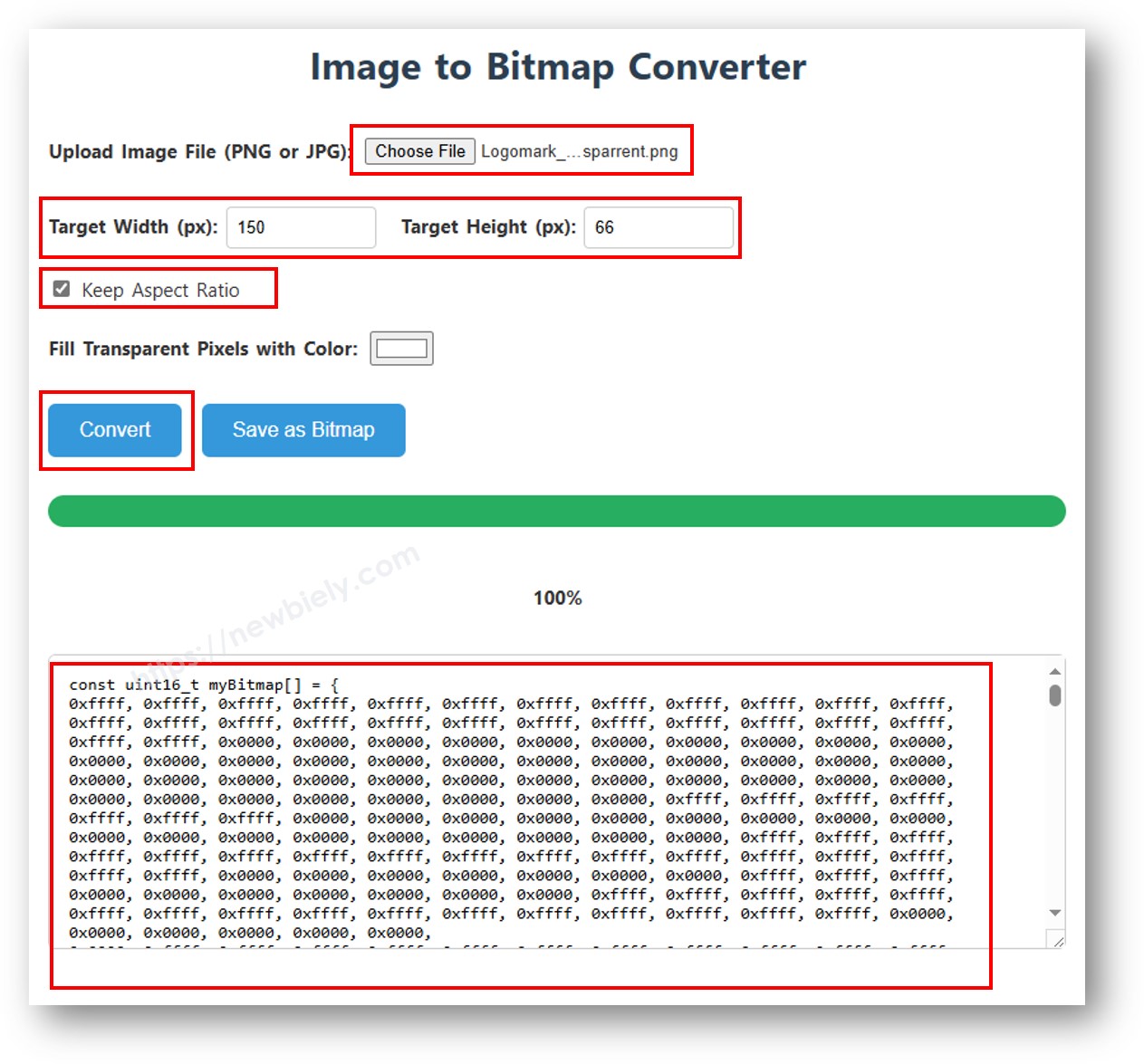
    image to bitmap array

    The sketch below shows a 16×16 heart icon then switches to the full 128×64 Arduino icon — both stored as byte arrays in the code:

    /* * This Arduino UNO Q code was developed by newbiely.com * * This Arduino UNO Q code is made available for public use without any restriction * * For comprehensive instructions and wiring diagrams, please visit: * https://newbiely.com/tutorials/arduino-uno-q/arduino-uno-q-oled-128x64 */ // COPYRIGHT newbiely.com // AUTHOR: newbiely // This code is made available for public use without restriction. // For complete instructions, tutorials, and further information, visit: // https://newbiely.com/tutorials/arduino-uno-q/arduino-uno-q-oled-128x64 #include <Wire.h> #include <Adafruit_GFX.h> #include <Adafruit_SSD1306.h> #define SCREEN_WIDTH 128 #define SCREEN_HEIGHT 64 Adafruit_SSD1306 oled(SCREEN_WIDTH, SCREEN_HEIGHT, &Wire, -1); // 16x16 heart bitmap const unsigned char heart16x16[] PROGMEM = { 0x00, 0x00, 0x03, 0xc0, 0x0f, 0xf0, 0x1f, 0xf8, 0x3f, 0xfc, 0x7f, 0xfe, 0xff, 0xff, 0xff, 0xff, 0xff, 0xff, 0xff, 0xff, 0x7f, 0xfe, 0x3f, 0xfc, 0x1f, 0xf8, 0x0f, 0xf0, 0x03, 0xc0, 0x00, 0x00 }; // 128x64 Arduino icon bitmap const unsigned char ArduinoIcon[] PROGMEM = { 0xff, 0xff, 0xff, 0xff, 0xff, 0xff, 0xff, 0xff, 0xff, 0xff, 0xff, 0xff, 0xff, 0xff, 0xff, 0xff, 0xff, 0xff, 0xff, 0xff, 0xff, 0xff, 0xff, 0xff, 0xff, 0xff, 0xff, 0xff, 0xff, 0xff, 0xff, 0xff, 0xff, 0xff, 0xfe, 0x00, 0x07, 0xff, 0xff, 0xff, 0xff, 0xff, 0xff, 0x80, 0x01, 0xff, 0xff, 0xff, 0xff, 0xff, 0xe0, 0x00, 0x00, 0xff, 0xff, 0xff, 0xff, 0xff, 0xfc, 0x00, 0x00, 0x3f, 0xff, 0xff, 0xff, 0xff, 0x80, 0x00, 0x00, 0x1f, 0xff, 0xff, 0xff, 0xff, 0xe0, 0x00, 0x00, 0x07, 0xff, 0xff, 0xff, 0xfe, 0x00, 0x00, 0x00, 0x07, 0xff, 0xff, 0xff, 0xff, 0x80, 0x00, 0x00, 0x01, 0xff, 0xff, 0xff, 0xfc, 0x00, 0x00, 0x00, 0x03, 0xff, 0xff, 0xff, 0xff, 0x00, 0x00, 0x00, 0x00, 0xff, 0xff, 0xff, 0xf0, 0x00, 0x00, 0x00, 0x00, 0xff, 0xff, 0xff, 0xfc, 0x00, 0x00, 0x00, 0x00, 0x3f, 0xff, 0xff, 0xe0, 0x00, 0x00, 0x00, 0x00, 0x3f, 0xff, 0xff, 0xf0, 0x00, 0x00, 0x00, 0x00, 0x1f, 0xff, 0xff, 0xc0, 0x00, 0x00, 0x00, 0x00, 0x1f, 0xff, 0xff, 0xe0, 0x00, 0x00, 0x00, 0x00, 0x0f, 0xff, 0xff, 0x80, 0x00, 0x00, 0x00, 0x00, 0x0f, 0xff, 0xff, 0xc0, 0x00, 0x00, 0x00, 0x00, 0x07, 0xff, 0xff, 0x00, 0x00, 0x00, 0x00, 0x00, 0x03, 0xff, 0xff, 0x80, 0x00, 0x00, 0x00, 0x00, 0x03, 0xff, 0xfe, 0x00, 0x00, 0x00, 0x00, 0x00, 0x01, 0xff, 0xfe, 0x00, 0x00, 0x00, 0x00, 0x00, 0x01, 0xff, 0xfc, 0x00, 0x00, 0xff, 0xf0, 0x00, 0x00, 0xff, 0xfc, 0x00, 0x00, 0x3f, 0xfc, 0x00, 0x00, 0xff, 0xfc, 0x00, 0x03, 0xff, 0xfc, 0x00, 0x00, 0x7f, 0xf8, 0x00, 0x00, 0xff, 0xff, 0x00, 0x00, 0xff, 0xf8, 0x00, 0x0f, 0xff, 0xff, 0x00, 0x00, 0x3f, 0xf0, 0x00, 0x03, 0xff, 0xff, 0xc0, 0x00, 0x7f, 0xf0, 0x00, 0x1f, 0xff, 0xff, 0xc0, 0x00, 0x1f, 0xe0, 0x00, 0x0f, 0xff, 0xff, 0xe0, 0x00, 0x7f, 0xf0, 0x00, 0x7f, 0xff, 0xff, 0xe0, 0x00, 0x0f, 0xc0, 0x00, 0x1f, 0xff, 0xff, 0xf8, 0x00, 0x3f, 0xe0, 0x00, 0xff, 0xff, 0xff, 0xf8, 0x00, 0x07, 0x80, 0x00, 0x7f, 0xff, 0xff, 0xfc, 0x00, 0x1f, 0xe0, 0x00, 0xff, 0xff, 0xff, 0xfc, 0x00, 0x03, 0x80, 0x00, 0xff, 0xff, 0xff, 0xfc, 0x00, 0x1f, 0xc0, 0x01, 0xff, 0xff, 0xff, 0xfe, 0x00, 0x03, 0x00, 0x01, 0xff, 0xff, 0xff, 0xfe, 0x00, 0x1f, 0xc0, 0x03, 0xff, 0xff, 0xff, 0xff, 0x00, 0x00, 0x00, 0x03, 0xff, 0xff, 0xff, 0xff, 0x00, 0x0f, 0xc0, 0x03, 0xff, 0xff, 0xff, 0xff, 0x80, 0x00, 0x00, 0x07, 0xff, 0xf0, 0x7f, 0xff, 0x00, 0x0f, 0xc0, 0x07, 0xff, 0xff, 0xff, 0xff, 0xc0, 0x00, 0x00, 0x0f, 0xff, 0xf0, 0x7f, 0xff, 0x80, 0x0f, 0x80, 0x07, 0xff, 0xff, 0xff, 0xff, 0xe0, 0x00, 0x00, 0x1f, 0xff, 0xf0, 0x7f, 0xff, 0x80, 0x07, 0x80, 0x0f, 0xff, 0xff, 0xff, 0xff, 0xf0, 0x00, 0x00, 0x3f, 0xff, 0xf0, 0x7f, 0xff, 0xc0, 0x07, 0x80, 0x0f, 0xff, 0xff, 0xff, 0xff, 0xf8, 0x00, 0x00, 0x7f, 0xff, 0xf0, 0x7f, 0xff, 0xc0, 0x07, 0x80, 0x0f, 0xfe, 0x00, 0x00, 0xff, 0xfc, 0x00, 0x00, 0xff, 0xfc, 0x00, 0x03, 0xff, 0xc0, 0x07, 0x80, 0x0f, 0xfe, 0x00, 0x00, 0xff, 0xfe, 0x00, 0x01, 0xff, 0xfc, 0x00, 0x01, 0xff, 0xc0, 0x07, 0x80, 0x0f, 0xfe, 0x00, 0x00, 0xff, 0xff, 0x00, 0x03, 0xff, 0xfc, 0x00, 0x01, 0xff, 0xc0, 0x07, 0x80, 0x0f, 0xfe, 0x00, 0x00, 0xff, 0xff, 0x00, 0x03, 0xff, 0xfc, 0x00, 0x01, 0xff, 0xc0, 0x07, 0x80, 0x0f, 0xfe, 0x00, 0x00, 0xff, 0xff, 0x00, 0x03, 0xff, 0xfc, 0x00, 0x01, 0xff, 0xc0, 0x07, 0x80, 0x0f, 0xff, 0xff, 0xff, 0xff, 0xfe, 0x00, 0x01, 0xff, 0xff, 0xe0, 0x7f, 0xff, 0xc0, 0x07, 0x80, 0x0f, 0xff, 0xff, 0xff, 0xff, 0xfc, 0x00, 0x00, 0xff, 0xff, 0xf0, 0x7f, 0xff, 0xc0, 0x07, 0x80, 0x0f, 0xff, 0xff, 0xff, 0xff, 0xfc, 0x00, 0x00, 0xff, 0xff, 0xf0, 0x7f, 0xff, 0xc0, 0x07, 0x80, 0x0f, 0xff, 0xff, 0xff, 0xff, 0xf8, 0x00, 0x00, 0x7f, 0xff, 0xf0, 0x7f, 0xff, 0xc0, 0x07, 0x80, 0x0f, 0xff, 0xff, 0xff, 0xff, 0xf0, 0x00, 0x00, 0x3f, 0xff, 0xf0, 0x7f, 0xff, 0x80, 0x07, 0x80, 0x07, 0xff, 0xff, 0xff, 0xff, 0xe0, 0x00, 0x00, 0x1f, 0xff, 0xf0, 0x7f, 0xff, 0x80, 0x07, 0xc0, 0x07, 0xff, 0xff, 0xff, 0xff, 0xc0, 0x00, 0x00, 0x0f, 0xff, 0xff, 0xff, 0xff, 0x80, 0x0f, 0xc0, 0x03, 0xff, 0xff, 0xff, 0xff, 0x80, 0x00, 0x00, 0x07, 0xff, 0xff, 0xff, 0xff, 0x00, 0x0f, 0xc0, 0x03, 0xff, 0xff, 0xff, 0xff, 0x00, 0x00, 0x00, 0x03, 0xff, 0xff, 0xff, 0xff, 0x00, 0x0f, 0xe0, 0x01, 0xff, 0xff, 0xff, 0xfe, 0x00, 0x03, 0x00, 0x01, 0xff, 0xff, 0xff, 0xfe, 0x00, 0x1f, 0xe0, 0x00, 0xff, 0xff, 0xff, 0xfc, 0x00, 0x07, 0x80, 0x00, 0xff, 0xff, 0xff, 0xfc, 0x00, 0x1f, 0xe0, 0x00, 0x7f, 0xff, 0xff, 0xf0, 0x00, 0x0f, 0xc0, 0x00, 0x3f, 0xff, 0xff, 0xf8, 0x00, 0x3f, 0xf0, 0x00, 0x3f, 0xff, 0xff, 0xe0, 0x00, 0x1f, 0xe0, 0x00, 0x1f, 0xff, 0xff, 0xf0, 0x00, 0x3f, 0xf8, 0x00, 0x1f, 0xff, 0xff, 0x80, 0x00, 0x3f, 0xe0, 0x00, 0x07, 0xff, 0xff, 0xe0, 0x00, 0x7f, 0xf8, 0x00, 0x0f, 0xff, 0xff, 0x00, 0x00, 0x7f, 0xf8, 0x00, 0x03, 0xff, 0xff, 0xc0, 0x00, 0x7f, 0xfc, 0x00, 0x03, 0xff, 0xf8, 0x00, 0x00, 0xff, 0xfc, 0x00, 0x00, 0xff, 0xff, 0x00, 0x00, 0xff, 0xfe, 0x00, 0x00, 0x7f, 0xe0, 0x00, 0x01, 0xff, 0xfe, 0x00, 0x00, 0x1f, 0xf8, 0x00, 0x01, 0xff, 0xfe, 0x00, 0x00, 0x00, 0x00, 0x00, 0x03, 0xff, 0xff, 0x00, 0x00, 0x00, 0x00, 0x00, 0x03, 0xff, 0xff, 0x00, 0x00, 0x00, 0x00, 0x00, 0x07, 0xff, 0xff, 0x80, 0x00, 0x00, 0x00, 0x00, 0x03, 0xff, 0xff, 0x80, 0x00, 0x00, 0x00, 0x00, 0x0f, 0xff, 0xff, 0xc0, 0x00, 0x00, 0x00, 0x00, 0x07, 0xff, 0xff, 0xc0, 0x00, 0x00, 0x00, 0x00, 0x1f, 0xff, 0xff, 0xe0, 0x00, 0x00, 0x00, 0x00, 0x0f, 0xff, 0xff, 0xe0, 0x00, 0x00, 0x00, 0x00, 0x7f, 0xff, 0xff, 0xf8, 0x00, 0x00, 0x00, 0x00, 0x3f, 0xff, 0xff, 0xf8, 0x00, 0x00, 0x00, 0x01, 0xff, 0xff, 0xff, 0xfe, 0x00, 0x00, 0x00, 0x00, 0x7f, 0xff, 0xff, 0xfc, 0x00, 0x00, 0x00, 0x03, 0xff, 0xff, 0xff, 0xff, 0x00, 0x00, 0x00, 0x00, 0xff, 0xff, 0xff, 0xff, 0x00, 0x00, 0x00, 0x0f, 0xff, 0xff, 0xff, 0xff, 0xc0, 0x00, 0x00, 0x03, 0xff, 0xff, 0xff, 0xff, 0xc0, 0x00, 0x00, 0x3f, 0xff, 0xff, 0xff, 0xff, 0xf0, 0x00, 0x00, 0x0f, 0xff, 0xff, 0xff, 0xff, 0xf0, 0x00, 0x01, 0xff, 0xff, 0xff, 0xff, 0xff, 0xfe, 0x00, 0x00, 0x3f, 0xff, 0xff, 0xff, 0xff, 0xff, 0x00, 0x0f, 0xff, 0xff, 0xff, 0xff, 0xff, 0xff, 0xc0, 0x03, 0xff, 0xff, 0xff, 0xff, 0xff, 0xff, 0xff, 0xff, 0xff, 0xff, 0xff, 0xff, 0xff, 0xff, 0xff, 0xff, 0xff, 0xff, 0xff, 0xff, 0xff, 0xff, 0xff, 0xff, 0xff, 0xff, 0xff, 0xff, 0xff, 0xff, 0xff, 0xff, 0xff, 0xff, 0xff, 0xff, 0xff, 0xff, 0xff, 0xff, 0xff, 0xff, 0xff, 0xff, 0xff, 0xff, 0xff, 0xff, 0xff, 0xff, 0xff, 0xff, 0xff, 0xff, 0xff, 0xff, 0xff, 0xff, 0xff, 0xff, 0xff, 0xff, 0xff, 0xff, 0xff, 0xff, 0xff }; void setup() { Monitor.begin(9600); if (!oled.begin(SSD1306_SWITCHCAPVCC, 0x3C)) { Monitor.println(F("SSD1306 allocation failed")); for (;;); } delay(2000); // Show heart icon centered oled.clearDisplay(); oled.drawBitmap( (SCREEN_WIDTH - 16) / 2, (SCREEN_HEIGHT - 16) / 2, heart16x16, 16, 16, WHITE); oled.display(); delay(3000); // Show full Arduino icon oled.clearDisplay(); oled.drawBitmap(0, 0, ArduinoIcon, SCREEN_WIDTH, SCREEN_HEIGHT, WHITE); oled.display(); } void loop() {}

    Detailed Instructions

    • Copy the code above and paste it into sketch/sketch.ino.
    • Click the Run button in Arduino App Lab.
    Click Run button in Arduino App Lab on Arduino UNO Q

    The OLED shows the heart icon for 3 seconds, then switches to the Arduino icon.

    ※ NOTE THAT:

    Bitmap dimensions must not exceed the screen resolution (128×64).

    Arduino UNO Q Code — Contrast and Dim on SSD1306 OLED

    The SSD1306 supports 256 contrast levels (0–255). Use setContrast() for fine control and dim() for a quick brightness toggle.

    /* * This Arduino UNO Q code was developed by newbiely.com * * This Arduino UNO Q code is made available for public use without any restriction * * For comprehensive instructions and wiring diagrams, please visit: * https://newbiely.com/tutorials/arduino-uno-q/arduino-uno-q-oled-128x64 */ // COPYRIGHT newbiely.com // AUTHOR: newbiely // This code is made available for public use without restriction. // For complete instructions, tutorials, and further information, visit: // https://newbiely.com/tutorials/arduino-uno-q/arduino-uno-q-oled-128x64 #include <Wire.h> #include <Adafruit_GFX.h> #include <Adafruit_SSD1306.h> #define SCREEN_WIDTH 128 #define SCREEN_HEIGHT 64 Adafruit_SSD1306 oled(SCREEN_WIDTH, SCREEN_HEIGHT, &Wire, -1); void setup() { Monitor.begin(9600); if (!oled.begin(SSD1306_SWITCHCAPVCC, 0x3C)) { Monitor.println(F("SSD1306 allocation failed")); for (;;); } delay(2000); // Draw a checkerboard test pattern oled.clearDisplay(); for (int x = 0; x < SCREEN_WIDTH; x += 8) for (int y = 0; y < SCREEN_HEIGHT; y += 8) if ((x / 8 + y / 8) % 2 == 0) oled.fillRect(x, y, 8, 8, WHITE); oled.display(); delay(2000); } void loop() { // Ramp up: 0 → 255 for (int c = 0; c <= 255; c += 5) { oled.setContrast((uint8_t)c); delay(30); } delay(1000); // Ramp down: 255 → 0 for (int c = 255; c >= 0; c -= 5) { oled.setContrast((uint8_t)c); delay(30); } delay(1000); // Quick dim toggle oled.dim(true); // minimum brightness delay(2000); oled.dim(false); // restore delay(2000); }

    Detailed Instructions

    • Copy the code above and paste it into sketch/sketch.ino.
    • Click the Run button in Arduino App Lab.
    Click Run button in Arduino App Lab on Arduino UNO Q

    Watch the OLED brightness ramp up then down, followed by a dim-on/dim-off cycle.

    Arduino UNO Q Code — Custom External Fonts on SSD1306 OLED

    The Adafruit GFX library includes many FreeFont typefaces (Serif, Sans, Mono — in multiple sizes). Use them by including the font header and calling setFont().

    ※ NOTE THAT:

    When an external font is active, the cursor Y coordinate refers to the text baseline, not the top-left corner. This differs from the built-in 5×7 font.

    /* * This Arduino UNO Q code was developed by newbiely.com * * This Arduino UNO Q code is made available for public use without any restriction * * For comprehensive instructions and wiring diagrams, please visit: * https://newbiely.com/tutorials/arduino-uno-q/arduino-uno-q-oled-128x64 */ // COPYRIGHT newbiely.com // AUTHOR: newbiely // This code is made available for public use without restriction. // For complete instructions, tutorials, and further information, visit: // https://newbiely.com/tutorials/arduino-uno-q/arduino-uno-q-oled-128x64 #include <Wire.h> #include <Adafruit_GFX.h> #include <Adafruit_SSD1306.h> #include <Fonts/FreeSerif9pt7b.h> #include <Fonts/FreeSansBold12pt7b.h> #include <Fonts/FreeMono9pt7b.h> #define SCREEN_WIDTH 128 #define SCREEN_HEIGHT 64 Adafruit_SSD1306 oled(SCREEN_WIDTH, SCREEN_HEIGHT, &Wire, -1); void setup() { Monitor.begin(9600); if (!oled.begin(SSD1306_SWITCHCAPVCC, 0x3C)) { Monitor.println(F("SSD1306 allocation failed")); for (;;); } delay(2000); oled.clearDisplay(); oled.display(); } void loop() { // ── Built-in 5×7 font ── oled.clearDisplay(); oled.setFont(NULL); oled.setTextSize(1); oled.setTextColor(WHITE); oled.setCursor(0, 0); oled.println(F("Built-in 5x7 font")); oled.println(); oled.setTextSize(2); oled.println(F("DIYables")); oled.display(); delay(3000); // ── FreeSerif 9pt ── oled.clearDisplay(); oled.setFont(&FreeSerif9pt7b); oled.setTextSize(1); oled.setTextColor(WHITE); oled.setCursor(0, 14); // Y = baseline oled.println(F("FreeSerif 9pt")); oled.setCursor(0, 38); oled.println(F("DIYables OLED")); oled.setCursor(0, 58); oled.println(F("Hello World!")); oled.display(); delay(3000); // ── FreeSansBold 12pt ── oled.clearDisplay(); oled.setFont(&FreeSansBold12pt7b); oled.setTextSize(1); oled.setTextColor(WHITE); oled.setCursor(0, 20); oled.println(F("SansBold")); oled.setCursor(0, 52); oled.println(F("DIYables")); oled.display(); delay(3000); // ── FreeMono 9pt ── oled.clearDisplay(); oled.setFont(&FreeMono9pt7b); oled.setTextSize(1); oled.setTextColor(WHITE); oled.setCursor(0, 14); oled.println(F("FreeMono 9pt")); oled.setCursor(0, 34); oled.println(F("0123456789")); oled.setCursor(0, 54); oled.println(F("!@#$%^&*()")); oled.display(); delay(3000); }

    Detailed Instructions

    • Copy the code above and paste it into sketch/sketch.ino.
    • Click the Run button in Arduino App Lab.
    Click Run button in Arduino App Lab on Arduino UNO Q

    The OLED cycles through the built-in font, FreeSerif 9pt, FreeSansBold 12pt, and FreeMono 9pt.

    Linux + MCU Bridge Programming

    The Arduino UNO Q has two processors that work together: the MPU (Qualcomm, runs Debian Linux) and the MCU (STM32, runs Zephyr OS with your Arduino sketch). They communicate using RPC via the Arduino_RouterBridge library — never via raw serial ports.

    • The OLED is connected to the MCU (STM32) — via I2C (SCL/SDA). Only the MCU can directly drive it.
    • The MPU cannot control the OLED directly — it calls Bridge.call("display_text", "text") on the MCU, which updates the display and prints the result to Monitor.
    • The MPU has Wi-Fi — because the MPU runs full Debian Linux with Wi-Fi, it can receive Telegram commands and display any message on the OLED remotely.
    • Communication: Bridge.call() on the Linux side invokes Bridge.provide_safe() functions on the MCU side (since OLED display writes are hardware API calls).
    • ⚠️ Reserved: /dev/ttyHS1 (Linux) and Serial1 (MCU) are used by the Arduino Router — never open them directly.

    In short: MPU sends text via Bridge → MCU updates OLED → MCU prints result to Monitor.

    MCU sketch — OLED 128x64 with Bridge and Monitor output:

    /* * This Arduino UNO Q code was developed by newbiely.com * * This Arduino UNO Q code is made available for public use without any restriction * * For comprehensive instructions and wiring diagrams, please visit: * https://newbiely.com/tutorials/arduino-uno-q/arduino-uno-q-oled-128x64 */ #include "Arduino_RouterBridge.h" #include <Wire.h> #include <Adafruit_GFX.h> #include <Adafruit_SSD1306.h> #define SCREEN_WIDTH 128 #define SCREEN_HEIGHT 64 Adafruit_SSD1306 oled(SCREEN_WIDTH, SCREEN_HEIGHT, &Wire, -1); String current_text = ""; void display_text(String text) { current_text = text; oled.clearDisplay(); oled.setTextSize(1); oled.setTextColor(WHITE); oled.setCursor(0, 0); oled.println(text); oled.display(); Monitor.println("OLED: " + text); } void clear_oled() { current_text = ""; oled.clearDisplay(); oled.display(); Monitor.println("OLED cleared"); } void get_status() { Monitor.println("Text: " + current_text); } void setup() { Bridge.begin(); Monitor.begin(); if (!oled.begin(SSD1306_SWITCHCAPVCC, 0x3C)) { Monitor.println("OLED init failed"); while (true); } delay(1000); oled.clearDisplay(); oled.setTextSize(1); oled.setTextColor(WHITE); oled.setCursor(0, 0); oled.println("Bridge Ready"); oled.display(); Bridge.provide_safe("display_text", display_text); Bridge.provide_safe("clear_oled", clear_oled); Bridge.provide("get_status", get_status); Monitor.println("OLED 128x64 Bridge ready"); } void loop() {}

    Python script (Arduino App Lab) — display text on OLED from Linux:

    /* * This Arduino UNO Q code was developed by newbiely.com * * This Arduino UNO Q code is made available for public use without any restriction * * For comprehensive instructions and wiring diagrams, please visit: * https://newbiely.com/tutorials/arduino-uno-q/arduino-uno-q-oled-128x64 */ from arduino.app_utils import * import time def loop(): result = Bridge.call("display_text", "Hello UNO Q\nOLED 128x64\nPython Bridge") print(result) time.sleep(3) result = Bridge.call("clear_oled") print(result) time.sleep(1) result = Bridge.call("display_text", "DIYables.io") print(result) time.sleep(3) App.run(user_loop=loop)

    Detailed Instructions

    • Create a new App: Open Arduino App Lab, click Create New App, name it DIYables_OLED_128x64_Bridge, and click Create.
    • Paste the MCU sketch: Copy the Bridge MCU code above and paste it into sketch/sketch.ino.
    • Paste the Python script: Copy the Python code above and paste it into the Python file in the App.
    • Install the library: Click the Add sketch library button (the open book icon with a + sign) in the left sidebar.
    Add sketch library in Arduino App Lab on Arduino UNO Q
    • Search for Adafruit SSD1306 created by Adafruit and click the Install button.
    My Apps / DIYables Apps
    Run
    Bricks
    No bricks added...
    Sketch Libraries
    No sketch libra...
    Files
    python
    sketch
    .gitignore
    README.md
    app.yaml
    sketch.ino
    Add sketch library
    Adafruit SSD1306 Adafruit

    SSD1306 oled driver library for monochrome 128x64 and 128x32 displays

    2.5.9
    Install
    More Info
    • Search for Arduino_RouterBridge created by Arduino and click the Install button.
    My Apps / DIYables Apps
    Run
    Bricks
    No bricks added...
    Sketch Libraries
    No sketch libra...
    Files
    python
    sketch
    .gitignore
    README.md
    app.yaml
    sketch.ino
    Add sketch library
    Arduino_RouterBridge Arduino

    This library provides a simple RPC bridge for Arduino UNO Q boards, allowing communication between the board and other devices using MsgPack serialization.

    0.4.1
    Install
    More Info
    • Run the App: Click the Run button — the Python side cycles through messages on the OLED.

    App Lab Console Output

    DIYables_Apps
    Stop
    sketch.ino
    1#include "Arduino_RouterBridge.h"
    Serial Monitor
    Python
    Message (Enter to send a message to "Newbiely" on usb(2820070321))
    New Line
    9600 baud
    OLED 128x64 Bridge ready OLED: Hello UNO Q OLED cleared OLED: DIYables.io

    Telegram Integration

    Display any text on your OLED remotely from anywhere via Telegram.

    If you do not have a Telegram bot yet, see How to Create a Telegram Bot to get your bot token before continuing.

    MCU sketch: Keep the same MCU sketch from the previous Bridge section — no changes needed. Make sure it is already uploaded and running on the STM32 before proceeding.

    Python script (Arduino App Lab) — Telegram bot for OLED 128x64:

    /* * This Arduino UNO Q code was developed by newbiely.com * * This Arduino UNO Q code is made available for public use without any restriction * * For comprehensive instructions and wiring diagrams, please visit: * https://newbiely.com/tutorials/arduino-uno-q/arduino-uno-q-oled-128x64 */ from arduino.app_utils import * import requests import time BOT_TOKEN = "YOUR_BOT_TOKEN" API_URL = f"https://api.telegram.org/bot{BOT_TOKEN}" last_update_id = 0 def send_message(chat_id, text): requests.post(f"{API_URL}/sendMessage", json={"chat_id": chat_id, "text": text}) def get_updates(): global last_update_id resp = requests.get(f"{API_URL}/getUpdates", params={"offset": last_update_id + 1, "timeout": 5}) return resp.json().get("result", []) def loop(): global last_update_id updates = get_updates() for update in updates: last_update_id = update["update_id"] msg = update.get("message", {}) chat_id = msg.get("chat", {}).get("id") text = msg.get("text", "").strip() if text.startswith("/display "): content = text[9:] result = Bridge.call("display_text", content) print(f"[Telegram] /display: {content}") send_message(chat_id, result) elif text == "/clear": result = Bridge.call("clear_oled") print(f"[Telegram] /clear") send_message(chat_id, result) elif text == "/status": result = Bridge.call("get_status") print(f"[Telegram] /status: {result}") send_message(chat_id, result) else: send_message(chat_id, "Commands:\n/display <text> — show text on OLED\n/clear — clear the OLED\n/status — show current OLED content") App.run(user_loop=loop)
    • Note: Replace YOUR_BOT_TOKEN with the token obtained from @BotFather on Telegram.
    • Send /display Hello World — the text appears on the OLED.
    • Send /clear — the OLED screen is cleared.
    • Send /status — the bot replies with the current OLED content.

    Detailed Instructions

    • Upload the MCU sketch: Use the Bridge MCU sketch from the previous section.
    • Paste the Telegram script: Copy the Python code above into the Python tab.
    • Set your token: Replace YOUR_BOT_TOKEN with your actual bot token.
    • Run the App: Click Run — the bot starts listening for Telegram commands.
    • Test it: Send /display Arduino UNO Q — the text should appear on the OLED.

    App Lab Console Output

    DIYables_Apps
    Stop
    sketch.ino
    1#include "Arduino_RouterBridge.h"
    Serial Monitor
    Python
    [2026-04-29 12:00:01] Telegram: /display Arduino UNO Q [2026-04-29 12:00:01] OLED: Arduino UNO Q [2026-04-29 12:05:10] Telegram: /status [2026-04-29 12:05:10] Text: Arduino UNO Q [2026-04-29 12:10:20] Telegram: /clear [2026-04-29 12:10:20] OLED cleared
    Telegram
    Telegram 12:45
    Welcome to Telegram!
    ArduinoBot 10:19
    Chatting with Arduino...
    telegram-botfather
    BotFather Yesterday
    Your bot has been created.

    ArduinoBot

    bot
    Today
    /display Arduino UNO Q
    10:15 AM ✓✓
    OLED: Arduino UNO Q
    10:16 AM
    /status
    10:17 AM ✓✓
    Text: Arduino UNO Q
    10:18 AM
    /clear
    10:19 AM ✓✓
    OLED cleared
    10:20 AM

    OpenClaw Integration

    OpenClaw integration for Arduino UNO Q OLED 128x64 is coming soon.

    • Coming Soon: OpenClaw support for OLED 128x64 on Arduino UNO Q will be covered in a future update.

    Application/Project Ideas

    • Compact sensor display: Show temperature, humidity, or distance readings in a small footprint for wearable or embedded projects
    • Remote status board: Push alert messages to the OLED via Telegram when a sensor threshold is exceeded
    • Wi-Fi signal meter: Display the MPU's Wi-Fi signal strength and connected network name on the OLED
    • Stopwatch / timer: Use the OLED to display a millisecond-accurate timer controlled via Telegram start/stop commands
    • Custom icon display: Draw a battery icon or signal bars on the OLED using drawRect, fillRect, and drawBitmap

    Challenge Yourself

    • Easy: Modify the Telegram bot to support /big <text> which displays text at font size 2 (larger characters)
    • Medium: Add center-alignment: calculate (SCREEN_WIDTH - textWidth) / 2 and use that as the x cursor position
    • Advanced: Display a real-time clock on the OLED — fetch current time from the MPU's Linux clock via Bridge and update every second

    ※ OUR MESSAGES

    • As freelancers, We are AVAILABLE for HIRE. See how to outsource your project to us
    • Please feel free to share the link of this tutorial. However, Please do not use our content on any other websites. We invested a lot of effort and time to create the content, please respect our work!