
Arduino UNO Q - Temperature Sensor - OLED
Want to display live temperature on an OLED screen with your Arduino UNO Q and get Telegram alerts remotely? This tutorial combines the DS18B20 sensor with a 128x64 SSD1306 OLED display.
In this tutorial, you will learn:
- How to wire the DS18B20 sensor and OLED display to the Arduino UNO Q MCU
- How to program the MCU (C/C++ Arduino code) to read temperature and display it centered on the OLED
- How to program both the Linux side (Python) and MCU side (C/C++) to monitor temperature via Bridge
- How to receive Telegram alerts when temperature exceeds a threshold on Arduino UNO Q
- How to use OpenClaw on Arduino UNO Q with the temperature sensor and OLED
Hardware Preparation
Or you can buy the following kits:
| 1 | × | DIYables Sensor Kit (18 sensors/displays) |
Additionally, some of these links are for products from our own brand, DIYables .
Buy Note: Many DS18B20 sensors available in the market are unreliable. We strongly recommend buying the sensor from the DIYables brand using the link provided above. We tested it, and it worked reliably.
Buy Note: If you want a bigger OLED display, use the 2.42 inch OLED Display 128x64 .
Overview of the Temperature Sensor and OLED
If you are new to the DS18B20 sensor or SSD1306 OLED display, check these tutorials first:
Wiring Diagram
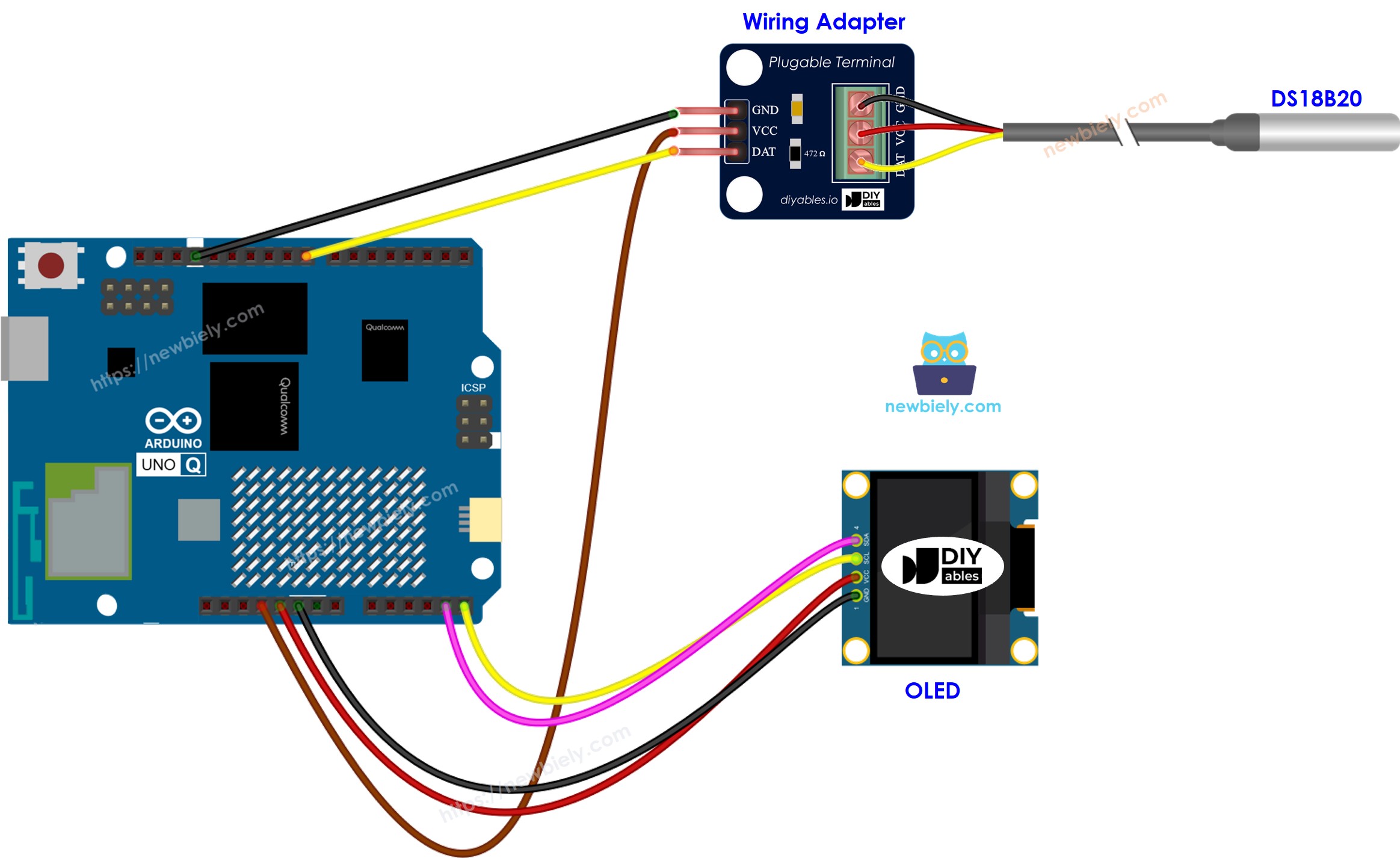
This image is created using Fritzing. Click to enlarge image
We recommend buying a DS18B20 sensor with a wiring adapter. The adapter has the pull-up resistor built in.
DS18B20 connections:
| DS18B20 Pin | Arduino UNO Q MCU |
|---|---|
| GND | GND |
| VCC | 3.3V or 5V |
| DATA | D4 |
OLED I2C connections:
| OLED Pin | Arduino UNO Q MCU |
|---|---|
| VCC | 3.3V or 5V |
| GND | GND |
| SDA | A4 |
| SCL | A5 |
Arduino UNO Q Code
The Arduino UNO Q has two processors working together:
- The STM32 MCU reads the DS18B20 sensor and drives the OLED display directly
- The Qualcomm MPU runs Debian Linux and handles Wi-Fi, Python, and cloud connectivity
- In this section, only the MCU is programmed — the Linux side stays idle. A later section shows how both processors work together via Bridge.
The MCU reads temperature every second and displays it centered on the OLED.
※ NOTE THAT:
The code automatically centers the temperature text horizontally and vertically on the OLED display. The degree symbol is displayed using char(247).
Detailed Instructions
First time with Arduino UNO Q? Follow the Getting Started with Arduino UNO Q tutorial before proceeding.
- Connect: Wire the DS18B20 sensor and OLED display to the Arduino UNO Q MCU as shown in the wiring diagram.
- Open Arduino App Lab: Launch Arduino App Lab and wait until it detects your Arduino UNO Q.
- Create a new App: Click the Create New App button.

- Give the App a name, for example: TemperatureSensorOled
- Click Create to confirm.

- Paste the sketch: Copy the MCU code above and paste it into sketch/sketch.ino. Keep other files as default.
- Install the library: Click the Add sketch library button (the open book icon with a + sign) in the left sidebar.

- Search for Adafruit SSD1306 created by Adafruit and click the Install button.
- Search for Adafruit GFX Library created by Adafruit and click the Install button.
- Search for DallasTemperature created by Miles Burton
- Search for OneWire created by Jim Studt, Tom Pollard, Robin James, Glenn Trewitt, Jason Dangel, Guillermo Lovato, Paul Stoffregen, Scott Roberts, Bertrik Sikken, Mark Tillotson, Ken Butcher, Roger Clark, Love Nystrom and click the Install button.
- Upload: Click the Run button in Arduino App Lab.

- Hold the sensor in your hand or place it in hot/cold water — watch the temperature update on the OLED.
App Lab Console Output
Bridge: Linux + MCU
This section shows how to program both processors of the Arduino UNO Q so the Linux side can monitor temperature via Bridge while the OLED continues to update automatically:
- The DS18B20 sensor and OLED are both connected to the MCU (STM32) — the MCU reads temperature every second and updates the OLED automatically
- The MPU cannot access the sensor or OLED directly — it must call Bridge functions to retrieve readings or clear the display
- The MPU has Wi-Fi — running full Debian Linux, it can log readings, publish to dashboards, or send alerts over the Internet
- Arduino_RouterBridge enables RPC communication between the two processors
- ⚠️ /dev/ttyHS1 (Linux) and Serial1 (MCU) are RESERVED by the router — never open them in user code
In short: MCU reads sensor every second and updates OLED → MPU reads temperature via Bridge → MPU publishes, logs, or alerts over Wi-Fi.
MCU Code (Bridge)
Python Code (Bridge)
Detailed Instructions
- Connect: Wire the DS18B20 sensor and OLED to the Arduino UNO Q as shown in the wiring diagram.
- Open Arduino App Lab: Launch Arduino App Lab and wait for the board to be detected.
- Create a new App: Click Create New App, name it TemperatureSensorOledBridge, then click Create.
- Paste the MCU sketch: Copy the MCU Bridge code above and paste it into sketch/sketch.ino.
- Paste the Python code: Copy the Python Bridge code above and paste it into the Python file in the App.
- Upload: Click the Run button in Arduino App Lab.
- Watch temperature readings appear in the Python console while the OLED updates automatically.
App Lab Console Output
Telegram
Monitor temperature remotely and receive automatic Telegram alerts when temperature rises above 35°C.
MCU sketch: Keep the same MCU sketch from the previous Bridge section.
Python Code (Telegram)
Detailed Instructions
- Replace YOUR_TELEGRAM_BOT_TOKEN with your actual bot token from BotFather.
- Replace YOUR_CHAT_ID with your Telegram chat ID.
- Paste this Python code into your App's Python file (keep the same MCU sketch).
- Click the Run button. Send /temp from Telegram or hold the sensor to trigger the high-temperature alert.
App Lab Console Output


ArduinoBot
OpenClaw
You can adapt the OpenClaw to this tutorial by refering the instruction on Arduino Uno Q - OpenClaw Tutorial
Project Ideas
You can build many useful projects combining the temperature sensor and OLED with Arduino UNO Q:
- Portable Digital Thermometer: A battery-powered thermometer that shows temperature on the OLED in large, readable text — the OLED turns off after 30 seconds of no change to save power
- Server Room Monitor: Mount the sensor in a server rack and display real-time temperature on the OLED; the MPU sends Telegram alerts when cooling fails
- Temperature-Controlled LED Strip: The MCU reads temperature and adjusts the color of an LED strip based on ranges (blue = cold, green = normal, red = hot) while the OLED shows the current reading
- Multi-Line OLED Dashboard: Show temperature on line 1, min/max for the session on line 2, and current time (from the MPU via Bridge) on line 3 of the OLED
- Cloud Temperature Logger: The Linux MPU reads temperature every minute via Bridge, stores data in a CSV file, and uploads it to Google Sheets or an IoT dashboard daily
Challenge Yourself
Ready to go further with the temperature sensor and OLED on Arduino UNO Q? Try these challenges:
- Easy: Modify the MCU sketch so the OLED shows both Celsius and Fahrenheit on separate lines, switching the display every 3 seconds.
- Medium: Add a set_unit(String) Bridge function that accepts "C" or "F" and sets which unit the OLED displays, without modifying the underlying sensor code.
- Advanced: Build a weather station dashboard: read temperature from DS18B20 and humidity from a DHT11 sensor (if connected), display both on the OLED in a formatted layout, and have the MPU publish all readings to an MQTT broker every 30 seconds.