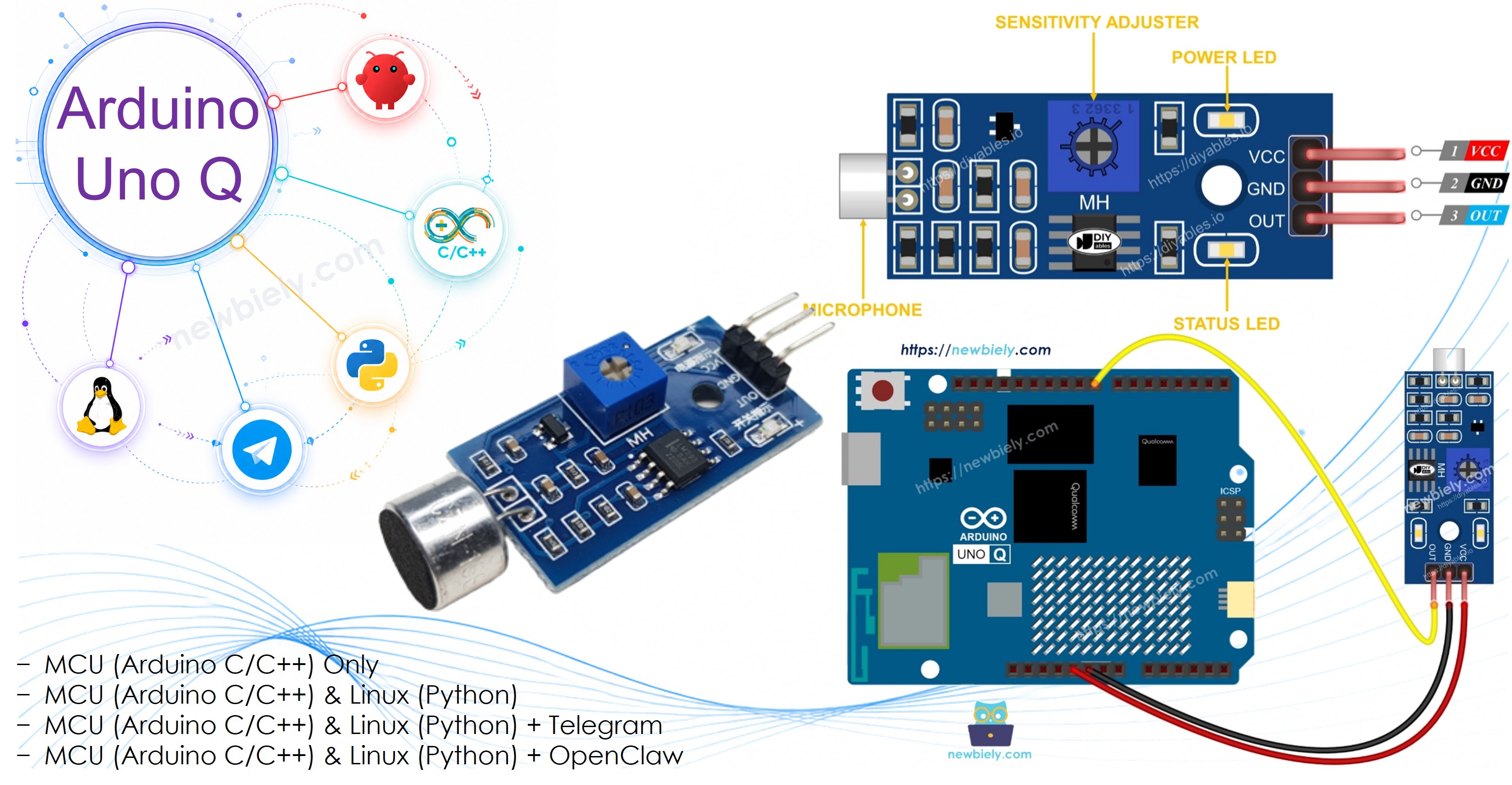
Arduino UNO Q - Sound Sensor

A sound sensor detects sounds in the environment and outputs a digital signal. It includes an onboard potentiometer to adjust sensitivity. Use it to trigger actions when a clap, knock, or loud noise is detected. With Bridge and Telegram, your Arduino UNO Q can send you instant alerts when it hears a sound.

In this tutorial, you will learn:

Arduino UNO Q Sound Sensor

Hardware Preparation

1×Arduino UNO Q
1×USB Cable for Arduino Uno Q
1×Sound Sensor
1×Jumper Wires
1×Recommended: Screw Terminal Block Shield for Arduino Uno
1×Recommended: Sensors/Servo Expansion Shield for Arduino Uno
1×Recommended: Breadboard Shield for Arduino Uno
1×Recommended: Enclosure for Arduino Uno
1×Recommended: Prototyping Base Plate & Breadboard Kit for Arduino UNO

Or you can buy the following kits:

1×DIYables Sensor Kit (18 sensors/displays)
Disclosure: Some of the links provided in this section are Amazon affiliate links. We may receive a commission for any purchases made through these links at no additional cost to you.
Additionally, some of these links are for products from our own brand, DIYables .

Overview of the Sound Sensor

A sound sensor module has a small microphone that detects vibrations in the air (sound waves). The module converts these into a digital signal:

  • HIGH: Quiet — no sound detected above the threshold
  • LOW: Sound detected

The module includes:

  • VCC pin: 3.3V to 5V power supply
  • GND pin: Ground
  • OUT pin: Digital output — HIGH = quiet, LOW = sound detected
  • Onboard potentiometer: Adjusts detection sensitivity
  • PWR LED: Power indicator
  • Sound LED: Lights up when sound is detected
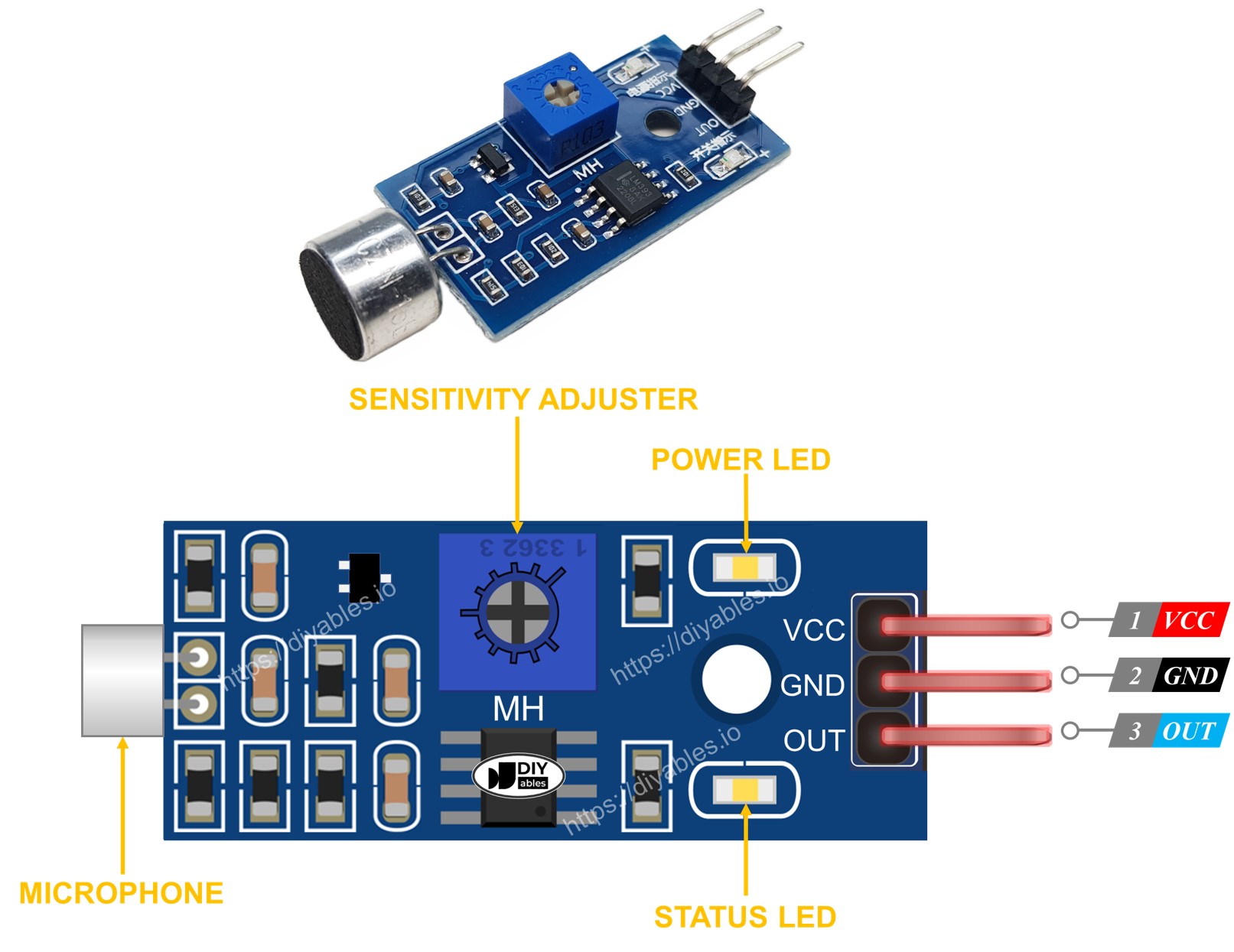
Sound Sensor Pinout

How to Adjust Sensitivity

Turn the potentiometer on the module:

  • Clockwise: More sensitive (detects softer sounds)
  • Counter-clockwise: Less sensitive (only loud sounds trigger it)

Adjust it until the Sound LED reliably triggers on a clap or knock but stays off in ambient noise.

Wiring Diagram
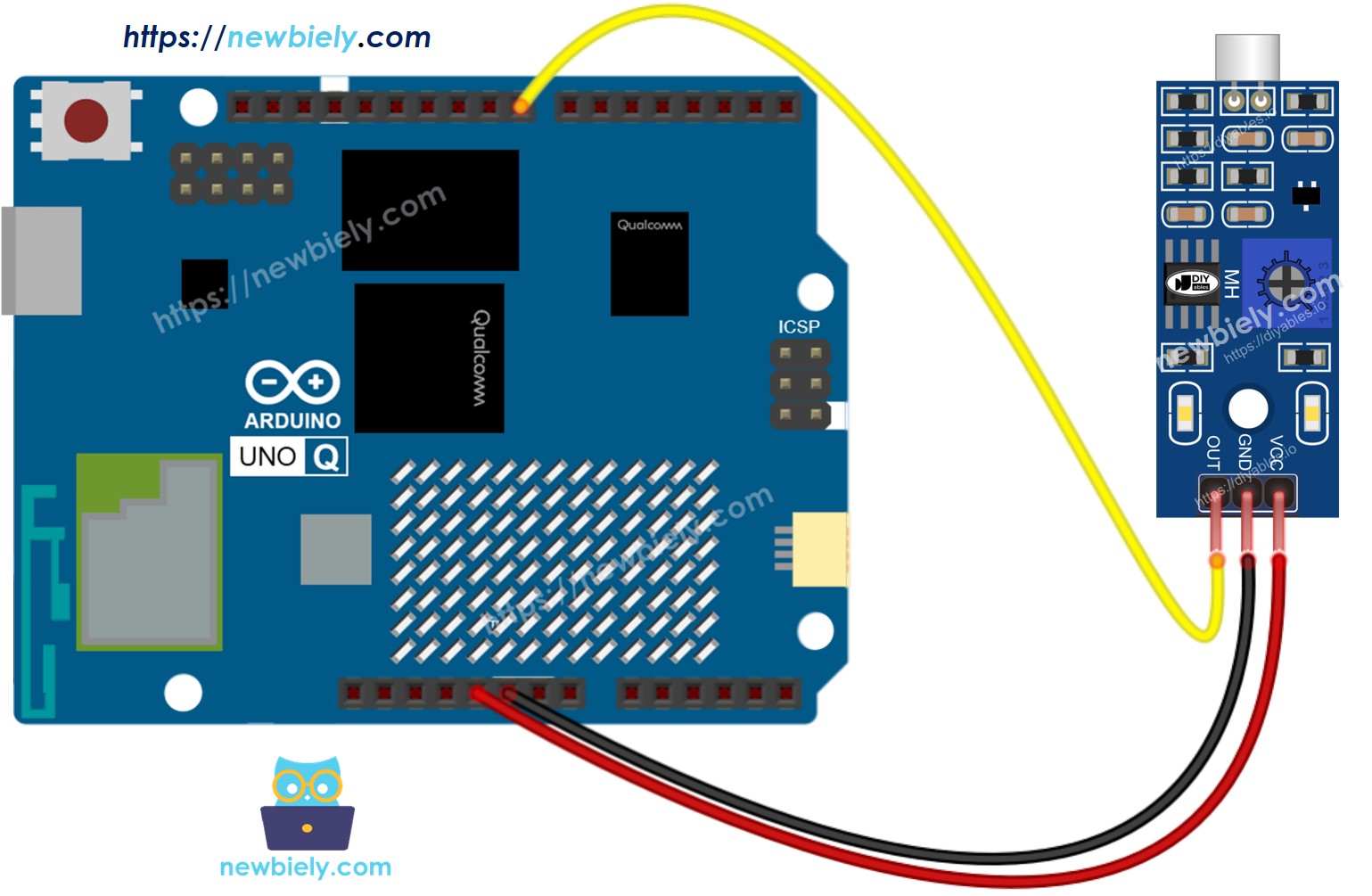
The wiring diagram between Arduino UNO Q Sound Sensor

This image is created using Fritzing. Click to enlarge image

Sound Sensor Pin Arduino UNO Q MCU
GND GND
VCC 5V
OUT D8

How To Program For Sound Sensor

  • Configure the sensor pin as a digital input:
pinMode(SENSOR_PIN, INPUT);
  • Read the digital output:
int sound_state = digitalRead(SENSOR_PIN);
  • Detect sound events by comparing to the previous state:
if (prev_state == HIGH && sound_state == LOW) Serial.println("Sound DETECTED"); else if (prev_state == LOW && sound_state == HIGH) Serial.println("Quiet again"); prev_state = sound_state;

Arduino UNO Q Code

The Arduino UNO Q has two processors working together:

  • The STM32 MCU reads the sound sensor's digital output and detects sound events
  • The Qualcomm MPU runs Debian Linux with Wi-Fi — in this section, only the MCU is programmed. A later section shows how both processors work together via Bridge.
/* * This Arduino UNO Q code was developed by newbiely.com * * This Arduino UNO Q code is made available for public use without any restriction * * For comprehensive instructions and wiring diagrams, please visit: * https://newbiely.com/tutorials/arduino-uno-q/arduino-uno-q-sound-sensor */ // COPYRIGHT newbiely.com // AUTHOR: newbiely // This code is made available for public use without restriction. // For complete instructions, tutorials, and further information, visit: // https://newbiely.com/tutorials/arduino-uno-q/arduino-uno-q-sound-sensor // Sound sensor DO pin: HIGH = quiet, LOW = sound detected // Sensitivity is adjusted by the onboard potentiometer #define SENSOR_PIN 8 // The Arduino UNO Q MCU pin connected to OUT of the sound sensor int prev_sound_state = HIGH; int sound_state; void setup() { Serial.begin(9600); pinMode(SENSOR_PIN, INPUT); Serial.println("Arduino UNO Q Sound Sensor ready"); } void loop() { sound_state = digitalRead(SENSOR_PIN); if (prev_sound_state == HIGH && sound_state == LOW) Serial.println("Sound DETECTED"); else if (prev_sound_state == LOW && sound_state == HIGH) Serial.println("Sound gone — quiet again"); prev_sound_state = sound_state; }

Detailed Instructions

First time with Arduino UNO Q? Follow the Getting Started with Arduino UNO Q tutorial before proceeding.

  • Connect: Wire the sound sensor to the Arduino UNO Q MCU as shown in the wiring diagram.
  • Open Arduino App Lab: Launch Arduino App Lab and wait until it detects your Arduino UNO Q.
  • Create a new App: Click the Create New App button.

Create New App in Arduino App Lab on Arduino UNO Q
  • Give the App a name, for example: SoundSensor
  • Click Create to confirm.
Arduino App Lab App folders and files on Arduino UNO Q
  • Paste the sketch: Copy the MCU code above and paste it into sketch/sketch.ino.
  • Upload: Click the Run button in Arduino App Lab.

Click Run button in Arduino App Lab on Arduino UNO Q
  • Clap near the sensor or tap the table — observe the Serial Monitor output.
  • Adjust the potentiometer on the module if detection is not reliable.

App Lab Console Output

DIYables_Apps
Stop
sketch.ino
1#include "Arduino_RouterBridge.h"
Serial Monitor
Python
Message (Enter to send a message to "Newbiely" on usb(2820070321))
New Line
9600 baud
[2026-04-29 09:00:01] Arduino UNO Q Sound Sensor ready [2026-04-29 09:00:05] Sound DETECTED [2026-04-29 09:00:05] Sound gone — quiet again [2026-04-29 09:00:08] Sound DETECTED [2026-04-29 09:00:08] Sound gone — quiet again

Bridge: Linux + MCU

This section shows how to program both processors of the Arduino UNO Q so the Linux side can read sound state and receive sound events via Bridge:

  • The sound sensor is connected to the MCU — the MCU monitors the digital output continuously and caches the current state
  • The MPU cannot read the sensor pin directly — it calls Bridge functions to get the current state or check for new sound events
  • The MPU has Wi-Fi — running full Debian Linux, it can send Telegram alerts the moment a sound is detected
  • Arduino_RouterBridge enables RPC communication between the two processors
  • ⚠️ /dev/ttyHS1 (Linux) and Serial1 (MCU) are RESERVED by the router — never open them in user code

In short: MCU detects sound via DO pin → sets event flag → MPU polls Bridge → MPU sends Telegram alert.

MCU Code (Bridge)

/* * This Arduino UNO Q code was developed by newbiely.com * * This Arduino UNO Q code is made available for public use without any restriction * * For comprehensive instructions and wiring diagrams, please visit: * https://newbiely.com/tutorials/arduino-uno-q/arduino-uno-q-sound-sensor */ // COPYRIGHT newbiely.com // AUTHOR: newbiely // This code is made available for public use without restriction. // For complete instructions, tutorials, and further information, visit: // https://newbiely.com/tutorials/arduino-uno-q/arduino-uno-q-sound-sensor #include "Arduino_RouterBridge.h" #define SENSOR_PIN 8 // The Arduino UNO Q MCU pin connected to OUT of the sound sensor bool cached_sound = false; // true = sound present bool sound_event = false; // true = new sound detected (rising edge) int prev_state = HIGH; String get_state(String arg) { return cached_sound ? "sound" : "quiet"; } String get_event(String arg) { if (sound_event) { sound_event = false; return "sound_detected"; } return "none"; } void setup() { Bridge.begin(); Monitor.begin(); pinMode(SENSOR_PIN, INPUT); Bridge.provide("get_state", get_state); Bridge.provide("get_event", get_event); Monitor.println("Arduino UNO Q Sound Sensor Bridge ready"); } void loop() { int current = digitalRead(SENSOR_PIN); if (prev_state == HIGH && current == LOW) { // Quiet → Sound cached_sound = true; sound_event = true; Monitor.println("Sound detected!"); } else if (prev_state == LOW && current == HIGH) { // Sound → Quiet cached_sound = false; Monitor.println("Quiet again."); } prev_state = current; }

Python Code (Bridge)

/* * This Arduino UNO Q code was developed by newbiely.com * * This Arduino UNO Q code is made available for public use without any restriction * * For comprehensive instructions and wiring diagrams, please visit: * https://newbiely.com/tutorials/arduino-uno-q/arduino-uno-q-sound-sensor */ # COPYRIGHT newbiely.com # AUTHOR: newbiely # This code is made available for public use without restriction. # For complete instructions, tutorials, and further information, visit: # https://newbiely.com/tutorials/arduino-uno-q/arduino-uno-q-sound-sensor from arduino.app_utils import * import time def loop(): state = Bridge.call("get_state") print(f"Sound state: {state}") time.sleep(0.5) App.run(user_loop=loop)

Detailed Instructions

  • Connect: Wire the sound sensor to the Arduino UNO Q as shown in the wiring diagram.
  • Open Arduino App Lab and create a new App named SoundSensorBridge.
  • Paste the MCU sketch into sketch/sketch.ino.
  • Paste the Python code into the Python file.
  • Install the library: Click the Add sketch library button (the open book icon with a + sign) in the left sidebar.

Add sketch library in Arduino App Lab on Arduino UNO Q
  • Search for Arduino_RouterBridge created by Arduino and click the Install button.
My Apps / DIYables Apps
Run
Bricks
No bricks added...
Sketch Libraries
No sketch libra...
Files
python
sketch
.gitignore
README.md
app.yaml
sketch.ino
Add sketch library
Arduino_RouterBridge Arduino

This library provides a simple RPC bridge for Arduino UNO Q boards, allowing communication between the board and other devices using MsgPack serialization.

0.4.1
Install
More Info
  • Upload: Click the Run button.
Click Run button in Arduino App Lab on Arduino UNO Q
  • Clap near the sensor — observe the event appear in both consoles.

App Lab Console Output

DIYables_Apps
Stop
sketch.ino
1#include "Arduino_RouterBridge.h"
Serial Monitor
Python
Message (Enter to send a message to "Newbiely" on usb(2820070321))
New Line
9600 baud
[2026-04-29 09:00:01] Arduino UNO Q Sound Sensor Bridge ready [2026-04-29 09:00:05] Sound detected! [2026-04-29 09:00:05] Quiet again.
DIYables_Apps
Stop
sketch.ino
1#include "Arduino_RouterBridge.h"
Serial Monitor
Python
[2026-04-29 09:00:02] Sound state: quiet [2026-04-29 09:00:03] Sound state: quiet [2026-04-29 09:00:05] Sound state: sound [2026-04-29 09:00:06] Sound state: quiet

Telegram

Receive instant Telegram alerts when sound is detected on the Arduino UNO Q sound sensor.

MCU sketch: Keep the same MCU sketch from the previous Bridge section.

Python Code (Telegram)

/* * This Arduino UNO Q code was developed by newbiely.com * * This Arduino UNO Q code is made available for public use without any restriction * * For comprehensive instructions and wiring diagrams, please visit: * https://newbiely.com/tutorials/arduino-uno-q/arduino-uno-q-sound-sensor */ # COPYRIGHT newbiely.com # AUTHOR: newbiely # This code is made available for public use without restriction. # For complete instructions, tutorials, and further information, visit: # https://newbiely.com/tutorials/arduino-uno-q/arduino-uno-q-sound-sensor from arduino.app_utils import * import requests import time TELEGRAM_BOT_TOKEN = "YOUR_TELEGRAM_BOT_TOKEN" CHAT_ID = "YOUR_CHAT_ID" last_update_id = 0 def get_updates(): global last_update_id url = f"https://api.telegram.org/bot{TELEGRAM_BOT_TOKEN}/getUpdates" params = {"offset": last_update_id + 1, "timeout": 5} try: response = requests.get(url, params=params, timeout=10) data = response.json() if data["ok"]: return data["result"] except Exception as e: print(f"Error getting updates: {e}") return [] def send_message(chat_id, text): url = f"https://api.telegram.org/bot{TELEGRAM_BOT_TOKEN}/sendMessage" payload = {"chat_id": chat_id, "text": text} try: requests.post(url, data=payload, timeout=10) except Exception as e: print(f"Error sending message: {e}") def loop(): # Auto-alert on new sound detection event = Bridge.call("get_event") if event == "sound_detected": print("Sound detected! Sending Telegram alert.") send_message(CHAT_ID, "🔊 Sound detected by Arduino UNO Q!") # Handle Telegram commands updates = get_updates() for update in updates: last_update_id = update["update_id"] if "message" not in update: continue message = update["message"] chat_id = message["chat"]["id"] text = message.get("text", "").strip() print(f"Received: {text}") if text == "/start": send_message(chat_id, "Arduino UNO Q Sound Sensor Bot\n" "/state - Current sound state (sound / quiet)\n" "Automatic alert when sound is detected") elif text == "/state": result = Bridge.call("get_state") send_message(chat_id, f"Sound state: {result}") else: send_message(chat_id, "Unknown command. Send /start for help.") time.sleep(0.3) App.run(user_loop=loop)

Detailed Instructions

  • Replace YOUR_TELEGRAM_BOT_TOKEN with your actual bot token from BotFather.
  • Replace YOUR_CHAT_ID with your Telegram chat ID.
  • Paste this Python code into your App's Python file (keep the same MCU sketch).
  • Click the Run button — clap near the sensor to trigger a Telegram alert.

App Lab Console Output

DIYables_Apps
Stop
sketch.ino
1#include "Arduino_RouterBridge.h"
Serial Monitor
Python
[2026-04-29 09:10:00] Waiting for Telegram messages... [2026-04-29 09:10:05] Sound detected! Sending Telegram alert. [2026-04-29 09:10:10] Received: /state
Telegram
Telegram 12:45
Welcome to Telegram!
ArduinoBot 10:19
Chatting with Arduino...
telegram-botfather
BotFather Yesterday
Your bot has been created.

ArduinoBot

bot
Today
🔊 Sound detected by Arduino UNO Q!
10:15 AM
/state
10:16 AM ✓✓
Sound state: quiet
10:17 AM
/state
10:18 AM ✓✓
Sound state: sound
10:19 AM

OpenClaw

...OPENCLAW

OpenClaw support for Arduino UNO Q Sound Sensor is coming soon.

...OPENCLAW

Project Ideas

You can build many useful projects with the sound sensor and Arduino UNO Q:

  • Clap Switch: Detect two quick claps and toggle a relay via Bridge to turn a light or fan on or off — Python counts clap events within a 500 ms window and sends the toggle command
  • Baby Monitor: Mount the sensor in a room — when it detects continuous sound (crying), the MPU sends a Telegram alert so you know immediately from anywhere in the house
  • Intrusion Alert: Combine the sound sensor with the door sensor — Telegram alerts for both door open and unexpected loud noise, with timestamp and duration logged to a file on Linux
  • Sound Level Logger: Poll the sound state every second and log detection frequency to a CSV — send a daily Telegram report showing peak sound hours for noise monitoring
  • Smart Doorbell: Detect a knock on the door via sound sensor — the MPU sends a Telegram message with a photo (if a camera is attached) so you can see who's at the door remotely

Challenge Yourself

Ready to go further with the sound sensor on Arduino UNO Q? Try these challenges:

  • Easy: Add a sound counter to the Python code — count how many times sound is detected per minute and print the total every 60 seconds in the console.
  • Medium: Implement clap pattern recognition in Python: detect a double-clap (two sounds within 600 ms) versus a single clap — send different Telegram messages for each pattern.
  • Advanced: Build a sound duration tracker: record the start and end time of each sound event on the MCU side using millis() — expose the last duration via a get_duration() Bridge function and include it in every Telegram alert.

Learn More

※ OUR MESSAGES

  • As freelancers, We are AVAILABLE for HIRE. See how to outsource your project to us
  • Please feel free to share the link of this tutorial. However, Please do not use our content on any other websites. We invested a lot of effort and time to create the content, please respect our work!