
Arduino UNO Q - Blink LED Without Delay
When your Arduino UNO Q needs to do two things at once — like blink an LED and read a button — the delay() function becomes a problem. It freezes the MCU and causes missed events. In this tutorial, you will learn how to blink an LED without delay() using millis(), so the Arduino UNO Q can multitask smoothly.
※ NOTE THAT:
- This method does more than just make an LED blink and check button status. It allows the Arduino UNO Q to perform multiple tasks simultaneously without interruption.
In this tutorial, you will learn:
- Why delay() causes problems in multitasking programs
- How to blink an LED without delay() using millis() on Arduino UNO Q
- How to blink two LEDs at different speeds simultaneously
- How to program both the Linux side (Python) and MCU side (C/C++ Arduino code) to control blink speed from the Linux side
- How to use Telegram to control LED blink speed remotely on Arduino UNO Q
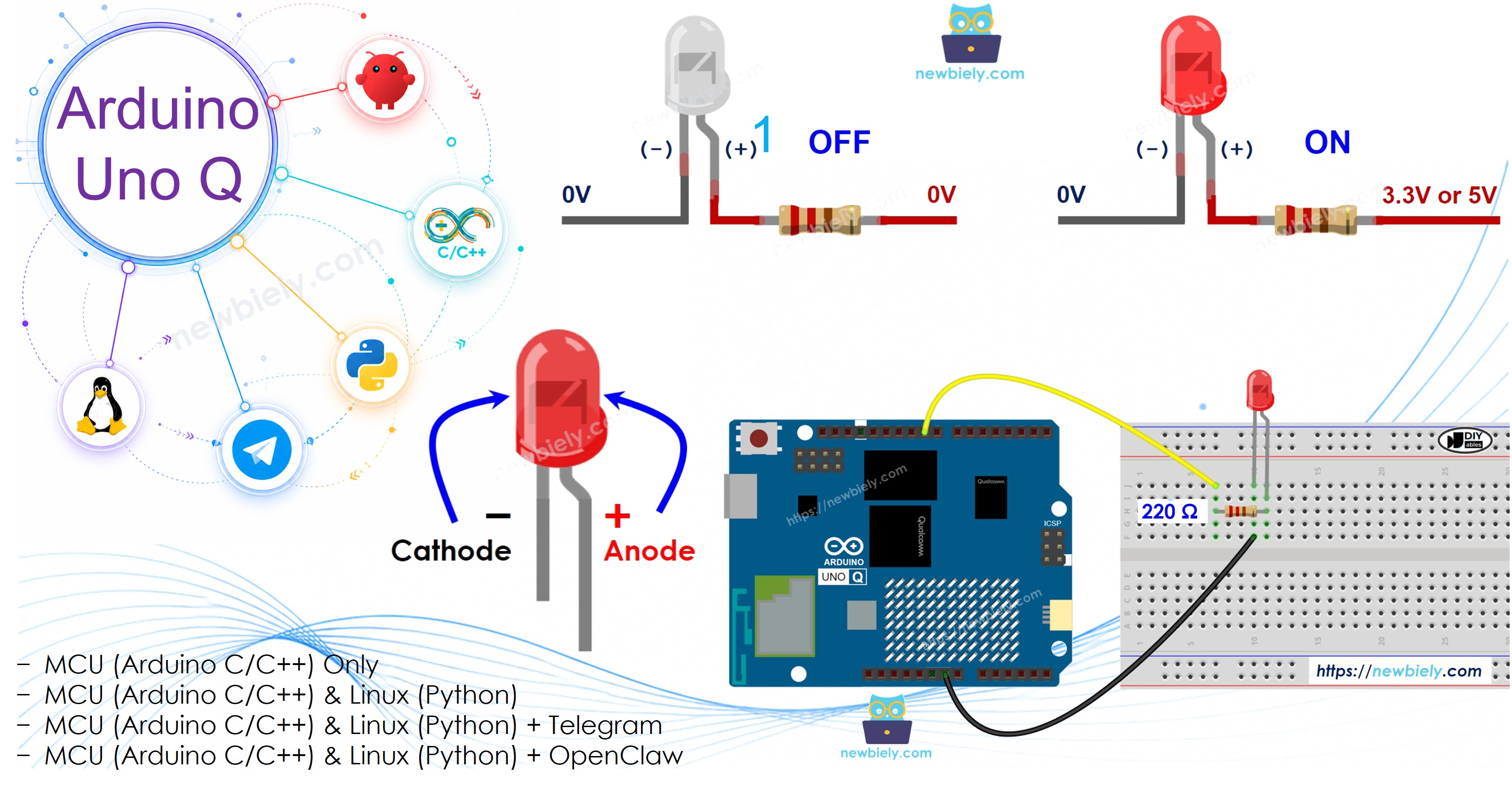
Hardware Preparation
Or you can buy the following kits:
| 1 | × | DIYables Sensor Kit (18 sensors/displays) |
Additionally, some of these links are for products from our own brand, DIYables .
Buy Note: Use the LED Module for easier wiring. It includes an integrated resistor.
Wiring Diagram
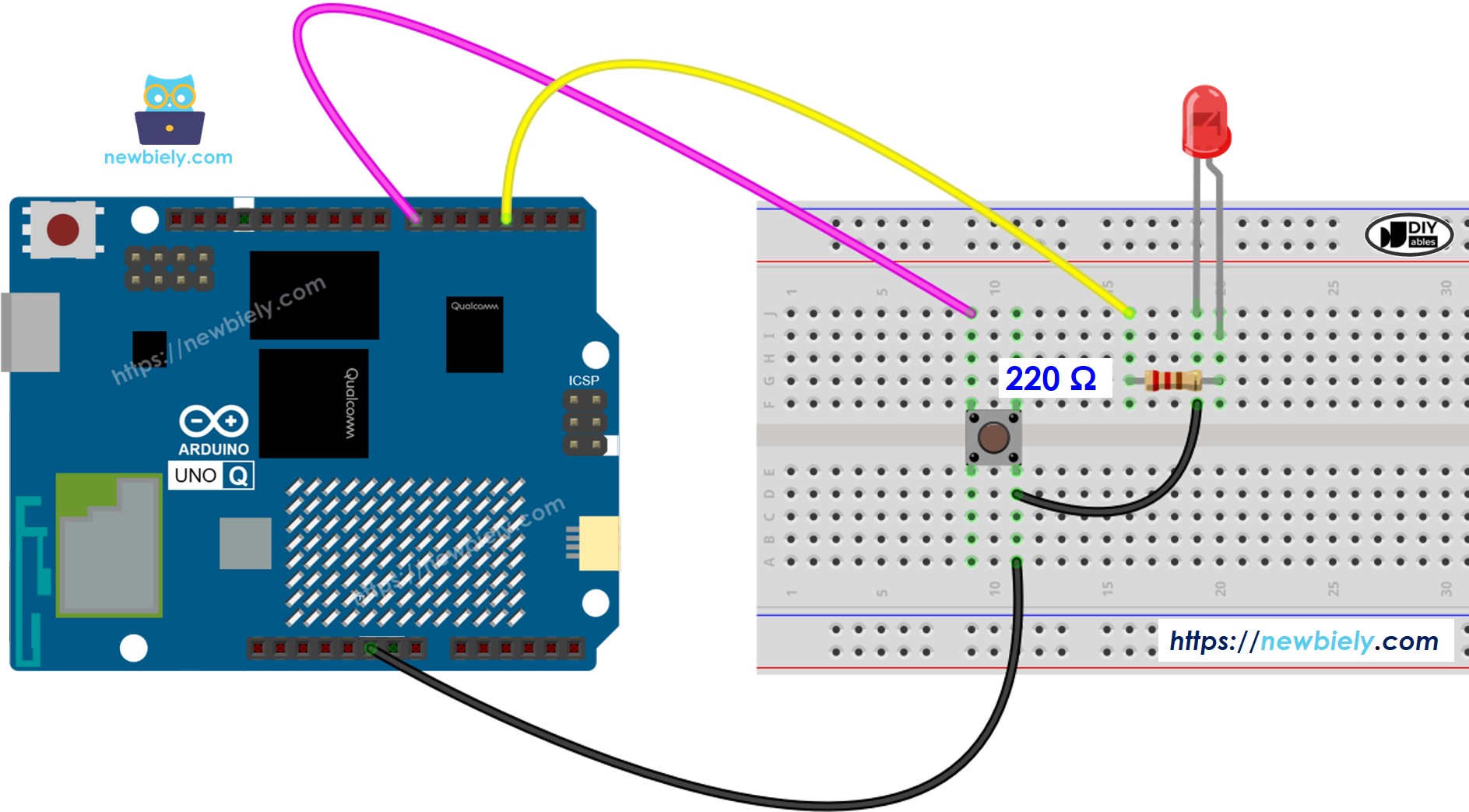
This image is created using Fritzing. Click to enlarge image
MCU Code — With delay() (Problem Demo)
The Arduino UNO Q has two processors: the STM32 MCU (handles real-time hardware control) and the Qualcomm MPU (runs Debian Linux). In this section, only the STM32 MCU is programmed. A later section will show how both processors work together.
This first example uses delay() to blink the LED — and demonstrates why this is a problem:
- The LED blinks every 1 second using delay(1000)
- While waiting in delay(), the MCU is completely frozen — it cannot detect button presses
- Press the button several times and observe that many presses are missed
Detailed Instructions
- First time with Arduino UNO Q? Follow the Getting Started with Arduino UNO Q tutorial to get your development environment ready before proceeding.
- Wire the components: Connect the LED (with 220Ω resistor) to pin 3 and the button to pin 7 according to the wiring diagram.
- Connect: Plug the Arduino UNO Q into your computer with a USB-C cable.
- Open Arduino App Lab: Launch Arduino App Lab and wait until it detects your Arduino UNO Q — this can take several minutes on first launch.
- Create a new App: Click the Create New App button.

- Give the App a name, for example: DIYables_BlinkDelay
- Click Create to confirm.
- You will see a set of folders and files generated inside your new App.

- Find the sketch/sketch.ino file — this is where you will paste the MCU sketch.
- Install the library: Click the Add sketch library button (the open book icon with a + sign) in the left sidebar.

- Search for Arduino_RouterBridge created by Arduino and click the Install button.
- Upload: Click the Run button in Arduino App Lab to compile and upload to the STM32.

- Test: Press the button multiple times quickly — notice that many presses are ignored because delay() blocks the MCU.
- Pro Tip: This is the problem that millis() solves — see the next example.
MCU Code — Without delay() (Solution)
This example uses millis() to blink the LED without blocking — the MCU checks the elapsed time and acts only when needed, so it can still detect every button press:
- Uses millis() and prev_millis to track when to toggle the LED
- Never calls delay() — the MCU is always free to do other tasks
- Press the button and observe that every press is detected, even while the LED is blinking
Detailed Instructions
- Upload this sketch the same way as above (create a new App or replace the sketch in the existing one).
- Press the button multiple times quickly — every press is detected without interruption.
- Pro Tip: Add more tasks inside // DO OTHER WORKS HERE — the LED will keep blinking while those tasks run.
Adding More Tasks — Two LEDs Blinking at Different Speeds
This example blinks two LEDs at different intervals while still detecting button presses — all without any delay():
- LED 1 blinks every 1000ms
- LED 2 blinks every 500ms
- Both run independently using separate prev_millis variables
- Button presses are never missed
Detailed Instructions
- Add a second LED (with 220Ω resistor) to pin 4.
- Upload this sketch — both LEDs will blink at their own independent rates.
- Pro Tip: Add more LEDs with their own intervals by adding more prev_millis_N variables and if blocks.
Linux + MCU Bridge Programming
The Arduino UNO Q has two processors that work together: the MPU (Qualcomm, runs Debian Linux) and the MCU (STM32, runs Zephyr OS with your Arduino sketch). They communicate using RPC via the Arduino_RouterBridge library — never via raw serial ports.
- The LED is connected to the MCU (STM32) — wired to a digital pin on the STM32. The MCU blinks it using a non-blocking millis() loop.
- The MPU cannot control the LED directly — it sends commands to the MCU via Bridge.call(). The MCU executes the registered Bridge.provide_safe() function and acts on the LED.
- The MPU has Wi-Fi — it can connect to the Internet and do things the MCU cannot: receive Telegram commands, control blink speed remotely, and more.
- Communication: Bridge.call() on the Linux side invokes Bridge.provide_safe() functions on the MCU side
- ⚠️ Reserved: /dev/ttyHS1 (Linux) and Serial1 (MCU) are used by the Arduino Router — never open them directly
In short: MPU sends the interval command → MCU receives it → MCU adjusts LED blink speed in real time.
MCU sketch — non-blocking LED blink with remote speed control:
Python script (Arduino App Lab) — control blink speed from Linux:
- Note: Make sure Bridge.begin() is called in the MCU sketch and the sketch is uploaded before running the Python script on the Linux side.
- ⚠️ Warning: Never directly open /dev/ttyHS1 (on Linux) or use Serial1 (on MCU) in your code — these are reserved by the Arduino Router and accessing them will break the Bridge.
Detailed Instructions
- Upload the MCU sketch: Open Arduino App Lab, create a new App, paste the Bridge MCU sketch above into sketch/sketch.ino, and click Run.
- Add the Python script: Paste the Python code above into the Python tab of the same App.
- Run the App: Click Run — the LED starts blinking. The Python side will change the speed automatically every few seconds.
- Check the console: Open the Console tab → Python Console subtab to see speed change messages.
- Pro Tip: Call Bridge.call("blink_stop") from Python to stop the LED, then Bridge.call("blink_start") to resume — the MCU handles it instantly.
App Lab Console Output
Telegram Integration
You can control the LED blink speed remotely over Telegram — send a command from anywhere and the LED responds instantly.
If you do not have a Telegram bot yet, see How to Create a Telegram Bot to get your bot token before continuing.
This section covers:
- Running a Python script on the Linux side of Arduino UNO Q to listen for Telegram messages
- Forwarding blink speed or start/stop commands to the MCU side via Bridge.call()
- Sending a confirmation reply back to Telegram
MCU sketch: Keep the same MCU sketch from the previous Bridge section — no changes needed. Make sure it is already uploaded and running on the STM32 before proceeding.
Python script (Arduino App Lab) — Telegram bot for LED blink control:
- Note: Replace YOUR_BOT_TOKEN with the token obtained from @BotFather on Telegram.
- Send /blink 200 to make the LED blink fast. Send /blink 2000 to blink slow.
- Send /stop to stop blinking. Send /start to resume.
Detailed Instructions
- Upload the MCU sketch: Use the Bridge MCU sketch from the previous section (upload it first if not already done).
- Paste the Telegram script: Copy the Python code above into the Python tab of your App in Arduino App Lab.
- Set your token: Replace YOUR_BOT_TOKEN in the script with your actual bot token.
- Run the App: Click Run — the bot starts listening for Telegram messages immediately.
- Test it: Send /blink 100 for super-fast blinking, or /stop to freeze the LED.
- Pro Tip: Try /blink 50 for a very fast blink that looks like a dim glow.
App Lab Console Output


ArduinoBot
OpenClaw Integration
You can adapt the OpenClaw to this tutorial by refering the instruction on Arduino Uno Q - OpenClaw Tutorial
Application/Project Ideas
Here are some project ideas using non-blocking LED blink on Arduino UNO Q:
- Status indicator: Blink an LED at different speeds to indicate system states (slow = idle, fast = busy)
- Telegram heartbeat: Blink an LED from the Python side to confirm the Linux App is running
- Alert system: Trigger fast blinking via Telegram when a sensor threshold is exceeded on the Linux side
- Multi-LED display: Run 4+ LEDs at independent rates to create a visual pattern or animation
- Morse code sender: Encode a message as dots and dashes using timed millis() LED blinks
Challenge Yourself
Try these challenges with non-blocking LED blink and Arduino UNO Q:
- Easy: Modify the two-LED sketch to add a third LED blinking at 250ms
- Medium: Extend the Bridge sketch to also expose a function that returns the current blink interval so Python can read it back
- Advanced: Build a Telegram bot that accepts a morse code string (e.g., /morse SOS) and blinks it out on the LED using the correct dot/dash timing