
Arduino UNO Q - DHT22
The DHT22 offers more accurate temperature and humidity readings than the DHT11 — with a wider range and better precision. This tutorial shows you how to use it with Arduino UNO Q for complete environment monitoring with Telegram alerts.
In this tutorial, you will learn:
- What the DHT22 temperature and humidity sensor is and how it differs from DHT11
- How to wire the DHT22 sensor and module to the Arduino UNO Q MCU
- How to program the MCU (C/C++ Arduino code) to read temperature and humidity from the DHT22
- How to program both the Linux side (Python) and MCU side (C/C++) to read DHT22 data via Bridge
- How to receive Telegram alerts when temperature or humidity exceeds a threshold on Arduino UNO Q
- How to use OpenClaw on Arduino UNO Q with the DHT22 sensor
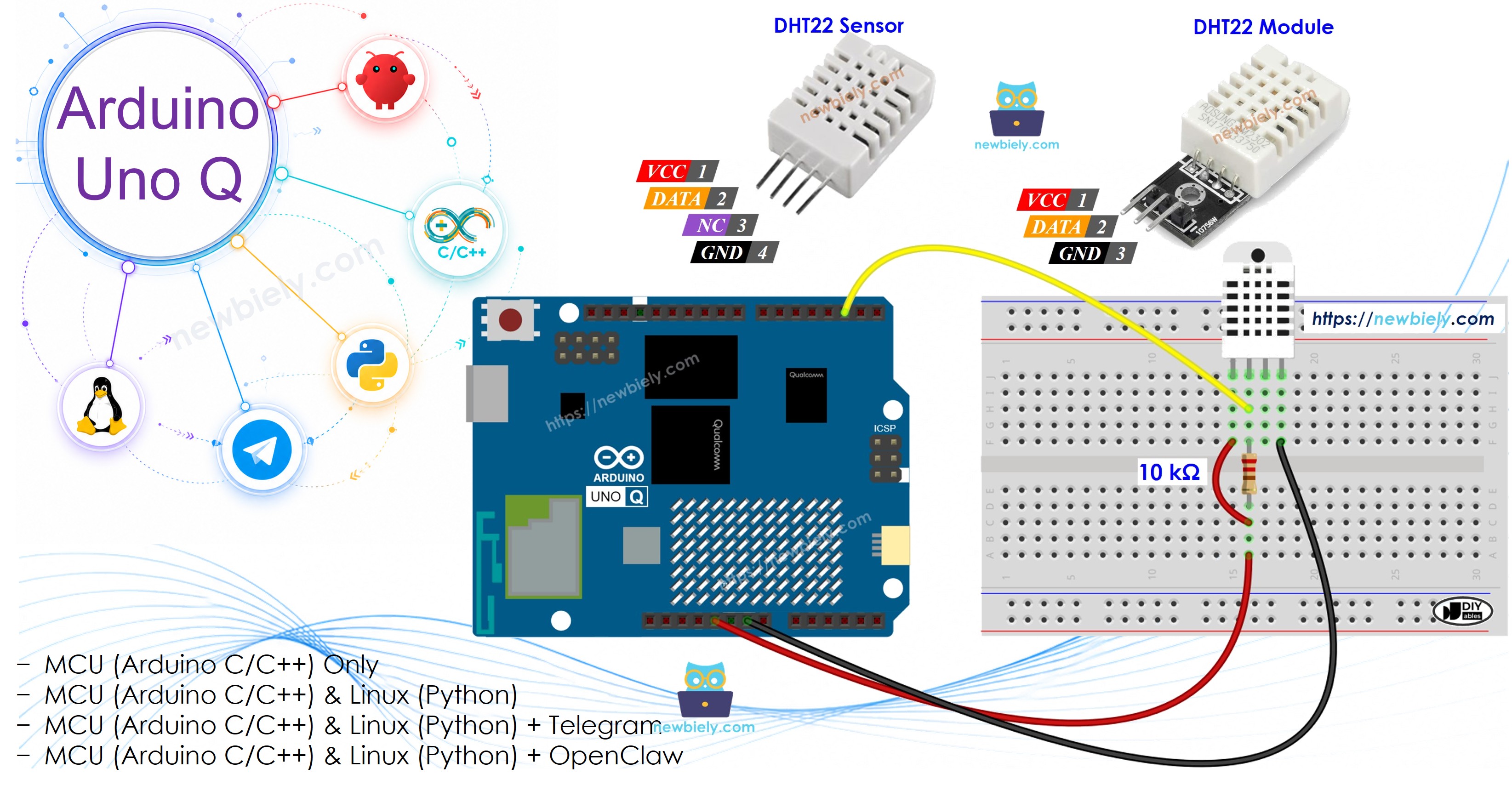
Hardware Preparation
Or you can buy the following kits:
| 1 | × | DIYables Sensor Kit (18 sensors/displays) |
Additionally, some of these links are for products from our own brand, DIYables .
Overview of the DHT22 Sensor
The DHT22 (also known as AM2302) is a more precise alternative to the DHT11. Both use the same library and nearly identical code — the main difference is the type constant in the constructor.
| DHT22 | |
|---|---|
| Operating Voltage | 3.3V to 6V |
| Temperature Range | -40°C to 80°C |
| Temperature Accuracy | ±0.5°C |
| Humidity Range | 0% to 100% |
| Humidity Accuracy | ±2% |
| Reading Rate | 0.5Hz (once every 2 seconds) |
Pinout
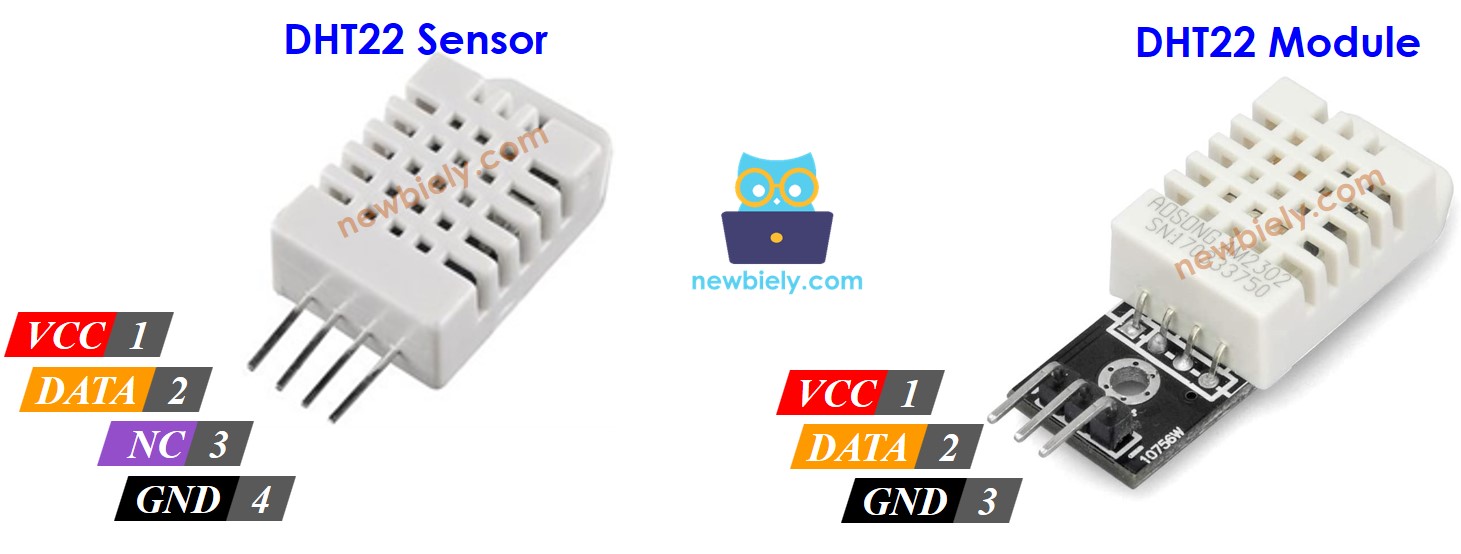
DHT22 Sensor (4-pin):
- GND: Connect to GND (0V)
- VCC: Connect to 3.3V or 5V
- DATA: Communication pin — connect to a digital pin on the MCU
- NC: Not connected
DHT22 Module (3-pin):
- GND: Connect to GND (0V)
- VCC: Connect to 3.3V or 5V
- DATA: Communication pin (also labeled OUT or S on some modules)
Most DHT22 modules include a built-in pull-up resistor — no external resistor needed.
Wiring Diagram
Arduino UNO Q - DHT22 Sensor Wiring
Requires a 10kΩ pull-up resistor between DATA and VCC.
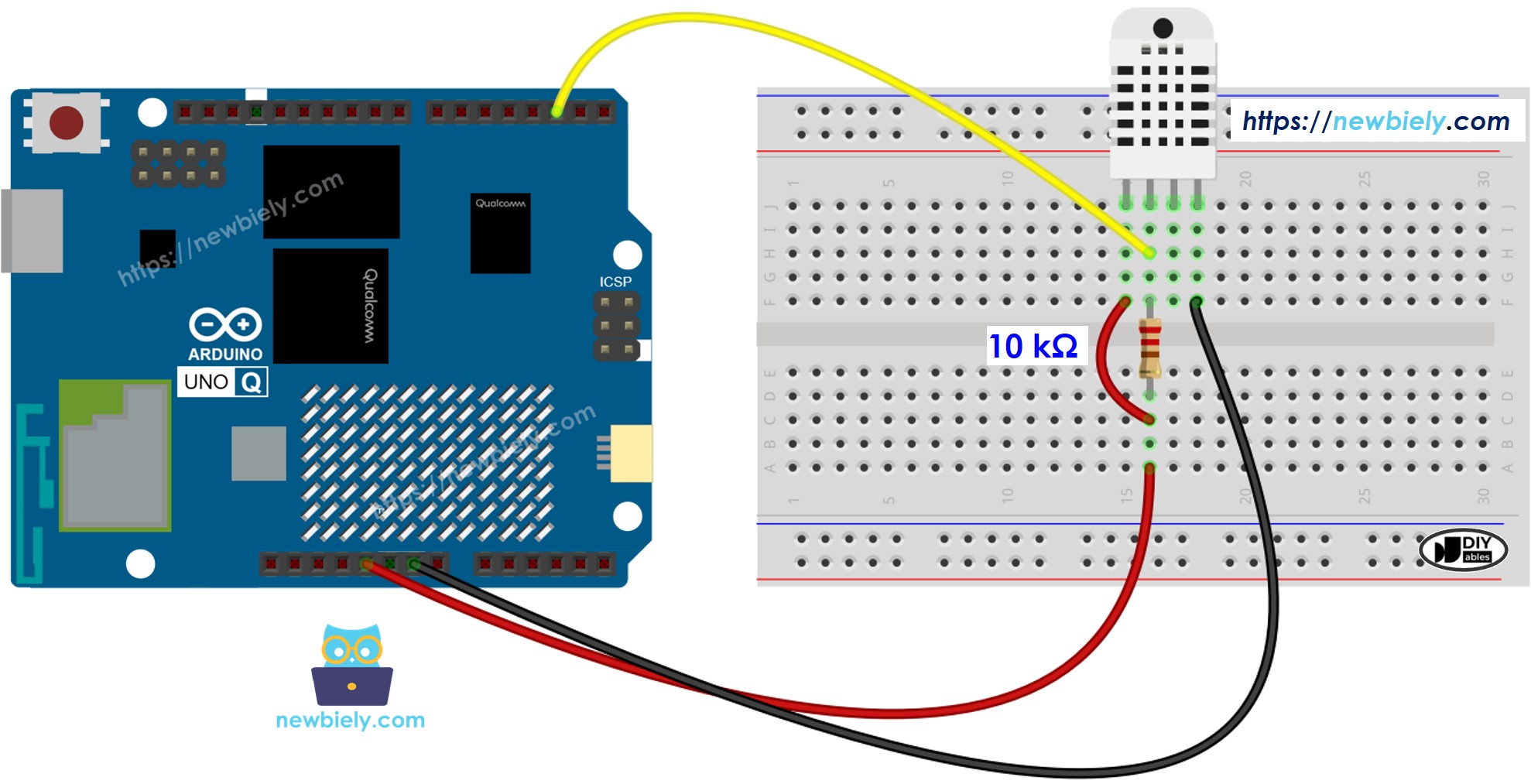
This image is created using Fritzing. Click to enlarge image
Arduino UNO Q - DHT22 Module Wiring
No external resistor needed — the module includes one.
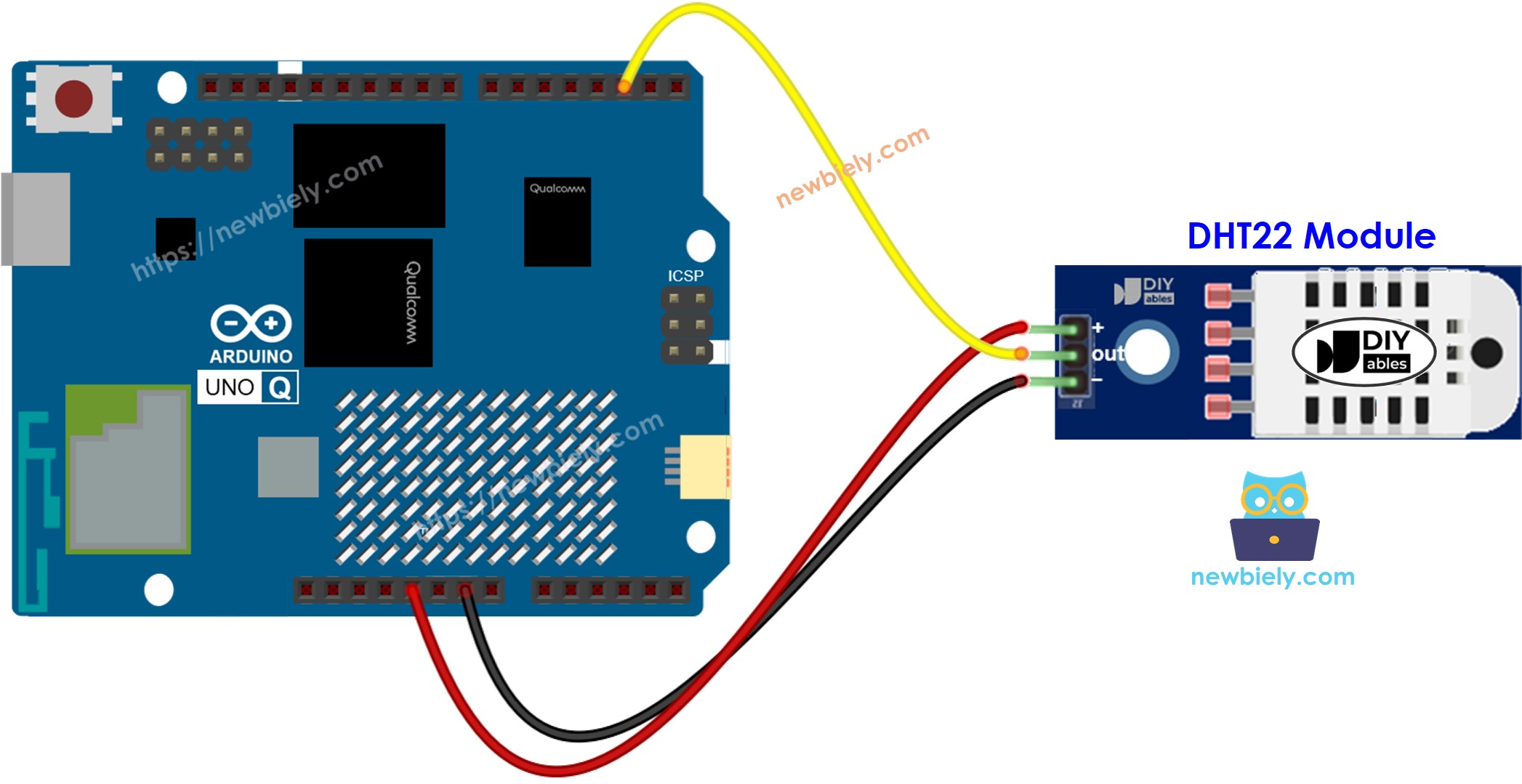
This image is created using Fritzing. Click to enlarge image
| DHT22 Pin | Arduino UNO Q MCU |
|---|---|
| GND | GND |
| VCC | 3.3V or 5V |
| DATA | D2 |
How To Program For DHT22
- Include the library:
- Define the pin and create a sensor object:
- Initialize the sensor:
- Read humidity and temperature:
- Always check for failed reads:
Arduino UNO Q Code
The Arduino UNO Q has two processors working together:
- The STM32 MCU reads the DHT22 sensor directly — all sensor communication runs on the MCU
- The Qualcomm MPU runs Debian Linux and handles Wi-Fi, Python, and cloud connectivity
- In this section, only the MCU is programmed — the Linux side stays idle. A later section shows how both processors work together via Bridge.
The MCU reads temperature and humidity every 3 seconds and prints to the Serial Monitor.
Detailed Instructions
First time with Arduino UNO Q? Follow the Getting Started with Arduino UNO Q tutorial before proceeding.
- Connect: Wire the DHT22 sensor or module to the Arduino UNO Q MCU as shown in the wiring diagram.
- Open Arduino App Lab: Launch Arduino App Lab and wait until it detects your Arduino UNO Q.
- Create a new App: Click the Create New App button.

- Give the App a name, for example: Dht22
- Click Create to confirm.

- Paste the sketch: Copy the MCU code above and paste it into sketch/sketch.ino. Keep other files as default.
- Install the library: Click the Add sketch library button (the open book icon with a + sign) in the left sidebar.

- Search for DHT sensor library created by Adafruit and click the Install button.
- Upload: Click the Run button in Arduino App Lab.

- Breathe on the sensor or hold it — watch humidity and temperature readings update every 3 seconds.
App Lab Console Output
Bridge: Linux + MCU
This section shows how to program both processors of the Arduino UNO Q so the Linux side can read temperature and humidity via Bridge:
- The DHT22 sensor is connected to the MCU (STM32) — the MCU reads data every 3 seconds and caches the latest values
- The MPU cannot access the DHT22 directly — it must call Bridge functions to retrieve readings
- The MPU has Wi-Fi — running full Debian Linux, it can log data, publish to dashboards, or send alerts over the Internet
- Arduino_RouterBridge enables RPC communication between the two processors
- ⚠️ /dev/ttyHS1 (Linux) and Serial1 (MCU) are RESERVED by the router — never open them in user code
In short: MCU reads DHT22 every 3 seconds and caches the result → MPU polls Bridge to retrieve readings → MPU publishes or alerts over Wi-Fi.
Note: In the Bridge sketch, the loop() function reads the DHT22 every 3 seconds to keep the cached values fresh. All Bridge callbacks are read-only and return cached data without blocking.
MCU Code (Bridge)
Python Code (Bridge)
Detailed Instructions
- Connect: Wire the DHT22 sensor to the Arduino UNO Q as shown in the wiring diagram.
- Open Arduino App Lab: Launch Arduino App Lab and wait for the board to be detected.
- Create a new App: Click Create New App, name it Dht22Bridge, then click Create.
- Paste the MCU sketch: Copy the MCU Bridge code above and paste it into sketch/sketch.ino.
- Paste the Python code: Copy the Python Bridge code above and paste it into the Python file in the App.
- Upload: Click the Run button in Arduino App Lab.
- Watch temperature and humidity readings appear in the Python console every 3 seconds.
App Lab Console Output
Telegram
Monitor temperature and humidity remotely. Receive automatic alerts when temperature exceeds 35°C or humidity exceeds 80%.
MCU sketch: Keep the same MCU sketch from the previous Bridge section.
Python Code (Telegram)
Detailed Instructions
- Replace YOUR_TELEGRAM_BOT_TOKEN with your actual bot token from BotFather.
- Replace YOUR_CHAT_ID with your Telegram chat ID.
- Paste this Python code into your App's Python file (keep the same MCU sketch).
- Click the Run button. Send /temp or /humidity from Telegram, or breathe on the sensor to trigger alerts.
App Lab Console Output


ArduinoBot
OpenClaw
You can adapt the OpenClaw to this tutorial by refering the instruction on Arduino Uno Q - OpenClaw Tutorial
Project Ideas
You can build many useful projects with the DHT22 sensor and Arduino UNO Q:
- Precision Weather Station: The DHT22's wider range and better accuracy makes it ideal for a precise indoor/outdoor station — the Linux MPU logs data every minute and charts trends over time
- Smart HVAC Controller: Use temperature and humidity data to control a relay that switches your air conditioner or humidifier — Telegram alerts when conditions go out of range
- Seed Germination Monitor: Maintain optimal humidity and temperature for seed germination — receive alerts if humidity drops below threshold and data is logged for review
- Wine Cellar Monitor: The DHT22 covers the lower temperature range needed for wine storage — monitor both temp and humidity with Telegram alerts if either drifts outside safe limits
- Server Room Environmental Monitor: Deploy with Wi-Fi for remote monitoring — the MPU sends hourly reports and instant Telegram alerts if temperature or humidity spikes
Challenge Yourself
Ready to go further with the DHT22 on Arduino UNO Q? Try these challenges:
- Easy: Modify the MCU sketch to blink the built-in LED at different speeds depending on temperature range — slow blink below 20°C, fast blink above 35°C, no blink in between.
- Medium: Calculate the dew point from temperature and humidity on the Python side using the Magnus formula, and include it in the Telegram /status response alongside temperature and humidity.
- Advanced: Build a data visualization pipeline: the MPU reads DHT22 via Bridge every 5 minutes, stores readings in a JSON file, and serves a simple HTTP page with a temperature/humidity chart using Chart.js — accessible from any browser on the local network.