
Arduino UNO Q - Ultrasonic Sensor - OLED
In this guide, you will learn how to measure distance using an ultrasonic sensor and display it centered on an OLED screen with Arduino UNO Q.
Hardware Preparation
Or you can buy the following kits:
| 1 | × | DIYables Sensor Kit (18 sensors/displays) |
Additionally, some of these links are for products from our own brand, DIYables .
Buy Note: If you want a bigger OLED display, use the 2.42 inch OLED Display 128x64 .
Overview of OLED and Ultrasonic Sensor
Learn about the OLED display and ultrasonic sensor in the tutorials below:
Wiring Diagram
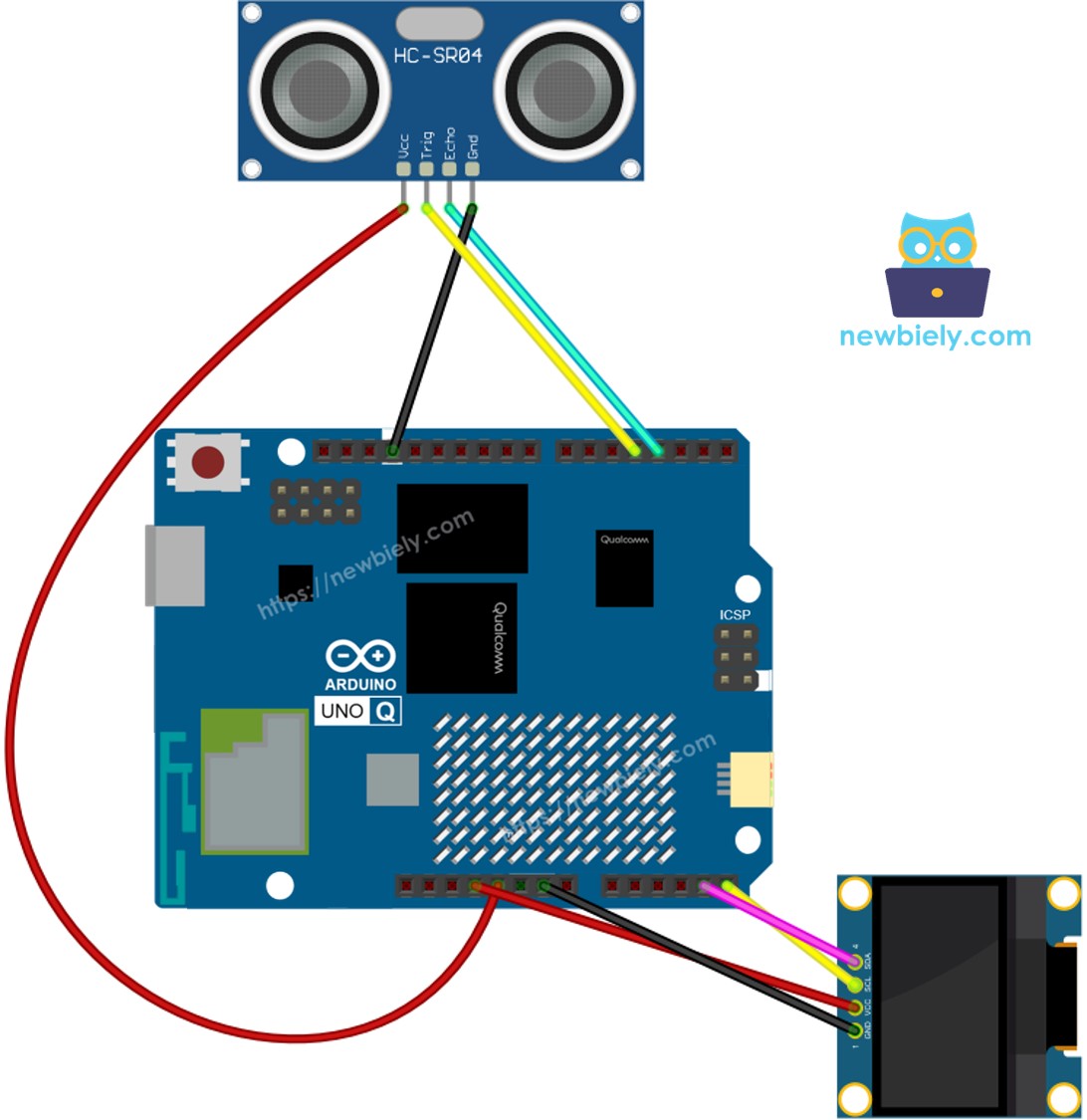
This image is created using Fritzing. Click to enlarge image
MCU Code
The Arduino UNO Q has two processors: the STM32 MCU (handles real-time hardware control) and the Qualcomm MPU (runs Debian Linux). In this section, only the STM32 MCU is programmed — the Linux side stays idle. A later section will show how both processors work together.
※ NOTE THAT:
The code centers the distance text both horizontally and vertically on the OLED display.
Detailed Instructions
- First time with Arduino UNO Q? Follow the Getting Started with Arduino UNO Q tutorial to get your development environment ready before proceeding.
- Wire the components: Connect TRIG → pin 4, ECHO → pin 3. Connect OLED SDA → SDA, SCL → SCL.
- Connect: Plug the Arduino UNO Q into your computer with a USB-C cable.
- Open Arduino App Lab: Launch Arduino App Lab and wait until it detects your Arduino UNO Q.
- Create a new App: Click the Create New App button.

- Give the App a name, for example: DIYables_UltrasonicOLED
- Click Create to confirm.
- You will see a set of folders and files generated inside your new App.

- Find the sketch/sketch.ino file — this is where you will paste the MCU sketch.
- Install the library: Click the Add sketch library button (the open book icon with a + sign) in the left sidebar.

- Search for Adafruit SSD1306 created by Adafruit and click the Install button.
- Search for Arduino_RouterBridge created by Arduino and click the Install button.
- Upload: Click the Run button in Arduino App Lab to compile and upload to the STM32.

- Test: Wave your hand in front of the sensor — the distance should update on the OLED every 500 ms.
※ NOTE THAT:
This code is for learning. For production, apply the noise filter from Ultrasonic Sensor tutorial.
Linux + MCU Bridge Programming
The Arduino UNO Q has two processors that work together: the MPU (Qualcomm, runs Debian Linux) and the MCU (STM32, runs Zephyr OS with your Arduino sketch). They communicate using RPC via the Arduino_RouterBridge library — never via raw serial ports.
- The ultrasonic sensor and OLED are both connected to the MCU (STM32) — sensor on pins 5/9, OLED via I2C.
- The MPU cannot control these directly — it calls Bridge.call("read_distance") on the MCU, which measures distance, shows it on the OLED, and prints it to Monitor.
- The MPU has Wi-Fi — because the MPU runs full Debian Linux with Wi-Fi, it can receive Telegram commands and trigger readings remotely.
- Communication: Bridge.call() on the Linux side invokes Bridge.provide_safe() on the MCU side (since digitalWrite() and OLED writes are hardware APIs)
- ⚠️ Reserved: /dev/ttyHS1 (Linux) and Serial1 (MCU) are used by the Arduino Router — never open them directly
In short: MPU requests reading → MCU measures distance → MCU shows on OLED and prints to Monitor.
MCU sketch — ultrasonic sensor OLED display with Bridge:
Python script (Arduino App Lab) — request distance reading from Linux every second:
- Note: Make sure Bridge.begin() is called in the MCU sketch and the sketch is uploaded before running the Python script on the Linux side.
- ⚠️ Warning: Never directly open /dev/ttyHS1 (on Linux) or use Serial1 (on MCU) in your code — these are reserved by the Arduino Router and accessing them will break the Bridge.
Detailed Instructions
- Upload the MCU sketch: Open Arduino App Lab, create a new App, paste the Bridge MCU sketch into sketch/sketch.ino, install the Adafruit SSD1306 and Arduino_RouterBridge libraries, and click Run.
- Add the Python script: Paste the Python code above into the Python tab of the same App.
- Run the App: Click Run — Python requests a reading every second; MCU updates the OLED and Monitor.
- Check the console: Open the Console tab → MCU Monitor subtab to see the distance values.
App Lab Console Output
Telegram Integration
Read the distance and display it on the OLED remotely via Telegram.
If you do not have a Telegram bot yet, see How to Create a Telegram Bot to get your bot token before continuing.
MCU sketch: Keep the same MCU sketch from the previous Bridge section — no changes needed. Make sure it is already uploaded and running on the STM32 before proceeding.
Python script (Arduino App Lab) — Telegram bot for ultrasonic OLED display:
- Note: Replace YOUR_BOT_TOKEN with the token obtained from @BotFather on Telegram.
- Send /read to trigger a distance measurement — the result appears on the OLED and in Monitor.
Detailed Instructions
- Upload the MCU sketch: Use the Bridge MCU sketch from the previous section (upload it first if not already done).
- Paste the Telegram script: Copy the Python code above into the Python tab of your App in Arduino App Lab.
- Set your token: Replace YOUR_BOT_TOKEN in the script with your actual bot token.
- Run the App: Click Run — the bot starts listening for Telegram messages.
- Test it: Send /read — the bot replies with the measured distance, which also appears on the OLED.
App Lab Console Output


ArduinoBot
OpenClaw Integration
You can adapt the OpenClaw to this tutorial by refering the instruction on Arduino Uno Q - OpenClaw Tutorial
Application/Project Ideas
- Portable range finder: Use sensor + OLED as a handheld distance-measuring tool
- Parking assistant: Display a bar-graph of remaining space as a vehicle backs toward a wall
- Water tank level meter: Display the current water level on the OLED in real time
- Robot proximity gauge: Show the current obstacle distance on an onboard OLED screen
- Measuring station: Mount on a wall to display live room dimensions for home renovation projects
Challenge Yourself
- Easy: Show "CLOSE!" on the OLED in large text when distance < 20 cm
- Medium: Draw a bar graph on the OLED that fills as the object gets closer
- Advanced: Send the actual distance value (in cm) directly back to the Telegram user as a message