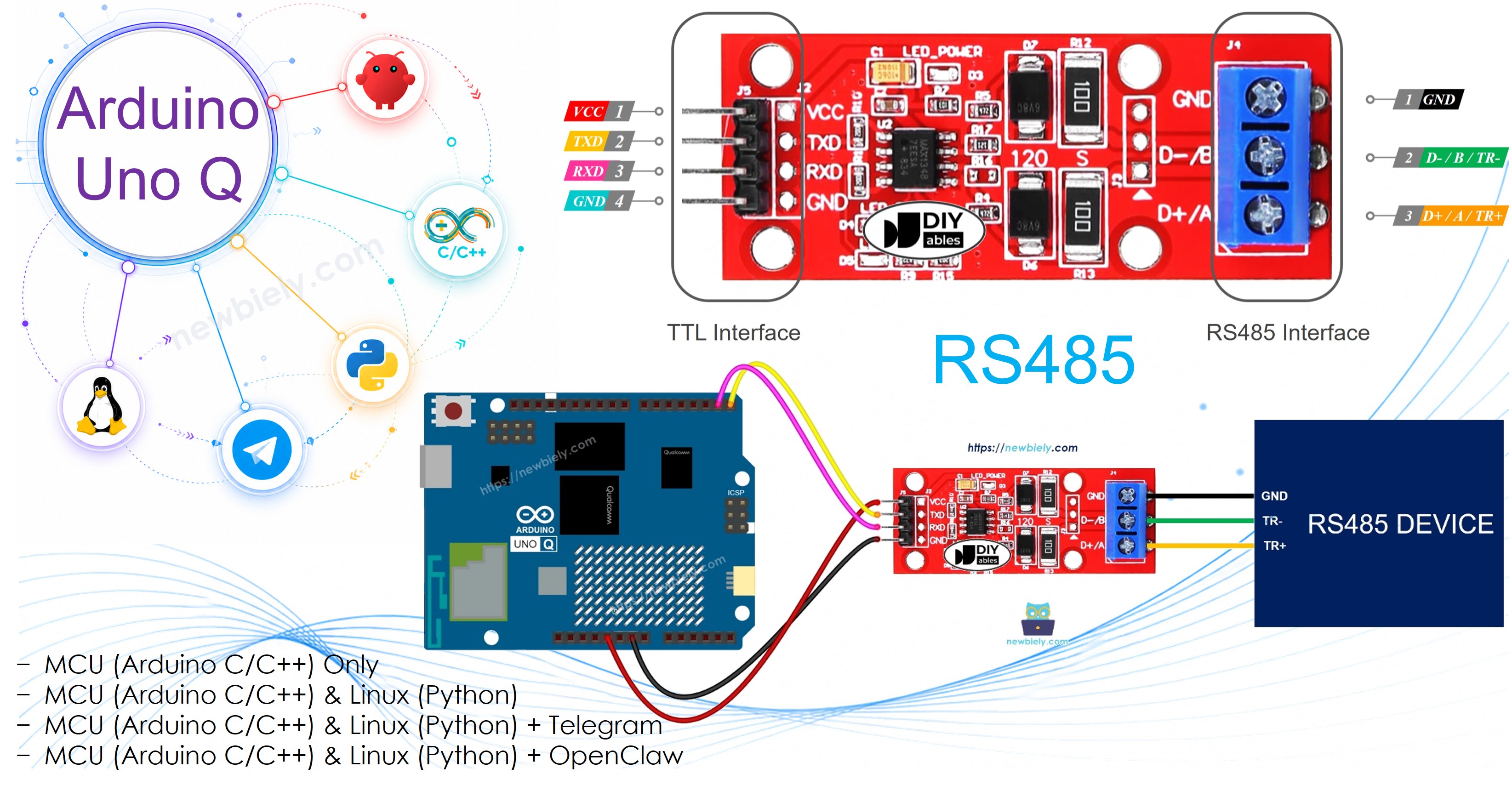
Arduino UNO Q RS485

Use RS485 serial communication with the Arduino UNO Q and a TTL-to-RS485 module. RS485 supports long-distance communication (up to 1200m), high noise immunity, and multi-device bus topologies — making it ideal for industrial and automation projects. With Bridge and Telegram, you can send and receive RS485 data remotely from Python or your phone.

In this tutorial, you will learn:

Arduino UNO Q RS485

Hardware Preparation

1×Arduino UNO Q
1×USB Cable for Arduino Uno Q
1×TTL to RS485 Module
1×Jumper Wires
1×Optionally, USB to RS485 Converter
1×Optionally, USB to RS485 Cable
1×Recommended: Screw Terminal Block Shield for Arduino Uno
1×Recommended: Sensors/Servo Expansion Shield for Arduino Uno
1×Recommended: Breadboard Shield for Arduino Uno
1×Recommended: Enclosure for Arduino Uno
1×Recommended: Prototyping Base Plate & Breadboard Kit for Arduino UNO

Or you can buy the following kits:

1×DIYables Sensor Kit (18 sensors/displays)
Disclosure: Some of the links provided in this section are Amazon affiliate links. We may receive a commission for any purchases made through these links at no additional cost to you.
Additionally, some of these links are for products from our own brand, DIYables .

Overview of the TTL to RS485 Module

The Arduino UNO Q MCU communicates over UART using TTL logic levels (3.3V). TTL signals are limited in range. To communicate over long distances with RS485-compatible devices (sensors, drives, meters, industrial controllers), you need to convert TTL signals to the differential RS485 standard. The TTL-to-RS485 module performs this conversion in both directions.

RS485 key advantages:

  • Long distance: up to 1200 meters
  • High noise immunity
  • Multi-drop bus: up to 32 devices on a single bus
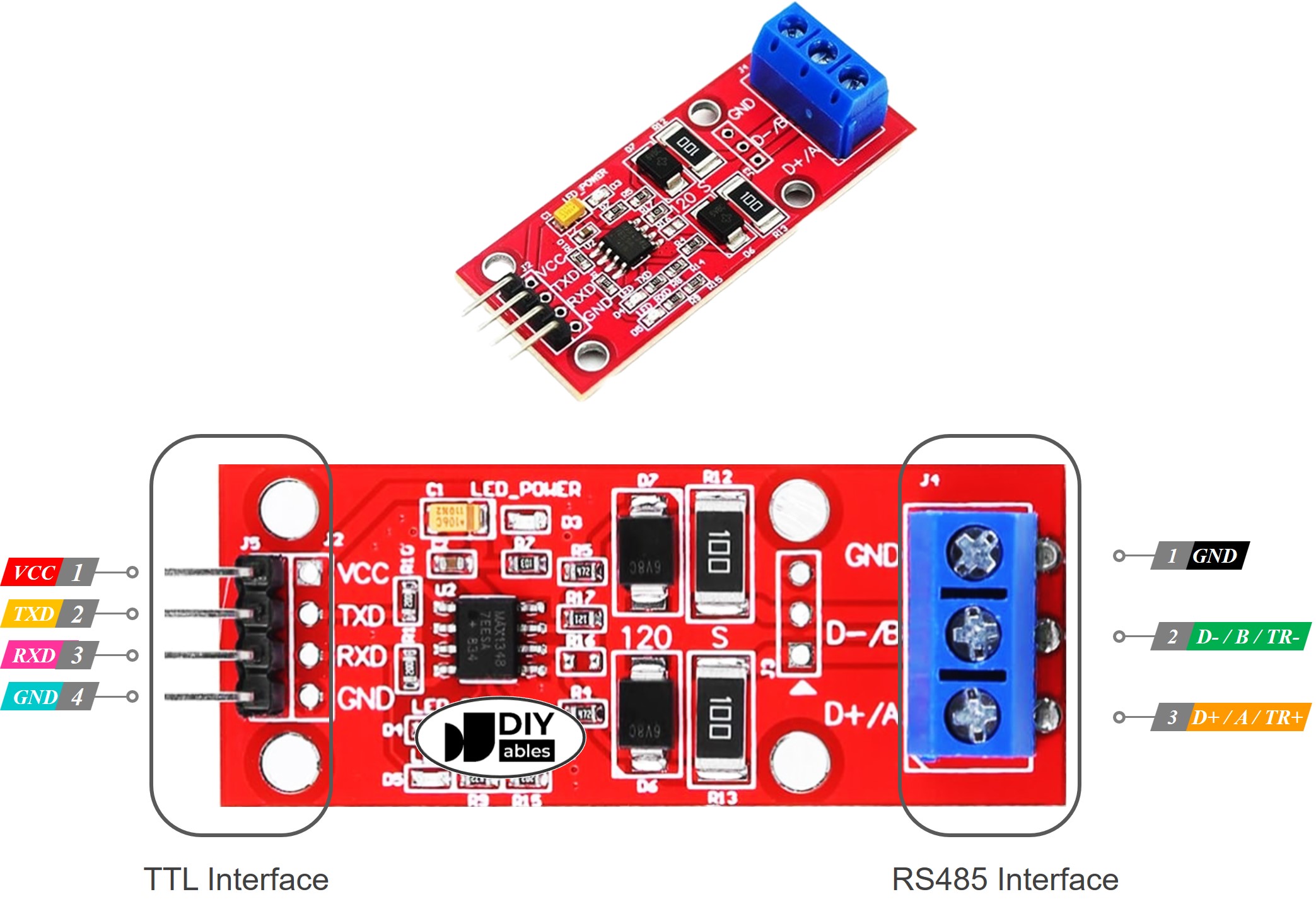
RS485 Module Pinout

Pinout

  • TTL interface (connects to Arduino UNO Q MCU):
    • VCC: Power — connect to 3.3V
    • GND: Ground
    • RXD: Data input — connect to MCU TX pin (D6)
    • TXD: Data output — connect to MCU RX pin (D7)
  • RS485 interface:
    • D+ (A or TR+): Differential data line A
    • D- (B or TR-): Differential data line B
    • GND: Optional — connect for noise reduction

Wiring Diagram
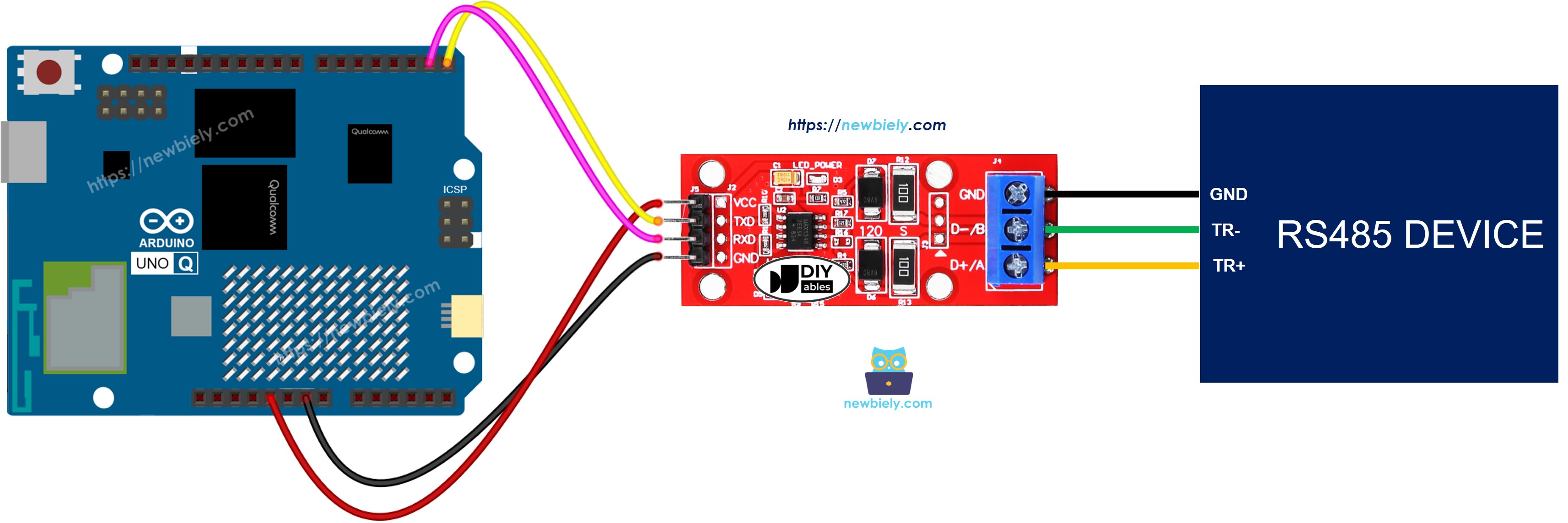
The wiring diagram between Arduino UNO Q TTL to RS485 Module

This image is created using Fritzing. Click to enlarge image

TTL-to-RS485 Module Pin Arduino UNO Q MCU Pin Note
VCC 3.3V
GND GND
RXD D6 (MCU TX)
TXD D7 (MCU RX)

Connect D+ and D- to the RS485 bus. When testing with a PC, connect them to a USB-to-RS485 adapter.

How To Program For RS485

  • Include SoftwareSerial and create an RS485 serial object:
#include <SoftwareSerial.h> SoftwareSerial rs485(7, 6); // RX: D7, TX: D6
  • Read incoming RS485 data:
if (rs485.available()) { char data = rs485.read(); }
  • Send data over RS485:
rs485.print("Hello from Arduino UNO Q"); rs485.println("With newline");

Arduino UNO Q Code

/* * This Arduino UNO Q code was developed by newbiely.com * * This Arduino UNO Q code is made available for public use without any restriction * * For comprehensive instructions and wiring diagrams, please visit: * https://newbiely.com/tutorials/arduino-uno-q/arduino-uno-q-rs485 */ // COPYRIGHT newbiely.com // AUTHOR: newbiely // This code is made available for public use without restriction. // For complete instructions, tutorials, and further information, visit: // https://newbiely.com/tutorials/arduino-uno-q/arduino-uno-q-rs485 #include <SoftwareSerial.h> SoftwareSerial rs485(7, 6); // RX: D7, TX: D6 void setup() { Monitor.begin(9600); // USB serial for debug output rs485.begin(9600); // RS485 module serial delay(100); } void loop() { // Forward data from RS485 to Monitor if (rs485.available()) { char data = rs485.read(); Monitor.print(data); rs485.print(data); // echo back to sender } // Forward data from Monitor to RS485 if (Monitor.available()) { char data = Monitor.read(); rs485.print(data); } }

Detailed Instructions

First time with Arduino UNO Q? Follow the Getting Started with Arduino UNO Q tutorial before proceeding.

  • Connect: Wire the TTL-to-RS485 module to the Arduino UNO Q MCU as shown in the wiring diagram.
  • Open Arduino App Lab: Launch Arduino App Lab and wait until it detects your Arduino UNO Q.
  • Create a new App: Click the Create New App button.

Create New App in Arduino App Lab on Arduino UNO Q
  • Give the App a name, for example: RS485
  • Click Create to confirm.
Arduino App Lab App folders and files on Arduino UNO Q
  • Paste the sketch: Copy the MCU code above and paste it into sketch/sketch.ino.
  • Upload: Click the Run button in Arduino App Lab.

Click Run button in Arduino App Lab on Arduino UNO Q

Testing

To test RS485 communication:

  • Connect the D+ and D- pins to a USB-to-RS485 adapter:
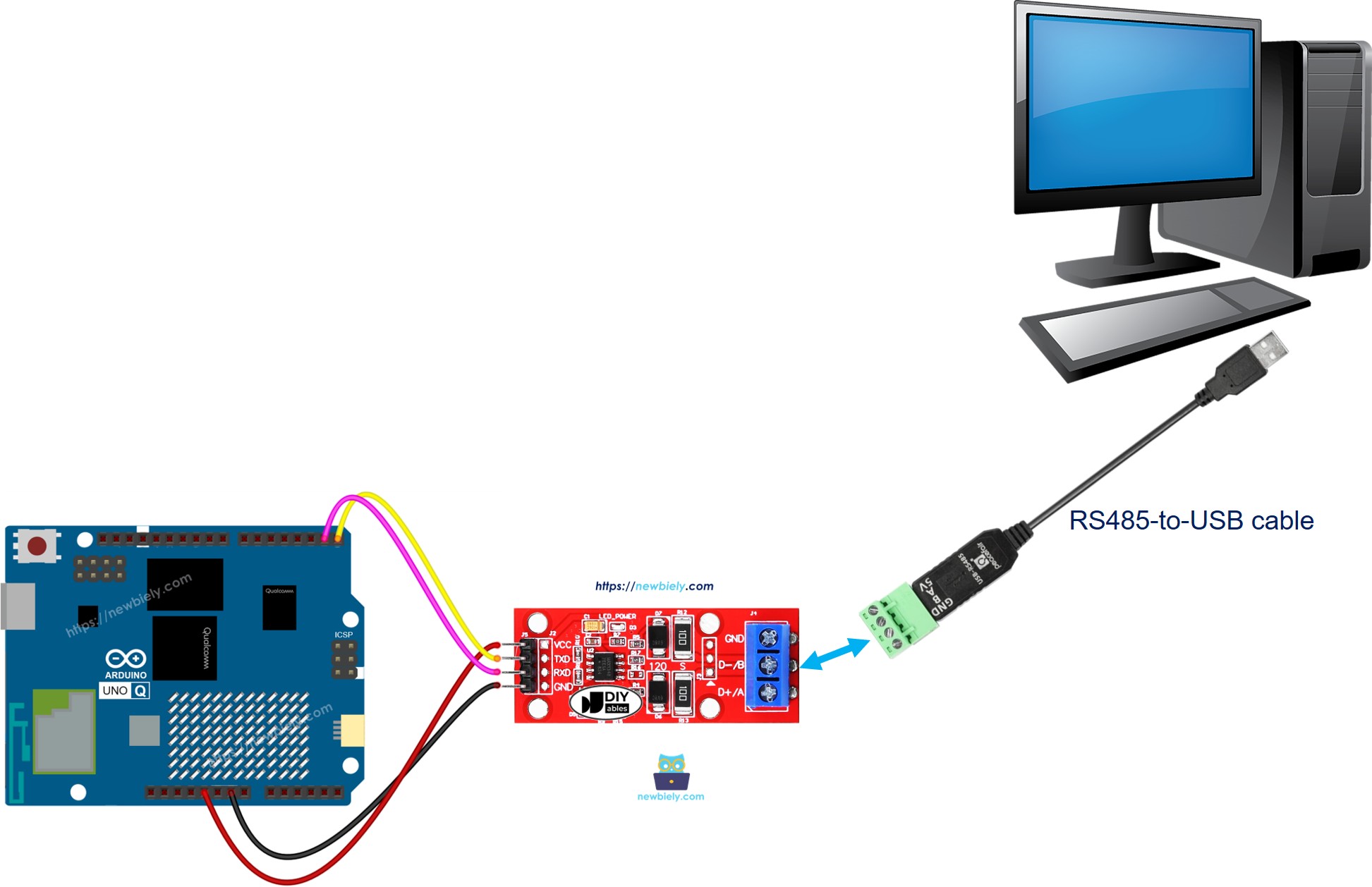
Arduino UNO Q RS485 to PC communication
  • Open a Serial Terminal (such as Tera Term or PuTTY) on your PC.
  • Set the baud rate to 9600, select the correct COM port.
  • Type any text and send it. The Arduino UNO Q will echo it back — you should see the echoed data in the terminal.

Bridge: Linux + MCU

This section shows how to send and receive RS485 data from the Linux side (Python) via Bridge:

  • The TTL-to-RS485 module is connected to the MCU via SoftwareSerial — the MCU handles all serial I/O
  • The MPU cannot use SoftwareSerial directly — it calls Bridge functions to send/receive RS485 data
  • The MPU has Wi-Fi — running full Debian Linux, it can relay RS485 data to Telegram or web services
  • Arduino_RouterBridge enables RPC communication between the two processors
  • ⚠️ /dev/ttyHS1 (Linux) and Serial1 (MCU) are RESERVED by the router — never open them in user code

MCU Code (Bridge)

/* * This Arduino UNO Q code was developed by newbiely.com * * This Arduino UNO Q code is made available for public use without any restriction * * For comprehensive instructions and wiring diagrams, please visit: * https://newbiely.com/tutorials/arduino-uno-q/arduino-uno-q-rs485 */ // COPYRIGHT newbiely.com // AUTHOR: newbiely // This code is made available for public use without restriction. // For complete instructions, tutorials, and further information, visit: // https://newbiely.com/tutorials/arduino-uno-q/arduino-uno-q-rs485 #include "Arduino_RouterBridge.h" #include <SoftwareSerial.h> SoftwareSerial rs485(7, 6); // RX: D7, TX: D6 String received_data = ""; String send_rs485(String arg) { rs485.println(arg); Monitor.print("Sent via RS485: "); Monitor.println(arg); return "ok:sent"; } String get_received(String arg) { String result = received_data; received_data = ""; return result; } void setup() { Bridge.begin(); Monitor.begin(); rs485.begin(9600); delay(100); Bridge.provide_safe("send_rs485", send_rs485); Bridge.provide("get_received", get_received); Monitor.println("Arduino UNO Q RS485 Bridge ready"); } void loop() { while (rs485.available()) { char c = rs485.read(); received_data += c; } }

Python Code (Bridge)

/* * This Arduino UNO Q code was developed by newbiely.com * * This Arduino UNO Q code is made available for public use without any restriction * * For comprehensive instructions and wiring diagrams, please visit: * https://newbiely.com/tutorials/arduino-uno-q/arduino-uno-q-rs485 */ # COPYRIGHT newbiely.com # AUTHOR: newbiely # This code is made available for public use without restriction. # For complete instructions, tutorials, and further information, visit: # https://newbiely.com/tutorials/arduino-uno-q/arduino-uno-q-rs485 from arduino.app_utils import * import time def loop(): print("Sending message via RS485...") result = Bridge.call("send_rs485", "Hello from Arduino UNO Q!") print(f"Result: {result}") time.sleep(1) data = Bridge.call("get_received") if data: print(f"Received via RS485: {data}") else: print("No data received") time.sleep(2) App.run(user_loop=loop)

Detailed Instructions

  • Connect: Wire the TTL-to-RS485 module to the Arduino UNO Q as shown above.
  • Open Arduino App Lab and create a new App named RS485Bridge.
  • Paste the MCU sketch into sketch/sketch.ino.
  • Paste the Python code into the Python file.
  • Install the library: Click the Add sketch library button (the open book icon with a + sign) in the left sidebar.

Add sketch library in Arduino App Lab on Arduino UNO Q
  • Search for Arduino_RouterBridge created by Arduino and click the Install button.
My Apps / DIYables Apps
Run
Bricks
No bricks added...
Sketch Libraries
No sketch libra...
Files
python
sketch
.gitignore
README.md
app.yaml
sketch.ino
Add sketch library
Arduino_RouterBridge Arduino

This library provides a simple RPC bridge for Arduino UNO Q boards, allowing communication between the board and other devices using MsgPack serialization.

0.4.1
Install
More Info
  • Upload: Click the Run button. Python will send a message via RS485 and read back any echoed data.
Click Run button in Arduino App Lab on Arduino UNO Q

App Lab Console Output

DIYables_Apps
Stop
sketch.ino
1#include "Arduino_RouterBridge.h"
Serial Monitor
Python
Message (Enter to send a message to "Newbiely" on usb(2820070321))
New Line
9600 baud
[2026-04-29 09:00:01] Arduino UNO Q RS485 Bridge ready [2026-04-29 09:00:06] Sent via RS485: Hello from Arduino UNO Q!
DIYables_Apps
Stop
sketch.ino
1#include "Arduino_RouterBridge.h"
Serial Monitor
Python
[2026-04-29 09:00:06] Sending message via RS485... [2026-04-29 09:00:06] Result: ok:sent [2026-04-29 09:00:07] Received via RS485: Hello from Arduino UNO Q!

Telegram

Send and receive RS485 data through Telegram — forward messages from industrial sensors to your phone or send commands from Telegram to an RS485 device.

MCU sketch: Keep the same MCU sketch from the previous Bridge section.

Python Code (Telegram)

/* * This Arduino UNO Q code was developed by newbiely.com * * This Arduino UNO Q code is made available for public use without any restriction * * For comprehensive instructions and wiring diagrams, please visit: * https://newbiely.com/tutorials/arduino-uno-q/arduino-uno-q-rs485 */ # COPYRIGHT newbiely.com # AUTHOR: newbiely # This code is made available for public use without restriction. # For complete instructions, tutorials, and further information, visit: # https://newbiely.com/tutorials/arduino-uno-q/arduino-uno-q-rs485 from arduino.app_utils import * import requests import time TELEGRAM_BOT_TOKEN = "YOUR_TELEGRAM_BOT_TOKEN" CHAT_ID = "YOUR_CHAT_ID" last_update_id = 0 def get_updates(): global last_update_id url = f"https://api.telegram.org/bot{TELEGRAM_BOT_TOKEN}/getUpdates" params = {"offset": last_update_id + 1, "timeout": 5} try: response = requests.get(url, params=params, timeout=10) data = response.json() if data["ok"]: return data["result"] except Exception as e: print(f"Error getting updates: {e}") return [] def send_message(chat_id, text): url = f"https://api.telegram.org/bot{TELEGRAM_BOT_TOKEN}/sendMessage" payload = {"chat_id": chat_id, "text": text} try: requests.post(url, data=payload, timeout=10) except Exception as e: print(f"Error sending message: {e}") def loop(): updates = get_updates() for update in updates: last_update_id = update["update_id"] if "message" not in update: continue message = update["message"] chat_id = message["chat"]["id"] text = message.get("text", "").strip() print(f"Received: {text}") if text == "/start": send_message(chat_id, "Arduino UNO Q RS485 Bot\n" "/send <message> - Send a message via RS485\n" "/read - Read data received from RS485") elif text.startswith("/send"): parts = text.split(" ", 1) if len(parts) < 2: send_message(chat_id, "Usage: /send <message>") else: result = Bridge.call("send_rs485", parts[1]) send_message(chat_id, f"Sent via RS485: {parts[1]}") elif text == "/read": data = Bridge.call("get_received") if data: send_message(chat_id, f"Received via RS485:\n{data}") else: send_message(chat_id, "No data received yet.") else: send_message(chat_id, "Unknown command. Send /start for help.") time.sleep(0.3) App.run(user_loop=loop)

Detailed Instructions

  • Replace YOUR_TELEGRAM_BOT_TOKEN with your actual bot token from BotFather.
  • Replace YOUR_CHAT_ID with your Telegram chat ID.
  • Paste the Python code into your App's Python file (keep the same MCU sketch).
  • Click the Run button — send /send Hello in Telegram to transmit data over RS485.

App Lab Console Output

DIYables_Apps
Stop
sketch.ino
1#include "Arduino_RouterBridge.h"
Serial Monitor
Python
[2026-04-29 09:10:05] Received: /send Hello RS485 device! [2026-04-29 09:10:09] Received: /read
Telegram
Telegram 12:45
Welcome to Telegram!
ArduinoBot 10:19
Chatting with Arduino...
telegram-botfather
BotFather Yesterday
Your bot has been created.

ArduinoBot

bot
Today
/send Hello RS485 device!
10:15 AM ✓✓
Sent via RS485: Hello RS485 device!
10:16 AM
/read
10:17 AM ✓✓
Received via RS485: Hello RS485 device!
10:18 AM

OpenClaw

...OPENCLAW

OpenClaw support for Arduino UNO Q RS485 is coming soon.

...OPENCLAW

Project Ideas

You can build many useful projects with RS485 communication and Arduino UNO Q:

  • Industrial Sensor Network: Connect multiple RS485 sensors (temperature, humidity, flow) on a single bus; the MCU polls each device by address, collects readings, and Python sends periodic summaries to Telegram
  • Modbus RTU Data Logger: Use the RS485 bus to read Modbus RTU registers from an energy meter or VFD; Python logs the data to a file and sends alerts when values exceed thresholds
  • Long-Distance Relay Control: Run RS485 wire over 100m to a remote relay board; send /send RELAY_ON from Telegram and the Arduino UNO Q forwards the command over RS485 to trigger the relay
  • Access Control Panel: Connect an RS485 access controller to the module; the MCU reads door events, and Python forwards them as Telegram notifications — showing which door opened and when
  • Building Automation Gateway: Bridge RS485 HVAC or lighting controllers to the internet; Python translates Telegram commands into RS485 command strings and sends them via the send_rs485 Bridge function

Challenge Yourself

Ready to go further with RS485 on Arduino UNO Q? Try these challenges:

  • Easy: Extend the Bridge sketch to accumulate received bytes into lines (using \n as delimiter) and expose the most recent complete line via get_last_line — preventing partial reads when RS485 data arrives in chunks.
  • Medium: Implement a Modbus-style address filter: modify the MCU receive loop to only accept messages that start with a specific device address byte (e.g., 0x01), buffering only valid frames — and expose the filtered payload via get_received.
  • Advanced: Build a multi-device polling system: store a list of RS485 device addresses in a Python JSON config; Python sequentially sends a query command to each address via send_rs485, waits for a reply via get_received, and logs each response to a timestamped CSV file — creating a lightweight RS485 data logger running entirely on the Arduino UNO Q Linux side.

※ OUR MESSAGES

  • As freelancers, We are AVAILABLE for HIRE. See how to outsource your project to us
  • Please feel free to share the link of this tutorial. However, Please do not use our content on any other websites. We invested a lot of effort and time to create the content, please respect our work!