Arduino UNO Q - Rotary Encoder

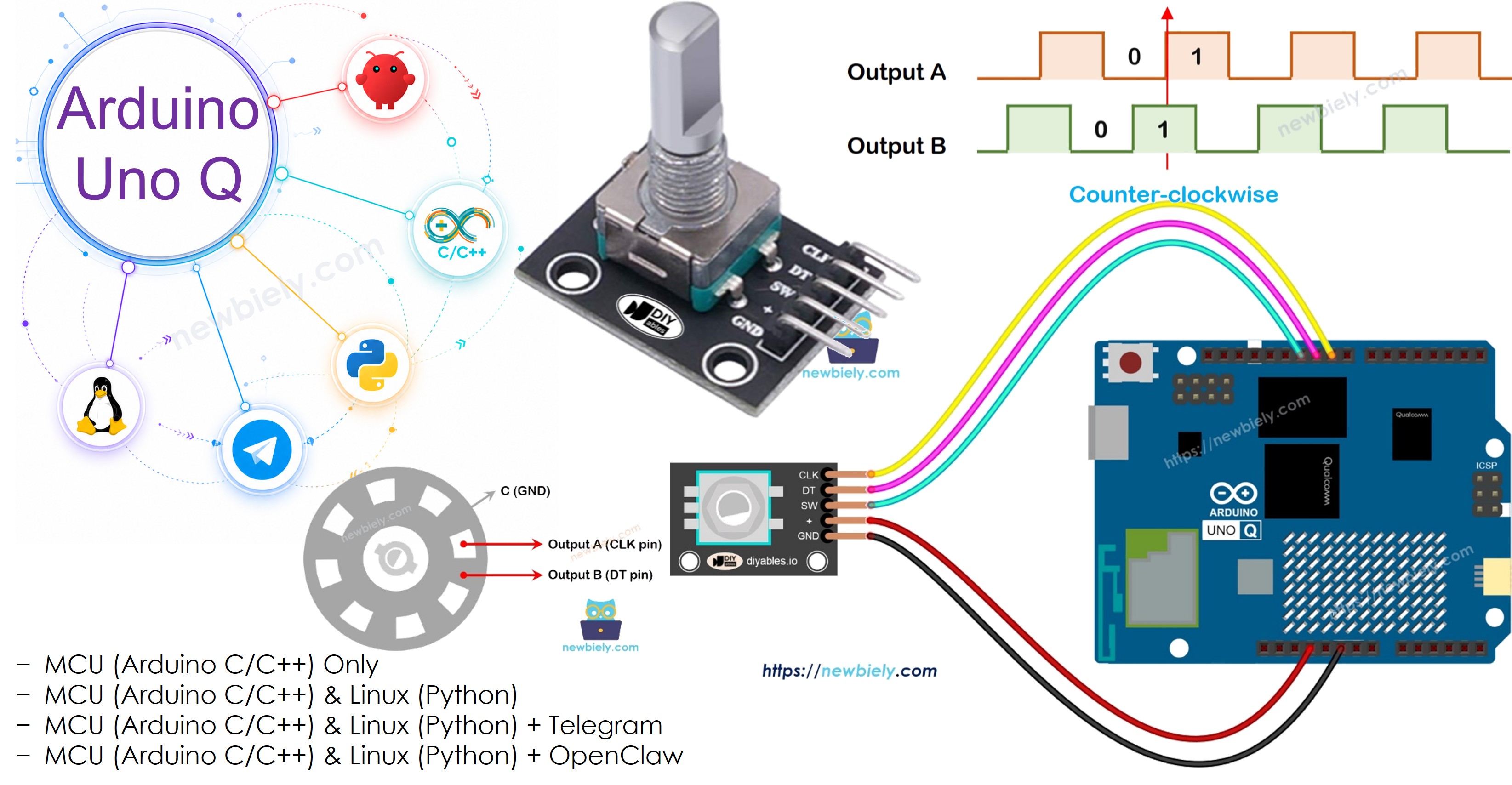
A rotary encoder detects rotational motion and direction. Unlike a potentiometer, it can rotate continuously without a limit. In this tutorial, you will learn how to connect a rotary encoder to Arduino UNO Q, count rotation steps, detect direction, and check the counter remotely via Telegram.
Arduino UNO Q - Rotary Encoder

Hardware Preparation

1×Arduino UNO Q
1×USB Cable for Arduino Uno Q
1×Rotary Encoder
1×Jumper Wires
1×Recommended: Screw Terminal Block Shield for Arduino Uno
1×Recommended: Sensors/Servo Expansion Shield for Arduino Uno
1×Recommended: Breadboard Shield for Arduino Uno
1×Recommended: Enclosure for Arduino Uno
1×Recommended: Prototyping Base Plate & Breadboard Kit for Arduino UNO

Or you can buy the following kits:

1×DIYables Sensor Kit (18 sensors/displays)
Disclosure: Some of the links provided in this section are Amazon affiliate links. We may receive a commission for any purchases made through these links at no additional cost to you.
Additionally, some of these links are for products from our own brand, DIYables .

Overview of Rotary Encoder

Pinout

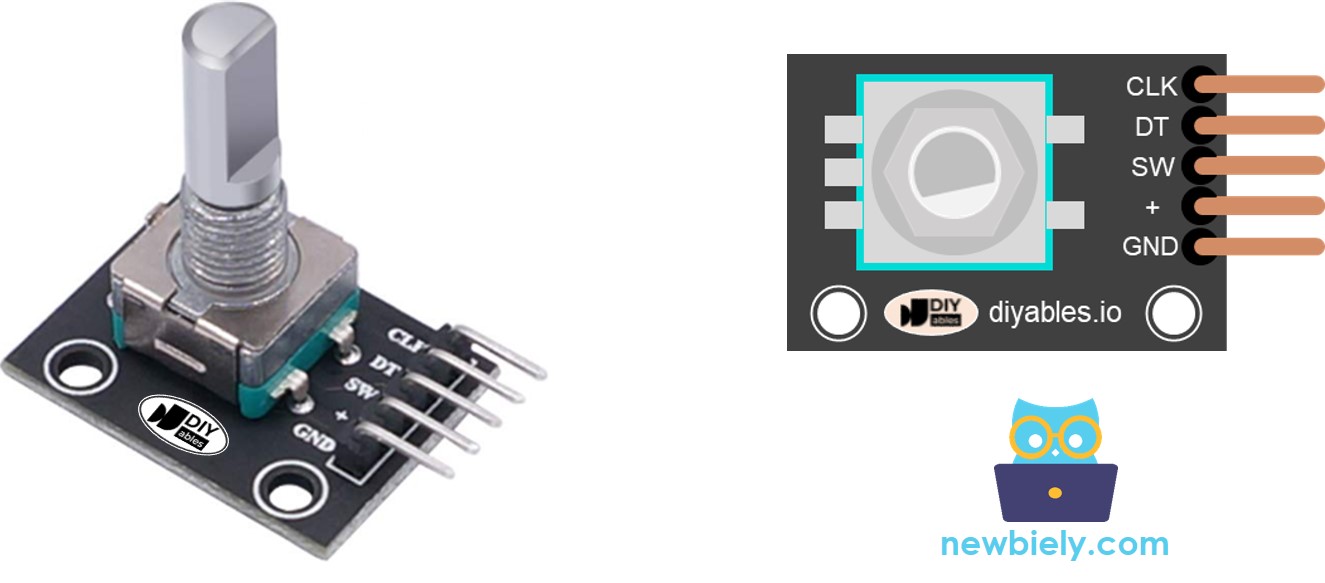
A rotary encoder module typically has 5 pins:

  • CLK (Output A): Pulses once per detent click (LOW→HIGH→LOW)
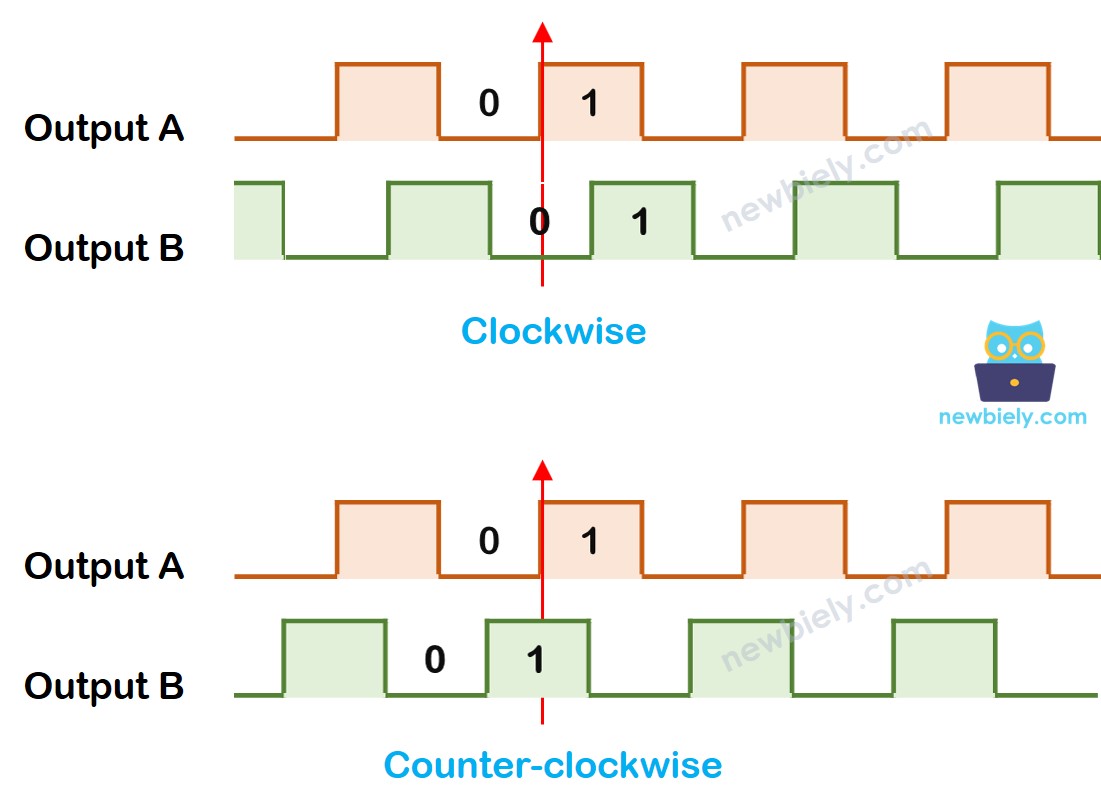
  • DT (Output B): Same pulse as CLK but delayed 90°; used to detect direction
  • SW: Built-in pushbutton (LOW when pressed, HIGH when released via pull-up)
  • VCC (+): 3.3V or 5V
  • GND: Ground
Rotary Encoder Pinout

Rotary Encoder vs Potentiometer

  • A rotary encoder spins continuously in both directions; a potentiometer is limited to ~270°
  • A rotary encoder outputs pulses (digital); a potentiometer outputs voltage (analog)
  • Use an encoder when you need to track how much something turned; use a potentiometer when you need to know absolute position

How It Works
Rotary Encoder Output

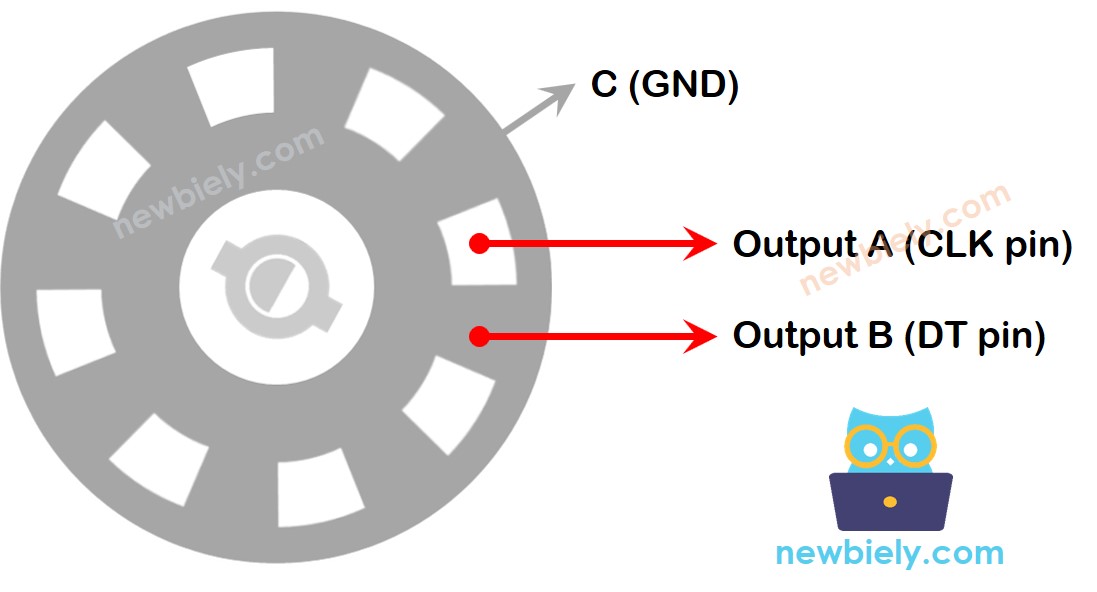
When the knob turns, CLK and DT pulse alternately. The 90° phase difference between them tells the direction:

  • CLK rises from LOW to HIGH:
    • DT is LOW → Clockwise rotation → increment counter
    • DT is HIGH → Counter-clockwise rotation → decrement counter
    How Rotary Encoder Works

    How To Program

    • Detect when CLK transitions from LOW to HIGH
    • Read DT to determine direction
    • Update a counter: +1 for clockwise, -1 for counter-clockwise
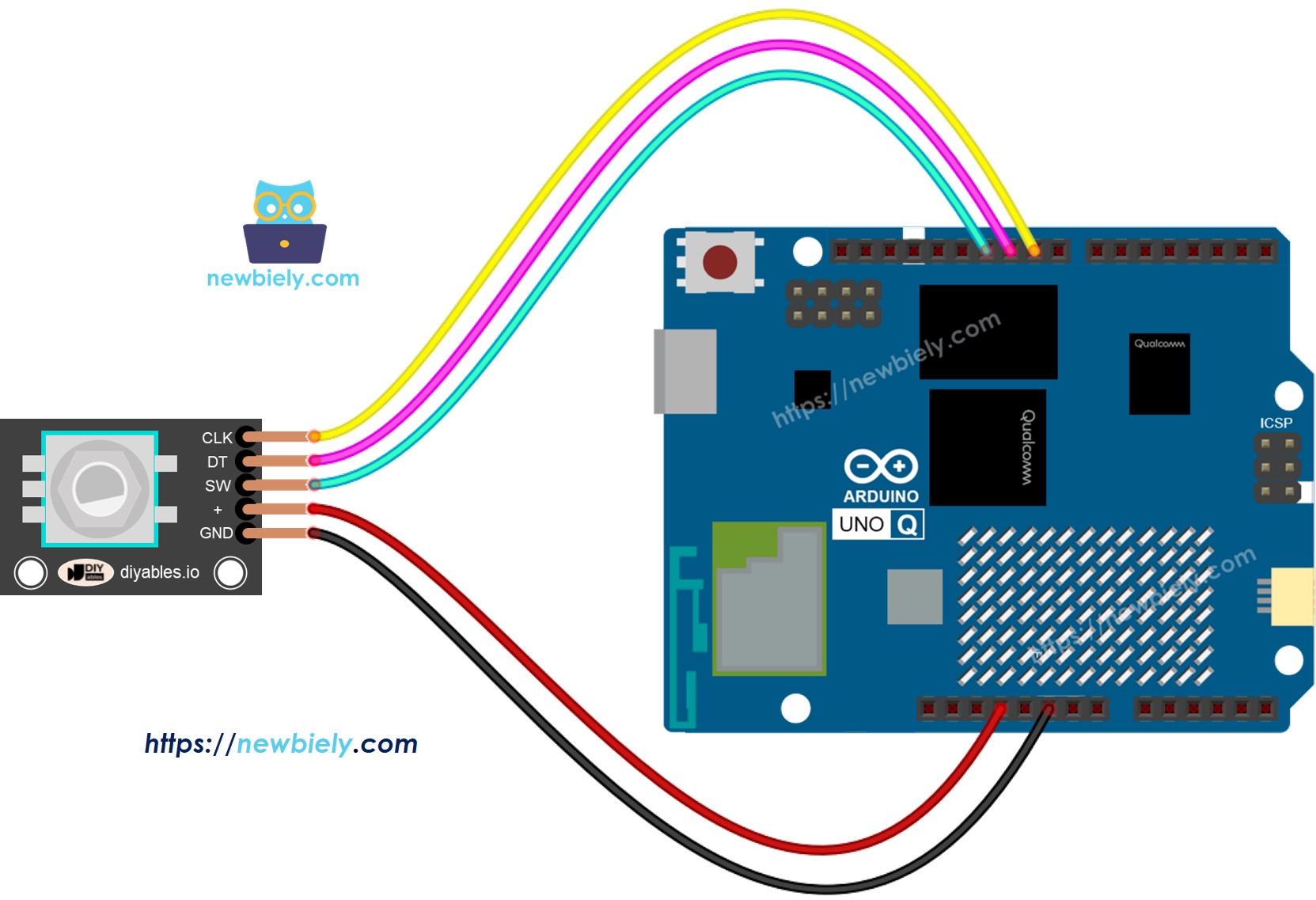
Wiring Diagram

The wiring diagram between Arduino UNO Q Rotary Encoder

This image is created using Fritzing. Click to enlarge image

MCU Code — Rotary Encoder (Polling)

The Arduino UNO Q has two processors: the STM32 MCU (handles real-time hardware control) and the Qualcomm MPU (runs Debian Linux). In this section, only the STM32 MCU is programmed — the Linux side stays idle. A later section will show how both processors work together.

This version uses polling to detect CLK transitions. It is simple but may miss counts if loop() runs slowly:

/* * This Arduino UNO Q code was developed by newbiely.com * * This Arduino UNO Q code is made available for public use without any restriction * * For comprehensive instructions and wiring diagrams, please visit: * https://newbiely.com/tutorials/arduino-uno-q/arduino-uno-q-rotary-encoder */ #include <ezButton.h> #define CLK_PIN 2 // pin connected to CLK of encoder #define DT_PIN 3 // pin connected to DT of encoder #define SW_PIN 4 // pin connected to SW of encoder #define DIRECTION_CW 0 #define DIRECTION_CCW 1 int counter = 0; int direction = DIRECTION_CW; int CLK_state; int prev_CLK_state; ezButton button(SW_PIN); // create ezButton object for SW pin void setup() { pinMode(CLK_PIN, INPUT); pinMode(DT_PIN, INPUT); button.setDebounceTime(50); prev_CLK_state = digitalRead(CLK_PIN); } void loop() { button.loop(); CLK_state = digitalRead(CLK_PIN); if (CLK_state != prev_CLK_state && CLK_state == HIGH) { if (digitalRead(DT_PIN) == HIGH) { counter--; direction = DIRECTION_CCW; } else { counter++; direction = DIRECTION_CW; } // TO DO: use counter and direction here } prev_CLK_state = CLK_state; if (button.isPressed()) { // TO DO: button pressed action here } }

Detailed Instructions

  • First time with Arduino UNO Q? Follow the Getting Started with Arduino UNO Q tutorial to get your development environment ready before proceeding.
  • Wire the encoder: Connect CLK to pin 2, DT to pin 3, SW to pin 4, VCC to 3.3V, GND to GND.
  • Connect: Plug the Arduino UNO Q into your computer with a USB-C cable.
  • Open Arduino App Lab: Launch Arduino App Lab and wait until it detects your Arduino UNO Q.
  • Create a new App: Click the Create New App button.

Create New App in Arduino App Lab on Arduino UNO Q
  • Give the App a name, for example: DIYables_RotaryEncoder
  • Click Create to confirm.
  • You will see a set of folders and files generated inside your new App.

Arduino App Lab App folders and files on Arduino UNO Q
  • Find the sketch/sketch.ino file — this is where you will paste the MCU sketch.
  • Paste the sketch: Copy the MCU code above and paste it into the sketch file. Keep other files as default.
    • Install the library: Click the Add sketch library button (the open book icon with a + sign) in the left sidebar.

    Add sketch library in Arduino App Lab on Arduino UNO Q
    • Search for ezButton created by ArduinoGetStarted.com and click the Install button.
    My Apps / DIYables Apps
    Run
    Bricks
    No bricks added...
    Sketch Libraries
    No sketch libra...
    Files
    python
    sketch
    .gitignore
    README.md
    app.yaml
    sketch.ino
    Add sketch library
    ezButton ArduinoGetStarted.com

    Button library supports debounce, pressed/released events and the press counting. It is easy to use with multiple buttons. The library can be used for push-button, momentary switches, toggle switch, magnetic contact switch (door sensor)... It is designed for not only beginners but also experienced users.

    1.0.6
    Install
    More Info
    • Search for Arduino_RouterBridge created by Arduino and click the Install button.
    My Apps / DIYables Apps
    Run
    Bricks
    No bricks added...
    Sketch Libraries
    No sketch libra...
    Files
    python
    sketch
    .gitignore
    README.md
    app.yaml
    sketch.ino
    Add sketch library
    Arduino_RouterBridge Arduino

    This library provides a simple RPC bridge for Arduino UNO Q boards, allowing communication between the board and other devices using MsgPack serialization.

    0.4.1
    Install
    More Info
    • Upload: Click the Run button in Arduino App Lab to compile and upload to the STM32.

    Click Run button in Arduino App Lab on Arduino UNO Q
    • Rotate the knob clockwise and counter-clockwise. Counter changes are logged via Bridge Monitor in the next section.
    • Press the knob button — a button press event fires.

    MCU Code — Rotary Encoder (Interrupt-based)

    Using a hardware interrupt on the CLK pin ensures no rotation counts are missed, even when loop() is busy:

    /* * This Arduino UNO Q code was developed by newbiely.com * * This Arduino UNO Q code is made available for public use without any restriction * * For comprehensive instructions and wiring diagrams, please visit: * https://newbiely.com/tutorials/arduino-uno-q/arduino-uno-q-rotary-encoder */ #include <ezButton.h> #define CLK_PIN 2 // pin connected to CLK of encoder #define DT_PIN 3 // pin connected to DT of encoder #define SW_PIN 4 // pin connected to SW of encoder #define DIRECTION_CW 0 #define DIRECTION_CCW 1 volatile int counter = 0; volatile int direction = DIRECTION_CW; volatile unsigned long last_time = 0; int prev_counter; ezButton button(SW_PIN); void ISR_encoderChange() { if ((millis() - last_time) < 50) return; if (digitalRead(DT_PIN) == HIGH) { counter--; direction = DIRECTION_CCW; } else { counter++; direction = DIRECTION_CW; } last_time = millis(); } void setup() { pinMode(CLK_PIN, INPUT); pinMode(DT_PIN, INPUT); button.setDebounceTime(50); attachInterrupt(digitalPinToInterrupt(CLK_PIN), ISR_encoderChange, RISING); } void loop() { button.loop(); if (prev_counter != counter) { // TO DO: use counter and direction here prev_counter = counter; } if (button.isPressed()) { // TO DO: button pressed action here } }

    Detailed Instructions

    • Use the same wiring and App from the previous example.
    • Replace the sketch with the interrupt version and click Run.
    • Rotate the knob and press the button — results logged via Bridge Monitor.

    Linux + MCU Bridge Programming

    The Arduino UNO Q has two processors that work together: the MPU (Qualcomm, runs Debian Linux) and the MCU (STM32, runs Zephyr OS with your Arduino sketch). They communicate using RPC via the Arduino_RouterBridge library — never via raw serial ports.

    • The rotary encoder is connected to the MCU (STM32) — wired to digital pins with interrupt support. The MCU tracks the counter and direction in real time.
    • The MPU cannot read the encoder directly — it must request the counter value from the MCU via Bridge.call(). The MCU responds immediately.
    • The MPU has Wi-Fi — because the MPU runs full Debian Linux with Wi-Fi, it can report the encoder counter via Telegram on demand.
    • Communication: Bridge.call() on the Linux side invokes Bridge.provide() functions on the MCU side
    • ⚠️ Reserved: /dev/ttyHS1 (Linux) and Serial1 (MCU) are used by the Arduino Router — never open them directly

    In short: MPU requests counter → MCU reads current count and direction → MCU reports values → MPU logs or forwards it.

    MCU sketch — rotary encoder with Bridge and Monitor output:

    /* * This Arduino UNO Q code was developed by newbiely.com * * This Arduino UNO Q code is made available for public use without any restriction * * For comprehensive instructions and wiring diagrams, please visit: * https://newbiely.com/tutorials/arduino-uno-q/arduino-uno-q-rotary-encoder */ #include "Arduino_RouterBridge.h" #include <ezButton.h> #define CLK_PIN 2 #define DT_PIN 3 #define SW_PIN 4 #define DIRECTION_CW 0 #define DIRECTION_CCW 1 volatile int counter = 0; volatile int direction = DIRECTION_CW; volatile unsigned long last_time = 0; int prev_counter; ezButton button(SW_PIN); void get_counter() { Monitor.print("Counter: "); Monitor.print(counter); Monitor.print(", Direction: "); Monitor.println(direction == DIRECTION_CW ? "Clockwise" : "Counter-clockwise"); } void reset_counter() { counter = 0; Monitor.println("Counter reset to 0"); } void ISR_encoderChange() { if ((millis() - last_time) < 50) return; if (digitalRead(DT_PIN) == HIGH) { counter--; direction = DIRECTION_CCW; } else { counter++; direction = DIRECTION_CW; } last_time = millis(); } void setup() { pinMode(CLK_PIN, INPUT); pinMode(DT_PIN, INPUT); button.setDebounceTime(50); attachInterrupt(digitalPinToInterrupt(CLK_PIN), ISR_encoderChange, RISING); Bridge.begin(); Monitor.begin(); Bridge.provide("get_counter", get_counter); Bridge.provide("reset_counter", reset_counter); Monitor.println("Rotary Encoder Bridge ready"); } void loop() { button.loop(); if (prev_counter != counter) { Monitor.print("DIRECTION: "); Monitor.print(direction == DIRECTION_CW ? "Clockwise" : "Counter-clockwise"); Monitor.print(" | COUNTER: "); Monitor.println(counter); prev_counter = counter; } if (button.isPressed()) { Monitor.println("Button pressed"); } }

    Python script (Arduino App Lab) — poll encoder counter from Linux:

    /* * This Arduino UNO Q code was developed by newbiely.com * * This Arduino UNO Q code is made available for public use without any restriction * * For comprehensive instructions and wiring diagrams, please visit: * https://newbiely.com/tutorials/arduino-uno-q/arduino-uno-q-rotary-encoder */ from arduino.app_utils import * import time def loop(): while True: Bridge.call("get_counter") time.sleep(2) App.run(user_loop=loop)
    • Note: Make sure Bridge.begin() is called in the MCU sketch and the sketch is uploaded before running the Python script on the Linux side.
    • ⚠️ Warning: Never directly open /dev/ttyHS1 (on Linux) or use Serial1 (on MCU) in your code — these are reserved by the Arduino Router and accessing them will break the Bridge.

    Detailed Instructions

    • Upload the MCU sketch: Open Arduino App Lab, create a new App, paste the Bridge MCU sketch above into sketch/sketch.ino, install the ezButton and Arduino_RouterBridge libraries, and click Run.
    • Add the Python script: Paste the Python code above into the Python tab of the same App.
    • Run the App: Click Run — the Python side polls the encoder counter every 2 seconds.
    • Rotate the encoder knob in both directions.
    • Check the console: Open the Console tab → MCU Monitor subtab to see counter changes logged in real time.

    App Lab Console Output

    DIYables_Apps
    Stop
    sketch.ino
    1#include "Arduino_RouterBridge.h"
    Serial Monitor
    Python
    Message (Enter to send a message to "Newbiely" on usb(2820070321))
    New Line
    9600 baud
    Rotary Encoder Bridge ready DIRECTION: Clockwise | COUNTER: 1 DIRECTION: Clockwise | COUNTER: 2 DIRECTION: Clockwise | COUNTER: 3 DIRECTION: Counter-clockwise | COUNTER: 2 DIRECTION: Counter-clockwise | COUNTER: 1 Button pressed

    Telegram Integration

    Check the encoder counter remotely from anywhere via Telegram.

    If you do not have a Telegram bot yet, see How to Create a Telegram Bot to get your bot token before continuing.

    MCU sketch: Keep the same MCU sketch from the previous Bridge section — no changes needed. Make sure it is already uploaded and running on the STM32 before proceeding.

    Python script (Arduino App Lab) — Telegram bot for encoder counter:

    /* * This Arduino UNO Q code was developed by newbiely.com * * This Arduino UNO Q code is made available for public use without any restriction * * For comprehensive instructions and wiring diagrams, please visit: * https://newbiely.com/tutorials/arduino-uno-q/arduino-uno-q-rotary-encoder */ from arduino.app_utils import * import requests import time BOT_TOKEN = "YOUR_BOT_TOKEN" API_URL = f"https://api.telegram.org/bot{BOT_TOKEN}" last_update_id = 0 def send_message(chat_id, text): requests.post(f"{API_URL}/sendMessage", json={"chat_id": chat_id, "text": text}) def get_updates(): global last_update_id resp = requests.get(f"{API_URL}/getUpdates", params={"offset": last_update_id + 1, "timeout": 5}) return resp.json().get("result", []) def loop(): global last_update_id updates = get_updates() for update in updates: last_update_id = update["update_id"] msg = update.get("message", {}) chat_id = msg.get("chat", {}).get("id") text = msg.get("text", "").strip() if text == "/count": counter = Bridge.call("get_counter") send_message(chat_id, counter) elif text == "/reset": Bridge.call("reset_counter") send_message(chat_id, "Encoder counter has been reset to 0.") else: send_message(chat_id, "Commands:\n/count — read encoder counter value\n/reset — reset counter to 0") time.sleep(1) App.run(user_loop=loop)
    • Note: Replace YOUR_BOT_TOKEN with the token obtained from @BotFather on Telegram.
    • Send /count to check the current encoder counter value.
    • Send /reset to reset the counter back to 0.

    Detailed Instructions

    • Upload the MCU sketch: Use the Bridge MCU sketch from the previous section (upload it first if not already done).
    • Paste the Telegram script: Copy the Python code above into the Python tab of your App in Arduino App Lab.
    • Set your token: Replace YOUR_BOT_TOKEN in the script with your actual bot token.
    • Run the App: Click Run — the bot starts listening for Telegram messages.
    • Test it: Rotate the encoder, send /count — the bot replies with the counter value and direction.

    App Lab Console Output

    DIYables_Apps
    Stop
    sketch.ino
    1#include "Arduino_RouterBridge.h"
    Serial Monitor
    Python
    [2026-04-29 12:00:01] Telegram: /count [2026-04-29 12:00:01] Counter: 5, Direction: Clockwise [2026-04-29 12:03:20] Telegram: /reset [2026-04-29 12:03:20] Encoder counter has been reset to 0.
    Telegram
    Telegram 12:45
    Welcome to Telegram!
    ArduinoBot 10:19
    Chatting with Arduino...
    telegram-botfather
    BotFather Yesterday
    Your bot has been created.

    ArduinoBot

    bot
    Today
    /count
    10:15 AM ✓✓
    Counter: 5, Direction: Clockwise
    10:16 AM
    /reset
    10:17 AM ✓✓
    Encoder counter has been reset to 0.
    10:18 AM

    OpenClaw Integration

    OpenClaw integration for Arduino UNO Q rotary encoder is coming soon.

    • Coming Soon: OpenClaw support for rotary encoder reading on Arduino UNO Q will be covered in a future update.

    Application/Project Ideas

    • Remote volume control: Map encoder rotation to audio volume levels — check current level via Telegram
    • Step counter: Count encoder pulses to measure movement in a mechanical system — report via Telegram
    • Menu navigator: Use encoder rotation to cycle through options in a remote menu driven from the MPU
    • Position tracker: Track absolute position by counting steps from a known home position
    • Speed dial: Rotate encoder to set a target speed for a motor — confirm setting via Telegram

    Challenge Yourself

    • Easy: Add a buzzer that beeps once each time the encoder button is pressed
    • Medium: Expose separate callbacks for get_counter(), get_direction(), and get_button_count()
    • Advanced: Build a Telegram bot that automatically sends an alert when the counter exceeds a configurable threshold — store the threshold in a Python variable settable via Telegram

    Learn More

    ※ OUR MESSAGES

    • As freelancers, We are AVAILABLE for HIRE. See how to outsource your project to us
    • Please feel free to share the link of this tutorial. However, Please do not use our content on any other websites. We invested a lot of effort and time to create the content, please respect our work!