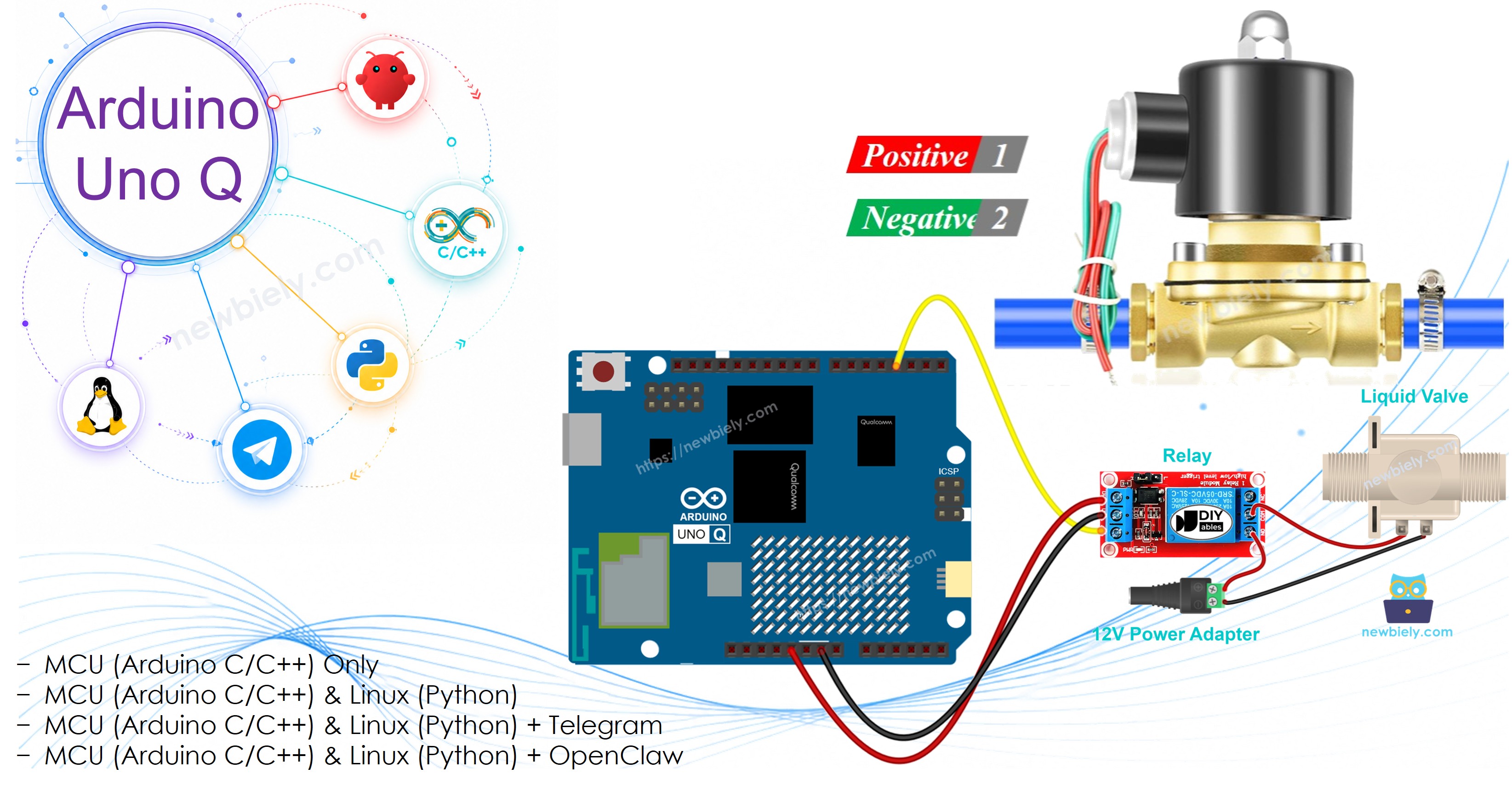
Arduino UNO Q - Water/Liquid Valve

A water/liquid solenoid valve controls the flow of water, oil, or other liquids. It opens when 12V is applied and closes when power is removed. Arduino UNO Q controls it through a relay. With Bridge and Telegram, you can open and close the valve remotely from anywhere.

In this tutorial, you will learn:

Arduino UNO Q Water/Liquid Valve

Hardware Preparation

1×Arduino UNO Q
1×USB Cable for Arduino Uno Q
1×Liquid Solenoid Valve
1×Relay
1×12V Power Adapter
1×DC Power Jack
1×Jumper Wires
1×Recommended: Screw Terminal Block Shield for Arduino Uno
1×Recommended: Sensors/Servo Expansion Shield for Arduino Uno
1×Recommended: Breadboard Shield for Arduino Uno
1×Recommended: Enclosure for Arduino Uno
1×Recommended: Prototyping Base Plate & Breadboard Kit for Arduino UNO

Or you can buy the following kits:

1×DIYables Sensor Kit (18 sensors/displays)
Disclosure: Some of the links provided in this section are Amazon affiliate links. We may receive a commission for any purchases made through these links at no additional cost to you.
Additionally, some of these links are for products from our own brand, DIYables .

Overview of the Water/Liquid Valve

Pinout

A solenoid valve has two wire connections:

  • Positive (+) red wire: Connect to 12V DC through the relay
  • Negative (-) black wire: Connect to GND of the 12V DC power supply
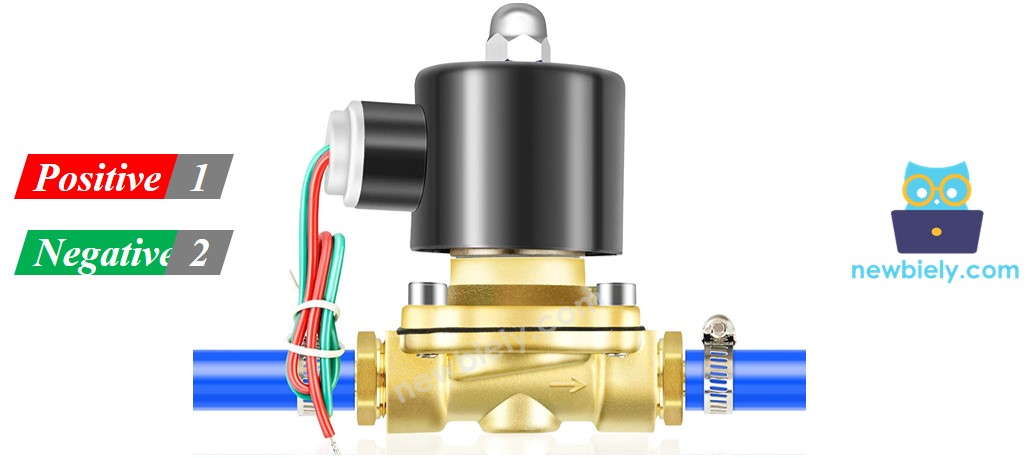
Water Valve Pinout

How It Works

  • When 12V is applied → the solenoid opens → liquid can flow
  • When power is removed → the solenoid closes → liquid flow stops

※ NOTE THAT:

Some valves require a minimum fluid pressure to open fully after applying 12V. Also, some valves are directional — check the flow arrow on the body. The valve must NEVER be connected directly to an Arduino UNO Q pin. Always use a relay to switch the 12V supply.

How to Control the Valve

The Arduino UNO Q MCU controls a relay, which switches the 12V supply to the solenoid valve:

  • Relay pin HIGH → relay closes → 12V to valve → valve OPEN
  • Relay pin LOW → relay opens → no power to valve → valve CLOSED

Wiring Diagram
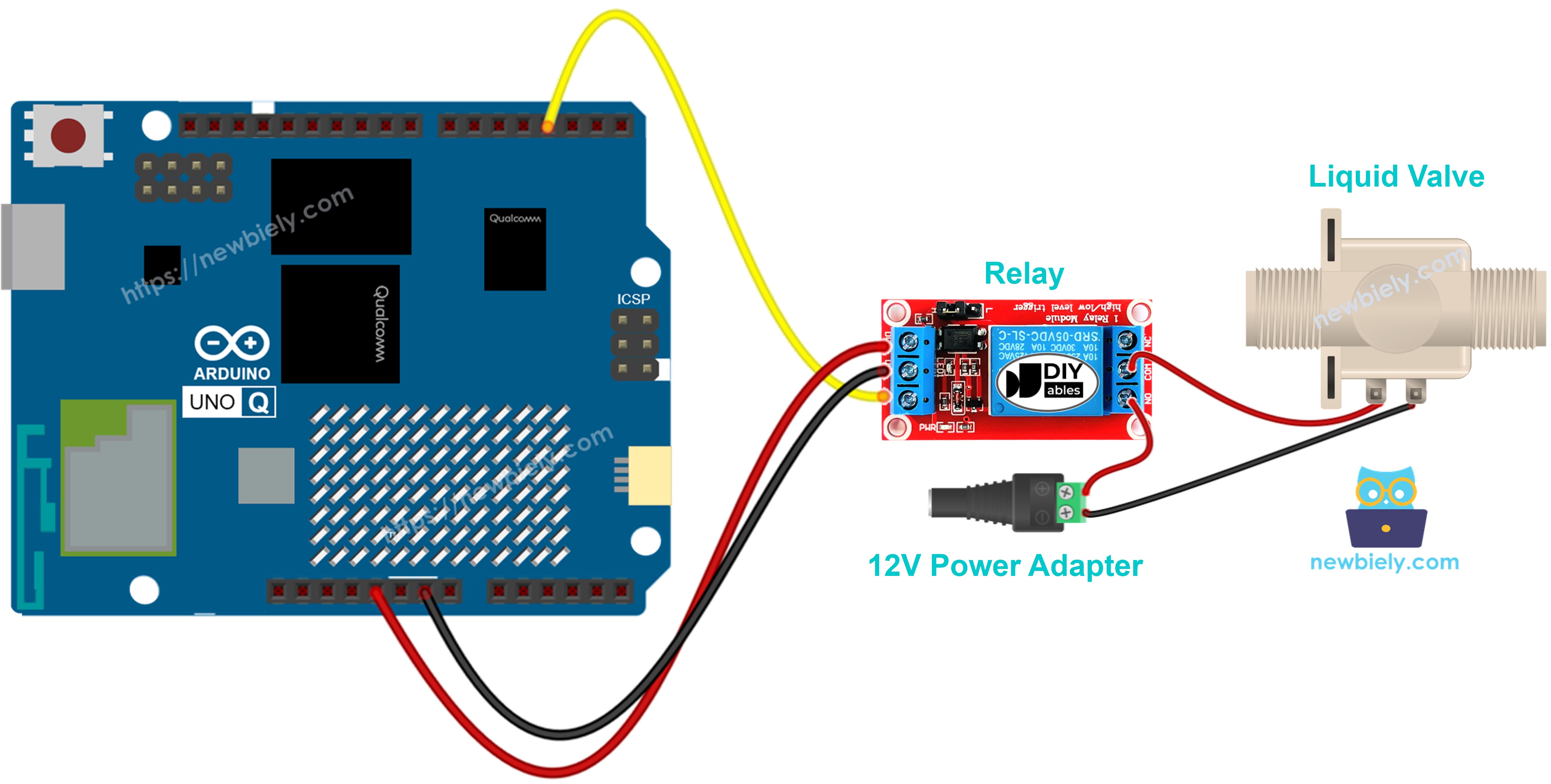
The wiring diagram between Arduino UNO Q Water Valve

This image is created using Fritzing. Click to enlarge image

Connect the relay module IN pin to MCU pin D3. Connect the relay's COM and NO terminals between the 12V supply and the solenoid valve. Connect the relay's VCC to 5V and GND to GND.

Relay Pin Arduino UNO Q MCU
GND GND
VCC 5V
IN D3

How To Program For Water Valve

  • Set up the relay pin as output:
pinMode(RELAY_PIN, OUTPUT);
  • Open and close the valve:
digitalWrite(RELAY_PIN, HIGH); // open valve delay(5000); digitalWrite(RELAY_PIN, LOW); // close valve delay(5000);

Arduino UNO Q Code

The Arduino UNO Q has two processors working together:

  • The STM32 MCU controls the relay that switches 12V power to the solenoid valve
  • The Qualcomm MPU runs Debian Linux and handles Wi-Fi, Python, and cloud connectivity
  • In this section, only the MCU is programmed — the Linux side stays idle. A later section shows how both processors work together via Bridge.

This code opens the valve for 5 seconds, then closes it — repeating continuously.

/* * This Arduino UNO Q code was developed by newbiely.com * * This Arduino UNO Q code is made available for public use without any restriction * * For comprehensive instructions and wiring diagrams, please visit: * https://newbiely.com/tutorials/arduino-uno-q/arduino-uno-q-water-liquid-valve */ // COPYRIGHT newbiely.com // AUTHOR: newbiely // This code is made available for public use without restriction. // For complete instructions, tutorials, and further information, visit: // https://newbiely.com/tutorials/arduino-uno-q/arduino-uno-q-water-liquid-valve // This code opens and closes the water/liquid valve every 5 seconds. // The valve requires a 12V power supply and is controlled through a relay. // HIGH = valve OPEN, LOW = valve CLOSED #define RELAY_PIN 3 // The Arduino UNO Q MCU pin connected to the relay IN pin void setup() { Serial.begin(9600); pinMode(RELAY_PIN, OUTPUT); Serial.println("Arduino UNO Q Water/Liquid Valve ready"); } void loop() { Serial.println("Valve: OPEN"); digitalWrite(RELAY_PIN, HIGH); // open valve delay(5000); Serial.println("Valve: CLOSED"); digitalWrite(RELAY_PIN, LOW); // close valve delay(5000); }

Detailed Instructions

First time with Arduino UNO Q? Follow the Getting Started with Arduino UNO Q tutorial before proceeding.

  • Connect: Wire the solenoid valve, relay, and 12V power supply to the Arduino UNO Q MCU as shown in the wiring diagram.
  • Open Arduino App Lab: Launch Arduino App Lab and wait until it detects your Arduino UNO Q.
  • Create a new App: Click the Create New App button.

Create New App in Arduino App Lab on Arduino UNO Q
  • Give the App a name, for example: WaterValve
  • Click Create to confirm.
Arduino App Lab App folders and files on Arduino UNO Q
  • Paste the sketch: Copy the MCU code above and paste it into sketch/sketch.ino. Keep other files as default.
  • No library required — uses only the built-in digitalWrite() function.
  • Upload: Click the Run button in Arduino App Lab.

Click Run button in Arduino App Lab on Arduino UNO Q
  • Observe the valve alternating between open and closed every 5 seconds. You can hear the click of the solenoid engaging.

App Lab Console Output

DIYables_Apps
Stop
sketch.ino
1#include "Arduino_RouterBridge.h"
Serial Monitor
Python
Message (Enter to send a message to "Newbiely" on usb(2820070321))
New Line
9600 baud
[2026-04-29 09:00:01] Arduino UNO Q Water/Liquid Valve ready [2026-04-29 09:00:01] Valve: OPEN [2026-04-29 09:00:06] Valve: CLOSED [2026-04-29 09:00:11] Valve: OPEN [2026-04-29 09:00:16] Valve: CLOSED

Bridge: Linux + MCU

This section shows how to program both processors of the Arduino UNO Q so the Linux side can open and close the valve via Bridge:

  • The solenoid valve is connected to the MCU via relay — the MCU controls the relay output pin
  • The MPU cannot control the relay directly — it calls Bridge functions to open or close the valve
  • The MPU has Wi-Fi — running full Debian Linux, it can accept commands from Telegram or any web service and translate them into valve control actions
  • Arduino_RouterBridge enables RPC communication between the two processors
  • ⚠️ /dev/ttyHS1 (Linux) and Serial1 (MCU) are RESERVED by the router — never open them in user code

In short: MPU receives open/close commands → calls Bridge → MCU controls relay → valve actuates.

MCU Code (Bridge)

/* * This Arduino UNO Q code was developed by newbiely.com * * This Arduino UNO Q code is made available for public use without any restriction * * For comprehensive instructions and wiring diagrams, please visit: * https://newbiely.com/tutorials/arduino-uno-q/arduino-uno-q-water-liquid-valve */ // COPYRIGHT newbiely.com // AUTHOR: newbiely // This code is made available for public use without restriction. // For complete instructions, tutorials, and further information, visit: // https://newbiely.com/tutorials/arduino-uno-q/arduino-uno-q-water-liquid-valve #include "Arduino_RouterBridge.h" #define RELAY_PIN 3 // The Arduino UNO Q MCU pin connected to the relay IN pin // HIGH = valve OPEN, LOW = valve CLOSED bool is_open = false; String open_valve(String arg) { digitalWrite(RELAY_PIN, HIGH); is_open = true; Monitor.println("Valve: OPEN"); return "open"; } String close_valve(String arg) { digitalWrite(RELAY_PIN, LOW); is_open = false; Monitor.println("Valve: CLOSED"); return "closed"; } String get_state(String arg) { return is_open ? "open" : "closed"; } void setup() { Bridge.begin(); Monitor.begin(); pinMode(RELAY_PIN, OUTPUT); digitalWrite(RELAY_PIN, LOW); // start closed is_open = false; Bridge.provide_safe("open_valve", open_valve); Bridge.provide_safe("close_valve", close_valve); Bridge.provide("get_state", get_state); Monitor.println("Arduino UNO Q Water/Liquid Valve Bridge ready"); Monitor.println("Initial state: CLOSED"); } void loop() {}

Python Code (Bridge)

/* * This Arduino UNO Q code was developed by newbiely.com * * This Arduino UNO Q code is made available for public use without any restriction * * For comprehensive instructions and wiring diagrams, please visit: * https://newbiely.com/tutorials/arduino-uno-q/arduino-uno-q-water-liquid-valve */ # COPYRIGHT newbiely.com # AUTHOR: newbiely # This code is made available for public use without restriction. # For complete instructions, tutorials, and further information, visit: # https://newbiely.com/tutorials/arduino-uno-q/arduino-uno-q-water-liquid-valve from arduino.app_utils import * import time def loop(): state = Bridge.call("get_state") print(f"Valve state: {state}") # Example: open for 5 seconds, then close if state == "closed": print("Opening valve...") Bridge.call("open_valve") time.sleep(5) print("Closing valve...") Bridge.call("close_valve") time.sleep(1) App.run(user_loop=loop)

Detailed Instructions

  • Connect: Wire the solenoid valve, relay, and 12V power supply to the Arduino UNO Q as shown in the wiring diagram.
  • Open Arduino App Lab: Launch Arduino App Lab and wait for the board to be detected.
  • Create a new App: Click Create New App, name it WaterValveBridge, then click Create.
  • Paste the MCU sketch: Copy the MCU Bridge code above and paste it into sketch/sketch.ino.
  • Paste the Python code: Copy the Python Bridge code above and paste it into the Python file in the App.
  • Install the library: Click the Add sketch library button (the open book icon with a + sign) in the left sidebar.

Add sketch library in Arduino App Lab on Arduino UNO Q
  • Search for Arduino_RouterBridge created by Arduino and click the Install button.
My Apps / DIYables Apps
Run
Bricks
No bricks added...
Sketch Libraries
No sketch libra...
Files
python
sketch
.gitignore
README.md
app.yaml
sketch.ino
Add sketch library
Arduino_RouterBridge Arduino

This library provides a simple RPC bridge for Arduino UNO Q boards, allowing communication between the board and other devices using MsgPack serialization.

0.4.1
Install
More Info
  • Upload: Click the Run button in Arduino App Lab.
Click Run button in Arduino App Lab on Arduino UNO Q
  • Watch the valve cycle: open → wait 5 seconds → close → wait 1 second → repeat.

App Lab Console Output

DIYables_Apps
Stop
sketch.ino
1#include "Arduino_RouterBridge.h"
Serial Monitor
Python
Message (Enter to send a message to "Newbiely" on usb(2820070321))
New Line
9600 baud
[2026-04-29 09:00:01] Arduino UNO Q Water/Liquid Valve Bridge ready [2026-04-29 09:00:01] Initial state: CLOSED [2026-04-29 09:00:02] Valve: OPEN [2026-04-29 09:00:07] Valve: CLOSED
DIYables_Apps
Stop
sketch.ino
1#include "Arduino_RouterBridge.h"
Serial Monitor
Python
[2026-04-29 09:00:02] Valve state: closed [2026-04-29 09:00:02] Opening valve... [2026-04-29 09:00:07] Closing valve... [2026-04-29 09:00:08] Valve state: closed

Telegram

Control the water/liquid valve remotely via Telegram — open and close from anywhere with a simple command.

MCU sketch: Keep the same MCU sketch from the previous Bridge section.

Python Code (Telegram)

/* * This Arduino UNO Q code was developed by newbiely.com * * This Arduino UNO Q code is made available for public use without any restriction * * For comprehensive instructions and wiring diagrams, please visit: * https://newbiely.com/tutorials/arduino-uno-q/arduino-uno-q-water-liquid-valve */ # COPYRIGHT newbiely.com # AUTHOR: newbiely # This code is made available for public use without restriction. # For complete instructions, tutorials, and further information, visit: # https://newbiely.com/tutorials/arduino-uno-q/arduino-uno-q-water-liquid-valve from arduino.app_utils import * import requests import time TELEGRAM_BOT_TOKEN = "YOUR_TELEGRAM_BOT_TOKEN" CHAT_ID = "YOUR_CHAT_ID" last_update_id = 0 def get_updates(): global last_update_id url = f"https://api.telegram.org/bot{TELEGRAM_BOT_TOKEN}/getUpdates" params = {"offset": last_update_id + 1, "timeout": 5} try: response = requests.get(url, params=params, timeout=10) data = response.json() if data["ok"]: return data["result"] except Exception as e: print(f"Error getting updates: {e}") return [] def send_message(chat_id, text): url = f"https://api.telegram.org/bot{TELEGRAM_BOT_TOKEN}/sendMessage" payload = {"chat_id": chat_id, "text": text} try: requests.post(url, data=payload, timeout=10) except Exception as e: print(f"Error sending message: {e}") def loop(): updates = get_updates() for update in updates: last_update_id = update["update_id"] if "message" not in update: continue message = update["message"] chat_id = message["chat"]["id"] text = message.get("text", "").strip() print(f"Received: {text}") if text == "/start": send_message(chat_id, "Arduino UNO Q Water/Liquid Valve Bot\n" "/open - Open the valve\n" "/close - Close the valve\n" "/state - Read current valve state") elif text == "/open": result = Bridge.call("open_valve") send_message(chat_id, f"💧 Valve state: {result}") elif text == "/close": result = Bridge.call("close_valve") send_message(chat_id, f"🚫 Valve state: {result}") elif text == "/state": result = Bridge.call("get_state") send_message(chat_id, f"Valve state: {result}") else: send_message(chat_id, "Unknown command. Send /start for help.") time.sleep(1) App.run(user_loop=loop)

Detailed Instructions

  • Replace YOUR_TELEGRAM_BOT_TOKEN with your actual bot token from BotFather.
  • Replace YOUR_CHAT_ID with your Telegram chat ID.
  • Paste this Python code into your App's Python file (keep the same MCU sketch).
  • Click the Run button. Send /open from Telegram to start the flow, then /close to stop it.

App Lab Console Output

DIYables_Apps
Stop
sketch.ino
1#include "Arduino_RouterBridge.h"
Serial Monitor
Python
[2026-04-29 09:10:00] Waiting for Telegram messages... [2026-04-29 09:10:05] Received: /open [2026-04-29 09:10:12] Received: /state [2026-04-29 09:10:20] Received: /close
Telegram
Telegram 12:45
Welcome to Telegram!
ArduinoBot 10:19
Chatting with Arduino...
telegram-botfather
BotFather Yesterday
Your bot has been created.

ArduinoBot

bot
Today
/state
10:15 AM ✓✓
Valve state: closed
10:16 AM
/open
10:17 AM ✓✓
💧 Valve state: open
10:18 AM
/state
10:19 AM ✓✓
Valve state: open
10:20 AM
/close
10:21 AM ✓✓
🚫 Valve state: closed
10:22 AM

OpenClaw

...OPENCLAW

OpenClaw support for Arduino UNO Q Water/Liquid Valve is coming soon.

...OPENCLAW

Project Ideas

You can build many useful projects with the solenoid valve and Arduino UNO Q:

  • Remote Irrigation System: Control garden watering from anywhere via Telegram — send /open to start irrigation and /close to stop, with the Linux side logging each session's duration to a file
  • Time-Based Watering: Program the MPU to automatically open the valve for 10 minutes every morning at 6 AM using the Linux system clock — no manual intervention needed
  • Water Leak Response: Combine a water sensor with the valve — when the sensor detects a leak, Python immediately calls Bridge.call("close_valve") to stop the water supply and sends a Telegram alert
  • Fish Tank Auto-Top-Up: Use a water level sensor in a fish tank — when the level drops below a threshold, Python opens the valve for 30 seconds to add water, then closes it and sends a Telegram confirmation
  • Beer/Juice Dispenser: Control a food-safe solenoid valve connected to a liquid reservoir — /open dispenses liquid and /close stops it, with a timer to prevent over-pouring

Challenge Yourself

Ready to go further with the water valve on Arduino UNO Q? Try these challenges:

  • Easy: Add a /open_10s Telegram command that opens the valve for exactly 10 seconds using time.sleep(10) on the Python side before calling Bridge.call("close_valve").
  • Medium: Implement a daily irrigation schedule: Python reads a schedule file (e.g., schedule.json with open/close times) and automatically controls the valve based on the Linux system clock — send a Telegram notification when each session starts and ends.
  • Advanced: Build a flow-time logger: every time the valve is opened via Telegram or automatically, Python records the start time, close time, and duration to a CSV file — implement a /log Telegram command that returns the last 5 irrigation sessions.

※ OUR MESSAGES

  • As freelancers, We are AVAILABLE for HIRE. See how to outsource your project to us
  • Please feel free to share the link of this tutorial. However, Please do not use our content on any other websites. We invested a lot of effort and time to create the content, please respect our work!