
Arduino UNO Q - Electromagnetic Lock
An electromagnetic lock (maglock) uses an electromagnet to hold a door shut — when energized, it creates a powerful magnetic force that keeps the door locked. With Arduino UNO Q and a relay, you can lock and unlock a door programmatically. Add Bridge and Telegram for full remote control from anywhere.
In this tutorial, you will learn:
- What an electromagnetic lock is and how it works
- How to wire an electromagnetic lock and relay to the Arduino UNO Q MCU
- How to program the MCU (C/C++ Arduino code) to control the electromagnetic lock
- How to program both the Linux side (Python) and MCU side (C/C++) to lock and unlock via Bridge
- How to lock and unlock remotely via Telegram on Arduino UNO Q
- How to use OpenClaw on Arduino UNO Q with the electromagnetic lock
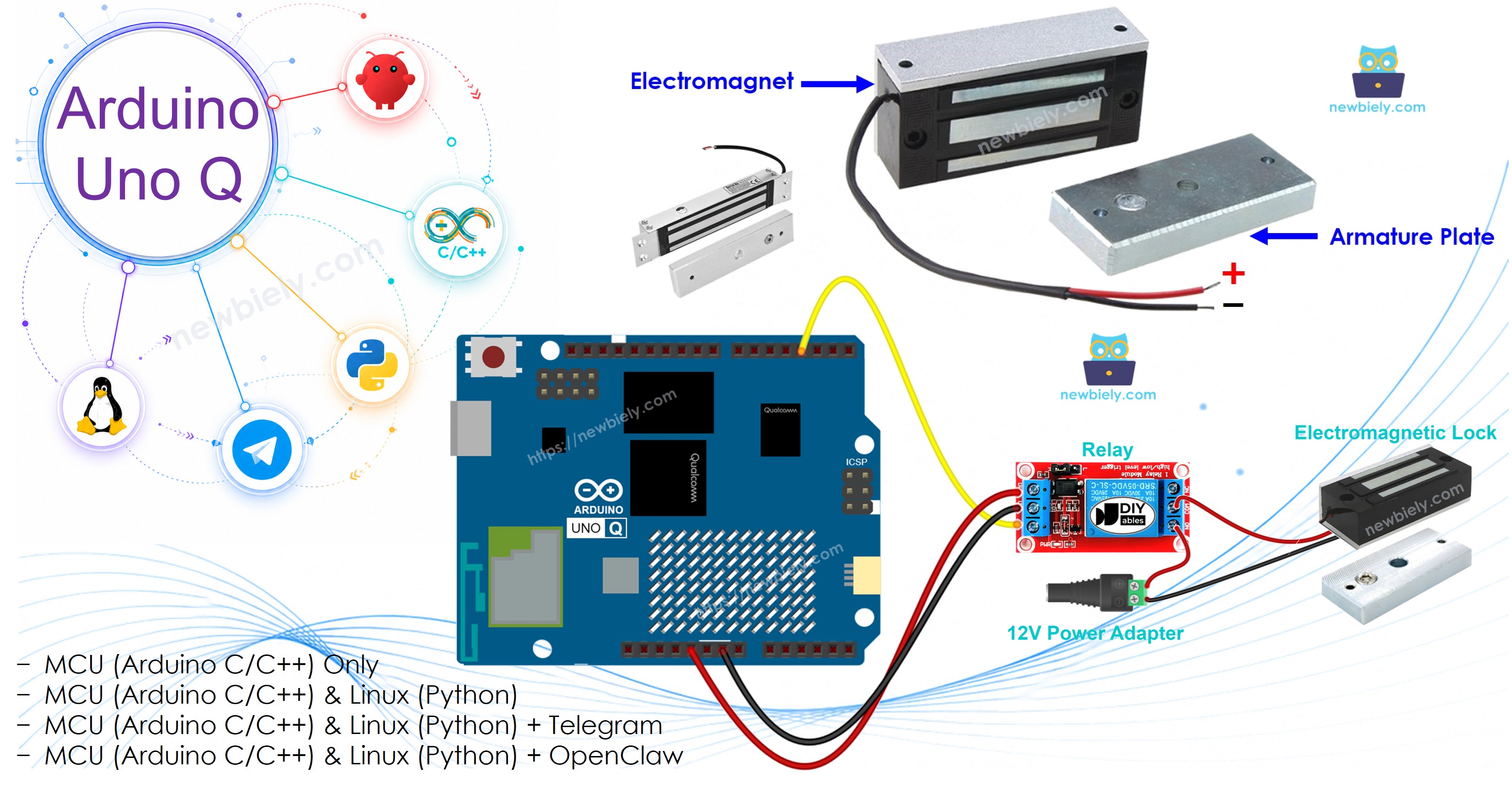
Hardware Preparation
Or you can buy the following kits:
| 1 | × | DIYables Sensor Kit (18 sensors/displays) |
Additionally, some of these links are for products from our own brand, DIYables .
Overview of the Electromagnetic Lock
Pinout
An electromagnetic lock has two parts:
- Electromagnet — has two terminals; connect to 12V power through a relay
- Armature plate — attaches to the door; no wiring needed
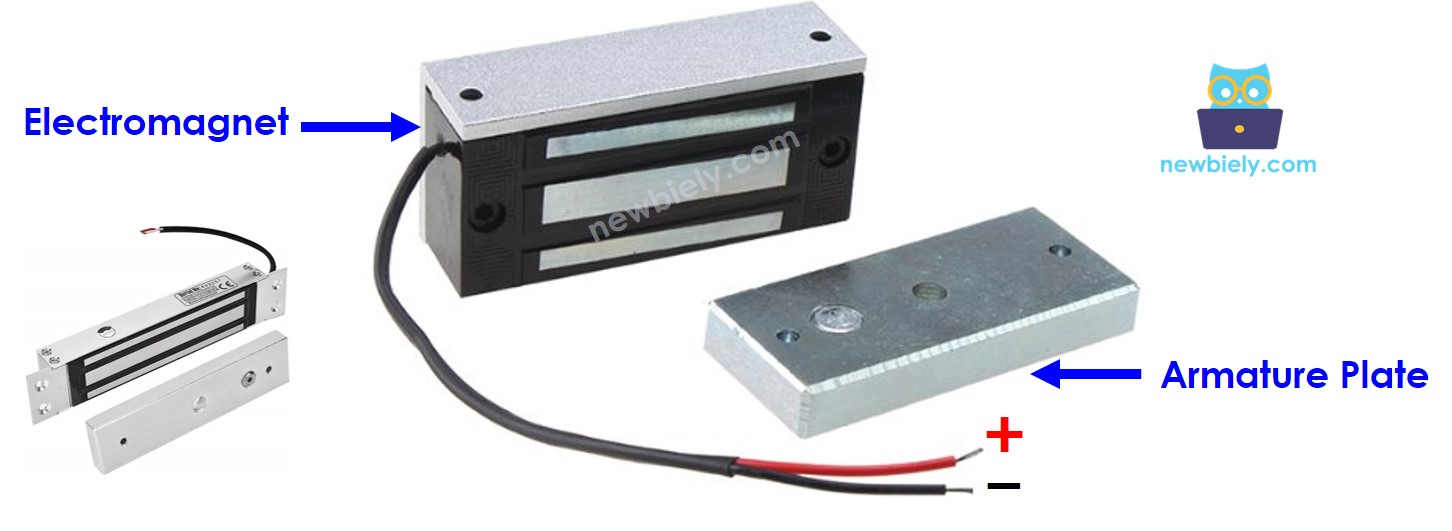
Install the electromagnet on the door frame (fixed part) and the armature plate on the door (moving part). When the door is closed, the two parts should be flush against each other.
How It Works
- When the electromagnet receives power → magnetic field is generated → armature plate is attracted → door is locked
- When the electromagnet has no power → no magnetic field → armature plate is released → door is unlocked
※ NOTE THAT:
The electromagnetic lock requires 12V DC — it must NEVER be connected directly to an Arduino UNO Q pin. Always use a relay as the interface. The MCU controls the relay, which switches the 12V supply to the electromagnet.
When the relay is wired in normally open configuration:
- Relay open (pin LOW) → no power to electromagnet → door unlocked
- Relay closed (pin HIGH) → power to electromagnet → door locked
This is the opposite of a solenoid lock: energized = locked.
Wiring Diagram
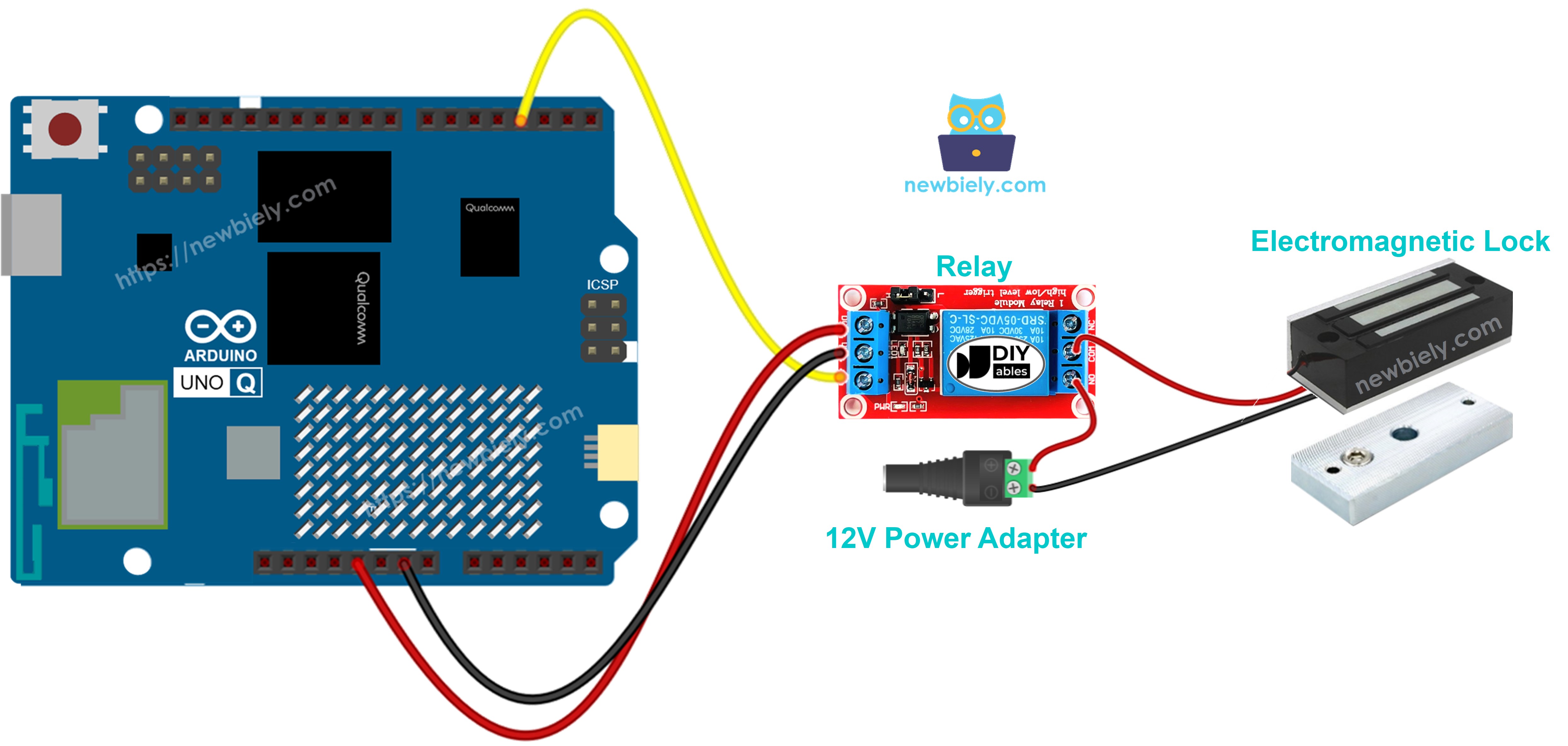
This image is created using Fritzing. Click to enlarge image
Connect the relay module IN pin to MCU pin D3. Connect the relay's COM and NO terminals between the 12V supply and the electromagnet. Connect the relay's VCC to 5V and GND to GND.
| Relay Pin | Arduino UNO Q MCU |
|---|---|
| GND | GND |
| VCC | 5V |
| IN | D3 |
How To Program For Electromagnetic Lock
- Set up the relay pin as output:
- Lock and unlock the electromagnetic lock:
Arduino UNO Q Code
The Arduino UNO Q has two processors working together:
- The STM32 MCU controls the relay that switches power to the electromagnet — all timing and state logic runs on the MCU
- The Qualcomm MPU runs Debian Linux and handles Wi-Fi, Python, and cloud connectivity
- In this section, only the MCU is programmed — the Linux side stays idle. A later section shows how both processors work together via Bridge.
This code locks the electromagnetic lock for 5 seconds, then unlocks it — repeating continuously.
Detailed Instructions
First time with Arduino UNO Q? Follow the Getting Started with Arduino UNO Q tutorial before proceeding.
- Install: Attach the electromagnet to the door frame and the armature plate to the door.
- Connect: Wire the electromagnetic lock, relay, and 12V power supply to the Arduino UNO Q MCU as shown in the wiring diagram.
- Open Arduino App Lab: Launch Arduino App Lab and wait until it detects your Arduino UNO Q.
- Create a new App: Click the Create New App button.

- Give the App a name, for example: ElectromagneticLock
- Click Create to confirm.

- Paste the sketch: Copy the MCU code above and paste it into sketch/sketch.ino. Keep other files as default.
- No library required — uses only the built-in digitalWrite() function.
- Upload: Click the Run button in Arduino App Lab.

- Bring the armature plate close to the electromagnet and observe it being held and released every 5 seconds.
App Lab Console Output
Bridge: Linux + MCU
This section shows how to program both processors of the Arduino UNO Q so the Linux side can lock and unlock the electromagnetic lock via Bridge:
- The electromagnetic lock is connected to the MCU via relay — the MCU controls the relay output pin
- The MPU cannot control the relay directly — it calls Bridge functions to lock or unlock
- The MPU has Wi-Fi — running full Debian Linux, it can accept commands from Telegram or any web service and translate them into lock/unlock actions
- Arduino_RouterBridge enables RPC communication between the two processors
- ⚠️ /dev/ttyHS1 (Linux) and Serial1 (MCU) are RESERVED by the router — never open them in user code
In short: MPU receives lock/unlock commands → calls Bridge → MCU controls relay → electromagnetic lock activates.
MCU Code (Bridge)
Python Code (Bridge)
Detailed Instructions
- Connect: Wire the electromagnetic lock, relay, and 12V power supply to the Arduino UNO Q as shown in the wiring diagram.
- Open Arduino App Lab: Launch Arduino App Lab and wait for the board to be detected.
- Create a new App: Click Create New App, name it ElectromagneticLockBridge, then click Create.
- Paste the MCU sketch: Copy the MCU Bridge code above and paste it into sketch/sketch.ino.
- Paste the Python code: Copy the Python Bridge code above and paste it into the Python file in the App.
- Install the library: Click the Add sketch library button (the open book icon with a + sign) in the left sidebar.

- Search for Arduino_RouterBridge created by Arduino and click the Install button.
- Upload: Click the Run button in Arduino App Lab.
- Watch the lock cycle: lock → wait 5 seconds → unlock → wait 1 second → repeat.
App Lab Console Output
Telegram
Control the electromagnetic lock remotely via Telegram — lock and unlock a door from anywhere with a simple command.
MCU sketch: Keep the same MCU sketch from the previous Bridge section.
Python Code (Telegram)
Detailed Instructions
- Replace YOUR_TELEGRAM_BOT_TOKEN with your actual bot token from BotFather.
- Replace YOUR_CHAT_ID with your Telegram chat ID.
- Paste this Python code into your App's Python file (keep the same MCU sketch).
- Click the Run button. Send /lock from Telegram to lock the door, then /unlock to release it.
App Lab Console Output


ArduinoBot
OpenClaw
You can adapt the OpenClaw to this tutorial by refering the instruction on Arduino Uno Q - OpenClaw Tutorial
Project Ideas
You can build many useful projects with the electromagnetic lock and Arduino UNO Q:
- Telegram-Controlled Door Lock: Lock and unlock an office door or storage room remotely via Telegram — /lock to secure it and /unlock to let someone in, all logged with timestamps on the Linux side
- Time-Based Auto-Lock: Program the MPU to automatically lock at night (e.g., 10 PM) and unlock in the morning (7 AM) using the Linux system clock — no manual intervention required
- Keypad Security System: Pair the electromagnetic lock with a 4x4 keypad on the MCU — unlock on correct PIN entry, send a Telegram alert on three consecutive failed attempts
- RFID Access Control: Combine with an RFID reader on the MCU — scan a registered tag to unlock, log every access event to a file on Linux with the tag ID and timestamp
- Remote Access Log Dashboard: Every lock/unlock event is logged to a CSV file on Linux with timestamp and source (Telegram, automatic, or keypad) — Python sends a daily summary report to Telegram
Challenge Yourself
Ready to go further with the electromagnetic lock on Arduino UNO Q? Try these challenges:
- Easy: Add a /unlock_10s Telegram command that unlocks the door for exactly 10 seconds using time.sleep(10) on the Python side before calling Bridge.call("lock") to re-engage the electromagnet.
- Medium: Implement an auto-lock timer: when /unlock is called via Telegram, start a Python timer — if the door is not manually relocked within 60 seconds, the system automatically calls Bridge.call("lock") and sends a Telegram confirmation.
- Advanced: Build a multi-user access system where an admin file lists authorized Telegram user IDs — only those users can send /unlock, unauthorized attempts trigger a Telegram alert to the admin, and all access attempts are logged with user ID and timestamp.