
Arduino UNO Q - Obstacle Avoidance Sensor
The IR obstacle avoidance sensor uses infrared light to detect objects in front of it. It reports a digital LOW signal when an obstacle is present and HIGH when the path is clear. With Bridge and Telegram, your Arduino UNO Q can send instant alerts when an object enters the detection zone.
In this tutorial, you will learn:
- How the IR obstacle avoidance sensor works
- How to wire the sensor to the Arduino UNO Q MCU
- How to read the digital output of the obstacle sensor
- How to use Bridge to detect obstacle events and expose state to Python on Arduino UNO Q
- How to receive Telegram alerts when an obstacle is detected on Arduino UNO Q
- How to use OpenClaw on Arduino UNO Q with the obstacle avoidance sensor
Hardware Preparation
Or you can buy the following kits:
| 1 | × | DIYables Sensor Kit (18 sensors/displays) |
Additionally, some of these links are for products from our own brand, DIYables .
Overview of the IR Obstacle Avoidance Sensor
The infrared obstacle avoidance sensor detects objects using an IR transmitter and receiver. The transmitter emits an IR beam; when an object reflects the beam back, the receiver detects it and the OUT pin goes LOW.
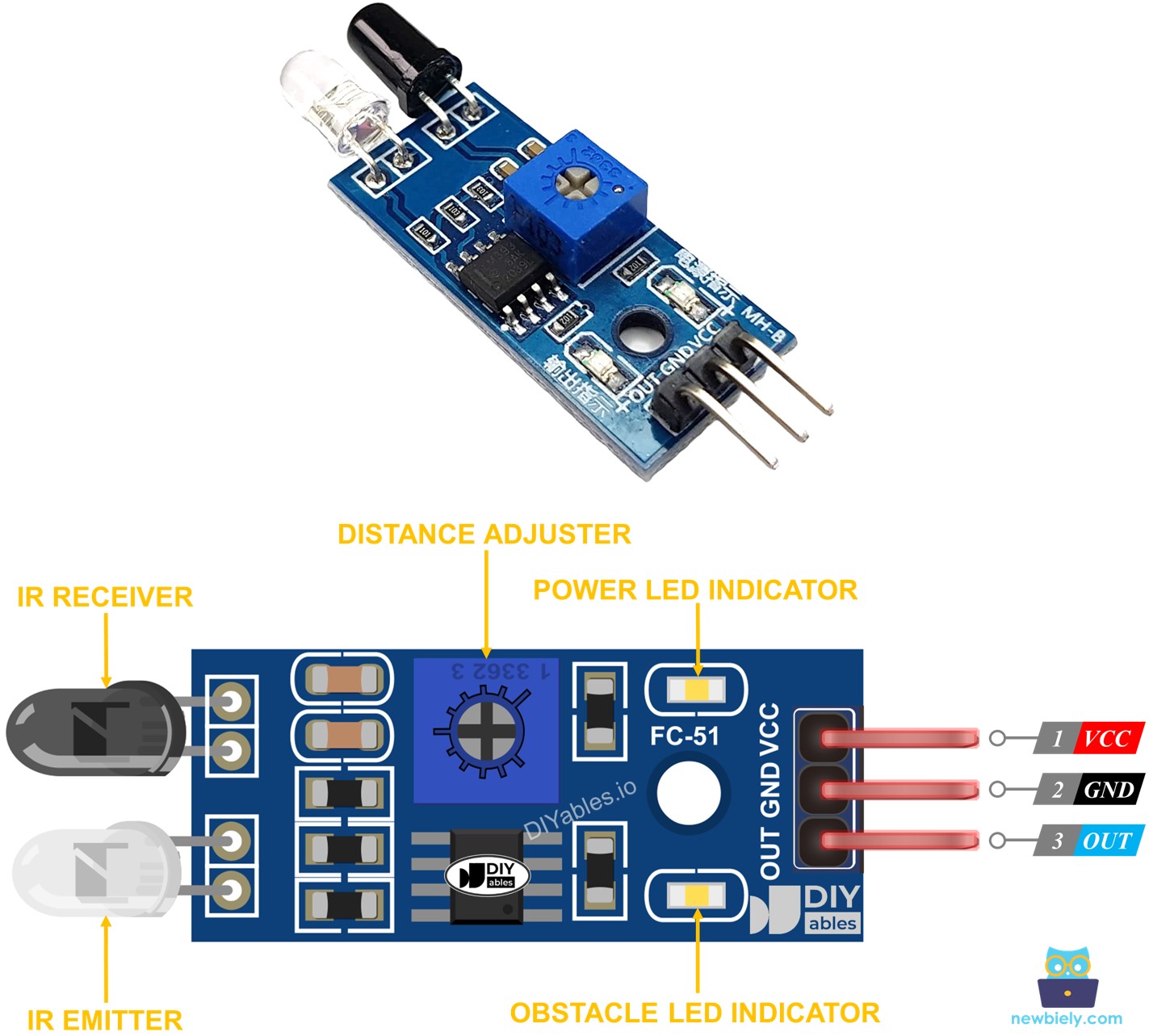
Pinout
- VCC pin: Connect to VCC (3.3V or 5V)
- GND pin: Connect to GND (0V)
- OUT pin: Digital output — LOW = obstacle detected, HIGH = no obstacle
How It Works
- When an obstacle is in front of the sensor: OUT pin = LOW
- When the path is clear: OUT pin = HIGH
- Detection range: 2 cm to 30 cm — adjustable via the onboard potentiometer
- Detection angle: approximately 35°
※ NOTE THAT:
During shipping, the IR transmitter and receiver may get misaligned. If the sensor does not respond correctly, gently bend them to be parallel to each other.
Wiring Diagram
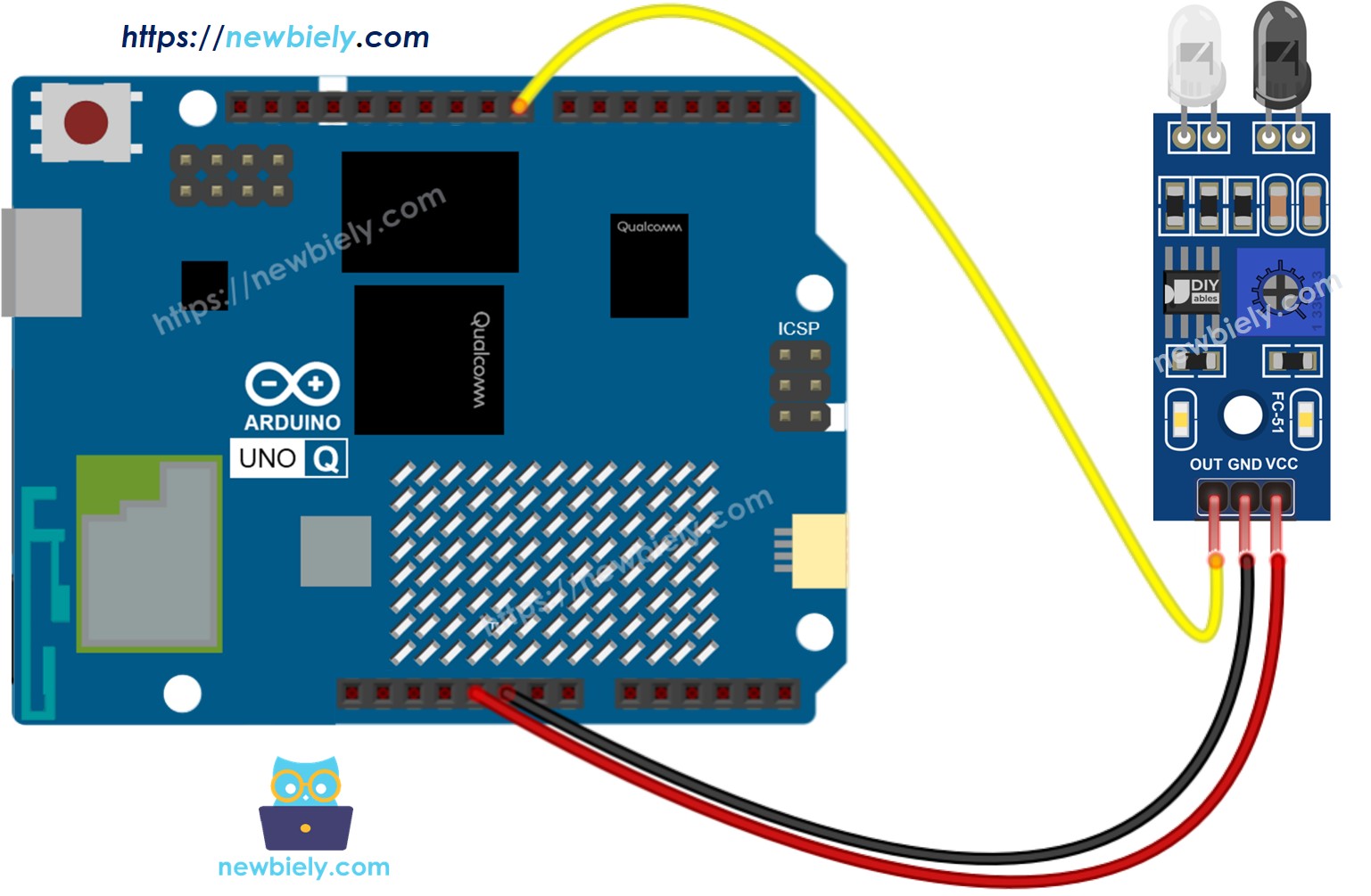
This image is created using Fritzing. Click to enlarge image
| IR Obstacle Sensor Pin | Arduino UNO Q MCU |
|---|---|
| VCC | 3.3V |
| GND | GND |
| OUT | D8 |
How To Program For IR Obstacle Avoidance Sensor
- Configure the sensor pin as a digital input:
- Read the output — LOW means obstacle detected, HIGH means clear:
Arduino UNO Q Code
The Arduino UNO Q has two processors working together:
- The STM32 MCU reads the sensor every 100 ms and reports the result via Serial
- The Qualcomm MPU runs Debian Linux with Wi-Fi — in this section, only the MCU is programmed. A later section shows how both processors work together via Bridge.
Detailed Instructions
First time with Arduino UNO Q? Follow the Getting Started with Arduino UNO Q tutorial before proceeding.
- Connect: Wire the IR obstacle sensor to the Arduino UNO Q MCU as shown in the wiring diagram.
- Open Arduino App Lab: Launch Arduino App Lab and wait until it detects your Arduino UNO Q.
- Create a new App: Click the Create New App button.

- Give the App a name, for example: ObstacleSensor
- Click Create to confirm.

- Paste the sketch: Copy the MCU code above and paste it into sketch/sketch.ino.
- Upload: Click the Run button in Arduino App Lab.

- Place your hand in front of the sensor and observe the Serial Monitor.
- Adjust the potentiometer to change the detection range.
App Lab Console Output
Bridge: Linux + MCU
This section shows how to program both processors of the Arduino UNO Q so the Linux side can read obstacle state and receive events via Bridge:
- The obstacle sensor is connected to the MCU — the MCU reads the sensor every 100 ms
- The MPU cannot read the sensor pin directly — it calls Bridge functions to get the current state or receive events
- The MPU has Wi-Fi — running full Debian Linux, it can send instant Telegram alerts when an obstacle is detected
- Arduino_RouterBridge enables RPC communication between the two processors
- ⚠️ /dev/ttyHS1 (Linux) and Serial1 (MCU) are RESERVED by the router — never open them in user code
MCU Code (Bridge)
Python Code (Bridge)
Detailed Instructions
- Connect: Wire the IR obstacle sensor to the Arduino UNO Q as shown in the wiring diagram.
- Open Arduino App Lab and create a new App named ObstacleSensorBridge.
- Paste the MCU sketch into sketch/sketch.ino.
- Paste the Python code into the Python file.
- Install the library: Click the Add sketch library button (the open book icon with a + sign) in the left sidebar.

- Search for Arduino_RouterBridge created by Arduino and click the Install button.
- Upload: Click the Run button.
- Place an object in front of the sensor and observe both consoles.
App Lab Console Output
Telegram
Receive instant Telegram alerts when an obstacle is detected in front of the sensor, and query its state remotely.
MCU sketch: Keep the same MCU sketch from the previous Bridge section.
Python Code (Telegram)
Detailed Instructions
- Replace YOUR_TELEGRAM_BOT_TOKEN with your actual bot token from BotFather.
- Replace YOUR_CHAT_ID with your Telegram chat ID.
- Paste this Python code into your App's Python file (keep the same MCU sketch).
- Click the Run button — place an object in front of the sensor to trigger the Telegram alert.
App Lab Console Output


ArduinoBot
OpenClaw
You can adapt the OpenClaw to this tutorial by refering the instruction on Arduino Uno Q - OpenClaw Tutorial
Project Ideas
You can build many useful projects with the IR obstacle avoidance sensor and Arduino UNO Q:
- Doorway Visitor Counter: Mount the sensor at a doorway — each time an obstacle (person) crosses, the event counter increments; the MPU sends a Telegram summary with the daily count when you send /count
- Package Delivery Notifier: Place the sensor facing a mailbox or delivery area — when a package is dropped and detected, Python sends a Telegram alert "Package delivered!" to your phone
- Robot Obstacle Stop: Connect the sensor to a motor-driven robot — when the MCU detects an obstacle, it stops the motors immediately; the MPU sends a Telegram notification with the obstacle event time
- Automated Gate Trigger: Use the sensor to detect a vehicle approaching — when an obstacle is detected for more than 200 ms, the MCU triggers a relay to open a gate, and Python sends a Telegram log entry
- Industrial Parts Counter: Mount the sensor on an assembly line conveyor — count how many parts pass per minute and send the count to Telegram every 5 minutes using a Python timer
Challenge Yourself
Ready to go further with the IR obstacle avoidance sensor on Arduino UNO Q? Try these challenges:
- Easy: Add a /count Telegram command that returns how many obstacle detection events have occurred since the program started, tracked as a counter in the Python code.
- Medium: Implement a debounce filter: an obstacle must be continuously detected for at least 300 ms before the event is registered and the Telegram alert is sent — this eliminates false triggers from vibrations or flickering reflections.
- Advanced: Build a bidirectional people counter: use two IR obstacle sensors spaced a few centimeters apart on a doorway — determine entry vs. exit direction based on which sensor triggers first, and send a Telegram update with current occupancy count.