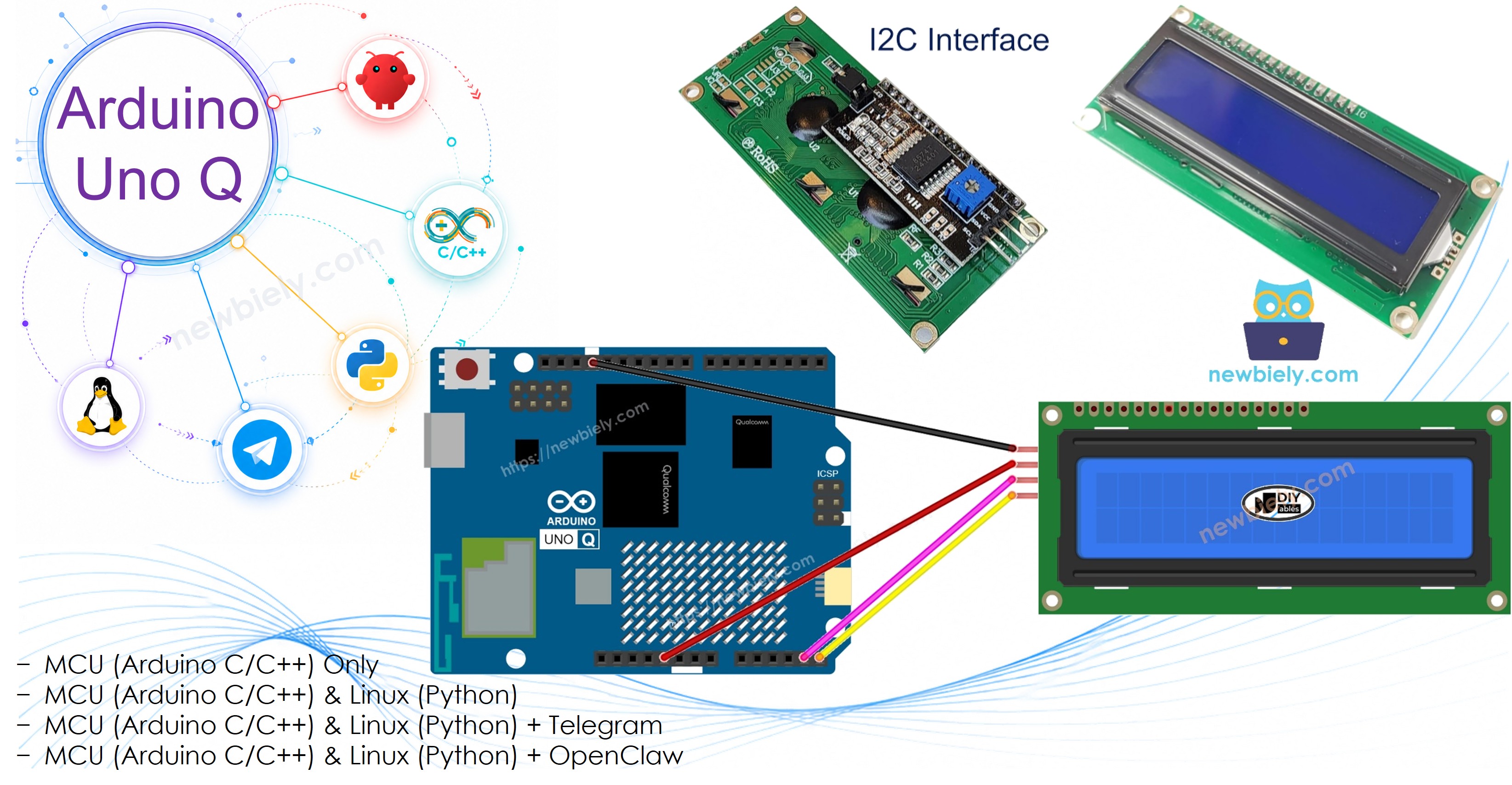
Arduino UNO Q - LCD I2C

This tutorial shows you how to use an LCD I2C 16x2 display with Arduino UNO Q — from basic text to custom characters, scrolling, and remote Telegram control.

Arduino UNO Q - LCD I2C

Hardware Preparation

1×Arduino UNO Q
1×USB Cable for Arduino Uno Q
1×LCD I2C 16x2
1×Alternatively, LCD I2C 20x4
1×Jumper Wires
1×Recommended: Screw Terminal Block Shield for Arduino Uno
1×Recommended: Sensors/Servo Expansion Shield for Arduino Uno
1×Recommended: Breadboard Shield for Arduino Uno
1×Recommended: Enclosure for Arduino Uno
1×Recommended: Prototyping Base Plate & Breadboard Kit for Arduino UNO

Or you can buy the following kits:

1×DIYables Sensor Kit (18 sensors/displays)
Disclosure: Some of the links provided in this section are Amazon affiliate links. We may receive a commission for any purchases made through these links at no additional cost to you.
Additionally, some of these links are for products from our own brand, DIYables .

Buy Note: Alternatively, you can assemble the LCD I2C display using LCD 1602 Display and PCF8574 I2C Adapter Module.

Overview of LCD I2C 16x2

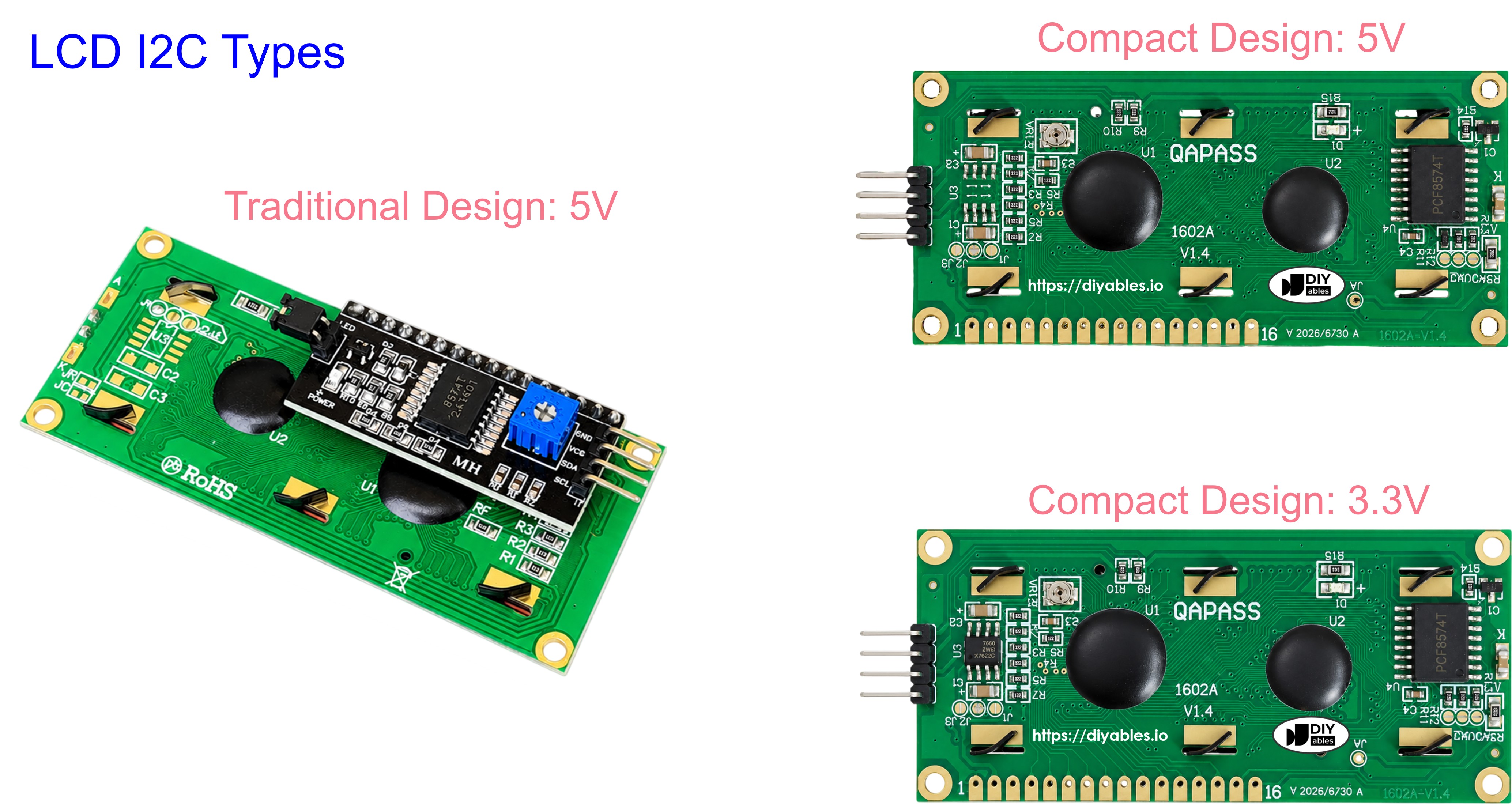
The LCD I2C combines a standard 16x2 LCD panel with an I2C backpack module. Using the I2C interface reduces wiring to only 4 wires — much simpler than a parallel LCD connection.

The LCD Pinout

The LCD I2C has four pins:

  • GND — connect to GND
  • VCC — connect to 5V
  • SDA — I2C data signal
  • SCL — I2C clock signal
LCD I2C pinout

LCD Coordinate

The LCD I2C 16x2 has 16 columns and 2 rows, with columns and rows numbered starting from 0.
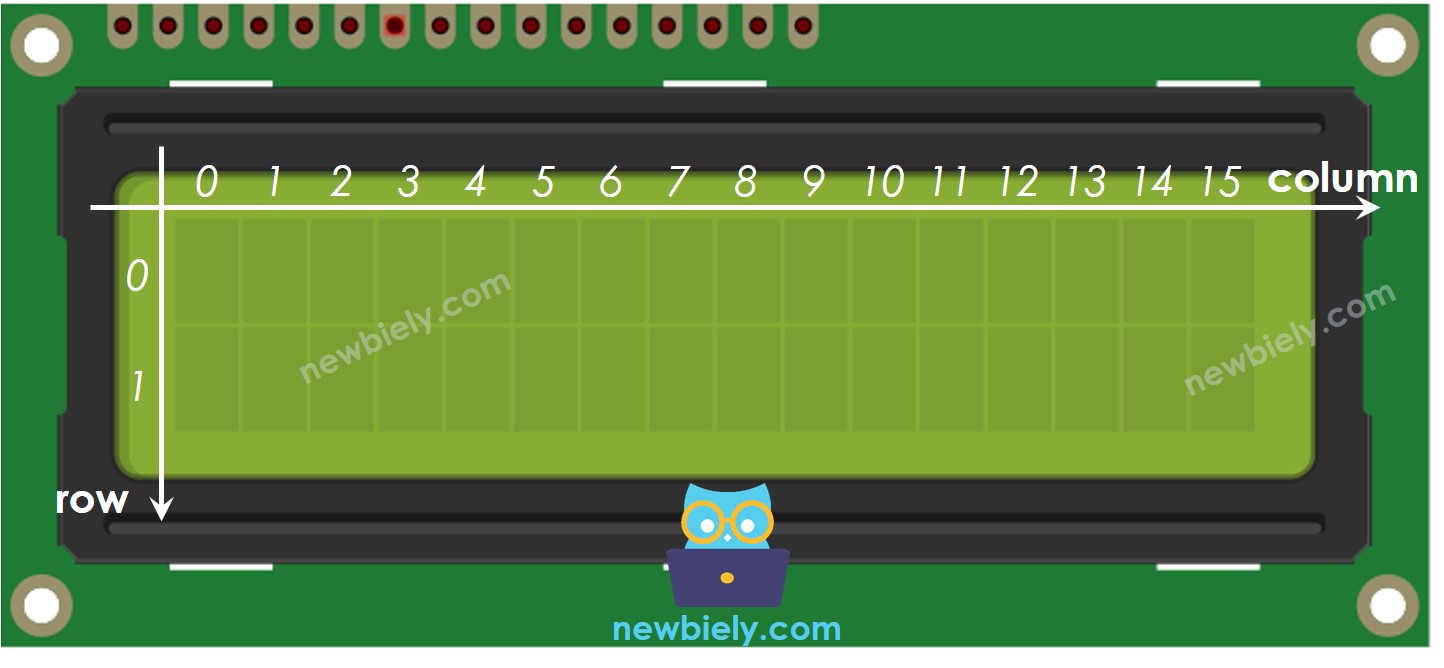
Arduino UNO Q LCD I2C coordinate

Wiring Diagram

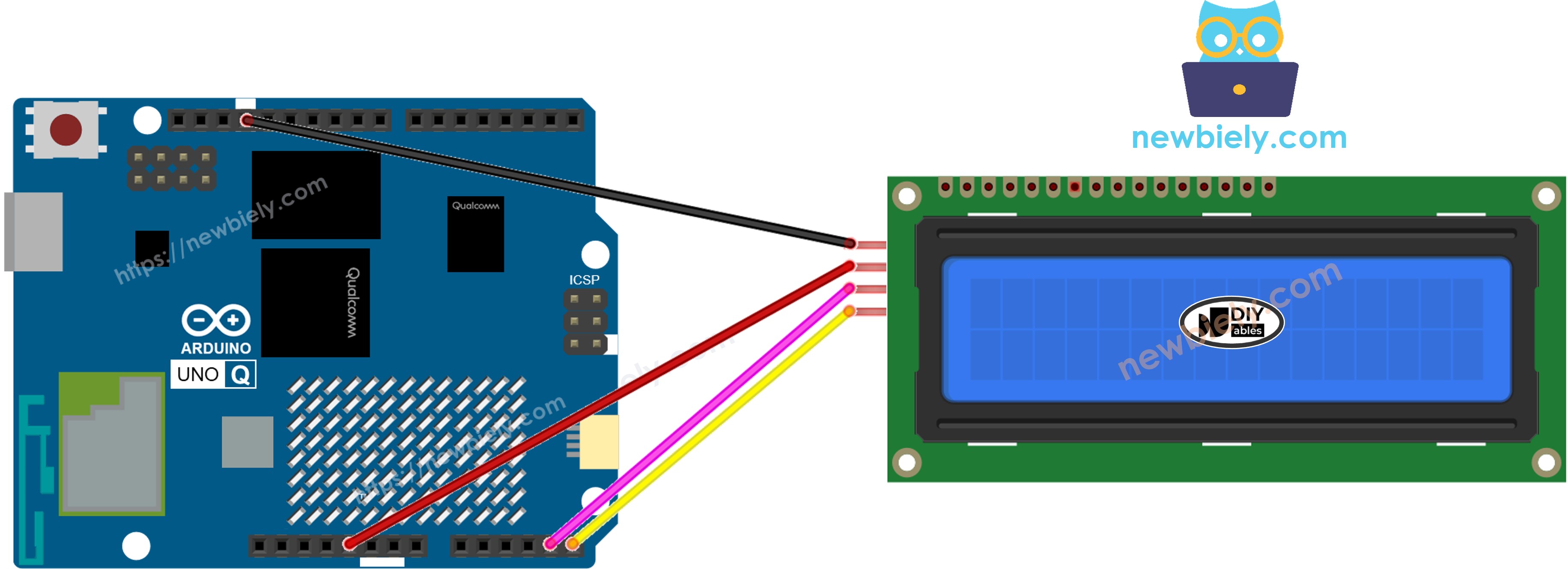
The wiring diagram between Arduino UNO Q LCD I2C

This image is created using Fritzing. Click to enlarge image

LCD I2C PinArduino UNO Q Pin
GNDGND
VCC5V
SDASDA
SCLSCL

※ NOTE THAT:

The I2C address of the LCD may differ depending on the manufacturer. In this tutorial we use 0x27, which is the default for DIYables modules.

How To Program the LCD I2C

The DIYables_LCD_I2C library makes it easy to control the LCD.

  • Include the library:
#include <DIYables_LCD_I2C.h>
  • Create an LCD object with I2C address, number of columns, and number of rows:
DIYables_LCD_I2C lcd(0x27, 16, 2); // I2C address 0x27, 16 columns, 2 rows
  • Initialize the LCD in setup():
lcd.init(); // Initialize the LCD lcd.backlight(); // Turn on the backlight
  • Move the cursor to a position (column, row):
lcd.setCursor(column_index, row_index);
  • Print text at the current cursor position:
lcd.print("Hello World!");

See the "Do More with LCD" section for scrolling, custom characters, and more.

※ NOTE THAT:

The I2C address may differ depending on manufacturer. We use 0x27 as specified by DIYables.

Arduino UNO Q Code — Hello World on LCD I2C

The Arduino UNO Q has two processors: the STM32 MCU (handles real-time hardware control) and the Qualcomm MPU (runs Debian Linux). In this section, only the STM32 MCU is programmed — the Linux side stays idle. A later section will show how both processors work together.

The sketch below displays text on both rows of the LCD.

/* * This Arduino UNO Q code was developed by newbiely.com * * This Arduino UNO Q code is made available for public use without any restriction * * For comprehensive instructions and wiring diagrams, please visit: * https://newbiely.com/tutorials/arduino-uno-q/arduino-uno-q-lcd-i2c */ // COPYRIGHT newbiely.com // AUTHOR: newbiely // This code is made available for public use without restriction. // For complete instructions, tutorials, and further information, visit: // https://newbiely.com/tutorials/arduino-uno-q/arduino-uno-q-lcd-i2c #include <DIYables_LCD_I2C.h> DIYables_LCD_I2C lcd(0x27, 16, 2); // I2C address 0x27, 16 columns, 2 rows void setup() { Monitor.begin(9600); lcd.init(); // Initialize the LCD lcd.backlight(); // Turn on the backlight lcd.setCursor(0, 0); lcd.print("Hello, World!"); lcd.setCursor(0, 1); lcd.print("Arduino UNO Q"); Monitor.println("LCD I2C Hello World done"); } void loop() {}

Detailed Instructions

  • First time with Arduino UNO Q? Follow the Getting Started with Arduino UNO Q tutorial to get your development environment ready before proceeding.
  • Wire the LCD: Connect VCC→5V, GND→GND, SDA→SDA, SCL→SCL.
  • Connect: Plug the Arduino UNO Q into your computer with a USB-C cable.
  • Open Arduino App Lab: Launch Arduino App Lab and wait until it detects your Arduino UNO Q.
  • Create a new App: Click the Create New App button.

Create New App in Arduino App Lab on Arduino UNO Q
  • Give the App a name, for example: DIYables_LCD_I2C
  • Click Create to confirm.
  • You will see a set of folders and files generated inside your new App.

Arduino App Lab App folders and files on Arduino UNO Q
  • Find the sketch/sketch.ino file — this is where you will paste the MCU sketch.
  • Paste the sketch: Copy the MCU code above and paste it into the sketch file.
    • Install the library: Click the Add sketch library button (the open book icon with a + sign) in the left sidebar.

    Add sketch library in Arduino App Lab on Arduino UNO Q
    • Search for DIYables LCD I2C created by DIYables.io and click the Install button.
    My Apps / DIYables Apps
    Run
    Bricks
    No bricks added...
    Sketch Libraries
    No sketch libra...
    Files
    python
    sketch
    .gitignore
    README.md
    app.yaml
    sketch.ino
    Add sketch library
    DIYables LCD I2C DIYables.io

    This library is designed for HD44780-based I2C LCD displays. It provides LiquidCrystal-compatible API plus helper functions (text alignment, progress bars, predefined custom characters). Supports multiple I2C buses (Wire, Wire1, Wire2) for advanced boards like Arduino Giga, Due, and ESP32. Compatible with all Arduino-based platforms including Arduino Uno, Mega, Nano, ESP32, ESP8266, STM32, and Raspberry Pi Pico.

    1.0.0
    Install
    More Info
    • Upload: Click the Run button in Arduino App Lab to compile and upload to the STM32.

    Click Run button in Arduino App Lab on Arduino UNO Q

    Look at the LCD — row 0 shows "Hello, World!" and row 1 shows "Arduino UNO Q"!

    ※ NOTE THAT:

    If the LCD shows nothing or only black squares, adjust the contrast potentiometer on the back of the I2C module using a small screwdriver. See Troubleshooting on LCD I2C for more help.

    Arduino UNO Q Code — Display Text and Numbers on LCD I2C

    This example shows how to display a plain text string, an integer, a float, and a hexadecimal number on the LCD.

    /* * This Arduino UNO Q code was developed by newbiely.com * * This Arduino UNO Q code is made available for public use without any restriction * * For comprehensive instructions and wiring diagrams, please visit: * https://newbiely.com/tutorials/arduino-uno-q/arduino-uno-q-lcd-i2c */ // COPYRIGHT newbiely.com // AUTHOR: newbiely // This code is made available for public use without restriction. // For complete instructions, tutorials, and further information, visit: // https://newbiely.com/tutorials/arduino-uno-q/arduino-uno-q-lcd-i2c #include <DIYables_LCD_I2C.h> DIYables_LCD_I2C lcd(0x27, 16, 2); // I2C address 0x27, 16 columns, 2 rows void setup() { Monitor.begin(9600); lcd.init(); lcd.backlight(); // Row 0: plain text string lcd.setCursor(0, 0); lcd.print("Text: UNO Q"); // Row 1: integer int count = 2025; lcd.setCursor(0, 1); lcd.print("Int: "); lcd.print(count); delay(3000); // Row 0: float (2 decimal places) float voltage = 3.14; lcd.clear(); lcd.setCursor(0, 0); lcd.print("Float: "); lcd.print(voltage, 2); // Row 1: hexadecimal int value = 255; lcd.setCursor(0, 1); lcd.print("Hex: 0x"); lcd.print(value, HEX); Monitor.println("LCD I2C text demo done"); } void loop() {}

    Detailed Instructions

    • Copy the code above and paste it into sketch/sketch.ino.
    • Click the Run button in Arduino App Lab.
    Click Run button in Arduino App Lab on Arduino UNO Q

    The LCD first shows text and an integer, then after 3 seconds clears and shows a float and a hex number.

    Useful LCD Functions Reference

    Quick reference for commonly-used DIYables_LCD_I2C functions:

    • lcd.init() — initialize the LCD
    • lcd.backlight() — turn on the backlight
    • lcd.noBacklight() — turn off the backlight
    • lcd.setCursor(col, row) — move the cursor to column *col*, row *row* (both 0-based)
    • lcd.print("text") — print a string at the current cursor position
    • lcd.print(number) — print an integer
    • lcd.print(number, HEX) — print an integer in hexadecimal
    • lcd.print(floatVal, decimals) — print a float with the specified number of decimal places
    • lcd.clear() — clear the display and move cursor to (0, 0)
    • lcd.home() — move cursor to (0, 0) without clearing
    • lcd.createChar(id, array) — register a custom character (id 0–7)
    • lcd.write((byte)id) — display a registered custom character
    • lcd.scrollDisplayLeft() — shift all content one column to the left
    • lcd.scrollDisplayRight() — shift all content one column to the right
    • lcd.cursor() — show the underscore cursor
    • lcd.noCursor() — hide the cursor
    • lcd.blink() — show the blinking block cursor
    • lcd.noBlink() — stop the blinking block cursor

    Arduino UNO Q Code — Custom Characters on LCD I2C

    lcd.print() only works with ASCII characters. To display a special symbol (e.g. heart, arrow), define a custom character using 8 bytes of pixel data. An LCD 16x2 character cell is 8 rows × 5 columns of pixels — you can store up to 8 custom characters (IDs 0–7).
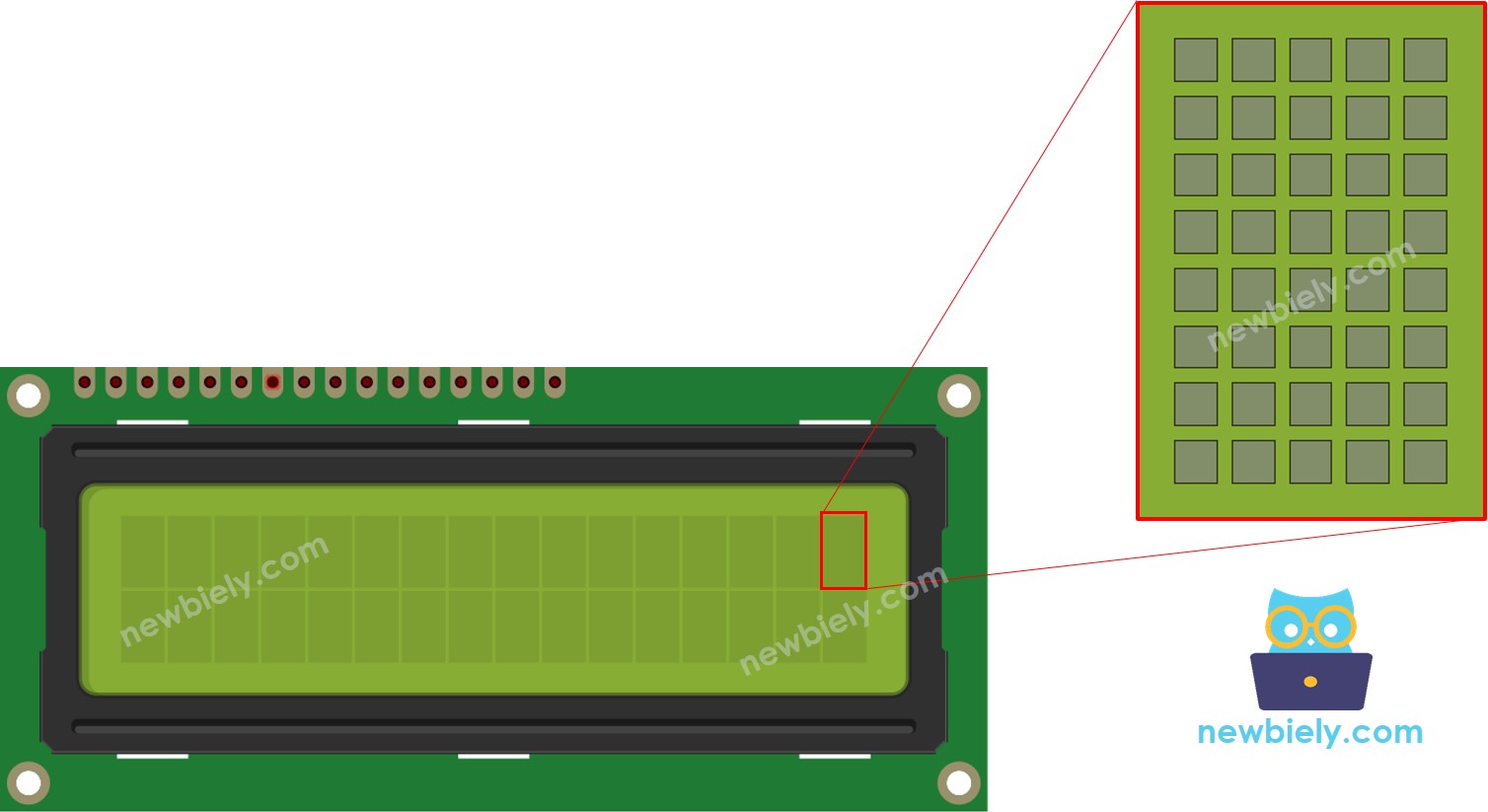
    Arduino UNO Q LCD 16x2 Pixel

    Use the character generator below to design your character and get the binary code:

    Click on each pixel to select/deselect


    Copy below custom character code
    Replace the customChar[8] in the below code
    /* * This Arduino UNO Q code was developed by newbiely.com * * This Arduino UNO Q code is made available for public use without any restriction * * For comprehensive instructions and wiring diagrams, please visit: * https://newbiely.com/tutorials/arduino-uno-q/arduino-uno-q-lcd-i2c */ // COPYRIGHT newbiely.com // AUTHOR: newbiely // This code is made available for public use without restriction. // For complete instructions, tutorials, and further information, visit: // https://newbiely.com/tutorials/arduino-uno-q/arduino-uno-q-lcd-i2c #include <DIYables_LCD_I2C.h> DIYables_LCD_I2C lcd(0x27, 16, 2); // I2C address 0x27, 16 columns, 2 rows // Custom character 0: heart byte heart[8] = { 0b00000, 0b01010, 0b11111, 0b11111, 0b01110, 0b00100, 0b00000, 0b00000 }; // Custom character 1: smiley face byte smiley[8] = { 0b00000, 0b01010, 0b01010, 0b00000, 0b10001, 0b01110, 0b00000, 0b00000 }; // Custom character 2: music note byte note[8] = { 0b00100, 0b00110, 0b00101, 0b00101, 0b00100, 0b11100, 0b11100, 0b00000 }; // Custom character 3: arrow up byte arrowUp[8] = { 0b00100, 0b01110, 0b11111, 0b00100, 0b00100, 0b00100, 0b00100, 0b00000 }; void setup() { Monitor.begin(9600); lcd.init(); lcd.backlight(); // Register custom characters (slots 0–3) lcd.createChar(0, heart); lcd.createChar(1, smiley); lcd.createChar(2, note); lcd.createChar(3, arrowUp); // Row 0: heart + smiley lcd.setCursor(0, 0); lcd.print("Heart:"); lcd.write((byte)0); lcd.print(" Smile:"); lcd.write((byte)1); // Row 1: note + arrow lcd.setCursor(0, 1); lcd.print("Note:"); lcd.write((byte)2); lcd.print(" Up:"); lcd.write((byte)3); Monitor.println("LCD I2C custom characters done"); } void loop() {}

    Detailed Instructions

    • Copy the code above and paste it into sketch/sketch.ino.
    • Click the Run button in Arduino App Lab.
    Click Run button in Arduino App Lab on Arduino UNO Q

    The LCD displays four custom symbols: heart, smiley, music note, and arrow — two per row.

    ※ NOTE THAT:

    To design your own characters, use the LCD Custom Character Generator — it lets you draw the pixel pattern and outputs the byte array ready for your code. You can also use the interactive generator above.

    Arduino UNO Q Code — Scrolling Text on LCD I2C

    scrollDisplayLeft() and scrollDisplayRight() shift the entire display content by one column per call — both rows move together. Use a loop with a short delay to create a smooth scrolling effect.

    /* * This Arduino UNO Q code was developed by newbiely.com * * This Arduino UNO Q code is made available for public use without any restriction * * For comprehensive instructions and wiring diagrams, please visit: * https://newbiely.com/tutorials/arduino-uno-q/arduino-uno-q-lcd-i2c */ // COPYRIGHT newbiely.com // AUTHOR: newbiely // This code is made available for public use without restriction. // For complete instructions, tutorials, and further information, visit: // https://newbiely.com/tutorials/arduino-uno-q/arduino-uno-q-lcd-i2c #include <DIYables_LCD_I2C.h> DIYables_LCD_I2C lcd(0x27, 16, 2); // I2C address 0x27, 16 columns, 2 rows void setup() { Monitor.begin(9600); lcd.init(); lcd.backlight(); // Write text on both rows lcd.setCursor(0, 0); lcd.print("Scroll Left >>>>"); lcd.setCursor(0, 1); lcd.print("<<< Scroll Right"); delay(1000); // Scroll entire display left 16 steps Monitor.println("Scrolling left..."); for (int i = 0; i < 16; i++) { lcd.scrollDisplayLeft(); delay(300); } delay(500); // Scroll entire display right 16 steps (back to original) Monitor.println("Scrolling right..."); for (int i = 0; i < 16; i++) { lcd.scrollDisplayRight(); delay(300); } Monitor.println("LCD I2C scroll demo done"); } void loop() {}

    Detailed Instructions

    • Copy the code above and paste it into sketch/sketch.ino.
    • Click the Run button in Arduino App Lab.
    Click Run button in Arduino App Lab on Arduino UNO Q

    The LCD content slides left 16 steps, pauses, then slides right 16 steps back to the original position.

    Arduino UNO Q Code — Backlight Control on LCD I2C

    Use lcd.backlight() to turn on the I2C backpack's backlight LED and lcd.noBacklight() to turn it off. This demo cycles through on → off → on → blink pattern.

    /* * This Arduino UNO Q code was developed by newbiely.com * * This Arduino UNO Q code is made available for public use without any restriction * * For comprehensive instructions and wiring diagrams, please visit: * https://newbiely.com/tutorials/arduino-uno-q/arduino-uno-q-lcd-i2c */ // COPYRIGHT newbiely.com // AUTHOR: newbiely // This code is made available for public use without restriction. // For complete instructions, tutorials, and further information, visit: // https://newbiely.com/tutorials/arduino-uno-q/arduino-uno-q-lcd-i2c #include <DIYables_LCD_I2C.h> DIYables_LCD_I2C lcd(0x27, 16, 2); // I2C address 0x27, 16 columns, 2 rows void setup() { Monitor.begin(9600); lcd.init(); lcd.backlight(); lcd.setCursor(0, 0); lcd.print("Backlight ON"); lcd.setCursor(0, 1); lcd.print("Arduino UNO Q"); Monitor.println("Backlight ON"); delay(2000); // Turn off backlight lcd.noBacklight(); Monitor.println("Backlight OFF"); delay(2000); // Turn backlight back on lcd.backlight(); Monitor.println("Backlight ON again"); delay(2000); // Blink the backlight 5 times Monitor.println("Blinking backlight..."); for (int i = 0; i < 5; i++) { lcd.noBacklight(); delay(500); lcd.backlight(); delay(500); } Monitor.println("LCD I2C backlight demo done"); } void loop() {}

    Detailed Instructions

    • Copy the code above and paste it into sketch/sketch.ino.
    • Click the Run button in Arduino App Lab.
    Click Run button in Arduino App Lab on Arduino UNO Q

    Watch the LCD backlight turn on, then off, then on again, and finally blink five times.

    Troubleshooting on LCD I2C

    • LCD shows nothing / backlight off — Check VCC→5V and GND. Ensure the lcd.backlight() call is in setup().
    • LCD shows black squares on both rows — The contrast is set too high. Turn the potentiometer on the I2C backpack to reduce contrast.
    • LCD shows faint/invisible text — The contrast is set too low. Increase it via the potentiometer.
    • Wrong characters displayed — The I2C address may be wrong. Try 0x3F if 0x27 does not work, or run an I2C scanner sketch to find the address.
    • Sketch uploads but LCD stays blank — Double-check SDA and SCL connections are not swapped.

    Linux + MCU Bridge Programming

    The Arduino UNO Q has two processors that work together: the MPU (Qualcomm, runs Debian Linux) and the MCU (STM32, runs Zephyr OS with your Arduino sketch). They communicate using RPC via the Arduino_RouterBridge library — never via raw serial ports.

    • The LCD is connected to the MCU (STM32) — via I2C bus (SDA/SCL). Only the MCU can directly drive the LCD.
    • The MPU cannot control the LCD directly — it calls MCU functions via Bridge.call("set_line1", "text") which updates the LCD and returns the result.
    • The MPU has Wi-Fi — because the MPU runs full Debian Linux with Wi-Fi, it can receive Telegram commands and display any message on the LCD remotely.
    • Communication: Bridge.call() on the Linux side invokes Bridge.provide_safe() functions on the MCU side (since LCD writes are hardware API calls).
    • ⚠️ Reserved: /dev/ttyHS1 (Linux) and Serial1 (MCU) are used by the Arduino Router — never open them directly.

    In short: MPU sends text via Telegram → MPU calls Bridge → MCU updates LCD → MCU reports result back to MPU.

    MCU sketch — LCD I2C with Bridge and Monitor output:

    /* * This Arduino UNO Q code was developed by newbiely.com * * This Arduino UNO Q code is made available for public use without any restriction * * For comprehensive instructions and wiring diagrams, please visit: * https://newbiely.com/tutorials/arduino-uno-q/arduino-uno-q-lcd-i2c */ #include "Arduino_RouterBridge.h" #include <DIYables_LCD_I2C.h> DIYables_LCD_I2C lcd(0x27, 16, 2); // I2C address 0x27, 16 columns, 2 rows String current_line1 = ""; String current_line2 = ""; void set_line1(String text) { current_line1 = text.substring(0, 16); lcd.setCursor(0, 0); lcd.print(" "); // Clear line 1 lcd.setCursor(0, 0); lcd.print(current_line1); Monitor.println("Line1: " + current_line1); } void set_line2(String text) { current_line2 = text.substring(0, 16); lcd.setCursor(0, 1); lcd.print(" "); // Clear line 2 lcd.setCursor(0, 1); lcd.print(current_line2); Monitor.println("Line2: " + current_line2); } void clear_lcd() { current_line1 = ""; current_line2 = ""; lcd.clear(); Monitor.println("LCD cleared"); } void get_status() { Monitor.println("Line1: " + current_line1 + " | Line2: " + current_line2); } void setup() { Bridge.begin(); Monitor.begin(); lcd.init(); // Initialize the LCD I2C display lcd.backlight(); // Turn on the backlight lcd.setCursor(0, 0); lcd.print("Bridge Ready"); lcd.setCursor(0, 1); lcd.print("Waiting..."); Bridge.provide_safe("set_line1", set_line1); Bridge.provide_safe("set_line2", set_line2); Bridge.provide_safe("clear_lcd", clear_lcd); Bridge.provide("get_status", get_status); Monitor.println("LCD I2C Bridge ready"); } void loop() {}

    Python script (Arduino App Lab) — display text on LCD from Linux:

    /* * This Arduino UNO Q code was developed by newbiely.com * * This Arduino UNO Q code is made available for public use without any restriction * * For comprehensive instructions and wiring diagrams, please visit: * https://newbiely.com/tutorials/arduino-uno-q/arduino-uno-q-lcd-i2c */ from arduino.app_utils import * import time def loop(): result = Bridge.call("set_line1", "Hello UNO Q") print(result) result = Bridge.call("set_line2", "Python Bridge") print(result) time.sleep(3) result = Bridge.call("clear_lcd") print(result) time.sleep(2) result = Bridge.call("set_line1", "Counting: 1") print(result) result = Bridge.call("set_line2", "Loop running") print(result) time.sleep(3) App.run(user_loop=loop)
    • Note: Make sure Bridge.begin() is called in the MCU sketch and the sketch is uploaded before running the Python script.
    • ⚠️ Warning: Never directly open /dev/ttyHS1 (on Linux) or use Serial1 (on MCU) — these are reserved by the Arduino Router.

    Detailed Instructions

    • Create a new App: Open Arduino App Lab, click Create New App, name it DIYables_LCD_I2C_Bridge, and click Create.
    • Paste the MCU sketch: Copy the Bridge MCU code above and paste it into sketch/sketch.ino.
    • Paste the Python script: Copy the Python code above and paste it into the Python file in the App.
    • Install the library: Click the Add sketch library button (the open book icon with a + sign) in the left sidebar.
    Add sketch library in Arduino App Lab on Arduino UNO Q
    • Search for DIYables LCD I2C created by DIYables.io and click the Install button.
    My Apps / DIYables Apps
    Run
    Bricks
    No bricks added...
    Sketch Libraries
    No sketch libra...
    Files
    python
    sketch
    .gitignore
    README.md
    app.yaml
    sketch.ino
    Add sketch library
    DIYables LCD I2C DIYables.io

    This library is designed for HD44780-based I2C LCD displays. It provides LiquidCrystal-compatible API plus helper functions (text alignment, progress bars, predefined custom characters). Supports multiple I2C buses (Wire, Wire1, Wire2) for advanced boards like Arduino Giga, Due, and ESP32. Compatible with all Arduino-based platforms including Arduino Uno, Mega, Nano, ESP32, ESP8266, STM32, and Raspberry Pi Pico.

    1.0.0
    Install
    More Info
    • Search for Arduino_RouterBridge created by Arduino and click the Install button.
    My Apps / DIYables Apps
    Run
    Bricks
    No bricks added...
    Sketch Libraries
    No sketch libra...
    Files
    python
    sketch
    .gitignore
    README.md
    app.yaml
    sketch.ino
    Add sketch library
    Arduino_RouterBridge Arduino

    This library provides a simple RPC bridge for Arduino UNO Q boards, allowing communication between the board and other devices using MsgPack serialization.

    0.4.1
    Install
    More Info
    • Run the App: Click the Run button — the Python side updates the LCD every few seconds.

    App Lab Console Output

    DIYables_Apps
    Stop
    sketch.ino
    1#include "Arduino_RouterBridge.h"
    Serial Monitor
    Python
    Message (Enter to send a message to "Newbiely" on usb(2820070321))
    New Line
    9600 baud
    LCD I2C Bridge ready Line1: Hello UNO Q Line2: Python Bridge LCD cleared Line1: Counting: 1 Line2: Loop running

    Telegram Integration

    Send any message to your LCD from anywhere in the world via Telegram.

    If you do not have a Telegram bot yet, see How to Create a Telegram Bot to get your bot token before continuing.

    MCU sketch: Keep the same MCU sketch from the previous Bridge section — no changes needed. Make sure it is already uploaded and running on the STM32 before proceeding.

    Python script (Arduino App Lab) — Telegram bot to control LCD:

    /* * This Arduino UNO Q code was developed by newbiely.com * * This Arduino UNO Q code is made available for public use without any restriction * * For comprehensive instructions and wiring diagrams, please visit: * https://newbiely.com/tutorials/arduino-uno-q/arduino-uno-q-lcd-i2c */ from arduino.app_utils import * import requests import time BOT_TOKEN = "YOUR_BOT_TOKEN" API_URL = f"https://api.telegram.org/bot{BOT_TOKEN}" last_update_id = 0 def send_message(chat_id, text): requests.post(f"{API_URL}/sendMessage", json={"chat_id": chat_id, "text": text}) def get_updates(): global last_update_id resp = requests.get(f"{API_URL}/getUpdates", params={"offset": last_update_id + 1, "timeout": 5}) return resp.json().get("result", []) def loop(): global last_update_id updates = get_updates() for update in updates: last_update_id = update["update_id"] msg = update.get("message", {}) chat_id = msg.get("chat", {}).get("id") text = msg.get("text", "").strip() if text.startswith("/display "): content = text[9:] line1 = content[:16] line2 = content[16:32] if len(content) > 16 else "" result1 = Bridge.call("set_line1", line1) print(f"[Telegram] /display: {line1}") if line2: result2 = Bridge.call("set_line2", line2) print(result2) send_message(chat_id, result1) elif text == "/clear": result = Bridge.call("clear_lcd") print(f"[Telegram] /clear") send_message(chat_id, result) elif text == "/status": result = Bridge.call("get_status") print(f"[Telegram] /status: {result}") send_message(chat_id, result) else: send_message(chat_id, "Commands:\n/display <text> — display text on LCD\n/clear — clear the LCD\n/status — show current LCD content") App.run(user_loop=loop)
    • Note: Replace YOUR_BOT_TOKEN with the token obtained from @BotFather on Telegram.
    • Send /display Hello World — the text appears on the LCD.
    • Send /clear — the LCD screen is cleared.
    • Send /status — the bot replies with the current LCD content.

    Detailed Instructions

    • Upload the MCU sketch: Use the Bridge MCU sketch from the previous section (upload it first if not already done).
    • Paste the Telegram script: Copy the Python code above into the Python tab of your App in Arduino App Lab.
    • Set your token: Replace YOUR_BOT_TOKEN in the script with your actual bot token.
    • Run the App: Click Run — the bot starts listening for Telegram commands.
    • Test it: Send /display Arduino UNO Q — the LCD should show the text. Send /clear to erase it.

    App Lab Console Output

    DIYables_Apps
    Stop
    sketch.ino
    1#include "Arduino_RouterBridge.h"
    Serial Monitor
    Python
    [2026-04-29 12:00:01] Telegram: /display Hello UNO Q [2026-04-29 12:00:01] Line1: Hello UNO Q [2026-04-29 12:05:10] Telegram: /status [2026-04-29 12:05:10] Line1: Hello UNO Q | Line2: [2026-04-29 12:10:20] Telegram: /clear [2026-04-29 12:10:20] LCD cleared
    Telegram
    Telegram 12:45
    Welcome to Telegram!
    ArduinoBot 10:19
    Chatting with Arduino...
    telegram-botfather
    BotFather Yesterday
    Your bot has been created.

    ArduinoBot

    bot
    Today
    /display Hello UNO Q
    10:15 AM ✓✓
    Line1: Hello UNO Q
    10:16 AM
    /status
    10:17 AM ✓✓
    Line1: Hello UNO Q | Line2:
    10:18 AM
    /clear
    10:19 AM ✓✓
    LCD cleared
    10:20 AM

    OpenClaw Integration

    OpenClaw integration for Arduino UNO Q LCD I2C is coming soon.

    • Coming Soon: OpenClaw support for LCD I2C control on Arduino UNO Q will be covered in a future update.

    Application/Project Ideas

    • IoT notice board: Use Telegram to push announcements to an LCD on a wall — no computer nearby needed
    • Sensor dashboard: Display temperature, humidity, or other sensor values from the MPU side in real time
    • Door alarm display: When a motion sensor triggers, display "MOTION DETECTED" on the LCD and send a Telegram alert
    • WiFi weather station: Fetch weather data from an API on the MPU and scroll the forecast on the LCD
    • Countdown timer: Send /timer 60 via Telegram and the LCD counts down the seconds using the MCU loop

    Challenge Yourself

    • Easy: Modify the Telegram bot to support /line1 <text> and /line2 <text> commands to set each LCD row independently
    • Medium: Add a /scroll <text> command that makes long text scroll across the LCD (use lcd.scrollDisplayLeft() in a loop)
    • Advanced: Display live sensor data (temperature from a DHT22) on the LCD while simultaneously keeping Telegram commands responsive using a non-blocking update timer

    ※ OUR MESSAGES

    • As freelancers, We are AVAILABLE for HIRE. See how to outsource your project to us
    • Please feel free to share the link of this tutorial. However, Please do not use our content on any other websites. We invested a lot of effort and time to create the content, please respect our work!