
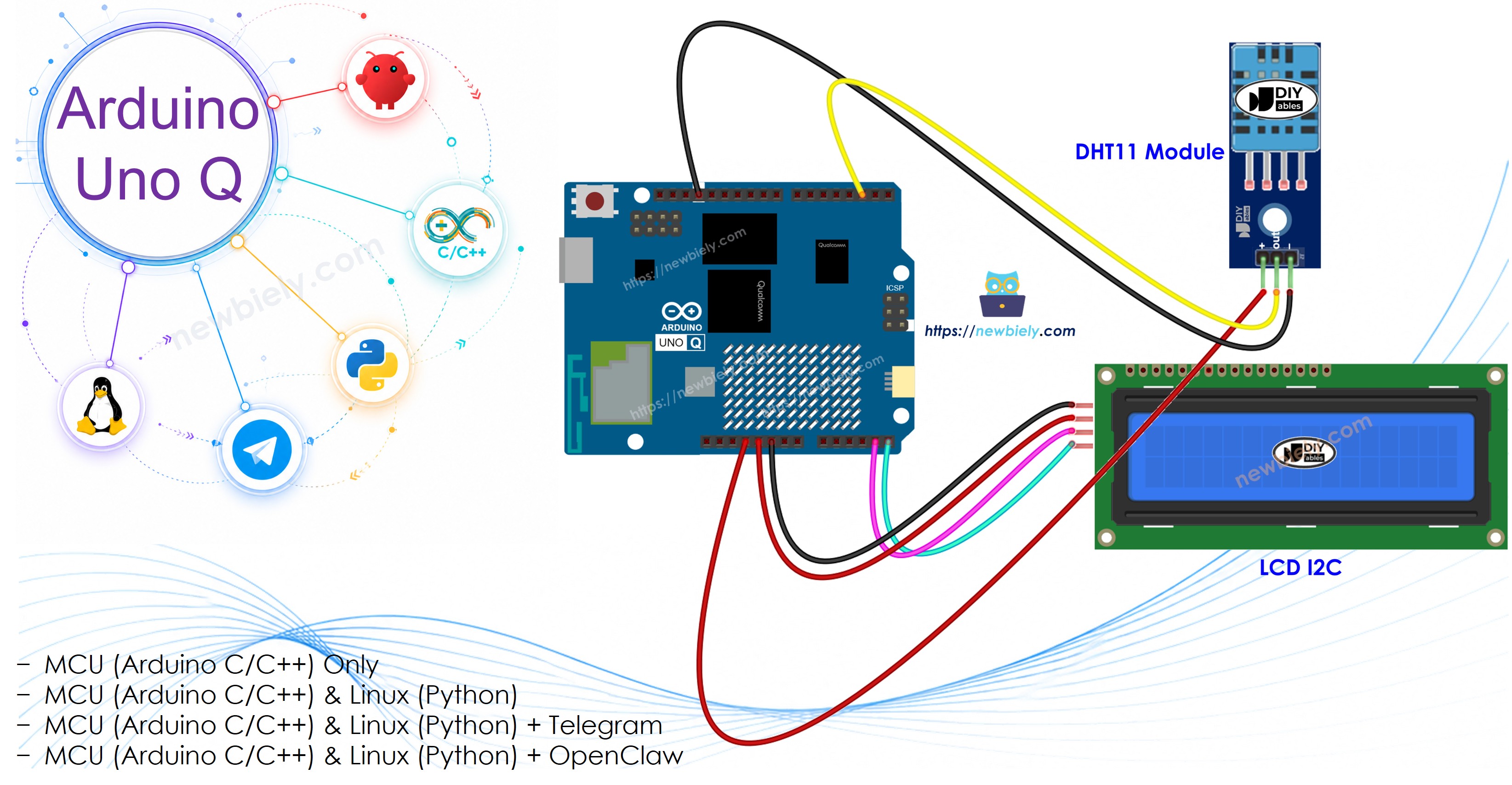
Combine the DHT11 humidity and temperature sensor with a 16x2 I2C LCD on Arduino UNO Q for a clear, at-a-glance environment monitor. Add Bridge and Telegram for remote monitoring and alerts.
In this tutorial, you will learn:
What the DHT11 sensor is and how it works with an LCD display
How to wire the DHT11 and 16x2 I2C LCD to the Arduino UNO Q MCU
How to program the MCU (C/C++ Arduino code) to read DHT11 and display data on the LCD
How to program both the Linux side (Python) and MCU side (C/C++) to read sensor data via Bridge
How to receive Telegram alerts when temperature or humidity exceeds thresholds on Arduino UNO Q
How to use OpenClaw on Arduino UNO Q with the DHT11 and LCD
Disclosure: Some of the links provided in this section are Amazon affiliate links. We may receive a commission for any purchases made through these links at no additional cost to you. Additionally, some of these links are for products from our own brand, DIYables .
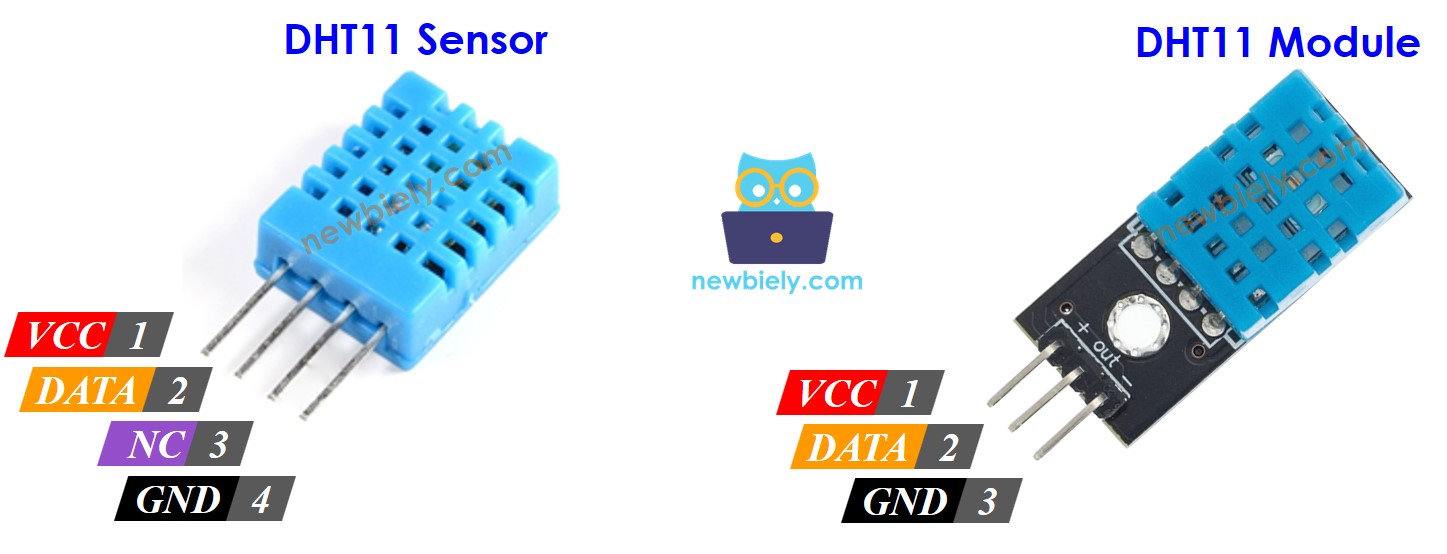
The DHT11 has four pins (when using the common 3-pin module):
GND: Connect to GND
VCC: Connect to 3.3V or 5V
DATA: Connect to digital pin 2 on the Arduino UNO Q MCU
How It Works
The DHT11 uses a single-wire digital protocol to transmit humidity and temperature. It can measure:
Humidity: 20–80% RH (±5% accuracy)
Temperature: 0–50°C (±2°C accuracy)
Allow at least 3 seconds between readings.
Overview of the LCD Display
The 16x2 I2C LCD connects via I2C and displays two rows of 16 characters. The top row shows temperature (°C and °F) and the bottom row shows humidity. Default I2C address: 0x27.
Wiring Diagram
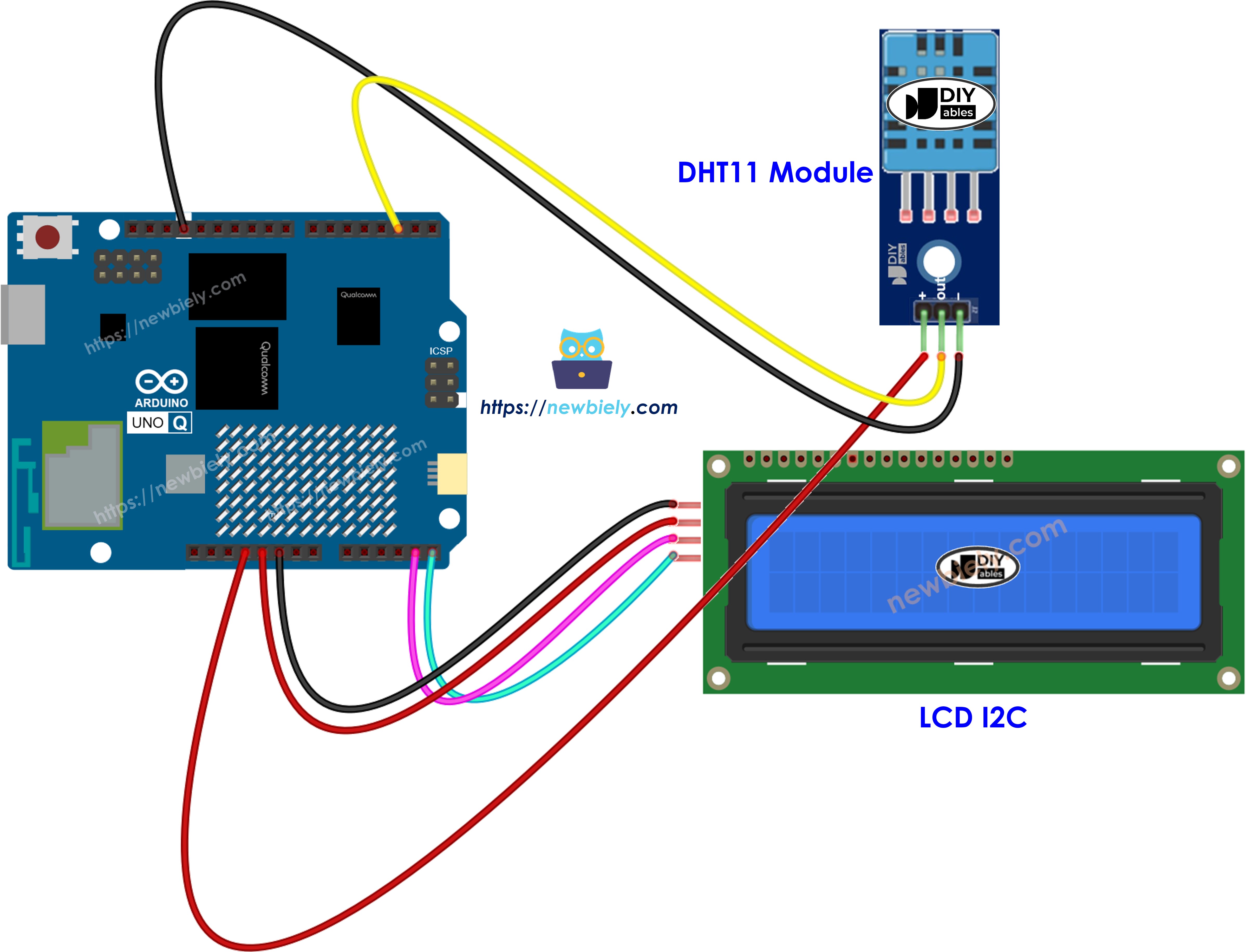
This image is created using Fritzing. Click to enlarge image
The Arduino UNO Q has two processors working together:
The STM32 MCU reads the DHT11 sensor and controls the LCD — all sensor and display logic runs on the MCU
The Qualcomm MPU runs Debian Linux and handles Wi-Fi, Python, and cloud connectivity
In this section, only the MCU is programmed — the Linux side stays idle. A later section shows how both processors work together via Bridge.
The MCU reads DHT11 every 3 seconds, displays temperature and humidity on the LCD, and prints to the Serial Monitor.
/* * This Arduino UNO Q code was developed by newbiely.com * * This Arduino UNO Q code is made available for public use without any restriction * * For comprehensive instructions and wiring diagrams, please visit: * https://newbiely.com/tutorials/arduino-uno-q/arduino-uno-q-dht11-lcd */// COPYRIGHT newbiely.com// AUTHOR: newbiely// This code is made available for public use without restriction.// For complete instructions, tutorials, and further information, visit:// https://newbiely.com/tutorials/arduino-uno-q/arduino-uno-q-dht11-lcd#include <DHT.h>#include <DIYables_LCD_I2C.h>#define DHT11_PIN 2DHT dht11(DHT11_PIN, DHT11);DIYables_LCD_I2C lcd(0x27, 16, 2);voidsetup() {Serial.begin(9600); lcd.init(); lcd.backlight(); lcd.setCursor(0, 0); lcd.print("DHT11 Sensor"); lcd.setCursor(0, 1); lcd.print("Initializing..."); dht11.begin();delay(2000); // allow sensor to stabilizeSerial.println("Arduino UNO Q DHT11 + LCD ready");}voidloop() {float humidity = dht11.readHumidity();float tempC = dht11.readTemperature();float tempF = dht11.readTemperature(true);if (isnan(humidity) || isnan(tempC) || isnan(tempF)) {Serial.println("Failed to read from DHT11 sensor!"); lcd.setCursor(0, 0); lcd.print("Sensor Error! ");delay(3000);return; } lcd.setCursor(0, 0); lcd.print("T: "); lcd.print(tempC, 1); lcd.print((char)223); lcd.print("C "); lcd.print(tempF, 1); lcd.print((char)223); lcd.print("F "); lcd.setCursor(0, 1); lcd.print("Humidity: "); lcd.print(humidity, 1); lcd.print("% ");Serial.print("Humidity: ");Serial.print(humidity, 1);Serial.print("% Temp: ");Serial.print(tempC, 2);Serial.print("°C / ");Serial.print(tempF, 2);Serial.println("°F");delay(3000);}
Connect: Wire the DHT11 and LCD to the Arduino UNO Q MCU as shown in the wiring diagram.
Open Arduino App Lab: Launch Arduino App Lab and wait until it detects your Arduino UNO Q.
Create a new App: Click the Create New App button.

Give the App a name, for example: Dht11Lcd
Click Create to confirm.
Paste the sketch: Copy the MCU code above and paste it into sketch/sketch.ino. Keep other files as default.
Install the library: Click the Add sketch library button (the open book icon with a + sign) in the left sidebar.

Search for DHT sensor library created by Adafruit and click the Install button.
My Apps/DIYables Apps
Run
Bricks
No bricks added...
Sketch Libraries
No sketch libra...
Files
python
sketch
.gitignore
README.md
app.yaml
sketch.ino
Add sketch library
DHT sensor library
DHT sensor libraryAdafruit
Arduino library for DHT11, DHT22, etc Temp & Humidity Sensors
1.4.6
Install
More Info
Search for DIYables LCD I2C created by DIYables.io and click the Install button.
My Apps/DIYables Apps
Run
Bricks
No bricks added...
Sketch Libraries
No sketch libra...
Files
python
sketch
.gitignore
README.md
app.yaml
sketch.ino
Add sketch library
DIYables LCD I2C
DIYables LCD I2CDIYables.io
This library is designed for HD44780-based I2C LCD displays. It provides LiquidCrystal-compatible API plus helper functions (text alignment, progress bars, predefined custom characters). Supports multiple I2C buses (Wire, Wire1, Wire2) for advanced boards like Arduino Giga, Due, and ESP32. Compatible with all Arduino-based platforms including Arduino Uno, Mega, Nano, ESP32, ESP8266, STM32, and Raspberry Pi Pico.
1.0.0
Install
More Info
Upload: Click the Run button in Arduino App Lab.

Watch temperature and humidity appear on the LCD and Serial Monitor every 3 seconds.
App Lab Console Output
DIYables_Apps
Stop
sketch.ino
1#include"Arduino_RouterBridge.h"
Serial Monitor
Python
Message (Enter to send a message to "Newbiely" on usb(2820070321))
This section shows how to program both processors of the Arduino UNO Q so the Linux side can read DHT11 data and control the LCD via Bridge:
The DHT11 sensor and LCD are connected to the MCU — all reading and display logic runs on the MCU every 3 seconds
The MPU cannot access the sensor or LCD directly — it calls Bridge functions to retrieve readings or clear the display
The MPU has Wi-Fi — running full Debian Linux, it can log readings, publish to dashboards, or send Telegram alerts
Arduino_RouterBridge enables RPC communication between the two processors
⚠️ /dev/ttyHS1 (Linux) and Serial1 (MCU) are RESERVED by the router — never open them in user code
In short: MCU reads DHT11 every 3s and updates LCD → MPU reads via Bridge → MPU sends alerts over Wi-Fi.
MCU Code (Bridge)
/* * This Arduino UNO Q code was developed by newbiely.com * * This Arduino UNO Q code is made available for public use without any restriction * * For comprehensive instructions and wiring diagrams, please visit: * https://newbiely.com/tutorials/arduino-uno-q/arduino-uno-q-dht11-lcd */// COPYRIGHT newbiely.com// AUTHOR: newbiely// This code is made available for public use without restriction.// For complete instructions, tutorials, and further information, visit:// https://newbiely.com/tutorials/arduino-uno-q/arduino-uno-q-dht11-lcd#include <DHT.h>#include <DIYables_LCD_I2C.h>#include"Arduino_RouterBridge.h"#define DHT11_PIN 2DHT dht11(DHT11_PIN, DHT11);DIYables_LCD_I2C lcd(0x27, 16, 2);float last_humidity = 0.0;float last_temp_c = 0.0;float last_temp_f = 0.0;unsignedlong last_read_ms = 0;void lcd_show(float tempC, float tempF, float humidity) { lcd.setCursor(0, 0); lcd.print("T: "); lcd.print(tempC, 1); lcd.print((char)223); lcd.print("C "); lcd.print(tempF, 1); lcd.print((char)223); lcd.print("F "); lcd.setCursor(0, 1); lcd.print("Humidity: "); lcd.print(humidity, 1); lcd.print("% ");}String get_humidity(String arg) {returnString(last_humidity, 1);}String get_temp_c(String arg) {returnString(last_temp_c, 2);}String get_temp_f(String arg) {returnString(last_temp_f, 2);}String clear_lcd(String arg) { lcd.clear(); Monitor.println("LCD cleared");return"OK";}String get_status(String arg) {return"Temp: " + String(last_temp_c, 2) + "°C / " + String(last_temp_f, 2) + "°F Humidity: " + String(last_humidity, 1) + "%";}voidsetup() {Bridge.begin(); Monitor.begin(); lcd.init(); lcd.backlight(); lcd.setCursor(0, 0); lcd.print("DHT11 Sensor"); lcd.setCursor(0, 1); lcd.print("Initializing..."); dht11.begin();delay(2000); // allow sensor to stabilizefloat h = dht11.readHumidity();float c = dht11.readTemperature();float f = dht11.readTemperature(true);if (!isnan(h) && !isnan(c) && !isnan(f)) { last_humidity = h; last_temp_c = c; last_temp_f = f; lcd_show(c, f, h); }Bridge.provide("get_humidity", get_humidity);Bridge.provide("get_temp_c", get_temp_c);Bridge.provide("get_temp_f", get_temp_f);Bridge.provide_safe("clear_lcd", clear_lcd);Bridge.provide("get_status", get_status); Monitor.println("Arduino UNO Q DHT11 + LCD Bridge ready");}voidloop() {unsignedlongnow = millis();if (now - last_read_ms >= 3000) { last_read_ms = now;float h = dht11.readHumidity();float c = dht11.readTemperature();float f = dht11.readTemperature(true);if (isnan(h) || isnan(c) || isnan(f)) { Monitor.println("Failed to read from DHT11 sensor!"); } else { last_humidity = h; last_temp_c = c; last_temp_f = f; lcd_show(c, f, h); Monitor.println("Humidity: " + String(h, 1) + "% Temp: " + String(c, 2) + "°C / " + String(f, 2) + "°F"); } }}
Python Code (Bridge)
/* * This Arduino UNO Q code was developed by newbiely.com * * This Arduino UNO Q code is made available for public use without any restriction * * For comprehensive instructions and wiring diagrams, please visit: * https://newbiely.com/tutorials/arduino-uno-q/arduino-uno-q-dht11-lcd */# COPYRIGHT newbiely.com# AUTHOR: newbiely# This code is made available for public use without restriction.# For complete instructions, tutorials, and further information, visit:# https://newbiely.com/tutorials/arduino-uno-q/arduino-uno-q-dht11-lcdfrom arduino.app_utils import *import timedef loop(): status = Bridge.call("get_status")print(status) time.sleep(3)App.run(user_loop=loop)
Detailed Instructions
Connect: Wire the DHT11 and LCD to the Arduino UNO Q as shown in the wiring diagram.
Open Arduino App Lab: Launch Arduino App Lab and wait for the board to be detected.
Create a new App: Click Create New App, name it Dht11LcdBridge, then click Create.
Paste the MCU sketch: Copy the MCU Bridge code above and paste it into sketch/sketch.ino.
Paste the Python code: Copy the Python Bridge code above and paste it into the Python file in the App.
Upload: Click the Run button in Arduino App Lab.
Watch the LCD update every 3 seconds and readings appear in the Python console.
App Lab Console Output
DIYables_Apps
Stop
sketch.ino
1#include"Arduino_RouterBridge.h"
Serial Monitor
Python
Message (Enter to send a message to "Newbiely" on usb(2820070321))
Monitor DHT11 readings remotely and receive automatic Telegram alerts when temperature or humidity rises above thresholds.
MCU sketch: Keep the same MCU sketch from the previous Bridge section.
Python Code (Telegram)
/* * This Arduino UNO Q code was developed by newbiely.com * * This Arduino UNO Q code is made available for public use without any restriction * * For comprehensive instructions and wiring diagrams, please visit: * https://newbiely.com/tutorials/arduino-uno-q/arduino-uno-q-dht11-lcd */# COPYRIGHT newbiely.com# AUTHOR: newbiely# This code is made available for public use without restriction.# For complete instructions, tutorials, and further information, visit:# https://newbiely.com/tutorials/arduino-uno-q/arduino-uno-q-dht11-lcdfrom arduino.app_utils import *import requestsimport timeTELEGRAM_BOT_TOKEN = "YOUR_TELEGRAM_BOT_TOKEN"CHAT_ID = "YOUR_CHAT_ID"last_update_id = 0TEMP_THRESHOLD_C = 35.0HUMIDITY_THRESHOLD = 80.0temp_alert_sent = Falsehumidity_alert_sent = Falsedef get_updates():global last_update_id url = f"https://api.telegram.org/bot{TELEGRAM_BOT_TOKEN}/getUpdates" params = {"offset": last_update_id + 1, "timeout": 5}try: response = requests.get(url, params=params, timeout=10) data = response.json()if data["ok"]:return data["result"]exceptExceptionas e:print(f"Error getting updates: {e}")return []def send_message(chat_id, text): url = f"https://api.telegram.org/bot{TELEGRAM_BOT_TOKEN}/sendMessage" payload = {"chat_id": chat_id, "text": text}try: requests.post(url, data=payload, timeout=10)exceptExceptionas e:print(f"Error sending message: {e}")def loop():global temp_alert_sent, humidity_alert_sent# Auto-alerts temp_c_str = Bridge.call("get_temp_c") humidity_str = Bridge.call("get_humidity")try: temp_c = float(temp_c_str) humidity = float(humidity_str)if temp_c > TEMP_THRESHOLD_C andnot temp_alert_sent: temp_alert_sent = True temp_f = Bridge.call("get_temp_f") msg = f"⚠️ High temperature alert: {temp_c_str}°C / {temp_f}°F"print(msg) send_message(CHAT_ID, msg)elif temp_c <= TEMP_THRESHOLD_C: temp_alert_sent = Falseif humidity > HUMIDITY_THRESHOLD andnot humidity_alert_sent: humidity_alert_sent = True msg = f"⚠️ High humidity alert: {humidity_str}%"print(msg) send_message(CHAT_ID, msg)elif humidity <= HUMIDITY_THRESHOLD: humidity_alert_sent = FalseexceptValueError:pass# Handle Telegram commands updates = get_updates()for update in updates: last_update_id = update["update_id"]if"message"notin update:continue message = update["message"] chat_id = message["chat"]["id"] text = message.get("text", "").strip()print(f"Received: {text}")if text == "/start": send_message(chat_id,"Arduino UNO Q DHT11 + LCD Bot\n""/temp - Temperature (°C and °F)\n""/humidity - Humidity reading\n""/clear - Clear LCD display\n""/status - Full sensor status")elif text == "/temp": temp_c = Bridge.call("get_temp_c") temp_f = Bridge.call("get_temp_f") send_message(chat_id, f"Temperature: {temp_c}°C = {temp_f}°F")elif text == "/humidity": result = Bridge.call("get_humidity") send_message(chat_id, f"Humidity: {result}%")elif text == "/clear": result = Bridge.call("clear_lcd") send_message(chat_id, f"LCD cleared: {result}")elif text == "/status": result = Bridge.call("get_status") send_message(chat_id, result)else: send_message(chat_id, "Unknown command. Send /start for help.") time.sleep(3)App.run(user_loop=loop)
Detailed Instructions
Replace YOUR_TELEGRAM_BOT_TOKEN with your actual bot token from BotFather.
Replace YOUR_CHAT_ID with your Telegram chat ID.
Paste this Python code into your App's Python file (keep the same MCU sketch).
Click the Run button. Send /temp or /humidity from Telegram, or warm the sensor to trigger the high-temperature alert.
App Lab Console Output

DIYables_Apps
Stop
sketch.ino
1#include"Arduino_RouterBridge.h"
Serial Monitor
Python
[2026-04-29 09:10:00] Waiting for Telegram messages...
[2026-04-29 09:10:18] ⚠️ High temperature alert: 36.20°C / 97.16°F
[2026-04-29 09:10:35] Received: /humidity
[2026-04-29 09:10:40] Received: /status
Telegram12:45
Welcome to Telegram!
ArduinoBot10:19
Chatting with Arduino...
BotFatherYesterday
Your bot has been created.
ArduinoBot
bot
Today
/temp
10:15 AM✓✓
Temperature: 26.40°C = 79.52°F
10:16 AM
/humidity
10:17 AM✓✓
Humidity: 55.0%
10:18 AM
/clear
10:19 AM✓✓
LCD cleared: OK
10:20 AM
/status
10:21 AM✓✓
Temp: 26.40°C / 79.52°F Humidity: 55.0%
10:22 AM
⚠️ High temperature alert: 36.20°C / 97.16°F
10:23 AM
⚠️ High humidity alert: 82.0%
10:24 AM
OpenClaw
...OPENCLAW
OpenClaw support for Arduino UNO Q DHT11 + LCD is coming soon.
...OPENCLAW
Project Ideas
You can build many useful projects with the DHT11 and LCD on Arduino UNO Q:
Portable Thermometer-Hygrometer: The LCD gives a clear, battery-friendly readout of temperature and humidity — package the project in a small case for a portable climate gauge
Baby Room Monitor: Mount the device in a nursery — the LCD shows live readings and Telegram alerts parents immediately if temperature or humidity goes outside the comfort zone
Cold Chain Logger: Use the DHT11 and LCD to track storage conditions — the Python side logs each reading via Bridge to a Linux file with timestamps for later inspection
Hydroponic Growing Station: Display grow-room temperature and humidity on the LCD and trigger a humidifier relay via Bridge when humidity drops, keeping plant growth conditions optimal
Lab Environment Tracker: Post the DHT11 readings to an HTTP endpoint every minute using the MPU's Wi-Fi — the LCD confirms current conditions while the dashboard shows historical trends
Challenge Yourself
Ready to go further with the DHT11 and LCD on Arduino UNO Q? Try these challenges:
Easy: Add a custom Celsius degree character to the LCD using createChar() so the display shows a true ° symbol instead of the nearest printable character.
Medium: Implement a Telegram /avg command that returns the average temperature and humidity calculated over the last 10 readings buffered by the Python side.
Advanced: Build a scheduled daily report — every 24 hours, the MPU computes the day's min, max, and average temperature and humidity from Bridge data and sends a formatted summary to Telegram.
Please feel free to share the link of this tutorial. However, Please do not use our content on any other websites. We invested a lot of effort and time to create the content, please respect our work!

