
Arduino Mega - LED Module
Big Arduino Mega builds - a CNC controller, a home alarm panel, a model railway yard - usually need a row of status lights on the front. Doing that with bare LEDs means one resistor per light and a lot of fiddly breadboard work. A 10mm LED module removes that work: three labeled pins, plug them in, and the light is ready. This tutorial instructs you how to use the Arduino Mega to switch an LED module on and off and to control its brightness. In detail, we will learn:
- What is on the LED module board and what each of its three pins does
- How to connect the LED module to the Arduino Mega without any extra parts
- How to program the Arduino Mega to blink the LED module and report its state on the Serial Monitor
- How to program the Arduino Mega to fade the LED module up and down with PWM
We suggest:
- Reading the Arduino Mega - LED - Blink tutorial if you want to see how a plain LED is wired with its own resistor.
- Reading the Arduino Mega - LED - Fade tutorial if you want to fade an LED without using delay().
- Utilizing an RGB LED if one indicator must show several colors.
Hardware Preparation
Or you can buy the following kits:
| 1 | × | DIYables Sensor Kit (18 sensors/displays) |
Additionally, some of these links are for products from our own brand, DIYables .
Buy Note: Use the LED Module for easier wiring. It includes an integrated resistor.
Overview of LED Module and Its Pinout
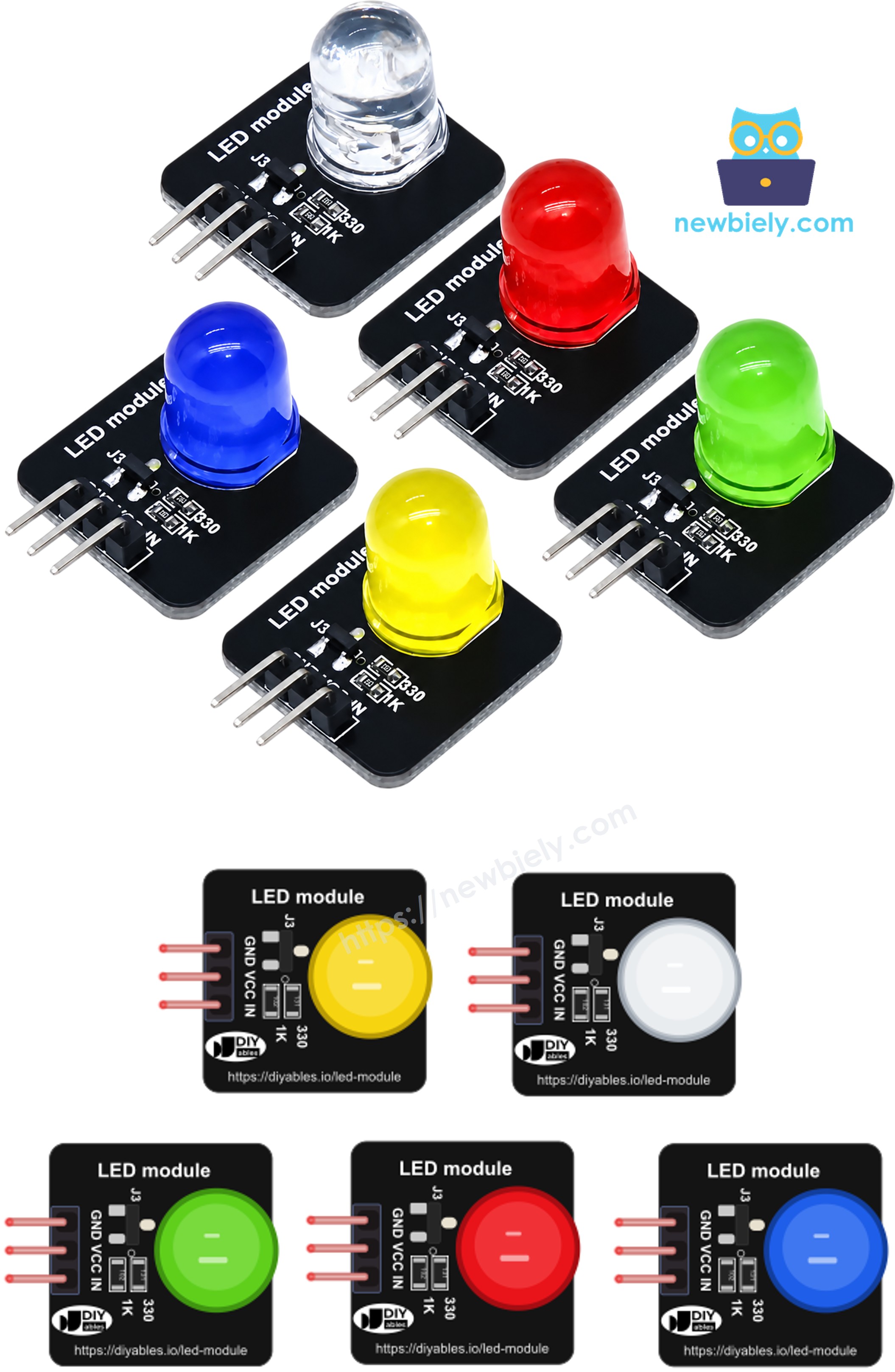
Think of the LED module as "an LED with its resistor and driver already on board". The light is a 10mm diffused round LED, mounted on a small 20mm x 20mm black PCB. Next to it sit a 330Ω current-limiting resistor, a 1KΩ resistor on the input line, and a small transistor. The LED takes its power from the VCC pin. The IN pin does not feed the LED - it only tells the transistor to open or close. Because of this, the Arduino Mega pin gives only a tiny current, and you never need to add a resistor yourself.
| LED Module | |
|---|---|
| Operating Voltage | 3.3V to 5V DC |
| LED | 10mm, diffused, round |
| Board Size | 20mm x 20mm |
| Onboard Parts | 330Ω LED resistor, 1KΩ input resistor, transistor switch |
| Header | 3-pin, 2.54mm, right-angle male pins (presoldered) |
| Logic | Active HIGH (IN = HIGH turns the LED on) |
| Colors in a Pack | red, yellow, blue, green, white |
The header has three pins, printed on the board in this order:
- GND pin: must be connected to GND (0V)
- VCC pin: must be connected to the 5V pin of the Arduino Mega (3.3V also works)
- IN pin: must be connected to a digital output pin of the Arduino Mega. A HIGH signal lights the LED, a LOW signal turns it off, and a PWM signal sets its brightness.
※ NOTE THAT:
The arrangement of pins on a module may differ from one manufacturer to another. Always follow the labels printed next to the header, not the position of the pins. Check them before you plug in the wires!
Wiring Diagram
Only three jumper wires are needed: GND to GND, VCC to 5V, and IN to pin 9 of the Arduino Mega. Pin 9 is one of the Mega's PWM pins, so the same wiring works for both the blink sketch and the fade sketch.
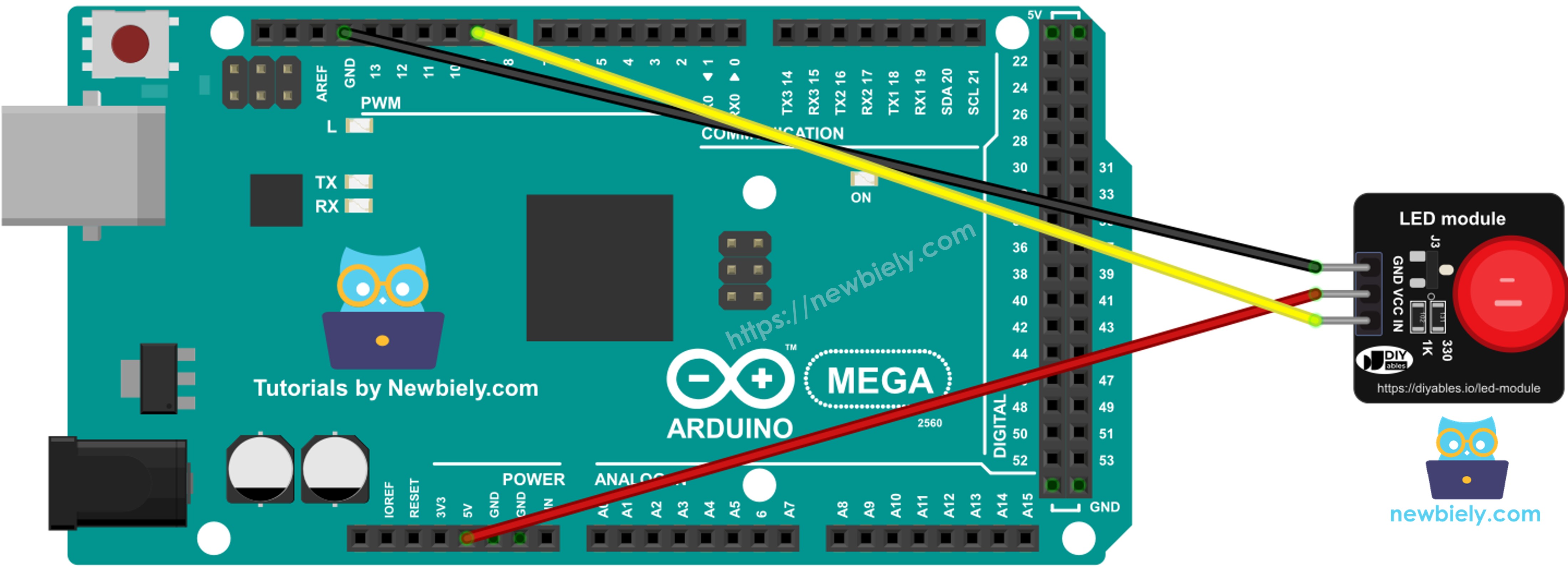
This image is created using Fritzing. Click to enlarge image
| LED Module | Arduino Mega |
|---|---|
| GND | GND |
| VCC | 5V |
| IN | Pin 9 |
How To Program For LED Module
- The first step is to give a name to the Arduino Mega pin that is connected to the IN pin of the module:
- Configure that pin as an output inside setup():
- Write HIGH to the pin to switch the LED on, and LOW to switch it off:
- To set the brightness instead, write a PWM value from 0 (off) to 255 (full brightness):
Arduino Mega Code for LED Module - Blink
The sketch below turns the LED module on for one second, then off for one second, and prints each change to the Serial Monitor.
Detailed Instructions
- If this is the first time you use the Arduino Mega, see how to set up the environment for Arduino Mega in the Arduino IDE.
- Wire the components as shown in the diagram.
- Connect the Arduino Mega board to your computer using a USB cable.
- Open Arduino IDE on your computer.
- Select the Arduino Mega or Mega 2560 board and the right COM port.
- Copy the code above and paste it into the Arduino IDE.
- Click the Upload button to send the code to the Arduino Mega.
- Open the Serial Monitor and watch the LED module at the same time.
The LED lights up each time "ON" appears and goes dark each time "OFF" appears.
Arduino Mega Code for LED Module - Fade with PWM
This time the sketch uses analogWrite() on pin 9. The level climbs from 0 to 255 in steps of 15, then falls back to 0, so the LED slowly glows and dims again.
Detailed Instructions
- Keep the same wiring as before.
- Copy the fade code above into the Arduino IDE and click Upload.
- Look at the LED module and open the Serial Monitor.
※ NOTE THAT:
The fade only works on PWM pins. On the Arduino Mega, these are pins 2 to 13 and 44 to 46. If you move the IN wire to a pin without PWM, the LED will only switch between fully on and fully off.
Additional Knowledge
How does the LED module compare with a bare LED on the Arduino Mega?
| Bare LED | LED Module | |
|---|---|---|
| Series resistor | You must add one (e.g. 220Ω) | Already on the board (330Ω) |
| Polarity | You must find the anode and cathode legs | Pins are labeled GND, VCC, IN |
| Current from the Mega pin | The whole LED current | Only a tiny control current |
| Connection | Legs on a breadboard | 3-pin header, jumper wires |
It is evident that the LED module is the faster and safer choice for indicators, while a bare LED is cheaper when you need many lights in a tight space.
Because each module draws almost no current from its IN pin, the Arduino Mega can drive many of them at once - for example, one module per machine state on a large control panel. Just keep the total current of all LEDs, taken from the 5V pin, within what your USB port or power supply can give.