
Arduino Mega - SW520D Tilt Sensor
This guide shows how to use the Arduino Mega and a SW520D tilt sensor to detect tilt. We will cover the following topics:
- How to hook up a SW520D tilt sensor to an Arduino Mega
- How to write a program for Arduino Mega to detect tilt with a SW520D tilt sensor
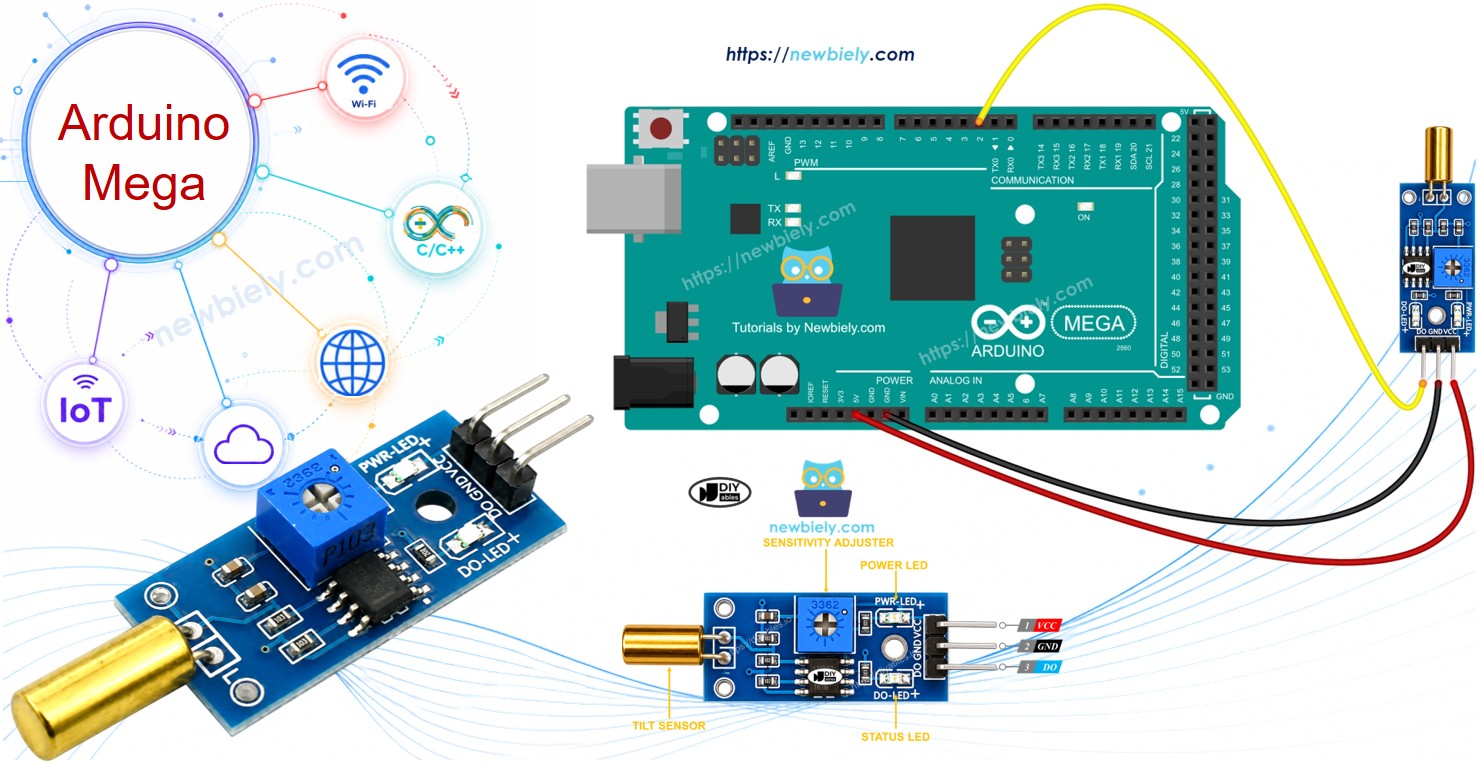
Later, you can change the code to turn on an LED or a light (using a relay) when it detects tilt, or even make a servo motor move.
Hardware Preparation
Or you can buy the following kits:
| 1 | × | DIYables Sensor Kit (18 sensors/displays) |
Additionally, some of these links are for products from our own brand, DIYables .
Overview of SW520D Tilt Sensor
You can use a SW520D tilt sensor to detect when something is tilted or moved. Inside the module, there is a small metal ball that rolls between two electrical contacts depending on the angle. The module gives a simple ON or OFF digital signal.
The SW520D Tilt Sensor Pinout
The SW520D tilt sensor has three pins.
- VCC pin: connect to power (3.3V to 5V).
- GND pin: connect to ground (0V).
- DO pin: this is an output pin. It goes HIGH when the sensor is upright and goes LOW when it is tilted. Connect this pin to an input pin on the Arduino Mega.
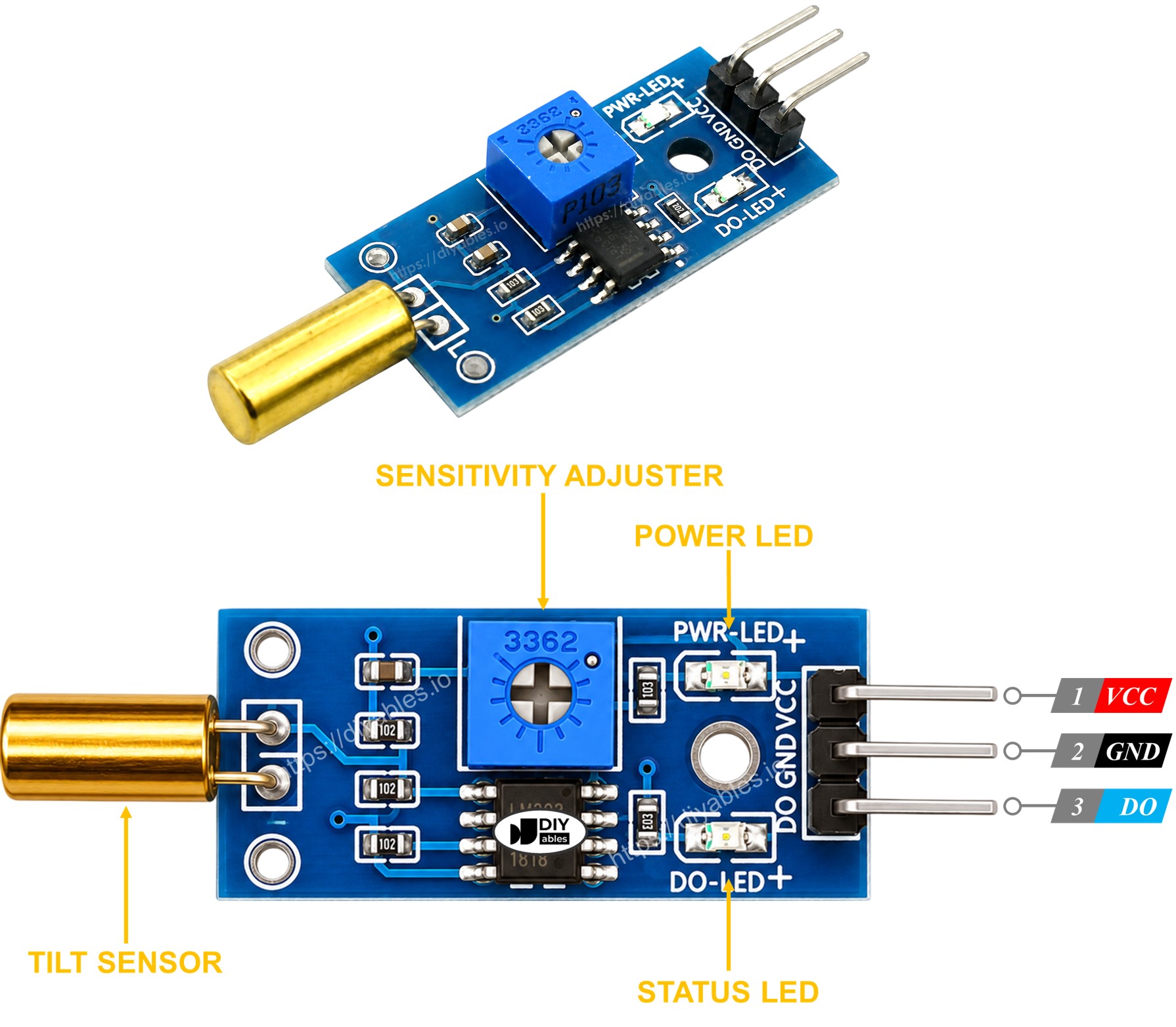
The SW520D tilt sensor module also has two LED lights.
- One LED light for power
- One LED light for tilt state: on when the sensor is upright, off when it is tilted
How It Works
- When the sensor is upright, the metal ball closes the contact, and the output pin goes HIGH.
- When the sensor is tilted, the metal ball opens the contact, and the output pin goes LOW.
Wiring Diagram
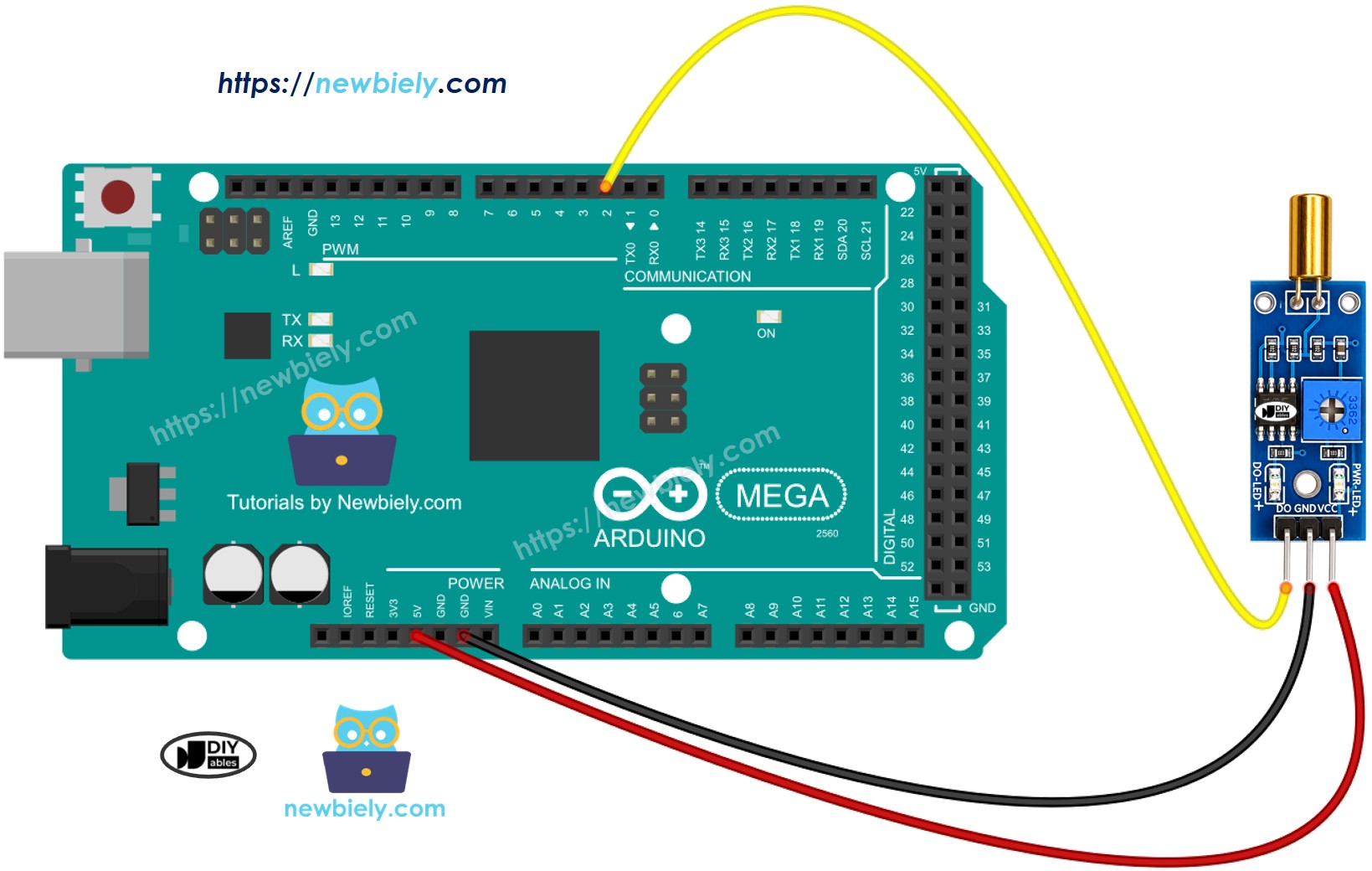
This image is created using Fritzing. Click to enlarge image
How To Program For SW520D Tilt Sensor
- Sets a pin on the Arduino Mega as a digital input using the pinMode() function. For example, pin 8.
- Uses the digitalRead() function to see a pin's state on the Arduino Mega.
Arduino Mega Code - Detecting the tilt
Detailed Instructions
Do these steps one by one.
- Connect the SW520D tilt sensor to the Arduino Mega following the diagram.
- Connect the Arduino Mega to your computer with a USB cable.
- Open the Arduino IDE on your computer.
- Select the correct board: Arduino Mega, and the right COM port.
- Copy the code and open it in the Arduino IDE.
- Click Upload to send the code to the Arduino Mega.
- Tilt the SW520D sensor back and forth.
- Check the results in the Serial Monitor.
Troubleshooting
If the SW520D tilt sensor isn't working well, try these steps:
- Check the orientation: The SW520D is sensitive to its mounting angle. Make sure it is installed in the correct upright position for reliable detection.
- Reduce vibrations: The tilt sensor can also react to mechanical vibrations. Fix it firmly to a stable surface to reduce false triggers.
- Check the wiring: Make sure the VCC, GND, and DO pins are connected correctly.
- Check the power supply: Make sure the power supply is stable for consistent readings.