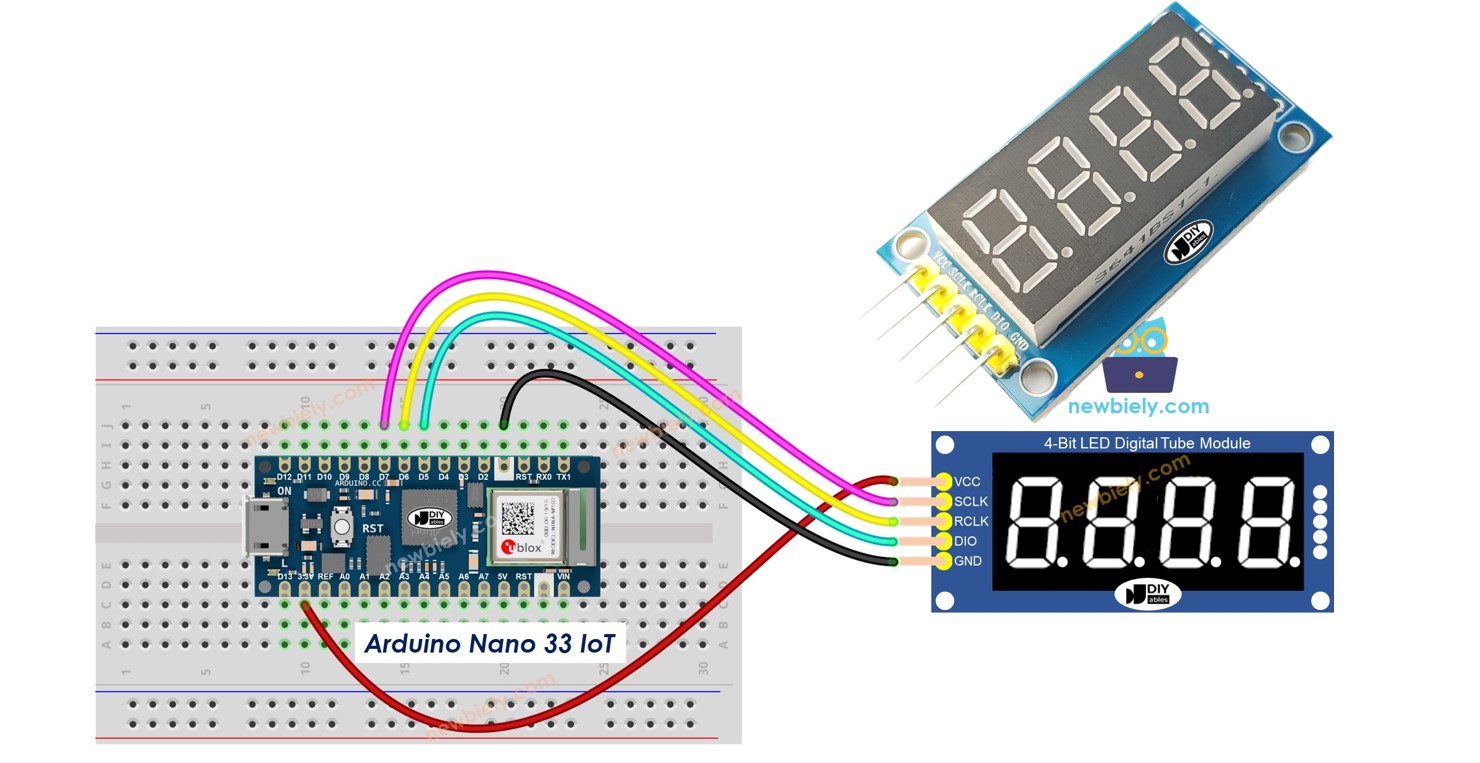
Arduino Nano 33 IoT - 74HC595 4-Digit 7-Segment Display
Discover how to drive a 4-digit 7-segment display with a 74HC595 shift register using the Arduino Nano 33 IoT. The Nano 33 IoT runs a SAMD21 Cortex-M0+ processor at 48 MHz, includes built-in Wi-Fi and Bluetooth Low Energy, and operates at 3.3V logic. Despite all that, it keeps the same compact Nano footprint.
Along the way, you will discover:
How to connect the 74HC595 display module to the Nano 33 IoT.
How to display integers, floats, and text.
How to show temperature with a degree symbol.
How to present time in HH.MM format with a blinking separator.
Or you can buy the following kits:
Disclosure: Some of the links provided in this section are Amazon affiliate links. We may receive a commission for any purchases made through these links at no additional cost to you.
Additionally, some of these links are for products from our own brand,
DIYables .
This module puts four 7-segment digits behind a 74HC595 shift register so you only need 3 data pins. The shift register accepts serial data and converts it to parallel segment outputs. The library multiplexes through each digit rapidly, making all four appear lit at the same time.
| Function | Pin | Description |
|---|
| SCLK (SH_CP) | Serial Clock | Clocks data into the shift register |
| RCLK (ST_CP) | Register Clock | Latches data to the output pins |
| DIO (DS) | Data Input | Serial data line |
| VCC | Power | 3.3V or 5V |
| GND | Ground | Common ground |
Note: The Nano 33 IoT uses 3.3V logic. The 74HC595 module works fine at 3.3V.
Connect the display module to the Nano 33 IoT:
SCLK to D7
RCLK to D6
DIO to D5
VCC to 3.3V
GND to GND
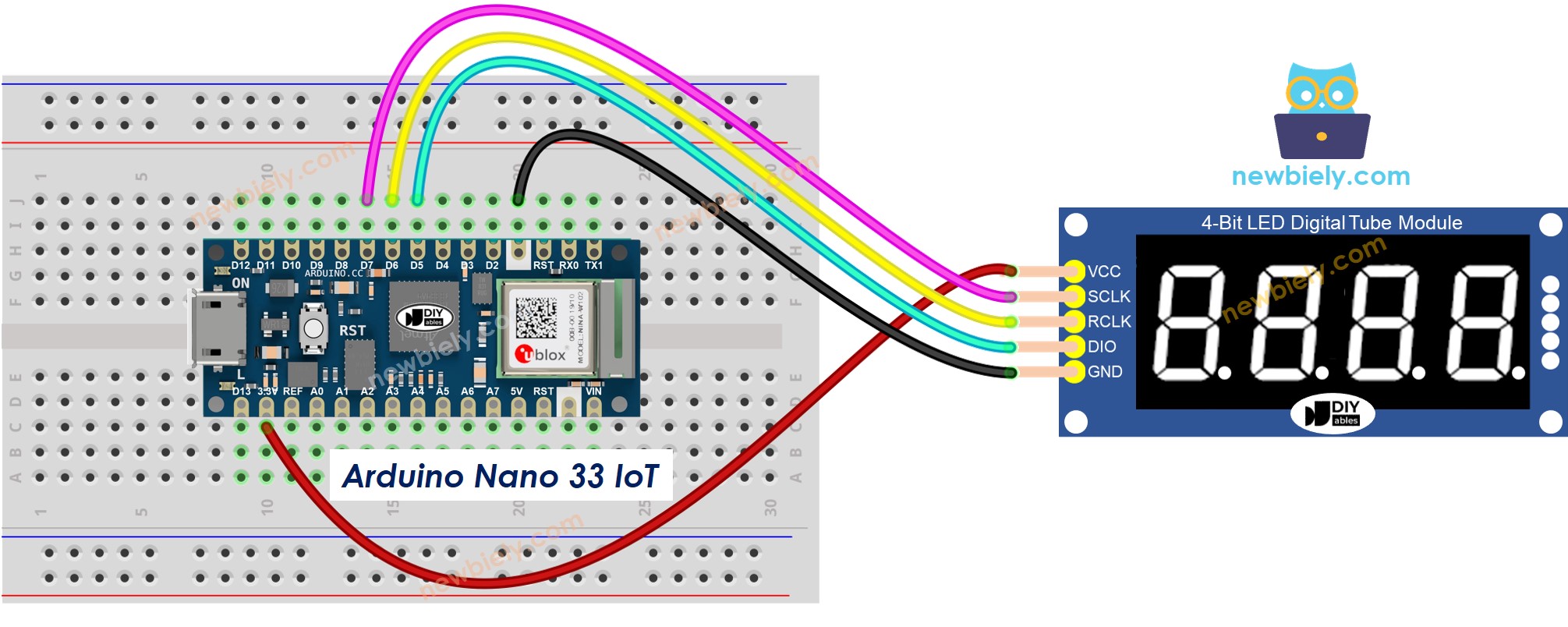
This image is created using Fritzing. Click to enlarge image
Connect the Arduino Nano 33 IoT to your computer using a Micro-B USB cable.
In Arduino IDE, choose Arduino NANO 33 IoT as the board and select the correct port.
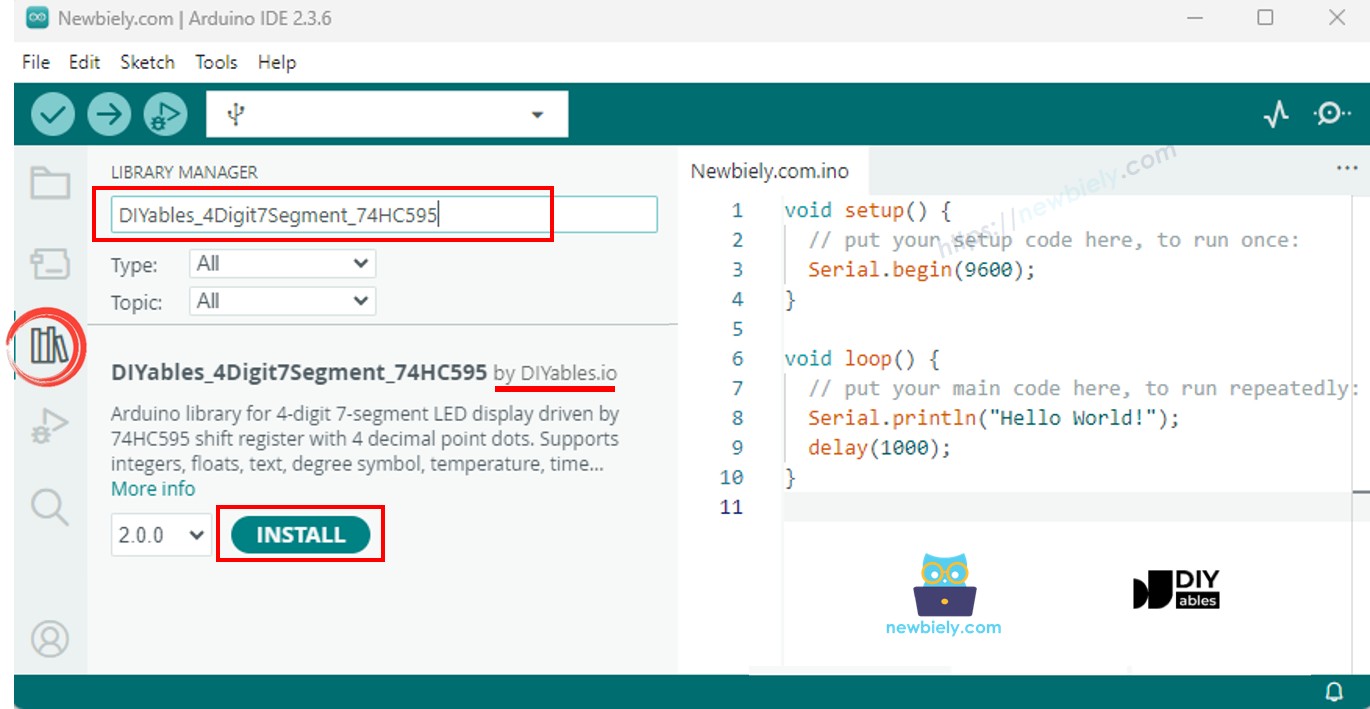
Open the Libraries panel from the left sidebar.
Search for "DIYables_4Digit7Segment_74HC595" and locate the one published by DIYables.
Press Install to add it. Select version 2.0.0 or later.
No additional dependencies needed - everything is bundled in.
The core structure that every DIYables_4Digit7Segment_74HC595 sketch builds on:
#include <DIYables_4Digit7Segment_74HC595.h>
#define SCLK_PIN 7
#define RCLK_PIN 6
#define DIO_PIN 5
DIYables_4Digit7Segment_74HC595 display(SCLK_PIN, RCLK_PIN, DIO_PIN);
void setup() {
display.begin();
display.print(1234);
}
void loop() {
display.loop();
}
Initialize with begin(), set the value with print(), and keep display.loop() running. The multiplexing is handled internally. For waits, use display.delay() instead of delay().
Displays a series of integers and demonstrates zero-padding.
#include <DIYables_4Digit7Segment_74HC595.h>
#define SCLK_PIN 7
#define RCLK_PIN 6
#define DIO_PIN 5
DIYables_4Digit7Segment_74HC595 display(SCLK_PIN, RCLK_PIN, DIO_PIN);
int numbers[] = {0, 42, 1234, -5, -123, 9999};
int numCount = 6;
int currentIndex = 0;
bool showZeroPad = false;
unsigned long lastChange = 0;
void setup() {
Serial.begin(9600);
display.begin();
Serial.println("4-Digit 7-Segment 74HC595 - Integer Example");
}
void loop() {
display.loop();
if (millis() - lastChange >= 2000) {
lastChange = millis();
if (!showZeroPad) {
display.print(numbers[currentIndex]);
Serial.print("Displaying: ");
Serial.println(numbers[currentIndex]);
currentIndex++;
if (currentIndex >= numCount) {
currentIndex = 0;
showZeroPad = true;
}
} else {
display.print(42, true);
Serial.println("Displaying: 0042 (zero-padded)");
showZeroPad = false;
}
}
}
Wire the display to the Nano 33 IoT as shown above.
Connect the Nano 33 IoT to your computer with a Micro-B USB cable.
In Arduino IDE, select the board and port, paste the code, and press Upload.
Open the Serial Monitor to see what happens.
The display runs through 0, 42, 1234, -5, -123, 9999, then 0042 (zero-padded).
| Method | Role | Usage Example |
|---|
| print(int) | Display an integer | display.print(1234) |
| print(int, true) | Integer with leading zeros | display.print(42, true) |
| loop() | Keep display refreshed | display.loop() |
Shows floats with auto and fixed decimal places.
#include <DIYables_4Digit7Segment_74HC595.h>
#define SCLK_PIN 7
#define RCLK_PIN 6
#define DIO_PIN 5
DIYables_4Digit7Segment_74HC595 display(SCLK_PIN, RCLK_PIN, DIO_PIN);
void setup() {
Serial.begin(9600);
display.begin();
Serial.println("4-Digit 7-Segment 74HC595 - Float Example");
}
void loop() {
display.print(1.5);
Serial.println("Auto decimal: 1.5");
display.delay(2000);
display.print(12.34);
Serial.println("Auto decimal: 12.34");
display.delay(2000);
display.print(3.141);
Serial.println("Auto decimal: 3.141");
display.delay(2000);
display.print(-1.2);
Serial.println("Auto decimal: -1.20");
display.delay(2000);
display.print(0.5);
Serial.println("Auto decimal: 0.5");
display.delay(2000);
display.print(23.5, 1);
Serial.println("1 decimal place: 23.5");
display.delay(2000);
display.print(1.5, 2);
Serial.println("2 decimal places: 1.50");
display.delay(2000);
display.print(1.5, 2, true);
Serial.println("2 decimal places, zero-padded: 01.50");
display.delay(2000);
}
Cycles through auto-decimal floats, then 1 and 2 fixed decimal places, and zero-padded output.
Displays text strings, degree symbols, and temperature readings.
#include <DIYables_4Digit7Segment_74HC595.h>
#define SCLK_PIN 7
#define RCLK_PIN 6
#define DIO_PIN 5
DIYables_4Digit7Segment_74HC595 display(SCLK_PIN, RCLK_PIN, DIO_PIN);
const char* texts[] = {"HELP", "Hi", "COOL", "done"};
int textCount = 4;
int currentIndex = 0;
int phase = 0;
unsigned long lastChange = 0;
void setup() {
Serial.begin(9600);
display.begin();
Serial.println("4-Digit 7-Segment 74HC595 - Text and Degree Example");
}
void loop() {
display.loop();
if (millis() - lastChange >= 2000) {
lastChange = millis();
if (phase == 0) {
display.print(texts[currentIndex]);
Serial.print("Text: ");
Serial.println(texts[currentIndex]);
currentIndex++;
if (currentIndex >= textCount) {
currentIndex = 0;
phase = 1;
}
} else if (phase == 1) {
display.printTemperature(25, 'C');
Serial.println("Temperature: 25 C");
phase = 2;
} else if (phase == 2) {
display.printTemperature(72, 'F');
Serial.println("Temperature: 72 F");
phase = 3;
} else if (phase == 3) {
char degStr[5];
degStr[0] = '2';
degStr[1] = '5';
degStr[2] = DEGREE_CHAR;
degStr[3] = 'C';
degStr[4] = '\0';
display.print(degStr);
Serial.println("String with degree: 25 deg C");
phase = 4;
} else {
display.print("1.2.3.4");
Serial.println("Dots: 1.2.3.4");
phase = 0;
}
}
}
Shows "HELP", "Hi", "COOL", "done", then temperatures and inline dots.
Clock-style HH.MM with a blinking separator dot.
#include <DIYables_4Digit7Segment_74HC595.h>
#define SCLK_PIN 7
#define RCLK_PIN 6
#define DIO_PIN 5
DIYables_4Digit7Segment_74HC595 display(SCLK_PIN, RCLK_PIN, DIO_PIN);
int hours = 12;
int minutes = 30;
bool colonOn = true;
unsigned long lastToggle = 0;
void setup() {
Serial.begin(9600);
display.begin();
Serial.println("4-Digit 7-Segment 74HC595 - Time Example");
Serial.println("Displaying 12:30 with blinking dot separator");
}
void loop() {
display.loop();
if (millis() - lastToggle >= 500) {
lastToggle = millis();
display.printTime(hours, minutes, colonOn);
colonOn = !colonOn;
}
}
Displays 12.30 with the dot blinking every half second.
Blinks integers, floats, and text.
#include <DIYables_4Digit7Segment_74HC595.h>
#define SCLK_PIN 7
#define RCLK_PIN 6
#define DIO_PIN 5
DIYables_4Digit7Segment_74HC595 display(SCLK_PIN, RCLK_PIN, DIO_PIN);
int phase = 0;
int blinkCount = 0;
bool isOn = true;
unsigned long lastAction = 0;
unsigned long pauseUntil = 0;
void setup() {
Serial.begin(9600);
display.begin();
Serial.println("4-Digit 7-Segment 74HC595 - Blink Example");
display.print(1234);
Serial.println("Blinking: 1234");
}
void loop() {
display.loop();
unsigned long now = millis();
if (now < pauseUntil) return;
if (now - lastAction >= 300) {
lastAction = now;
if (isOn) {
display.off();
isOn = false;
} else {
display.on();
isOn = true;
blinkCount++;
if (blinkCount >= 5) {
blinkCount = 0;
pauseUntil = now + 1000;
phase++;
if (phase > 2) phase = 0;
switch (phase) {
case 0:
display.print(1234);
Serial.println("Blinking: 1234");
break;
case 1:
display.print(12.34);
Serial.println("Blinking: 12.34");
break;
case 2:
display.print("HELP");
Serial.println("Blinking: HELP");
break;
}
}
}
}
}
Blinks 1234, then 12.34, then "HELP" - five blinks each.
Display stays blank -- Check VCC and GND wiring. Verify SCLK, RCLK, DIO match your code. Confirm begin() and display.loop() are in place.
Wrong characters -- Default is common anode. For common cathode, use DIYables_4Digit7Segment_74HC595 display(7, 6, 5, false).
Flickering -- Replace any delay() calls with display.delay().
Board not recognized -- Make sure you have the Arduino SAMD Boards core installed via the Boards Manager.
Built on Arduino standard APIs - runs on every Arduino-compatible platform (architectures=*).