
Arduino Nano 33 IoT - Water/Liquid Valve
This guide explains how to control the flow of liquids like water, beer, or oil using the Arduino Nano 33 IoT and a solenoid valve. The same method works for controlling gas flow.
To open and close the valve, you can use either a relay or a MOSFET module. Both of them can only open or close the valve, nothing in between. The MOSFET module, however, makes no click, switches faster, and has no contacts that wear out. We will show you how to use each one.
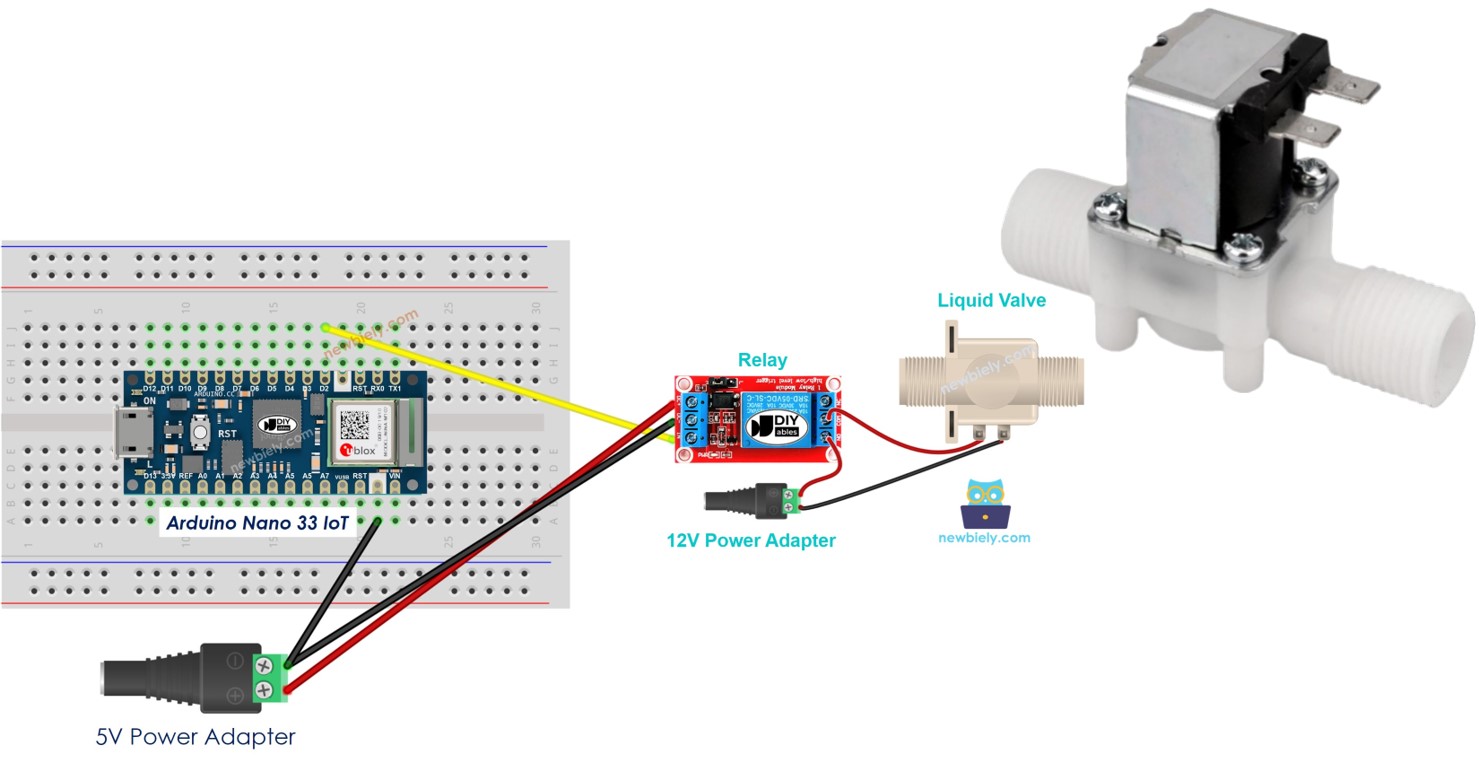
Hardware Preparation
Or you can buy the following kits:
| 1 | × | DIYables Sensor Kit (18 sensors/displays) |
Additionally, some of these links are for products from our own brand, DIYables .
Overview of Water/Liquid Valve
Pinout
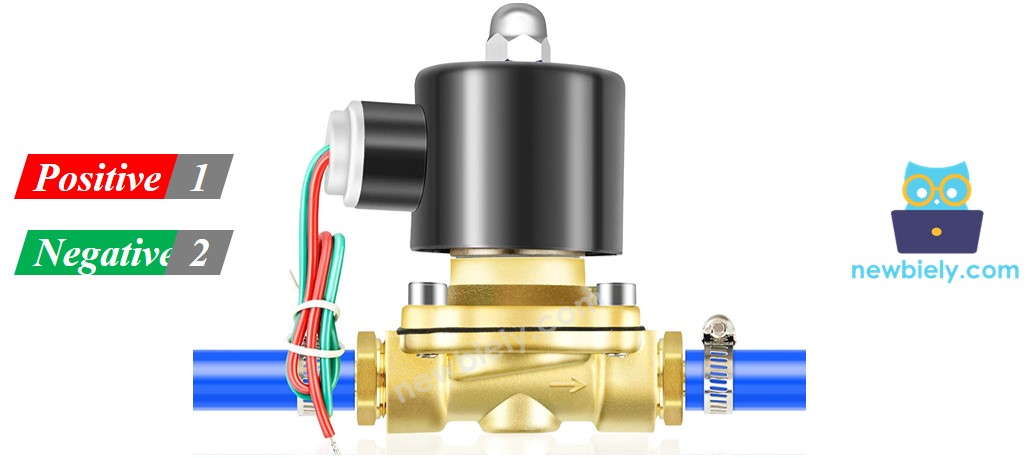
A solenoid valve normally has two connection points.
- Red positive pin (+): Connect this pin to the +12V terminal of your DC power supply.
- Black or other colored negative pin (–): Connect this pin to the ground (GND) terminal of your DC power supply.
How Water/Liquid Valve works
The valve is usually shut. When you add 12V of DC power to its two points, the valve opens so water or liquid can flow.
※ NOTE THAT:
Some valves have a rubber ring inside that needs a minimum pressure to open the valve after you apply 12V DC. This pressure is made by the liquid flowing.
Some valves only let the liquid flow in one direction.
How to Control Water/Liquid Solenoid Valve
If the valve gets power from a 12V supply, it will open. To control the valve, you must use a relay between the Arduino Nano 33 IoT and the valve. The Arduino Nano 33 IoT sends signals to the solenoid valve through the relay. Find out more about the relay in the Arduino Nano 33 IoT - Relay tutorial.
A MOSFET module can do the same job as the relay. You can read how this module works in the Arduino Nano 33 IoT - MOSFET Module tutorial.
Relay vs MOSFET Module for Solenoid Valve
| Relay | MOSFET Module | |
|---|---|---|
| Valve control | Open or closed | Open or closed (no PWM for a valve) |
| Noise from the switch | Click on every switch | Totally silent |
| Reaction time | Slow (milliseconds) | Very fast |
| Wear | Contacts wear after many cycles | No moving parts to wear |
| Valve power | AC or DC valve | DC valve only |
| Valve supply | Any voltage the relay supports | 6V or more |
| Isolation | Yes, coil and contacts | Yes, PC817 optocoupler |
| Pick it for | AC valves | 12V DC valves that open and close often, or quiet places |
A solenoid valve is either open or closed, so the MOSFET module does not give you extra control here. Choose it when you want no clicking and a longer life for the switch. For an AC valve, use the relay.
Wiring Diagram
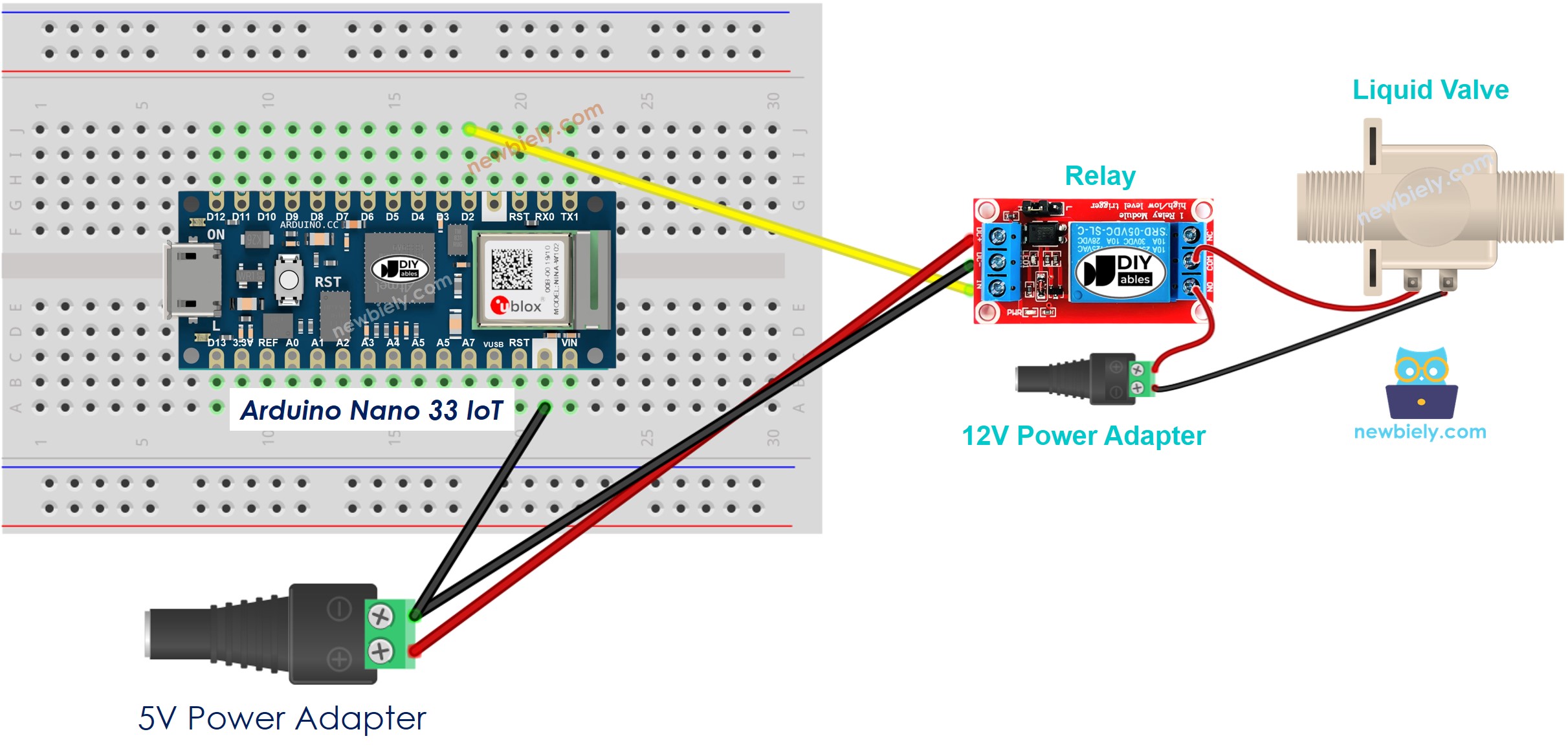
This image is created using Fritzing. Click to enlarge image
Here is the same wiring without a breadboard:
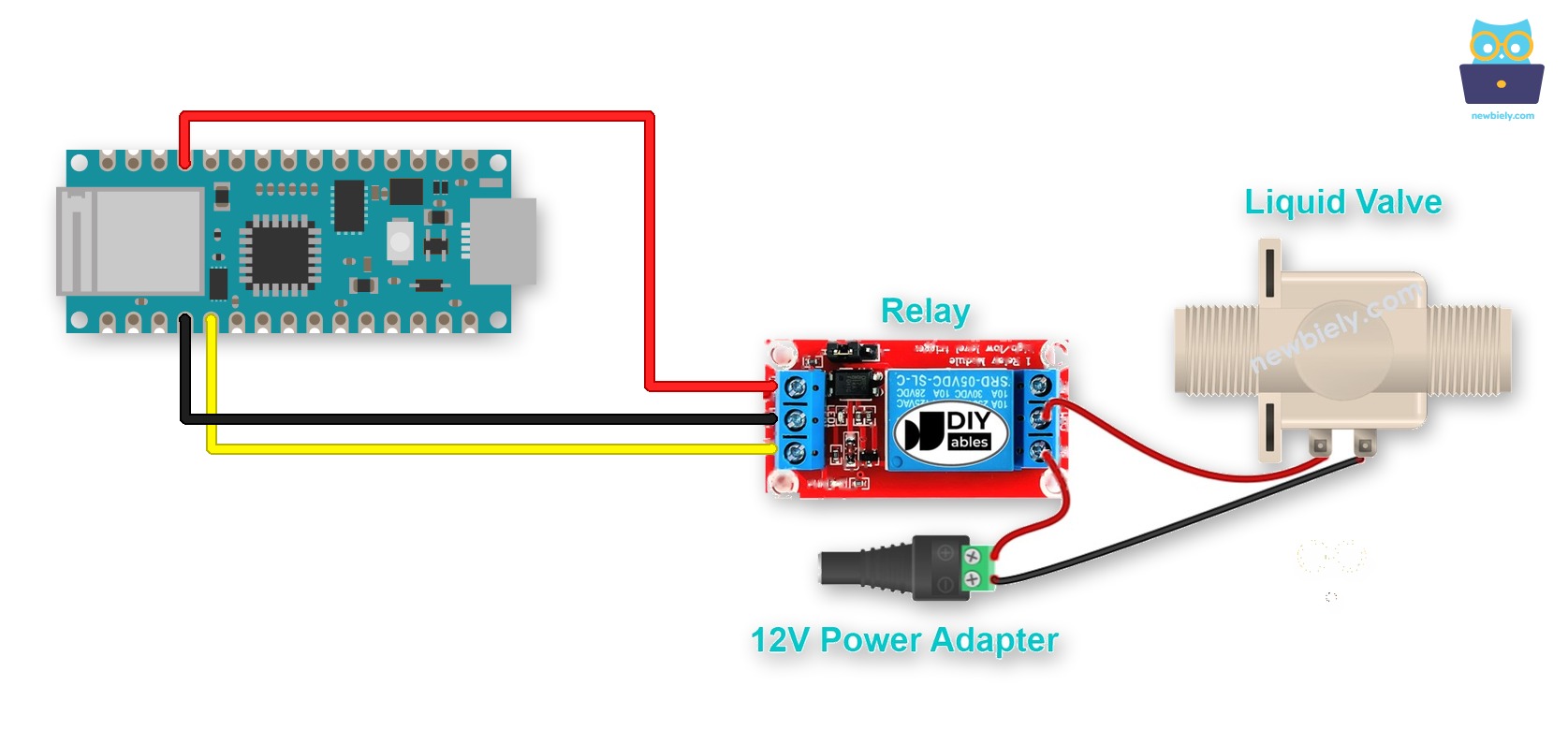
This image is created using Fritzing. Click to enlarge image
Module wires and thick wires often do not sit well in the female headers. To do that, mount the Arduino Nano 33 IoT on a Screw Terminal Expansion Board for Arduino Nano. The wiring stays the same. Only the wires now go to the screw terminals, as shown below.
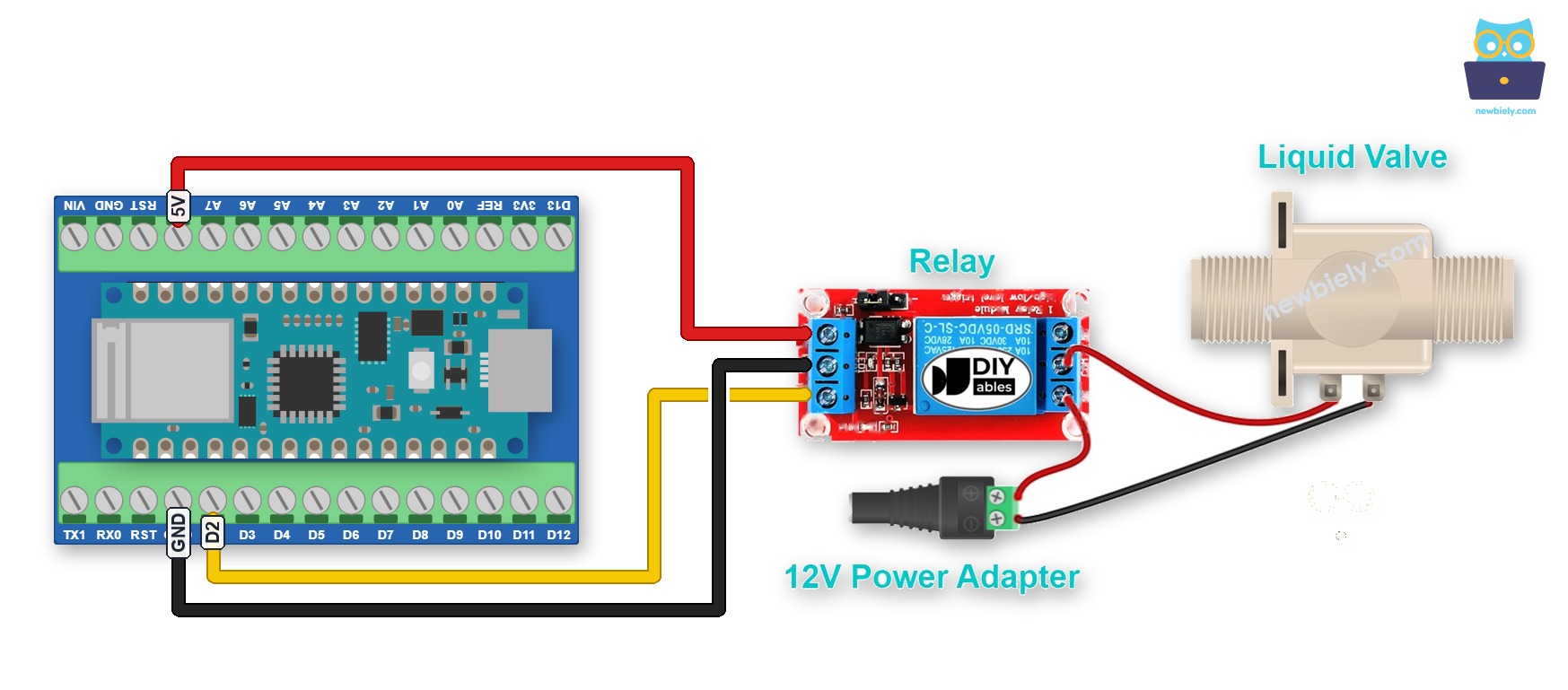
This image is created using Fritzing. Click to enlarge image
Note: on the Arduino Nano 33 IoT, the 5V pin is the VUSB pin. It gives 5V only after you close the VUSB solder jumper on the bottom of the board, and only when the board runs on USB power.
Arduino Nano 33 IoT Code
The code below repeatedly opens the water valve for five seconds, then closes it for five seconds.
Detailed Instructions
If you are new to the Arduino Nano 33 IoT, be sure to check out our Getting Started with Arduino Nano 33 IoT tutorial. Then, follow these steps:
- Connect the components to the Arduino Nano 33 IoT board as depicted in the diagram.
- Use a USB cable to connect the Arduino Nano 33 IoT board to your computer.
- Launch the Arduino IDE on your computer.
- Select the Arduino Nano 33 IoT board and choose its corresponding COM port.
- Copy the code above and paste it into the Arduino IDE.
- Click the Upload button to compile and send the code to your Arduino Nano 33 IoT board.
- Check to see if the water is flowing.
Code Explanation
The Arduino Nano 33 IoT code above explains each line clearly. Please check the comments in the code.
How to Control Water Valve with MOSFET Module
You can also open and close the 12V solenoid valve with a MOSFET module in place of the relay. The board only needs to send HIGH or LOW to it.
The relay and the MOSFET module use different pins on this page: D2 for the relay and D9 for the MOSFET module. So the MOSFET wiring has its own code below.
Wiring Diagram
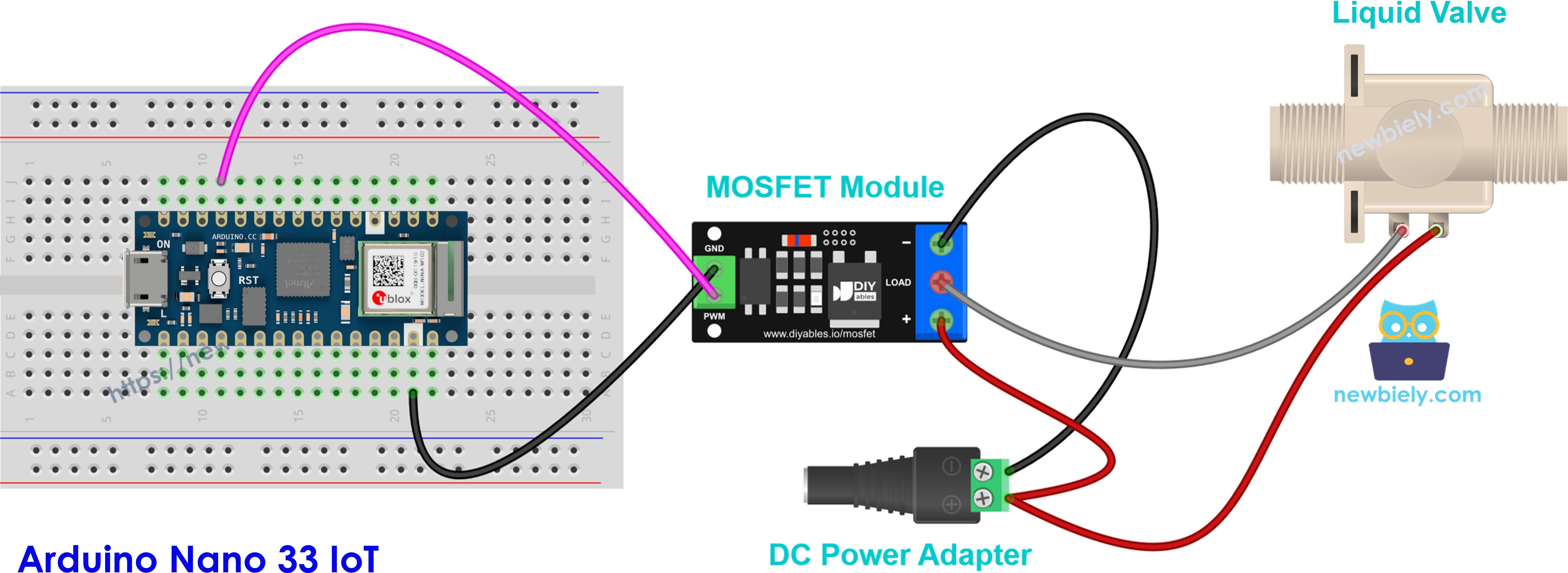
This image is created using Fritzing. Click to enlarge image
The diagram below shows the same connections without a breadboard:
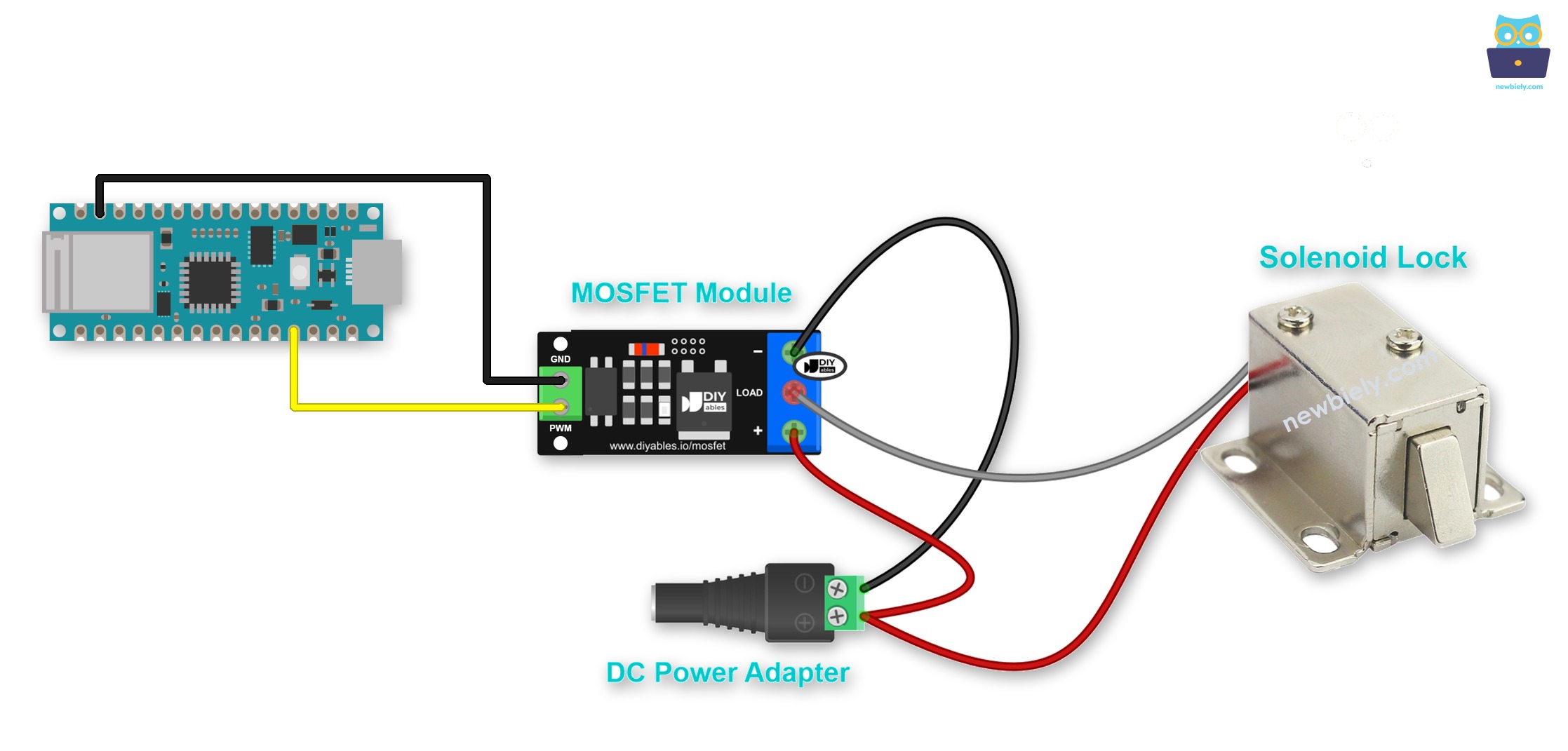
This image is created using Fritzing. Click to enlarge image
| Arduino Nano 33 IoT / Valve / Adapter | MOSFET Module |
|---|---|
| Pin D9 | PWM |
| GND | GND |
| 12V adapter + | + terminal |
| Valve red wire (+) | + terminal (together with the adapter +) |
| Valve negative wire (−) | LOAD terminal |
| 12V adapter − | − terminal |
If you plan to keep this circuit, think about screw terminals. The Arduino Nano 33 IoT fits a Screw Terminal Expansion Board for Arduino Nano, which turns every pin into a screw terminal. Below is the wiring diagram with the screw terminal board.
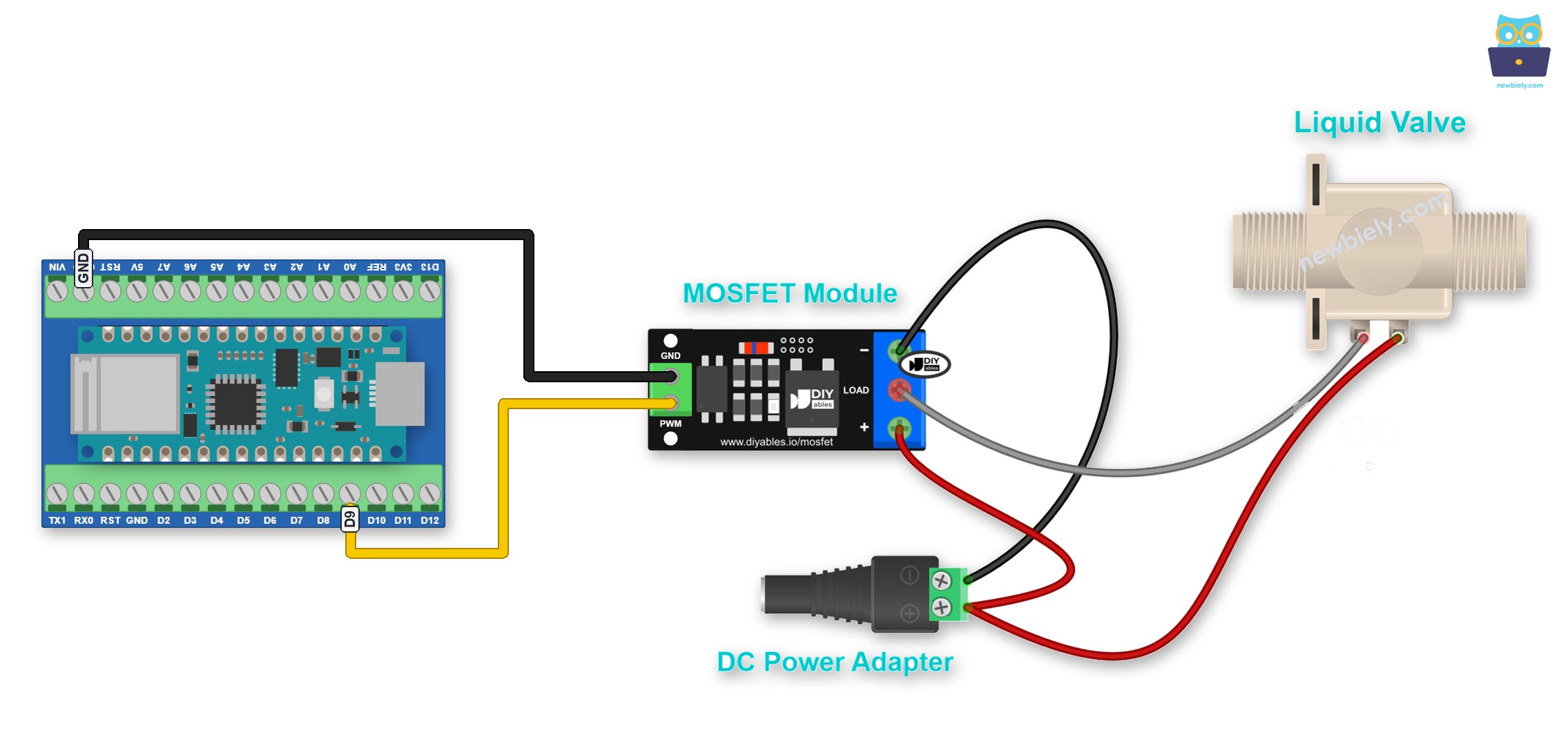
This image is created using Fritzing. Click to enlarge image
The valve has a coil inside. Put a 1N4007 or 1N5819 diode across the valve wires, with the stripe (cathode) on the valve + wire. This protects the module from the voltage spike when the valve closes.
Arduino Nano 33 IoT Code
The code below follows the same idea as the relay code: HIGH opens the valve for five seconds, then LOW closes it for five seconds. It just uses pin D9.
Do not use PWM or fade code with a solenoid valve. A valve must get full power or no power. This is why we do not use the fade code from the MOSFET module tutorial here.
Detailed Instructions
- Wire the MOSFET module and the valve as shown in the diagram.
- Connect the Arduino Nano 33 IoT to your computer and open the Arduino IDE, as in the relay Quick Steps above.
- Copy the code above, paste it into the Arduino IDE and upload it.
- Plug in the 12V adapter.
- The valve opens for five seconds, then closes for five seconds, with no relay click.
※ NOTE THAT:
The MOSFET module is for DC only, and the valve supply must be about 6V or more. If your valve runs on AC, keep the relay.