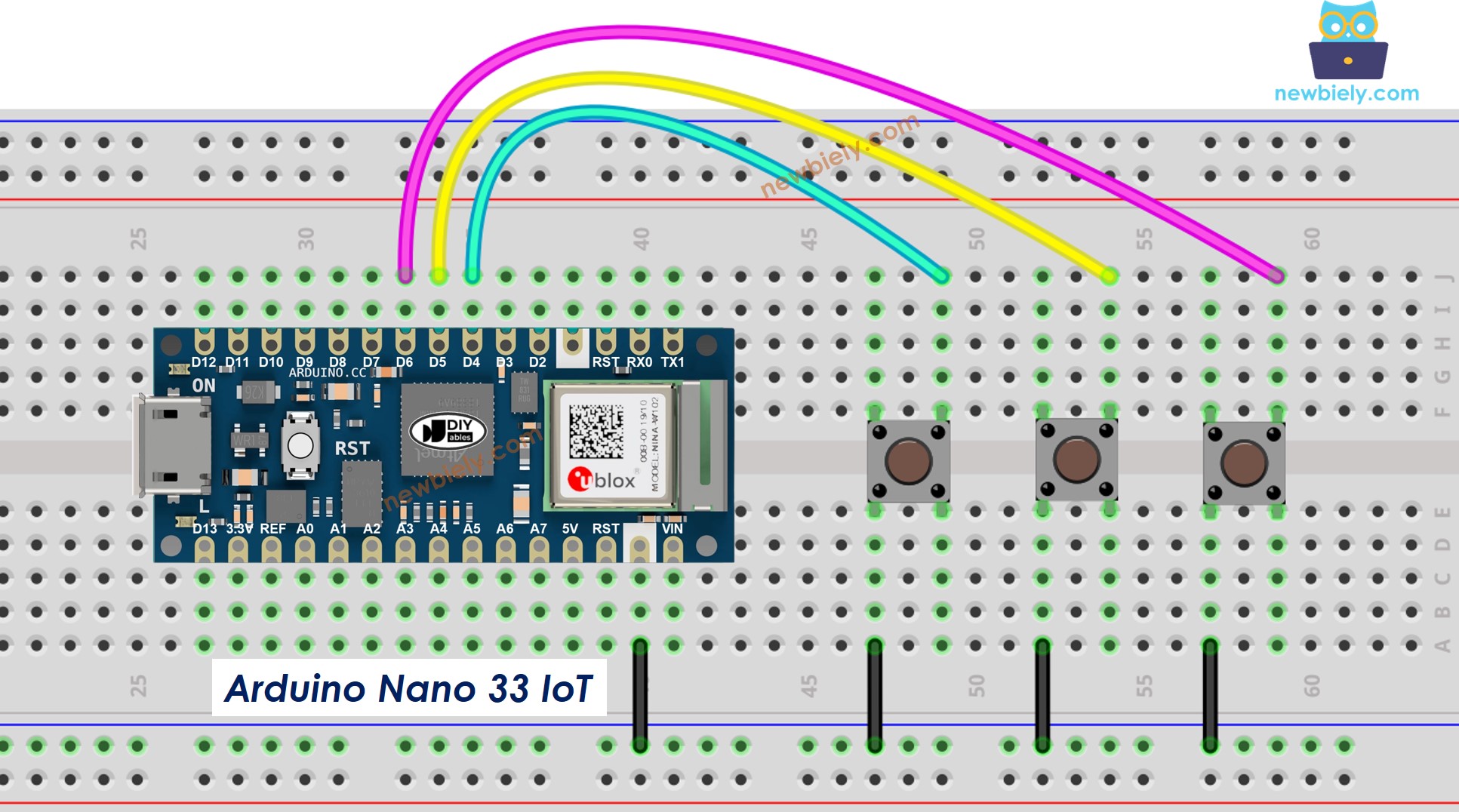
This lesson shows you how to program an Arduino Nano 33 IoT to work with several buttons at once without using the delay() function. The lesson provides code in two different ways.
Working with several buttons and preventing extra false clicks on the Arduino Nano 33 IoT.
Using arrays to work with several buttons and prevent extra false clicks on the Arduino Nano 33 IoT.
We are using three buttons as examples. You can easily change it to work with two, four, or even more buttons.
Disclosure: Some of the links provided in this section are Amazon affiliate links. We may receive a commission for any purchases made through these links at no additional cost to you. Additionally, some of these links are for products from our own brand, DIYables .
Overview of Button
If you are not familiar with the button (its pin layout, how it works, or how to program it), these tutorials will give you more details.
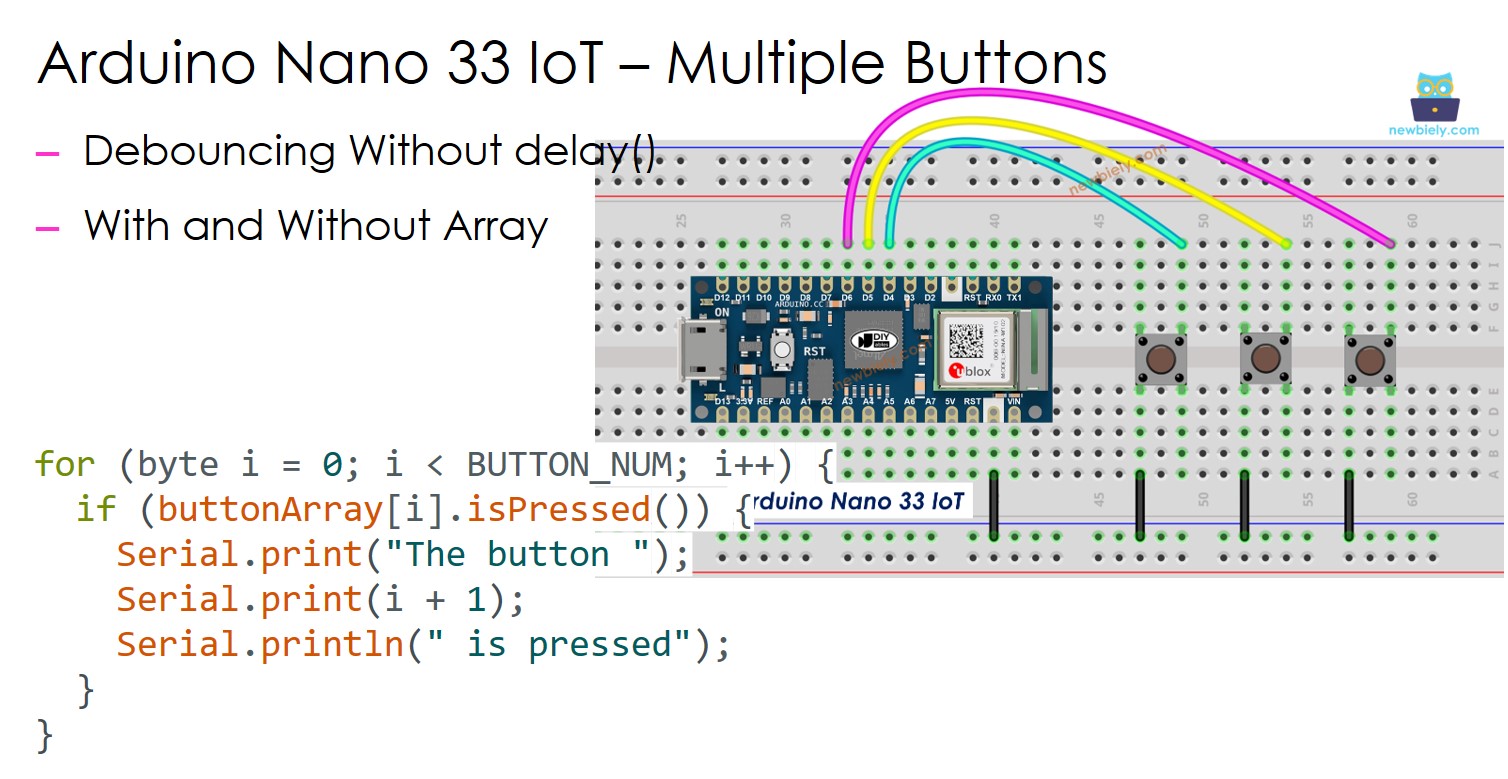
This image is created using Fritzing. Click to enlarge image
※ NOTE THAT:
Please note that the Arduino Nano 33 IoT pins A4 and A5 have built-in pull-up resistors for I2C communication. Although these pins can be used as digital input pins, it is recommended to avoid using them for digital input. If you must use them, do NOT use internal or external pull-down resistors for these pins
Arduino Nano 33 IoT Code - Multiple Buttons with debounce
When you use many buttons, some situations may become confusing:
For projects that need to clear extra signals when a button is pressed (see this explanation: https://arduinogetstarted.com/faq/why-needs-debounce-for-button)
For projects that need to notice when the button is pressed or released
Fortunately, the ezButton library makes this process easier by taking care of button bounce and events itself. This means you don't have to worry about managing time stamps or extra variables when using the library. Also, using a list of buttons can make your code clearer and shorter.
/* * This Arduino Nano 33 IoT code was developed by newbiely.com * * This Arduino Nano 33 IoT code is made available for public use without any restriction * * For comprehensive instructions and wiring diagrams, please visit: * https://newbiely.com/tutorials/arduino-nano-iot/arduino-nano-33-iot-multiple-button */#include <ezButton.h>#define BUTTON_PIN_1 4 // The Arduino Nano 33 IoT pin connected to the button 1#define BUTTON_PIN_2 5 // The Arduino Nano 33 IoT pin connected to the button 2#define BUTTON_PIN_3 6 // The Arduino Nano 33 IoT pin connected to the button 3ezButtonbutton1(BUTTON_PIN_1); // create ezButton object for button 1ezButtonbutton2(BUTTON_PIN_2); // create ezButton object for button 2ezButtonbutton3(BUTTON_PIN_3); // create ezButton object for button 3voidsetup() {Serial.begin(9600);button1.setDebounceTime(100); // set debounce time to 100 millisecondsbutton2.setDebounceTime(100); // set debounce time to 100 millisecondsbutton3.setDebounceTime(100); // set debounce time to 100 milliseconds}voidloop() {button1.loop(); // MUST call the loop() function firstbutton2.loop(); // MUST call the loop() function firstbutton3.loop(); // MUST call the loop() function first// get button state after debounceint button1_state = button1.getState(); // the state after debounceint button2_state = button2.getState(); // the state after debounceint button3_state = button3.getState(); // the state after debounce/* Serial.print("The button 1 state: "); Serial.println(button1_state); Serial.print("The button 2 state: "); Serial.println(button2_state); Serial.print("The button 3 state: "); Serial.println(button3_state); */if (button1.isPressed())Serial.println("The button 1 is pressed");if (button1.isReleased())Serial.println("The button 1 is released");if (button2.isPressed())Serial.println("The button 2 is pressed");if (button2.isReleased())Serial.println("The button 2 is released");if (button3.isPressed())Serial.println("The button 3 is pressed");if (button3.isReleased())Serial.println("The button 3 is released");}
Connect the components to the Arduino Nano 33 IoT board as depicted in the diagram.
Use a USB cable to connect the Arduino Nano 33 IoT board to your computer.
Launch the Arduino IDE on your computer.
Select the Arduino Nano 33 IoT board and choose its corresponding COM port.
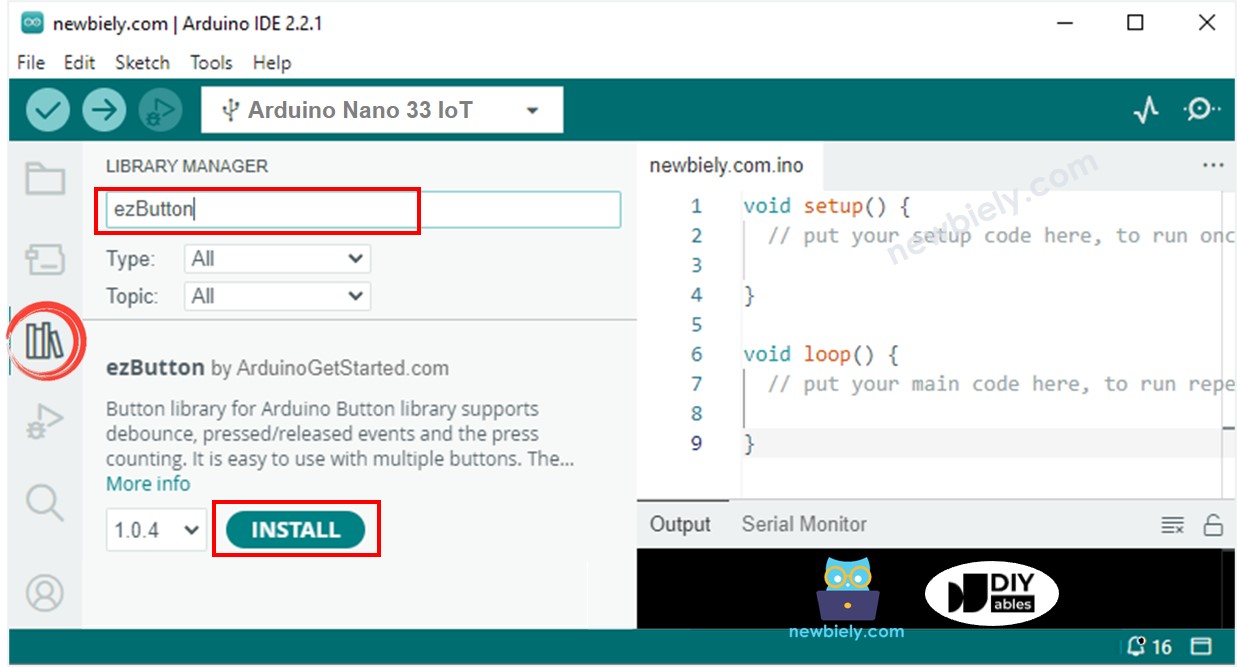
Click on the Libraries icon on the left side of the Arduino IDE.
Search for ezButton and find the button library by ArduinoGetStarted.
Click the Install button to add the ezButton library.
Copy the code shown above and paste it into the Arduino IDE.
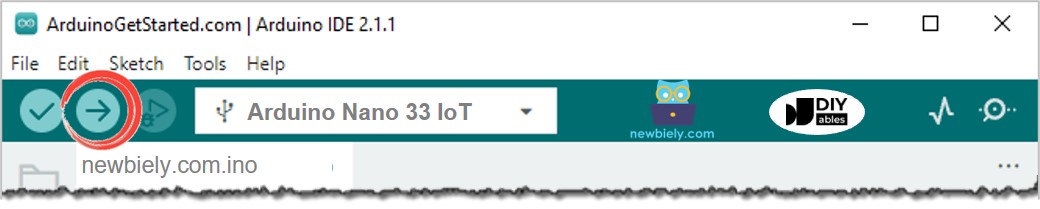
Click the Upload button in the Arduino IDE to compile and send the code to your Arduino Nano 33 IoT board.
Open the Serial Monitor in the Arduino program.
Press each button one at a time and then let go.
Newbiely | Arduino IDE 2.3.8
──
☐
✕
File
Edit
Sketch
Tools
Help
Arduino Nano 33 IoT
Newbiely.ino
···
8Serial.println("Hello World!");
Output
Serial Monitor
Message (Enter to send message to 'Arduino Nano 33 IoT' on 'COM15')
New Line
9600 baud
The button 1 is pressed
The button 1 is released
The button 2 is pressed
The button 2 is released
The button 3 is pressed
The button 3 is released
Ln 11, Col 1
Arduino Nano 33 IoT on COM15
2
Arduino Nano 33 IoT Code - Multiple Buttons using array
We can make the code better by using a list of buttons. The code below shows how this list is used to work with button objects.
/* * This Arduino Nano 33 IoT code was developed by newbiely.com * * This Arduino Nano 33 IoT code is made available for public use without any restriction * * For comprehensive instructions and wiring diagrams, please visit: * https://newbiely.com/tutorials/arduino-nano-iot/arduino-nano-33-iot-multiple-button */#include <ezButton.h>#define BUTTON_NUM 3 // the number of buttons#define BUTTON_PIN_1 4 // The Arduino Nano 33 IoT pin connected to the button 1#define BUTTON_PIN_2 5 // The Arduino Nano 33 IoT pin connected to the button 2#define BUTTON_PIN_3 6 // The Arduino Nano 33 IoT pin connected to the button 3ezButtonbuttonArray[] = {ezButton(BUTTON_PIN_1),ezButton(BUTTON_PIN_2),ezButton(BUTTON_PIN_3)};voidsetup() {Serial.begin(9600);for (byte i = 0; i < BUTTON_NUM; i++) {buttonArray[i].setDebounceTime(100); // set debounce time to 100 milliseconds }}voidloop() {for (byte i = 0; i < BUTTON_NUM; i++) buttonArray[i].loop(); // MUST call the loop() function firstfor (byte i = 0; i < BUTTON_NUM; i++) {// get button state after debounceint button_state = buttonArray[i].getState(); // the state after debounce/* Serial.print("The button "); Serial.print(i + 1); Serial.print(": "); Serial.println(button_state); */if (buttonArray[i].isPressed()) {Serial.print("The button ");Serial.print(i + 1);Serial.println(" is pressed"); }if (buttonArray[i].isReleased()) {Serial.print("The button ");Serial.print(i + 1);Serial.println(" is released"); } }}
Please feel free to share the link of this tutorial. However, Please do not use our content on any other websites. We invested a lot of effort and time to create the content, please respect our work!