
Arduino Nano 33 IoT - Control Heating Element
This guide shows you how to use the Arduino Nano 33 IoT to control a heating element. In another guide, you will learn how to build a heating system.
The heater can be driven in two ways. The first way uses a relay, which only gives you two states: heating at full power or not heating at all. The second way uses a MOSFET module. It also turns the heater ON and OFF, but it can set the heat level too, for example 30% or 70% of full power. It is silent, and its parts do not wear out when it switches often. We will go through both ways on this page.
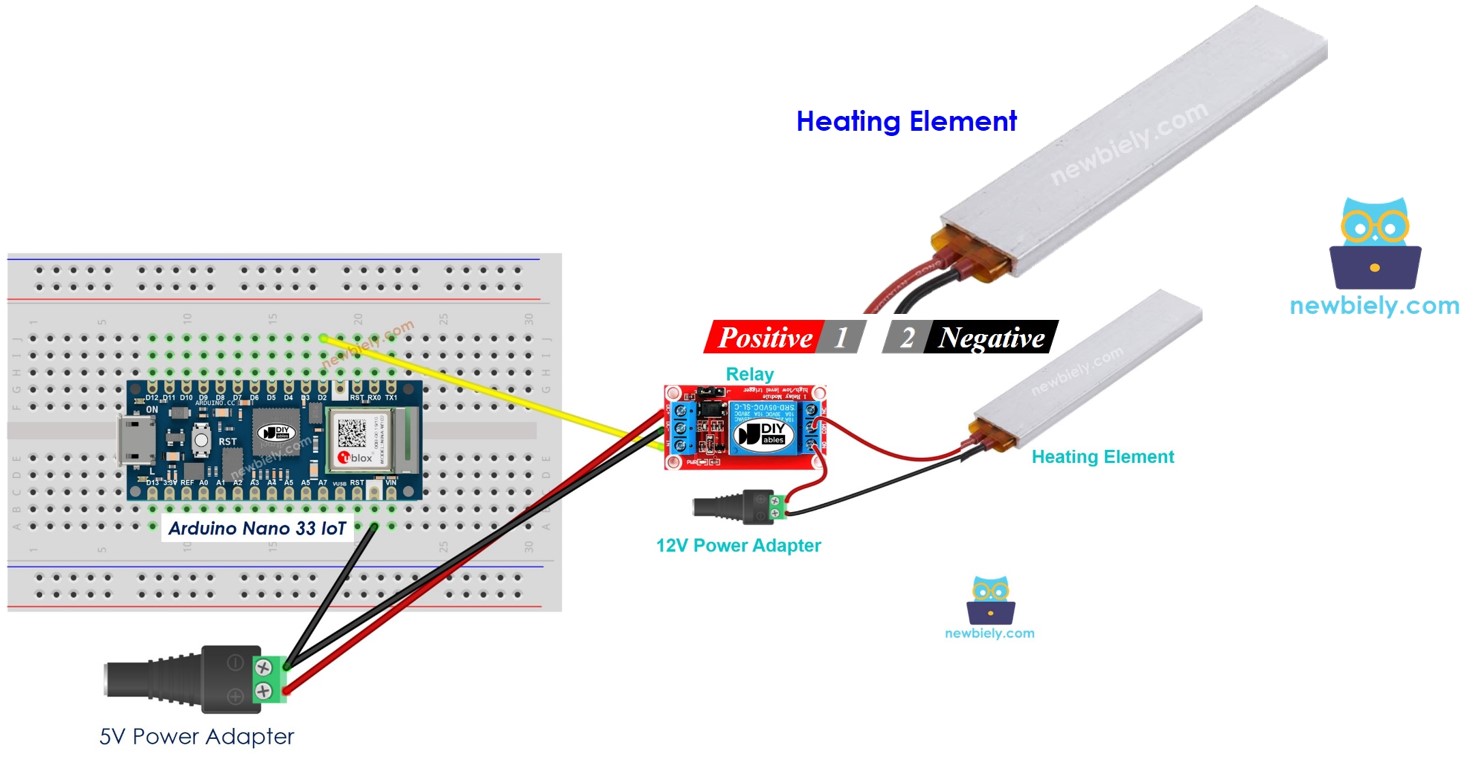
Hardware Preparation
Or you can buy the following kits:
| 1 | × | DIYables Sensor Kit (18 sensors/displays) |
Additionally, some of these links are for products from our own brand, DIYables .
Overview of Heating Element
Pinout
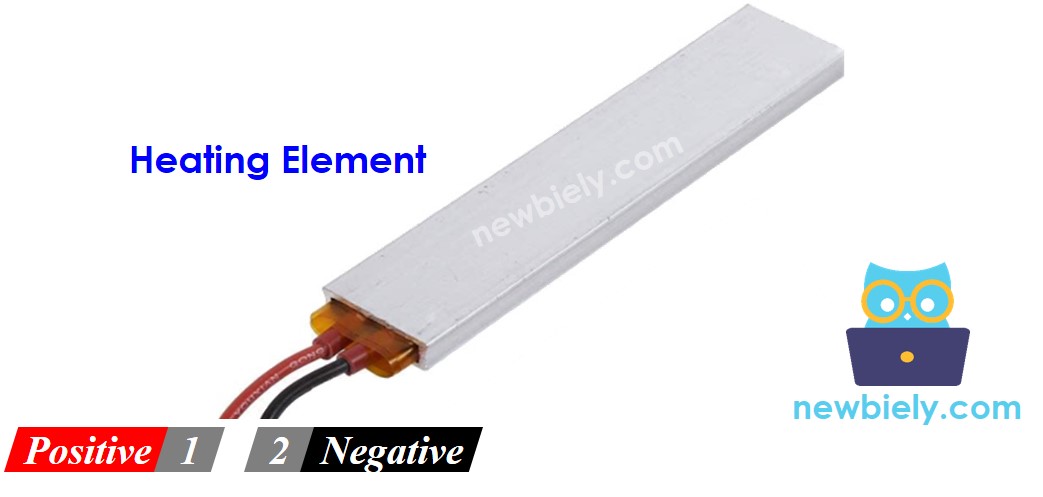
A heating element normally has two pins.
- The red positive (+) pin should go to the 12V of the DC power supply.
- The black negative (-) pin should go to the ground (GND) of the DC power supply.
How to Control Heating Element
A 12V heating element warms up when it gets power from a 12V supply. To control the heating element, use a relay between the Arduino Nano 33 IoT and the heating element. The Arduino Nano 33 IoT sends signals to the relay, which then turns the heating element on or off. If you are not familiar with relays (what pins they use, how they work, how to program them, etc.), learn more in the Arduino Nano 33 IoT - Relay tutorial tutorial.
Instead of the relay, you can also put a MOSFET module between the board and the heater. New to this module? The Arduino Nano 33 IoT - MOSFET Module tutorial covers how it works and how to use it.
Relay or MOSFET Module for a Heating Element?
| Feature | Relay | MOSFET Module |
|---|---|---|
| Heat control | Full heat or no heat | Full heat, no heat, or any level in between (PWM) |
| Switching often | Contacts wear out a little each time | No contacts, so nothing wears out |
| Sound | Audible click | Silent |
| Speed | Takes a few milliseconds | Switches almost instantly |
| Power type | Works with AC and DC heaters | Works with DC heaters only |
| Supply needed for the heater | Any voltage within the relay rating | 6V or higher |
| Separation from the board | Coil and contacts are separated | PC817 optocoupler keeps the sides apart |
| Use it for | AC heaters and simple ON/OFF heating | 12V DC heaters, heat level control, frequent switching |
A temperature controller often turns the heater ON and OFF many times per hour. For a 12V DC heater, the MOSFET module handles this better and lets you set a gentle heat level. If the heater runs on AC mains, you must stay with the relay.
Wiring Diagram
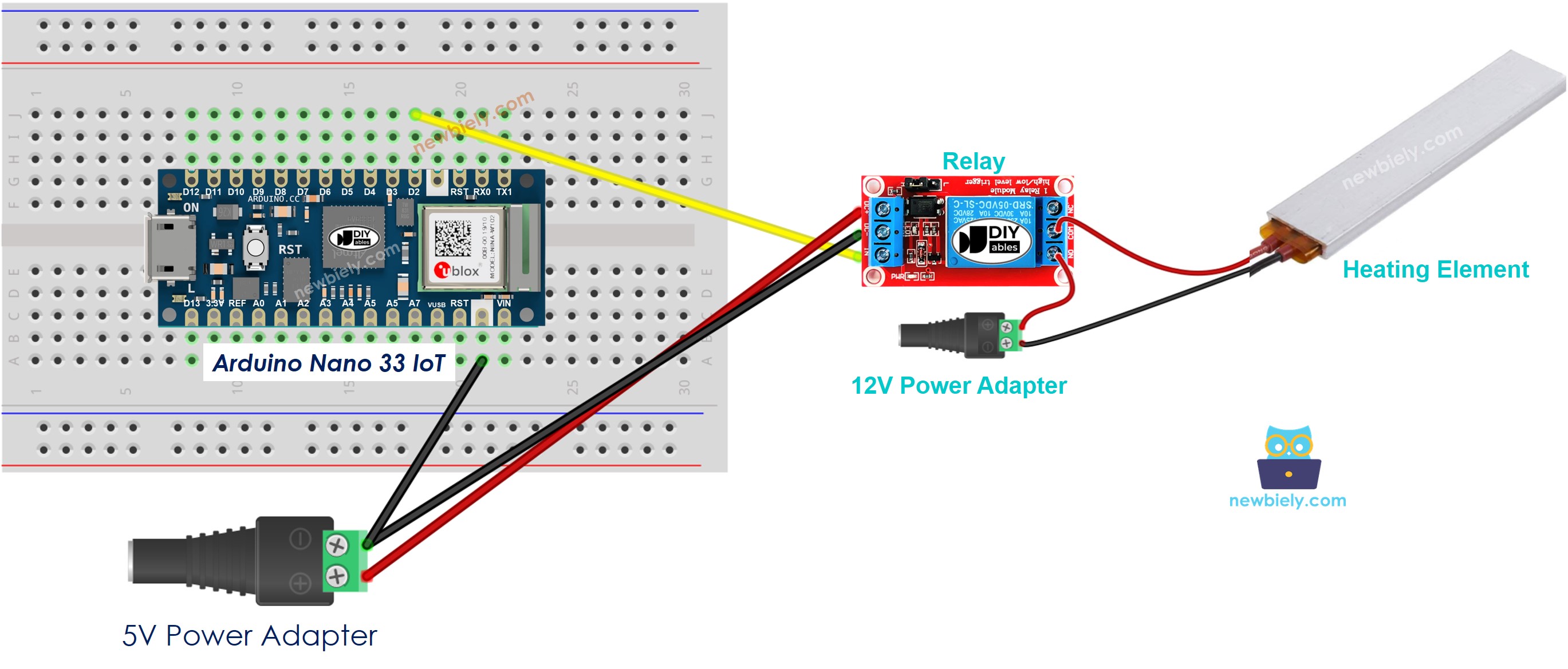
This image is created using Fritzing. Click to enlarge image
Arduino Nano 33 IoT Code
This code repeatedly turns the heating element on for five seconds and then off for five seconds.
Detailed Instructions
If you are new to the Arduino Nano 33 IoT, be sure to check out our Getting Started with Arduino Nano 33 IoT tutorial. Then, follow these steps:
- Connect the components to the Arduino Nano 33 IoT board as depicted in the diagram.
- Use a USB cable to connect the Arduino Nano 33 IoT board to your computer.
- Launch the Arduino IDE on your computer.
- Select the Arduino Nano 33 IoT board and choose its corresponding COM port.
- Copy the code provided above and paste it into the Arduino software.
- Click the Upload button to compile and send the code to your Arduino Nano 33 IoT board.
- Look at the temperature of the heating element.
WARNING
Be careful. It can burn you and your home. This is very serious, and we want you to be safe. If you are not 100% sure about what you are doing, please do not touch anything. Ask someone who understands. We are not responsible for your safety.
Code Explanation
The Arduino Nano 33 IoT code above has an explanation for each line. Please read the comments in the code!
Arduino Nano 33 IoT Code - Control Heat Level with MOSFET Module
This part swaps the relay for a MOSFET module. With PWM, the Arduino Nano 33 IoT can give the heater only part of its full power, so it warms up less.
Wiring Diagram
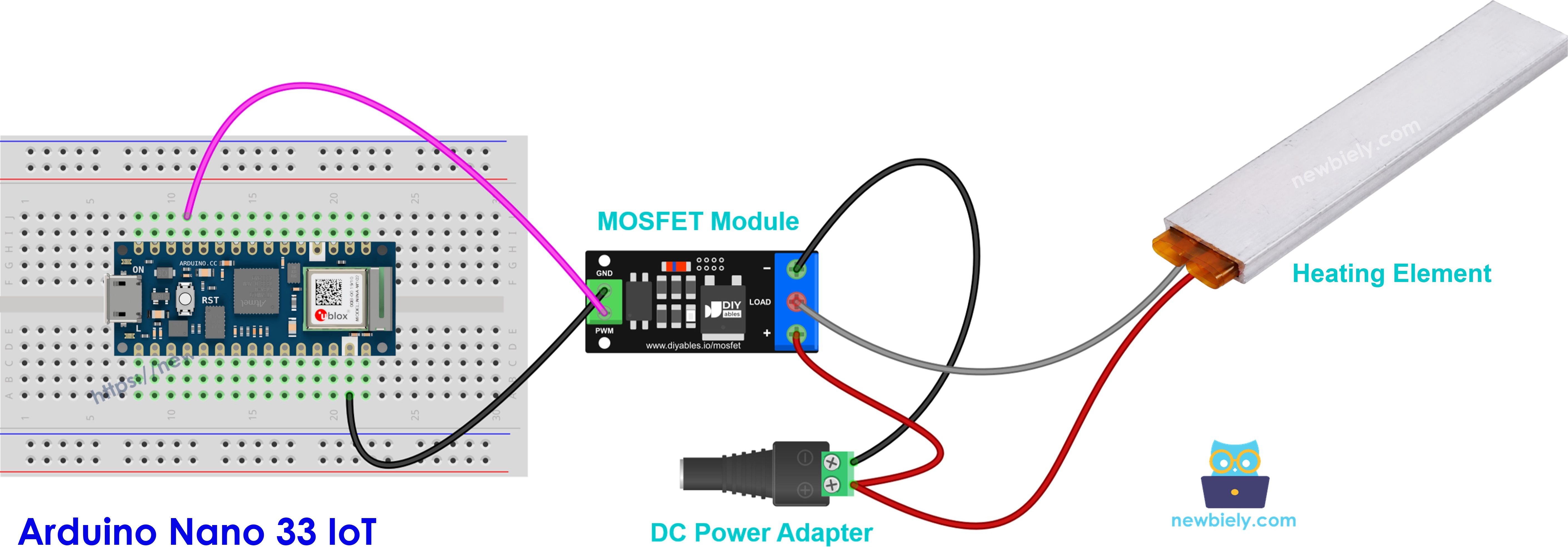
This image is created using Fritzing. Click to enlarge image
Make these connections:
- Pin D9 of the Arduino Nano 33 IoT → PWM pin of the module
- GND of the Arduino Nano 33 IoT → GND pin of the module
- Positive wire of the 12V adapter → + terminal
- Red (+) wire of the heating element → the same + terminal
- Black (−) wire of the heating element → LOAD terminal
- Negative wire of the 12V adapter → − terminal
A heating element is not a coil, so no flyback diode is needed here.
Arduino Nano 33 IoT Code
The program turns the heater fully ON for 2 seconds, then OFF for 2 seconds. After that, it raises the power from 10% to 100% and lowers it back to 0%. A heater changes temperature slowly, so you will notice the heat change only after some time.
Detailed Instructions
- Prepare the Arduino IDE and select the board as shown in the relay Quick Steps above.
- With the 12V adapter unplugged, wire the heater and the module as in the diagram.
- Upload the code above to the Arduino Nano 33 IoT.
- Plug in the 12V adapter.
- Open the Serial Monitor (9600 baud) to see the power level the board is sending.
※ NOTE THAT:
Use the MOSFET module with a DC heater only, powered by about 6V or more. An AC heater needs the relay.