
Arduino Nano 33 IoT - Control Fan
This guide explains how to use the Arduino Nano 33 IoT board to control a fan.
There are two ways to drive the fan: a relay or a MOSFET module. A relay can only switch the fan ON or OFF. A MOSFET module can do that too, and it can also change how fast the fan spins. This page shows both ways, so you can pick the one that fits your project.
Hardware Preparation
Or you can buy the following kits:
| 1 | × | DIYables Sensor Kit (18 sensors/displays) |
Additionally, some of these links are for products from our own brand, DIYables .
Overview of DC Fan
Pinout
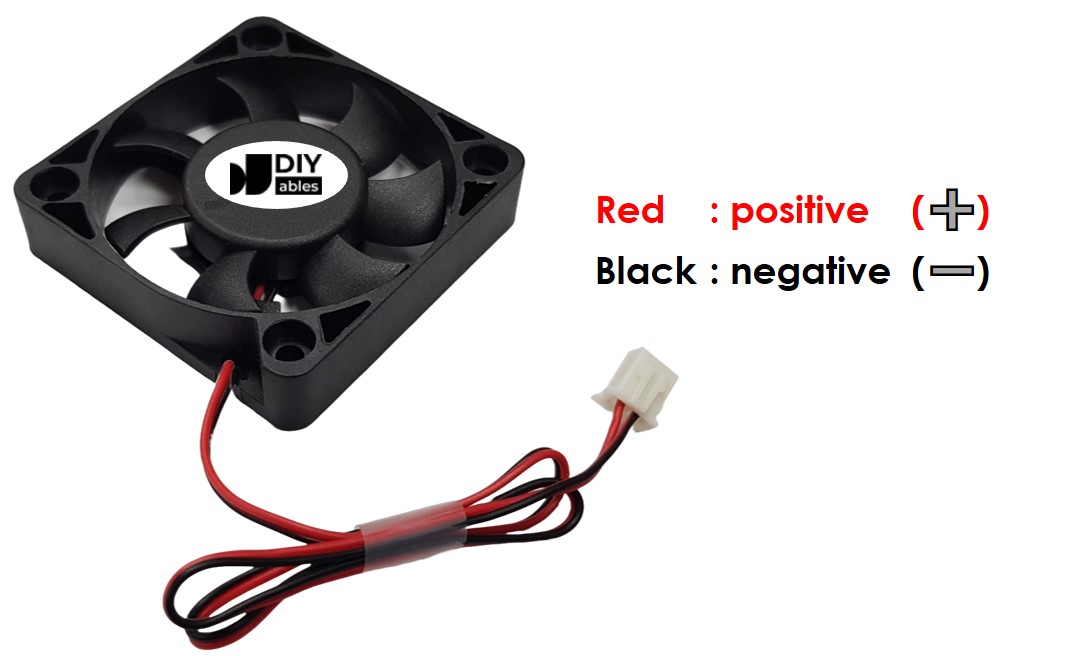
A DC fan normally has two pins:
- Negative pin (black): Connect this to the negative wire of the DC power supply.
- Positive pin (red): Connect this to the positive wire of the DC power supply.
The DC power supply's voltage must be the same as what the fan needs. In this lesson, we will use fans that operate on 12VDC and 5VDC.
How to Control Fan
- When a DC fan gets power from a 12V/5V power supply, it runs at full speed.
- When a DC fan gets a 12V/5V PWM signal, you can control its speed.
This guide shows you how to use the Arduino Nano 33 IoT to turn a fan on and off. Another guide will explain how to control the fan’s speed.
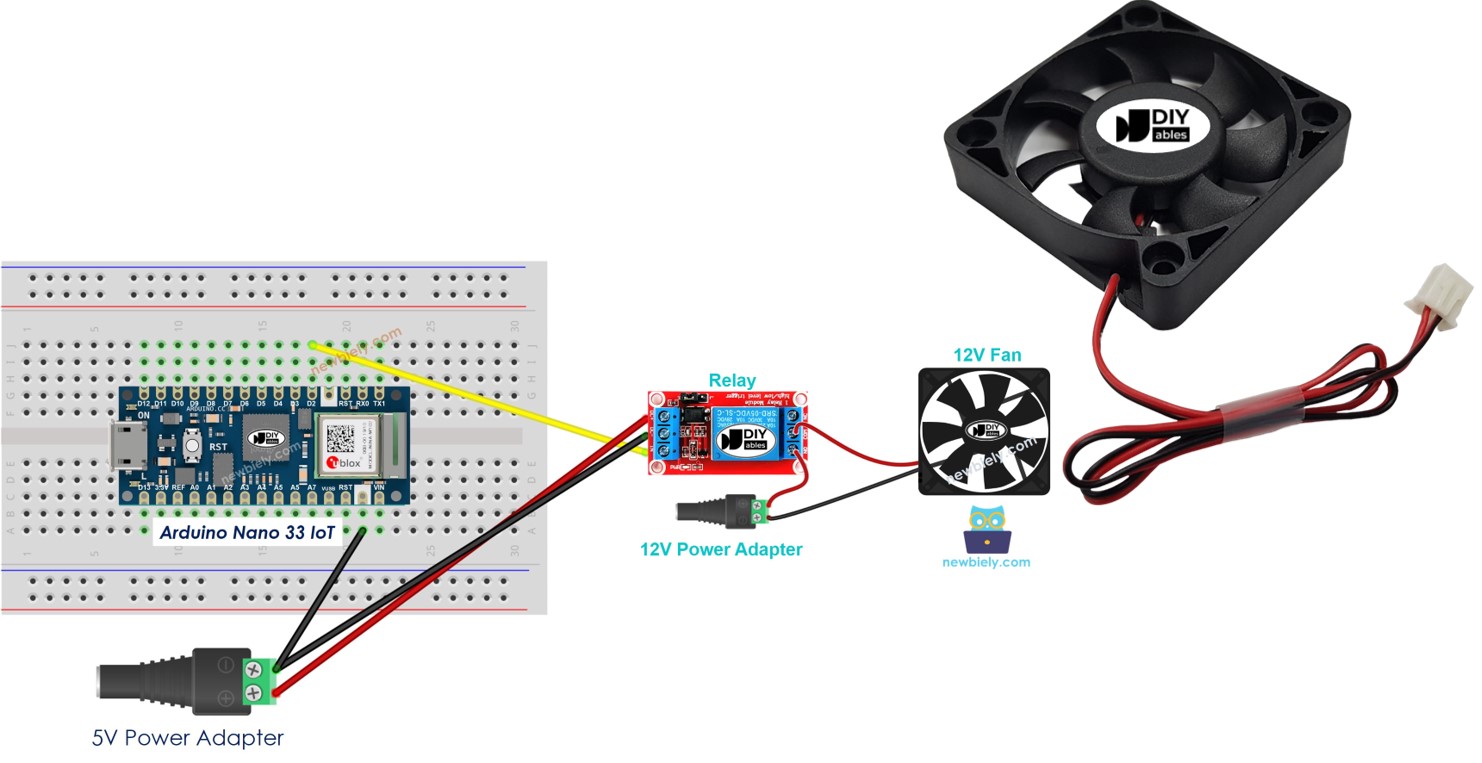
Since the fan uses high voltage, you cannot hook it up directly to the Arduino Nano 33 IoT. Instead, you need to connect the fan to the Arduino through a relay. We have detailed guides about relays—including wiring, operation, and programming—in our Arduino Nano 33 IoT - Relay tutorial.
A MOSFET module can take the place of the relay. Its pins, its inside parts and its code are explained in the Arduino Nano 33 IoT - MOSFET Module tutorial.
Relay vs MOSFET Module for Fan
| Relay | MOSFET Module | |
|---|---|---|
| What you can control | Fan ON or OFF only | Fan ON or OFF, plus fan speed (PWM) |
| Noise | A click each time it switches | No sound |
| Switching time | Slow (a few milliseconds) | Very fast |
| Wear | The contacts wear out after many switches | No moving parts |
| Kind of fan | AC fan or DC fan | DC fan only |
| Fan supply voltage | Any voltage the relay is rated for | About 6V or more |
| Isolation | Yes, between coil and contacts | Yes, by the PC817 optocoupler |
| Good choice when | The fan runs on AC, or you only need ON/OFF | You want a quiet 12V fan with speed control |
For a 12V DC fan, the MOSFET module is usually the better pick, because you can slow the fan down when full speed is not needed. A 5V fan is not a good match for the module, since the module needs a load supply of about 6V or more. Keep the relay for a 5V fan or an AC fan.
Wiring Diagram
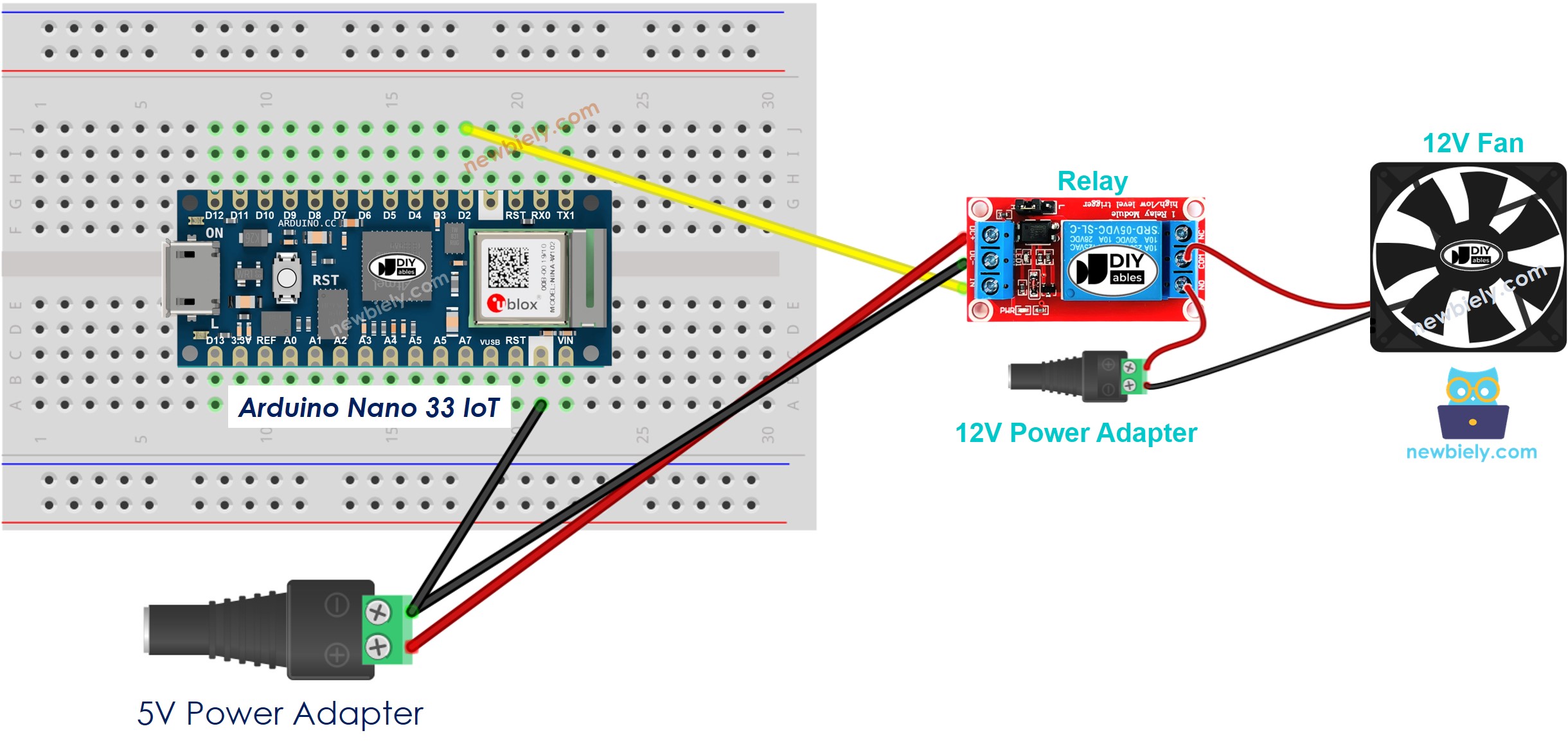
This image is created using Fritzing. Click to enlarge image
Remember, if you use a fan that runs on 5V, you should use a 5V power adapter.
Arduino Nano 33 IoT Code
The code below switches the fan on and off every 10 seconds.
Detailed Instructions
If you are new to the Arduino Nano 33 IoT, be sure to check out our Getting Started with Arduino Nano 33 IoT tutorial. Then, follow these steps:
- Connect the components to the Arduino Nano 33 IoT board as depicted in the diagram.
- Use a USB cable to connect the Arduino Nano 33 IoT board to your computer.
- Launch the Arduino IDE on your computer.
- Select the Arduino Nano 33 IoT board and choose its corresponding COM port.
- Copy the code above and paste it into the Arduino IDE.
- Click the Upload button in the Arduino IDE to compile and send the code to your Arduino Nano 33 IoT board.
- Check the fan's status.
Line-by-line Code Explanation
The Arduino Nano 33 IoT code above explains every line. Please read all the comments in the code!
How to Control Fan Speed with MOSFET Module
In this part, the relay is replaced by a MOSFET module. The Arduino Nano 33 IoT sends a PWM signal to it, so the fan can run fast, slow, or stop.
Wiring Diagram
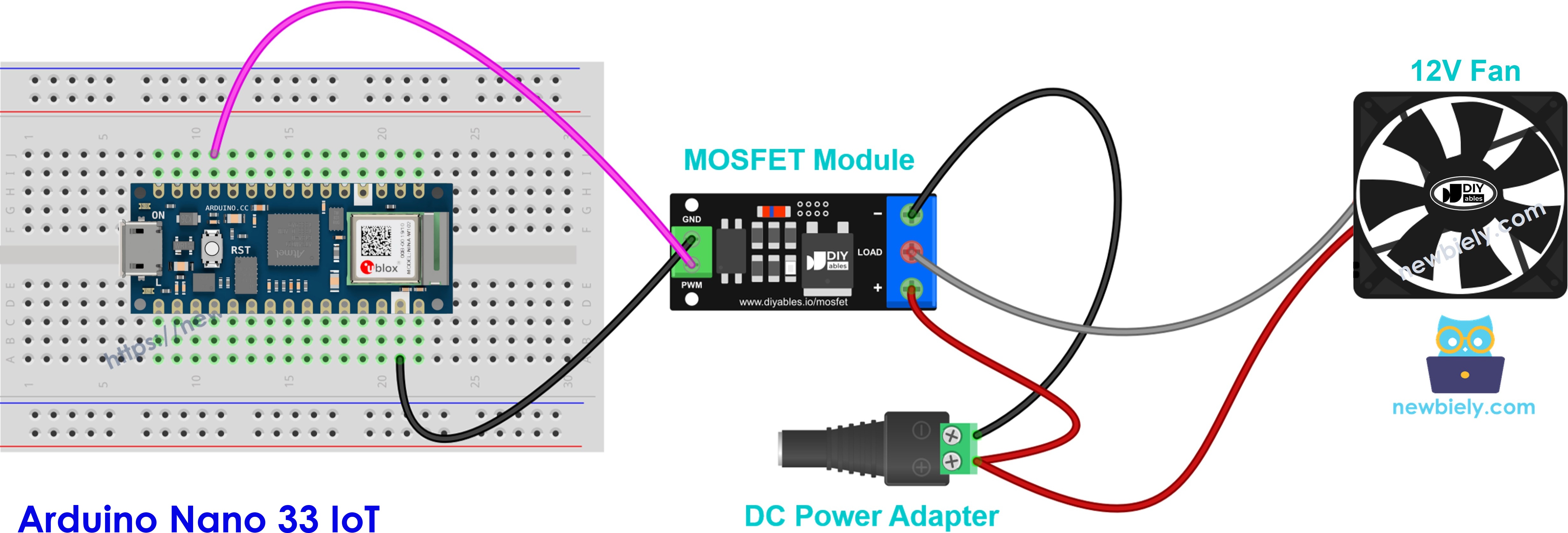
This image is created using Fritzing. Click to enlarge image
| From | To |
|---|---|
| Arduino Nano 33 IoT D9 | MOSFET module PWM |
| Arduino Nano 33 IoT GND | MOSFET module GND |
| 12V adapter + | MOSFET module + terminal |
| Fan red wire (+) | MOSFET module + terminal (shared with the adapter +) |
| Fan black wire (−) | MOSFET module LOAD terminal |
| 12V adapter − | MOSFET module − terminal |
A fan has a motor coil inside, so put a flyback diode (1N4007 or 1N5819) across the two fan wires. The side with the stripe (cathode) goes to the fan + wire, and the other side goes to the fan − wire. If your fan has a third yellow wire, leave it unconnected.
Arduino Nano 33 IoT Code - Fan Speed
The fan first runs at full speed for 2 seconds and stops for 2 seconds. Then it speeds up from 10% to 100% power, step by step, and slows down again.
Detailed Instructions
- Set up the Arduino IDE and the board as in the Quick Steps of the relay part above.
- Wire the fan and the MOSFET module as in the diagram. Keep the 12V adapter unplugged while you wire.
- Copy the code above, paste it into the Arduino IDE, and upload it to the Arduino Nano 33 IoT.
- Plug in the 12V adapter.
- Open the Serial Monitor at 9600 baud and listen to the fan speed going up and down.
Many fans do not start at very low power, so the fan may stay still at 10% or 20%. This is normal.
※ NOTE THAT:
The MOSFET module works with DC loads only, and its load supply must be about 6V or more. For an AC fan, use the relay.