When you press or release a button, or flip a switch between ON and OFF, its state changes from LOW to HIGH (or HIGH to LOW) just one time. Is this correct?
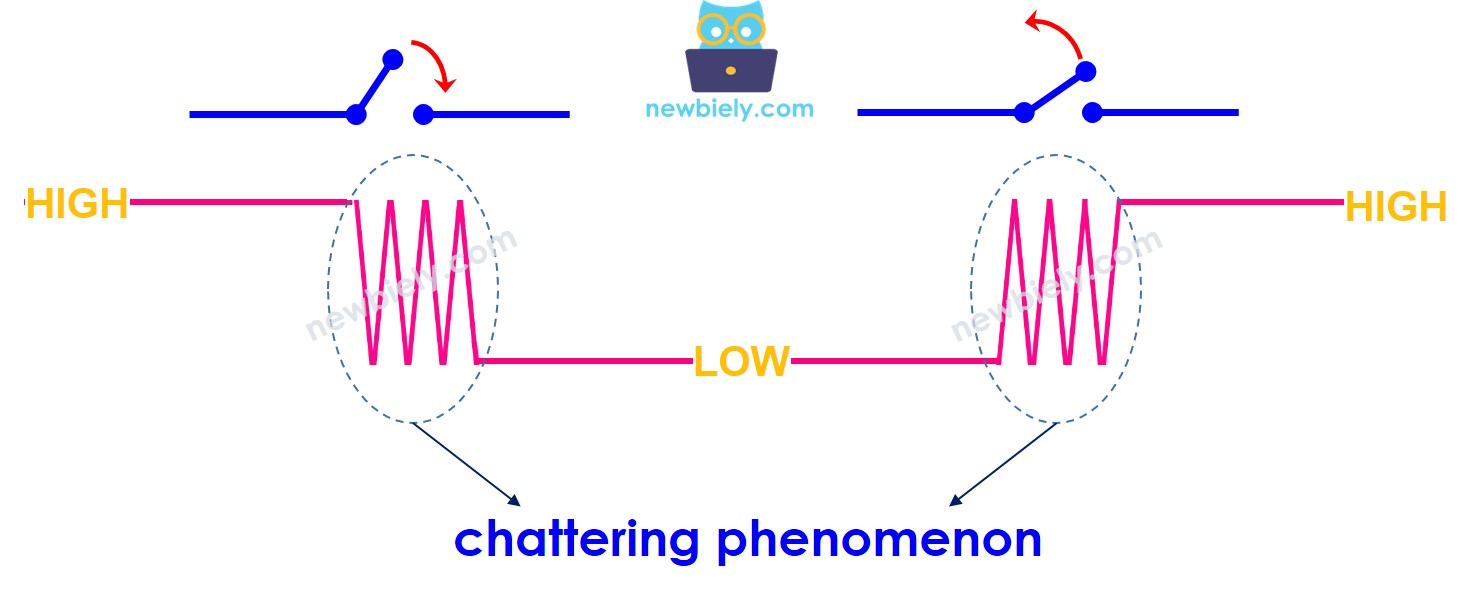
No, it's not. In the real world, when you press a button once, its state (LOW and HIGH) can change back and forth several times very quickly instead of just one time. This is because of the physical properties of the button, and it's known as chattering. Chattering can make devices like the Arduino Nano 33 IoT detect several button presses when you only pressed it once. This causes problems. The method used to fix this issue is called debouncing. This tutorial explains how to do that.
This guide gives:
How to remove false signals from a single button in Arduino Nano 33 IoT code
How to remove false signals from one button using a library in Arduino Nano 33 IoT code
How to remove false signals from several buttons using a library in Arduino Nano 33 IoT code
Disclosure: Some of the links provided in this section are Amazon affiliate links. We may receive a commission for any purchases made through these links at no additional cost to you. Additionally, some of these links are for products from our own brand, DIYables .
Overview of Button
We have detailed guides about the button. These guides include clear information and simple step-by-step instructions on the hardware pin layout, how it works, how to wire it to the Arduino Nano 33 IoT, and the Arduino Nano 33 IoT code. Find out more at the links below.
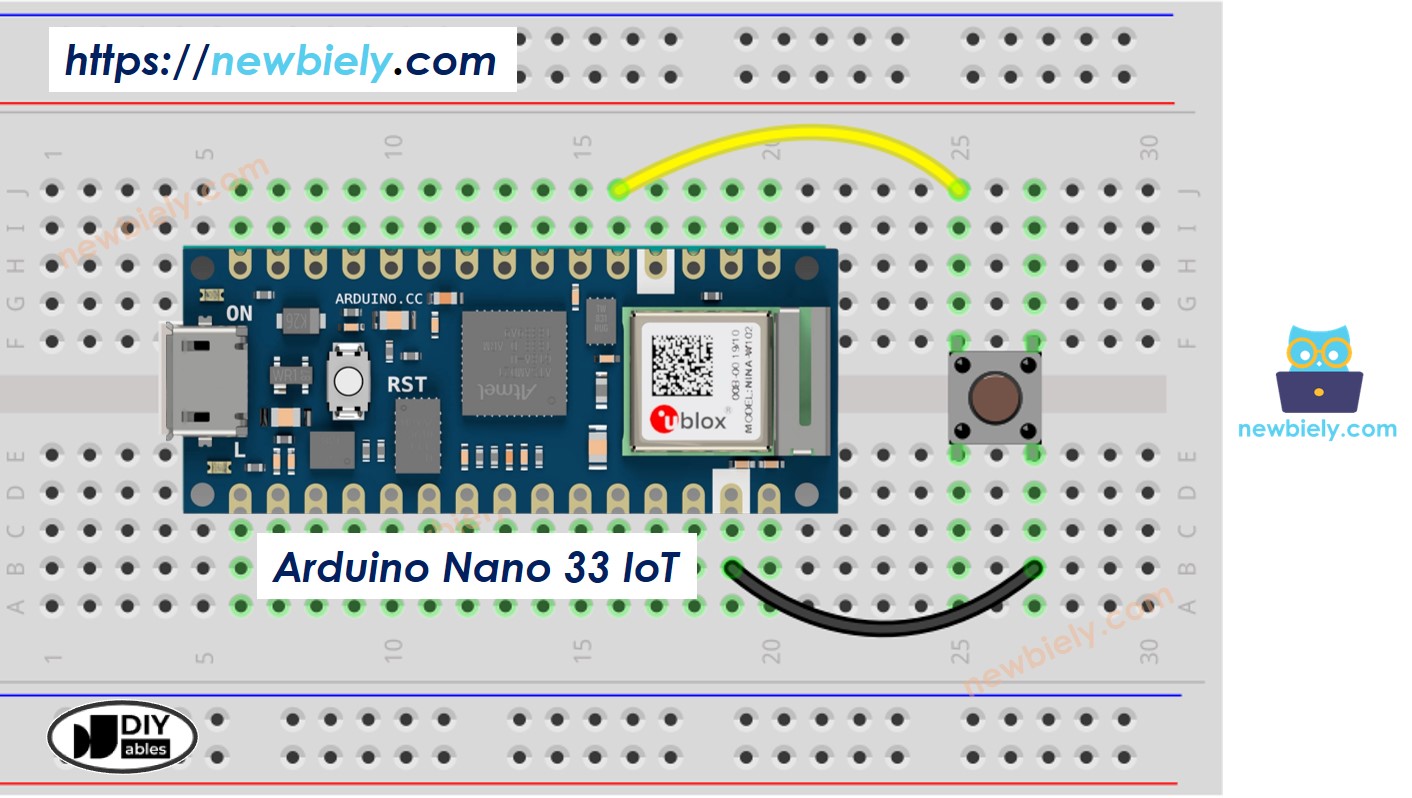
Connect the components to the Arduino Nano 33 IoT board as depicted in the diagram.
Use a USB cable to connect the Arduino Nano 33 IoT board to your computer.
Launch the Arduino IDE on your computer.
Select the Arduino Nano 33 IoT board and choose its corresponding COM port.
Copy the code below and paste it into the Arduino IDE.
/* * This Arduino Nano 33 IoT code was developed by newbiely.com * * This Arduino Nano 33 IoT code is made available for public use without any restriction * * For comprehensive instructions and wiring diagrams, please visit: * https://newbiely.com/tutorials/arduino-nano-iot/arduino-nano-33-iot-button-debounce */#define BUTTON_PIN 2 // Arduino Nano 33 IoT pin D2 pin connected to buttonint prev_state = LOW; // The previous state from the input pinint button_state; // The current reading from the input pinvoidsetup() {// Initialize the Serial to communicate with the Serial Monitor.Serial.begin(9600);// initialize the button pin as an pull-up input (HIGH when the switch is open and LOW when the switch is closed)pinMode(BUTTON_PIN, INPUT_PULLUP);}voidloop() {// read the state of the switch/button: button_state = digitalRead(BUTTON_PIN);if (prev_state == HIGH && button_state == LOW)Serial.println("The button is pressed");elseif (prev_state == LOW && button_state == HIGH)Serial.println("The button is released");// save the the last state prev_state = button_state;}
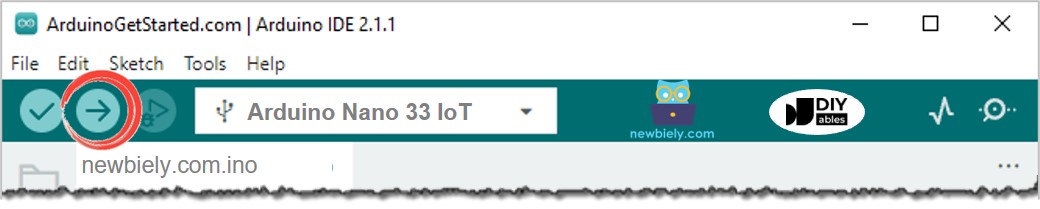
Build and send your code to the Arduino Nano 33 IoT board by clicking the Upload button in the Arduino IDE.
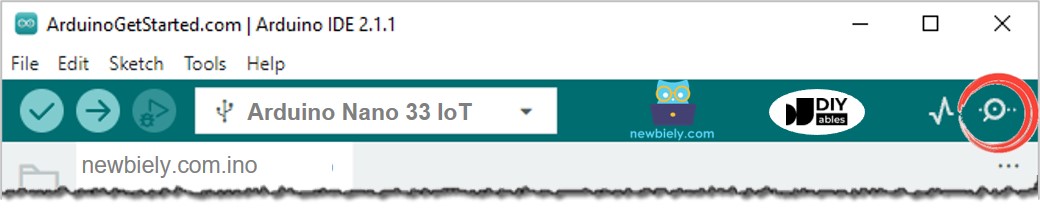
Open the Serial Monitor in the Arduino program.
Press the button and hold it for a few seconds, then let it go.
Look at the Serial Monitor to see the result. It should look like the image below.
Newbiely | Arduino IDE 2.3.8
──
☐
✕
File
Edit
Sketch
Tools
Help
Arduino Nano 33 IoT
Newbiely.ino
···
8Serial.println("Hello World!");
Output
Serial Monitor
Message (Enter to send message to 'Arduino Nano 33 IoT' on 'COM15')
New Line
9600 baud
The button is pressed
The button is released
Ln 11, Col 1
Arduino Nano 33 IoT on COM15
2
You pressed and released the button one time, but the Arduino Nano 33 IoT detected several presses and releases.
※ NOTE THAT:
Chattering doesn't happen every time. If you don't see it, please try the test a few times.
Reading Button with Debounce
Detailed Instructions
Copy the code below and paste it into your Arduino IDE.
/* * This Arduino Nano 33 IoT code was developed by newbiely.com * * This Arduino Nano 33 IoT code is made available for public use without any restriction * * For comprehensive instructions and wiring diagrams, please visit: * https://newbiely.com/tutorials/arduino-nano-iot/arduino-nano-33-iot-button-debounce */#define BUTTON_PIN 2 // Arduino Nano 33 IoT pin D2 pin connected to button#define DEBOUNCE_TIME 50 // The debounce time in millisecond, increase this time if it still chattersint prev_state_steady = LOW; // The previous steady state from the input pinint prev_state_flick = LOW; // The previous flickerable state from the input pinint button_state; // The current reading from the input pinunsignedlong last_debounce_time = 0; // The last time the output pin was toggledvoidsetup() {// Initialize the Serial to communicate with the Serial Monitor.Serial.begin(9600);// initialize the button pin as an pull-up input (HIGH when the switch is open and LOW when the switch is closed)pinMode(BUTTON_PIN, INPUT_PULLUP);}voidloop() {// read the state of the switch/button: button_state = digitalRead(BUTTON_PIN);// check to see if you just pressed the button// (i.e. the input went from LOW to HIGH), and you've waited long enough// since the last press to ignore any noise:// If the switch/button changed, due to noise or pressing:if (button_state != prev_state_flick) {// reset the debouncing timer last_debounce_time = millis();// save the the last flickerable state prev_state_flick = button_state; }if ((millis() - last_debounce_time) > DEBOUNCE_TIME) {// whatever the reading is at, it's been there for longer than the debounce// delay, so take it as the actual current state:// if the button state has changed:if(prev_state_steady == HIGH && button_state == LOW)Serial.println("The button is pressed");elseif(prev_state_steady == LOW && button_state == HIGH)Serial.println("The button is released");// save the the last steady state prev_state_steady = button_state; }}
Click the Upload button in the Arduino IDE to compile and send the code to the Arduino Nano 33 IoT board.
Open the Serial Monitor in the Arduino IDE.
Press and hold the button for a few seconds, then let it go.
Look at the result in the Serial Monitor. It will show something similar to the image below.
Newbiely | Arduino IDE 2.3.8
──
☐
✕
File
Edit
Sketch
Tools
Help
Arduino Nano 33 IoT
Newbiely.ino
···
8Serial.println("Hello World!");
Output
Serial Monitor
Message (Enter to send message to 'Arduino Nano 33 IoT' on 'COM15')
New Line
9600 baud
The button is pressed
The button is released
Ln 11, Col 1
Arduino Nano 33 IoT on COM15
2
You can see that you pressed and released the button only once, and the Arduino Nano 33 IoT detected just that one press. The extra signals have been removed.
We Made It Simple - Arduino Nano 33 IoT Button Debounce Code with Library
To help beginners, especially when working with several buttons that might send extra signals, we created a simple library called ezButton. You can learn more about the ezButton library here: https://arduinogetstarted.com/tutorials/arduino-button-library
Arduino Nano 33 IoT Button Debounce Code for A Single Button
/* * This Arduino Nano 33 IoT code was developed by newbiely.com * * This Arduino Nano 33 IoT code is made available for public use without any restriction * * For comprehensive instructions and wiring diagrams, please visit: * https://newbiely.com/tutorials/arduino-nano-iot/arduino-nano-33-iot-button-debounce */#include <ezButton.h>#define DEBOUNCE_TIME 50 // Set debounce duration in milliseconds; increase if button chatter persistsezButtonbutton(D2); // Instantiate an ezButton for digital pin D2voidsetup() {Serial.begin(9600);button.setDebounceTime(DEBOUNCE_TIME); // Configure the button's debounce duration to 50 ms}voidloop() {button.loop(); // Call the loop() method first to update the button stateif (button.isPressed())Serial.println("The button is pressed");if (button.isReleased())Serial.println("The button is released");}
Arduino Nano 33 IoT Button Debounce Code for A Multiple Buttons
Let's write code that stops three buttons from being clicked too many times in a row.
The wiring diagram
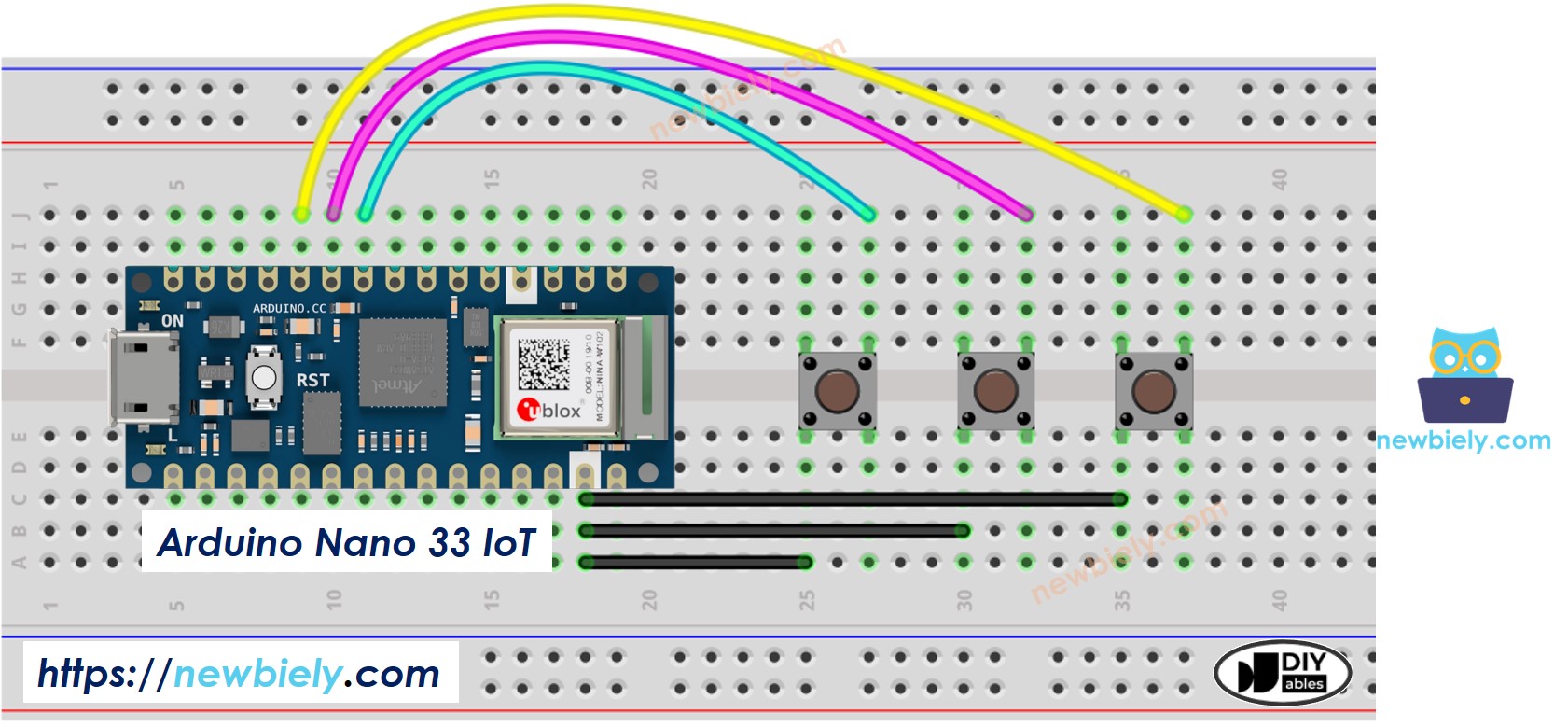
This image is created using Fritzing. Click to enlarge image
/* * This Arduino Nano 33 IoT code was developed by newbiely.com * * This Arduino Nano 33 IoT code is made available for public use without any restriction * * For comprehensive instructions and wiring diagrams, please visit: * https://newbiely.com/tutorials/arduino-nano-iot/arduino-nano-33-iot-button-debounce */#include <ezButton.h>#define DEBOUNCE_TIME 50 // define debounce duration in milliseconds, adjust upward if button chatter persistsezButtonbutton1(D6); // instantiate an ezButton object for digital pin D6ezButtonbutton2(D7); // instantiate an ezButton object for digital pin D7ezButtonbutton3(D8); // instantiate an ezButton object for digital pin D8voidsetup() {Serial.begin(9600);button1.setDebounceTime(DEBOUNCE_TIME); // apply debounce duration of 50 milliseconds to button1button2.setDebounceTime(DEBOUNCE_TIME); // apply debounce duration of 50 milliseconds to button2button3.setDebounceTime(DEBOUNCE_TIME); // apply debounce duration of 50 milliseconds to button3}voidloop() {button1.loop(); // call loop() method to update button1 statebutton2.loop(); // call loop() method to update button2 statebutton3.loop(); // call loop() method to update button3 stateif (button1.isPressed())Serial.println("The button 1 is pressed");if (button1.isReleased())Serial.println("The button 1 is released");if (button2.isPressed())Serial.println("The button 2 is pressed");if (button2.isReleased())Serial.println("The button 2 is released");if (button3.isPressed())Serial.println("The button 3 is pressed");if (button3.isReleased())Serial.println("The button 3 is released");}
※ NOTE THAT:
Please note that the Arduino Nano 33 IoT pins A4 and A5 have built-in pull-up resistors for I2C communication. Although these pins can be used as digital input pins, it is recommended to avoid using them for digital input. If you must use them, do NOT use internal or external pull-down resistors for these pins
Video Tutorial
Additional Knowledge
The DEBOUNCE_TIME depends on the device. Different devices might need different values.
Debounce should also work for switches like on/off, limit, reed, and touch sensors.
Please feel free to share the link of this tutorial. However, Please do not use our content on any other websites. We invested a lot of effort and time to create the content, please respect our work!