
Arduino Nano 33 IoT - Control Pump
This guide shows you how to use the Arduino Nano 33 IoT board to control a pump. You can also use this guide to create your own aquarium, cocktail maker, coffee machine, or watering system.
You can switch the pump with a relay or with a MOSFET module. The relay gives you just ON and OFF. The MOSFET module gives you ON and OFF as well, but it can also make the pump run slower or faster, which changes how much water flows. Both methods are covered below.
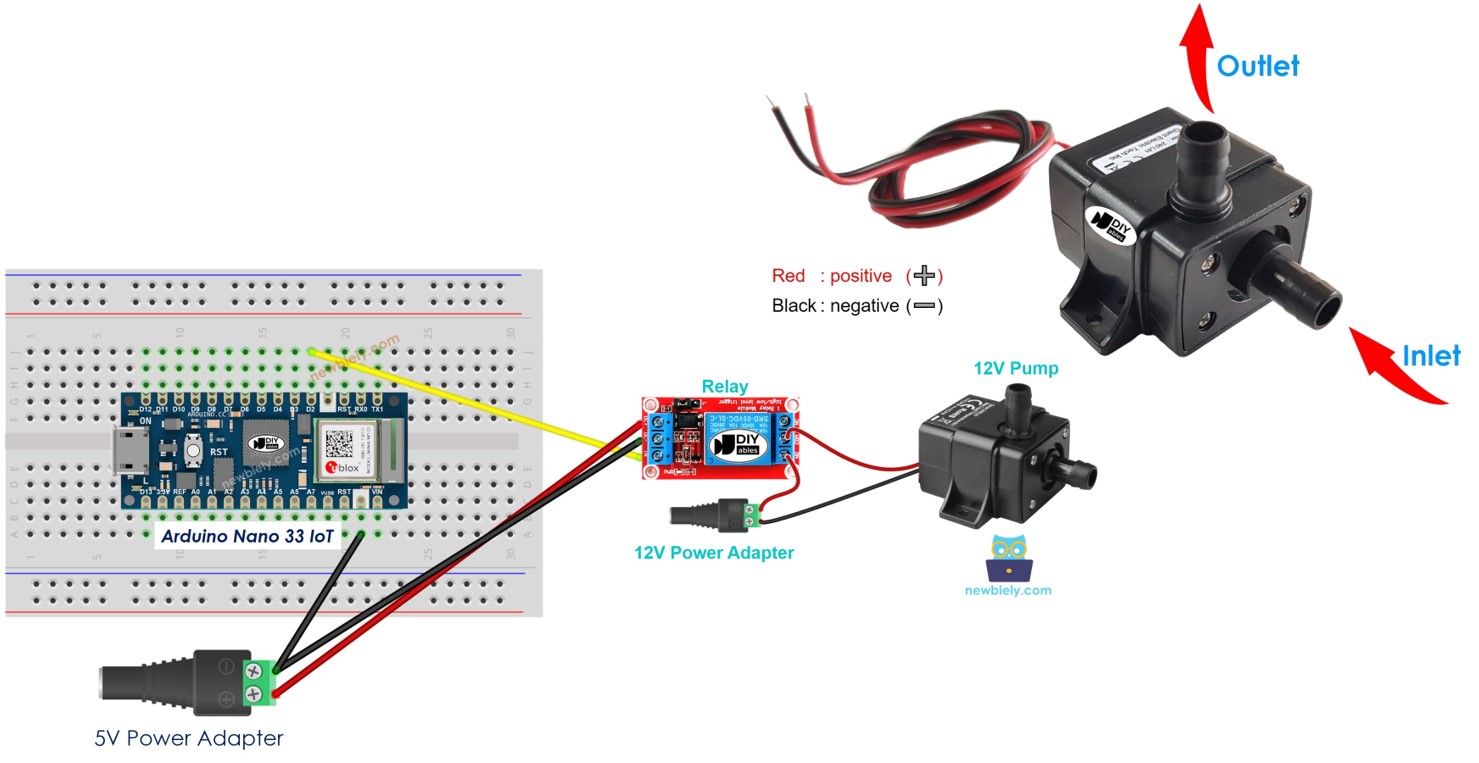
Hardware Preparation
Or you can buy the following kits:
| 1 | × | DIYables Sensor Kit (18 sensors/displays) |
Additionally, some of these links are for products from our own brand, DIYables .
Overview of 12V Pump
Pump Pinout
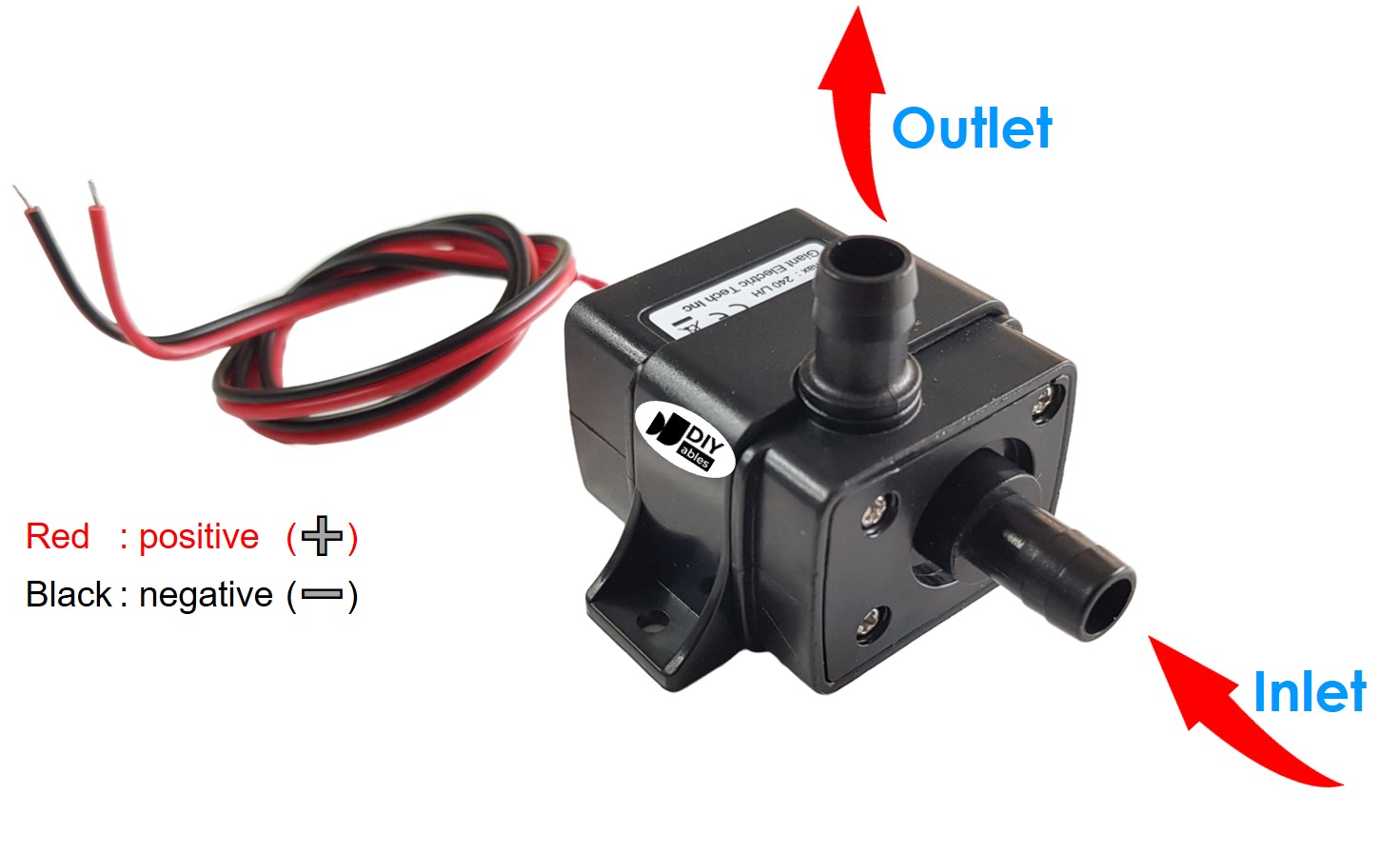
A pump that runs on 12 volts has two wires:
- Black wire (-): Attach this wire to the negative terminal of your 12V DC power supply.
- Red wire (+): Attach this wire to the positive terminal of your 12V DC power supply.
How to Control Pump using Arduino Nano 33 IoT
If you connect a 12V power supply to a pump, the pump will run. You can control the pump with code using the Arduino Nano 33 IoT. To do this, you need to use a relay between the pump and the Arduino board. There is a detailed tutorial about using a relay. The guide explains the hardware connections, how it works, how to wire it to the Arduino Nano 33 IoT, and shows example code. Learn more in the Arduino Nano 33 IoT - Relay tutorial.
A MOSFET module is the other choice for the switch. To get to know the module first, read the Arduino Nano 33 IoT - MOSFET Module tutorial.
Relay vs MOSFET Module for Pump
| Relay | MOSFET Module | |
|---|---|---|
| Pump control | Run or stop | Run or stop, and also set the flow with PWM |
| Lifetime | Contacts get worn over time | Nothing moves, so it lasts long |
| How fast it switches | Slow, in milliseconds | Very fast |
| Sound when switching | Clicks | Quiet |
| Pump type | DC or AC pump | DC pump only |
| Pump supply | Any voltage up to the relay rating | At least about 6V |
| Electrical isolation | Yes (coil and contacts) | Yes (PC817 optocoupler) |
| Best for | AC pumps, plain run/stop jobs | 12V DC pumps that need flow control |
If you want to pour a small, gentle stream or fill a cup slowly, choose the MOSFET module for your 12V pump. For a pump that runs on AC, the relay is the right part.
Wiring Diagram between Arduino Nano 33 IoT, Relay and Pump
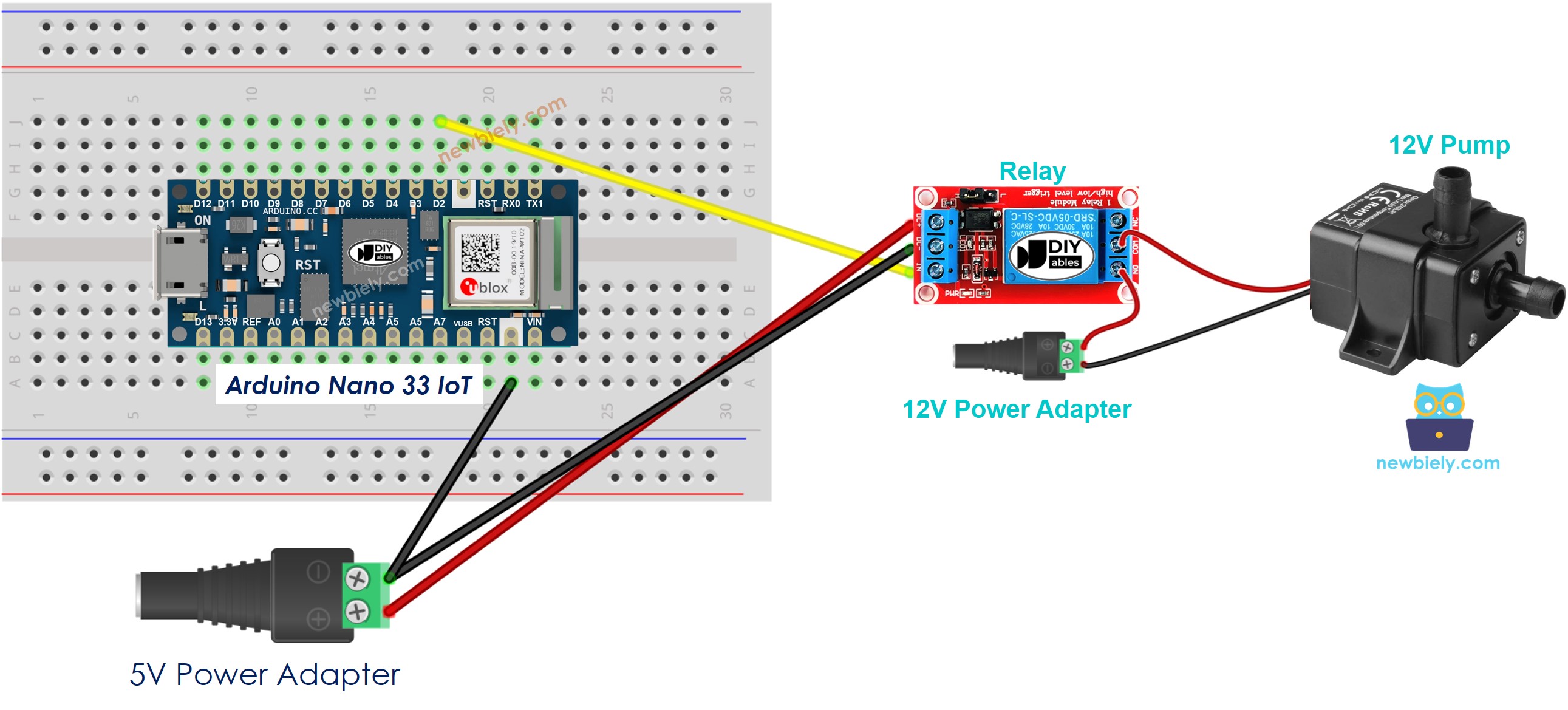
This image is created using Fritzing. Click to enlarge image
You can also build this circuit without a breadboard. Here is the same wiring:
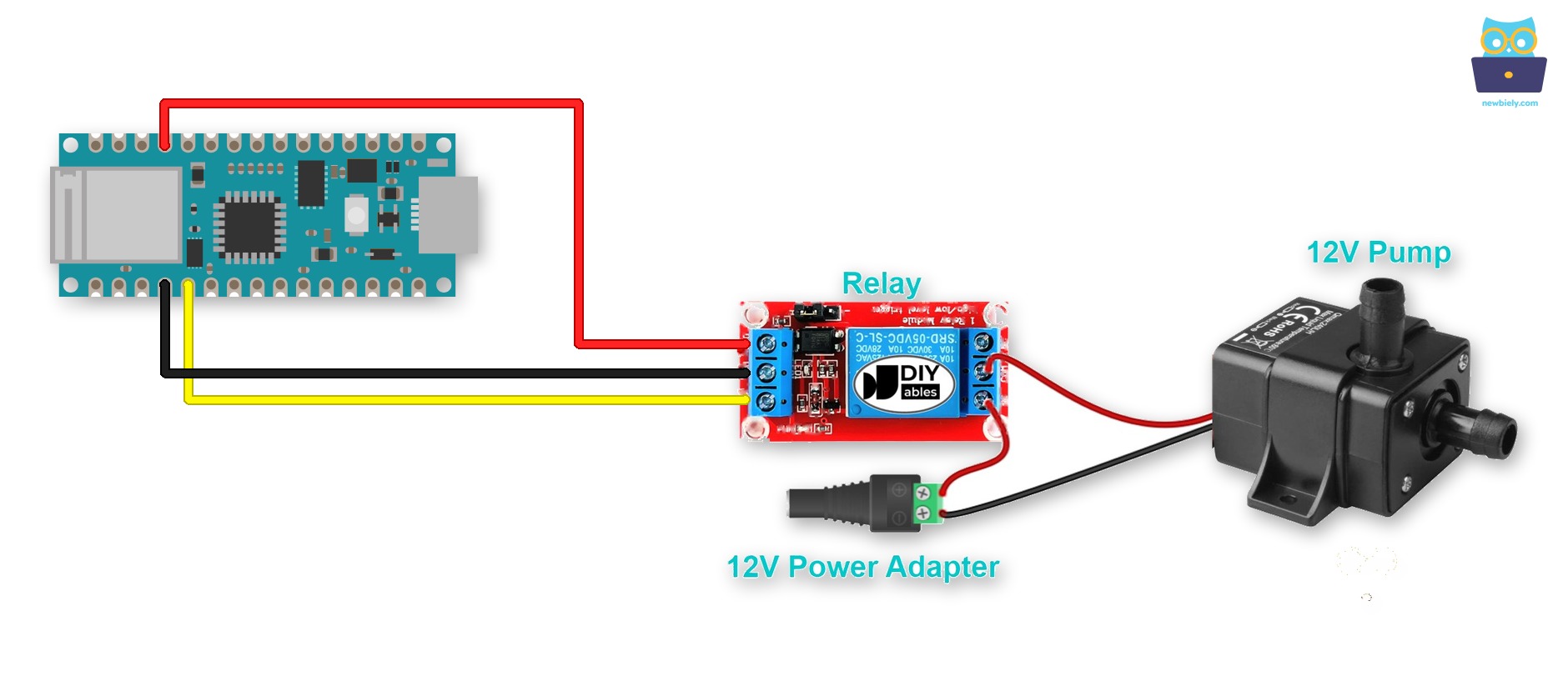
This image is created using Fritzing. Click to enlarge image
Jumper wires can come loose when you move the project. A Screw Terminal Expansion Board for Arduino Nano solves this. Plug the Arduino Nano 33 IoT into it and screw the wires in. The pins do not change. Just connect each wire to the matching screw terminal:
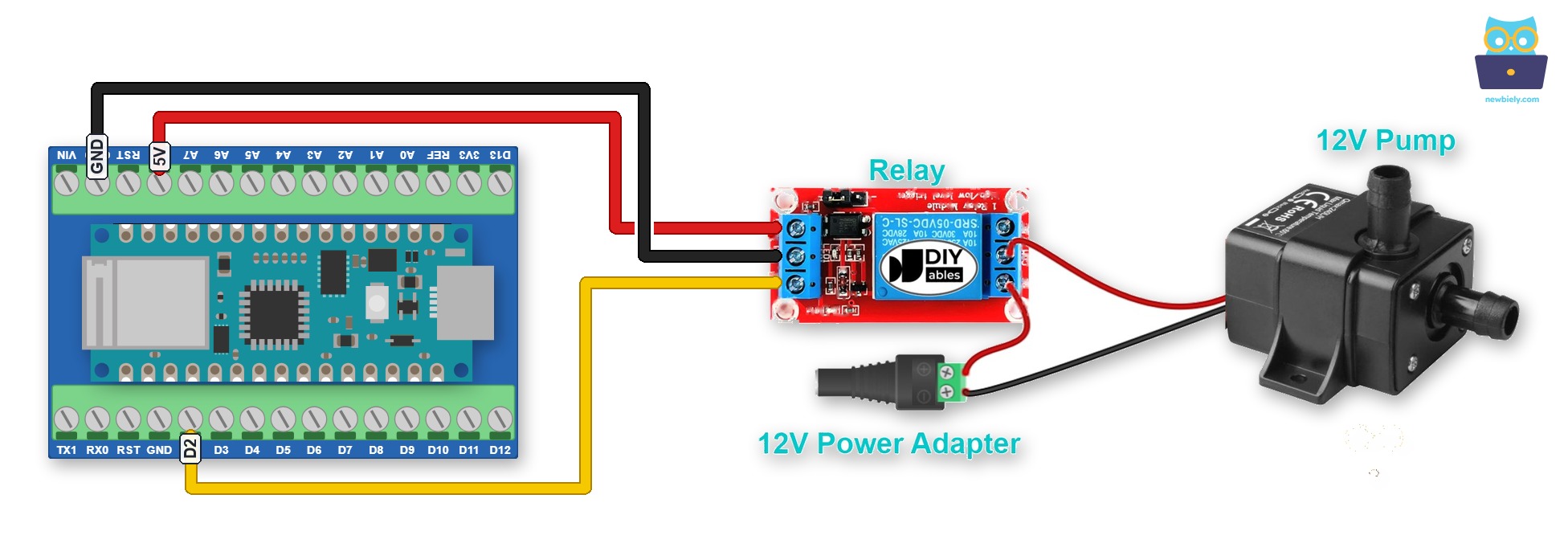
This image is created using Fritzing. Click to enlarge image
Note: on the Arduino Nano 33 IoT, the 5V pin is the VUSB pin. It gives 5V only after you close the VUSB solder jumper on the bottom of the board, and only when the board runs on USB power.
Arduino Nano 33 IoT - Pump Code
The code below turns the pump on and off every 4 seconds.
Detailed Instructions
If you are new to the Arduino Nano 33 IoT, be sure to check out our Getting Started with Arduino Nano 33 IoT tutorial. Then, follow these steps:
- Connect the components to the Arduino Nano 33 IoT board as depicted in the diagram.
- Use a USB cable to connect the Arduino Nano 33 IoT board to your computer.
- Launch the Arduino IDE on your computer.
- Select the Arduino Nano 33 IoT board and choose its corresponding COM port.
- Copy the above code and paste it into the Arduino IDE.
- Compile and upload the code to the Arduino Nano 33 IoT board by clicking the Upload button in the Arduino IDE.
- Check the pump’s status.
Line-by-line Code Explanation
The Arduino Nano 33 IoT code above explains each line. Please read the comments in the code!
How to Control Pump Flow with MOSFET Module
Here we drive the same 12V pump through a MOSFET module instead of the relay. The board sends PWM pulses, and the pump speed follows them.
Wiring Diagram between Arduino Nano 33 IoT, MOSFET Module and Pump
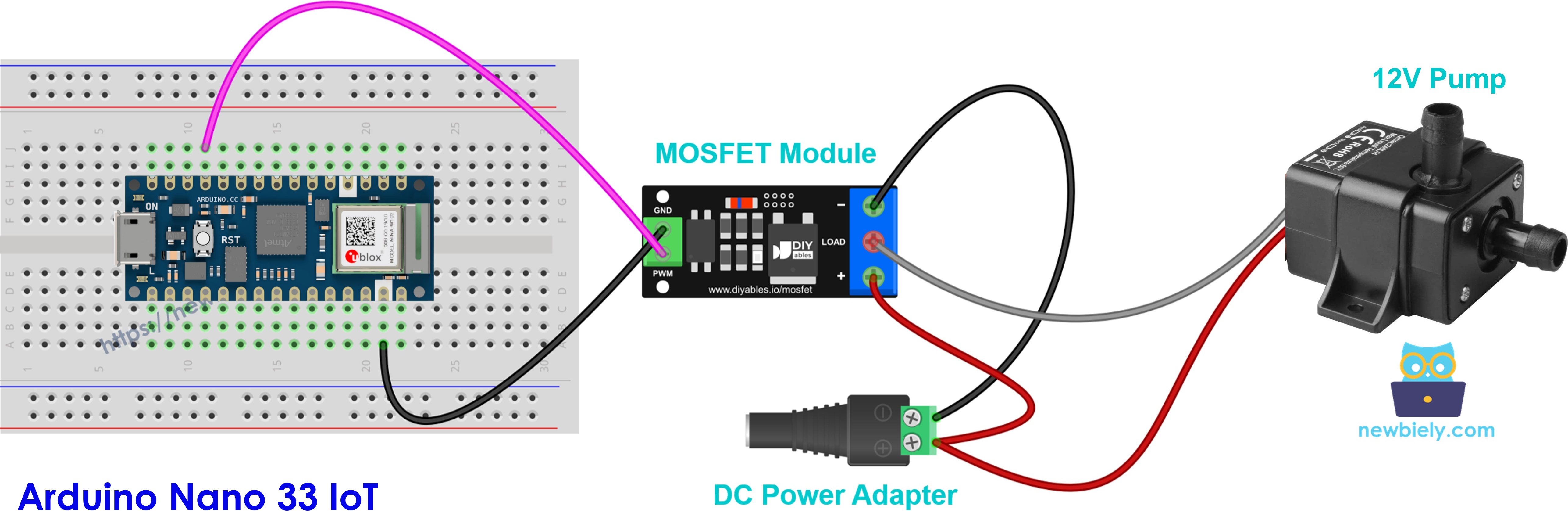
This image is created using Fritzing. Click to enlarge image
If you do not use a breadboard, wire it like this:
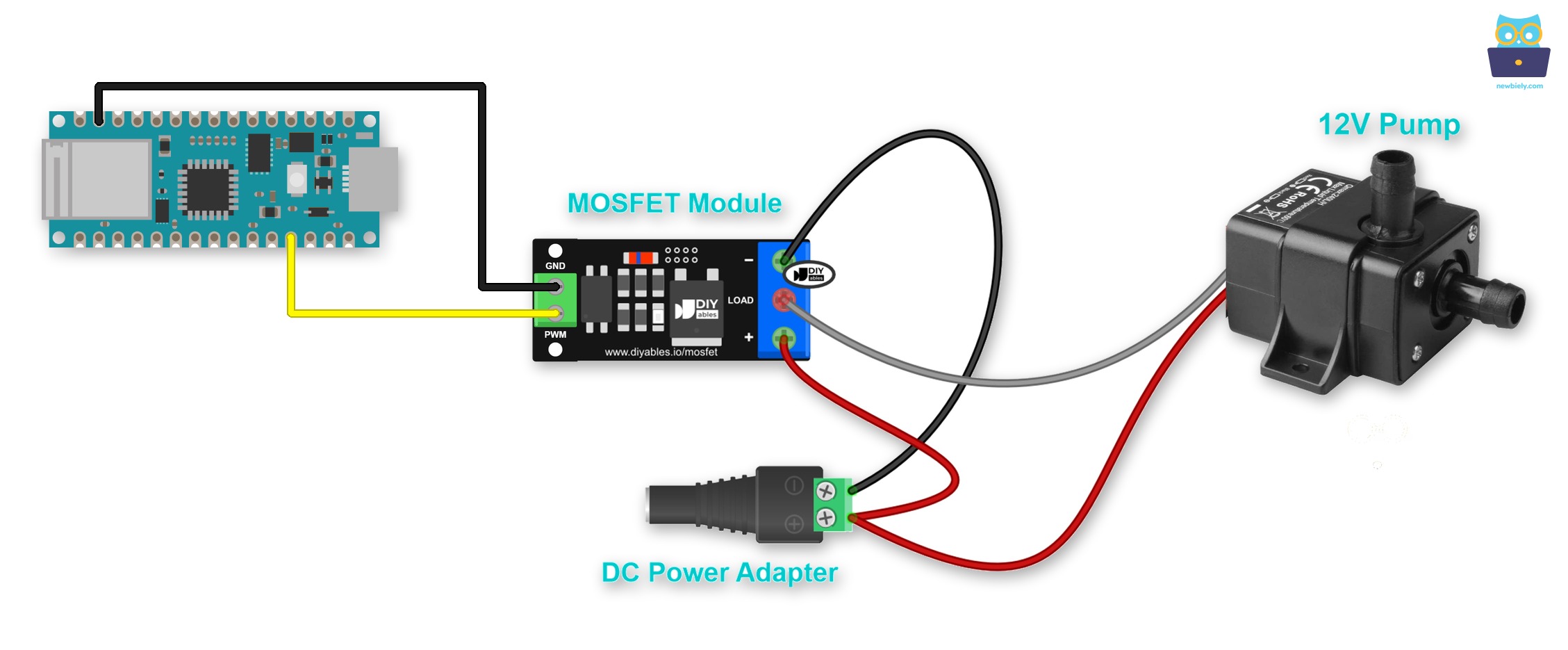
This image is created using Fritzing. Click to enlarge image
| Wire | Connect to |
|---|---|
| Pin D9 on Arduino Nano 33 IoT | PWM on the module |
| GND on Arduino Nano 33 IoT | GND on the module |
| Pump red wire (+) and 12V adapter + | + terminal (both wires together) |
| Pump black wire (−) | LOAD terminal |
| 12V adapter − | − terminal |
Jumper wires can come loose when you move the project. To do that, mount the Arduino Nano 33 IoT on a Screw Terminal Expansion Board for Arduino Nano. Each wire goes to the screw terminal of the same pin, as in the image below.
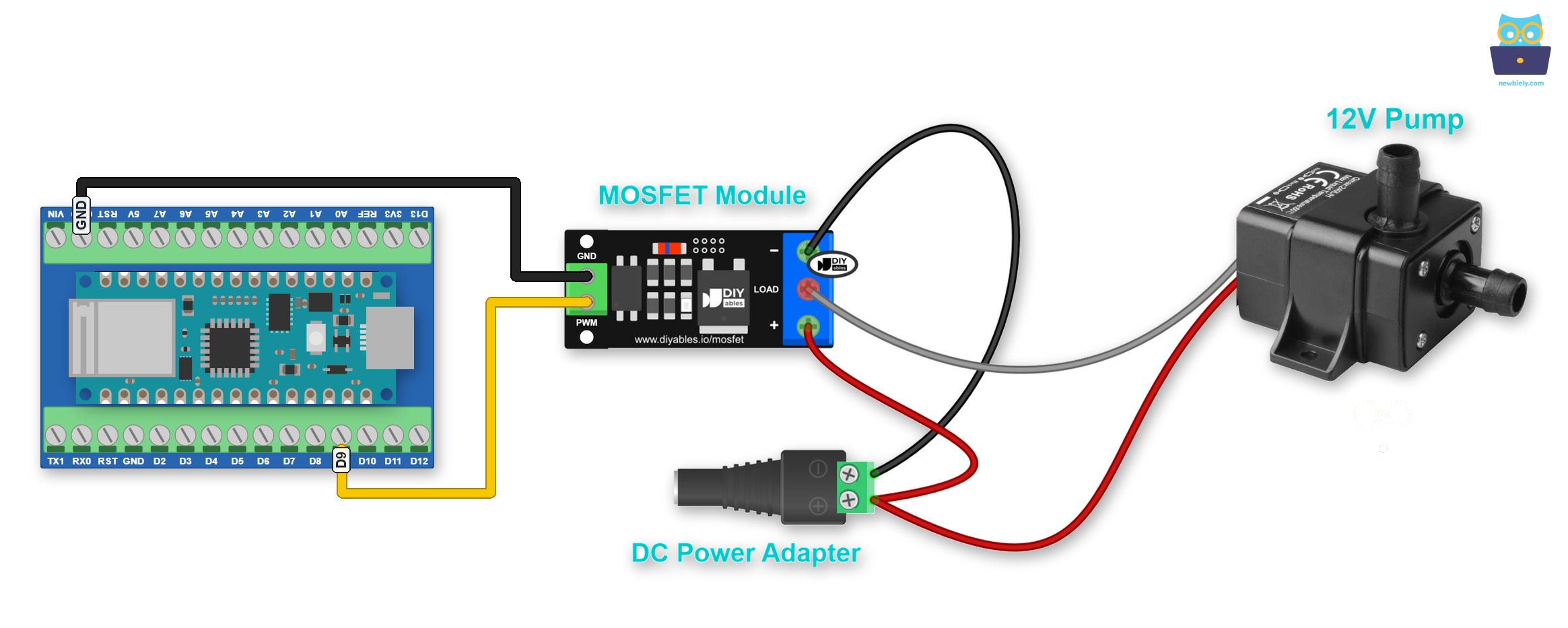
This image is created using Fritzing. Click to enlarge image
The pump has a small motor inside. Add a 1N4007 or 1N5819 diode across the pump wires to protect the module: stripe (cathode) on the pump + wire, other end on the pump − wire.
Arduino Nano 33 IoT - Pump Flow Code
With this code, the pump runs at full flow for 2 seconds and stops for 2 seconds. Next, the flow grows from 10% to 100%, then drops back to zero.
Detailed Instructions
- If the Arduino IDE is not ready yet, follow the first steps of the relay Quick Steps above.
- Connect the pump, the diode and the module as shown. Do not plug in the 12V adapter yet.
- Upload the code to the Arduino Nano 33 IoT board.
- Put the pump in water, then plug in the 12V adapter.
- Open the Serial Monitor at 9600 baud and watch the water flow change.
At low power, a small pump may not push any water. Keep this in mind when you choose your flow values.
※ NOTE THAT:
Never let the pump run dry. Also note that the MOSFET module works only with DC, and it needs a pump supply of about 6V or more. Use the relay for an AC pump.