
Arduino Nano 33 IoT - Stepper Motor
In this lesson, we will learn how to use the Arduino Nano 33 IoT board to control a stepper motor.
- The job of the DRV8825 driver, and how it makes a bipolar stepper motor spin
- How to set the stepper motor’s position
- How to adjust the stepper motor’s speed
- How to change the stepper motor’s direction
This guide works for any 4-wire bipolar stepper motor. Here, we use the NEMA 17 stepper motor as an example.
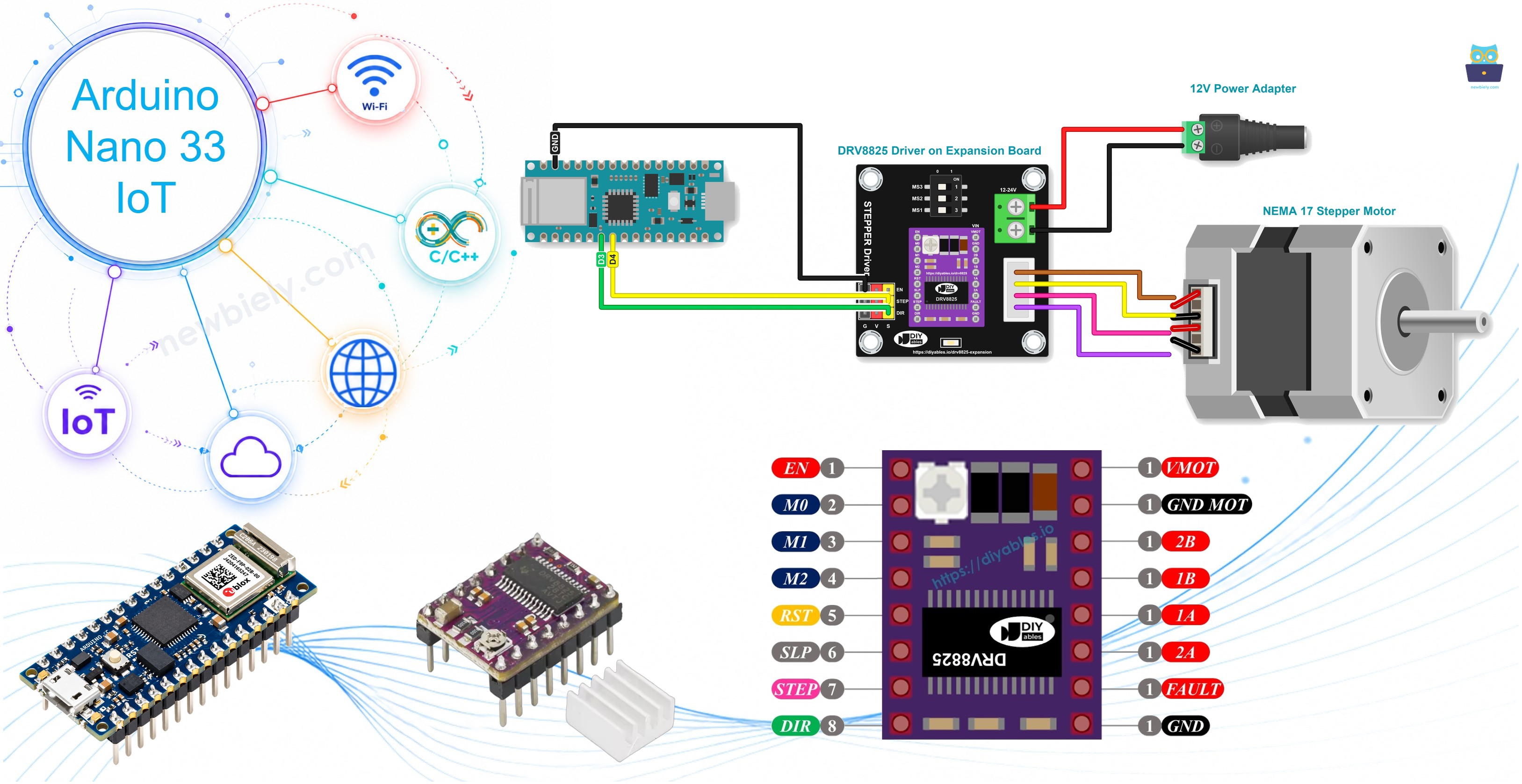
Hardware Preparation
Or you can buy the following kits:
| 1 | × | DIYables Sensor Kit (18 sensors/displays) |
Additionally, some of these links are for products from our own brand, DIYables .
Overview of Stepper Motor
There are two common kinds of stepper motors:
- Bipolar: These motors have 4 wires.
- Unipolar: These motors have 5 or 6 wires. For a 6-wire unipolar motor, you can use just 4 of the wires to control it as if it were a bipolar motor.
If you want to learn about a 5-wire unipolar stepper motor, check out the guide called Arduino Nano 33 IoT - Control 28BYJ-48 Stepper Motor Using ULN2003 Driver.
This guide is only for bipolar stepper motors.
Bipolar Stepper Motor pinout
A bipolar stepper motor has four pins. Different companies might use other names for these pins. Here is a table with some common names for them.
| PIN NO | Naming 1 | Naming 2 | Naming 3 |
|---|---|---|---|
| 1 | A+ | A | A |
| 2 | A- | A | C |
| 3 | B+ | B | B |
| 4 | B- | B | D |
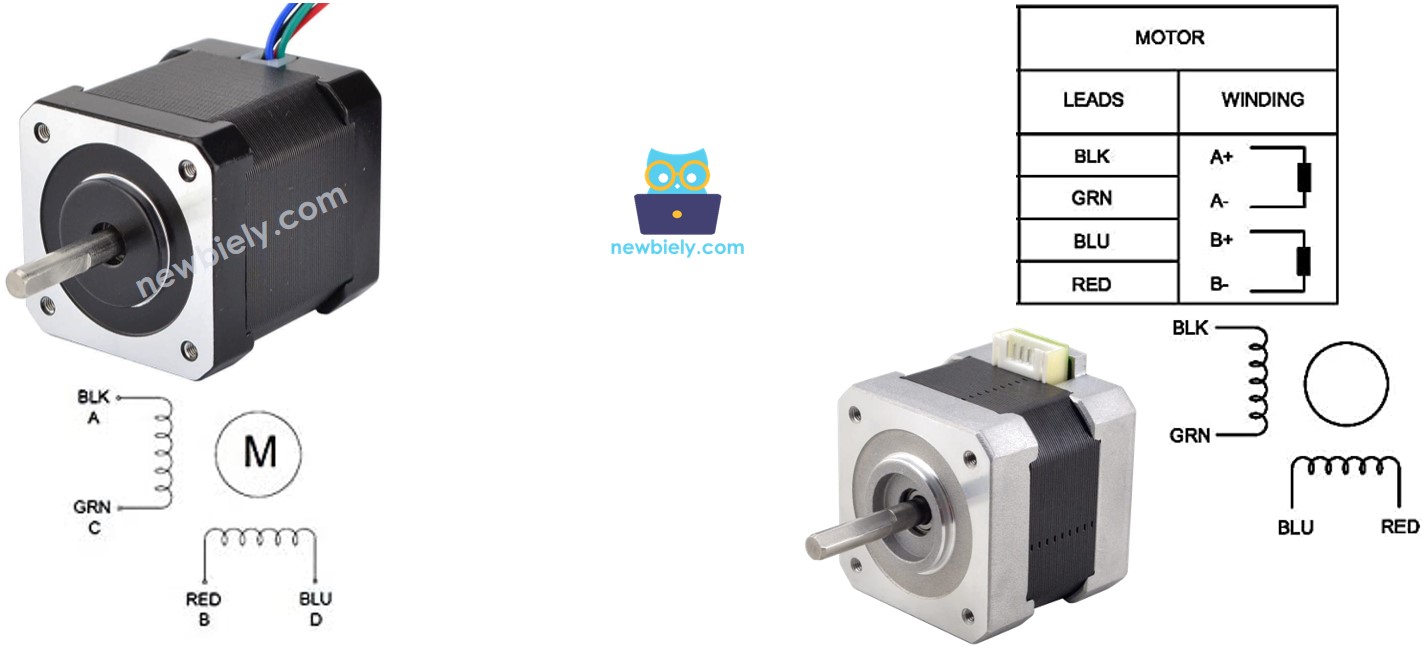
The setup of pins, the names of wires, and the colors of wires can vary by manufacturer. To know which wire color goes with which pin name, check the datasheet or user manual from the manufacturer. The picture above shows the details for two different motors, each with its own way of naming and coloring wires.
Steps per Revolution
The motor's details tell you how many degrees it moves with each step (we'll call this DEG_PER_STEP). Depending on how you control the motor, the number of steps for one full turn (we'll call this STEP_PER_REVOLUTION) is shown in the table below.
| Control method | Steps per Revolution | Real degree per step |
|---|---|---|
| Full-step | STEP_PER_REVOLUTION = 360 / DEG_PER_STEP | DEG_PER_STEP |
| Half-step | STEP_PER_REVOLUTION = (360 / DEG_PER_STEP) * 2 | DEG_PER_STEP / 2 |
| Micro-step (1/n) | STEP_PER_REVOLUTION = (360 / DEG_PER_STEP) * n | DEG_PER_STEP / n |
For example, if the motor's datasheet says that each step rotates 1.8 degrees:
| Control method | Steps per Revolution | Real degree per step |
|---|---|---|
| Full-step | 200 steps/revolution | 1.8° |
| Half-step | 400 steps/revolution | 0.9° |
| Micro-step (1/n) | (200 * n) steps/revolution | (1.8 / n)° |
How to control a stepper motor using Arduino Nano 33 IoT
The Arduino Nano 33 IoT can send signals to control the stepper motor, but these signals might not have enough voltage and current for the motor. Because of this, a separate hardware driver is needed to connect the Arduino Nano 33 IoT with the stepper motor. This driver does two main jobs:
- Boosting Control Signals: It increases the current and voltage from the Arduino Nano 33 IoT to make sure the stepper motor gets the power it needs.
- Protecting the Arduino Nano 33 IoT: At the same time, it keeps the Arduino Nano 33 IoT safe from the higher current and voltage used for the stepper motor, preventing damage.
There are many hardware controllers that you can use for stepper motors. This guide uses the DRV8825 Driver, plugged into its expansion board.
Overview of DRV8825 Driver
The DRV8825 drives one bipolar stepper motor, like the NEMA 17 in this guide. It takes just two signals from the Arduino Nano 33 IoT: each pulse on STEP moves the motor by one step, and the level on DIR picks the direction.
The DRV8825 took the place of the L298N on this page because it suits a stepper better: it keeps the coil current under a limit you set (so the motor stays cooler), it supports microsteps for quiet running, and it saves two pins of the Nano 33 IoT.
DRV8825 Driver Pinout
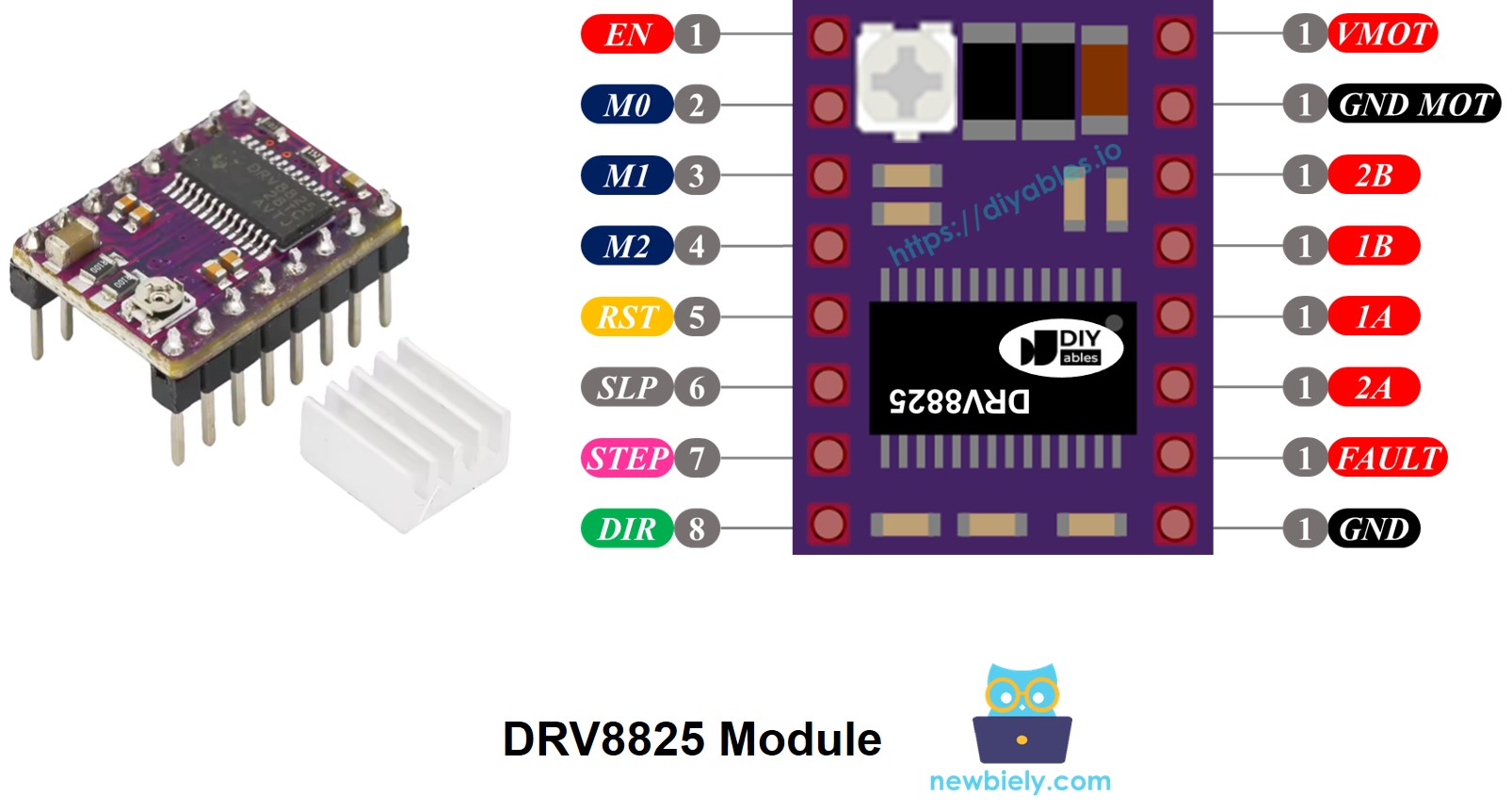
Good to know about the DRV8825 module:
- Motor voltage: 8.2V to 45V. The expansion board is marked for 12-24V, and this guide uses 12V.
- Coil current: about 1.5A per coil, 2.5A at peak. You set the limit with the tiny knob on top of the module. Begin with a low setting and turn it up step by step until the motor turns smoothly. Over about 1.5A, the module becomes hot.
- Step size: full step, or microsteps down to 1/32.
- Signal level: 3.3V and 5V both work, so it is fine for the 3.3V pins of the Nano 33 IoT.
- Safety: it protects itself from over-current, over-temperature and under-voltage.
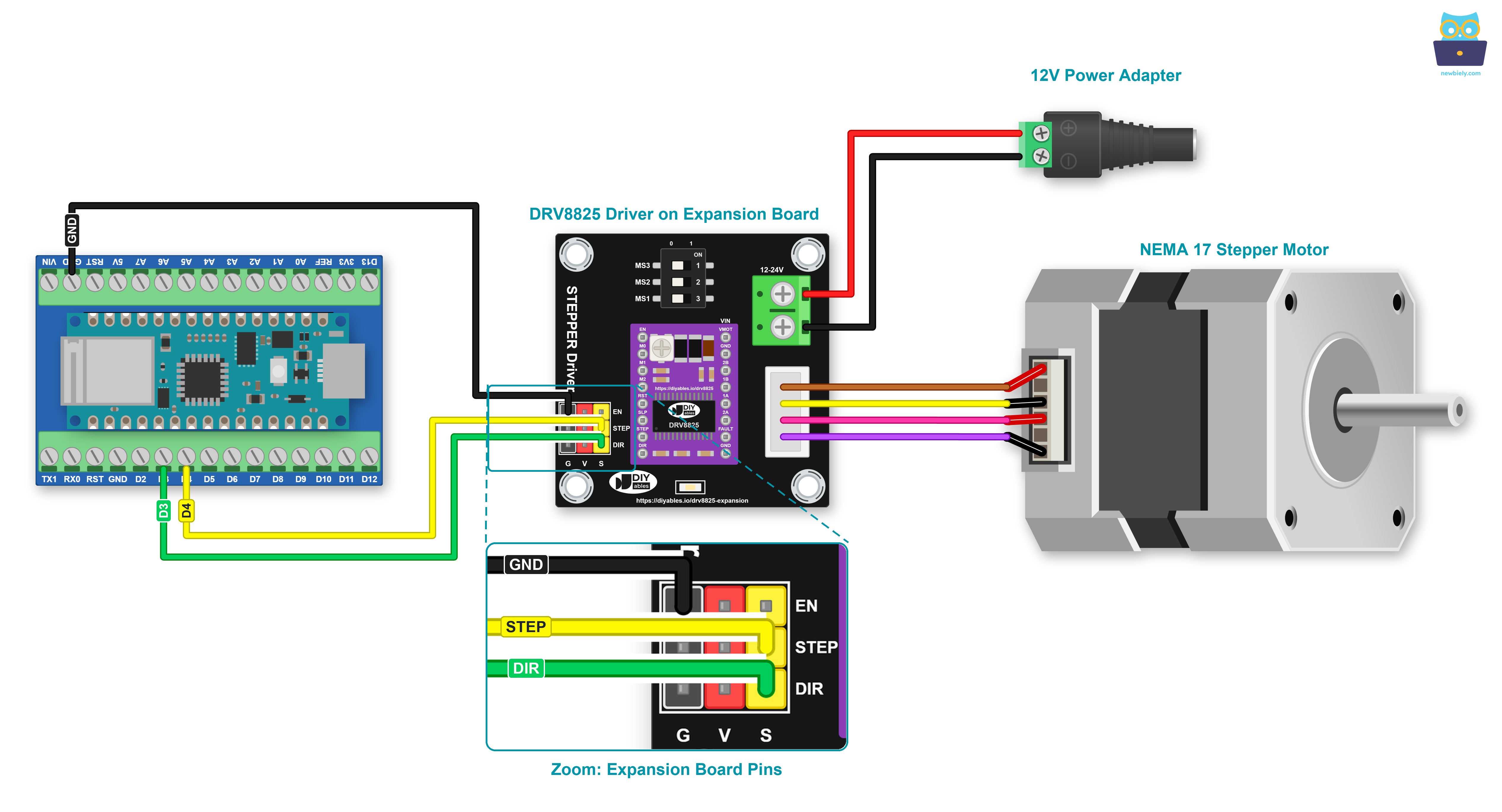
The module sits in the two sockets of the DRV8825 expansion board. This board gives us easy connections:
- VIN and GND screw terminal: the 12V for the motor goes in here. A 100uF capacitor on the board smooths the supply.
- 4-pin XH motor socket, marked 2B, 2A, 1A, 1B: one motor coil goes to 1A and 1B, the other coil to 2A and 2B.
- 3-way DIP switch: it sets MS1, MS2 and MS3. All OFF means full step, so a 1.8 degree motor needs 200 steps for one turn. We keep them all OFF.
- G V S header: a three-pin row each for EN, STEP and DIR (G = ground, V = power, S = signal).
- RST and SLP: the board already connects these two, and that stops the driver from going to sleep.
We leave EN and the V pins unconnected. A free EN pin keeps the driver turned on. The V pins are meant for the A4988 driver only.
Wiring Diagram
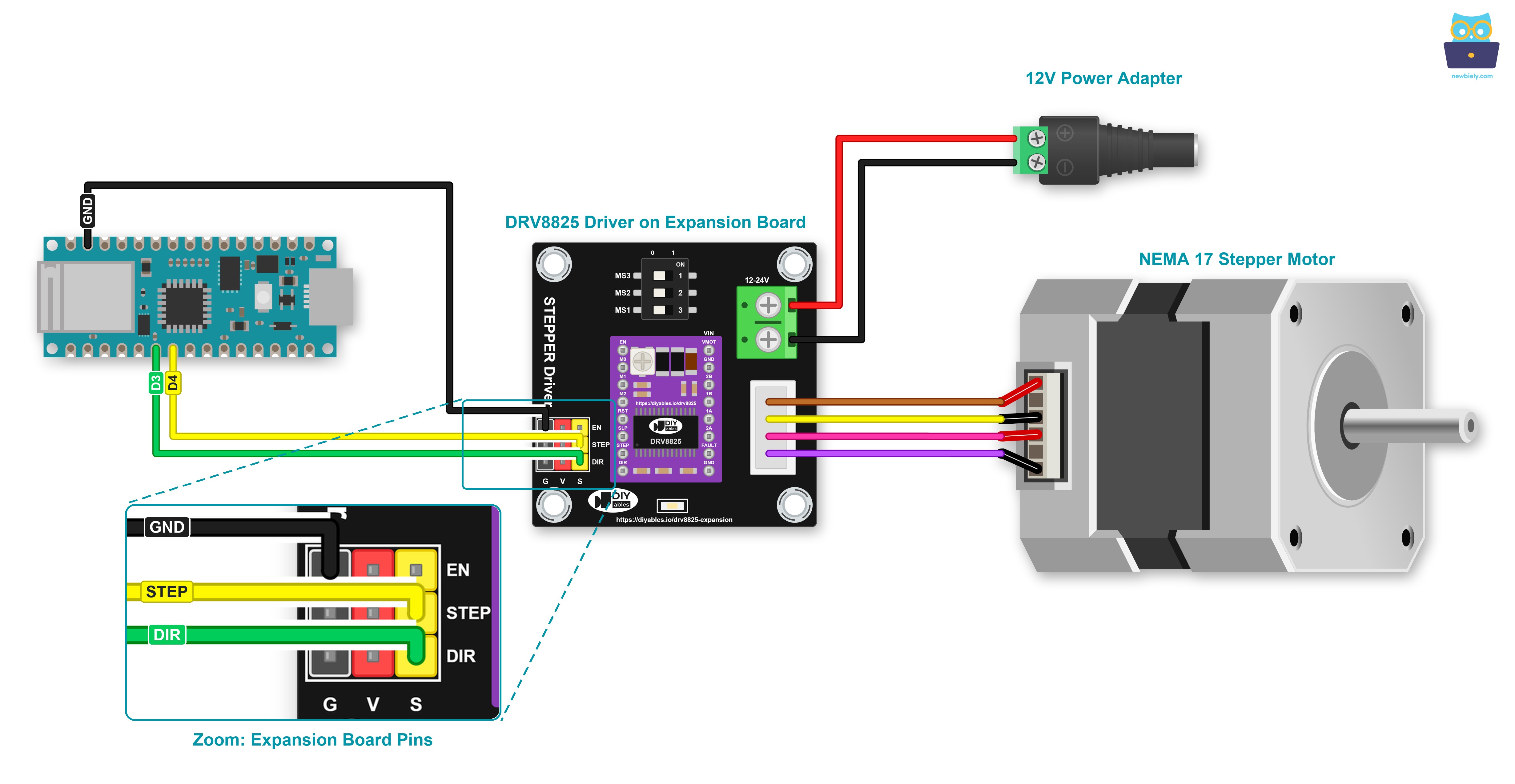
This image is created using Fritzing. Click to enlarge image
Wiring table between Arduino Nano 33 IoT and DRV8825 expansion board
| Arduino Nano 33 IoT pins | DRV8825 expansion board pins |
|---|---|
| D4 | STEP (S pin) |
| D3 | DIR (S pin) |
| GND | G pin |
The 12V adapter connects through the DC power jack to the VIN and GND screw terminal. EN and V stay free.
A screw terminal board is a simple way to stop wires from slipping out of the Nano headers. Mount the Arduino Nano 33 IoT on a Screw Terminal Expansion Board for Arduino Nano and fasten each wire with a screwdriver. The wiring is the same, as you can see here:
This image is created using Fritzing. Click to enlarge image
※ NOTE THAT:
Connect or remove the motor only when the 12V adapter is unplugged. Doing it with the power on can burn the DRV8825.
The order of the pins on stepper motors can be different for each manufacturer. Check the table below to make sure you have the right wiring.
Wiring table between DRV8825 expansion board and Stepper motor
Important: Don't worry about the order of the wires on the stepper motor shown in the diagram above. It is just an example. The pin order on stepper motors can be different for each manufacturer. Always follow the wiring order in the table below.
| DRV8825 expansion board pins | Stepper motor pins | Or | Or |
|---|---|---|---|
| 1A | A+ | A | A |
| 1B | A- | A | C |
| 2A | B+ | B | B |
| 2B | B- | B | D |
Before you buy a stepper motor, check its datasheet, specifications, or manual. Make sure it shows which pin color matches which pin name. For example, this stepper motor (LINK_MAIN_STEPPER_MOTOR_NEMA_17) shows the mapping in the image below.
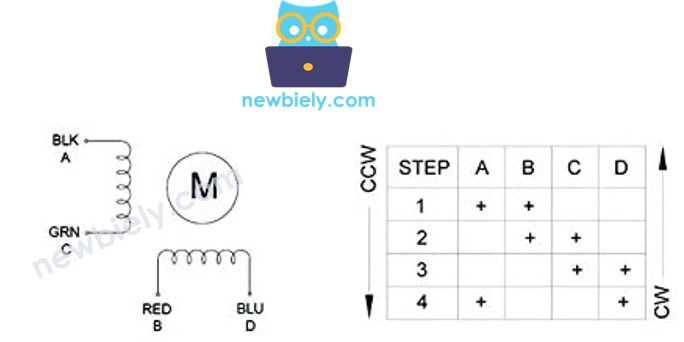
According to that mapping, the wiring table looks like this:
| DRV8825 expansion board pins | stepper motor pins | wire color |
|---|---|---|
| 1A | A | black wire |
| 1B | C | green wire |
| 2A | B | red wire |
| 2B | D | blue wire |
※ NOTE THAT:
Keep each coil on its own pair: 1A/1B for one coil and 2A/2B for the other. Inside a pair, you can swap the two wires. The motor then simply spins the opposite way.
Wiring without the Expansion Board
The expansion board only makes the wiring easier; the DRV8825 module does all the work. You just need a few more jumper wires between the parts.
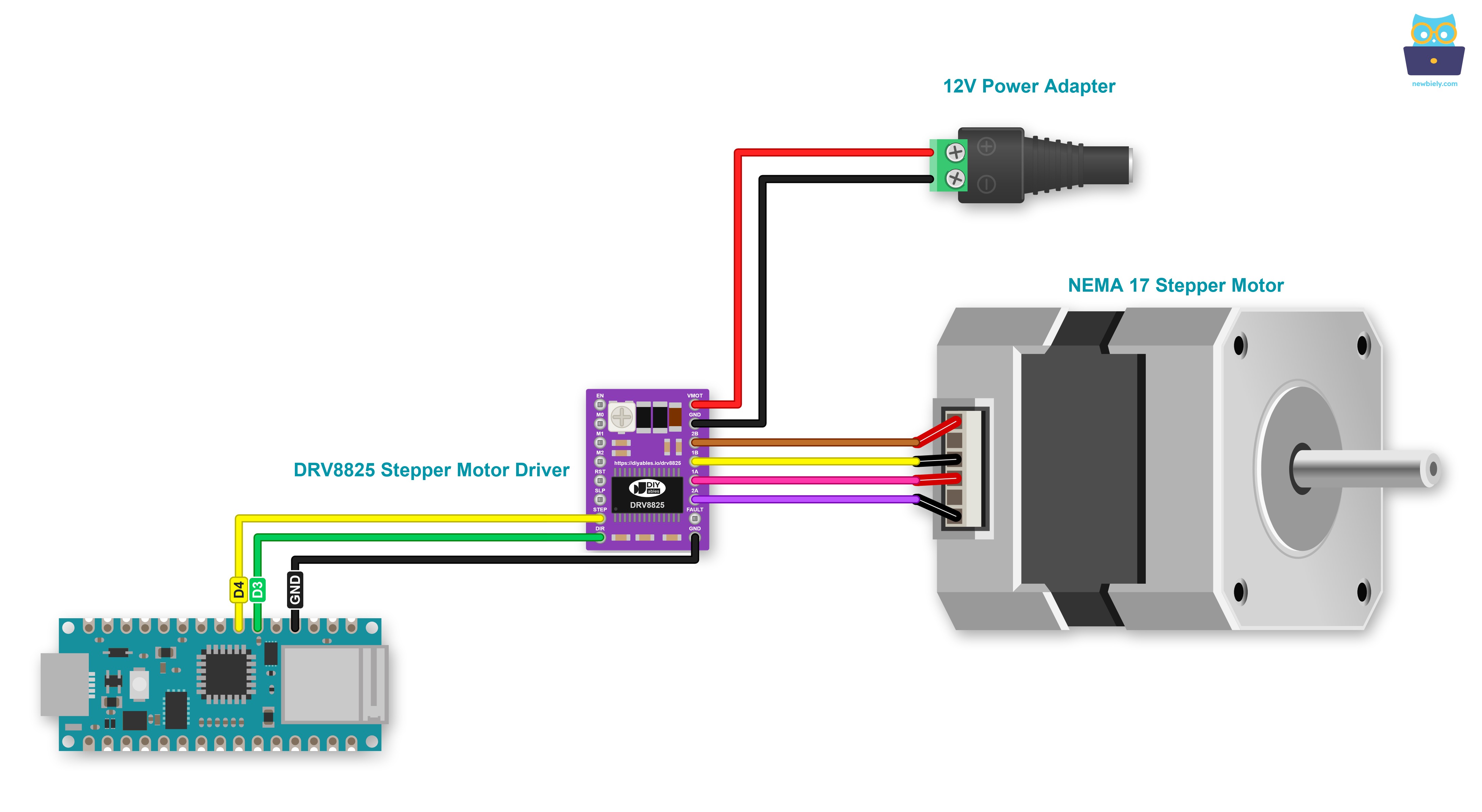
This image is created using Fritzing. Click to enlarge image
And with the screw terminal shield:
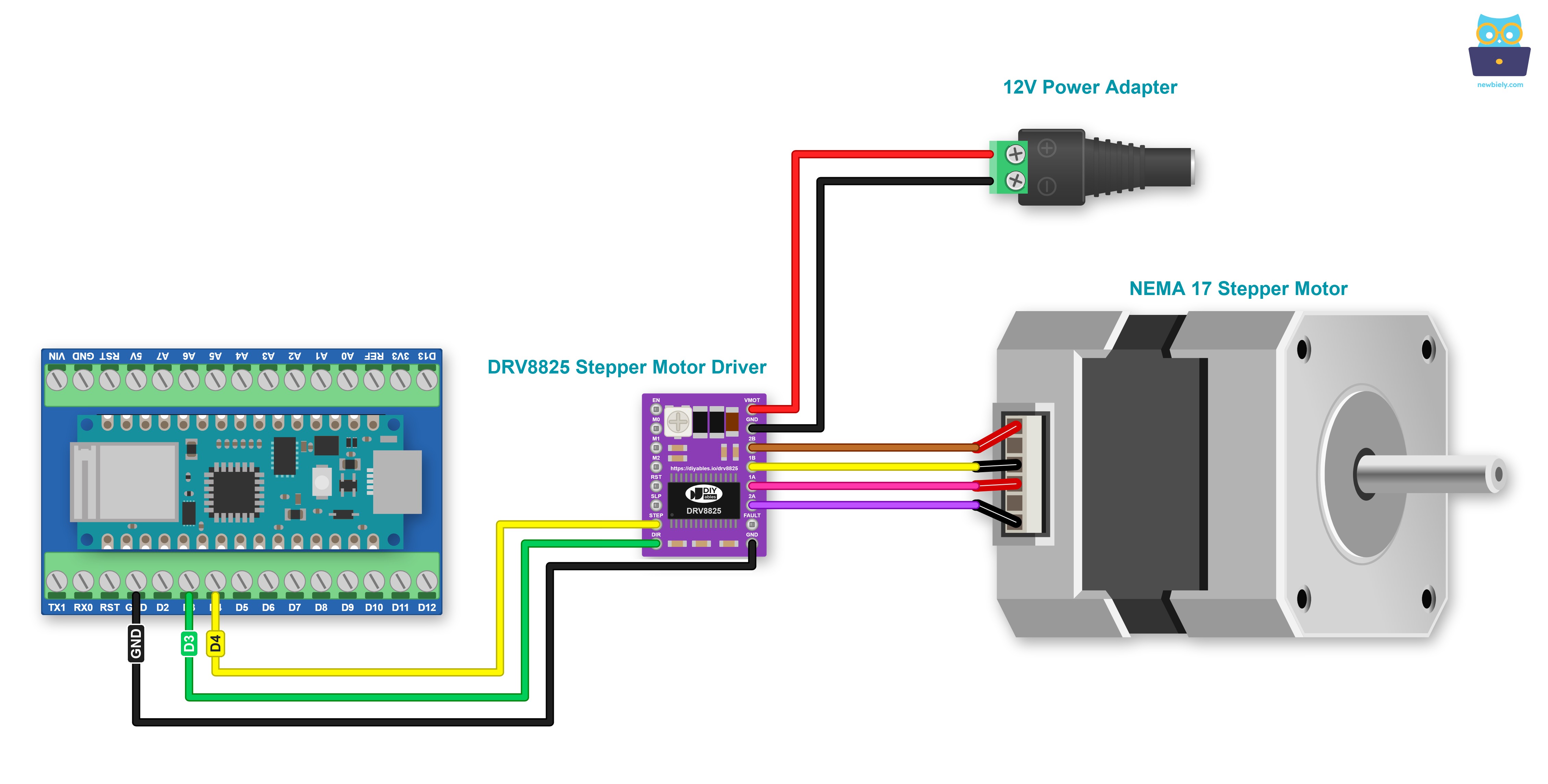
This image is created using Fritzing. Click to enlarge image
| DRV8825 module pin | Connect to |
|---|---|
| STEP | Arduino Nano 33 IoT D4 |
| DIR | Arduino Nano 33 IoT D3 |
| GND (next to FAULT) | Arduino Nano 33 IoT GND |
| VMOT | + of the 12V adapter |
| GND (next to VMOT) | - of the 12V adapter |
| 2B and 1B | one coil of the stepper motor |
| 1A and 2A | the other coil of the stepper motor |
| EN, M0, M1, M2, RST, SLP, FAULT | not connected |
※ NOTE THAT:
- Use a 100uF capacitor (at least 25V) between VMOT and GND to soak up spikes from the motor supply.
- On a few modules the driver stays off until RST and SLP are joined. Add that wire if the motor does not move.
How to control a Stepper motor using a DRV8825 driver.
Controlling a stepper motor is not easy, especially if you want to do other tasks while it runs. Thankfully, the AccelStepper library makes it very simple.
The Arduino IDE comes with a built-in Stepper library. However, we don't suggest using this library because:
- The library has a feature that stops other tasks. This means that while it controls the stepper motor, the Arduino Nano 33 IoT cannot do anything else.
- It does not offer enough features.
We suggest you use the AccelStepper library instead. This library works with:
- Speeding up
- Slowing down
- Step and direction drivers like the DRV8825
- Controlling several stepper motors at the same time, with each motor stepping independently
For the DRV8825, we create the stepper in DRIVER mode. Then the library only needs the STEP pin and the DIR pin. The microstep size is not set in code: it comes from the DIP switch on the expansion board.
How To Control the Position of Stepper Motor via DRV8825 Driver
We can move the stepper motor to the position we want by using:
※ NOTE THAT:
The stepper.moveTo() function does not block other processes. This is a strong advantage of this library, but there are some things to keep in mind when using it:
- Call stepper.run() as often as you can. It should be used inside the void loop() function.
- Do not use the delay() function while the motor is moving.
- Do not use Serial.print() or Serial.println() functions while the motor is moving. These functions can slow down the stepper motor.
How To Control the Speed of Stepper Motor via DRV8825 Driver
We can control not just speed, but also how fast it speeds up or slows down using some simple tools.
How To Control the Direction of Stepper Motor via DRV8825 Driver
If you connect the wires as shown above, the motor will turn in:
- Clockwise direction: When we move the motor from a lower position to a higher position (increasing position).
- Anticlockwise direction: When we move the motor from a higher position to a lower position (decreasing position).
For instance:
- When the motor is at position 100 and we set it to 200, it turns to the right (clockwise).
- When the motor is at position -200 and we set it to -100, it turns to the right (clockwise).
- When the motor is at position 200 and we set it to 100, it turns to the left (anticlockwise).
- When the motor is at position -100 and we set it to -200, it turns to the left (anticlockwise).
※ NOTE THAT:
As mentioned earlier, if you switch 1A with 1B or 2A with 2B, the position might go up in a counterclockwise direction and go down in a clockwise direction.
How To Stop Stepper Motor
- The stepper motor will stop by itself when it reaches the right spot.
- You can also make the stepper motor stop right away using the stepper.stop() function.
Arduino Nano 33 IoT Code - Stepper Motor Code
The code below does the following:
- Turn the motor one full turn to the right.
- Wait for 5 seconds.
- Turn the motor one full turn to the left.
- Wait for 5 seconds.
- This process repeats over and over again.
Detailed Instructions
If you are new to the Arduino Nano 33 IoT, be sure to check out our Getting Started with Arduino Nano 33 IoT tutorial. Then, follow these steps:
- Connect the components to the Arduino Nano 33 IoT board as depicted in the diagram. Put all three DIP switches on the expansion board in the OFF position.
- Use a USB cable to connect the Arduino Nano 33 IoT board to your computer.
- Launch the Arduino IDE on your computer.
- Select the Arduino Nano 33 IoT board and choose its corresponding COM port.
- Open the Library Manager by clicking the Library Manager icon on the left side of the Arduino IDE.
- In the search box, type AccelStepper and find the AccelStepper library by Mike McCauley.
- Click the Install button to add the AccelStepper library.
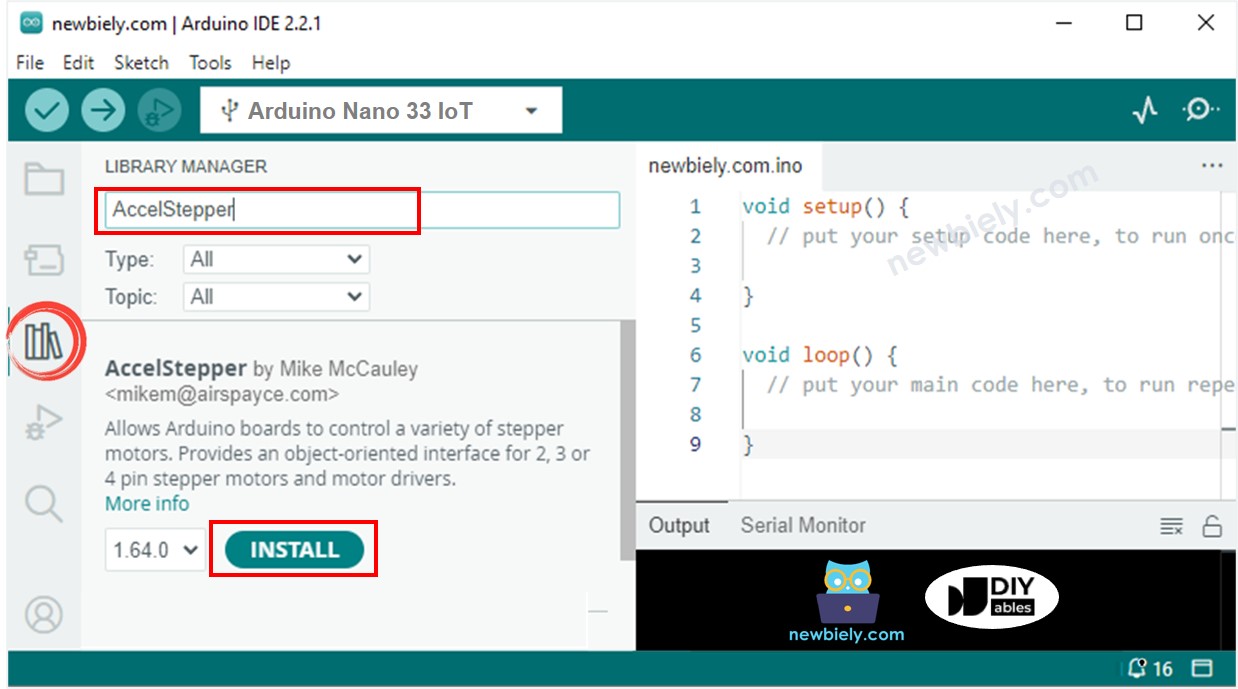
- Copy the code above and open it in the Arduino IDE.
- Click the Upload button in the Arduino IDE to send the code to your Arduino Nano 33 IoT.
- Plug the 12V adapter into the DC power jack.
- You will see the following actions happen:
- The stepper motor makes one full turn clockwise.
- The stepper motor stops for 5 seconds.
- The stepper motor makes one full turn counterclockwise.
- The stepper motor stops for 5 seconds.
- This process repeats over and over.
- You can view the results on the Serial Monitor.
※ NOTE THAT:
Does the motor buzz but not turn? Give it a bit more current with the knob on the DRV8825. Does the module get very hot? Turn the knob back a little.
Code Explanation
Please read every explanation shown in the comment parts of the code!