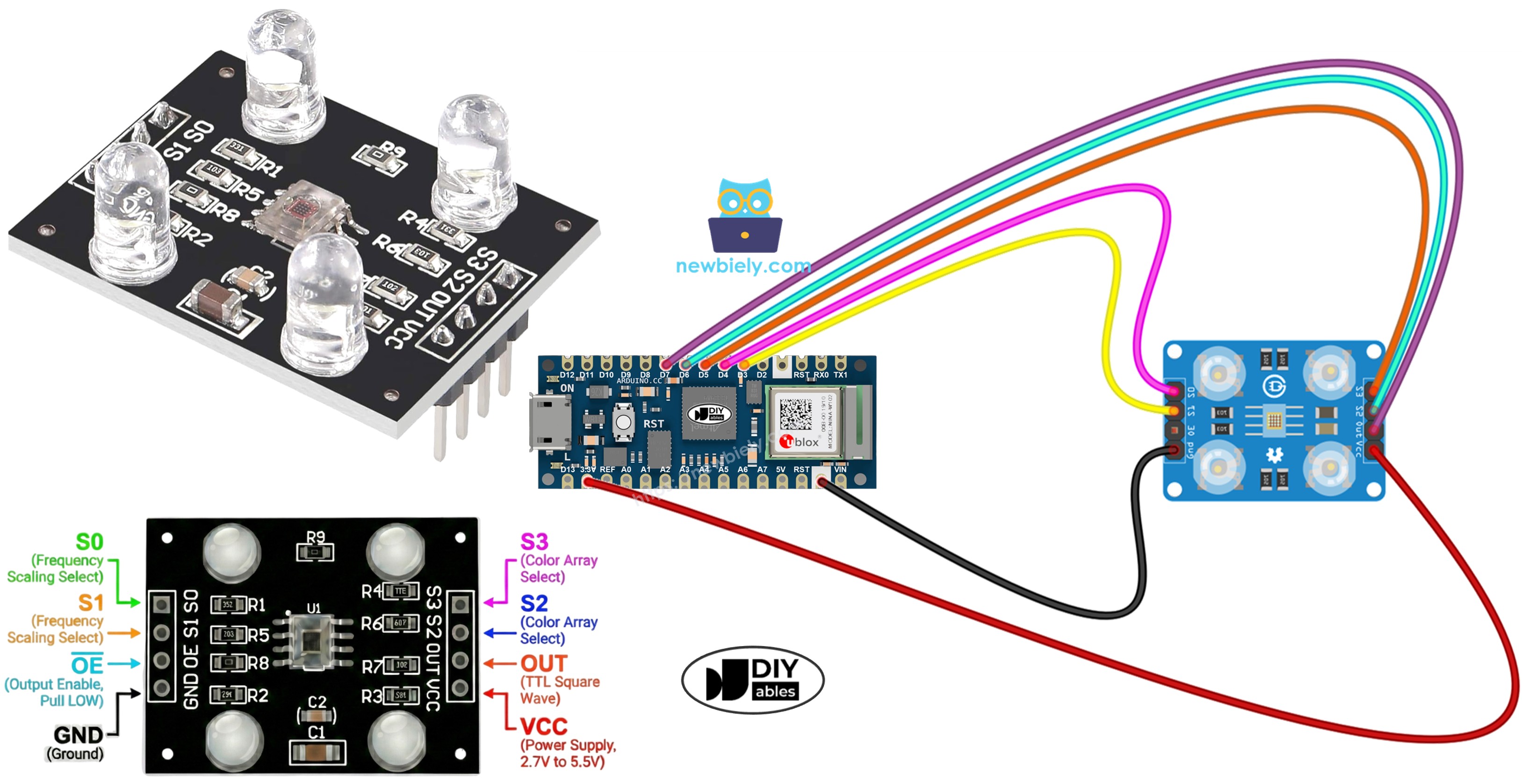
Arduino Nano 33 IoT - TCS3200D/TCS230 Color Sensor

This tutorial shows you how to connect the TCS3200D/TCS230 color sensor to an Arduino Nano 33 IoT for accurate color detection and RGB measurement.

In this lesson, we will cover:

Arduino Nano 33 IoT with TCS3200D TCS230 color sensor module tutorial

Hardware Preparation

1×Arduino Nano 33 IoT
1×Micro USB Cable
1×TCS3200D/TCS230 Color Recognition Sensor Module
1×Breadboard
1×Jumper Wires
1×Recommended: Screw Terminal Expansion Board for Arduino Nano
1×Recommended: Breakout Expansion Board for Arduino Nano
1×Recommended: Power Splitter for Arduino Nano

Or you can buy the following kits:

1×DIYables Sensor Kit (30 sensors/displays)
1×DIYables Sensor Kit (18 sensors/displays)
Disclosure: Some of the links provided in this section are Amazon affiliate links. We may receive a commission for any purchases made through these links at no additional cost to you.
Additionally, some of these links are for products from our own brand, DIYables .

Overview of TCS3200D/TCS230 Color Sensor

The TCS3200D/TCS230 sensor uses an 8×8 photodiode array for detecting colors through optical filters. This 64-photodiode grid includes 16 with red filters, 16 with green filters, 16 with blue filters, and 16 without filters (clear). The sensor works by activating certain filter groups and converting light intensity into a frequency-modulated output signal.

Most TCS3200D modules have built-in white LEDs that light up the target, providing stable readings regardless of surrounding light and improving performance in dark environments.

Pinout

The TCS3200D/TCS230 module has these connections:

  • VCC pin: Connect to power supply (+5V).
  • GND pin: Connect to ground (0V).
  • S0, S1 pins: Control output frequency scaling.
  • S2, S3 pins: Select color filter channel.
  • OUT pin: Frequency-modulated square wave output.
  • OE pin: Output enable (active LOW). Usually hard-wired to GND on modules. If not connected, wire to GND manually.
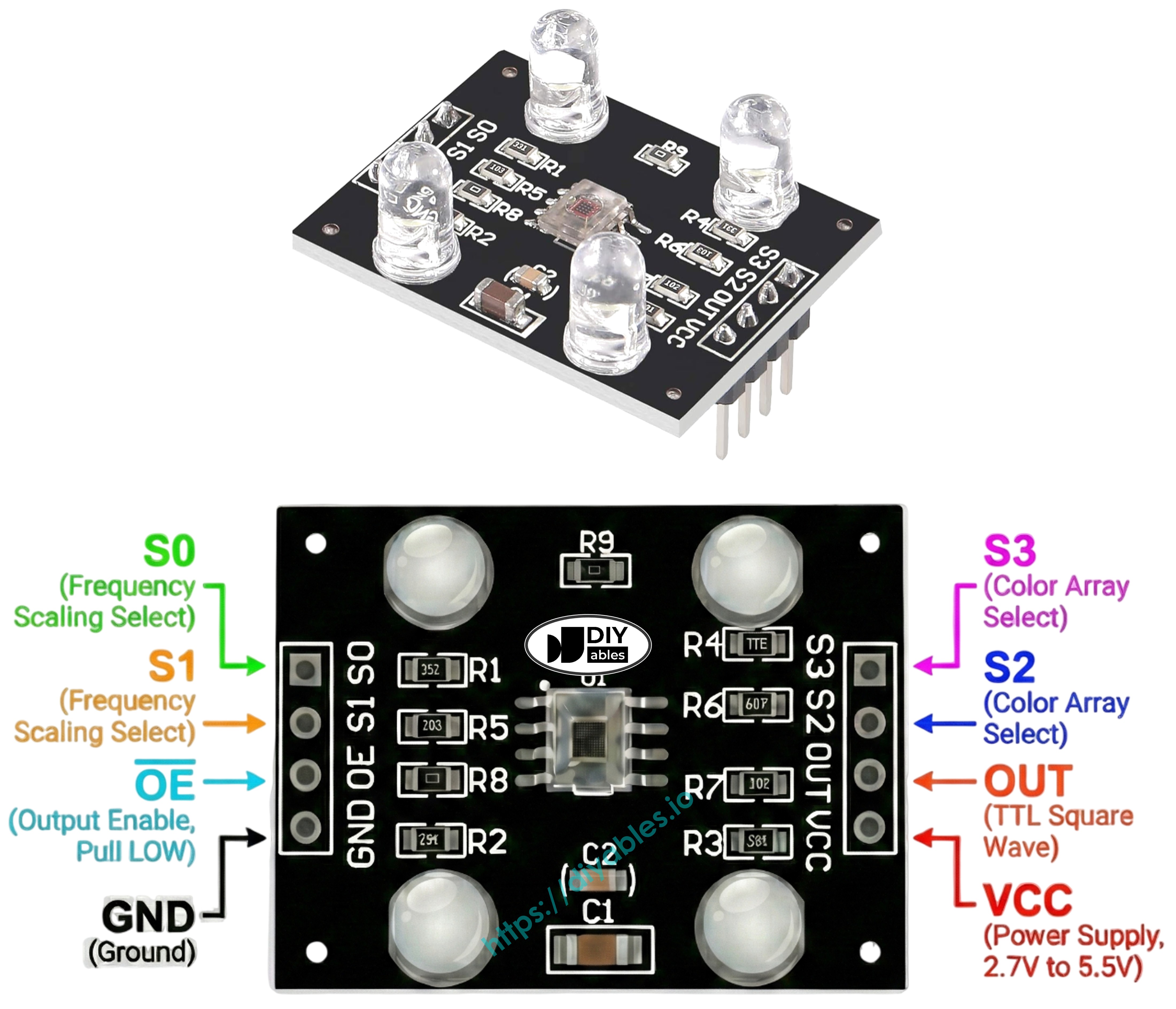
TCS3200 TCS230 color sensor module pinout diagram showing VCC GND S0 S1 S2 S3 OUT pins

How It Works

The sensor has two main controls: choosing which color filter to use and setting the output signal strength. Two sets of pins handle these:

Output frequency scaling (S0 and S1 pins):

  • S0=LOW, S1=LOW: Power down mode
  • S0=LOW, S1=HIGH: 2% frequency scaling
  • S0=HIGH, S1=LOW: 20% frequency scaling
  • S0=HIGH, S1=HIGH: 100% frequency scaling (full speed)

Color filter selection (S2 and S3 pins):

  • S2=LOW, S3=LOW: Red filter active
  • S2=LOW, S3=HIGH: Blue filter active
  • S2=HIGH, S3=LOW: Clear filter (no color filtering)
  • S2=HIGH, S3=HIGH: Green filter active

The OUT pin produces square wave frequencies between about 2 Hz and 500 kHz. More light creates higher frequencies. The pulseIn() function measures pulse duration, which works in reverse—brighter light means shorter pulses. After calibration, these readings turn into standard 0-255 RGB values.

Tips for Better Accuracy

  • Keep the sensor 1-3 cm from the target with a steady angle.
  • Use the built-in white LEDs for consistent lighting.
  • Block out changing ambient light for more reliable measurements.

Wiring Diagram

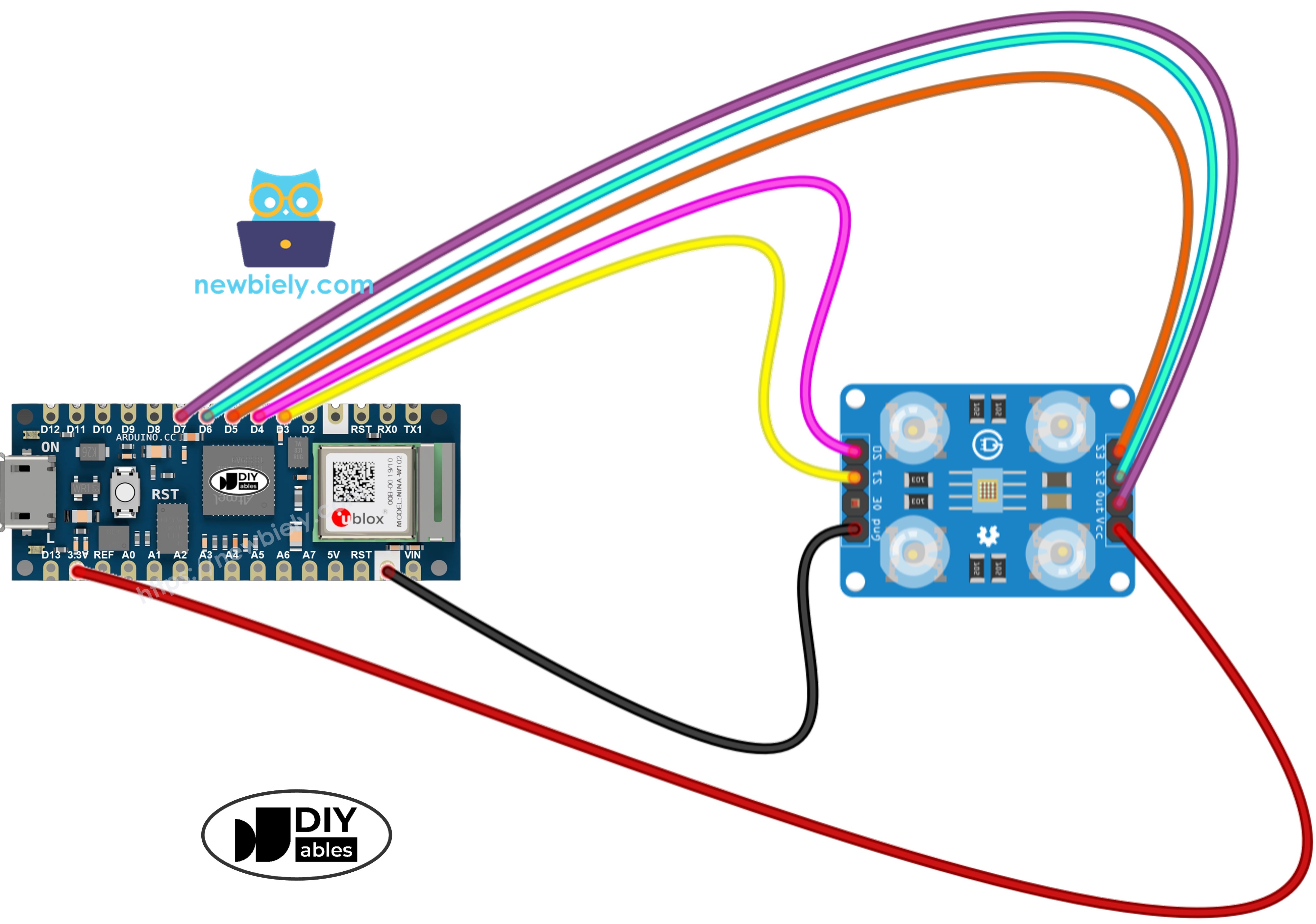
Wire the TCS3200 color sensor to Arduino Nano 33 IoT like this:

TCS3200 Color SensorArduino Nano 33 IoT
VCC5V
GNDGND
S0D4
S1D3
S2D6
S3D5
OUTD7
The wiring diagram between Arduino Nano and 33 IoT and TCS3200 color sensor

This image is created using Fritzing. Click to enlarge image

Arduino Nano 33 IoT Code - Sensor Calibration

Calibration removes environmental effects from sensor readings. Things like LED brightness, distance to the target, surface type, and room lighting all change the results. The calibration process finds the minimum and maximum pulse widths for each color, creating reference points to convert raw sensor data into accurate 0–255 RGB values for your specific setup.

/* * This Arduino Nano 33 IoT code was developed by newbiely.com * * This Arduino Nano 33 IoT code is made available for public use without any restriction * * For comprehensive instructions and wiring diagrams, please visit: * https://newbiely.com/tutorials/arduino-nano-iot/arduino-nano-33-iot-tcs3200d-tcs230-color-sensor */ // Define color sensor pins #define PIN_S0 4 // The Arduino Nano 33 IoT pin connected to the S0 of the color module #define PIN_S1 3 // The Arduino Nano 33 IoT pin connected to the S1 of the color module #define PIN_S2 6 // The Arduino Nano 33 IoT pin connected to the S2 of the color module #define PIN_S3 5 // The Arduino Nano 33 IoT pin connected to the S3 of the color module #define PIN_sensorOut 7 // The Arduino Nano 33 IoT pin connected to the OUT of the color module // Variables for Color Pulse Width Measurements int redPW = 0; int greenPW = 0; int bluePW = 0; // Variables to track min and max pulse widths for calibration int redMin = 10000, redMax = 0; int greenMin = 10000, greenMax = 0; int blueMin = 10000, blueMax = 0; void setup() { // Set S0 - S3 as outputs pinMode(PIN_S0, OUTPUT); pinMode(PIN_S1, OUTPUT); pinMode(PIN_S2, OUTPUT); pinMode(PIN_S3, OUTPUT); // Set Pulse Width scaling to 20% digitalWrite(PIN_S0, HIGH); digitalWrite(PIN_S1, LOW); // Set Sensor output as input pinMode(PIN_sensorOut, INPUT); // Setup Serial Monitor Serial.begin(9600); Serial.println("=== TCS3200 Calibration ==="); Serial.println("Point the sensor at different objects (white, black, colors)."); Serial.println("Min and Max values are tracked automatically."); Serial.println("When values look stable, note them down for the next code."); Serial.println("------------------------------------------"); } void loop() { // Read Red Pulse Width redPW = getRedPW(); // Delay to stabilize sensor delay(200); // Read Green Pulse Width greenPW = getGreenPW(); // Delay to stabilize sensor delay(200); // Read Blue Pulse Width bluePW = getBluePW(); // Delay to stabilize sensor delay(200); // Update min and max values if (redPW < redMin) redMin = redPW; if (redPW > redMax) redMax = redPW; if (greenPW < greenMin) greenMin = greenPW; if (greenPW > greenMax) greenMax = greenPW; if (bluePW < blueMin) blueMin = bluePW; if (bluePW > blueMax) blueMax = bluePW; // Print the pulse width values with min/max Serial.print("Red PW = "); Serial.print(redPW); Serial.print(" - Green PW = "); Serial.print(greenPW); Serial.print(" - Blue PW = "); Serial.println(bluePW); Serial.print(" Min -> R:"); Serial.print(redMin); Serial.print(" G:"); Serial.print(greenMin); Serial.print(" B:"); Serial.println(blueMin); Serial.print(" Max -> R:"); Serial.print(redMax); Serial.print(" G:"); Serial.print(greenMax); Serial.print(" B:"); Serial.println(blueMax); Serial.println("------------------------------------------"); delay(1000); } // Function to read Red Pulse Widths int getRedPW() { // Set sensor to read Red only digitalWrite(PIN_S2, LOW); digitalWrite(PIN_S3, LOW); // Read the Pulse Width int PW = pulseIn(PIN_sensorOut, LOW); // Return the value return PW; } // Function to read Green Pulse Widths int getGreenPW() { // Set sensor to read Green only digitalWrite(PIN_S2, HIGH); digitalWrite(PIN_S3, HIGH); // Read the Pulse Width int PW = pulseIn(PIN_sensorOut, LOW); // Return the value return PW; } // Function to read Blue Pulse Widths int getBluePW() { // Set sensor to read Blue only digitalWrite(PIN_S2, LOW); digitalWrite(PIN_S3, HIGH); // Read the Pulse Width int PW = pulseIn(PIN_sensorOut, LOW); // Return the value return PW; }

Detailed Instructions

If you are new to the Arduino Nano 33 IoT, be sure to check out our Getting Started with Arduino Nano 33 IoT tutorial. Then, follow these steps:

  • Connect the components to the Arduino Nano 33 IoT board as depicted in the diagram.
  • Use a USB cable to connect the Arduino Nano 33 IoT board to your computer.
  • Launch the Arduino IDE on your computer.
  • Select the appropriate board and port in the Arduino IDE.
  • Copy the calibration code and open it in Arduino IDE.
  • Click the Upload button to upload code to Arduino Nano 33 IoT.
  • Open the Serial Monitor.
  • Point the sensor at different colored objects: white paper, black surfaces, and various colors.
  • Watch as the Min/Max values update automatically.
  • After values stabilize (usually 10-20 seconds), write down all six calibration numbers.
COM6
Send
=== TCS3200 Calibration === Point the sensor at different objects (white, black, colors). Min and Max values are tracked automatically. When values look stable, note them down for the next code. ------------------------------------------ Red PW = 42 - Green PW = 55 - Blue PW = 60 Min -> R:42 G:55 B:60 Max -> R:42 G:55 B:60 ------------------------------------------ Red PW = 210 - Green PW = 185 - Blue PW = 172 Min -> R:42 G:55 B:60 Max -> R:210 G:185 B:172 ------------------------------------------ Red PW = 44 - Green PW = 57 - Blue PW = 61 Min -> R:42 G:55 B:60 Max -> R:210 G:185 B:172 ------------------------------------------
Autoscroll Show timestamp
Clear output
9600 baud  
Newline  

Example calibration values from this output:

  • RedMin = 42, redMax = 210
  • GreenMin = 55, greenMax = 185
  • BlueMin = 60, blueMax = 172

Arduino Nano 33 IoT Code - Reading RGB Values

/* * This Arduino Nano 33 IoT code was developed by newbiely.com * * This Arduino Nano 33 IoT code is made available for public use without any restriction * * For comprehensive instructions and wiring diagrams, please visit: * https://newbiely.com/tutorials/arduino-nano-iot/arduino-nano-33-iot-tcs3200d-tcs230-color-sensor */ // Define color sensor pins #define PIN_S0 4 // The Arduino Nano 33 IoT pin connected to the S0 of the color module #define PIN_S1 3 // The Arduino Nano 33 IoT pin connected to the S1 of the color module #define PIN_S2 6 // The Arduino Nano 33 IoT pin connected to the S2 of the color module #define PIN_S3 5 // The Arduino Nano 33 IoT pin connected to the S3 of the color module #define PIN_sensorOut 7 // The Arduino Nano 33 IoT pin connected to the OUT of the color module // Calibration Values // Replace these values with your actual calibration data from the previous step int redMin = 0; // Red minimum pulse width int redMax = 0; // Red maximum pulse width int greenMin = 0; // Green minimum pulse width int greenMax = 0; // Green maximum pulse width int blueMin = 0; // Blue minimum pulse width int blueMax = 0; // Blue maximum pulse width // Variables for Color Pulse Width Measurements int redPW = 0; int greenPW = 0; int bluePW = 0; // Variables for final Color values int redValue; int greenValue; int blueValue; void setup() { // Set S0 - S3 as outputs pinMode(PIN_S0, OUTPUT); pinMode(PIN_S1, OUTPUT); pinMode(PIN_S2, OUTPUT); pinMode(PIN_S3, OUTPUT); // Set Pulse Width scaling to 20% digitalWrite(PIN_S0, HIGH); digitalWrite(PIN_S1, LOW); // Set Sensor output as input pinMode(PIN_sensorOut, INPUT); // Setup Serial Monitor Serial.begin(9600); } void loop() { // Read Red value redPW = getRedPW(); // Map to value from 0-255 redValue = map(redPW, redMin, redMax, 255, 0); // Delay to stabilize sensor delay(200); // Read Green value greenPW = getGreenPW(); // Map to value from 0-255 greenValue = map(greenPW, greenMin, greenMax, 255, 0); // Delay to stabilize sensor delay(200); // Read Blue value bluePW = getBluePW(); // Map to value from 0-255 blueValue = map(bluePW, blueMin, blueMax, 255, 0); // Delay to stabilize sensor delay(200); // Print output to Serial Monitor Serial.print("Red = "); Serial.print(redValue); Serial.print(" - Green = "); Serial.print(greenValue); Serial.print(" - Blue = "); Serial.println(blueValue); } // Function to read Red Pulse Widths int getRedPW() { // Set sensor to read Red only digitalWrite(PIN_S2, LOW); digitalWrite(PIN_S3, LOW); // Read the Pulse Width int PW = pulseIn(PIN_sensorOut, LOW); // Return the value return PW; } // Function to read Green Pulse Widths int getGreenPW() { // Set sensor to read Green only digitalWrite(PIN_S2, HIGH); digitalWrite(PIN_S3, HIGH); // Read the Pulse Width int PW = pulseIn(PIN_sensorOut, LOW); // Return the value return PW; } // Function to read Blue Pulse Widths int getBluePW() { // Set sensor to read Blue only digitalWrite(PIN_S2, LOW); digitalWrite(PIN_S3, HIGH); // Read the Pulse Width int PW = pulseIn(PIN_sensorOut, LOW); // Return the value return PW; }

Detailed Instructions

  • Find the calibration variables near the top of the code:
int redMin = 0; // Red minimum pulse width int redMax = 0; // Red maximum pulse width int greenMin = 0; // Green minimum pulse width int greenMax = 0; // Green maximum pulse width int blueMin = 0; // Blue minimum pulse width int blueMax = 0; // Blue maximum pulse width
  • Replace the zeros with your calibration values. For example (using redMin = 42, redMax = 210, greenMin = 55, greenMax = 185, blueMin = 60, blueMax = 172):
int redMin = 42; int redMax = 210; int greenMin = 55; int greenMax = 185; int blueMin = 60; int blueMax = 172;
  • Upload the code to Arduino Nano 33 IoT.
  • Put a colored object in front of the sensor.
  • Check the RGB values in Serial Monitor.
COM6
Send
Red = 210 - Green = 35 - Blue = 20 Red = 25 - Green = 200 - Blue = 40 Red = 30 - Green = 45 - Blue = 215
Autoscroll Show timestamp
Clear output
9600 baud  
Newline  

The RGB values shown follow the standard 0-255 range. Shorter pulse widths (brighter colors) give higher RGB numbers, while longer pulse widths (darker colors) give lower numbers.

Project Applications

With RGB color detection working, you can build:

  • Color sorting machine: Sort items by color (red/green/blue detection)
  • Color matching system: Compare colors between objects
  • Line following robot: Follow colored lines or paths
  • Quality control checker: Find color defects in manufacturing
  • Color-based triggers: Start different actions based on detected colors

Video Tutorial

Learn More

※ OUR MESSAGES

  • As freelancers, We are AVAILABLE for HIRE. See how to outsource your project to us
  • Please feel free to share the link of this tutorial. However, Please do not use our content on any other websites. We invested a lot of effort and time to create the content, please respect our work!