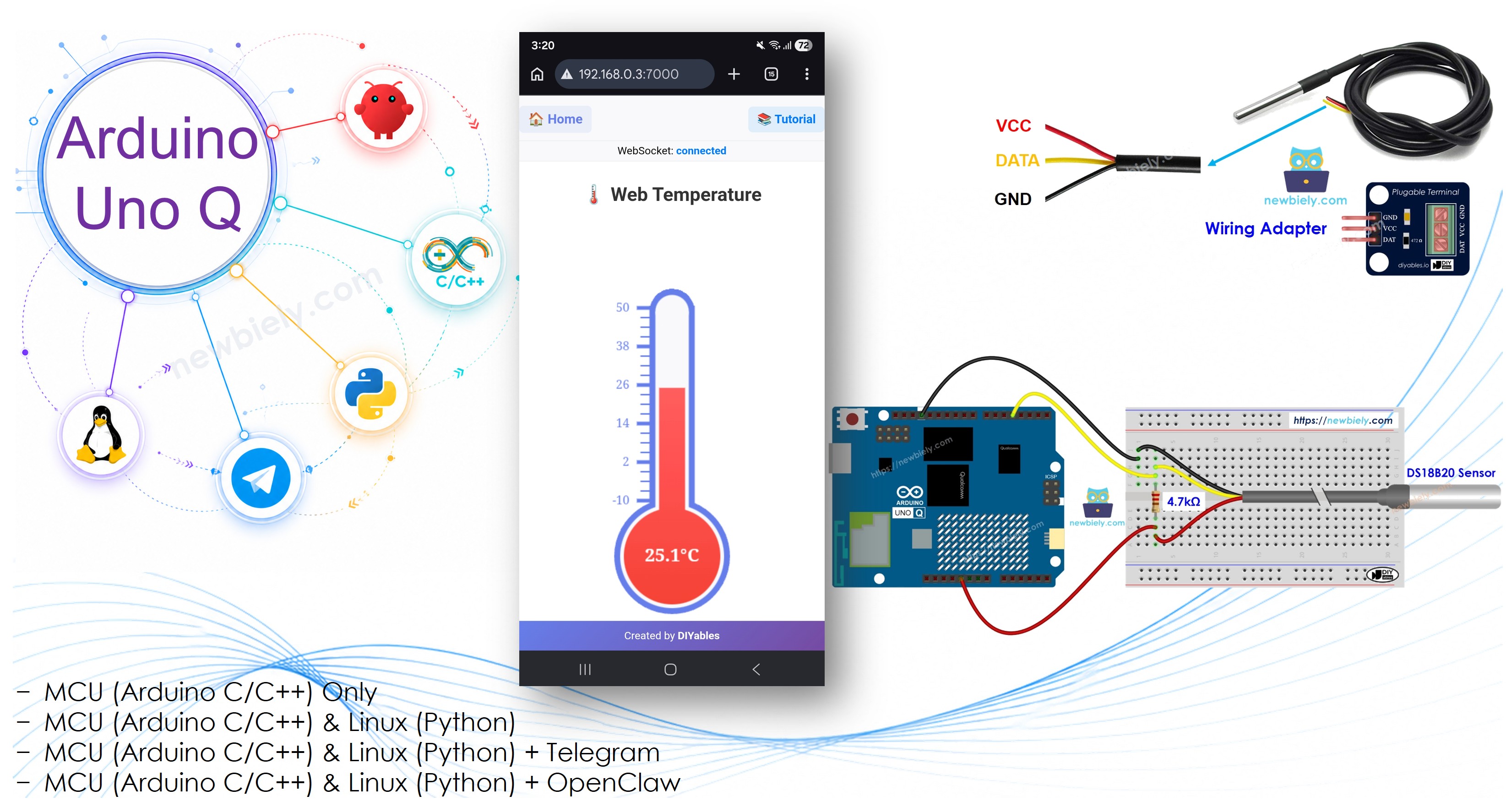
Arduino UNO Q - Real-Time Temperature Monitor on Web Browser

The Arduino UNO Q can push live temperature readings to any browser in real time using WebSocket — no polling, no page refresh. The STM32 MCU reads the DS18B20 sensor every second and shares the value via Bridge. The Qualcomm Linux MPU runs a Python app that uses the WebUI Brick's built-in Socket.IO server to broadcast a new reading to every connected browser the moment it arrives. No extra hardware or cloud service required.

In this tutorial, you will learn:

Arduino UNO Q Real-Time Temperature Monitor on Web Browser

Hardware Preparation

1×Arduino UNO Q
1×USB Cable for Arduino Uno Q
1×DS18B20 Temperature Sensor (WITH Adapter)
1×DS18B20 Temperature Sensor (WITHOUT Adapter)
1×Jumper Wires
1×Recommended: Screw Terminal Block Shield for Arduino Uno
1×Recommended: Sensors/Servo Expansion Shield for Arduino Uno
1×Recommended: Breadboard Shield for Arduino Uno
1×Recommended: Enclosure for Arduino Uno
1×Recommended: Prototyping Base Plate & Breadboard Kit for Arduino UNO

Or you can buy the following kits:

1×DIYables Sensor Kit (18 sensors/displays)
Disclosure: Some of the links provided in this section are Amazon affiliate links. We may receive a commission for any purchases made through these links at no additional cost to you.
Additionally, some of these links are for products from our own brand, DIYables .

Buy Note: Many DS18B20 sensors available in the market are unreliable. We strongly recommend buying the sensor from the DIYables brand using the link provided above. We tested it, and it worked reliably.

Overview of DS18B20 and the Web Server

DS18B20 sensor: A 1-Wire digital temperature sensor (−55 °C to +125 °C, ±0.5 °C accuracy). Requires a 4.7 kΩ pull-up resistor between DATA and VCC — sensors with adapters include it. See the Arduino UNO Q DS18B20 Temperature Sensor tutorial for wiring and library details.

WebUI Brick: The WebUI - HTML Brick runs a web server on port 7000 that serves your HTML files and handles Socket.IO WebSocket connections. Your Python code uses ui.on_message() to receive events from the browser and ui.send_message() to push data back. Any device on the same Wi-Fi can access the page at http://<board-ip>:7000/.

Real-time flow: The browser connects via Socket.IO and requests the temperature config and first reading. A Python background thread reads the sensor every second via Bridge and broadcasts each update to all connected browsers. The canvas thermometer redraws on every push — no polling, no refresh.

New to WebSocket? If you haven't used Socket.IO on the Arduino UNO Q before, start with the Arduino UNO Q - WebSocket tutorial — it teaches the same pattern using a simple LED control example with no sensor needed.

Wiring Diagram

  • Breadboard wiring (with pull-up resistor):
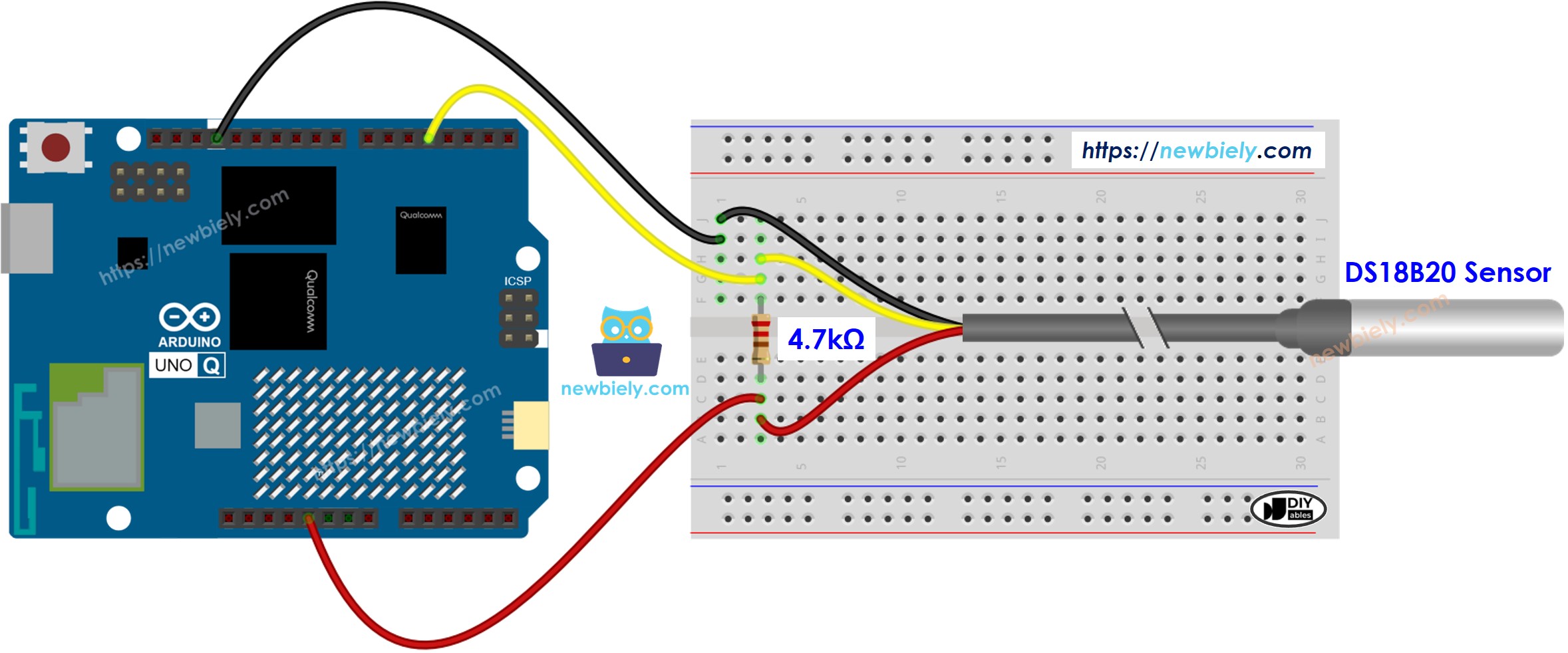
The wiring diagram between Arduino UNO Q Temperature Sensor

This image is created using Fritzing. Click to enlarge image

  • Wiring diagram with adapter (no extra resistor needed):
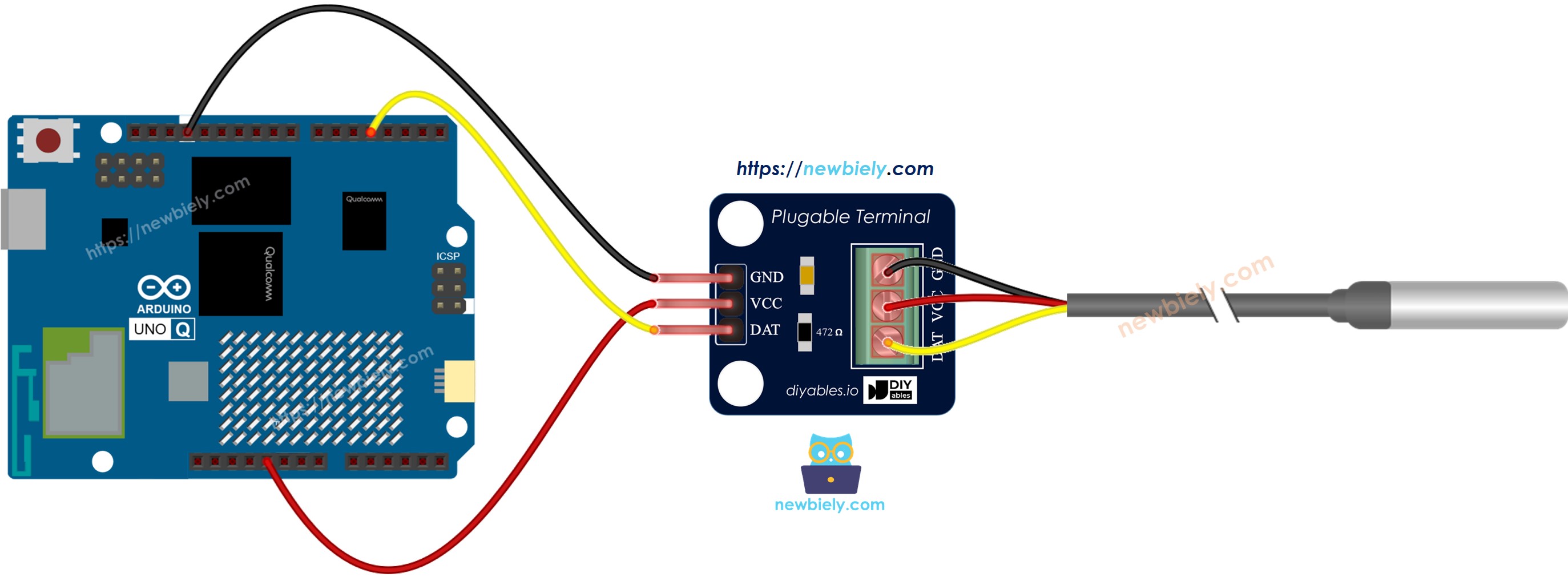
The wiring diagram between Arduino UNO Q DS18B20 Adapter

This image is created using Fritzing. Click to enlarge image

We recommend buying a DS18B20 sensor with a wiring adapter. This adapter makes it simple to connect because it includes a resistor, so you do not need an extra one.

DS18B20 Pin Arduino UNO Q Pin
GND GND
VCC 5V
DATA D4

Arduino UNO Q Code

The Arduino UNO Q has two processors working together:

  • The STM32 MCU reads the DS18B20 sensor every second and exposes the value through a Bridge function called get_temperature.
  • The Qualcomm MPU runs a Python app that uses the WebUI Brick to serve the thermometer page on port 7000 and push live temperature updates to every browser via WebSocket.

MCU Code

/* * This Arduino UNO Q code was developed by newbiely.com * * This Arduino UNO Q code is made available for public use without any restriction * * For comprehensive instructions and wiring diagrams, please visit: * https://newbiely.com/tutorials/arduino-uno-q/arduino-uno-q-real-time-temperature-monitor-on-web-browser */ #include <OneWire.h> #include <DallasTemperature.h> #include "Arduino_RouterBridge.h" #define SENSOR_PIN 4 OneWire oneWire(SENSOR_PIN); DallasTemperature DS18B20(&oneWire); float last_temp_c = 0.0; unsigned long last_read_ms = 0; const unsigned long READ_INTERVAL = 1000; void update_temperature() { DS18B20.requestTemperatures(); float t = DS18B20.getTempCByIndex(0); if (t != DEVICE_DISCONNECTED_C) { last_temp_c = t; } } String get_temperature(String arg) { return String(last_temp_c, 2); } void setup() { Bridge.begin(); Monitor.begin(); DS18B20.begin(); update_temperature(); Bridge.provide("get_temperature", get_temperature); Monitor.println("DS18B20 initialized on pin D4"); Monitor.println("Bridge ready"); } void loop() { unsigned long now = millis(); if (now - last_read_ms >= READ_INTERVAL) { last_read_ms = now; update_temperature(); } }

Python Code

""" This Arduino UNO Q script was developed by newbiely.com This Arduino UNO Q script is made available for public use without any restriction For comprehensive instructions and wiring diagrams, please visit: https://newbiely.com/tutorials/arduino-uno-q/arduino-uno-q-real-time-temperature-monitor-on-web-browser """ import threading import time from arduino.app_utils import * from arduino.app_bricks.web_ui import WebUI MIN_TEMP = -10 MAX_TEMP = 50 UNIT = "°C" def read_temperature(): try: raw = Bridge.call("get_temperature", "") return round(float(raw), 2) except Exception: return 0.0 def on_get_config(client, data): config = {"minValue": MIN_TEMP, "maxValue": MAX_TEMP, "unit": UNIT} ui.send_message("temperature_config", config, client) def on_subscribe(client, data): ui.send_message("temperature_update", {"value": read_temperature()}, client) def push_temperature(): while True: try: ui.send_message("temperature_update", {"value": read_temperature()}) except Exception: pass time.sleep(1) ui = WebUI() ui.on_message("get_config", on_get_config) ui.on_message("subscribe", on_subscribe) threading.Thread(target=push_temperature, daemon=True).start() App.run()

HTML (assets/index.html)

Place this file in the assets/ folder of your App. It loads the Socket.IO client from assets/libs/socket.io.min.js and draws a live canvas thermometer that redraws on every server push:

<!DOCTYPE html> <html> <head> <meta charset="UTF-8"> <meta name="viewport" content="width=device-width, initial-scale=1.0"> <title>Web Temperature - DIYables</title> <link rel="icon" href="https://diyables.io/images/page/diyables.svg"> <style> * { margin: 0; padding: 0; box-sizing: border-box; } body { font-family: -apple-system, BlinkMacSystemFont, 'Segoe UI', Roboto, sans-serif; background: white; height: 100vh; display: flex; flex-direction: column; } .page { flex: 1; max-width: 1200px; margin: 0 auto; width: 100%; padding: 20px 40px; text-align: center; display: flex; flex-direction: column; box-sizing: border-box; overflow: hidden; } .navbar { background: #f8f9fa; padding: 10px 20px; border-bottom: 1px solid #e9ecef; margin: -20px -40px 0 -40px; display: flex; justify-content: space-between; align-items: center; } .nav-home { color: #667eea; text-decoration: none; font-size: 1.1em; font-weight: bold; padding: 8px 12px; border-radius: 6px; background: rgba(102,126,234,0.1); transition: all 0.3s; } .nav-home:hover { background: rgba(102,126,234,0.2); transform: scale(1.05); } .nav-tutorial { color: #007bff; text-decoration: none; font-size: 1em; font-weight: bold; padding: 8px 12px; border-radius: 6px; background: rgba(0,123,255,0.1); transition: all 0.3s; } .nav-tutorial:hover { background: rgba(0,123,255,0.2); transform: scale(1.05); } .status-bar { background: #f8f9fa; padding: 5px 20px; border-bottom: 1px solid #e9ecef; margin: 0 -40px 20px -40px; text-align: center; font-size: 0.9em; color: black; } .status-bar #connectionText { font-weight: bold; } .page-title { margin-top: 10px; margin-bottom: 20px; } .page-title h1 { color: #333; font-size: 2.5em; font-weight: 700; } .canvas-area { flex: 1; display: flex; flex-direction: column; justify-content: center; align-items: center; min-height: calc(100vh - 200px); } .footer { background: linear-gradient(135deg, #667eea 0%, #764ba2 100%); color: white; text-align: center; width: 100%; font-size: 0.9em; position: fixed; bottom: 0; left: 0; z-index: 1000; height: 40px; display: flex; align-items: center; justify-content: center; } .footer a { color: white; text-decoration: none; font-weight: bold; } .footer a:hover { color: rgba(255,255,255,0.8); text-decoration: underline; } @media (max-width: 768px) { .page { padding: 20px; } .page-title h1 { font-size: 1.6em; } .navbar { padding-top: 15px; } .status-bar { margin: 0 -20px 20px -20px; } } </style> </head> <body> <div class="page"> <div class="navbar"> <a href="/" class="nav-home">&#127968; Home</a> <a href="https://diyables.io/tutorials/arduino-uno-q" target="_blank" class="nav-tutorial">&#128218; Tutorial</a> </div> <div class="status-bar">WebSocket: <span id="connectionText">Disconnected</span></div> <div class="page-title"><h1>&#127777;&#65039; Web Temperature</h1></div> <div class="canvas-area"> <canvas id="temperature_canvas"></canvas> </div> </div> <div class="footer">Created by&nbsp;<a href="https://diyables.io/" target="_blank">DIYables</a></div> <script src="libs/socket.io.min.js"></script> <script> const CANVAS_W = 200; const CANVAS_H = 450; let minTemp = 0; let maxTemp = 100; let tempUnit = "\u00b0C"; let lastTemp = 0; let connected = false; function setConnectionStatus(text) { const el = document.getElementById("connectionText"); el.textContent = text; if (text === "connected") el.style.color = "#007bff"; else if (text === "connecting") el.style.color = "#6c757d"; else el.style.color = "#dc3545"; } function drawThermometer(temp) { lastTemp = temp; const canvas = document.getElementById("temperature_canvas"); const ctx = canvas.getContext("2d"); const bulbR = 70, pad = 5, tubeW = 45, tubeH = 330; ctx.clearRect(-CANVAS_W / 2, -350, CANVAS_W, CANVAS_H); const color = connected ? "#667eea" : "#bbb"; ctx.strokeStyle = color; ctx.fillStyle = color; const pct = Math.max(0, Math.min(100, ((temp - minTemp) / (maxTemp - minTemp)) * 100)); const x = -tubeW / 2; // Tick marks ctx.lineWidth = 2; for (let i = 0; i <= 100; i += 5) { const y = -(tubeH - bulbR) * i / 100 - bulbR - 5; ctx.beginPath(); ctx.moveTo(x, y); ctx.lineTo(x - 20, y); ctx.stroke(); } ctx.lineWidth = 5; for (let i = 0; i <= 100; i += 20) { const y = -(tubeH - bulbR) * i / 100 - bulbR - 5; const label = minTemp + (maxTemp - minTemp) * i / 100; ctx.beginPath(); ctx.moveTo(x, y); ctx.lineTo(x - 25, y); ctx.stroke(); ctx.font = "16px Georgia"; ctx.textBaseline = "middle"; ctx.textAlign = "right"; ctx.fillText(label.toFixed(0), x - 35, y); } // Thermometer outline ctx.lineWidth = 16; ctx.beginPath(); ctx.arc(0, 0, bulbR, 0, 2 * Math.PI); ctx.stroke(); ctx.beginPath(); ctx.rect(-tubeW / 2, -tubeH, tubeW, tubeH); ctx.stroke(); ctx.beginPath(); ctx.arc(0, -tubeH, tubeW / 2, 0, 2 * Math.PI); ctx.stroke(); // Background fill ctx.fillStyle = "#f8f9fa"; ctx.beginPath(); ctx.arc(0, 0, bulbR, 0, 2 * Math.PI); ctx.fill(); ctx.beginPath(); ctx.rect(-tubeW / 2, -tubeH, tubeW, tubeH); ctx.fill(); ctx.beginPath(); ctx.arc(0, -tubeH, tubeW / 2, 0, 2 * Math.PI); ctx.fill(); // Mercury fill if (connected) { const grad = ctx.createLinearGradient(0, -tubeH, 0, bulbR); grad.addColorStop(0, "#ff6b6b"); grad.addColorStop(0.5, "#ff5252"); grad.addColorStop(1, "#f44336"); ctx.fillStyle = grad; } else { ctx.fillStyle = "#bbb"; } ctx.beginPath(); ctx.arc(0, 0, bulbR - pad, 0, 2 * Math.PI); ctx.fill(); const fillH = (tubeH - bulbR) * pct / 100 + bulbR + 5; ctx.beginPath(); ctx.rect(-tubeW / 2 + pad, -fillH, tubeW - 2 * pad, fillH); ctx.fill(); // Temperature label inside bulb if (connected) { ctx.fillStyle = "white"; ctx.font = "bold 24px Georgia"; ctx.textBaseline = "middle"; ctx.textAlign = "center"; ctx.fillText(temp.toFixed(1) + tempUnit, 0, 0); } } window.onload = function () { const canvas = document.getElementById("temperature_canvas"); canvas.width = CANVAS_W; canvas.height = CANVAS_H; const ctx = canvas.getContext("2d"); ctx.translate(CANVAS_W / 2, CANVAS_H - 80); drawThermometer(0); const socket = io("http://" + window.location.host, { transports: ["websocket"] }); socket.on("connect", function () { connected = true; setConnectionStatus("connected"); socket.emit("get_config", {}); socket.emit("subscribe", {}); }); socket.on("disconnect", function () { connected = false; setConnectionStatus("disconnected"); drawThermometer(lastTemp); }); socket.on("temperature_config", function (data) { minTemp = data.minValue; maxTemp = data.maxValue; tempUnit = data.unit; drawThermometer(lastTemp); }); socket.on("temperature_update", function (data) { drawThermometer(parseFloat(data.value)); }); }; </script> </body> </html>

Detailed Instructions

  • Wire the sensor: Connect the DS18B20 to the Arduino UNO Q as shown in the Wiring Diagram section.
  • Connect to Wi-Fi: Make sure the Arduino UNO Q is connected to your Wi-Fi network. Use the network icon in Arduino App Lab to connect first.
  • Open Arduino App Lab: Launch Arduino App Lab and wait until it detects your Arduino UNO Q.
  • Create a new App: Click the Create New App button.

Create New App in Arduino App Lab on Arduino UNO Q
  • Give the App a name, for example: TemperatureWS
  • Click Create to confirm.
Arduino App Lab App folders and files on Arduino UNO Q
  • Paste the MCU sketch: Copy the MCU code above and paste it into sketch/sketch.ino.
  • Paste the Python code: Open python/main.py. Select all existing content and delete it, then paste the Python code above.
  • Add the HTML file: In the assets/ folder, open (or create) index.html and paste the HTML code above.
  • Add the Socket.IO client: In the assets/ folder, create a libs/ subfolder. Download socket.io.min.js and save it as assets/libs/socket.io.min.js.
  • Install the library: Click the Add sketch library button (the open book icon with a + sign) in the left sidebar.

Add sketch library in Arduino App Lab on Arduino UNO Q
  • Search for DallasTemperature created by Miles Burton , Tim Newsome , Guil Barros , Rob Tillaart and click the Install button.
My Apps / DIYables Apps
Run
Bricks
No bricks added...
Sketch Libraries
No sketch libra...
Files
python
sketch
.gitignore
README.md
app.yaml
sketch.ino
Add sketch library
DallasTemperature Miles Burton , Tim Newsome , Guil Barros , Rob Tillaart

Supports DS18B20, DS18S20, DS1822, DS1820

3.9.0
Install
More Info
  • Search for OneWire created by Jim Studt, Tom Pollard, Robin James, Glenn Trewitt, Jason Dangel, Guillermo Lovato, Paul Stoffregen, Scott Roberts, Bertrik Sikken, Mark Tillotson, Ken Butcher, Roger Clark, Love Nystrom and click the Install button.
My Apps / DIYables Apps
Run
Bricks
No bricks added...
Sketch Libraries
No sketch libra...
Files
python
sketch
.gitignore
README.md
app.yaml
sketch.ino
Add sketch library
OneWire Jim Studt, Tom Pollard, Robin James, Glenn Trewitt, Jason Dangel, Guillermo Lovato, Paul Stoffregen, Scott Roberts, Bertrik Sikken, Mark Tillotson, Ken Butcher, Roger Clark, Love Nystrom

2.3.8
Install
More Info
  • Search for Arduino_RouterBridge created by Arduino and click the Install button.
My Apps / DIYables Apps
Run
Bricks
No bricks added...
Sketch Libraries
No sketch libra...
Files
python
sketch
.gitignore
README.md
app.yaml
sketch.ino
Add sketch library
Arduino_RouterBridge Arduino

This library provides a simple RPC bridge for Arduino UNO Q boards, allowing communication between the board and other devices using MsgPack serialization.

0.4.1
Install
More Info
  • Add the WebUI Brick: Click the Add Brick button in the Editor sidebar to open the Bricks catalog.
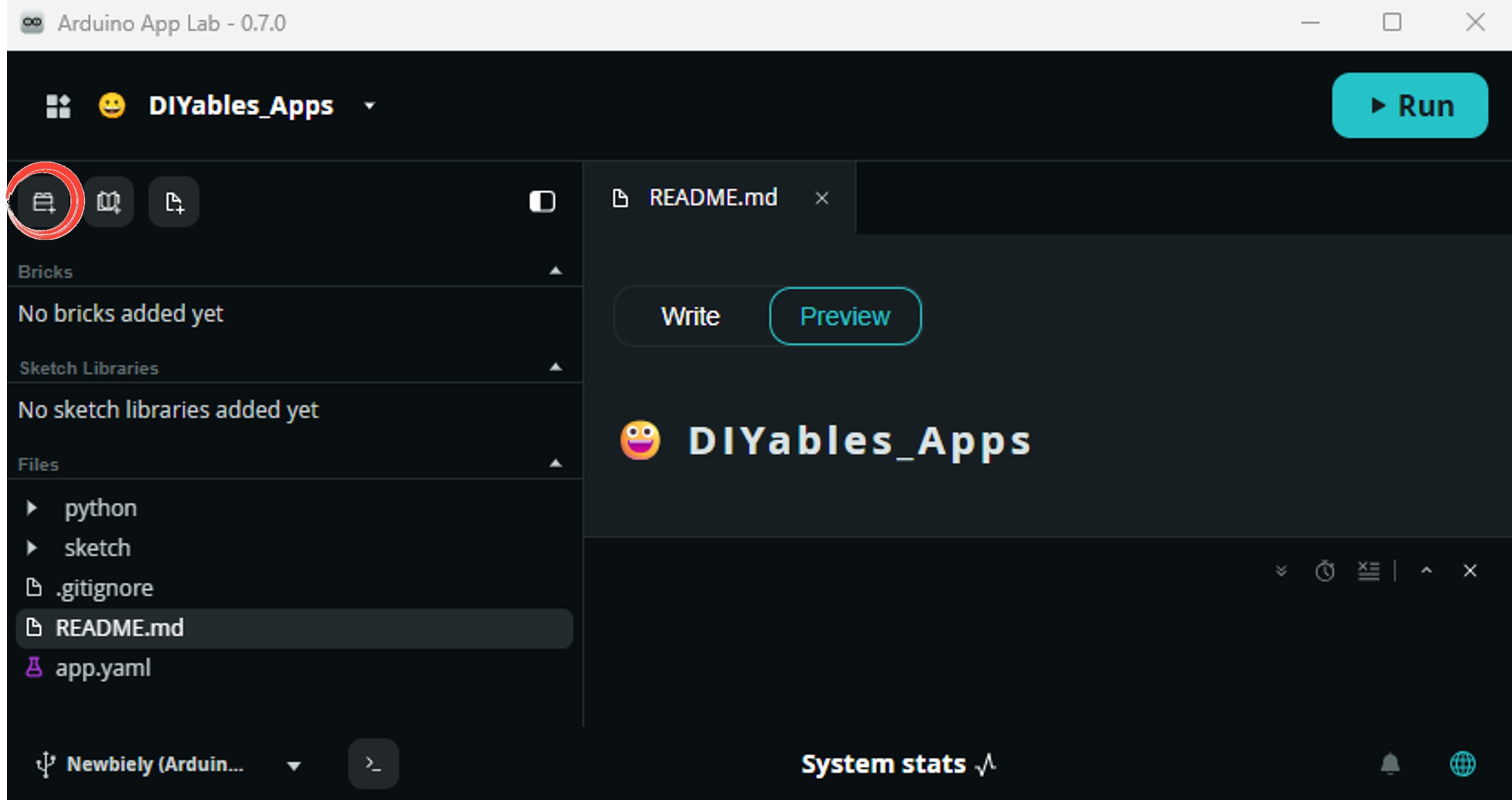
Add Brick button in Arduino App Lab Editor sidebar

Find and select WebUI - HTML from the list, then follow any configuration prompts.
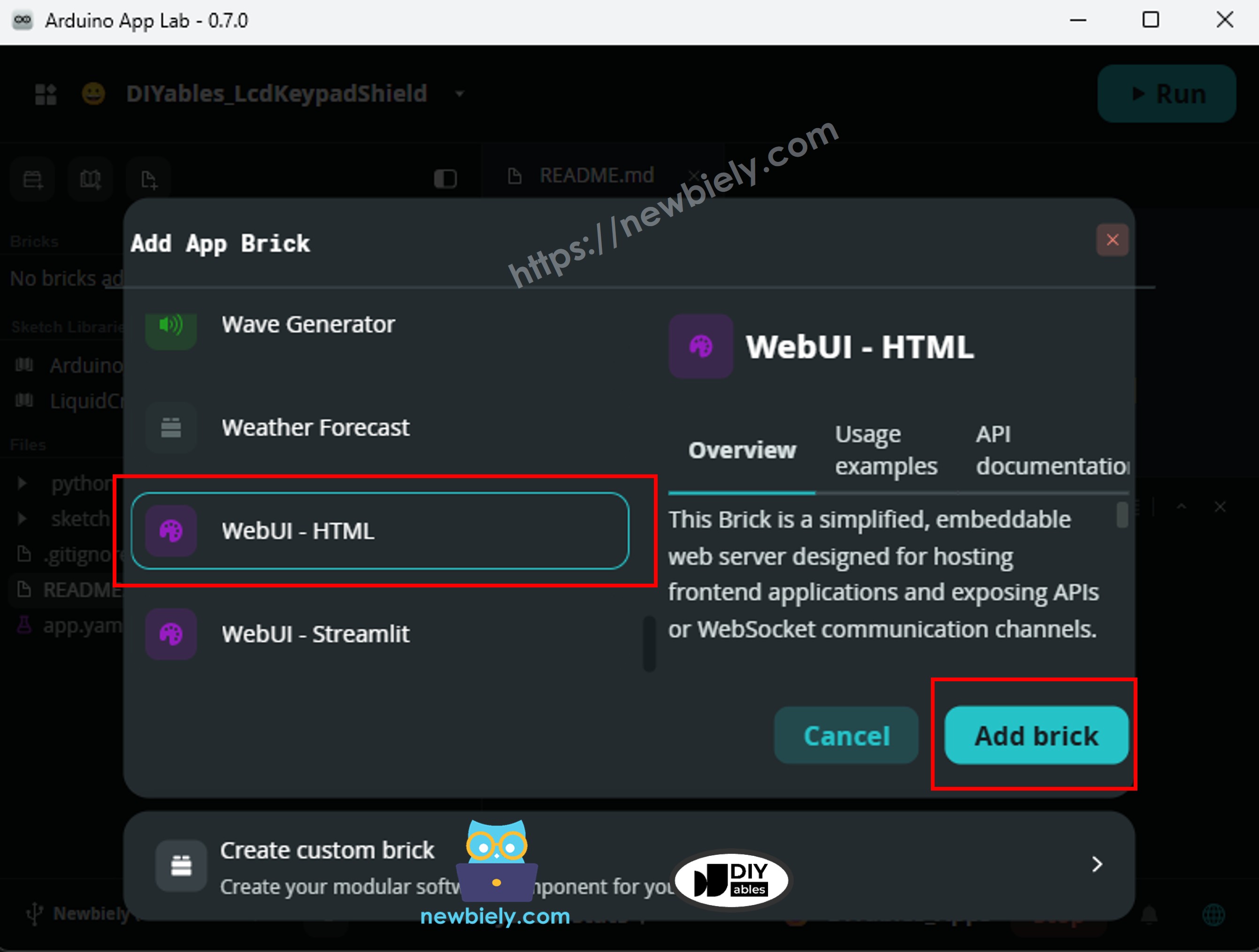
WebUI - HTML Brick selected in Arduino App Lab Bricks catalog

Arduino App Lab automatically adds the Brick entry to your app.yaml file — do not edit that entry manually.

※ NOTE THAT:

The WebUI - HTML Brick handles both HTTP file serving and Socket.IO WebSocket in a single service on port 7000. The Socket.IO client script must be placed in assets/libs/socket.io.min.js — the brick does not serve a compatible version automatically. See About Bricks for details.

  • Upload: Click the Run button in Arduino App Lab to compile and upload.

Click Run button in Arduino App Lab on Arduino UNO Q
  • Open a web browser on your phone or PC and navigate to:
http://<ARDUINO_UNO_Q_IP>:7000/

Replace <ARDUINO_UNO_Q_IP> with the IP address shown in the Python console.

App Lab Console Output

DIYables_Apps
Stop
sketch.ino
1#include "Arduino_RouterBridge.h"
Serial Monitor
Python
Message (Enter to send a message to "Newbiely" on usb(2820070321))
New Line
9600 baud
[2026-05-08 09:00:01] Bridge ready [2026-05-08 09:00:02] DS18B20 initialized on pin D4
DIYables_Apps
Stop
sketch.ino
1#include "Arduino_RouterBridge.h"
Serial Monitor
Python
2026-05-08 09:00:02.000 INFO - [WebUI.execute] WebUI: The application interface is available here: - Local URL: http://localhost:7000 - Network URL: http://192.168.0.45:7000 2026-05-08 09:00:02.001 INFO - [MainThread] App: App started

Browser Output

Open http://<ARDUINO_UNO_Q_IP>:7000/ in any browser on the same network. You will see a live thermometer page with a WebSocket connection status bar at the top:
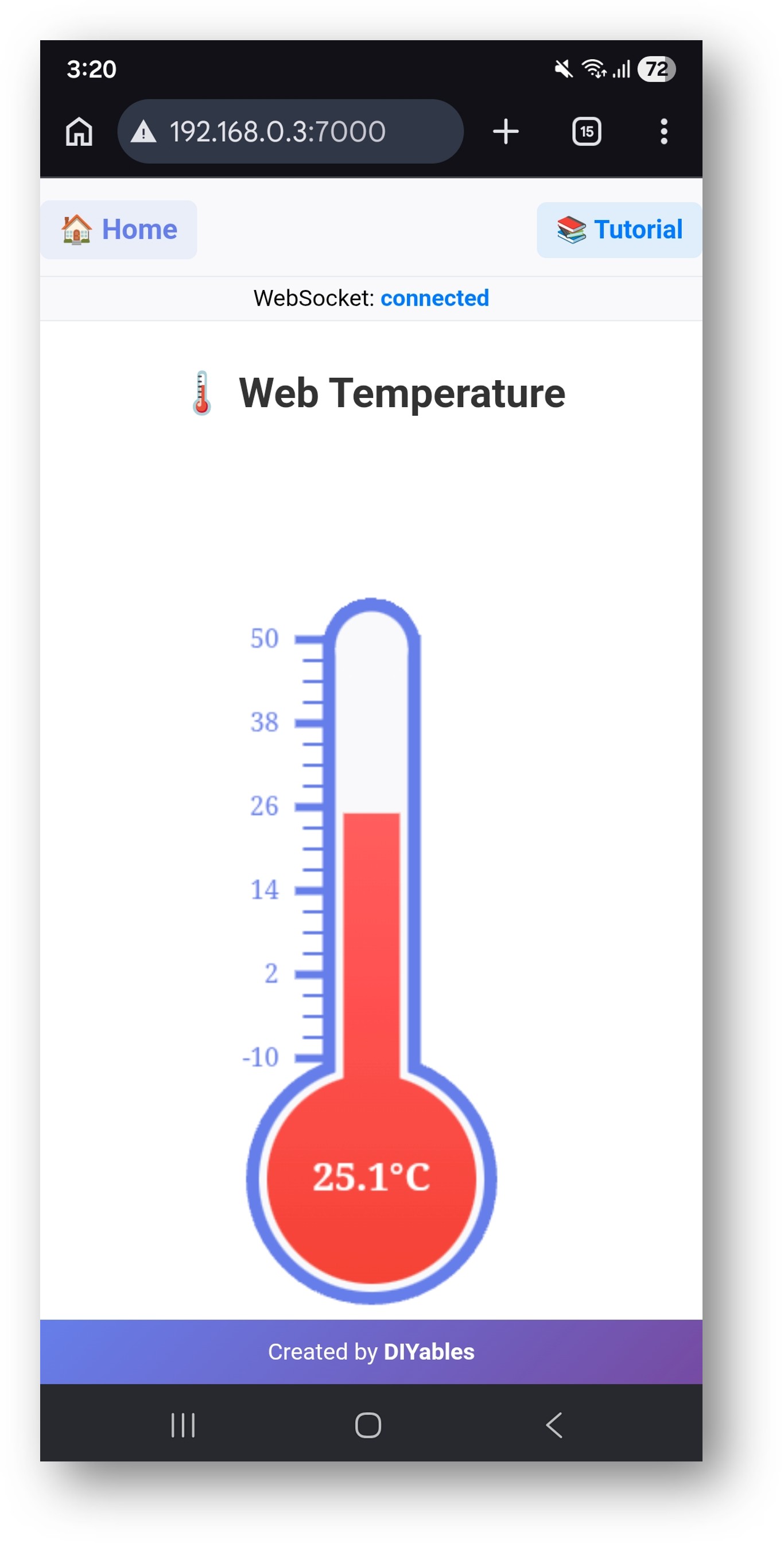
Arduino UNO Q Real-Time Temperature Web Page

The page displays:

  • A canvas thermometer with a mercury level that rises and falls in real time via WebSocket push
  • The current temperature value and unit (°C) in the bulb, updated on every server push (every 1 s)
  • Scale markings from −10 °C to 50 °C (configurable via MIN_TEMP and MAX_TEMP in the Python code)
  • A connection status bar — the thermometer mercury turns grey when WebSocket is disconnected

WebSocket Events

The browser and the Python server communicate using the following Socket.IO events:

Direction Event Payload
Browser → Server get_config {}
Server → Browser temperature_config {"minValue" -10, "maxValue" 50, "unit" "°C"}
Browser → Server subscribe {}
Server → Browser temperature_update {"value" 24.6}

OpenClaw

You can adapt the OpenClaw to this tutorial by refering the instruction on Arduino Uno Q - OpenClaw Tutorial

Project Ideas

The live temperature web page is a foundation for many practical projects on Arduino UNO Q:

  • Room Climate Monitor: Add a DHT22 or BMP280 to the MCU and extend the Python API with a /api/humidity endpoint — the web page shows both temperature and humidity side by side, updating every second
  • Fridge or Freezer Alert: Set a threshold in the Python script — if get_temperature returns a value above the threshold, the script sends a Telegram message alerting you the fridge door may be open
  • Temperature Data Logger: Append each reading to a CSV file on the Linux side — add a /api/history endpoint that returns the last 100 rows, and display them as a chart using Chart.js on a second tab
  • Greenhouse Monitor: Mount the Arduino UNO Q in a greenhouse with two DS18B20 sensors (inside and outside) and expose both via separate Bridge functions — the web page shows both readings on a split thermometer layout
  • Server Room Monitor: Mount the board in a server rack — a simple web page with a red/green status banner lets IT staff check the temperature from any device on the network without installing any app

Challenge Yourself

Ready to go further with the temperature web monitor on Arduino UNO Q? Try these challenges:

  • Easy: Change the thermometer range and color scheme in index.html — set the range to 0–100 °C and make the mercury gradient go from blue (cold) to red (hot) based on the current reading.
  • Medium: Add a second chart panel to the web page using Chart.js — plot the temperature history as a line graph that fills in over the first minute, using readings stored in a JavaScript array that grows on every temperature_update WebSocket event.
  • Advanced: Add a set_threshold Socket.IO event to the Python script that the browser emits with { "min": 18, "max": 28 } — store the range in Python and check it in the push loop; emit a temperature_alert event when the reading goes outside the range so the web page shows a warning banner that changes from green to red automatically.

※ OUR MESSAGES

  • As freelancers, We are AVAILABLE for HIRE. See how to outsource your project to us
  • Please feel free to share the link of this tutorial. However, Please do not use our content on any other websites. We invested a lot of effort and time to create the content, please respect our work!