
Arduino Nano 33 IoT - Bluetooth and Bluetooth Low Energy
Overview
In this tutorial, we are going to learn how to use Bluetooth Low Energy (BLE) with the Arduino Nano 33 IoT and the DIYables Bluetooth App. By the end of this guide, you will be able to wirelessly control your Arduino project from your smartphone — no extra hardware needed, just your phone and your Arduino board.
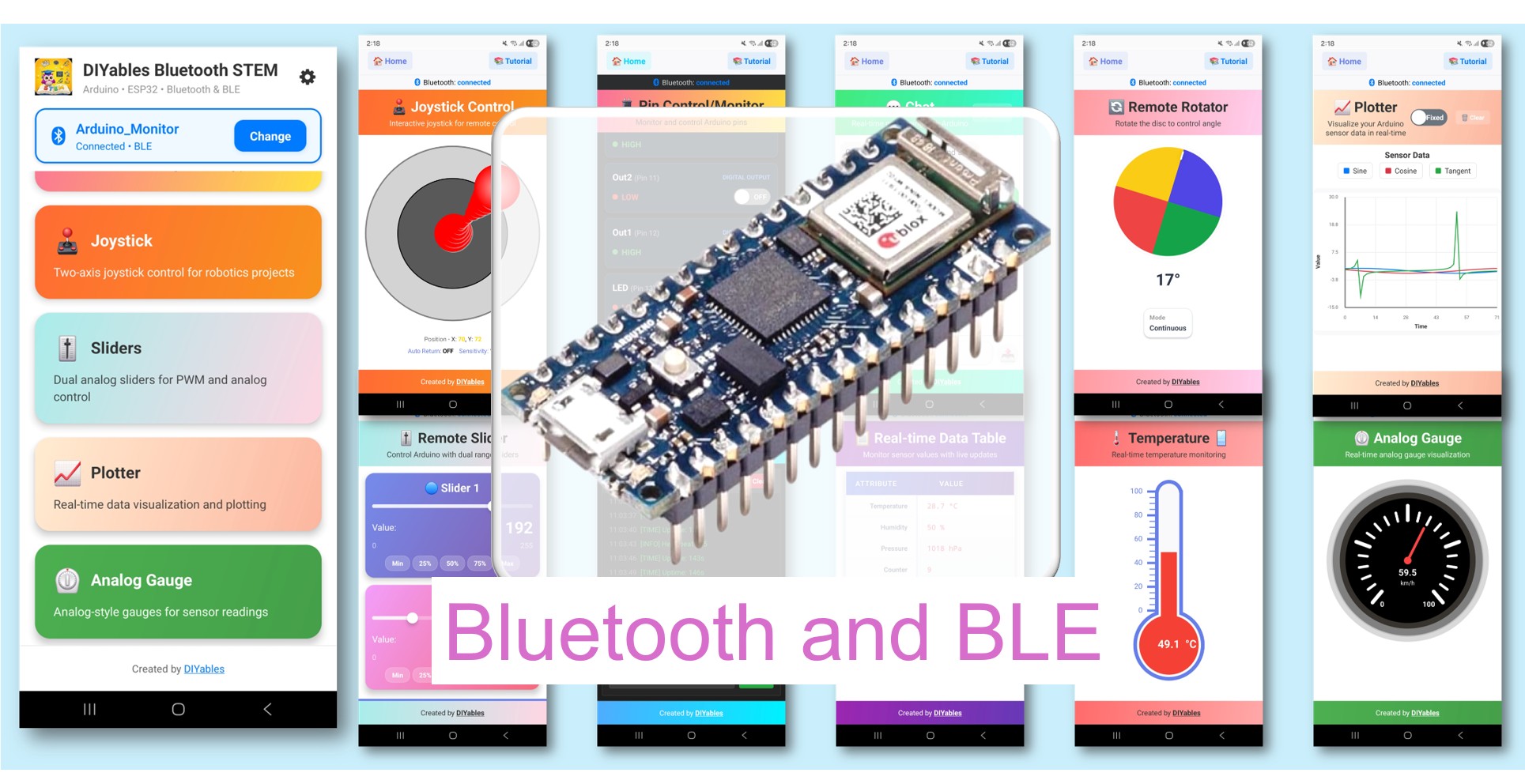
The Arduino Nano 33 IoT has built-in Bluetooth Low Energy (BLE) support, which means you can connect it directly to the DIYables Bluetooth App on Android or iOS without any additional Bluetooth module.
Note: The Arduino Nano 33 IoT only supports BLE (Bluetooth Low Energy). It does not support Classic Bluetooth. The DIYables Bluetooth App supports both BLE and Classic Bluetooth on Android, and BLE on iOS. Since this board uses BLE, the app works on both Android and iOS.
Features
- BLE Wireless Control: Control your Arduino from up to 10 metres away
- Android & iOS Support: BLE works on both platforms
- No Pairing Required: BLE auto-connects — no manual Bluetooth pairing in phone settings
- Multiple App Widgets: Sliders, joystick, monitor, plotter, gauge, temperature, chat, table, rotator, and more
- Compact Form Factor: Nano 33 IoT fits easily into small enclosures
- Low Power: BLE consumes significantly less power than Classic Bluetooth
- Easy Setup: Single library install handles all communication
Hardware Preparation
Or you can buy the following kits:
| 1 | × | DIYables Sensor Kit (18 sensors/displays) |
Additionally, some of these links are for products from our own brand, DIYables .
NINA Firmware Requirement
> Important: The NINA-W102 module firmware must be version 1.4.8 or higher for BLE to work correctly with the ArduinoBLE library. Many boards ship with older firmware that will cause BLE.begin() to fail silently.
Check Current Firmware Version
- Open Arduino IDE
- Go to File Examples WiFiNINA Tools CheckWiFiNINAFirmwareVersion
- Upload the sketch to your Arduino Nano 33 IoT
- Open the Serial Monitor and check the reported firmware version
Update NINA Firmware
- In Arduino IDE, go to Tools Firmware Updater
- Select your Arduino Nano 33 IoT board and COM port
- Select the latest available NINA firmware (1.5.0 or higher)
- Click Update Firmware
Software Setup
Detailed Instructions
Follow these instructions step by step:
- If this is your first time using the Arduino Nano 33 IoT, refer to the Arduino Nano 33 IoT getting started guide.
- Connect the Arduino Nano 33 IoT board to your computer using a Micro USB cable.
- Launch the Arduino IDE on your computer.
- Select Arduino Nano 33 IoT board and the appropriate COM port.
Install Board Core
- Go to Tools Board Boards Manager...
- Search "Arduino SAMD Boards"
- Install version 1.8.13 or higher by Arduino
Install DIYables Bluetooth Library
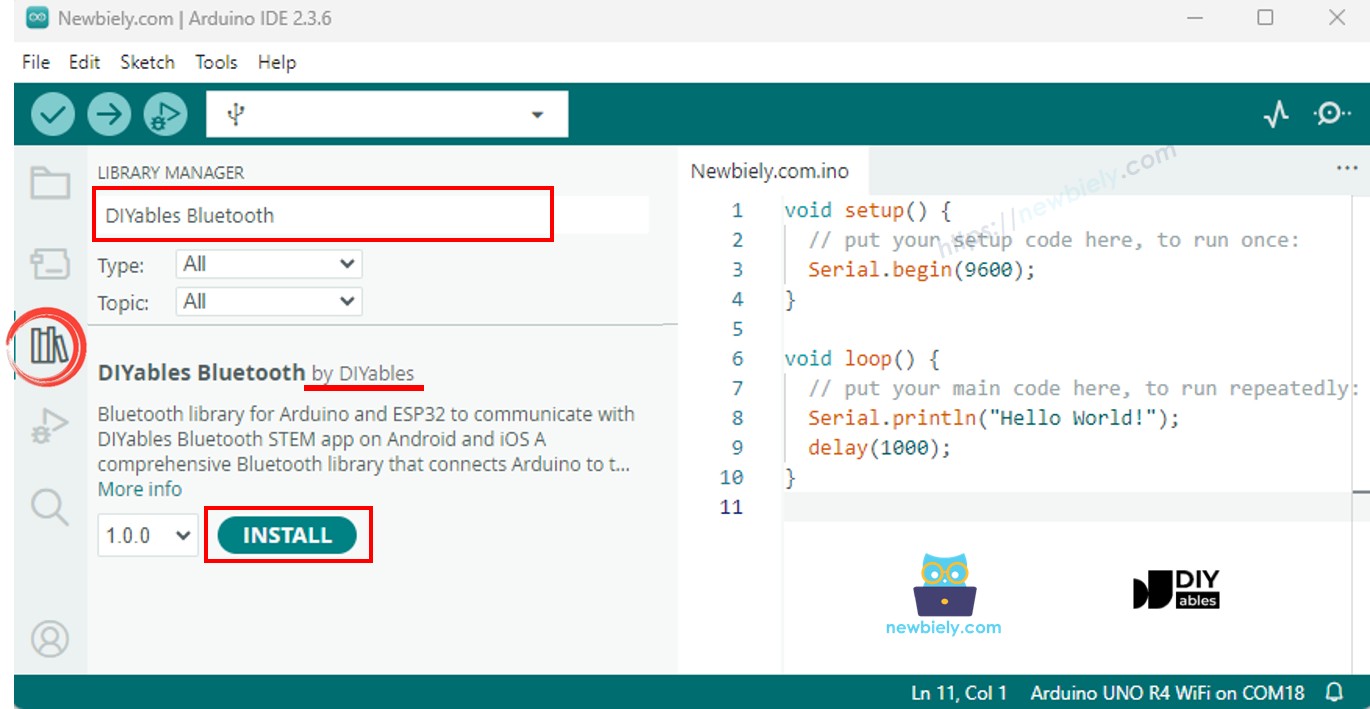
- Navigate to the Libraries icon on the left bar of the Arduino IDE.
- Search "DIYables Bluetooth", then find the DIYables Bluetooth library by DIYables
- Click Install button to install the library.
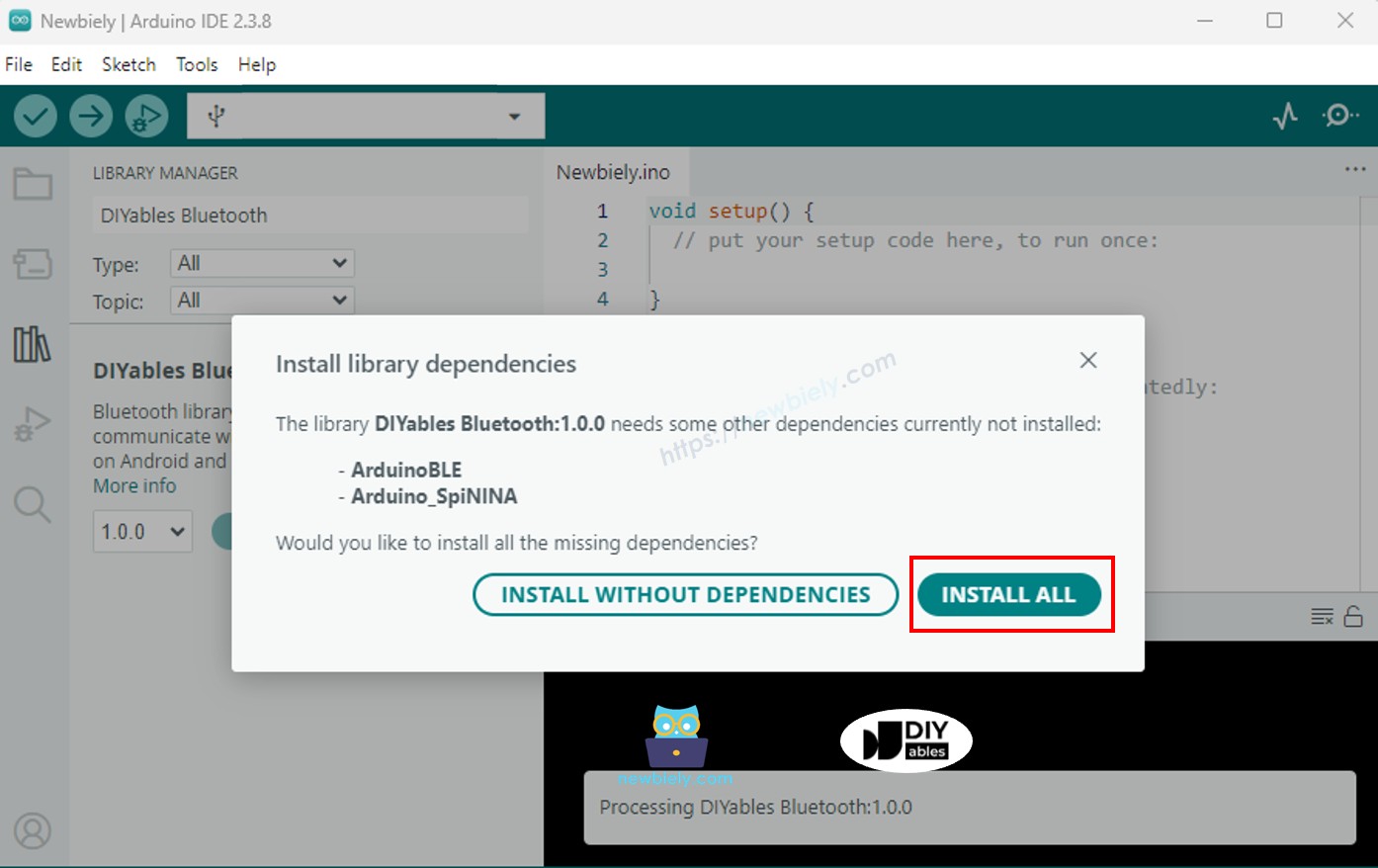
- You will be asked for installing some other library dependencies
- Click Install All button to install all library dependencies (includes ArduinoBLE 1.3.6+).
Mobile App
Note: The DIYables Bluetooth App supports both BLE and Classic Bluetooth on Android, and BLE on iOS. Since the Arduino Nano 33 IoT uses BLE, the app works on both Android and iOS. No manual pairing is needed for BLE — just scan and connect.
- Open the DIYables Bluetooth App
- When opening the app for the first time, it will ask for permissions. Please grant the following:
- Nearby Devices permission (Android 12+) / Bluetooth permission (iOS) - required to scan and connect to Bluetooth devices
- Location permission (Android 11 and below only) - required by older Android versions to scan for BLE devices
- Make sure Bluetooth is turned on on your phone
- On the home screen, tap the Connect button. The app will scan for BLE devices.
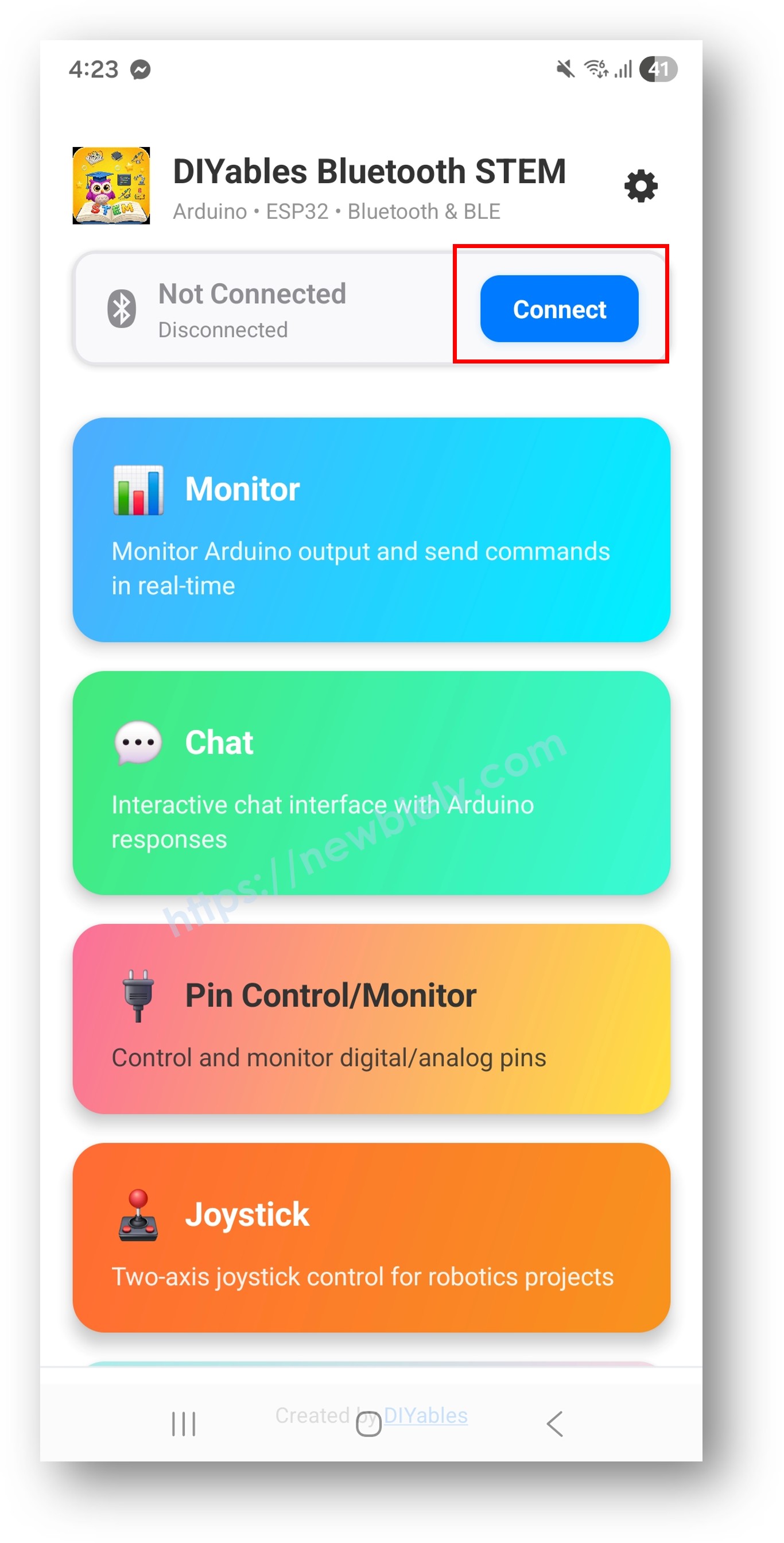
- Find and tap your Arduino Nano 33 IoT device name in the scan results to connect.
Examples
All examples below use the ArduinoBLE platform (BLE only), which is compatible with the Arduino Nano 33 IoT.
- Arduino Nano 33 IoT - Bluetooth Slider - Control values with one or two sliders
- Arduino Nano 33 IoT - Bluetooth Pin Control - Toggle digital output pins on/off
- Arduino Nano 33 IoT - Bluetooth Monitor - Wireless serial monitor — stream and receive text
- Arduino Nano 33 IoT - Bluetooth Plotter - Plot sensor data as a real-time chart
- Arduino Nano 33 IoT - Bluetooth Analog Gauge - Display values as analog gauge dials
- Arduino Nano 33 IoT - Bluetooth Temperature - Display temperature and humidity readings
- Arduino Nano 33 IoT - Bluetooth Joystick - Read 2D joystick input from the app
- Arduino Nano 33 IoT - Bluetooth Rotator - Control a rotary/dial value from the app
- Arduino Nano 33 IoT - Bluetooth Chat - Send and receive text messages
- Arduino Nano 33 IoT - Bluetooth Table - Display data in a structured table layout
- Arduino Nano 33 IoT - Bluetooth RTC - Sync real-time clock from the app
- Arduino Nano 33 IoT - Bluetooth Multiple Apps - Use multiple app widgets in one sketch
Troubleshooting
| Symptom | Likely Cause | Fix |
|---|---|---|
| Device not visible when scanning in the app | Bluetooth firmware too old | Update firmware to ≥ 1.4.8 via Tools → Firmware Updater |
| BLE.begin() returns false | Old firmware or wrong board core | Update Bluetooth firmware and Arduino SAMD core |
| Connects but no data received | ArduinoBLE library too old | Update ArduinoBLE to ≥ 1.3.6 via Library Manager |
| Compile error - ArduinoBLE.h No such file | ArduinoBLE not installed | Install ArduinoBLE via Library Manager |
| Compile error about board | Wrong board core installed | Install Arduino SAMD Boards ≥ 1.8.13 |
| App connects then immediately disconnects | Interference or power issue | Ensure stable USB power; keep phone within 5 metres |
Notes
- Use the ArduinoBLE_ examples — not Esp32BLE_ or Esp32Bluetooth_. Those are for different hardware.
- The NINA module handles BLE MTU negotiation automatically. The DIYables library manages message fragmentation — no manual chunking needed.
- The board must remain powered (USB or external) for BLE advertisement to stay active.