
Arduino UNO R4 - Light Sensor Control Relay
In this tutorial, we will learn how to program Arduino Uno R4 to control the relay based on value read from either LDR light sensor or LDR light sensor module.
By connecting a relay to devices like light bulbs, LED strips, motors, or actuators, we can use a light sensor to control these devices.
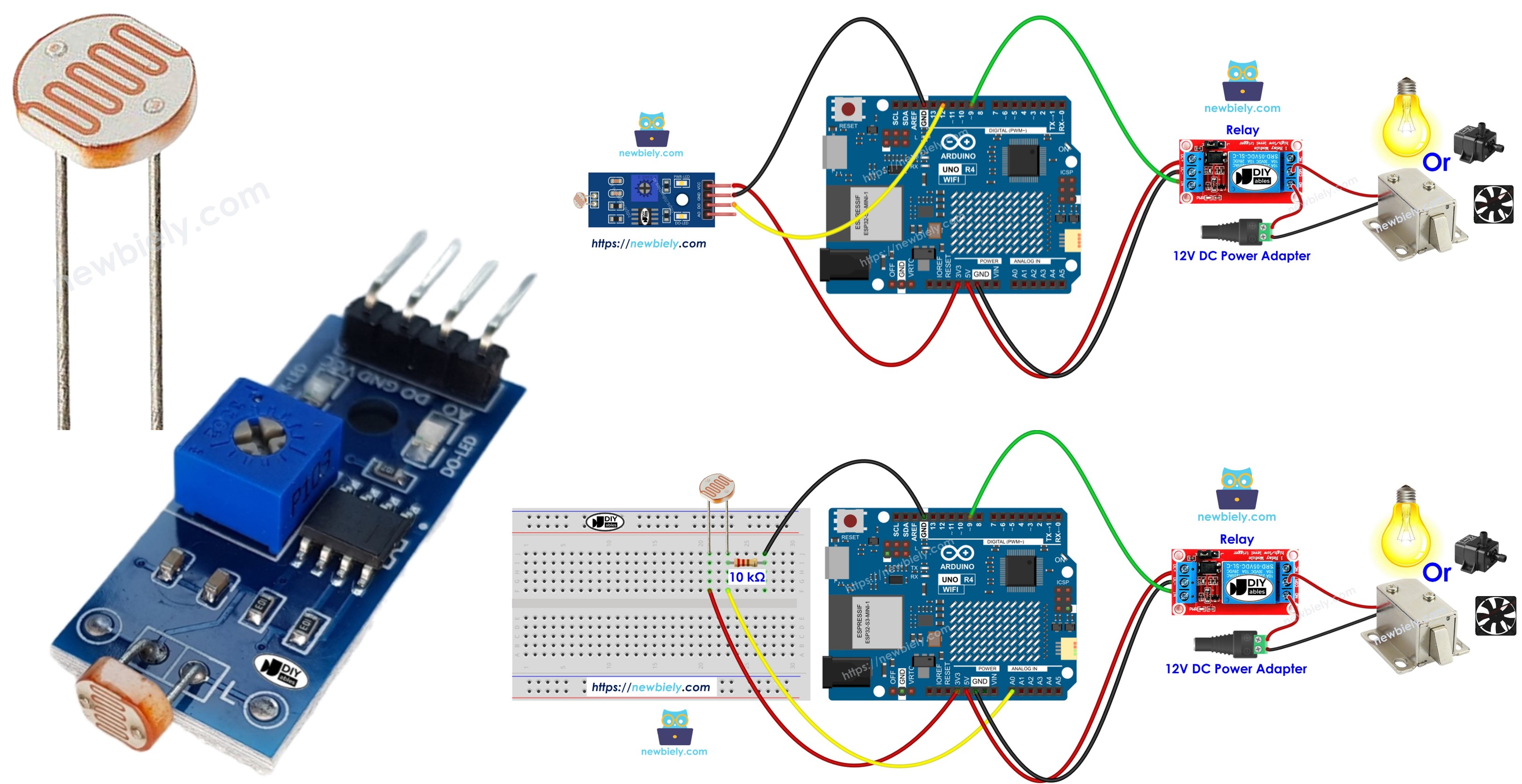
Hardware Preparation
Or you can buy the following kits:
| 1 | × | DIYables STEM V4 IoT Starter Kit (Arduino included) | |
| 1 | × | DIYables STEM V4B IoT Starter Kit (Arduino included) | |
| 1 | × | DIYables Sensor Kit (18 sensors/displays) |
Additionally, some of these links are for products from our own brand, DIYables .
The LDR light sensor is very affordable, but it requires a resistor for wiring, which can make the setup more complex. To simplify the wiring, you can use an LDR light sensor module as an alternative.
Overview of Relay and Light Sensor
If you're unfamiliar with relays and light sensors (their configurations, functionalities, and programming methods), you can learn more by checking out these tutorials:
Wiring Diagram
- The wiring diagram between Arduino Uno R4, relay module and raw LDR light sensor (analog)
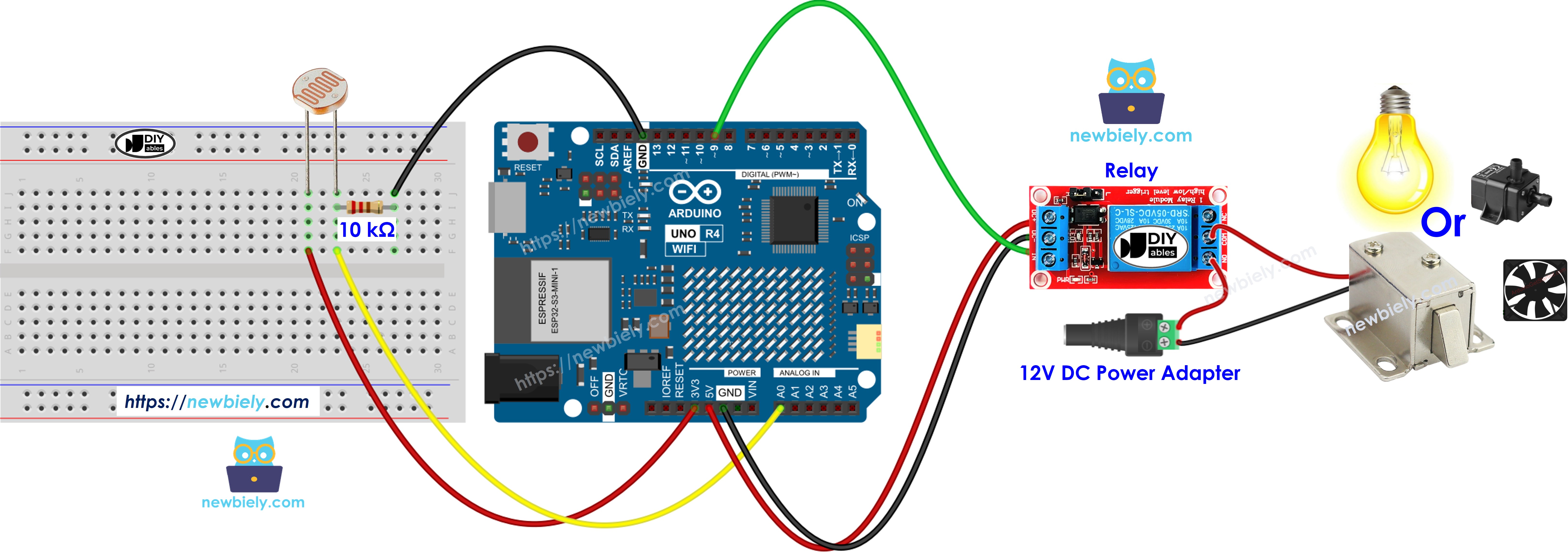
This image is created using Fritzing. Click to enlarge image
If you do not use a breadboard, wire it like this:
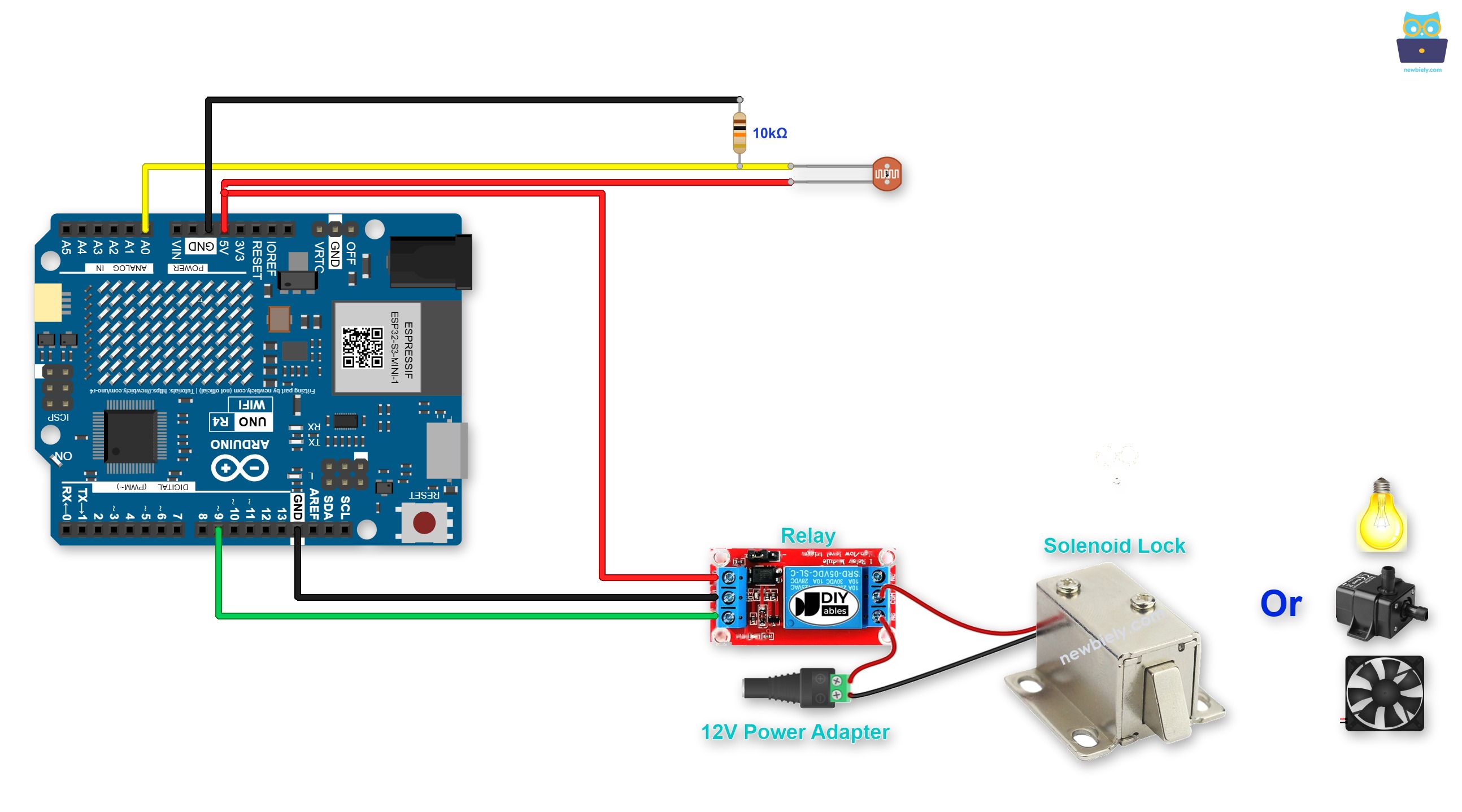
This image is created using Fritzing. Click to enlarge image
- The wiring diagram between Arduino Uno R4, relay module and LDR light sensor module (digital)
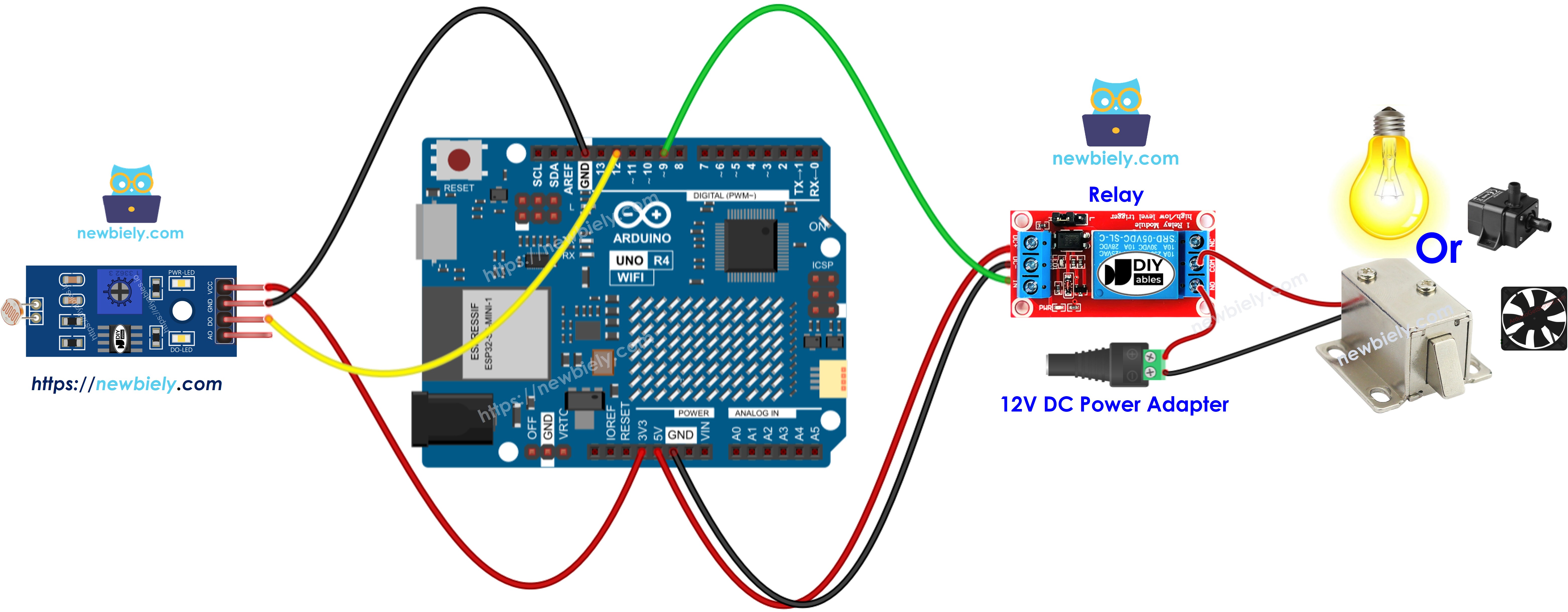
This image is created using Fritzing. Click to enlarge image
Pushing jumper wires into the headers is quick, but the wires can slip out. In this case, use a Proto Screw Terminal Block Shield or a Screw Shield V2. It plugs into the Arduino UNO R4 and gives each pin a screw terminal. Below is the wiring diagram with the Screw Shield V2.
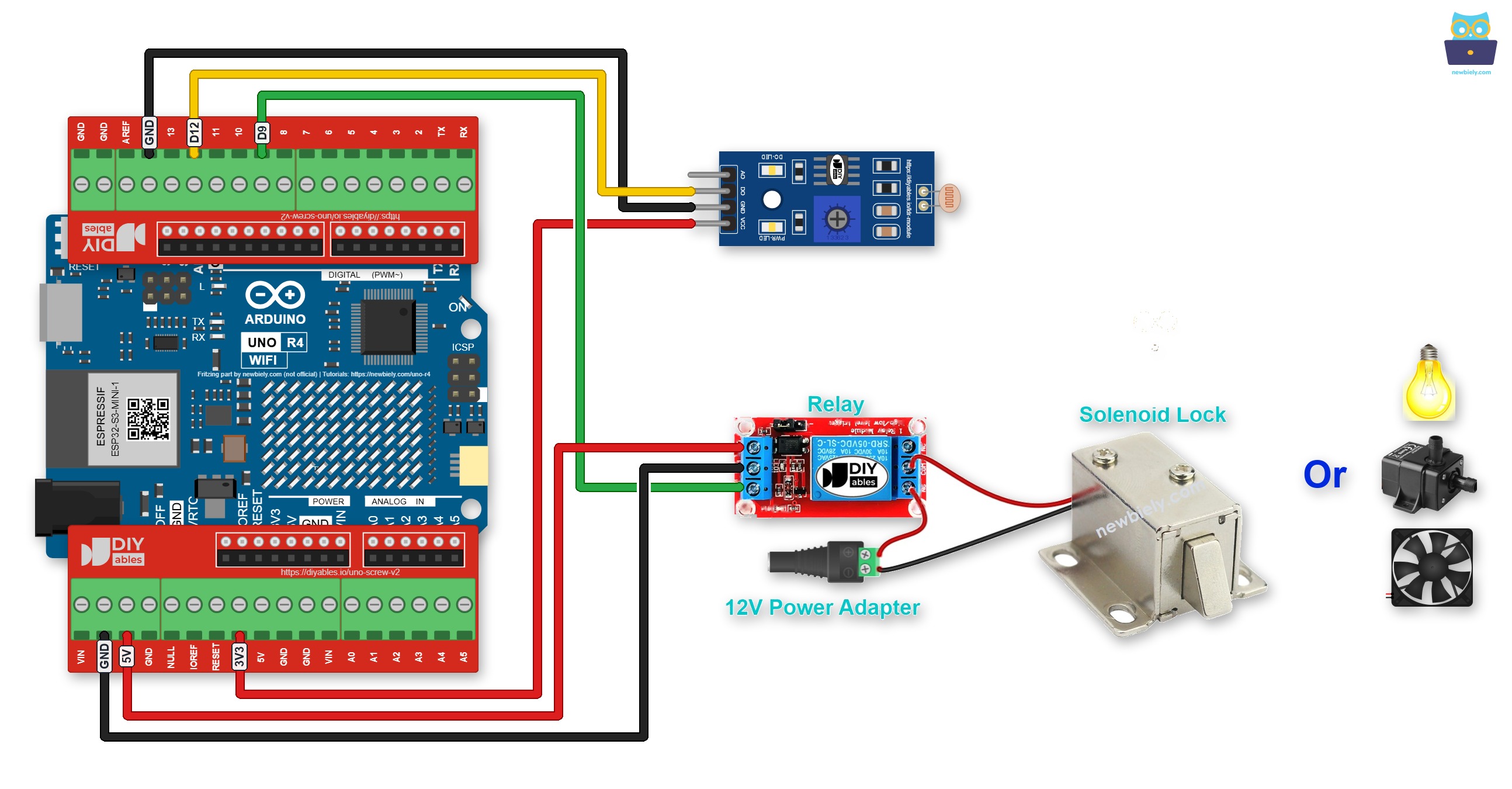
This image is created using Fritzing. Click to enlarge image
See The best way to supply power to the Arduino Uno R4 and other components.
Arduino UNO R4 Code
- The Arduino Uno R4 code for reading the value from the LDR light sensor and controls the relay
- The Arduino Uno R4 code for reading the value from the LDR light sensor module and controls the relay
Detailed Instructions
Follow these instructions step by step:
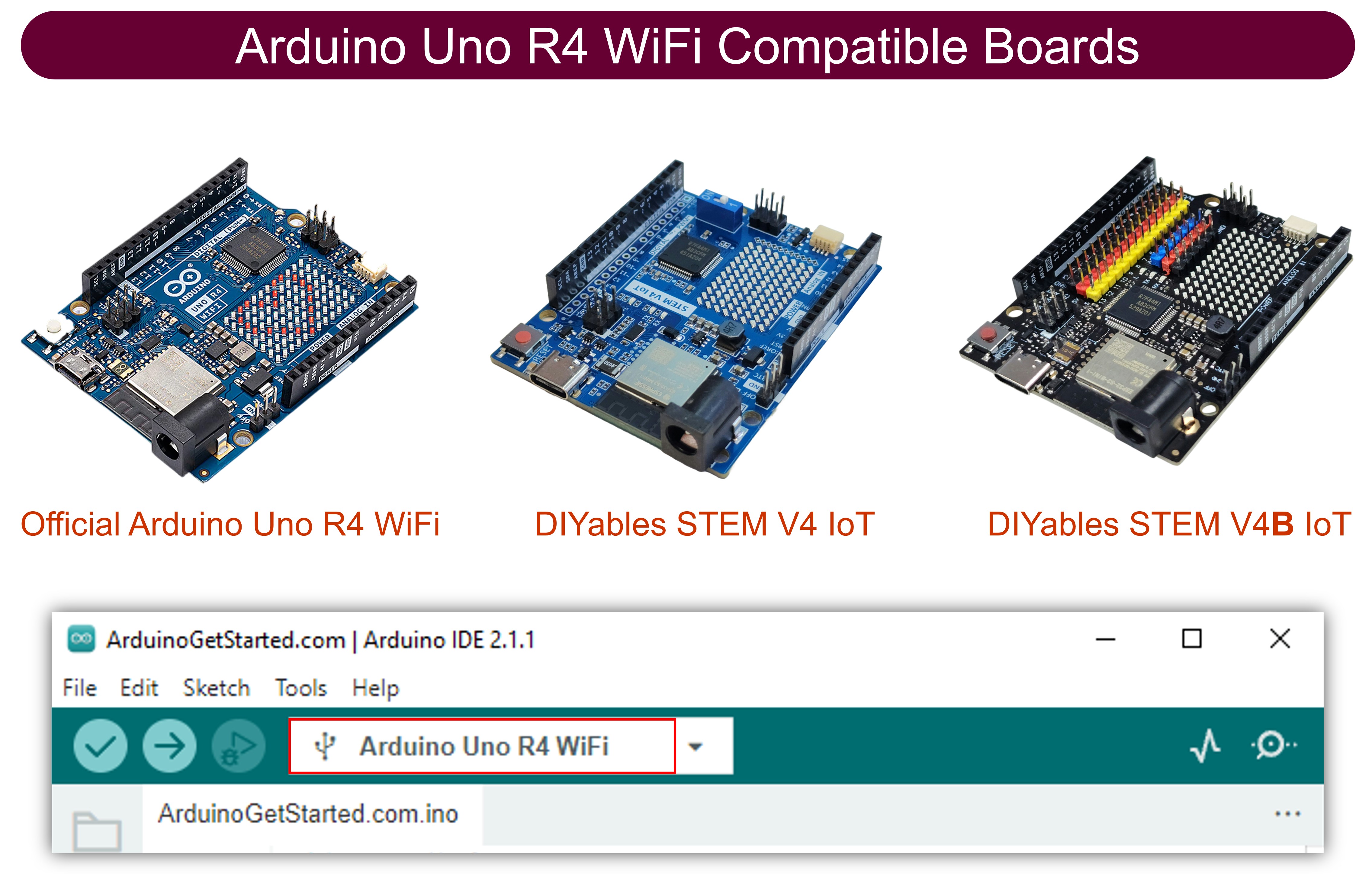
- If this is your first time using the Arduino Uno R4 WiFi/Minima, refer to the tutorial on setting up the environment for Arduino Uno R4 WiFi/Minima in the Arduino IDE.
- Wire the components according to the provided diagram.
- Connect the Arduino Uno R4 board to your computer using a USB cable.
- Launch the Arduino IDE on your computer.
- Select the appropriate Arduino Uno R4 board (e.g., Arduino Uno R4 WiFi) and COM port.
- Connect the Arduino UNO R4 to your computer using a USB cable
- Launch the Arduino IDE, then choose the correct board and port
- Paste the provided code into the Arduino IDE
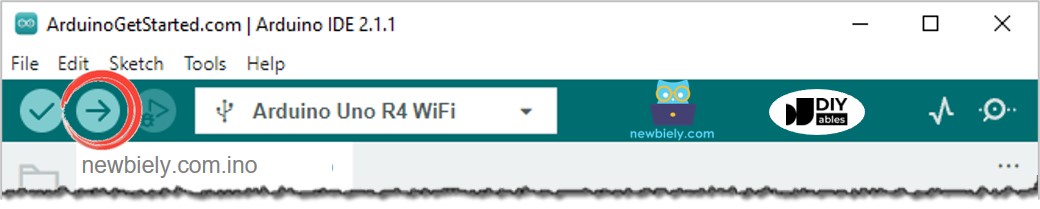
- Click the Upload button in the Arduino IDE to send the code to the Arduino UND R4
- Sends light to the sensor
- Observe the change in the relay's state
Code Explanation
Check the explanations in the source code comments for each line!
Relay vs MOSFET Module
A relay is not the only way to switch a device. If your device runs on DC power, such as a 12V LED strip, a 12V solenoid lock or a 12V fan, a MOSFET module can do the same job.
| Relay | MOSFET Module | |
|---|---|---|
| What it can do | turn the device on or off | turn the device on or off, and set its power (PWM) |
| Noise when switching | a click every time | no sound |
| How fast it switches | slow, a few milliseconds | very fast |
| Life | the contacts wear out after many switches | nothing moves, so it lasts long |
| Type of power | AC or DC | DC only |
| Device power supply | any voltage the relay is rated for | about 6V or more |
| Isolation from the Arduino | yes, between coil and contacts | yes, by the PC817 optocoupler |
| Good for | AC devices, or a simple ON/OFF | DC devices, or dimming and speed control |
Both the relay and the MOSFET module turn on when the Arduino UNO R4 pin is HIGH. So for a simple ON/OFF, the code above stays the same. Only the wiring changes. For AC mains devices, always use the relay.
To learn the MOSFET module pinout, wiring, PWM code and safety tips, see the Arduino UNO R4 - MOSFET Module tutorial.