
Arduino Nano 33 IoT - LED Module
This tutorial instructs you how to use Arduino Nano 33 IoT to switch and dim a 10mm LED module - the kind of bright, chunky indicator you would mount on the lid of an enclosure to show that a Wi-Fi node is online, that a reading has crossed a limit, or that a message has just been sent. In detail, we will learn:
- What sits on the small board of the LED module, and what its three pins GND, VCC and IN must be connected to
- Why the module is a comfortable match for a 3.3V board such as the Arduino Nano 33 IoT
- How to wire the module to the Arduino Nano 33 IoT with three jumper wires and no extra parts
- How to program the Arduino Nano 33 IoT to turn the LED on and off, and report each change on the Serial Monitor
- How to program the Arduino Nano 33 IoT to make the LED glow up and down smoothly with PWM
We suggest:
- Starting with the Arduino Nano 33 IoT - LED - Blink tutorial if you want to see how a bare LED and its resistor are wired by hand.
- Moving on to the Arduino Nano 33 IoT - LED - Fade tutorial for fading without delay(), or the Arduino Nano 33 IoT - LED RGB tutorial when one color is not enough.
Hardware Preparation
Or you can buy the following kits:
| 1 | × | DIYables Sensor Kit (18 sensors/displays) |
Additionally, some of these links are for products from our own brand, DIYables .
Buy Note: Use the LED Module for easier wiring. It includes an integrated resistor.
Overview of LED Module
Think of the LED module as an LED that has already been given everything it needs to be safe: its resistor and a tiny driver are soldered next to it, so the Arduino Nano 33 IoT only has to say "on" or "off". The LED itself is a 10mm diffused round lamp, much easier to see across a room than the usual 5mm one, sitting on a 20mm x 20mm black PCB. The modules are sold as a pack of five colors - red, yellow, blue, green and white - so each one can carry its own meaning in a project.
| LED Module | |
|---|---|
| LED | 10mm diffused, round |
| Colors in the pack | red, yellow, blue, green, white |
| Operating voltage | 3.3V to 5V DC |
| Onboard parts | 330Ω LED resistor, 1KΩ resistor on IN, small switching transistor |
| Logic | active HIGH (IN = HIGH turns the LED on) |
| Connector | 3-pin 2.54mm right-angle male header, presoldered |
| Board size | 20mm x 20mm |
The LED Module Pinout
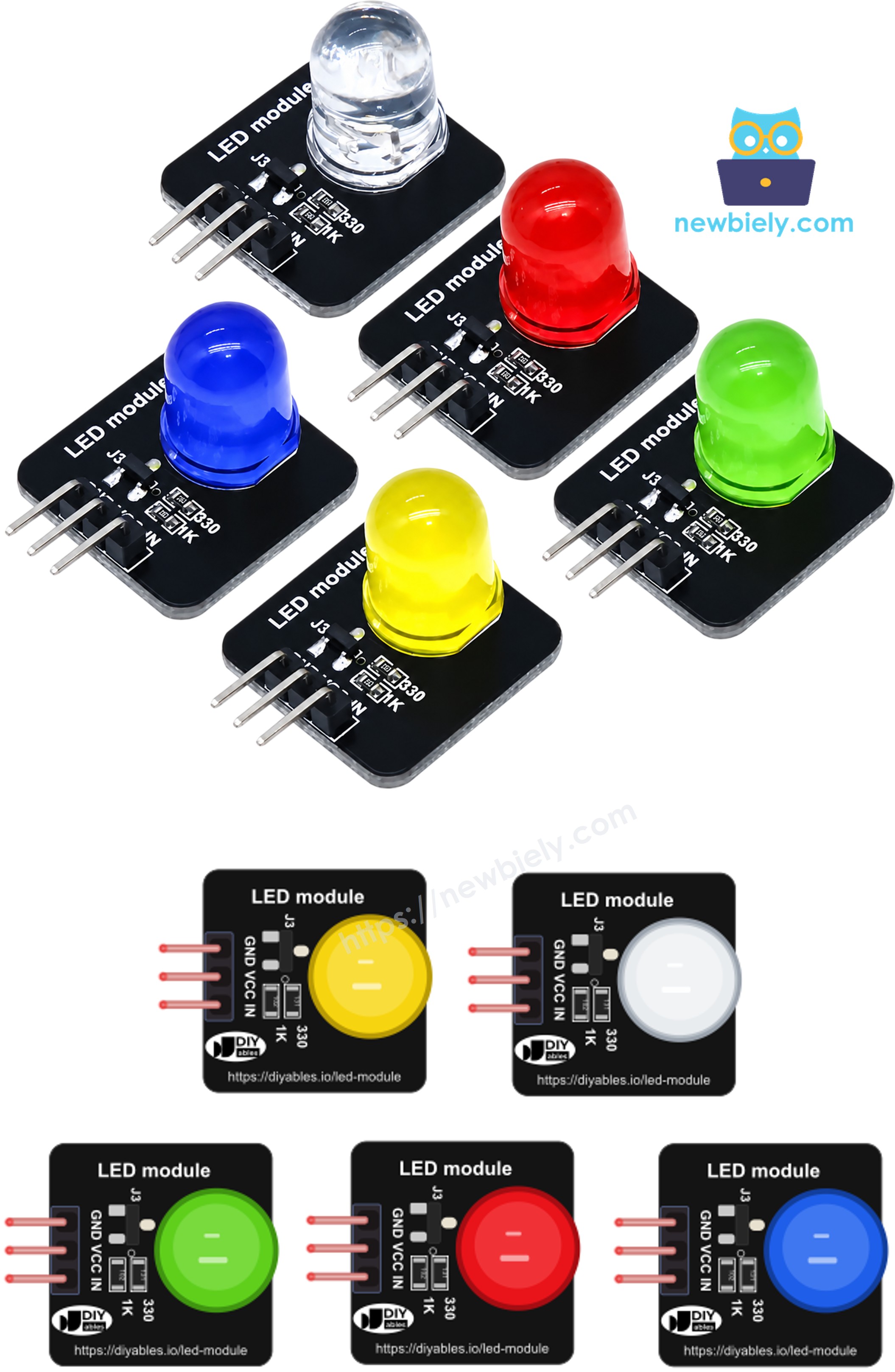
The header carries three pins, printed on the board in this order:
- GND pin: must be connected to GND (0V)
- VCC pin: must be connected to 3.3V or 5V - the current that lights the LED comes from this pin
- IN pin: must be connected to a digital output pin of the Arduino Nano 33 IoT. HIGH switches the LED on, LOW switches it off, and a PWM signal sets the brightness
※ NOTE THAT:
The arrangement of pins on a module may differ from one manufacturer to another. It is essential to always refer to the labels printed on the module when using it. Take a close look!
Why It Suits a 3.3V Board
The Arduino Nano 33 IoT works at 3.3V and its pins are not built to supply much current. With a bare LED, the pin has to feed the LED directly, so its limit becomes the LED's limit. On the module, the IN pin only opens and closes the onboard transistor through a 1KΩ resistor, which takes a very small current from the pin. The LED is then fed from VCC instead. That is why the module runs happily from the 3.3V pin of the Arduino Nano 33 IoT, and why its brightness does not depend on how much current a GPIO pin can give. White and blue LEDs need more voltage than red ones, so they may look slightly softer at 3.3V than on a 5V board, but they still light up clearly.
Wiring Diagram
Three wires are all it takes: power the module from the 3.3V pin, share the ground, and drive IN from pin D5, which is one of the PWM-capable pins of the Arduino Nano 33 IoT, so the same wiring is used for both the blink and the fade example.
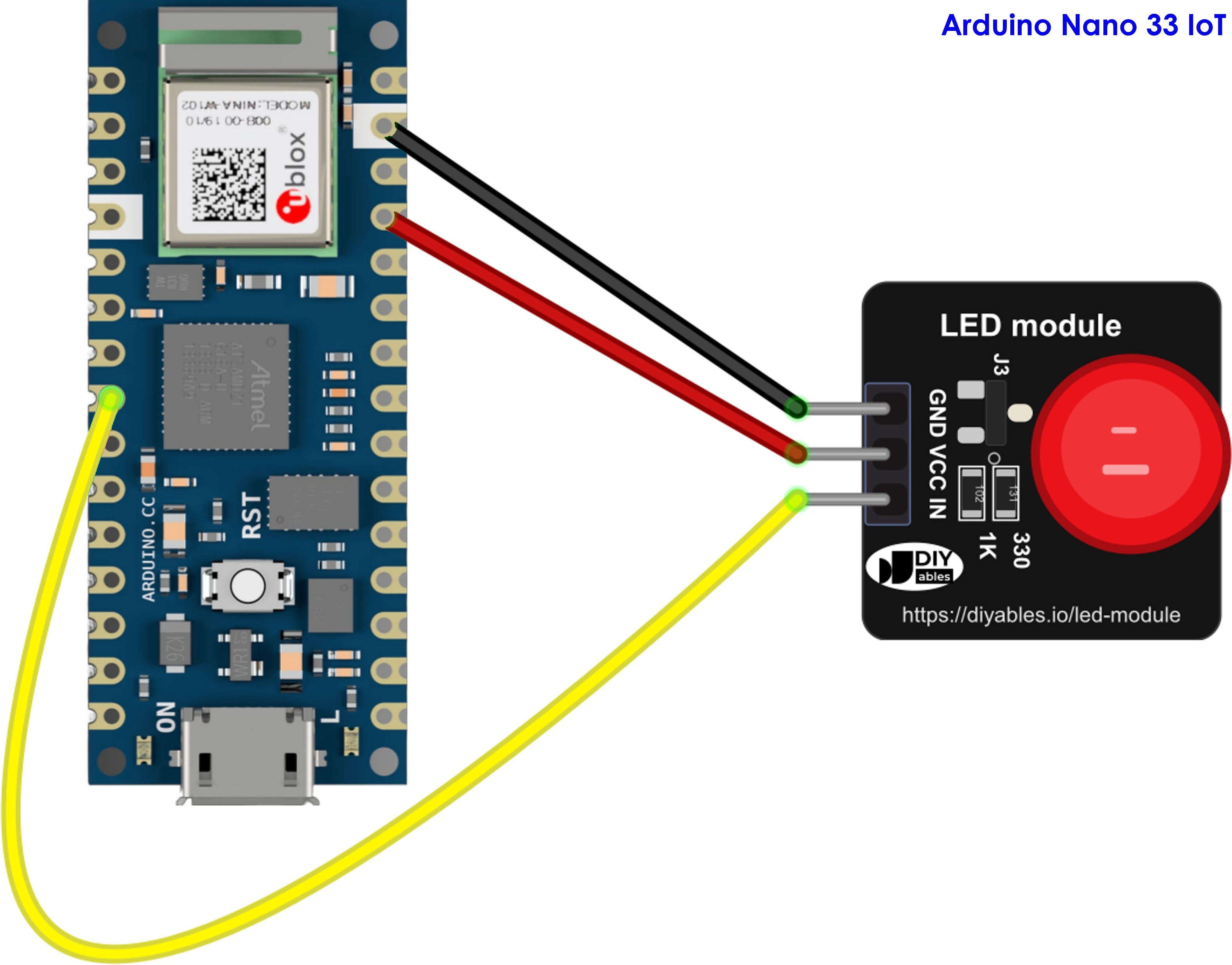
This image is created using Fritzing. Click to enlarge image
| LED Module | Arduino Nano 33 IoT |
|---|---|
| GND | GND |
| VCC | 3.3V |
| IN | D5 |
How To Program For LED Module
No library is required - the module is controlled with the standard Arduino functions.
- The first step is to specify the Arduino Nano 33 IoT pin that is connected to the IN pin:
- Configure that pin as an output in setup():
- Write HIGH to switch the LED on, or LOW to switch it off:
- Or write a PWM value from 0 (off) to 255 (full brightness) to choose a level in between:
Arduino Nano 33 IoT Code for LED Module - Blink
The sketch below switches the LED module on for one second, then off for one second, and prints the new state each time so you can compare the Serial Monitor with what you see on the desk.
Detailed Instructions
If this is the first time you use the Arduino Nano 33 IoT, see the Getting Started with Arduino Nano 33 IoT tutorial before going further.
- Wire the components as shown in the diagram.
- Connect the Arduino Nano 33 IoT board to your computer using a USB cable.
- Open Arduino IDE on your computer.
- Pick the Arduino Nano 33 IoT board and the COM port it shows up on.
- Copy the code above and paste it into the Arduino IDE.
- Click the Upload button to compile the sketch and load it onto the board.
- Look at the module: the LED should light for a second, go dark for a second, and repeat.
- Open the Serial Monitor at 9600 baud and check that the messages follow the LED.
If the LED never lights, check that VCC really goes to 3.3V and not to an unused pin - the IN pin alone cannot power the LED.
Arduino Nano 33 IoT Code for LED Module - Brightness Fade
Here the IN pin receives a PWM signal instead of a plain HIGH or LOW. The brightness climbs from 0 to 255 in steps of 15, then falls back to 0, over and over, giving a slow "breathing" effect that works well as an idle or standby indicator.
Detailed Instructions
- Keep the same wiring - pin D5 already supports PWM.
- Paste the code above into the Arduino IDE and click Upload.
- Watch the LED fade in and out, about 1.4 seconds in each direction.
- Open the Serial Monitor to follow the brightness value step by step.
To make the breathing faster, lower STEP_TIME; to make it smoother, use a smaller FADE_STEP that still divides 255 evenly, such as 5 or 3.
Additional Knowledge
What really changes when you swap a bare LED for the LED module on the Arduino Nano 33 IoT?
| Bare LED | LED Module | |
|---|---|---|
| Series resistor | you must add one (for example 220Ω) | already on board |
| Polarity | anode (+) and cathode (-) must go the right way | pins are labeled GND, VCC, IN |
| Current for the LED comes from | the Arduino Nano 33 IoT pin | the VCC pin, switched by a transistor |
| Brightness on a 3.3V pin | limited by what the pin can give | set by VCC and the onboard resistor |
| Mounting | legs into a breadboard | small PCB with a header, easy to fix in a case |
It is evident that the LED module is the easier and safer choice for a finished project or a panel indicator, while a bare LED is still worth learning with, because it shows what the module is doing for you behind the scenes.