
DIYables Web Apps
DIYables WebApps Library for ESP32 S3 Uno
This ESP32 S3 Uno web apps guide shows you how to control and watch your ESP32 S3 Uno form board from a web browser with the DIYables ESP32 WebApps library. The library gives you ready-made web pages that talk to the board over WebSocket, so you get a live web interface on your phone or PC without writing any HTML or JavaScript.
You can use the library in three ways. Pick one of the built-in web apps and use it as-is. Change a built-in web app to fit your project. Or build your own web app on top of the same framework.
In this tutorial, you will:
- Install the DIYables ESP32 WebApps library in the Arduino IDE
- Learn what each of the built-in web applications does
- Add only the web apps you need to save memory
- Open the web pages from a browser on the same WiFi network
- Create your own custom web app with WebSocket messages
🚀 Features
The library is built so you only pay for what you use. Each web app is a separate module, and the web page files are small. This matters on a microcontroller, where RAM and flash are limited.
Modular and memory friendly
You add only the web apps your project needs. Each app can be turned on or off on its own. The HTML, JavaScript and CSS code is minified to keep it small, but the look and features stay the same. The full, unminified source is also inside the library, so you can read it and change it.
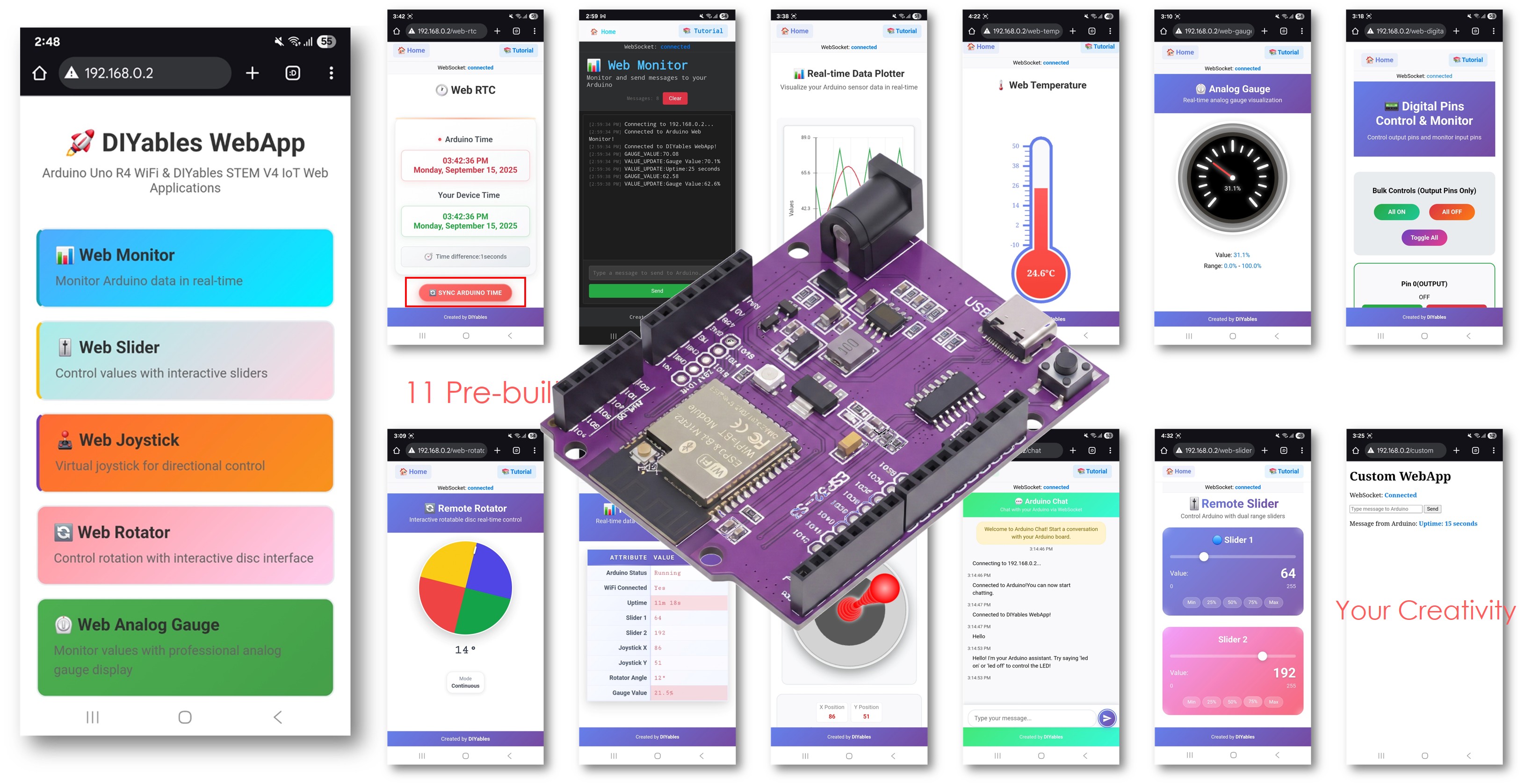
11 ready-made web applications
You can control the ESP32 S3 Uno without any web programming. The library includes:
- Home Page: the main page with links to every web app
- Web Monitor: a serial monitor in your browser, over WebSocket
- Web Chat: a chat box to talk with your board
- Web Digital Pins: turn digital pins on/off and watch their state
- Web Slider: two sliders for analog/PWM outputs
- Web Joystick: a touch joystick for robots and cars
- Web Analog Gauge: a round gauge to show sensor values
- Web Rotator: a rotating disc, in continuous or limited mode
- Web Temperature: a thermometer view with a range you set
- Web RTC: a real-time clock with time sync and time zone support
- Web Table: a two-column table (name and value) that updates live
- Web Plotter: draws live data as a graph
Custom web app template
A full template lets you build your own web app with live WebSocket messages.
Easy to use
The pages work on desktop and mobile. Updates arrive instantly over WebSocket. You use a simple callback API in your sketch. You can run many web apps at the same time, and each app you add gets a link on the home page by itself.
📦 Installation - Arduino IDE Library Manager
You install the library once from the Arduino IDE Library Manager. The IDE also offers to install the libraries it depends on, so accept that step too.
- Open the Arduino IDE.
- Open the Library Manager by clicking the Libraries icon on the left bar.
- Search for "DIYables ESP32 WebApps", then find the DIYables ESP32 WebApps Library by DIYables.
- Install it by clicking the Install button.
- Search for DIYables ESP32 WebApps created by DIYables and click the Install button.
- Install the dependencies. The IDE asks you to install other libraries the package needs. Click the Install All button.
- Tip: Make sure the library you install has "ESP32" in its name. The "DIYables WebApps" library without "ESP32" in its name is made for a different board and will not compile for the ESP32 S3 Uno.
🔧 Dependencies
The library needs one other library to handle the web server and WebSocket link. The Library Manager installs it for you when you click Install All.
| Library | Purpose |
|---|---|
| DIYables_ESP32_WebServer | Web server and WebSocket support |
🎯 Quick Start
Before you open any example, get your board ready. Then pick the example page that matches your project. Each one has full code and steps.
- New to the ESP32 S3 Uno? Follow ESP32 S3 Uno - Getting Started first.
- Connect the board to your computer with a USB Type-C cable.
- Open Arduino IDE, choose the ESP32S3 Dev Module board and the correct COM port.
- Install the library as shown above.
- Open an example from the list below, put your WiFi name and password in the code, and upload it.
- Tip: Use a 2.4GHz WiFi network. The ESP32 S3 Uno cannot join a 5GHz network.
Documentation and example tutorials
- API Reference Documentation - full API documentation
- Web Chat Example - a chat box to talk with your board
- Web Monitor Example - a serial monitor in your web browser
- Web Plotter Example - live data graph
- Web Digital Pins Example - control and watch digital pins
- Web Slider Example - two sliders for analog/PWM outputs
- Web Joystick Example - virtual joystick for direction control
- Web Analog Gauge Example - round gauge for sensor values
- Web Rotator Example - rotating disc for servo and stepper motors
- Web Temperature Example - thermometer view for temperature
- Web RTC Example - real-time clock with time sync from the browser
- Web Table Example - two-column table with live values
- CustomWebApp Template - template to build your own web app
- Multiple Web Apps Example - many web apps in one project
📱 Web Applications
Each web app lives at its own path on the board's web server. The short notes below tell you what each page does, so you can pick the right one for your project.
1. Home Page (`/`)
This is the main menu. It shows links only to the web apps you added in your code, and it shows whether the connection is live. The layout adapts to phone and desktop screens.
2. Web Monitor (`/web-monitor`)
A serial monitor that runs in your browser. Messages go both ways in real time. Each message gets a timestamp and a count, and the input box remembers your past commands.
3. Web Plotter (`/web-plotter`)
Draws live data as a graph with up to 8 lines. The Y-axis can scale by itself or use a fixed range. You can set the plot title and axis labels. Data streams over WebSocket with very little delay, which is great for watching sensors and finding bugs.
4. WebChat (`/chat`)
A chat page where the board answers your messages in plain language. You can also turn an LED on and off with chat commands. It is a fun way to learn how messages move between browser and board.
5. Web Digital Pins (`/web-digital-pins`)
Lets you control each pin on its own, for pin numbers 0-13. You set each pin as INPUT or OUTPUT, and only the pins you enable show up on the page. You can watch input and output states, and use bulk buttons (All ON/OFF, Toggle). On the ESP32 S3 Uno, these numbers mean the Uno labels D0 to D13, and your code maps each one to its real GPIO (see the Web Digital Pins tutorial).
6. Web Slider (`/web-slider`)
Two range sliders from 0 to 255 for PWM output. It also has preset value buttons and an option to move both sliders together.
7. Web Joystick (`/web-joystick`)
A joystick you drag with touch or mouse. It sends X and Y values from -100 to +100 and shows the position live. You choose in your code whether it springs back to the center. It is made for robot and car control.
8. Web Analog Gauge (`/web-gauge`)
A round gauge for live sensor values. You set the range, unit and precision once in the constructor. The needle moves smoothly, and green, yellow and red zones show the status. Good for pressure, voltage and other analog readings.
9. Web Rotator (`/web-rotator`)
A disc you can rotate on screen. It has two modes: Continuous (0-360°) and Limited (a custom range). The angle updates live, and it works with touch and mouse. It fits servo motors, stepper motors and other rotation control.
10. Web Temperature (`/web-temperature`)
A thermometer view for live temperature. You set the range and unit (°C, °F or K) once in the constructor. The mercury-style bar moves as new values arrive over WebSocket. Good for temperature and room sensors.
11. Web RTC (`/web-rtc`)
Shows two clocks: the ESP32 S3 Uno built-in RTC time and the time on your phone or PC. One click copies the browser time to the board, using your local time zone. The page shows the time difference in minutes, uses a 12-hour AM/PM format with the full date, and asks for the time as soon as it loads. Use it for timestamps, data logging, schedules and time-based automation.
12. Web Table (`/web-table`)
A two-column table of names and values. You build the table once in setup(), then update values while the program runs, with no page reload. It shows a friendly message when there is no data, has a refresh button, and loads data as soon as the page opens. It accepts text, numbers and formatted values, and holds up to 20 rows by default. Good for sensor data, system status and live dashboards.
13. CustomWebApp Template (`/custom`)
A full template to make your own web app. It uses a clean class-based design with its own APP_IDENTIFIER, so messages for your app are filtered from the rest. It sends simple text between the web page and the board, reconnects by itself, and works on phones, tablets and computers. The HTML, the board logic and the library glue are in separate files. The template also explains how to avoid conflicts when you make more than one custom app. Use it for custom IoT pages, sensor dashboards, control panels and school projects.
🧩 Modular Architecture
Memory is the main limit on any microcontroller. The DIYables ESP32 WebApps library lets you include only the web apps you really use, so unused pages do not take up RAM or flash.
Key Benefits
You add only the apps your project needs, and each one is independent. You can start with one or two apps and add more later. Fewer active apps also means better speed.
How It Works
You create one server object and one object for each web app you want. Then you add the app objects to the server and start it with your WiFi name and password. Apps you never create or add cost nothing.
Runtime Flexibility
You can add or remove apps while the program runs with addApp() and removeApp(). This lets you load an app only when a sensor or setting is present. You can also make your own app by inheriting from DIYablesWebAppPageBase. Changing which apps are active at runtime does not need a rebuild.
🔌 API Reference
The API page lists every class and method in the library, with usage examples. Keep it open while you write your own sketch.
📋 Examples
Each web app has its own example tutorial for the ESP32 S3 Uno. Every example page gives you step-by-step setup, hardware connection diagrams, full code, troubleshooting tips and project ideas.
- Web Chat Example - a chat box to talk with your board
- Web Monitor Example - a serial monitor in your web browser
- Web Plotter Example - live data graph
- Web Digital Pins Example - control and watch digital pins
- Web Slider Example - two sliders for analog/PWM outputs
- Web Joystick Example - virtual joystick for direction control
- Web Analog Gauge Example - round gauge for sensor values
- Web Rotator Example - rotating disc for servo and stepper motors
- Web Temperature Example - thermometer view for temperature
- Web RTC Example - real-time clock with time sync from the browser
- Web Table Example - two-column table with live values
- CustomWebApp Template - template to build your own web app
- Multiple Web Apps Example - many web apps in one project
🌐 Web Interface URLs
After the ESP32 S3 Uno joins your WiFi, it prints its IP address in the Serial Monitor. Type that address in your browser, followed by the path of the app you want.
| Web App | URL | |
|---|---|---|
| Home | http | //[IP_ADDRESS]/ |
| Web Chat | http | //[IP_ADDRESS]/chat |
| Web Monitor | http | //[IP_ADDRESS]/web-monitor |
| Web Plotter | http | //[IP_ADDRESS]/web-plotter |
| Web Digital Pins | http | //[IP_ADDRESS]/web-digital-pins |
| Web Slider | http | //[IP_ADDRESS]/web-slider |
| Web Joystick | http | //[IP_ADDRESS]/web-joystick |
| Web Analog Gauge | http | //[IP_ADDRESS]/web-gauge |
| Web Rotator | http | //[IP_ADDRESS]/web-rotator |
| Web Temperature | http | //[IP_ADDRESS]/web-temperature |
| Web RTC | http | //[IP_ADDRESS]/web-rtc |
| Web Table | http | //[IP_ADDRESS]/web-table |
| Custom App (CustomWebApp template) | http | //[IP_ADDRESS]/custom |
ESP32 S3 Uno Pinout
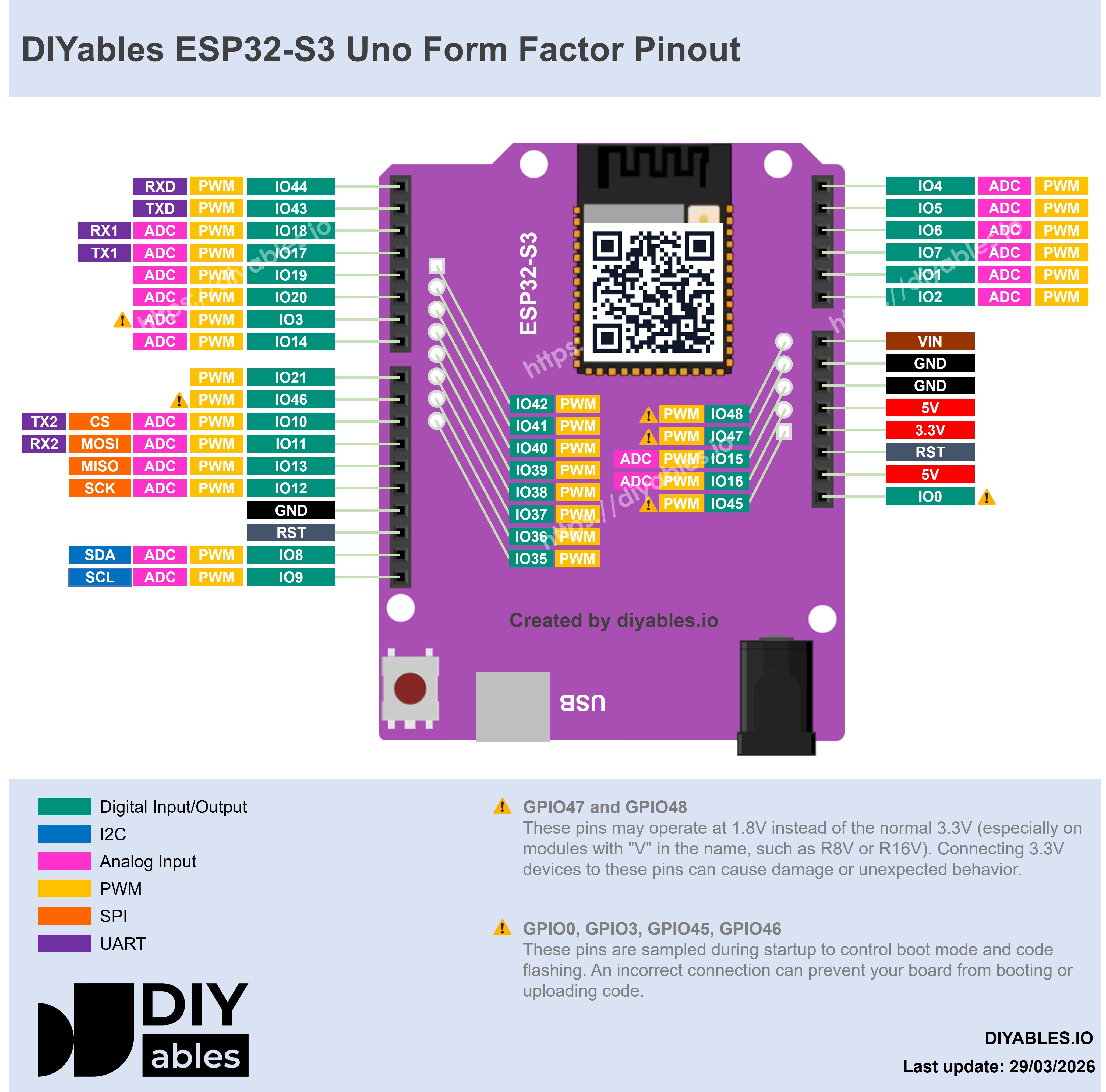
The image below shows the pinout diagram of the ESP32 S3 Uno form board. Use it to find the Uno header pins (D2, A0, SDA…) and their GPIO numbers when you connect LEDs, sensors or motors to your web apps.
💡 Usage Tips
A few simple habits make your web apps more stable and save you time when you debug.
- Save memory: Add only the web apps you need. The modular design is there for this.
- Keep WiFi strong: A weak signal makes the WebSocket link drop. Keep the board close to the router.
- Check the pins: ESP32 S3 Uno pins use 3.3V logic and are NOT 5V tolerant. Check what each pin can do before you connect a device.
- Use a good power supply: Motors, LED strips and other loads need their own power, not the board's pins.
- Use a modern browser: Chrome, Firefox, Safari and Edge all work well.
- Use your phone: Every page is responsive and works on small screens.
- Start small: Begin with one or two web apps, then add more as your project grows.
🔍 Common Connection Problems
Most problems come from WiFi, the WebSocket link, or too many apps running at once. Check these points first.
WiFi connection issues
Check the WiFi name (SSID) and password in your code. Make sure the signal is strong enough. Use a 2.4GHz network, because 5GHz is not supported.
WebSocket connection problems
Check your firewall settings and make sure you typed the right IP address. Try to reload the web page. Open the Serial Monitor to look for error messages.
Performance issues
Remove web apps you do not use to free RAM and flash memory. Keep only the features you need. Do not send high-speed data too often, and add sensible delays in loop(). For programs that run a long time, keep an eye on memory use.
📚 Advanced Usage
Once the basic apps work, you can manage apps at runtime and write your own pages. The examples below show the main ideas.
Dynamic App Management
The library can add and remove web apps while the program runs. This code adds a monitor page when a sensor is connected, removes the chat page, and turns D2 (GPIO18) into an output on the digital pins page.
Custom Web Applications
To make your own web app, create a class that inherits from DIYablesWebAppPageBase. The class below serves a small HTML page at /sensors and answers the WebSocket message get_data with a temperature value.
Custom HTML Pages
You can change the look and behavior of any page by editing the HTML files in the library's src/html/ folder.
Multiple WebSocket Clients
Several browsers can connect at the same time. This means more than one person can control the same ESP32 S3 Uno.
Integration with Other Libraries
The web apps work well next to sensor libraries, servo control (ESP32Servo), motor drivers and other Arduino libraries.
📄 License
The library is released under the MIT License. See the LICENSE file in the library for details.
FAQ
Can I use the "DIYables WebApps" library for the UNO R4 on the ESP32 S3 Uno?
No. That library is built on the UnoR4WiFi_WebServer library and only works on the UNO R4 WiFi. For the ESP32 S3 Uno, install "DIYables ESP32 WebApps", which uses DIYables_ESP32_WebServer. The class names and API are the same, so most example code moves over with only pin changes.
Which pin numbers do I use in the web app code?
Always use the GPIO number, not the label on the Uno header. For example, D2 is GPIO18, D7 is GPIO14 and D13 is GPIO12. Check the pinout image above. A pin number like 2 in code means GPIO2, which is the A0 header on this board.
Can the ESP32 S3 Uno connect to a 5GHz WiFi network?
No. The ESP32 S3 Uno WiFi radio only supports 2.4GHz. If your router has both bands, give the 2.4GHz band its own name or turn on 2.4GHz mode.
How many web apps can I run at the same time?
You can add many apps to one server, and each one gets a link on the home page. Each app uses some RAM and flash, so add only what you need. The ESP32 S3 Uno has much more memory than a classic Uno, but long-running projects should still keep the app list short.
Can I connect 5V sensors and modules to pins I control from the web page?
Not directly. ESP32 S3 Uno pins use 3.3V logic and are NOT 5V tolerant. A 5V module can still be powered from 5V, but any 5V signal that goes into a board pin needs a level shifter or a voltage divider.
What if my project needs more pins than the Uno headers give?
The ESP32 S3 Uno has two extra rows of holes with more GPIOs: GPIO15 and GPIO16 (I/O, PWM, analog), GPIO45 and GPIO35-GPIO42 (I/O, PWM), and GPIO47/GPIO48 (output only, PWM). Solder pin headers to use them and write the GPIO number in code. For web app projects, GPIO35-GPIO42 are good for extra LEDs, relays and buttons on the Web Digital Pins page, and GPIO15/GPIO16 are best for analog sensors shown on the gauge or plotter. Do not use GPIO47/GPIO48 for inputs. Be careful with two things. First, GPIO47/GPIO48 may run at 1.8V instead of 3.3V on some modules (especially ones with "V" in the name, like R8V or R16V), so 3.3V devices can be damaged or act strangely. Second, GPIO0, GPIO3 (D6), GPIO45 and GPIO46 (D9) are boot strapping pins, and a wrong connection can stop the board from booting or uploading code. Use the other extra pins first.
Troubleshooting
| Problem | Possible Cause | Solution |
|---|---|---|
| No COM port shows up in the Arduino IDE | USB driver missing or charge-only cable | Install the CP210x or CH340 driver, use a data USB cable, or hold BOOT while you press RESET |
| Compile error about DIYablesWebApps.h or a missing web server library | The non-ESP32 DIYables WebApps library is installed, or dependencies are missing | Install DIYables ESP32 WebApps and its dependencies with Install All |
| Board never connects to WiFi | Wrong SSID or password, or a 5GHz network | Check the WiFi name and password and use a 2.4GHz network |
| Web page opens but shows Disconnected | WebSocket port blocked or wrong IP address | Use the IP from the Serial Monitor, reload the page and check the firewall |
| Web app link is missing on the home page | The app was not added to the server | Call webAppsServer.addApp() for that app before begin() |
| Pin on the Web Digital Pins page does nothing | A GPIO number above 13 was passed, or the label was not mapped to its GPIO | Pass the label (0 to 13) to enablePin() and map it to the GPIO in your code |
| Board resets or pages stop loading | Power too weak for connected loads or too many apps | Power motors and LED strips from a separate supply and remove unused apps |
| Serial Monitor shows unreadable text | Baud rate does not match the code | Set the Serial Monitor to the same baud rate as Serial.begin() |