
ESP32 S3 UNO - Bluetooth and Bluetooth Low Energy
Overview
This ESP32 S3 Uno Bluetooth tutorial shows you how to connect the ESP32 S3 Uno form board to your phone with Bluetooth Low Energy (BLE) and the free DIYables Bluetooth App. The BLE radio is built into the chip, so you do not need an extra Bluetooth module. When you finish, you can send and receive data, move sliders and read sensor values on an Android or iOS phone.
In this tutorial, you will:
- Install the esp32 board core and the DIYables Bluetooth library in the Arduino IDE
- Set up the DIYables Bluetooth App on Android or iPhone
- Scan and connect to your board over BLE without pairing
- Pick the right BLE example for your project
BLE only, no Classic Bluetooth
The ESP32 S3 Uno supports Bluetooth Low Energy (BLE) only. It does not support Classic Bluetooth, so the BluetoothSerial library and the Classic Bluetooth examples do not work on this board. This is not a problem for the app: the DIYables Bluetooth App uses BLE on both Android and iOS, so every phone can connect.
Features
BLE is a good fit for small boards that talk to a phone. It uses little power, and the phone finds the board by itself. Here is what you get with the ESP32 S3 Uno and the DIYables Bluetooth App.
Wireless control
You can control your project from about 10 metres away, with no cable between the phone and the board.
Android and iOS
The app connects over BLE on both Android and iPhone, so one sketch works for all your users.
No manual pairing
With BLE you do not pair the board in the phone's Bluetooth settings. You just scan in the app and tap the board name.
Many ready-made widgets
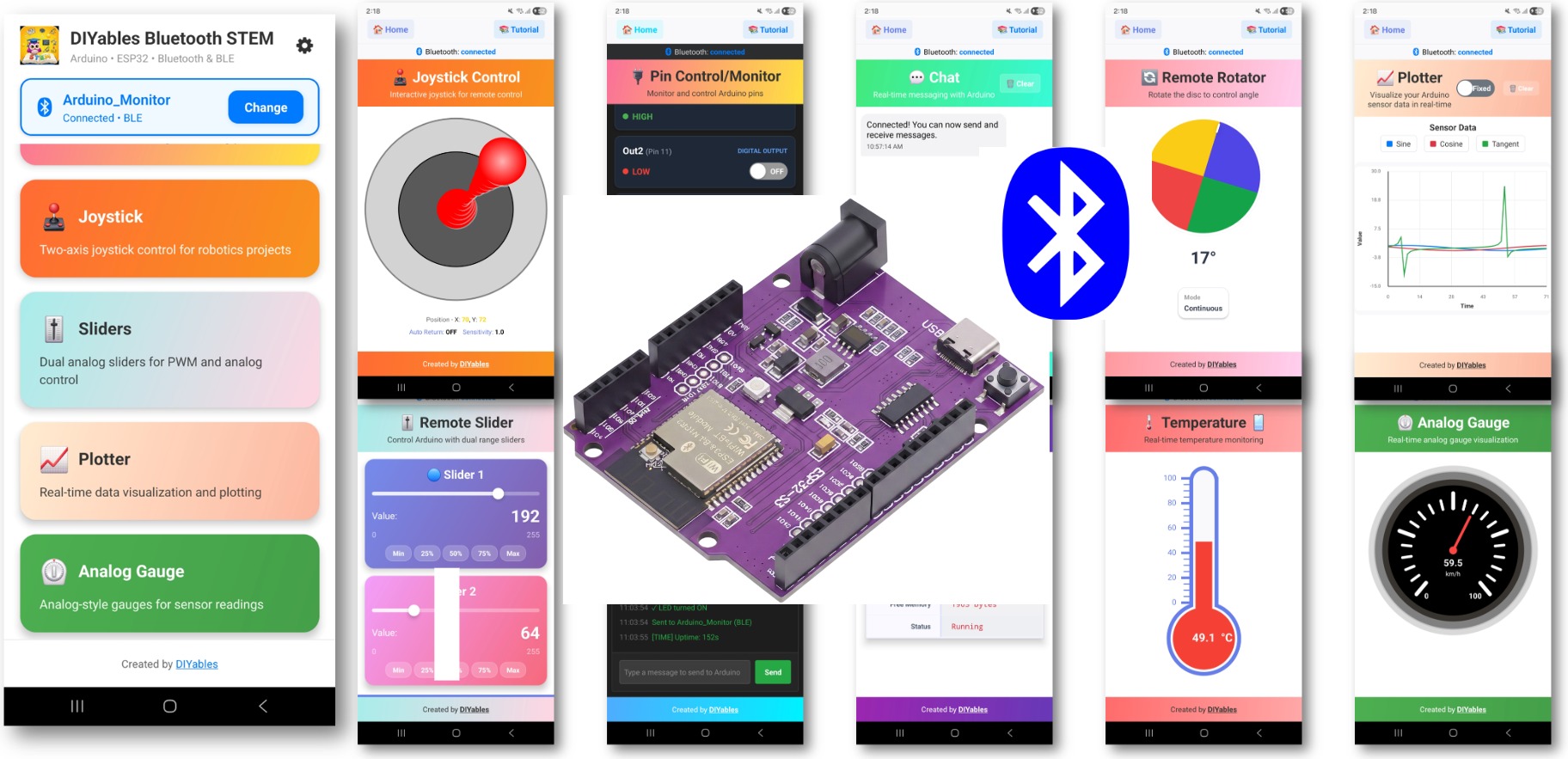
The app has sliders, a joystick, a monitor, a plotter, a gauge, a temperature view, chat, a table, a rotator and more.
Low power
BLE uses much less power than Classic Bluetooth. This helps if you run your project from a battery.
Simple setup
You install one library, and it handles all the BLE communication for you.
Hardware Preparation
Or you can buy the following kits:
| 1 | × | DIYables Sensor Kit (18 sensors/displays) |
Additionally, some of these links are for products from our own brand, DIYables .
ESP32 S3 Uno Pinout
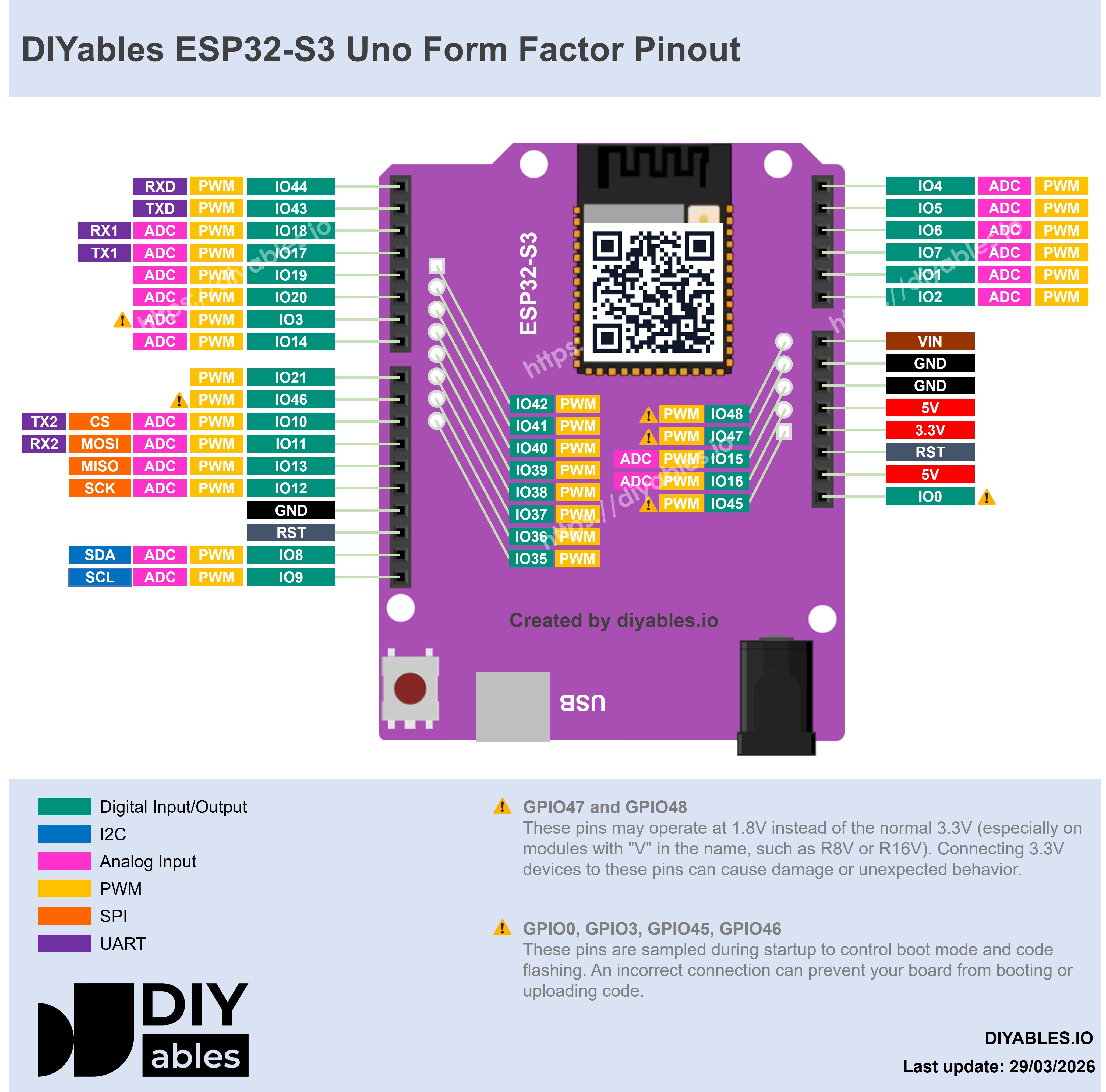
This guide needs no extra wiring, because the BLE radio is inside the board. When you build the example projects later, use the pinout diagram below to find the Uno header pins and their GPIO numbers.
Software Setup
You need two things in the Arduino IDE: the board core that knows how to build code for the ESP32 S3 Uno, and the DIYables Bluetooth library that talks to the app. You only do this once.
Detailed Instructions
- New to the ESP32 S3 Uno? Follow ESP32 S3 Uno - Getting Started first.
- Connect the board to your computer with a USB Type-C cable.
- Open Arduino IDE, choose the ESP32S3 Dev Module board and the correct COM port.
- Tip: The BLE radio is part of the ESP32 S3 Uno chip, so there is no separate Bluetooth firmware to update.
Install Board Core
- Open the Boards Manager from Tools Board Boards Manager...
- Search for "esp32".
- Install esp32 by Espressif Systems.
- Tip: If the core is already installed, update it to the newest version to get the latest BLE fixes.
Install DIYables Bluetooth Library
- Open the Library Manager by clicking the Libraries icon on the left bar of the Arduino IDE.
- Search for "DIYables Bluetooth" and find the DIYables Bluetooth library by DIYables.
- Install it by clicking the Install button.
- Search for DIYables Bluetooth created by DIYables and click the Install button.
- Install the dependencies. The IDE asks to install other libraries this one needs. Click Install All.
Mobile App
The app is the other half of every project. It shows the widgets on your phone and sends your taps and slider moves to the board over BLE.
- Open the app. The first time, it asks for some permissions. Allow them:
- Nearby Devices permission (Android 12 or newer) / Bluetooth permission (iOS). The app needs it to find and connect to Bluetooth devices.
- Location permission (Android 11 or older only). Older Android versions need it to scan for BLE devices.
- Turn on Bluetooth in your phone settings.
- Tap Connect. On the home screen, tap the Connect button. The app starts to scan for nearby BLE devices.
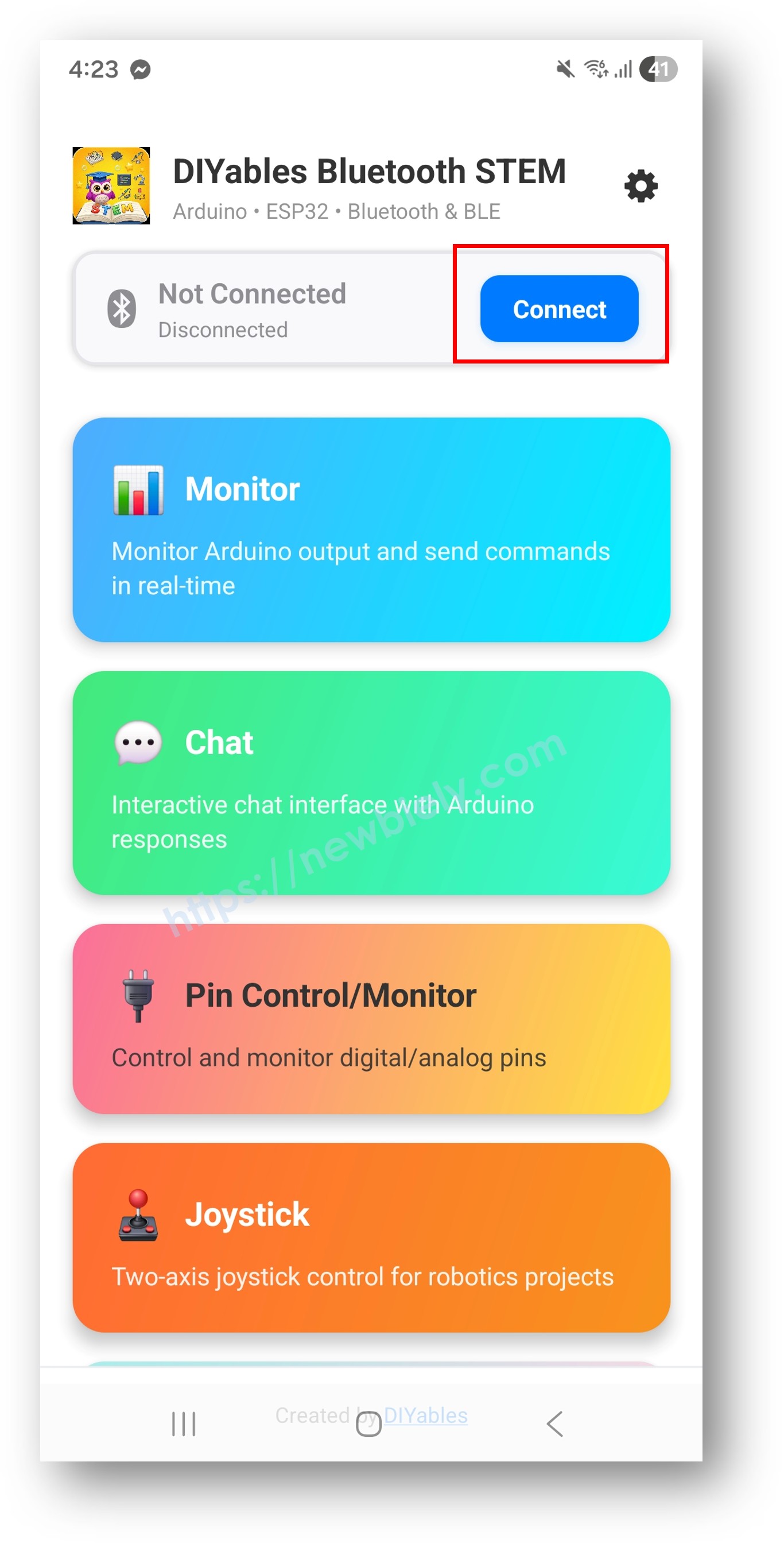
- Pick your board. Find the BLE name set in your sketch (for example ESP32BLE_Slider) in the list and tap it.
The app can also scan for Classic Bluetooth devices on Android. You can ignore that part, because the ESP32 S3 Uno always shows up as a BLE device.
Examples
Each example below is a full project with code, wiring and steps. They all use the BLE examples of the DIYables Bluetooth library, so they work on the ESP32 S3 Uno with both Android and iOS phones.
- ESP32 S3 Uno - Bluetooth Slider - Change values with one or two sliders
- ESP32 S3 Uno - Bluetooth Pin Control - Turn digital output pins on and off
- ESP32 S3 Uno - Bluetooth Monitor - A wireless serial monitor to send and receive text
- ESP32 S3 Uno - Bluetooth Plotter - Draw sensor data as live charts
- ESP32 S3 Uno - Bluetooth Analog Gauge - Show values on a round gauge
- ESP32 S3 Uno - Bluetooth Temperature - Show temperature and humidity
- ESP32 S3 Uno - Bluetooth Joystick - Read 2D joystick input from the app
- ESP32 S3 Uno - Bluetooth Rotator - Set a rotary or dial value from the app
- ESP32 S3 Uno - Bluetooth Chat - Send text messages both ways
- ESP32 S3 Uno - Bluetooth Table - Show data in a clean table
- ESP32 S3 Uno - Bluetooth RTC - Sync the board's clock from your phone
- ESP32 S3 Uno - Bluetooth Multiple Apps - Use many widgets in one sketch
Notes
A few small rules save you a lot of time when you open the library examples.
- Use the Esp32BLE_ examples. In the Arduino IDE, open File Examples DIYables Bluetooth and choose an example that starts with Esp32BLE_.
- Do not use the Esp32Bluetooth_ examples. They use Classic Bluetooth (BluetoothSerial), which the ESP32 S3 Uno does not have. They will not compile for this board.
- Do not use the ArduinoBLE_ examples. They are made for other boards.
- Keep the board powered from USB or an external supply. The board only shows up in the app while the sketch is running and advertising over BLE.
FAQ
Does the ESP32 S3 Uno support Classic Bluetooth?
No. The ESP32 S3 Uno has Bluetooth Low Energy (BLE 5) only. The BluetoothSerial library and the Esp32Bluetooth_ examples need Classic Bluetooth, so they do not work on this board. Use the Esp32BLE_ examples instead. They connect to the DIYables Bluetooth App on both Android and iOS.
Can I connect the ESP32 S3 Uno to an iPhone?
Yes. iPhones only talk to accessory boards over BLE, and BLE is exactly what the ESP32 S3 Uno uses. Install the DIYables Bluetooth App from the App Store, upload an Esp32BLE_ example, and tap the board name in the app.
Do I need to pair the ESP32 S3 Uno in my phone's Bluetooth settings?
No. BLE does not need manual pairing. Open the DIYables Bluetooth App, tap Connect, and choose your board from the scan list. If you paired it in the phone settings by mistake, remove it there and connect from the app.
Do I need to update any Bluetooth firmware like on the Arduino UNO R4 WiFi?
No. On the UNO R4 WiFi, Bluetooth runs on a separate module that has its own firmware. On the ESP32 S3 Uno, the BLE radio is inside the main chip. Just keep the esp32 board core and the DIYables Bluetooth library up to date.
Can I use WiFi and BLE at the same time on the ESP32 S3 Uno?
Yes, both can run in one sketch. They share the same 2.4GHz radio, so data can be a bit slower and the sketch uses more memory. If you see random disconnects, test BLE alone first, then add WiFi.
What if my project needs more pins than the Uno headers give?
The ESP32 S3 Uno has two extra rows of holes with more GPIOs. GPIO15 and GPIO16 work as I/O, PWM and analog. GPIO45 and GPIO35 to GPIO42 work as I/O and PWM. GPIO47 and GPIO48 are output only, with PWM. Solder pin headers to use them and write the GPIO number in code. For BLE projects, GPIO15/GPIO16 are good for extra sensors, and GPIO35 to GPIO42 are good for extra buttons, LEDs or relays. Use GPIO47/GPIO48 only for outputs. Be careful with two things. First, GPIO47 and GPIO48 may run at 1.8V instead of 3.3V on some modules (especially ones with "V" in the name, like R8V or R16V), so 3.3V devices can be damaged or act strangely. Second, GPIO0, GPIO3 (D6), GPIO45 and GPIO46 (D9) are boot strapping pins, and a wrong connection can stop the board from booting or uploading code. Use the other extra pins first.
Troubleshooting
| Problem | Possible Cause | Solution |
|---|---|---|
| No COM port shows up in the Arduino IDE | USB driver missing or charge-only cable | Install the CP210x or CH340 driver and use a USB data cable. If upload still fails, hold BOOT, press RESET, then release BOOT |
| Board does not show up when the app scans | Sketch not running, or a Classic Bluetooth example was uploaded | Upload an Esp32BLE_ example, press RESET, and check that Bluetooth is on in your phone |
| Compile error about BluetoothSerial or Bluetooth not enabled | An Esp32Bluetooth_ (Classic Bluetooth) example was used | The ESP32 S3 Uno has BLE only. Open the matching Esp32BLE_ example instead |
| Compile error about BLEDevice.h or a missing DIYables header | Library or board core not installed | Install the DIYables Bluetooth library with Install All, and install esp32 by Espressif Systems |
| Compile errors about the board | Wrong board selected | Choose ESP32S3 Dev Module in Tools then Board |
| App connects but no data comes through | Old library version or the wrong widget is open | Update the DIYables Bluetooth library and open the widget that matches your sketch |
| App connects and then drops at once | Weak USB power or phone too far away | Use a good USB cable and port, and keep the phone within about 5 metres |
| App asks to pair the board in phone settings | Phone is set to Classic Bluetooth mode | Connect from the app scan list, as BLE needs no pairing |