
ESP32 S3 UNO - Button Module
Need a start key, a "next mode" key or a big colorful game button for your ESP32 S3 Uno project? The button module is the quickest way to add one. Its resistor is already on the little board, so you only run three wires to the ESP32 S3 Uno form board and read one pin. On this page you will build the same idea three times, each version smarter than the one before.
What this page covers:
- The parts on the button module and the job of its VCC, OUT and GND pins
- Why the module must take 3.3V, not 5V, on the ESP32 S3 Uno
- Printing the raw OUT level from D7 (GPIO14) to the Serial Monitor
- Catching each press and release with a short delay() debounce
- Doing the same job without blocking the loop, using the ezButton library
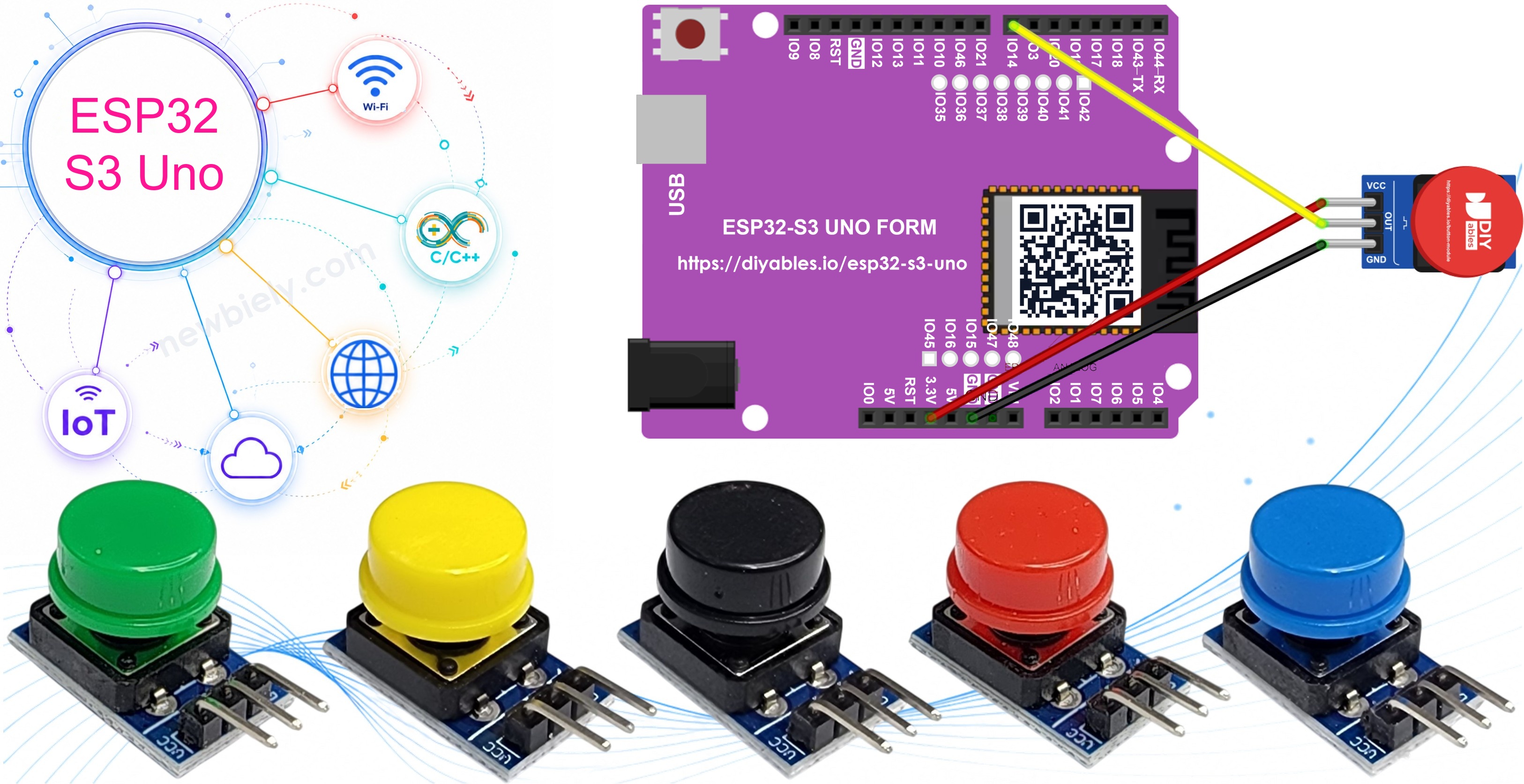
A button is the simplest way for a person to talk to your board. One press can ring a doorbell chime, start a timer, or tell a robot to stop.
Hardware Preparation
Or you can buy the following kits:
| 1 | × | DIYables Sensor Kit (18 sensors/displays) |
Additionally, some of these links are for products from our own brand, DIYables .
Overview of Button Module
In short, the button module is a push button that brings its own resistor. A momentary tactile switch with a colored cap is soldered to a small PCB, next to a pull-down resistor. The switch only closes while your finger holds the cap. When you let go, it springs back and the circuit opens again. A pack holds five modules in five cap colors: red, yellow, green, blue and white. That makes it easy to build a panel where every color means a different action.
Like every mechanical switch, it is not perfectly clean. The metal contacts bounce for a few milliseconds when they touch or let go, so one press can look like several quick presses to a fast board. Examples 2 and 3 below deal with that.
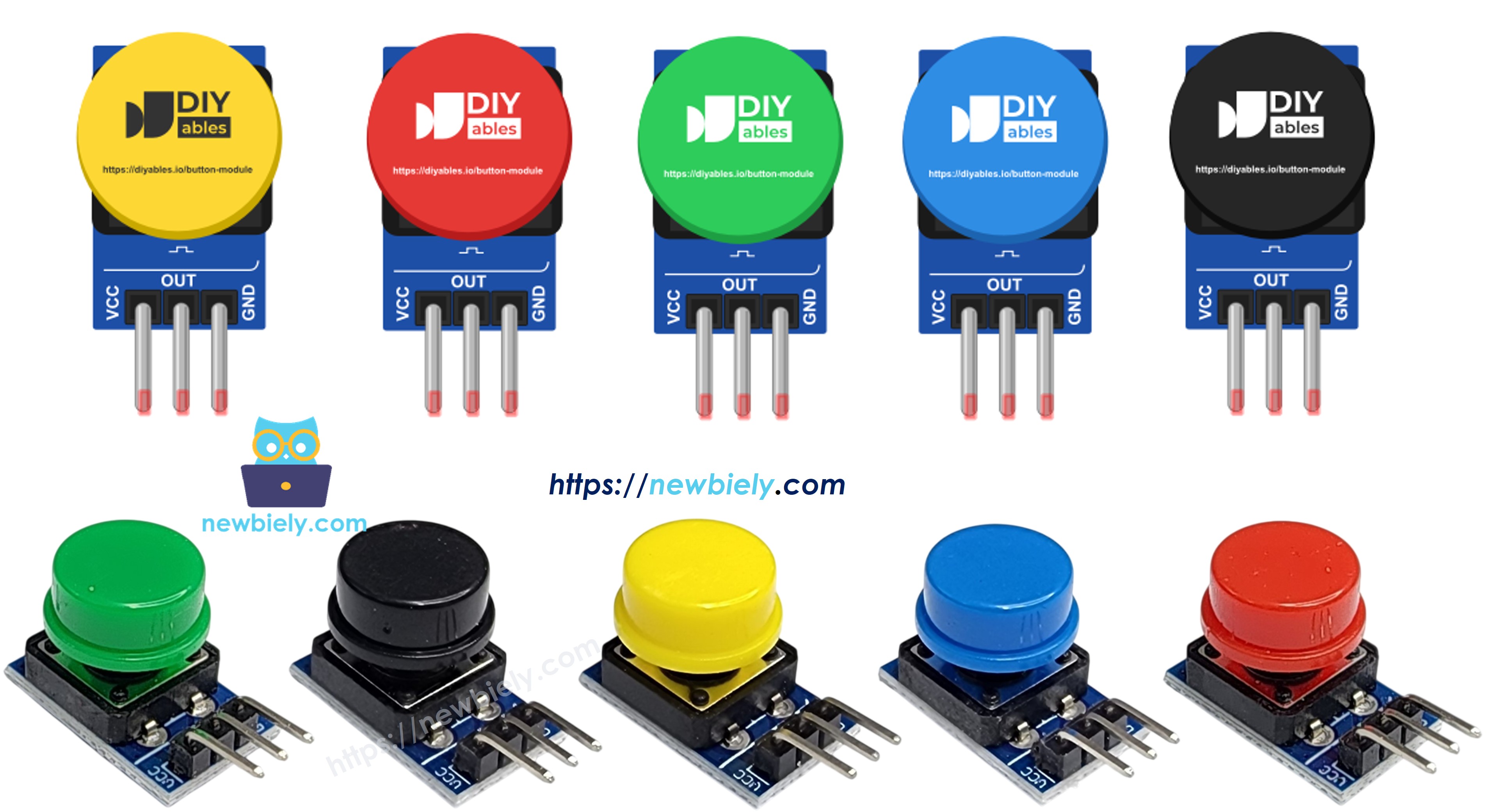
A 3-pin header with 2.54mm spacing sits on one edge. The labels on the board read VCC, OUT and GND, in that order:
- VCC: supply input, 3.3V to 5V DC. On the ESP32 S3 Uno, wire it to the 3.3V pin only.
- OUT: the signal pin. The on-board pull-down holds it LOW while the key is up. Pressing the key links OUT to VCC, so it goes HIGH. Wire it to a digital input, here D7 (GPIO14).
- GND: ground. Wire it to any GND pin of the ESP32 S3 Uno.
| Button Module | |
|---|---|
| Switch type | momentary tactile push button with cap |
| Cap colors | red, yellow, green, blue, white (5-pack) |
| Supply voltage | 3.3V to 5V DC |
| Header | 3 pins, 2.54mm pitch |
| Pin labels | VCC, OUT, GND |
| Resistor on board | pull-down on OUT |
| Released | OUT = LOW (0) |
| Pressed | OUT = HIGH (1), the same voltage as VCC |
ESP32 S3 Uno Pinout
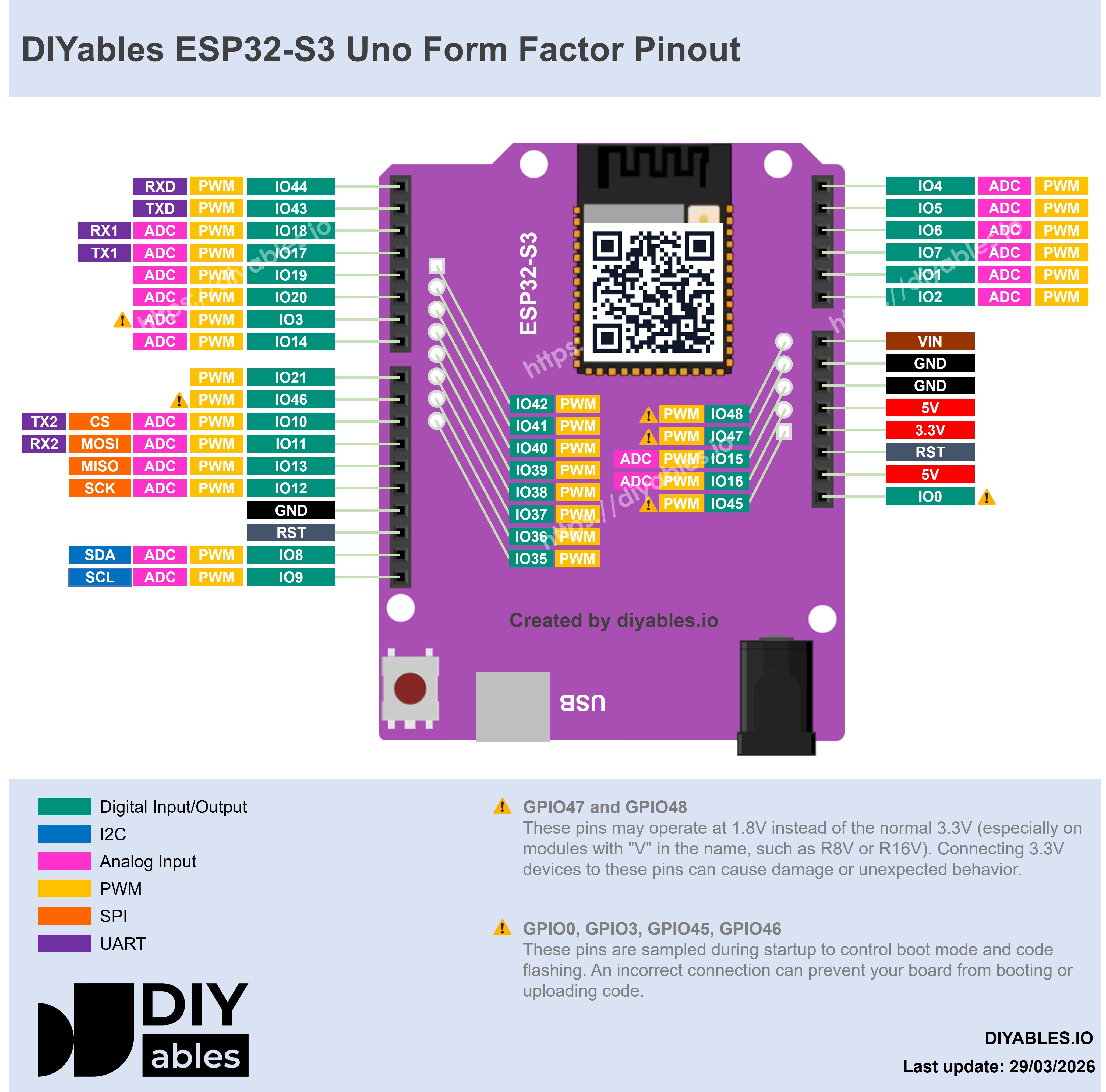
The image below shows the pinout of the ESP32 S3 Uno form board. Look for three spots before you wire: the 3.3V pin, a GND pin and the D7 header, which is GPIO14 inside the chip.
Wiring Diagram
No breadboard and no extra resistor go into this circuit. Three jumper wires join the module header directly to the ESP32 S3 Uno.
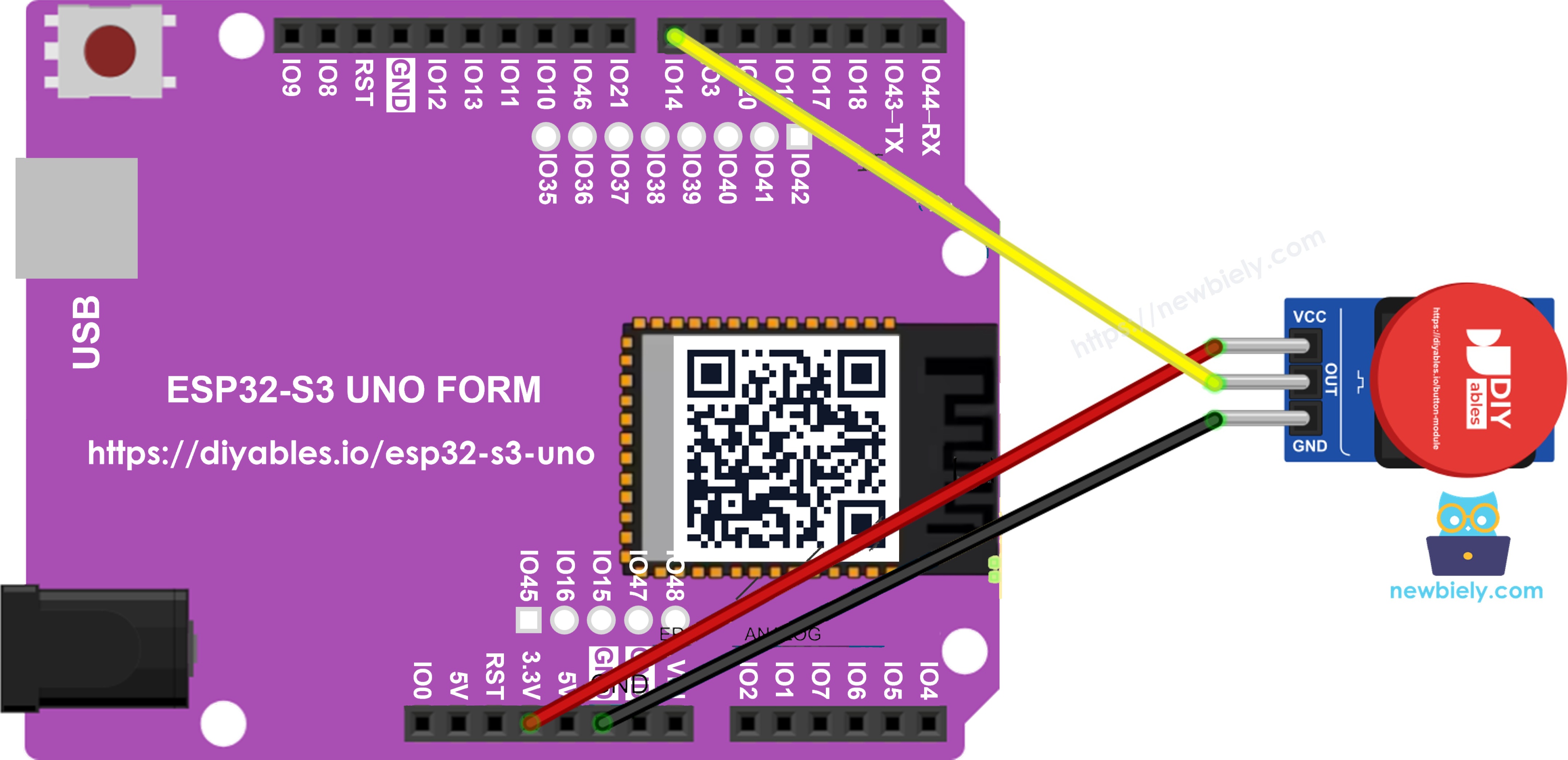
This image is created using Fritzing. Click to enlarge image
| Button Module Pin | ESP32 S3 Uno Pin |
|---|---|
| VCC | 3.3V |
| OUT | D7 (GPIO14) |
| GND | GND |
WARNING
Do not plug VCC into the 5V pin. When you press the key, OUT carries whatever voltage sits on VCC. With 5V on VCC, a press would push 5V into GPIO14, and the ESP32 S3 Uno GPIOs are 3.3V-only and not 5V tolerant. The pin, or the whole chip, could be damaged. The 3.3V pin powers the module fine.
D7 is a good home for a button on this board. It is a normal input pin, not a boot strapping pin, so holding the key down while the board resets causes no trouble.
ESP32 S3 Uno Code - Read the Button Module Level
The first sketch is a simple probe. About three times a second it reads OUT and prints the number it sees, plus a short "key down" or "key up" label. It is the fastest way to prove that the wires and the pin number are right.
Detailed Instructions
- First time with this board? Set up Arduino IDE with ESP32 S3 Uno - Getting Started.
- Make the three connections: VCC to 3.3V, OUT to D7, GND to GND. Check VCC twice before you plug in the USB cable.
- Plug in the board with a USB Type-C cable.
- In Arduino IDE, pick the ESP32S3 Dev Module board and the right COM port.
- Paste the sketch above into a new Arduino IDE window.
- Click Upload and wait until the IDE says it is done.
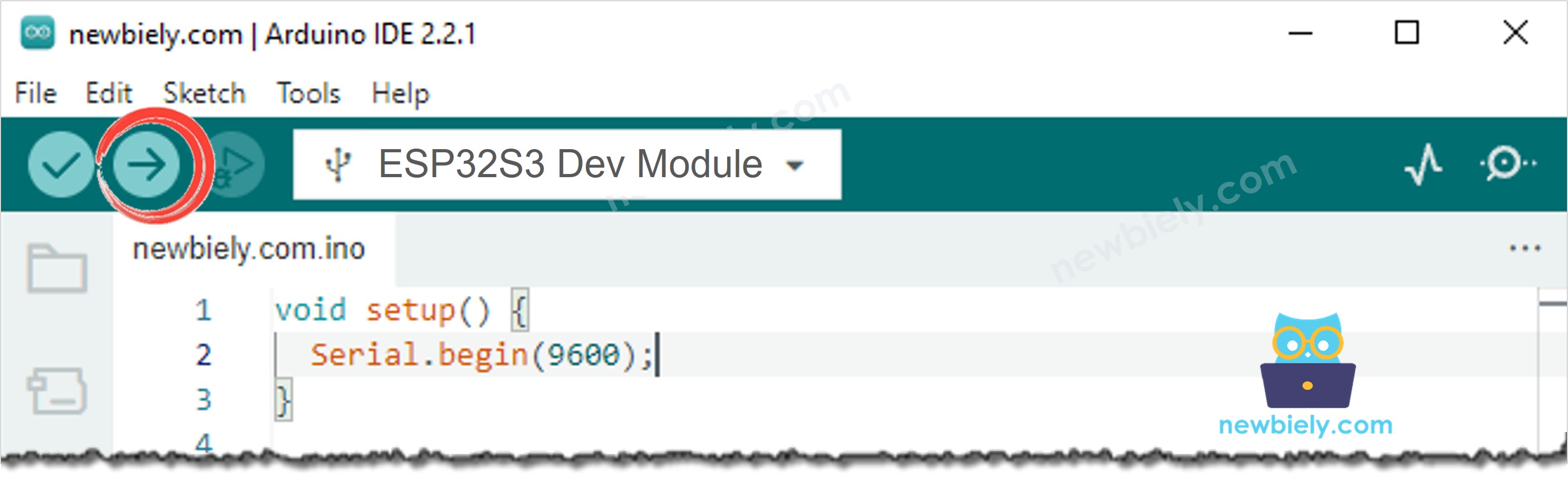
- Open the Serial Monitor at 9600 baud.
- Hold the cap down for about a second, then let go. The lines change while you hold it:
- Check: with nobody touching the module, the value should stay at 0 all the time. That steady 0 is the pull-down at work. If it jumps around, a wire is loose.
ESP32 S3 Uno Code - Press and Release Events with delay()
A level printout repeats the same line again and again. Most projects only care about the moment something changes: the key went down, or the key came up. This sketch remembers the last confirmed state. When a new reading differs, it waits 50 ms with delay(), reads OUT a second time, and only reports the change if it is still there. Bounces are over by then, so you get one clean message per action.
Detailed Instructions
- Leave the wiring as it is. It is the same for all three sketches.
- Paste this sketch into Arduino IDE and click Upload.
- Open the Serial Monitor at 9600 baud.
- Tap the cap three times, quickly and lightly:
- Keep in mind: while delay(50) runs, the ESP32 S3 Uno is stuck and cannot do anything else. For one button in a small test that is fine, but a busy sketch should not stop like this.
Video Tutorial
Watch the video below to see this ESP32 S3 Uno project step by step.
Additional Knowledge
Button module or a bare push button?
The ESP32 S3 Uno - Button tutorial uses a plain 4-leg push button. Both read the same way in the end, but the details differ:
| Bare 4-leg button | Button module | ||
|---|---|---|---|
| Resistor | needs a pull-up or pull-down, or INPUT_PULLUP | pull-down already on the PCB | |
| Pins | 4 legs in two joined pairs, easy to mix up | 3 labeled pins | VCC, OUT, GND |
| Reading when pressed | LOW with INPUT_PULLUP (inverted) | HIGH (not inverted) | |
| pinMode | INPUT_PULLUP | INPUT | |
| Breadboard | usually needed | not needed |
The bare button is cheap and teaches you about floating pins. The module saves wiring time and reads the natural way: pressed is 1.
Project ideas with the button module
- Doorbell: play a short tone on a buzzer each time the key goes down.
- Quiz buzzer: give each player a different cap color and print who pressed first.
- Mode key: step through LED modes, as in the ESP32 S3 Uno - Button - LED tutorial.
- Start/stop timer: start counting seconds on one press and stop on the next.
Function References
FAQ
Why must the button module use 3.3V on the ESP32 S3 Uno?
When the key is pressed, OUT is joined to VCC. The voltage on VCC goes straight to GPIO14. The ESP32 S3 Uno pins accept 3.3V at most, so 5V on VCC could damage the pin. At 3.3V the module works just as well.
Why is the reading 0 when I do not touch the key?
The pull-down resistor on the module holds OUT at LOW. Only a press pulls it up to VCC. So 0 means released and 1 means pressed. This is the opposite of a bare button with INPUT_PULLUP.
Can I use INPUT_PULLUP with the button module?
No. The internal pull-up and the module's pull-down would pull OUT in two directions at once. The released level may sit halfway and read badly. Use pinMode(pin, INPUT), or EXTERNAL_PULLDOWN with ezButton.
My ezButton code shows "pressed" when I release the key. Why?
The button was created without EXTERNAL_PULLDOWN, so the library expects the inverted pull-up logic. Write ezButton button(14, EXTERNAL_PULLDOWN); and make sure ezButton is version 1.0.6 or newer.
Can I move OUT to another pin?
Yes. Any normal digital header works, for example D4 or D5. Change BUTTON_MODULE_PIN to the matching GPIO number. Avoid D0 and D1 (USB serial). Also avoid D6 (GPIO3) and D9 (GPIO46), the boot strapping pins: a held key during reset could stop the board from starting.
What if my project needs more pins than the Uno headers give?
The ESP32 S3 Uno has two extra rows of holes with more GPIOs: GPIO15 and GPIO16 (I/O, PWM, analog), GPIO45 and GPIO35 to GPIO42 (I/O, PWM), and GPIO47/GPIO48 (output only, PWM). Solder pin headers to use them and write the GPIO number in code. For more button modules, GPIO35 to GPIO42, GPIO15 and GPIO16 are good picks. Never use GPIO47 or GPIO48, because they cannot read inputs, and they may run at 1.8V instead of 3.3V on some modules (especially ones with "V" in the name, like R8V or R16V). Also keep away from GPIO0, GPIO3 (D6), GPIO45 and GPIO46 (D9), the boot strapping pins, because a wrong level there can stop the board from booting or uploading code.
Troubleshooting
| Problem | Possible Cause | Solution |
|---|---|---|
| No COM port in Arduino IDE | USB driver missing or charge-only cable | Install the CP210x or CH340 driver, use a data USB cable, or hold BOOT while pressing RESET |
| Reading stays at 0 when pressed | VCC wire missing or wrong pin number in code | Connect VCC to 3.3V and use 14 for D7, not 7 |
| Reading stays at 1 all the time | OUT wire touches 3.3V, or INPUT_PULLUP is used | Check the OUT wire and use pinMode INPUT |
| Pressed and released are swapped in ezButton | EXTERNAL_PULLDOWN missing | Create the button with ezButton button(14, EXTERNAL_PULLDOWN) |
| Compile error about EXTERNAL_PULLDOWN | Old ezButton version | Update ezButton to 1.0.6 or newer in the Library Manager |
| One press prints two events | Contact bounce | Use example 2 or 3, or raise the debounce time to 80 ms |
| Serial Monitor shows strange characters | Baud rate does not match | Set the Serial Monitor to 9600 baud |