
ESP32 S3 UNO - LED Module
This ESP32 S3 Uno LED module tutorial shows you how to plug a ready-made 10mm LED module into the ESP32 S3 Uno form board and drive it with Arduino code. The module needs only three jumper wires: no resistor, no breadboard, and no worry about which LED leg is which. You will first make it flash once per second, and then make it glow up and down smoothly with PWM.
In this tutorial, you will:
- Find out what is on the small LED module board and what its GND, VCC and IN pins do
- Connect the LED module to pin D9 (GPIO46) of the ESP32 S3 Uno with three wires
- Flash the LED module on and off and log each change in the Serial Monitor
- Dim the LED module in and out with analogWrite()
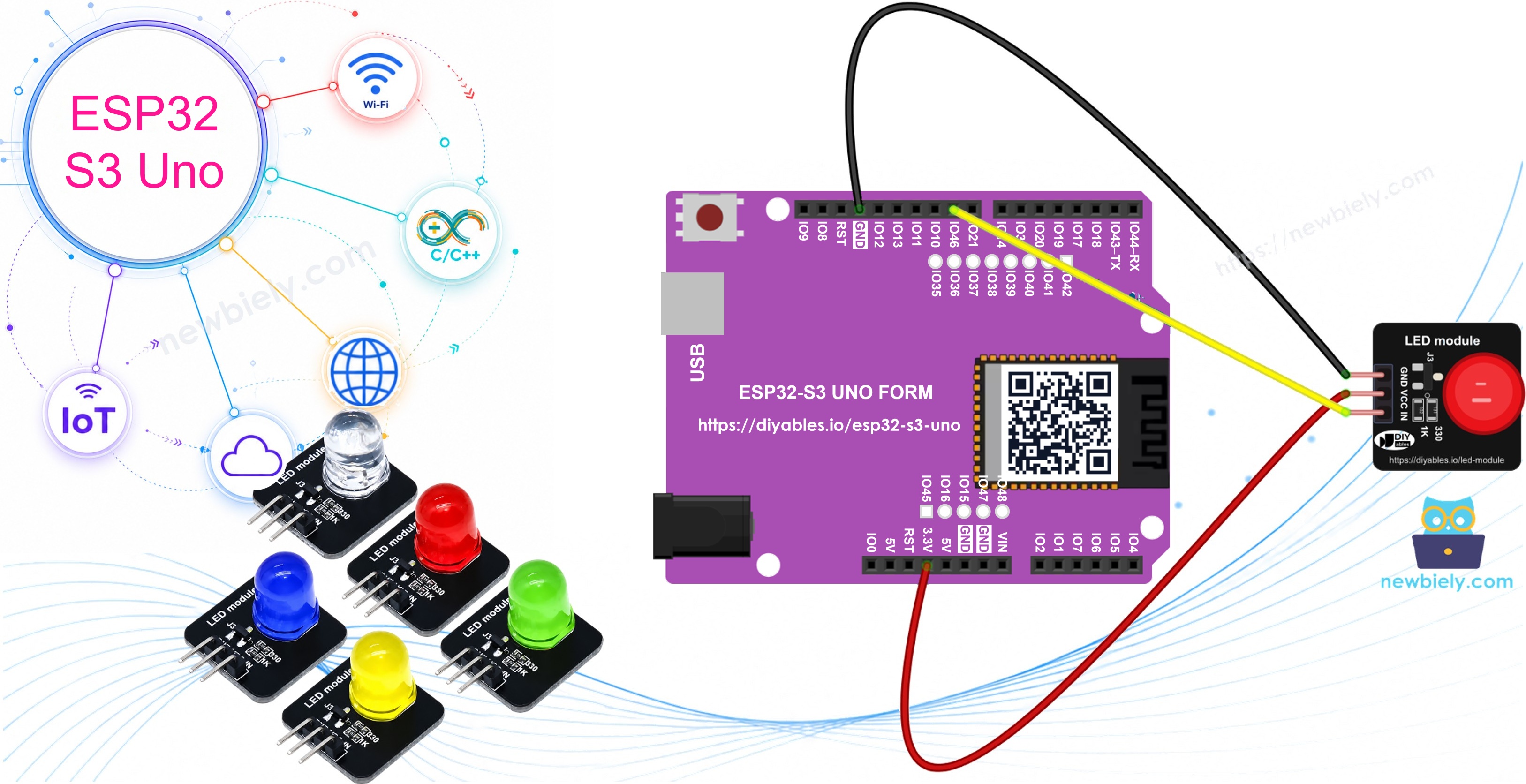
A single bright light is often all a project needs to tell you something: "WiFi is connected", "the tank is full", "the door is open". The LED module gives you that light in a tidy, ready-to-wire form.
Hardware Preparation
Or you can buy the following kits:
| 1 | × | DIYables Sensor Kit (18 sensors/displays) |
Additionally, some of these links are for products from our own brand, DIYables .
Buy Note: Use the LED Module for easier wiring. It includes an integrated resistor.
Overview of LED Module
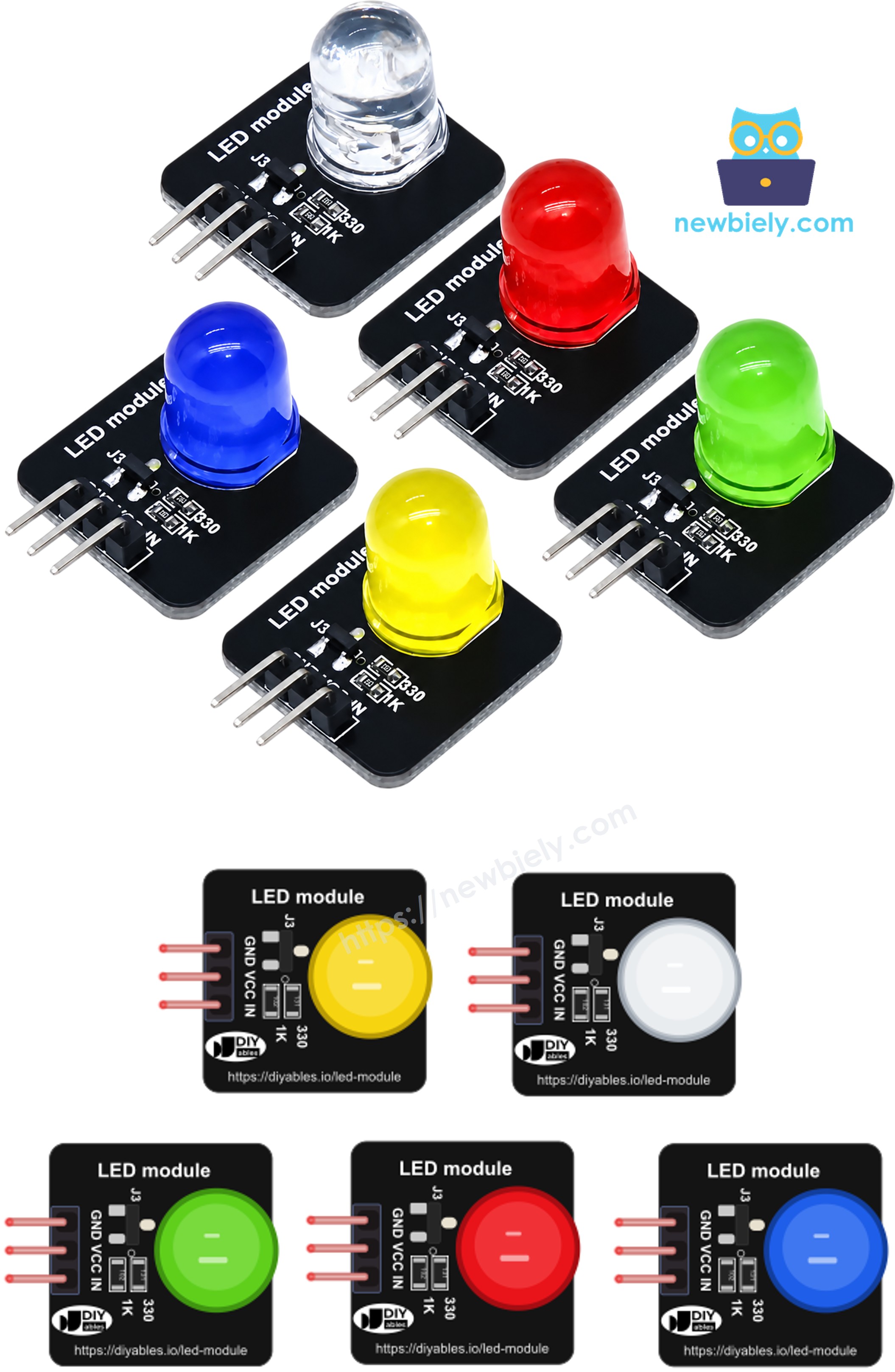
Think of the LED module as an LED that already has its helpers soldered next to it. A 10mm round, diffused LED sits on a small 20mm x 20mm black board, together with a 330Ω resistor that limits the LED current, a 1KΩ resistor, and a tiny transistor that works as a switch. The LED takes its power from the VCC pin. The IN pin only tells the transistor to open or close, so your ESP32 S3 Uno pin gives a very small current and the LED still shines at full strength.
The modules come in a pack of five colors: red, yellow, blue, green and white. Pick one color per job, for example green for "OK" and red for "error".
Pinout
The board has a 3-pin right-angle male header (2.54mm pitch), already soldered. The pins are printed on the board in this order:
GND pin
The ground pin. Connect it to a GND pin of the ESP32 S3 Uno.
VCC pin
The power pin for the LED. It accepts 3.3V to 5V DC. In this tutorial it goes to the 5V pin, so the blue and white modules stay bright too.
IN pin
The control pin. It is active HIGH: HIGH turns the LED on, LOW turns it off. A PWM signal on this pin makes the LED dimmer or brighter. Connect it to an ESP32 S3 Uno output pin with PWM.
Specifications
| LED Module | |
|---|---|
| LED | 10mm round, diffused |
| Colors | red, yellow, blue, green, white (pack of 5) |
| Board size | 20mm x 20mm |
| Operating Voltage | 3.3V to 5V DC |
| Header | 3-pin, 2.54mm, right-angle, presoldered |
| Pin order | GND, VCC, IN |
| Control logic | active HIGH (HIGH = ON) |
| On-board parts | 330Ω LED resistor, 1KΩ input resistor, transistor switch |
ESP32 S3 Uno Pinout
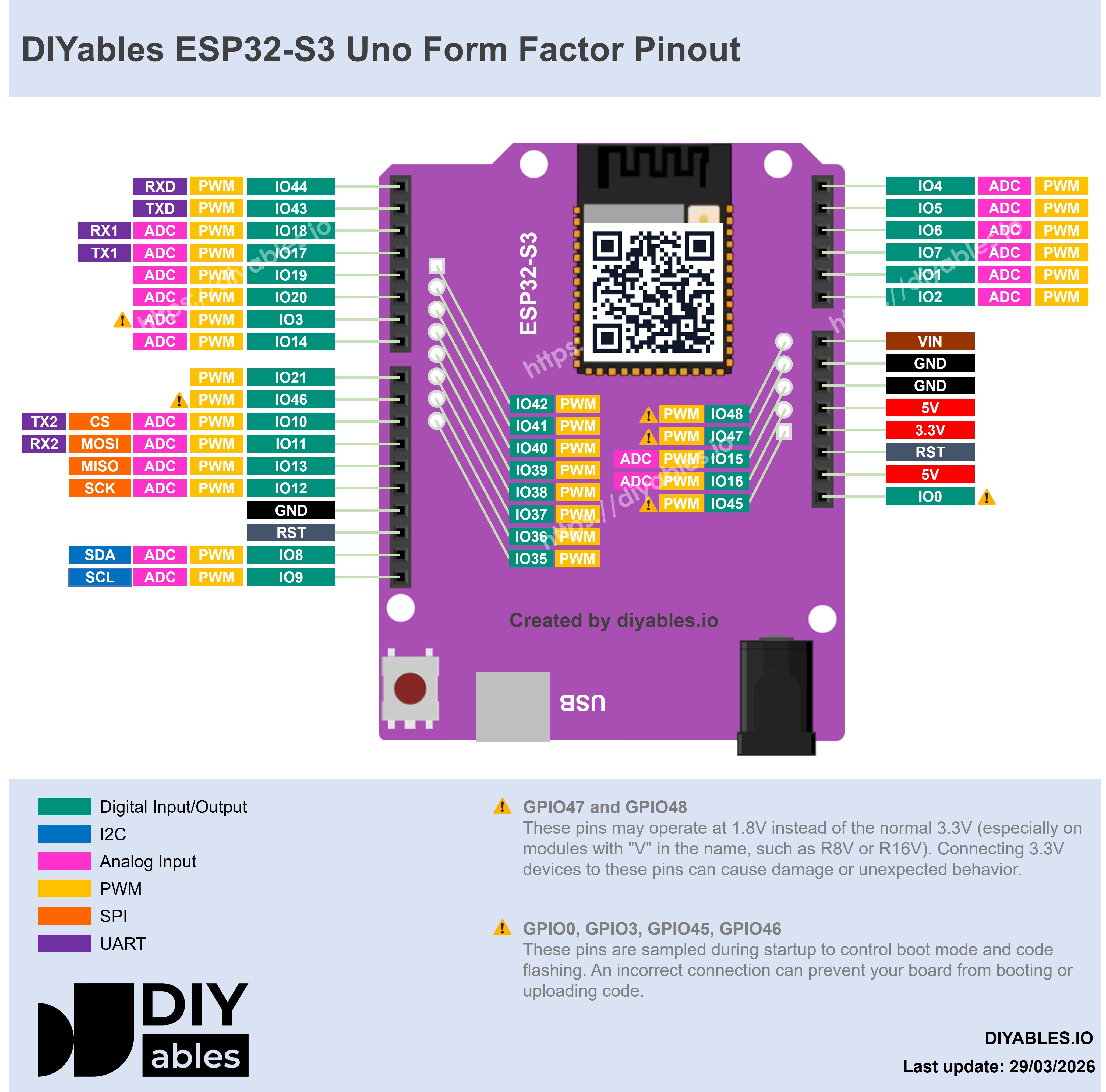
The image below shows the pinout of the ESP32 S3 Uno form board. Use it to find the 5V pin, a GND pin and the D9 header (GPIO46) before you connect the module.
Wiring Diagram
Three female-to-male jumper wires are all you need. The module plugs straight onto them, and its built-in resistor means nothing else goes in between.
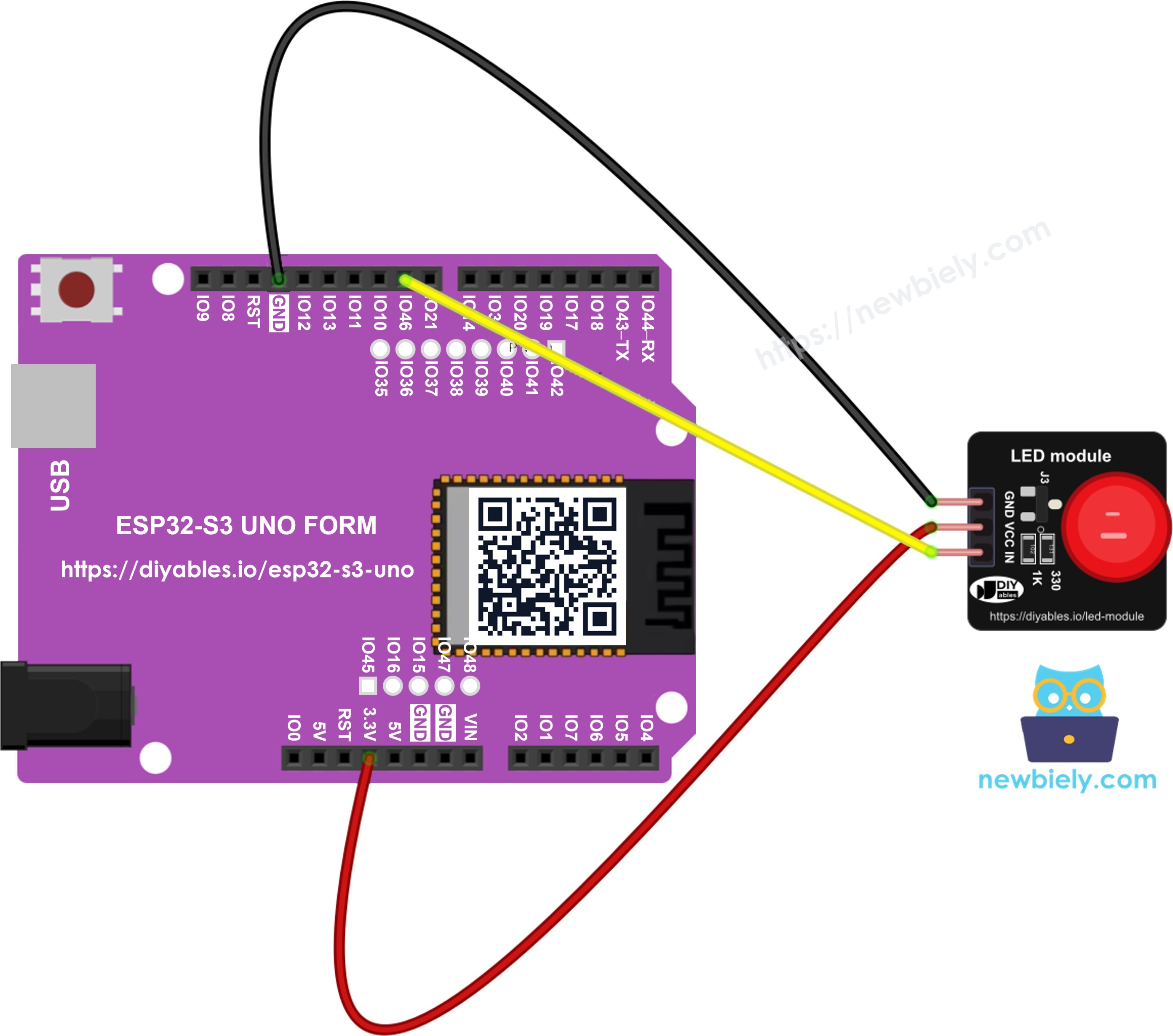
This image is created using Fritzing. Click to enlarge image
| LED Module Pin | ESP32 S3 Uno Pin |
|---|---|
| GND | GND |
| VCC | 5V |
| IN | D9 (GPIO46) |
Powering VCC from 5V is safe for the ESP32 S3 Uno. The 5V only feeds the LED through the 330Ω resistor. The IN pin goes into the transistor through the 1KΩ resistor, and it never sends 5V back to D9. If you prefer, you can use the 3.3V pin for VCC. Red, yellow and green modules still look bright, but blue and white ones look a little dim.
WARNING
D9 is GPIO46 on the ESP32 S3 Uno, and GPIO46 is a boot strapping pin. The board reads its level at startup. The IN pin of the LED module pulls it gently toward LOW, which is normally fine. If the board does not start or the upload fails, unplug the IN wire from D9 for a moment, upload the code, then plug it back in.
How To Program For LED Module
The module works like a normal LED from the code side, so only built-in Arduino functions are needed. There is no library to install.
- Give the pin a name. The D9 header is GPIO46, so the code uses 46:
- In setup(), make the pin an output:
- Switch the module fully on or off:
- Or choose a brightness from 0 (dark) to 255 (full):
ESP32 S3 Uno Code - LED Module Blink
This sketch turns the LED module on for one second and off for one second, forever. It also counts the flashes and prints each change to the Serial Monitor, so you can see that the code and the light stay in step.
Detailed Instructions
- New to the ESP32 S3 Uno? Follow ESP32 S3 Uno - Getting Started first.
- Wire it up as shown in the diagram: GND to GND, VCC to 5V, IN to D9.
- Connect the board to your computer with a USB Type-C cable.
- Open Arduino IDE, choose the ESP32S3 Dev Module board and the correct COM port.
- Copy the code above and paste it into the Arduino IDE.
- Upload the code by clicking the Upload button.
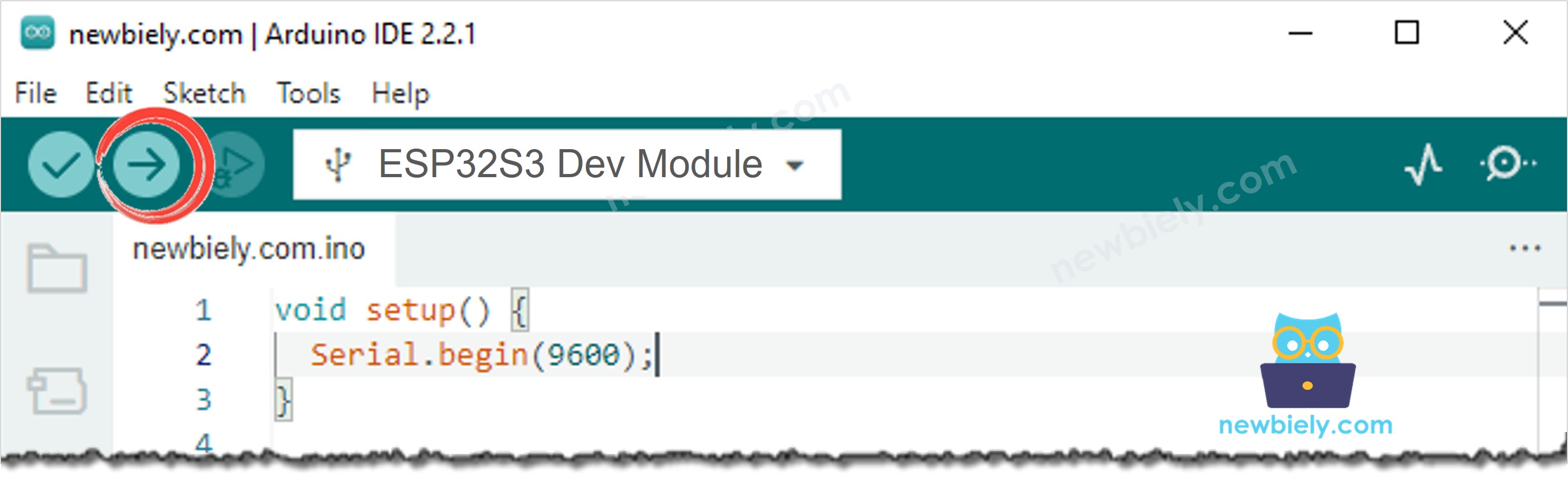
- Look at the module. The LED lights for one second, then goes dark for one second.
- Open the Serial Monitor and set it to 9600 baud. Each state change shows up as a new line:
- Tip: set the ON delay to delay(100) and the OFF delay to delay(1900). You get a short "heartbeat" flash every two seconds, a nice sign that your board is still running.
ESP32 S3 Uno Code - LED Module Fade
Because the IN pin accepts PWM, the same wiring can also dim the LED. This sketch raises the brightness from 0 to 255 in about two seconds, lowers it back to 0 in about two seconds, rests for half a second, and starts again.
Detailed Instructions
- Keep the same wiring as in the blink example. Nothing changes on the hardware side.
- Copy the fade code above into a new sketch in Arduino IDE.
- Upload it with the Upload button.
- Watch the module glow up slowly, then fade back down, like a breathing light.
- Open the Serial Monitor at 9600 baud. A line appears at each end of the fade:
- Tip: change delay(8) to delay(3) for a quick pulse, or to delay(20) for a slow, calm glow.
Code Explanation
Each line of both sketches has a comment that says what it does. In the fade sketch, the two for loops do all the work. The first loop counts the brightness up from 0 to 255, and the second counts it down again. analogWrite() sends each value to the IN pin as a PWM signal. On the ESP32 S3 Uno, analogWrite() uses an 8-bit range (0 to 255) by default, the same as on other Arduino boards.
※ NOTE THAT:
Both sketches use delay(), so the board waits and does nothing else during each pause. That is fine for learning. If your project must also read a button or a sensor, use millis() instead, as shown in the ESP32 S3 Uno - Blink LED Without Delay and ESP32 S3 Uno - Fade LED tutorials.
Video Tutorial
Watch the video below to see this ESP32 S3 Uno project step by step.
Additional Knowledge
LED module or bare LED?
You can do the same job with a bare LED, as in the ESP32 S3 Uno - Blink LED tutorial. Here is what changes:
| Bare LED | LED Module | |
|---|---|---|
| Series resistor | you must add one (for example 220 ohm) | already on the board |
| Polarity | anode and cathode must not be swapped | pins are labeled GND, VCC, IN |
| Breadboard | usually needed | not needed, plugs onto jumper wires |
| Current from the ESP32 S3 Uno pin | all of the LED current | only a tiny control current |
| Brightness at 3.3V logic | limited by the pin | set by VCC, so 5V gives full brightness |
For a first experiment, the bare LED teaches you how current and resistors work. For a real build, the module is quicker to wire and harder to get wrong.
Ideas for the LED module
- Fault light: turn on a red module when a sensor reading goes out of range.
- WiFi status light: keep a green module on while the ESP32 S3 Uno is connected to WiFi, and blink it while it reconnects.
- Traffic light model: use a red, a yellow and a green module on three pins.
- Night light: fade a white module up slowly when a light sensor sees darkness.
Function References
FAQ
Do I need a resistor between the ESP32 S3 Uno and the LED module?
No. The 330Ω resistor for the LED and the 1KΩ resistor on the IN line are already on the module. Connect the IN pin straight to D9.
Should VCC go to 3.3V or 5V on the ESP32 S3 Uno?
Both work, because the module runs from 3.3V to 5V. This tutorial uses 5V, so every color, including blue and white, gets full brightness. The IN pin only drives the transistor, so 5V on VCC never reaches the GPIO.
Why does the code use 46 and not 9?
On the ESP32 S3 Uno, the Uno header label D9 is wired to GPIO46. Arduino code always uses the GPIO number, so LED_MODULE_PIN is 46.
Can I move the IN wire to another pin?
Yes. Any Uno header pin with PWM works, for example D5 (GPIO20) or D7 (GPIO14). Change LED_MODULE_PIN to the new GPIO number. These pins also avoid the boot strapping issue of D9. Do not use D0 and D1, because they carry the USB serial data.
How many LED modules can I connect?
Give each module its own output pin. GND and VCC can be shared by all of them. Since each IN pin draws only a tiny current, the ESP32 S3 Uno pins are not stressed. The LED current comes from the 5V supply instead.
What if my project needs more pins than the Uno headers give?
The ESP32 S3 Uno has two extra rows of holes with more GPIOs: GPIO15 and GPIO16 (I/O, PWM, analog), GPIO45 and GPIO35 to GPIO42 (I/O, PWM), and GPIO47/GPIO48 (output only, PWM). Solder pin headers to use them and write the GPIO number in code. For extra LED modules, GPIO35 to GPIO42 are a good choice. Be careful with two things. First, GPIO47/GPIO48 may run at 1.8V instead of 3.3V on some modules (especially ones with "V" in the name, like R8V or R16V), which may be too low to switch the module reliably. Second, GPIO0, GPIO3 (D6), GPIO45 and GPIO46 (D9) are boot strapping pins, and a wrong connection can stop the board from booting or uploading code.
Troubleshooting
| Problem | Possible Cause | Solution |
|---|---|---|
| No COM port in Arduino IDE | USB driver missing or charge-only cable | Install the CP210x or CH340 driver, use a data USB cable, or hold BOOT while pressing RESET |
| Upload fails or board does not start | IN wire on D9 (GPIO46), a boot strapping pin | Unplug the IN wire from D9, upload the code, then reconnect it |
| LED module never lights | VCC or GND wire missing | Check that VCC goes to 5V and GND goes to GND |
| LED module never lights | Wrong pin number in code | Use 46 for D9, not 9 |
| LED module is always on | IN wire is on 5V or 3.3V instead of D9 | Move the IN wire to D9 (GPIO46) |
| Blue or white module looks dim | VCC is on 3.3V | Move the VCC wire to the 5V pin |
| LED blinks but does not fade | Pin without PWM or old board package | Use a PWM pin and update esp32 by Espressif Systems in the Boards Manager |
| Strange characters in the Serial Monitor | Baud rate does not match | Set the Serial Monitor to 9600 baud |