
Arduino UNO Q - 2-Channel Relay Module
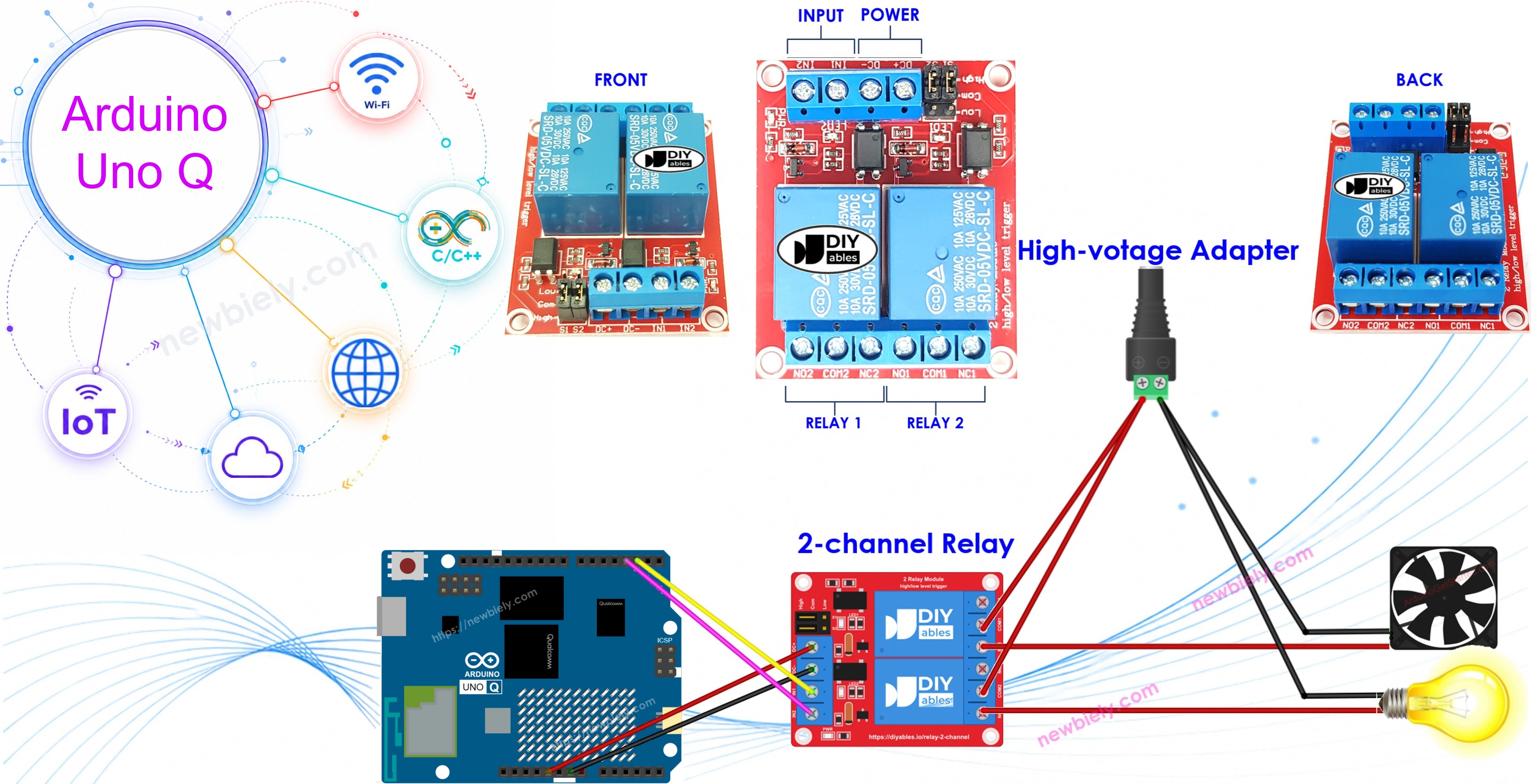
Do you have a pump and a lamp that should run on their own schedules, and you would like to switch them from your phone? One small board with two relays can do it. On the Arduino UNO Q, the STM32 MCU drives both relays, and the Linux side adds Python control and a Telegram bot on top.
In this tutorial, you will learn:
- What is on a 2-channel relay module and how its jumpers change the trigger level
- How to wire the module to the Arduino UNO Q
- How to program the MCU (C/C++) to switch both relays
- How to switch each relay from Linux (Python) through Bridge
- How to turn each relay on or off from Telegram and ask for its status
- How to use OpenClaw on Arduino UNO Q with the 2-channel relay module
WARNING
A relay can switch mains voltage, and mains voltage can kill. If you have never worked with it, ask a person with electrical training to help you. For your first tests, use a low-voltage DC load (24V or less) instead.
Hardware Preparation
Or you can buy the following kits:
| 1 | × | DIYables Sensor Kit (18 sensors/displays) |
Additionally, some of these links are for products from our own brand, DIYables .
Overview of 2-Channel Relay Module
Think of this module as two separate switches on one board. They share the power pins, but each relay has its own control input and its own set of output screws. Two single relay modules would do the same job, yet one 2-channel board needs fewer wires, fits in a smaller box and is cheaper. The code does not change: one pin per relay, just like with single modules.
Pinout
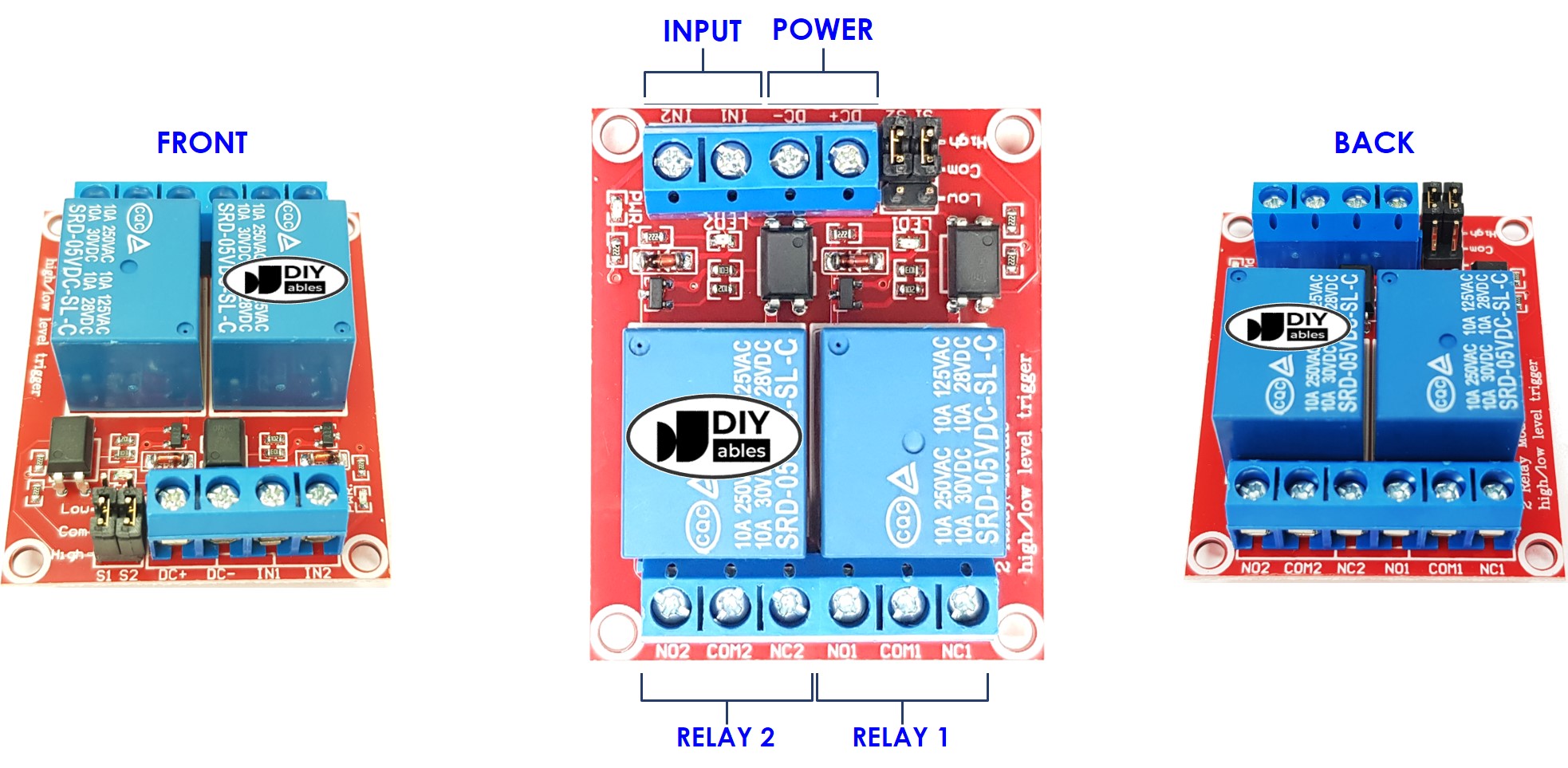
| Group | Pin | What it does |
|---|---|---|
| Power | DC+ | 5V supply for the relay coils |
| Power | DC- | Ground of that supply. Join it to a GND pin of the Arduino UNO Q too |
| Control | IN1 | Signal from the MCU that switches relay 1 |
| Control | IN2 | Signal from the MCU that switches relay 2 |
| Output | COM1, NO1, NC1 | Screw terminals of relay 1 for the first load |
| Output | COM2, NO2, NC2 | Screw terminals of relay 2 for the second load |
Output Terminals
Every relay has three screws. COM is the common contact. NO stands for normally open: it connects to COM only while the relay is active. NC stands for normally closed: it connects to COM while the relay is idle. For a load that should be off by default (a pump, a lamp), wire it through COM and NO.
Trigger Jumpers
Near the inputs you find two jumpers, one per relay. A jumper picks how its relay reacts:
- High-level trigger: the relay turns on when its IN pin is HIGH
- Low-level trigger: the relay turns on when its IN pin is LOW
Each channel can use a different setting. The code in this tutorial expects high-level trigger on both. If one relay works "upside down", check its jumper first.
※ NOTE THAT:
The MCU pins of the Arduino UNO Q give 3.3V for HIGH, not 5V. Most 5V relay modules switch fine at 3.3V, because the IN pin only feeds a transistor or an optocoupler. If a relay does not click, check that its jumper is on high-level trigger and that DC- shares ground with the board.
To learn the basics of a single relay and how to hook up a high-voltage device, see the Arduino UNO Q - Relay tutorial.
Wiring Diagram
Only two signal wires go to the MCU: IN1 to D2 and IN2 to D3. For a quick test on your desk, the module takes its power from the 5V pin of the board.
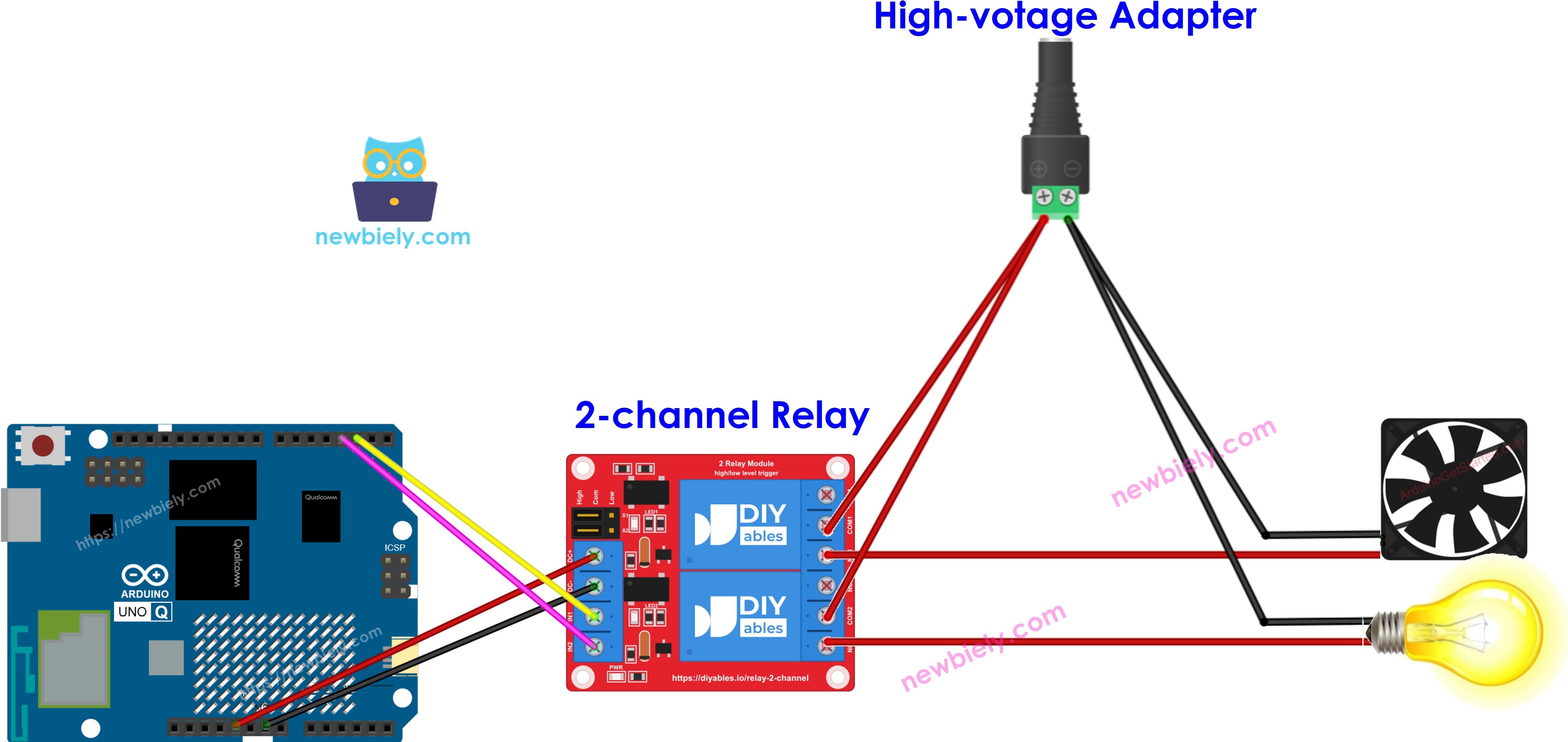
This image is created using Fritzing. Click to enlarge image
| Relay Module Pin | Arduino UNO Q |
|---|---|
| DC+ | 5V |
| DC- | GND |
| IN1 | Pin 2 |
| IN2 | Pin 3 |
Two relay coils that are on at once draw a fair amount of current. If the 5V pin also feeds sensors or a display, the voltage may drop and the board may reset when the relays switch. For a real project, power the module from its own 5V adapter, and join its GND to a GND pin of the Arduino UNO Q.
※ NOTE THAT:
DC- must always be joined to a GND pin of the Arduino UNO Q. Without a common ground, the IN signals have no reference and the relays act at random.
The two loads can share one high-voltage supply if they need the same voltage. A 12V pump and a 220V lamp need two separate supplies.
How To Program For 2-Channel Relay Module
Each relay is just one digital output, so two built-in functions are all you need.
- In setup(), make both control pins outputs with pinMode():
- Turn a relay on or off with digitalWrite(). Each relay has its own pin, which lets them change state independently:
Arduino UNO Q Code
The Arduino UNO Q has two processors:
- The STM32 MCU runs the Arduino sketch and sets the IN1 and IN2 pins
- The Qualcomm MPU runs Debian Linux with Wi-Fi and Python
- In this part, only the MCU gets code. The Linux side joins in the Bridge section below
The test sketch below switches both relays on together, waits two seconds, switches them off, waits two more seconds, and starts again. A line goes to the console at every change.
Detailed Instructions
First time with Arduino UNO Q? Read Getting Started with Arduino UNO Q first.
- Wire: Connect the module as in the wiring diagram. Leave the output screws empty for now.
- Connect: Plug the Arduino UNO Q into your computer with the USB-C cable.
- Open Arduino App Lab: Wait until it finds your board.
- Create a new App: Click the Create New App button.
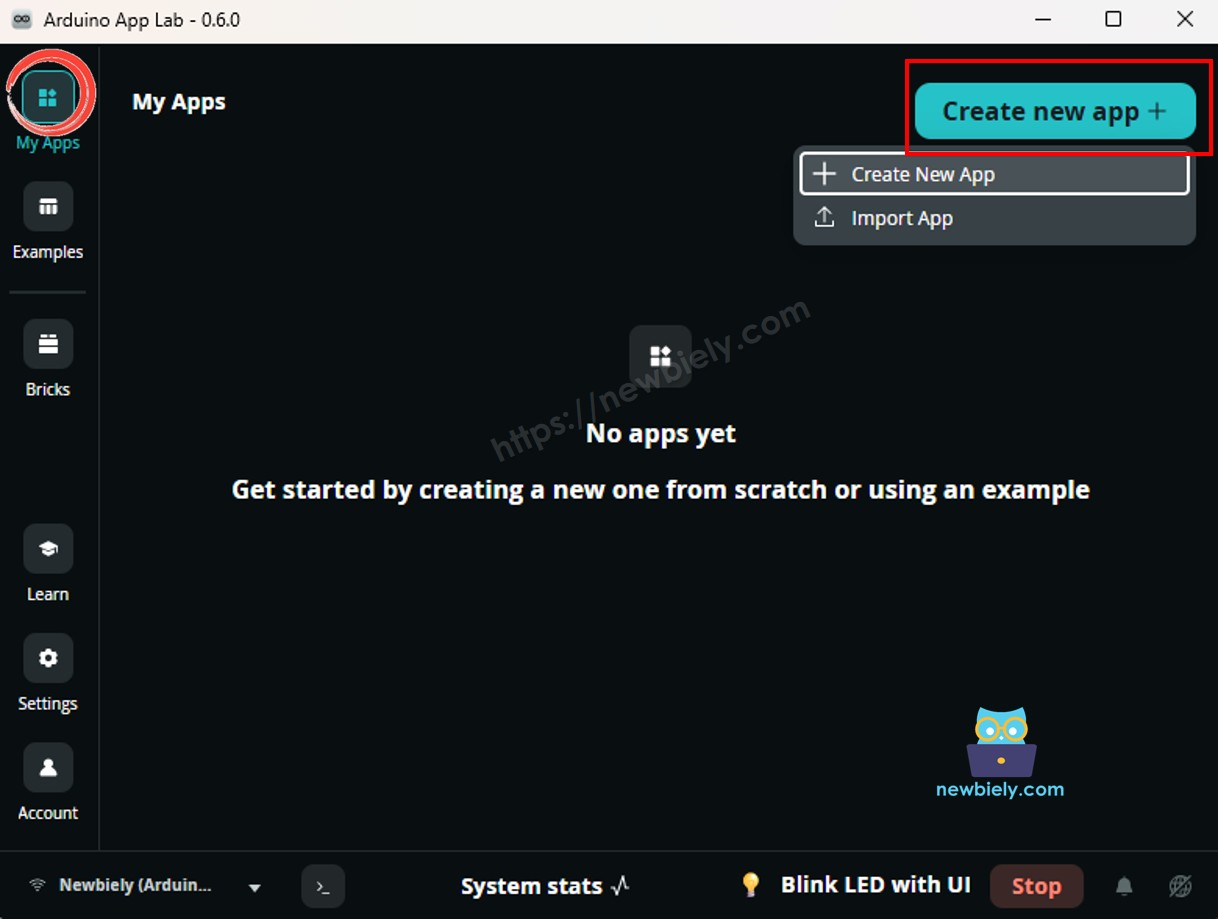
- Name it, for example TwoRelayTest, and click Create.
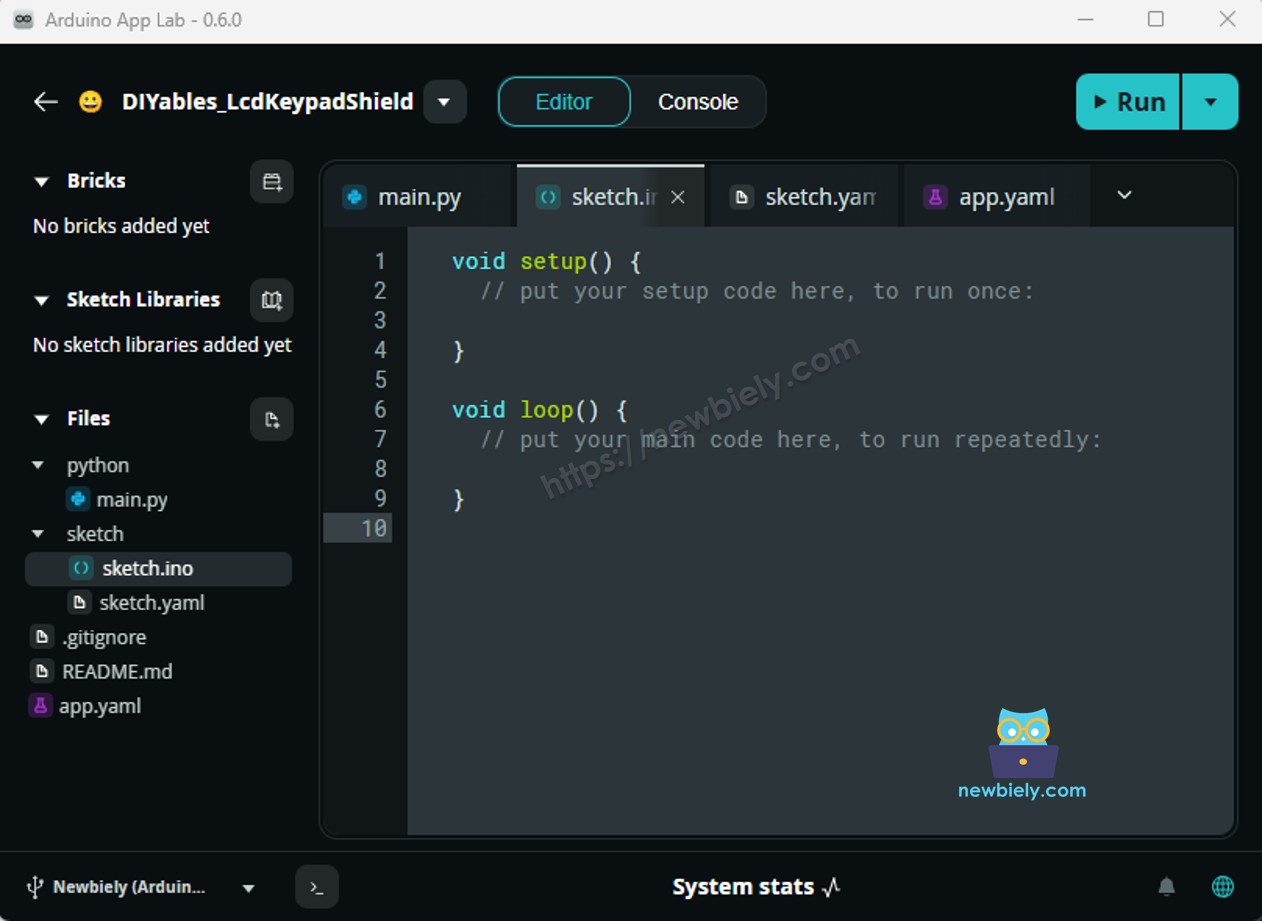
- Paste the sketch: Copy the code above into sketch/sketch.ino. Keep the other files as they are. No library is needed.
- Run: Click the Run button.
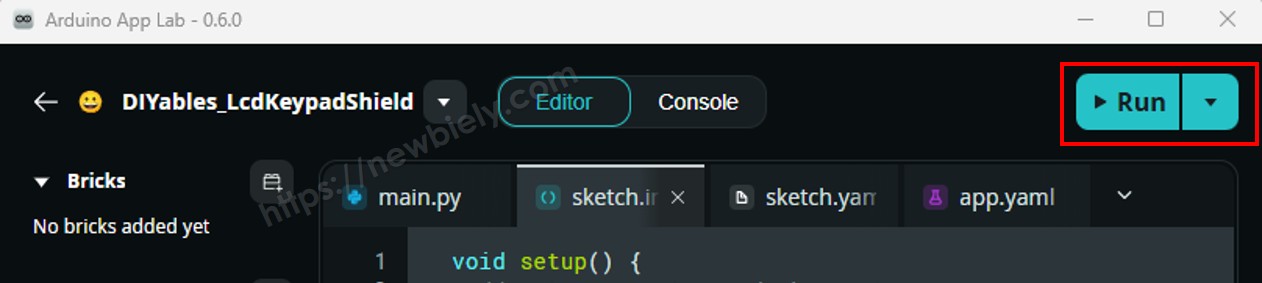
- Test it: You hear a double click every two seconds, and both relay LEDs go on and off together. Once that works, remove all power, wire your loads to COM and NO, and power up again.
App Lab Console Output
The time between lines is two seconds, the same as the delay(2000) in the sketch. If the console shows the lines but nothing clicks, the problem is in the power or ground wiring, not in the code.
Bridge: Linux + MCU
Now let Linux decide when each relay switches:
- Both relays are wired to the MCU — IN1 on pin 2 and IN2 on pin 3
- The MPU cannot touch those pins — it has to ask the MCU to switch them
- The MCU offers six actions with Bridge.provide_safe(): relay1_on, relay1_off, relay2_on, relay2_off, all_on, all_off. It also offers get_relays with Bridge.provide(), which returns the state as text like 1,0
- Python calls them with Bridge.call() and prints the state after each step
- ⚠️ /dev/ttyHS1 (Linux) and Serial1 (MCU) are RESERVED by the router — never open them in your code
In short: Python calls an action → MCU sets pin 2 or 3 → the matching relay clicks.
MCU Code (Bridge)
Python Code (Bridge)
The Python script plays a small routine: relay 1 on, relay 2 on, relay 1 off, relay 2 off, then both on and both off together. After each step it reads the state back from the MCU.
Detailed Instructions
- Create a new App: In Arduino App Lab click Create New App, name it TwoRelayBridge, and click Create.
- Paste the MCU sketch into sketch/sketch.ino and add the library:
- Install the library: Click the Add sketch library button (the open book icon with a + sign) in the left sidebar.
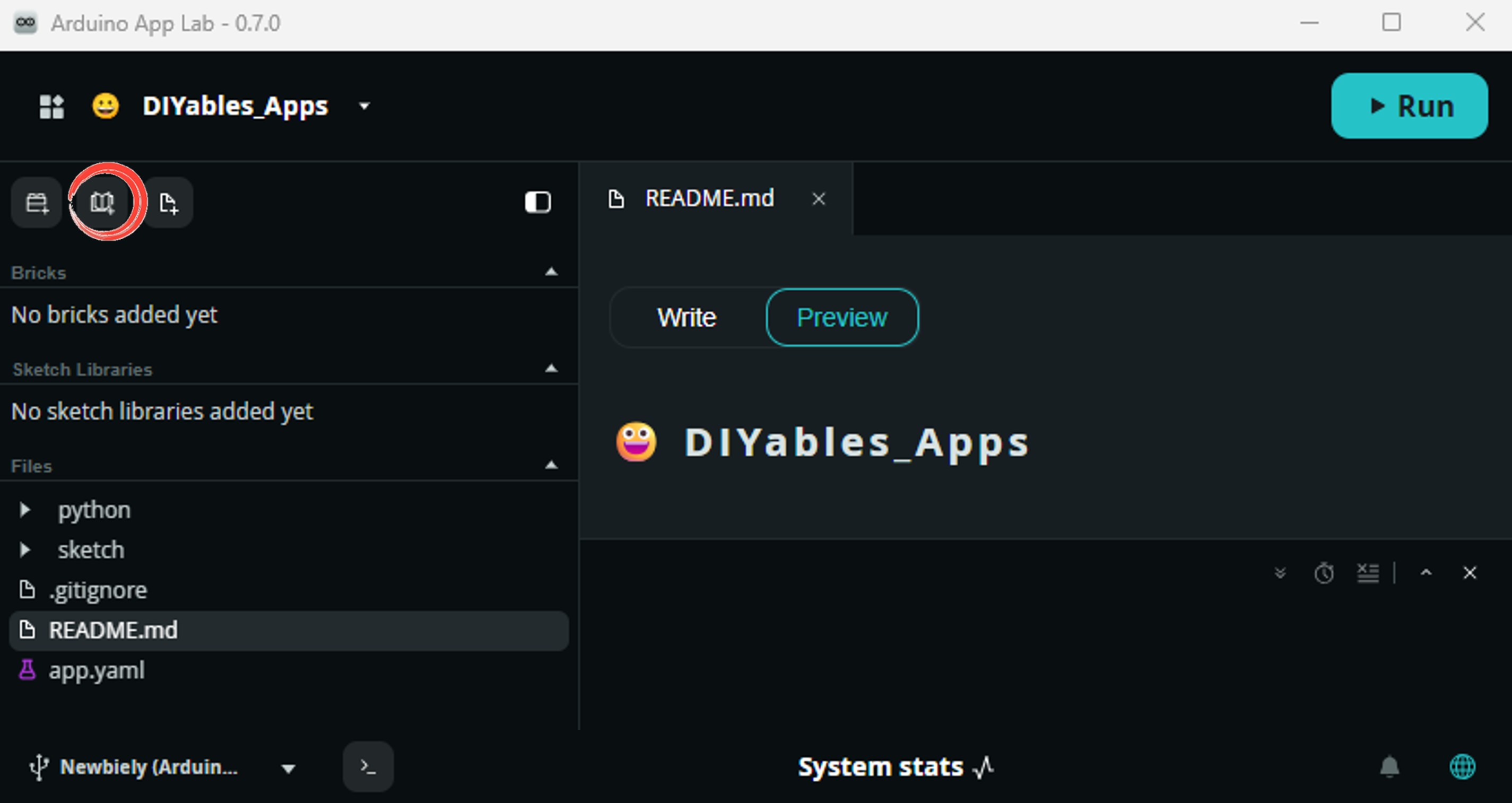
- Search for Arduino_RouterBridge created by Arduino and click the Install button.
- Paste the Python code into the Python file of the same App.
- Run: Click the Run button. The relays follow the routine and then repeat it.
- Check both consoles: The MCU Monitor shows each pin change; the Python console shows what Linux asked for and the state it got back.
App Lab Console Output
Telegram
With two relays, a phone remote makes a lot of sense: start the water pump from the garden, switch off the lamp you forgot at home, and check what is still running. The bot below has a command for each relay, two commands for both at once, and /status. Because the relays switch real loads, it only obeys messages from your own chat ID.
MCU sketch: Keep the same MCU sketch from the Bridge section.
Python Code (Telegram)
Detailed Instructions
- Get a bot token: Create a bot with @BotFather. See How to Create a Telegram Bot if you need help. Put the token in TELEGRAM_BOT_TOKEN.
- Get your chat ID: Put your own chat ID in CHAT_ID. Messages from any other chat are refused.
- Paste the code into the Python file of your Bridge App. The MCU sketch stays the same.
- Run: Click the Run button.
- Test it: Open your bot in Telegram and send /on1, then /status.
App Lab Console Output


ArduinoBot
OpenClaw
You can adapt the OpenClaw to this tutorial by refering the instruction on Arduino Uno Q - OpenClaw Tutorial
Project Ideas
Two relays plus a Linux computer on the same board open up many builds:
- Balcony Garden Keeper: The MCU reads a soil sensor and runs a pump on relay 1, while Python turns a grow light on relay 2 on and off by the clock.
- Room Climate Switch: A DHT22 on the MCU decides between a fan (relay 1) and a heater (relay 2); Telegram tells you which one is running.
- Two-Gang Wall Switch: Two push buttons toggle the relays locally, and the Linux side keeps a log file of every change.
- Aquarium Helper: Relay 1 runs the filter all day, relay 2 runs the light on a Python schedule, and /status shows both from your phone.
- Garage Door and Light: Relay 1 pulses the door opener, relay 2 turns on the garage light for five minutes after each opening.
Challenge Yourself
Try these with your two relays and the Arduino UNO Q:
- Easy: Change the test sketch so the relays take turns: relay 1 on while relay 2 is off, then swap every second.
- Medium: Add a /toggle1 and /toggle2 command to the Telegram bot that flips a relay to the opposite state, using get_relays to read the current state first.
- Advanced: Add a timer command like /on1 10 that turns relay 1 on and makes Python switch it off again after 10 minutes, even if no other message arrives.